How to Repeat a Song on YouTube: Complete Guide for Desktop and Mobile
Repeating a song on YouTube is a straightforward process whether you are using a desktop web browser, the official mobile application on iOS or Android, or a smart television interface. Because YouTube does not automatically loop singl...
Repeating a song on YouTube is a straightforward process whether you are using a desktop web browser, the official mobile application on iOS or Android, or a smart television interface. Because YouTube does not automatically loop single tracks by default, users must enable specific playback settings or utilize built-in platform features to keep a favorite track playing continuously.
Contents
Understanding YouTube's Built-in Loop Feature
Before diving into device-specific instructions, it helps to understand how YouTube handles continuous playback natively. In the past, listeners relied on browser extensions, third-party bookmarklets, or appending specific string parameters like &loop=1 to a video URL. While those methods still technically function for advanced power users, YouTube has long since integrated a native "Loop" command directly into its video player controls across almost all modern platforms.
The native loop function locks the playback queue to the single media item currently occupying the player. When the playhead reaches the end of the duration bar, the system immediately resets the time to zero and resumes playback without interruption or buffering delays (assuming a stable network connection). Recognizing where this toggle resides on your specific device is the key to uninterrupted listening.
How to Repeat a Song on Desktop Web Browsers
Using a desktop computer via major web browsers like Google Chrome, Mozilla Firefox, Microsoft Edge, or Apple Safari offers the most direct access to YouTube's advanced player controls.
Step-by-Step Desktop Instructions
- Open YouTube and Navigate to the Track: Open your preferred web browser, go to YouTube, and search for the song you want to repeat. Click on the video to start playback.
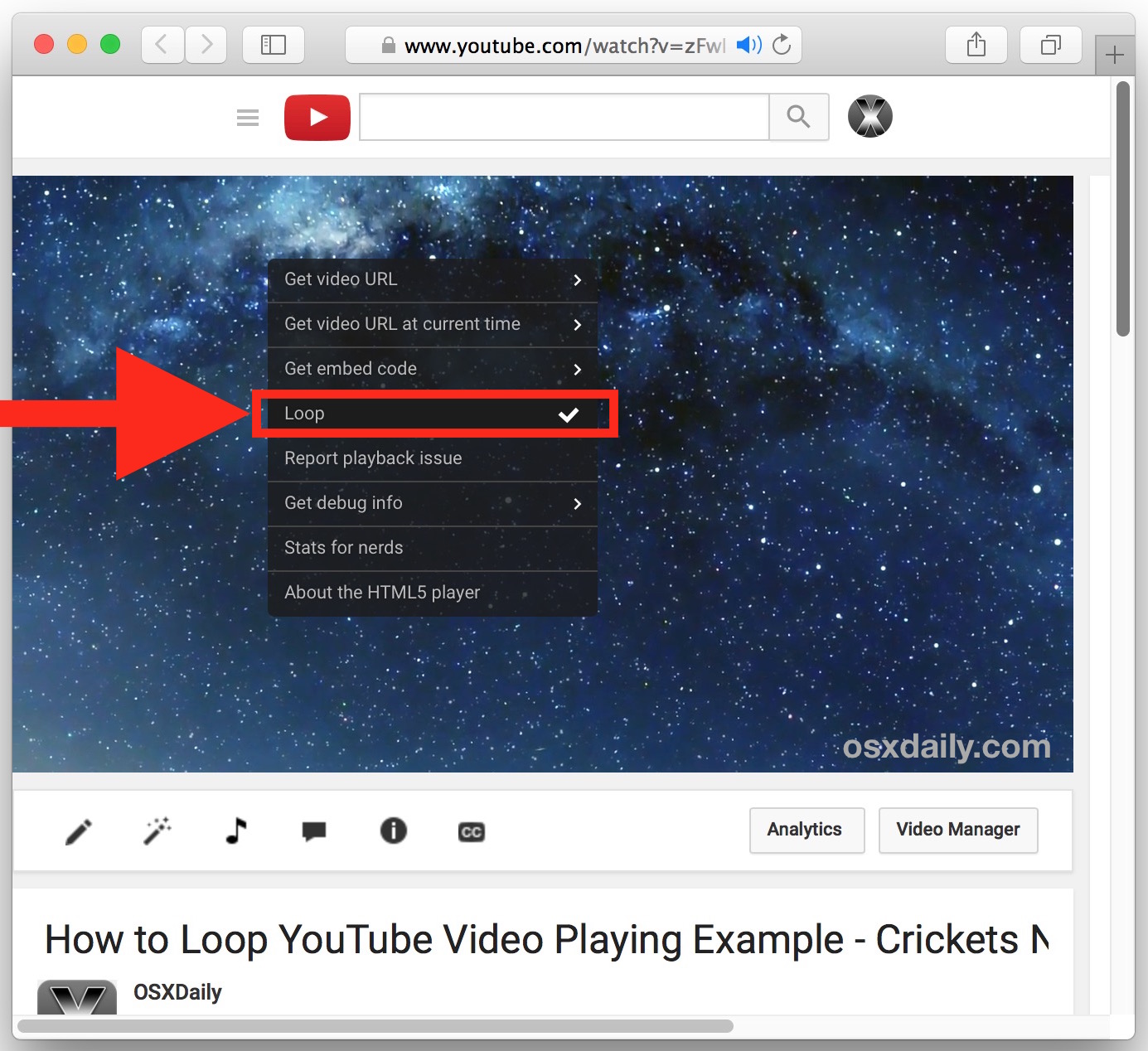
- Access the Player Settings: Move your mouse cursor over the active video frame to reveal the overlay controls. Right-click anywhere inside the video player area. A contextual pop-up menu will appear. Note that a single right-click might bring up a standard browser menu; if that happens, right-click a second time specifically on the video image to trigger the specialized YouTube player menu.
- Select the Loop Option: In the contextual menu, locate and click the Loop option. A small checkmark will appear next to the word "Loop" to indicate that the setting is active.
- Verify Continuous Playback: Let the song play to the end, or drag the playhead near the final seconds of the track. When the video hits the terminal timestamp, it will automatically jump back to 0:00 and continue playing indefinitely until you disable the feature or close the tab.
To turn off the loop, simply right-click the video player again and click Loop to remove the checkmark.
How to Repeat a Song on Mobile Devices (iOS and Android)
The YouTube mobile application interface differs slightly from the desktop experience, hiding contextual menus behind tap gestures and expanding overlay drawers.
Step-by-Step Mobile App Instructions
- Launch the App: Open the YouTube app on your iPhone, iPad, or Android device and locate your target song.
- Tap the Video Controls: Tap once on the video player window while the song is playing to bring up the on-screen playback controls and the settings gear icon in the top-right corner.
- Open Additional Settings: Tap the Settings gear icon located in the top-right corner of the video player overlay. This opens a menu with granular options such as playback speed, quality, and captions.
- Select Additional Settings (If Applicable): Depending on your app version, you may see a menu item labeled Additional settings or a direct toggle switch. Tap Additional settings if prompted.
- Toggle Loop Video: Tap the toggle switch next to Loop video (or select "Loop video" from the list so a checkmark appears).
- Dismiss the Menu: Tap anywhere outside the menu to return to the video. A brief on-screen notification reading "Video looped: On" will confirm your selection at the bottom of the screen.
How to Repeat Songs Using YouTube Playlists
If you prefer building a customized listening session rather than looping a single file infinitely, creating a single-song playlist is an effective alternative workflow. This method is particularly useful for users who switch between devices and want their loop state remembered across sessions.
Creating and Looping a Single-Song Playlist
- Locate the Song: Find the song you want to repeat on YouTube.
- Save to Playlist: Click or tap the Save button (often represented by a plus icon or listed under the "More" three-dot menu beneath the video).
- Create a New Playlist: Select Create new playlist, name it something descriptive (e.g., "Single Loop"), set the privacy to Unlisted or Private, and click Create.
- Access Your Library: Navigate to your Library or You tab on mobile, or the left-hand sidebar on desktop, and open the newly created playlist.
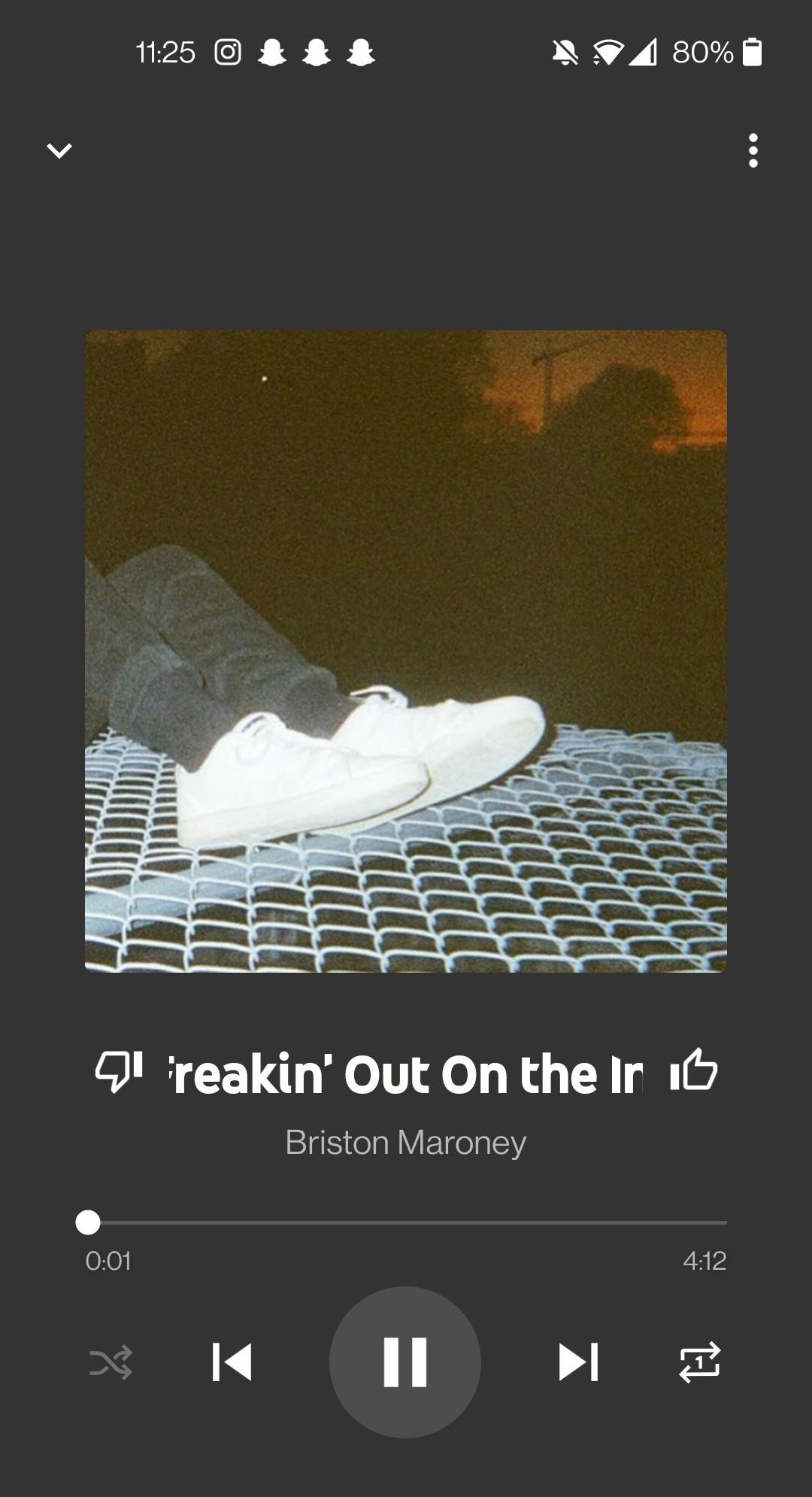
- Activate Playlist Loop: Start playing the playlist (which contains only your single track). Click or tap the loop icon (two looping arrows forming a square) in the playlist control panel until it changes to indicate looping is active. Some interfaces also feature a "Loop single video" icon (arrows with a small "1" inside).
Comparison of YouTube Repeating Methods
Different environments offer varying levels of convenience and control. The following table compares the primary methods for looping music on YouTube.
| Method | Supported Platforms | Ease of Use | Persistence Across Sessions | Best For |
|---|---|---|---|---|
| Desktop Right-Click | Windows, macOS, Linux (Web Browsers) | High | No (Resets on page refresh) | Quick, one-off desktop listening |
| Mobile App Settings | iOS, Android (Official App) | Moderate | No (Resets when video changes) | Mobile and tablet users |
| Single-Song Playlist | All Platforms (Web, Mobile, TV) | Moderate | Yes (Saved to account) | Consistent cross-device looping |
| Browser Extensions | Chrome, Firefox (Third-Party) | Low to Moderate | Dependent on extension | Advanced power users |
Troubleshooting Common Looping Issues
Even with a straightforward feature set, users occasionally encounter scenarios where a song fails to repeat properly. Reviewing these common troubleshooting steps can resolve most playback hitfalls.
1. The Right-Click Menu Shows Browser Defaults
If right-clicking the video player on desktop brings up the standard browser context menu (showing options like "Save image as" or "Inspect") instead of the YouTube player menu, try right-clicking a second time immediately. Alternatively, click the Settings gear icon directly inside the bottom-right corner of the YouTube video player bar, where the loop toggle is sometimes housed depending on active interface experiments by Google.
2. Autoplay Interferes with Looping
If you are using a playlist loop and the platform jumps to a completely different recommended track once your song finishes, verify that the Autoplay toggle is turned off, or ensure that you selected the playlist loop icon rather than the individual video loop control. When autoplay is active, YouTube's algorithm overrides localized queues once the primary list is exhausted.
3. App Version Discrepancies
YouTube frequently rolls out interface updates to its mobile applications. If the steps for mobile do not match your current screen layout, tap the video to expose the UI, check the settings gear, or look for a horizontal scrolling menu directly beneath the video player title that may contain a dedicated loop shortcut. Keeping your app updated through the Apple App Store or Google Play Store ensures compatibility with current UI standards.
Frequently Asked Questions
Can I loop a YouTube song without downloading third-party software?
Yes. Both the desktop web player and the official mobile applications feature native, built-in loop controls that require no external extensions, downloads, or software modifications.
Does looping a YouTube video increase data usage?
Yes. Because looping replays the audio and video streams continuously, your device will continue to download data from YouTube's servers for as long as the track remains open and active. If you are on a metered mobile connection, monitor your data consumption accordingly.
Why does the desktop loop option disappear when I refresh the page?
YouTube's desktop right-click loop setting is session-specific. If you reload the webpage, navigate away, or close the browser tab, the player resets to its default state, requiring you to re-enable the loop command.
Does looping a video count as a new view every time it restarts?
YouTube views are governed by complex proprietary algorithms designed to prevent artificial inflation. Generally, simply looping a video over and over does not result in an endlessly escalating view count; the system validates engagement based on watch time, user interaction, and network parameters.
Can I loop a YouTube song on a Smart TV?
Yes. When using the YouTube app on smart televisions, streaming sticks (like Roku or Amazon Fire Stick), or gaming consoles, open the video player controls, navigate to the settings gear or more options menu, and select the loop icon to keep the track playing continuously on your home audio system.
Final Recommendations
When seeking to enjoy a favorite track without interruption, utilizing YouTube's native loop features is the safest and most reliable approach. Desktop users should rely on the quick double-right-click menu method, while mobile users can easily toggle the setting through the in-app video configuration menu. For persistent listening across multiple sessions or devices, investing a minute to set up a dedicated private playlist remains the most robust long-term solution.
Image Gallery