Discover Card Two-Factor Authentication: Setup, Security Methods, and Troubleshooting Guide
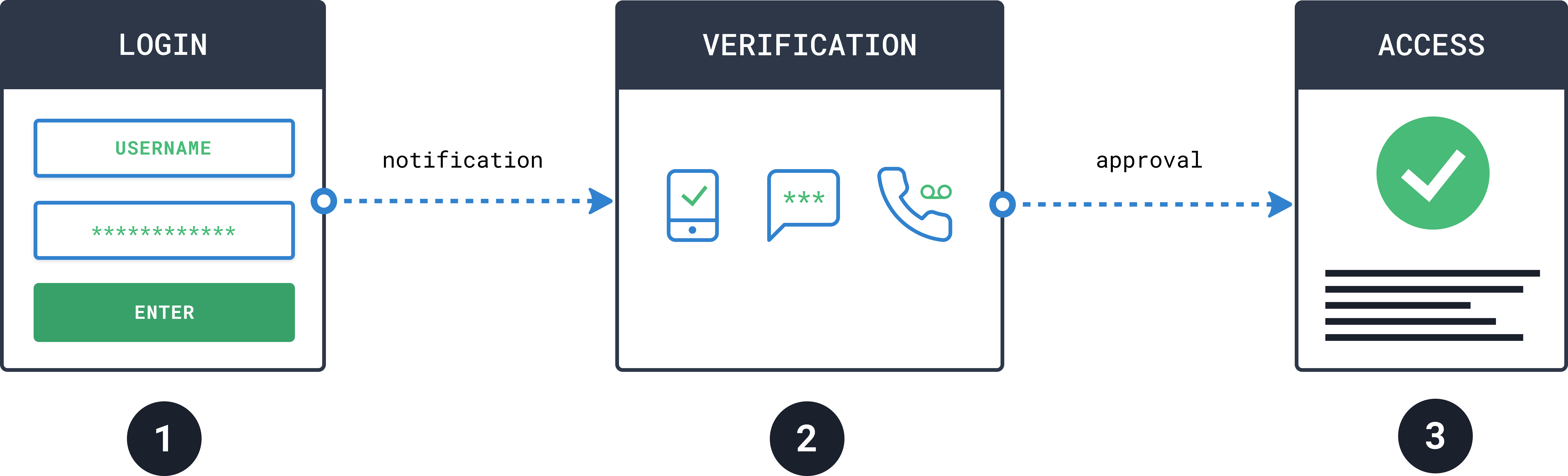
Discover Card two-factor authentication (2FA) protects your credit card and online banking accounts by requiring a secondary verification step alongside your user ID and password. When logging in from an unrecognized browser, mobile de...
Discover Card two-factor authentication (2FA) protects your credit card and online banking accounts by requiring a secondary verification step alongside your user ID and password. When logging in from an unrecognized browser, mobile device, or network, Discover sends a temporary security code via SMS text message, automated phone call, or registered email address to verify your identity before granting access.
Contents
Understanding Discover Card Multi-Factor Authentication
Multi-factor authentication (MFA) is an essential security layer for online banking and credit card management. Traditional single-factor authentication relies entirely on something you know—typically your username and password. If a malicious actor obtains these credentials through a data breach, phishing campaign, or credential-stuffing attack, your account becomes vulnerable.
Discover Card integrates multi-factor authentication directly into its account access architecture. By adding a mandatory second factor—something you possess, such as your registered mobile phone or email account—Discover limits unauthorized account access. Even if an attacker learns your password, they cannot gain entry without access to your physical phone or email inbox to retrieve the temporary one-time passcode (OTP).
Discover evaluates login requests using risk-based authentication algorithms. When you log in from a primary laptop on your home Wi-Fi, the platform recognizes the device fingerprint and network environment. However, if a login attempt originates from a new web browser, an unrecognized smartphone, a distant geographical region, or a virtual private network (VPN), Discover automatically triggers a two-factor challenge before displaying sensitive financial details, account numbers, or rewards balances.
Supported Verification Methods on Discover Accounts
Discover provides several channels for receiving security codes and completing multi-factor authentication challenges. Understanding how each method functions helps you select the most secure and reliable option for your needs.
- Login Request Initiated
- Risk-Based Security Evaluation (Analyzes Device Fingerprint, IP Address, Location)
- Known Device / Location:
- Direct Dashboard Access
- New Device / High Risk:
- Trigger 2FA Challenge:
- SMS Text Verification
- Voice Call Verification
- Email Code Verification
- Trigger 2FA Challenge:
- Known Device / Location:
1. SMS Text Message Security Codes
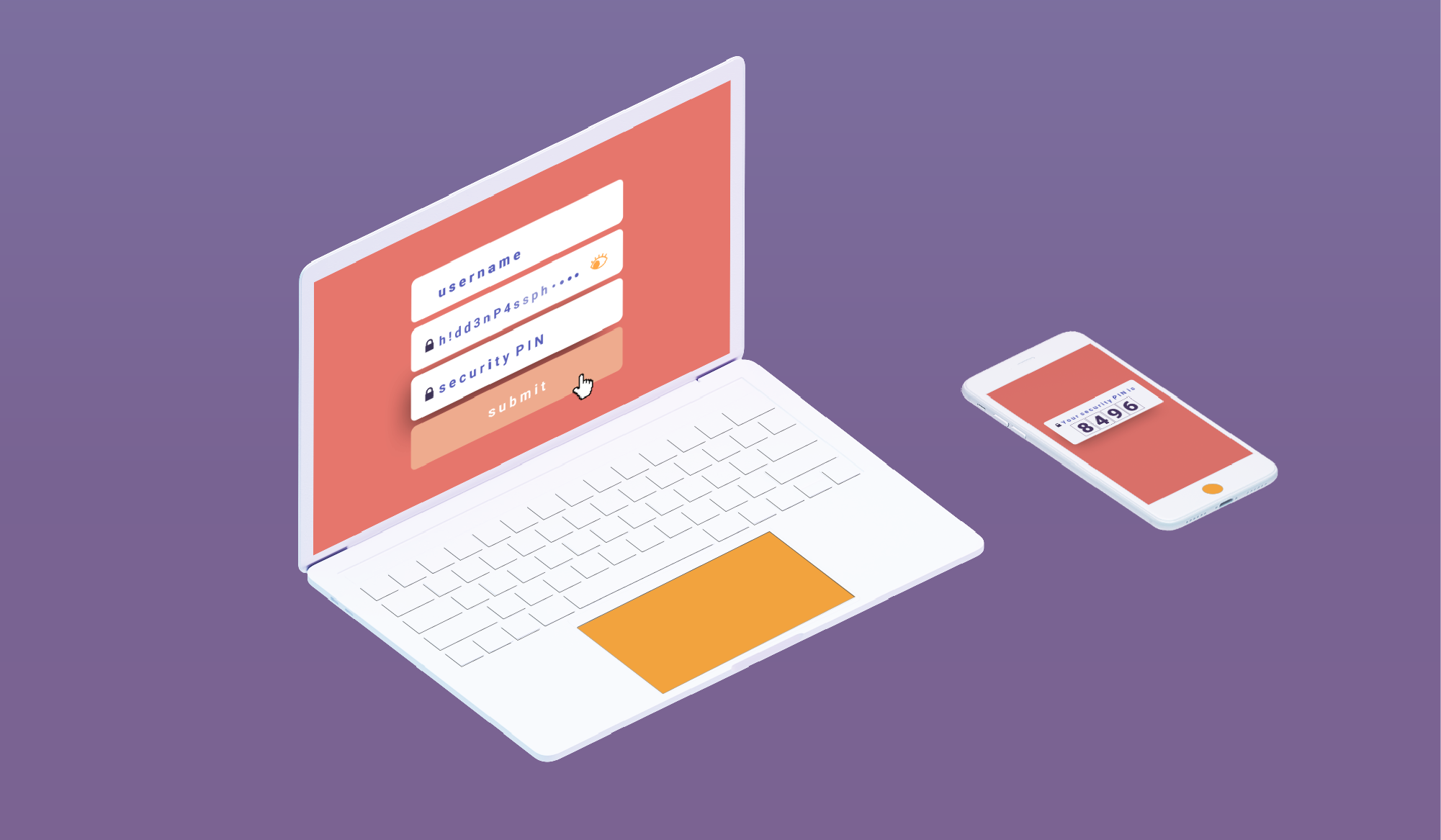
SMS verification is the default secondary authentication method for most Discover account holders. When prompted, Discover sends a 6-digit numerical code directly to your verified mobile phone number.
- Mechanism: Short Message Service (SMS) code delivery.
- Expiration: Codes remain active for a limited duration (typically 5 to 10 minutes).
- Requirements: Active cellular connection capable of receiving SMS short codes.
2. Automated Voice Call Verification
For cardholders who operate landline phones or experience poor text message reception, Discover offers an automated voice call verification option.
- Mechanism: An interactive automated phone system places a call to your registered phone number and reads the verification code aloud.
- Utility: Ideal for fixed landlines, VoIP services registered to your account, or locations with weak mobile data coverage.
3. Registered Email Verification
Email verification serves as a primary alternative when phone service is unavailable, such as during international travel or network outages.
- Mechanism: Discover dispatches a one-time passcode to your primary email address on file.
- Speed: Delivery speed depends on your email service provider and active internet connectivity.
4. Discover Mobile App Biometric Authentication
On smartphones and tablets, the official Discover Mobile App bypasses manual text code entry by combining hardware-based device registration with biometric safeguards.
- Mechanism: Integrates with native hardware security modules, such as Apple Face ID / Touch ID or Android Biometric Prompt.
- Security: Once the physical device is registered and authenticated, your biometric fingerprint or facial scan unlocks the app securely without requiring an SMS code for routine logins.
How to Configure and Update Discover 2FA Settings
To ensure uninterrupted access to your Discover online account, keep your primary contact information up to date. If your phone number changes and you have not updated your profile, you may become locked out when a security challenge occurs.
Updating Contact Details via Desktop Web Browser
- Navigate to the official website at Discover.com and log in with your current User ID and password.
- Select Profile & Settings from the main navigation menu at the top right of the dashboard.
- Click on Personal Info or Contact Info.
- Locate the Phone Numbers and Email Address sections.
- Enter your updated primary mobile number and verify that it is designated to receive account alerts and security codes.
- Save your changes. Discover may send a final verification code to your previous contact method or ask for your physical card's 3-digit CVV to confirm the modification.
Updating Contact Details via Discover Mobile App
- Open the Discover Mobile App on your iOS or Android device.
- Authenticate using your biometric login or password.
- Tap Services or More from the bottom navigation bar.
- Select Profile & Settings, then tap Contact Information.
- Edit your mobile phone number or email address as needed.
- Confirm the update when prompted by the app.
Managing Trusted Devices
When you complete a 2FA prompt on a personal computer or smartphone, Discover provides an option to mark the device as trusted (often labeled "Remember this device" or "Don't ask again on this computer").
- When to select it: Only on personal, password-protected, private devices that you exclusively control.
- When to avoid it: On public computers, shared family terminals, work devices accessible by colleagues, or unencrypted computers.
- Clearing trusted status: Clearing your web browser’s cookies, local cache, or browsing history will reset this preference, requiring a new 2FA code on your next login attempt.
Discover Authentication Methods Compared
| Authentication Method | Delivery Speed | Security Level | International Usability | Recommended Primary Use Case |
|---|---|---|---|---|
| SMS Text Code | Instant (1–5 seconds) | Moderate | Requires active cellular roaming | Standard domestic logins on personal mobile devices |
| Automated Voice Call | Fast (10–30 seconds) | Moderate | Requires phone connection | Users with landline numbers or limited SMS plans |
| Email Verification | Variable (1–3 minutes) | Moderate | Requires active Wi-Fi or mobile data | Backup option during international travel or cellular outages |
| Mobile App Biometrics | Immediate | High | Requires internet connection & app setup | Daily account access on personal iOS or Android devices |
Troubleshooting Common Discover 2FA Issues
Even with a working system, cardholders occasionally face challenges with multi-factor authentication. Below are solutions to common login roadblocks.
Not Receiving SMS Verification Codes
If you request a security code via SMS but receive nothing:
- Check Carrier Short-Code Blocking: Some mobile carriers block messages sent from short codes (5- or 6-digit numbers) by default. Contact your mobile service provider to confirm that short-code messaging is enabled on your line.
- Verify Cellular Signal: Ensure your phone has sufficient cellular signal. Toggle Airplane Mode on and off to re-establish network connection.
- Inspect Spam Filters: On Android and iOS devices, modern messaging apps filter unknown senders or potential spam texts into a secondary folder. Check your blocked senders list or text spam folder.
- Try Voice Call: If text delivery fails repeatedly, select the option to receive an automated voice call instead.
Locked Out Due to a Changed Phone Number
If you no longer have access to the mobile number registered to your Discover account and cannot pass the 2FA prompt:
- You cannot update your phone number online without passing a verification check.
- You must call Discover Customer Care directly at 1-800-347-2683 (1-800-DISCOVER).
- The customer service representative will verify your identity using secondary questions, such as your Social Security number, physical card details, recent transaction history, or secondary bank details, before manually updating your phone number.
Traveling Internationally Without Cell Service
When traveling outside your home country, standard SMS verification messages may not deliver if your mobile phone plan lacks international roaming.
- Pre-Travel Preparation: Before departing, ensure your primary email address is updated and accessible over Wi-Fi.
- Use Mobile App Biometrics: Log in using the Discover Mobile App over a secure Wi-Fi network rather than using a desktop browser that requires an SMS verification code.
- Notify Discover: Inform Discover of your travel dates to prevent risk management systems from blocking your cards or triggering high-risk authentication flags during foreign logins.
Additional Account Protection Features
Two-factor authentication is only one component of Discover's comprehensive defense strategy. To maximize account security, combine 2FA with these additional tools provided by Discover.
Discover Account Defense Strategy:
- LAYER 1: Multi-Factor Authentication
- SMS / Voice / Email Codes & App Biometrics
- LAYER 2: Control Controls
- Freeze it® Instant Card Locking
- LAYER 3: Active Alert Systems
- Real-Time Purchase & Security Change Alerts
- LAYER 4: Proactive Monitoring
- Identity Theft Protection & Dark Web Scanning
1. Discover Freeze it®
If you misplace your credit card, you do not need to cancel it immediately. Discover offers the Freeze it® feature via their mobile app and web portal.
- Turning the switch to On prevents new purchases, cash advances, and balance transfers.
- Recurring automated bill payments and returns continue to process normally.
- If you locate your physical card, you can unfreeze it instantly without waiting for a replacement card to arrive in the mail.
2. Real-Time Security and Transaction Alerts
Configure immediate notifications for specific account actions:
- Card-Not-Present Alerts: Receive a push notification or text message whenever your card is used for online or phone purchases.
- Threshold Alerts: Set custom dollar amounts (e.g., any transaction over $100) to trigger an immediate alert.
- Profile Change Alerts: Get notified if your address, email, phone number, or password is modified.
3. Discover Identity Theft Protection
Discover provides optional identity monitoring services that scan thousands of dark web sites, file sharing networks, and credit reports for unauthorized use of your Social Security number, compromised email addresses, or new account inquiries opened under your name.
Best Practices for Securing Your Discover Account
While multi-factor authentication provides strong protection, keeping your financial assets safe requires adherence to broader digital security practices:
- Beware of Social Engineering Phishing: Discover employees will never call, text, or email you asking for your one-time 2FA security code. If someone claiming to represent Discover asks you to read back a verification code sent to your phone, hang up immediately—it is a scam designed to breach your account.
- Secure Your Primary Email Account: Because email serves as a fallback verification channel, your email account must be protected with a unique password and its own hardware-based or authenticator-app 2FA.
- Protect Against SIM Swapping: SIM-swapping occurs when a scammer convinces your mobile carrier to port your phone number to a SIM card in their possession. Contact your cellular provider and set up an account protection PIN or password to block unauthorized phone number transfers.
- Use Unique Passwords: Never reuse your Discover account password across other websites. Utilize a dedicated password manager to generate and store complex passwords.
- Avoid Public Wi-Fi for Banking: Refrain from logging into financial accounts on open, unencrypted public Wi-Fi networks. If access is necessary while away from home, connect through a trusted Virtual Private Network (VPN) or use your phone's cellular data connection.
Frequently Asked Questions
Does Discover Card support authenticator apps like Google Authenticator or Authy?
Discover primarily relies on SMS text codes, automated voice calls, email verification, and mobile app biometric checks for two-factor authentication. Discover does not currently offer native integration with third-party time-based one-time password (TOTP) authenticator apps like Google Authenticator, Microsoft Authenticator, or Authy for general credit card account logins.
Why does Discover prompt me for a 2FA code every time I log in?
If you are prompted for a security code during every session even after selecting "Remember this device," your browser may be configured to automatically delete cookies upon closing. Disabling private browsing/incognito mode, adjusting browser privacy settings to retain cookies for Discover.com, or disabling aggressive browser extensions will resolve this issue.
Can I turn off two-factor authentication on my Discover account?
No, you cannot permanently disable multi-factor security protections on Discover accounts. Risk-based security checks are mandatory across the institution to comply with financial security standards and safeguard account holders against identity theft and unauthorized transactions.
What is the difference between a 2FA verification code and my card's CVV?
A 2FA verification code is a temporary, time-sensitive numerical code generated by Discover and sent to your personal phone or email to authorize an online account login or major account change. A CVV (Card Verification Value) is a static 3-digit security code printed on the back of your physical credit card used to authorize card-not-present merchant transactions.
What should I do immediately if I receive an unprompted 2FA code from Discover?
If you receive a text message or email containing a Discover verification code when you did not attempt to log in, an unauthorized party may have entered your valid User ID and password. Change your Discover password immediately from a secure device, review your account for unauthorized activity, and contact Discover Customer Service to report the event.
Recommended Next Actions
To ensure your Discover account remains fully secured while maintaining seamless access:
- Review Profile Information: Log into your Discover account today and confirm that your mobile phone number and primary email address are correct.
- Set Up Biometrics: Download the official Discover Mobile App on your phone and enable Face ID or Touch ID authentication for daily account monitoring.
- Enable Transaction Alerts: Turn on real-time text or push notifications for online purchases and account modifications.
- Add Mobile Carrier PIN Protection: Contact your mobile provider to protect your phone number against SIM-swap attacks that target SMS verification codes.
Image Gallery