Apple iOS iPhone Update Overview: How Software Updates Work, Compatibility, and Installation Guide
Apple regularly updates iOS, the operating system powering the iPhone, to introduce new features, enhance device security, optimize performance, and patch software vulnerabilities. Understanding how iOS updates function—from annual maj...
Apple regularly updates iOS, the operating system powering the iPhone, to introduce new features, enhance device security, optimize performance, and patch software vulnerabilities. Understanding how iOS updates function—from annual major releases to routine security patches—helps users keep their hardware secure, maintain battery efficiency, and troubleshoot installation failures effectively.
Contents
Understanding the Apple iOS Release Cycle
Apple maintains a predictable, structured software distribution timeline for iOS. The operating system follows a multi-tiered development and deployment structure categorized into major releases, point updates, and urgent security patches.
Annual iOS Software Cycle:
- Major Version Releases (e.g., iOS 17.0, iOS 18.0)
- Annual September launch
- System-wide UI changes
- Maintenance & Point Updates (e.g., iOS 18.1, iOS 18.2)
- Bug fixes & feature updates
- Bi-monthly release cadence
- Rapid Security Responses (e.g., iOS 18.1.1 / RSR)
- Critical security patches
- Lightweight, fast install
Major Version Releases
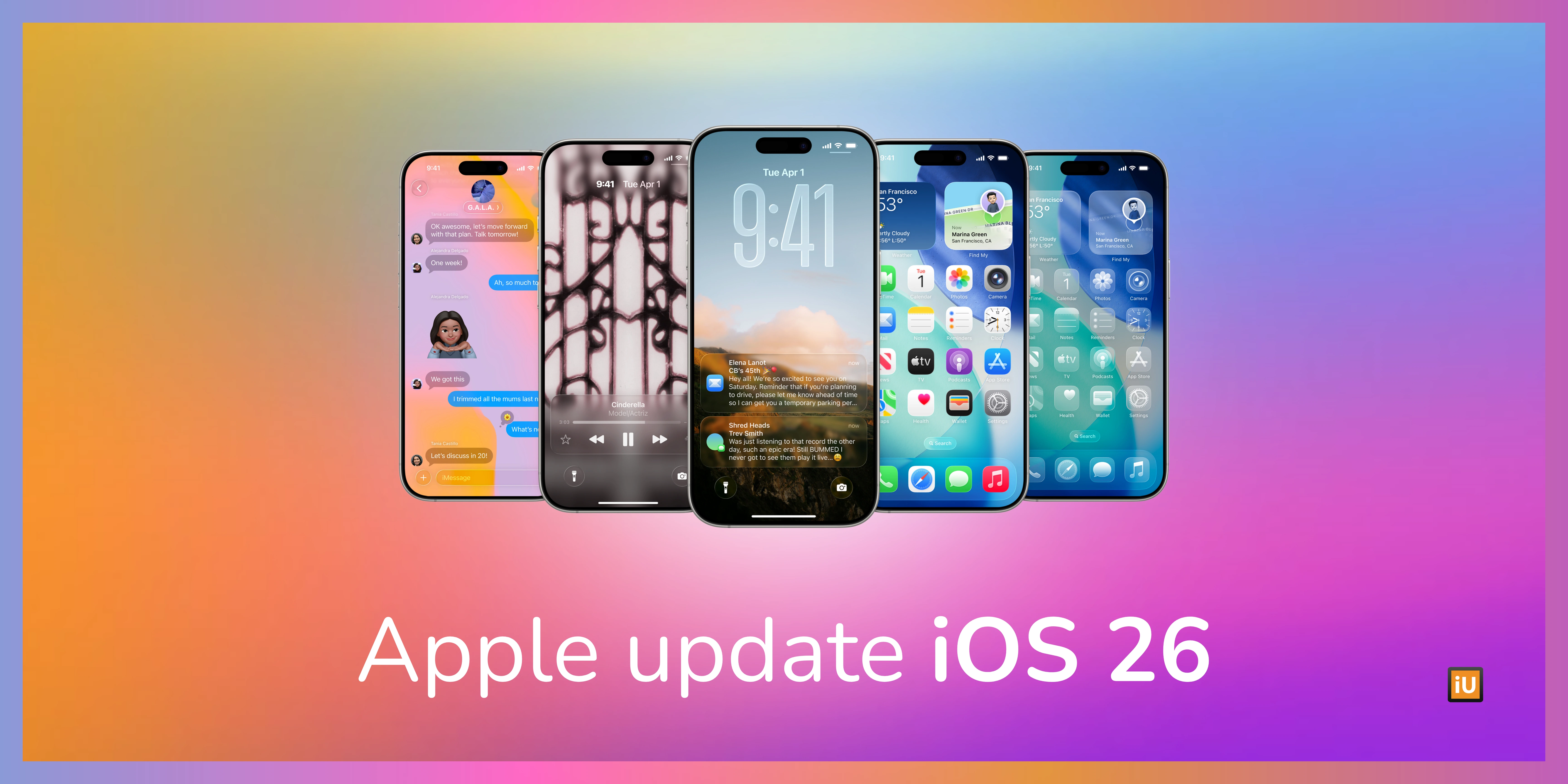
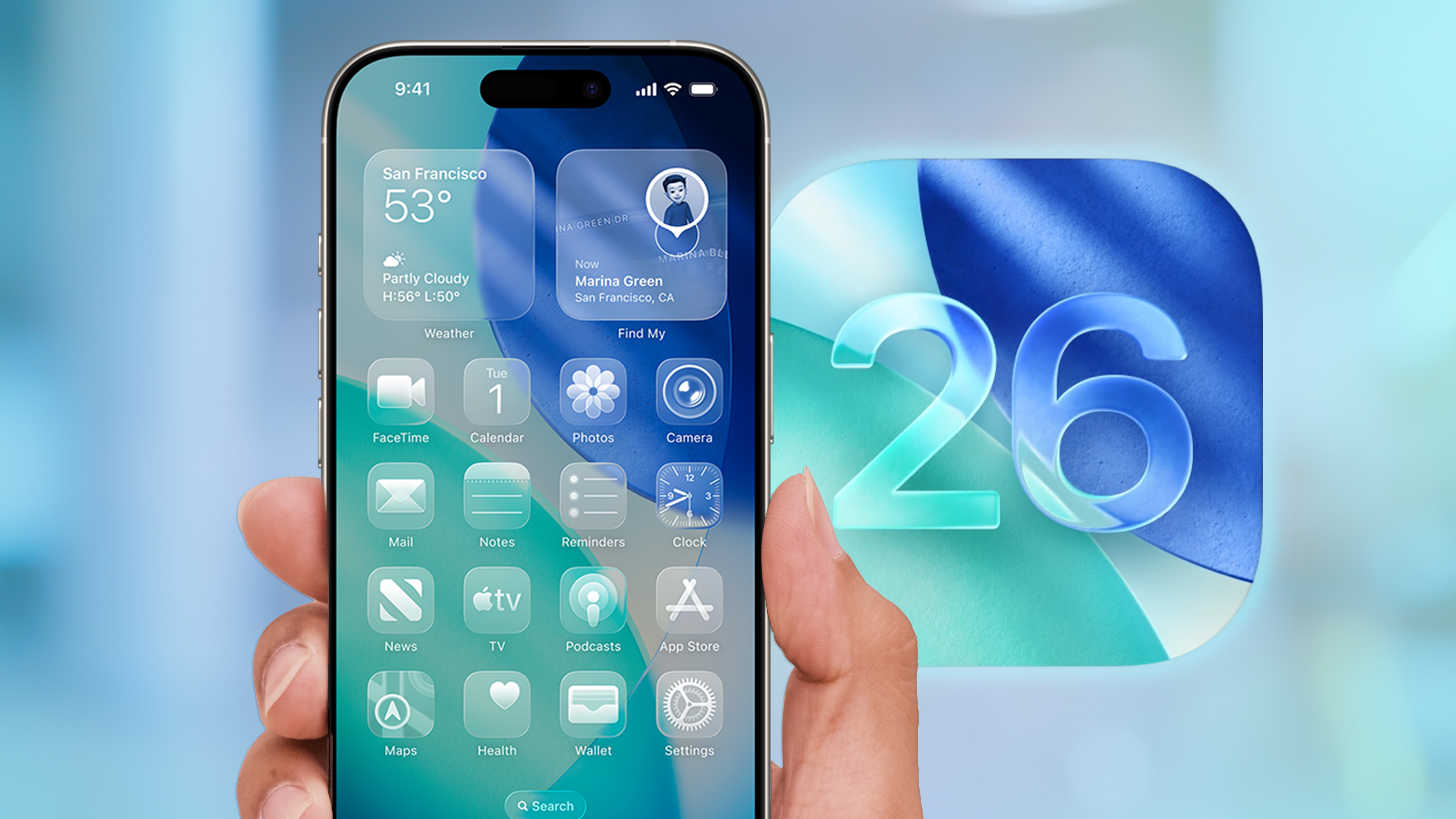
Major iOS version upgrades (such as iOS 17, iOS 18, and subsequent iterations) arrive annually, typically every September alongside new iPhone hardware announcements. These major releases introduce significant user-interface redesigns, structural framework changes, new system applications, and deeper integration with Apple's hardware ecosystem.
Before public release, major versions undergo extensive developer and public beta testing cycles starting in early June during Apple's Worldwide Developers Conference (WWDC). Major releases require significant device storage—often between 4 GB and 8 GB—to download and unpack the installation package.
Maintenance and Point Updates
Between major releases, Apple issues sub-version updates designated by decimal increments (e.g., iOS 18.1, iOS 18.2). These point updates fulfill three main functions:
- Feature Rollouts: Delivering secondary features announced at WWDC that were omitted from the initial
.0public release. - Bug Fixes: Addressing unexpected software conflicts, battery drain issues, display anomalies, or cellular connectivity bugs identified after public deployment.
- Performance Enhancements: Fine-tuning background memory management and processor scheduling for older supported hardware.
Point updates generally occur every six to eight weeks throughout the software lifecycle.
Security Updates and Rapid Security Responses
For critical software vulnerabilities—particularly zero-day exploits actively targeted in the wild—Apple issues rapid security patches outside the standard feature update timeline. Introduced in iOS 16.4, Rapid Security Responses (RSR) allow Apple to apply security improvements automatically without requiring a full iOS kernel reinstall or system reboot cycle in many cases.
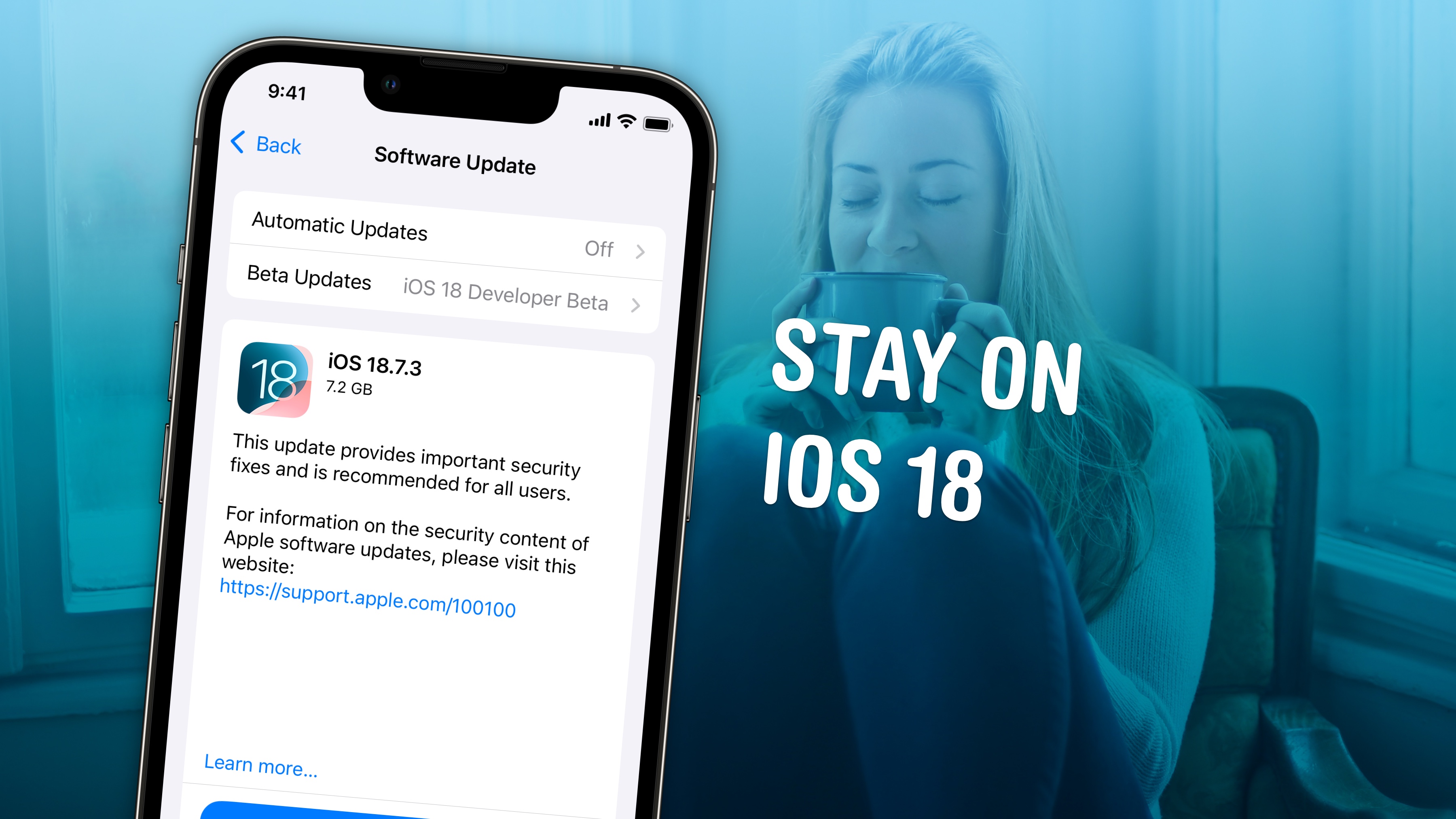
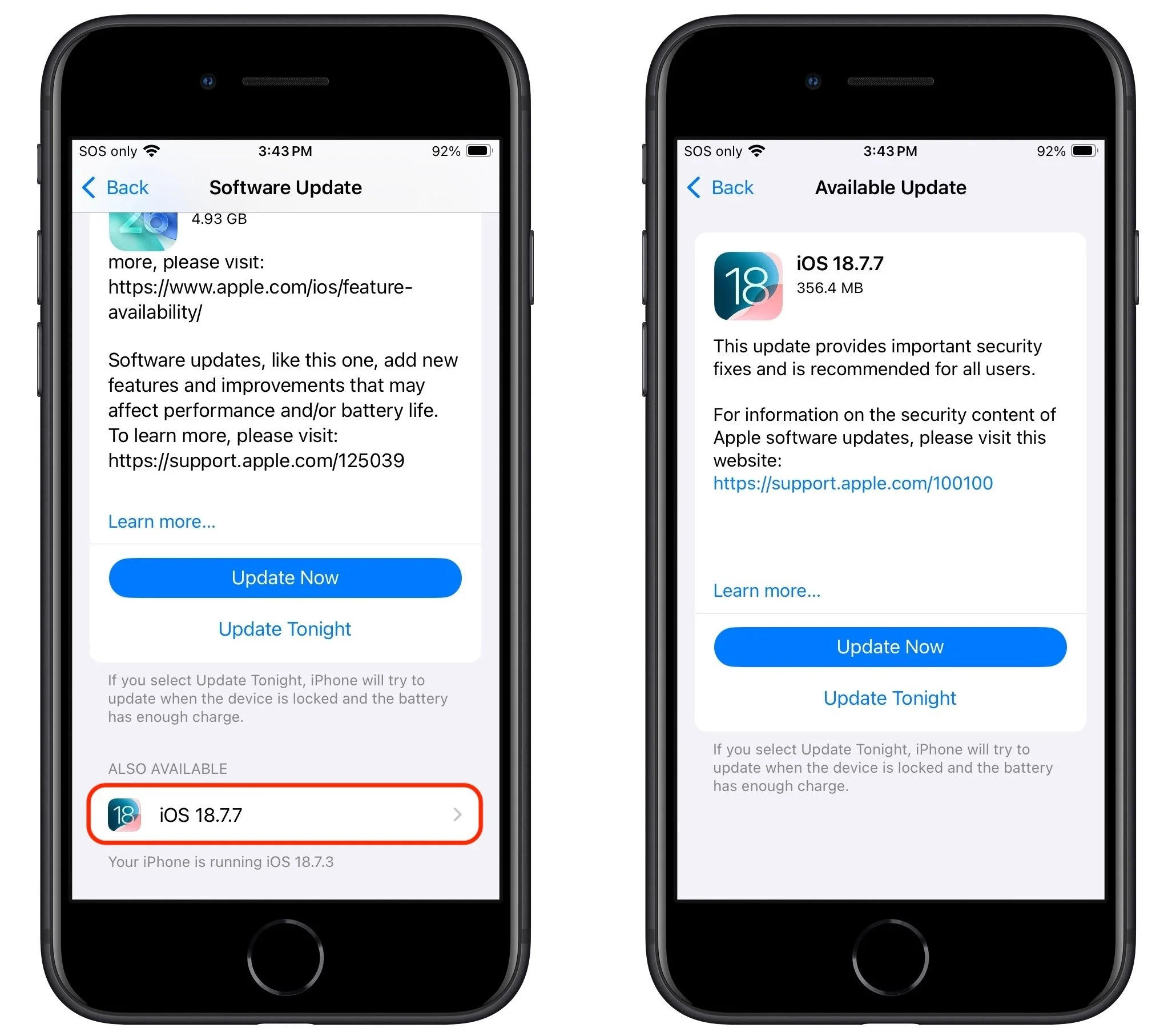
For older devices no longer compatible with the latest major iOS version, Apple continues to publish standalone security updates (such as maintenance builds for previous generation releases) to ensure older hardware remains protected against known exploits.
System Compatibility and Device Requirements
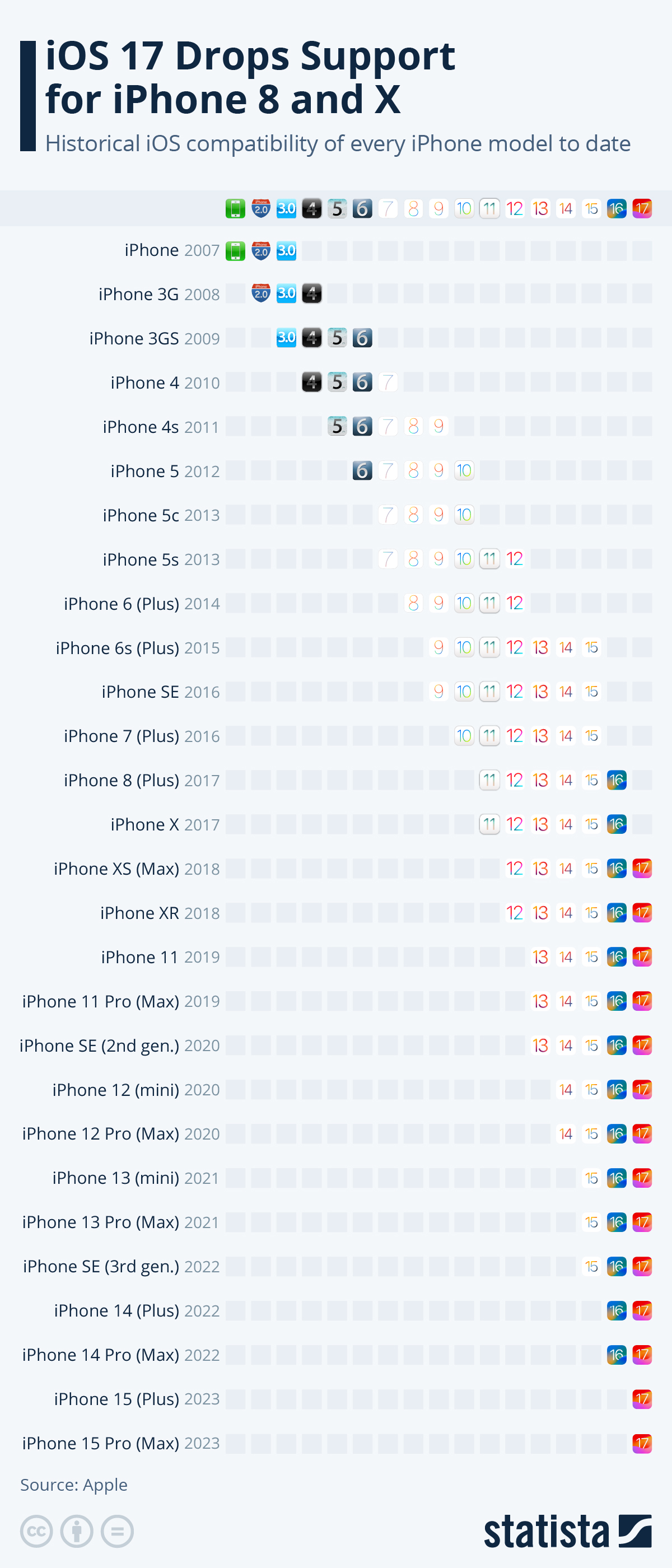
Not every iPhone supports every version of iOS. Apple establishes baseline hardware requirements for each major software generation based on system memory (RAM), neural processing capabilities, and system-on-chip (SoC) architecture.
Hardware Compatibility Lifecycle
Apple provides software maintenance support for its devices longer than most mobile manufacturers, generally offering major iOS updates for five to seven years after a device's original release date. When a device reaches hardware end-of-life for major software upgrades, it enters a maintenance state. While it stops receiving new front-end features, it often receives critical security patches for an extended period.
Before attempting an upgrade, verify your specific device model by navigating to Settings > General > About and reviewing the Model Name.
Technical Prerequisites for Installation
To install any iOS update successfully, the host device must satisfy four baseline operating conditions:
- Available Local Storage: Updates require local storage space to download the installer image, extract the compressed files, and execute the installation. The device needs approximately twice the file size of the update in free space during the process.
- Battery Reserve: The iPhone must have at least 50% remaining battery life, or be connected to an active power source with at least 20% charge, before system updates will initiate.
- Network Stability: Over-the-air updates require an active Wi-Fi network connection or an established 5G cellular data connection (if allowed by carrier settings and enabled in cellular preferences).
- Thermal Limits: The device must remain within normal operational temperature boundaries. If an iPhone is excessively warm from heavy processing or direct sunlight, iOS will suspend the update process until the device cools.
How to Update Your iPhone: Installation Methods
Apple provides three distinct pathways for installing iOS updates: wireless Over-The-Air (OTA) installation, automated background updates, and manual computer-based installation.
Choose Update Method:
- Wireless (OTA) (Settings App)
- Fast & convenient
- Requires Wi-Fi/5G
- Automatic Updates (Overnight Auto)
- Installs while charging at night
- Computer-Based Sync (Finder / Windows)
- Best for limited on-device storage
Method 1: Wireless Over-The-Air (OTA) Updates
The standard method for updating iOS is directly on the device via settings.
- Open the Settings app on your iPhone.
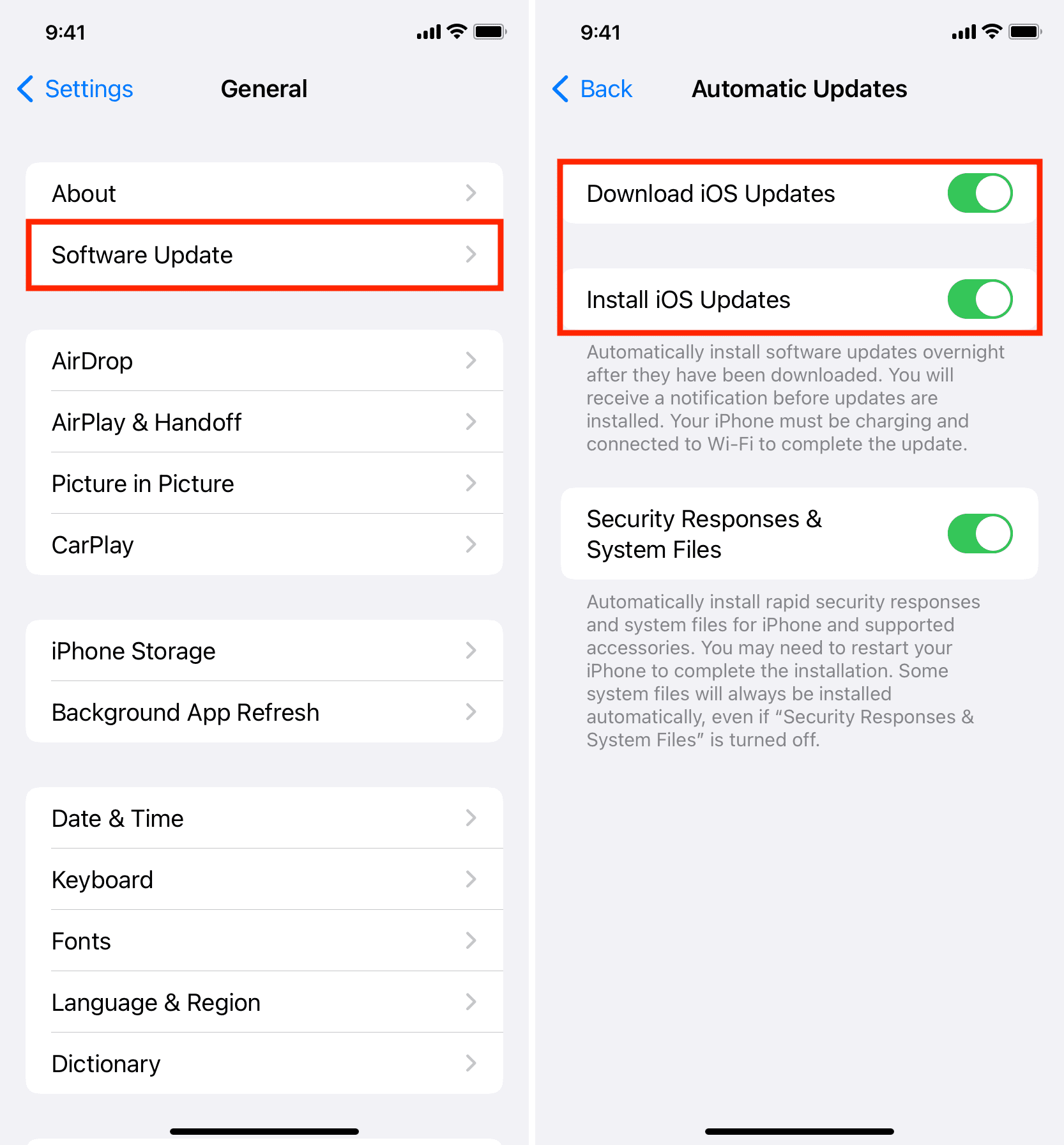
- Tap General, then select Software Update.
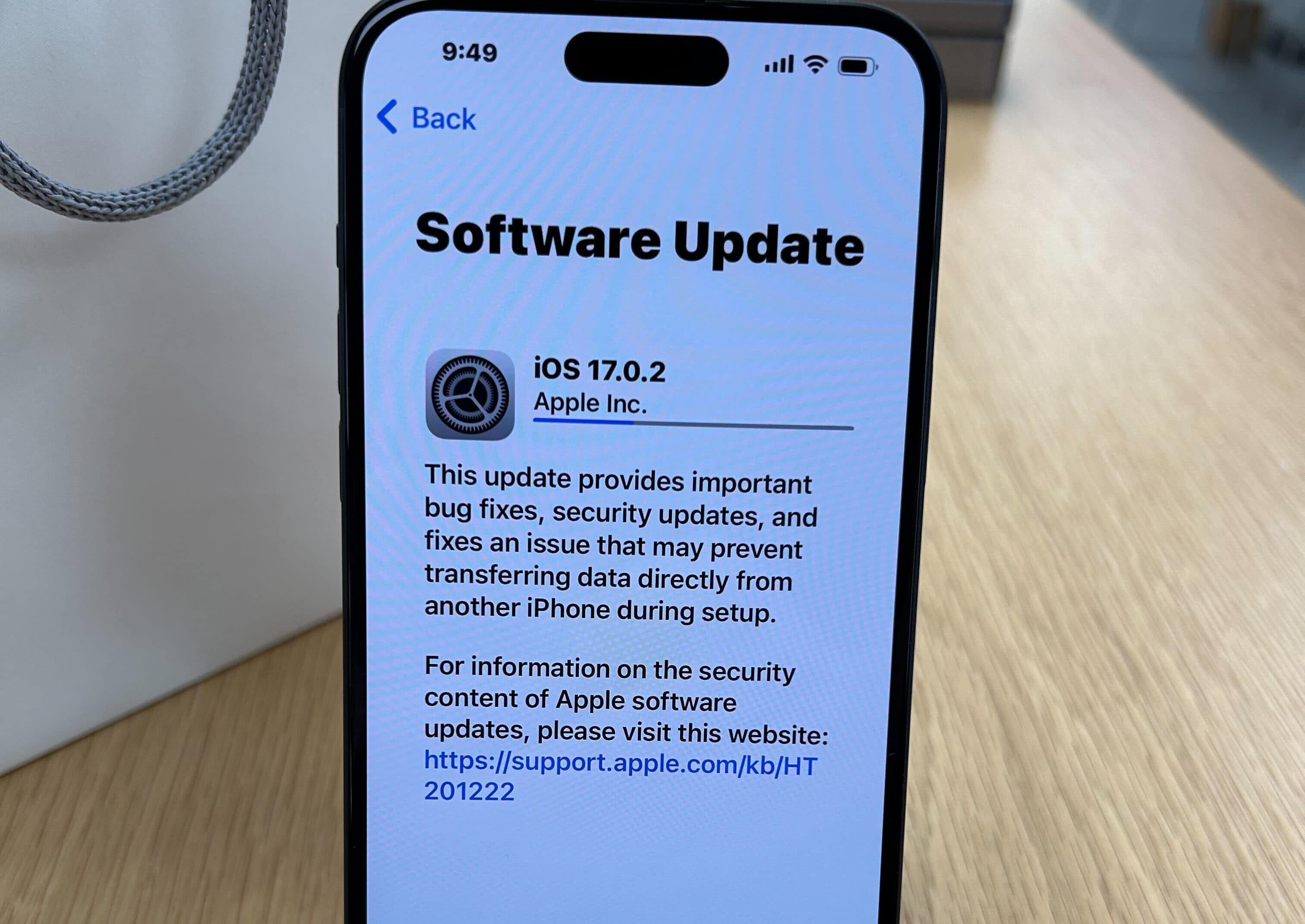
- The device will query Apple’s update servers. If an update is available, the screen displays the version number, update size, and release notes summary.
- Tap Download and Install (or Install Now if the installation file has already been downloaded in the background).
- Enter your device passcode when prompted.
- Agree to the Terms and Conditions.
- Wait for the download to complete. The device will verify the installer's signature against Apple's cryptographic authentication servers, reboot, and display a progress bar during installation.
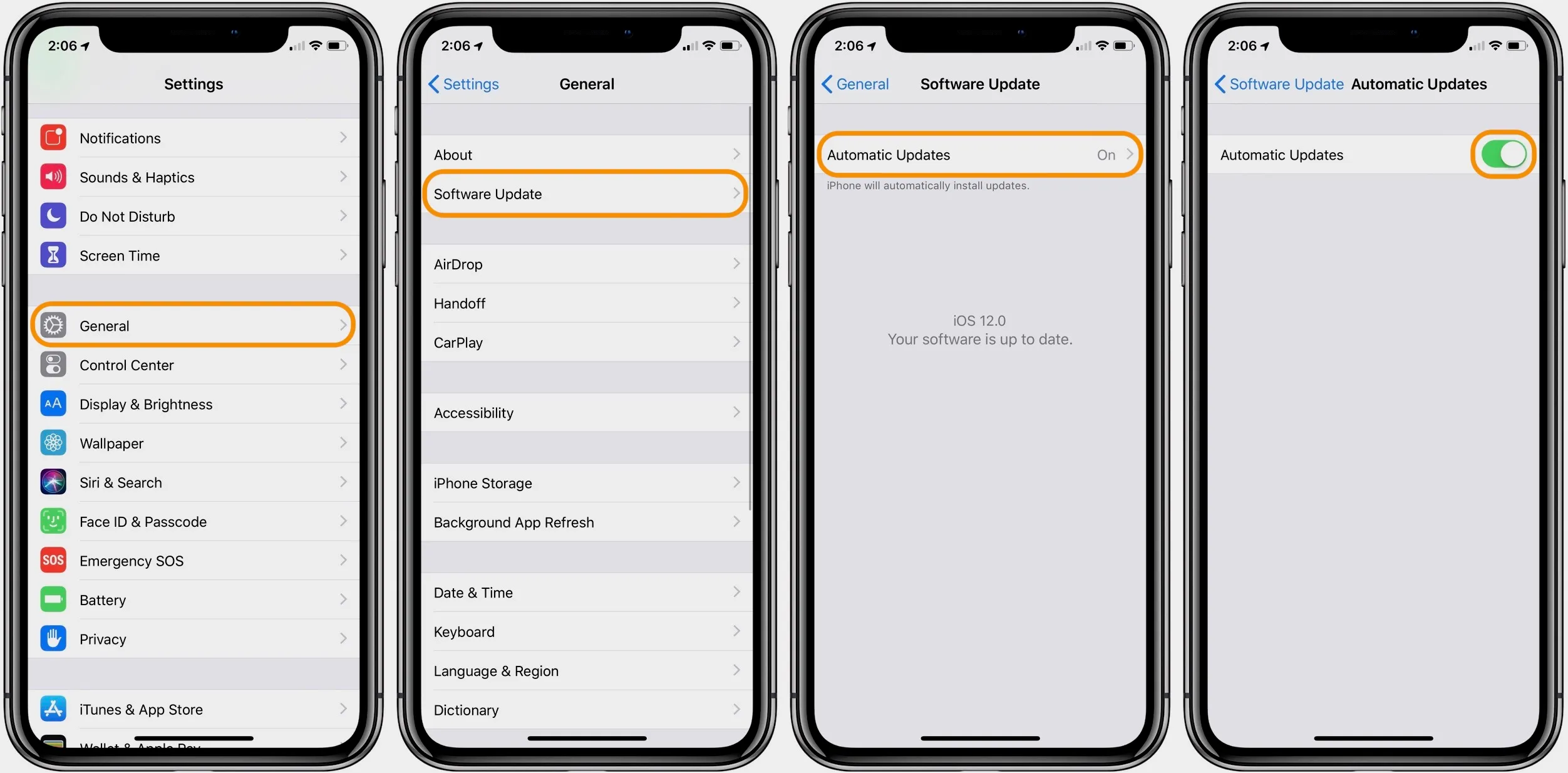
Method 2: Configuring Automatic Updates
Users can delegate update management to iOS by enabling automated downloads and installations:
- Navigate to Settings > General > Software Update.
- Select Automatic Updates.
- Toggle on Download iOS Updates and Install iOS Updates.
- Enable Security Responses & System Files to ensure security patches deploy without delay.
When enabled, the iPhone downloads update files in the background while connected to Wi-Fi. It will install the software overnight when the device is locked, connected to a charger, and connected to Wi-Fi.
Method 3: Computer-Based Updates (Mac & Windows PC)
Updating via a computer is recommended if the iPhone has insufficient local storage to unpack the download file, or if the device experiences software corruption that prevents standard OTA updating.
On a Mac running macOS Catalina (10.15) or later:
- Connect the iPhone to the Mac using an appropriate Lightning or USB-C cable.
- Open Finder and select the connected iPhone from the left sidebar under Locations.
- Trust the computer on the iPhone screen if prompted, and enter your passcode.
- Under the General tab, click Check for Update.
- Click Update to download and apply the latest system software. Keep the cable securely connected until the device finishes rebooting.
On a Windows PC or older macOS versions:
- Open the Apple Devices app (on modern Windows 10/11 installations) or iTunes (on older systems).
- Connect the iPhone via USB cable.
- Click the iPhone icon in the application interface.
- Click Summary or General, then select Check for Update.
- Click Update and allow the installer to execute complete verification and installation.
Comparison of iOS Update Delivery Methods
| Update Method | Primary Advantage | Storage Requirements | Computer Required? | Recommended Use Case |
|---|---|---|---|---|
| Manual OTA (Settings) | Immediate installation; no extra cables needed. | High (Requires temporary free space for download package extraction). | No | Standard routine updates for general users with available storage space. |
| Automatic Overnight OTA | Hands-off operation; installs while device is idle. | High (Downloads silently in the background). | No | Daily maintenance for users who prefer minimal active oversight. |
| Mac (Finder) | Offloads storage requirements to Mac hard drive; re-writes system partition cleanly. | Low on iPhone (Package downloads directly to host computer). | Yes (Mac) | Updates blocked by local iPhone storage constraints or system glitches. |
| Windows PC (Apple Devices / iTunes) | Reliable desktop update path for non-Apple desktop environments. | Low on iPhone (Package downloads directly to host computer). | Yes (Windows PC) | Users operating in Windows-centric home or enterprise environments. |
Essential Pre-Update Preparation Checklist
System software installation modifies core operating files. Performing pre-update preparations reduces the risk of data loss or installation failures.
- Step 1: Data Protection: Create complete iCloud or encrypted local computer backup.
- Step 2: Storage Clearance: Ensure free storage space exceeds update package size.
- Step 3: Network & Power: Connect to stable Wi-Fi and plug into reliable power.
- Step 4: Authentication: Verify Apple ID credentials and lock screen passcode.
1. Execute a Complete Device Backup
Always create an up-to-date system backup before upgrading iOS. If an update is interrupted by a power failure or hardware fault, a backup ensures full recovery of personal data, application files, and device configurations.
- iCloud Backup: Go to Settings > [Your Name] > iCloud > iCloud Backup and tap Back Up Now. Ensure the backup process completes fully.
- Computer Backup (Encrypted): Connect the iPhone to a Mac or PC, select the device, check the box labeled Encrypt local backup (which preserves saved passwords, Health data, and HomeKit settings), and select Back Up Now.
2. Verify Storage Space Availability
Check free storage capacity via Settings > General > iPhone Storage. If available space is low, free up space by:
- Offloading unused applications (which retains application data while deleting the app binary).
- Removing cached media files, offline video downloads, and large message attachments.
- Temporarily moving photos and videos to iCloud Photo Library or a local computer storage drive.
3. Verify Account Credentials
Confirm you know your iPhone lock screen passcode, as well as your Apple ID password. Following major updates, iOS frequently requires full Apple ID re-authentication to re-enable services such as iCloud Keychain, iMessage, FaceTime, and Apple Pay.
Troubleshooting Common iOS Update Errors
While the iOS update architecture is generally robust, specific system states or network conditions can cause updates to fail. Below are solutions for common update errors.
Error: "Unable to Check for Update" or "Unable to Verify Update"
This error indicates a network connection failure or a failure during cryptographic verification between the iPhone and Apple's authorization servers.
- Fix 1: Toggle Network State. Turn Airplane Mode on for 10 seconds, disable it, and reconnect to a known Wi-Fi network. Avoid using public Wi-Fi networks that require captive portal logins.
- Fix 2: Reset Network Settings. Go to Settings > General > Transfer or Reset iPhone > Reset > Reset Network Settings. This clears cached network settings, DNS configurations, and saved Wi-Fi passwords.
- Fix 3: Delete and Re-Download the Update File. If the download file became corrupted during transfer, navigate to Settings > General > iPhone Storage, locate the downloaded iOS update file in the app list, tap it, and select Delete Update. Return to the Software Update screen to re-download a fresh copy.
Device Stuck on Apple Logo or Progress Bar
If the iPhone screen freezes on the Apple logo with a stationary progress bar for more than 45 minutes during an update, the device may be experiencing a system stall.
- Fix: Perform a Force Restart.
- For iPhone 8, iPhone SE (2nd gen and later), iPhone X, 11, 12, 13, 14, 15, and newer: Press and quickly release the Volume Up button, press and quickly release the Volume Down button, then press and hold the Side Button until the Apple logo appears.
- Allow the device to complete its boot sequence. If the system fails to boot into iOS, connect the device to a computer and enter Recovery Mode to attempt a software repair via Finder or iTunes.
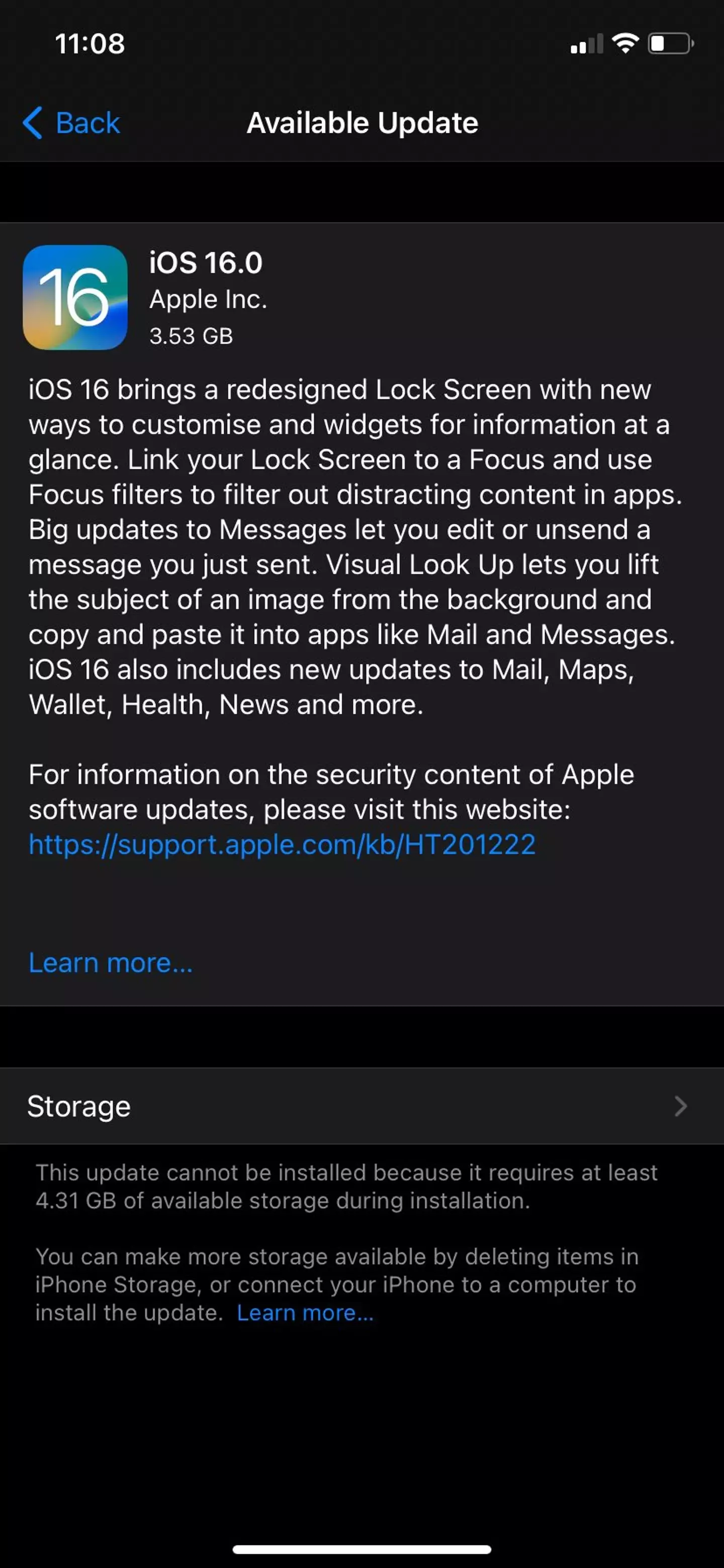
Error: "Not Enough Space to Install Update"
When an OTA update lacks sufficient headroom to extract files, iOS will prompt the user to allow temporary removal of apps.
- Fix: Tap Continue to allow iOS to temporarily uninstall system-managed applications to perform the update. iOS automatically reinstalls these removed applications once the system software update completes. If automated clearing is insufficient, manual deletion of large media files or updating through a computer is required.
Enterprise and Fleet Device Update Management
In corporate environments, unmanaged mobile OS updates can cause software incompatibilities with internal enterprise apps or security tools. IT administrators manage iOS updates across device fleets using Mobile Device Management (MDM) protocols.
Enterprise MDM Deployment Flow:
- Deferred Update Enforcement
- Delays updates (1 to 90 days).
- Enables internal app compatibility testing.
- Declarative Device Management
- Automates OS updates directly on device.
- Enforces compliance dead-lines silently.
MDM Update Controls
Using management frameworks provided by Apple, corporate IT managers can execute remote management commands across deployed hardware:
- Deferred Updates: Administrators can delay public iOS updates on supervised devices for up to 90 days. This buffer provides enterprise software teams time to test internal apps against new system APIs.
- Enforced Installations: MDM servers can initiate, download, and install specific iOS point updates remotely across hardware fleets without requiring user intervention.
- Declarative Device Management: System architectures allow iPhones to autonomously handle update rules assigned by the organisation, enforcing updates by specific deadlines while minimizing network bandwidth spikes in corporate networks.
Frequently Asked Questions
Will updating iOS delete personal data or settings?
No. Standard iOS updates replace system software binaries without wiping personal user files, photos, application data, or system configurations. However, unexpected interruptions during software installation can corrupt system partitions, making a pre-update backup essential.
Can I downgrade my iPhone to a previous iOS version after updating?
Downgrading is strictly restricted. Apple uses a server-side cryptographic signing authorization mechanism. Once Apple stops "signing" an older version of iOS (typically one to two weeks after releasing a newer version), the installation of that older build is blocked by hardware checks.
Why is an iOS update taking several hours to complete?
Update speed depends on two variables: your internet connection speed for downloading the installer file (which ranges from 1 GB to over 7 GB) and local processor performance for unpacking and indexing system files. Server congestion on Apple’s infrastructure during launch days can also slow download speeds.
What should I do if my battery drains faster after a major update?
Increased battery consumption during the first 24 to 48 hours following a major iOS update is normal. During this post-update period, iOS runs background maintenance processes, including file re-indexing, Spotlight database reconstruction, and machine-learning analysis of photos and media libraries. Battery performance typically normalizes once background tasks conclude.
Is it safe to install public beta versions of iOS on a primary device?
Installing beta software carries risks. Beta builds often contain software bugs, application crashes, unoptimized power consumption, and potential data loss hazards. Beta releases should generally be restricted to secondary hardware dedicated to testing rather than primary daily-driver devices.
Recommended Next Actions
To maintain device security and overall stability, adopt a structured update schedule:
- Verify Backup Configurations: Confirm that iCloud Backup is active under your Apple ID settings, or create a full encrypted backup on your personal computer monthly.
- Enable Automated Security Updates: Keep Security Responses & System Files toggled on under Settings > General > Software Update > Automatic Updates to receive security patches as soon as they are available.
- Audit Device Storage Quarterly: Periodically clear off unused software and large media files to ensure your iPhone maintains at least 10–15 GB of unallocated storage, allowing seamless execution of incoming software updates.
EDITORIAL CATEGORY METADATA:
Image Gallery