How to Configure a Network: A Comprehensive Technical Guide
Configuring a network requires establishing proper communication pathways between hardware devices, routers, switches, and end-user endpoints through logical IP addressing, secure authentication protocols, and optimized routing rules....
Configuring a network requires establishing proper communication pathways between hardware devices, routers, switches, and end-user endpoints through logical IP addressing, secure authentication protocols, and optimized routing rules. Successful implementation ensures reliable data transmission, low latency, and robust protection against unauthorized external access.
Contents
Introduction to Network Configuration Fundamentals
A computer network is fundamentally a collection of interconnected devices that share resources, exchange data, and communicate using standardized protocols. Whether you are setting up a small office local area network (LAN) or managing a complex enterprise infrastructure, understanding how to configure network components is an essential technical skill.
Network configuration encompasses everything from assigning static and dynamic IP addresses to configuring firewalls, setting up Virtual Local Area Networks (VLANs), and managing routing tables. Approaching this task methodically prevents common connectivity failures, reduces troubleshooting time, and establishes a secure baseline for all connected systems.
Prerequisites and Initial Planning
Before logging into administrative interfaces or running terminal commands, a structured network deployment requires thorough preparation. Skipping this phase often leads to overlapping IP ranges, security vulnerabilities, and debugging delays.
Hardware Inventory and Topology Mapping
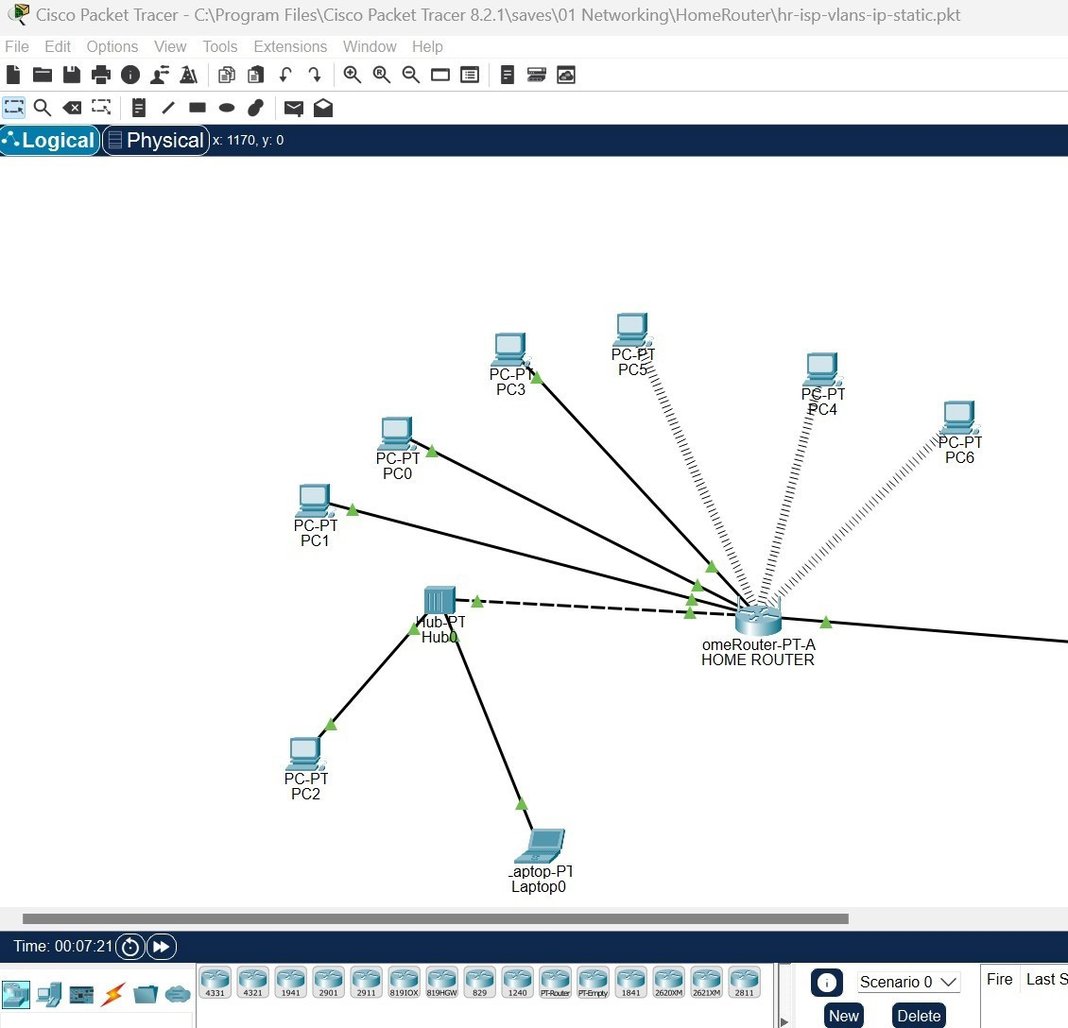
An accurate hardware inventory ensures you have the necessary physical components to build the network topology. Standard deployments require:
- Modems or ONT (Optical Network Terminals): To interface with Internet Service Provider (ISP) infrastructure.
- Routers: To route traffic between different networks (such as your LAN and the WAN/Internet) and manage Network Address Translation (NAT).
- Managed or Unmanaged Switches: To expand the number of wired Ethernet ports available for endpoints.
- Access Points (APs): To deliver reliable Wi-Fi coverage across the designated physical space.
- Cabling: Category 5e, Category 6, or higher shielded twisted-pair Ethernet cables capable of supporting your target transmission speeds (Gigabit or multi-Gigabit).
IP Addressing Architecture
Planning your logical addressing scheme prevents address exhaustion and conflicts. Administrators must define whether devices will obtain configuration automatically via Dynamic Host Configuration Protocol (DHCP) or require Static IP addresses.
For private networks, organizations typically utilize IPv4 address ranges defined in RFC 1918:
- Class A Private Range:
10.0.0.0to10.255.255.255(Subnet mask255.0.0.0or/8) - Class B Private Range:
172.16.0.0to172.31.255.255(Subnet mask255.240.0.0or/12) - Class C Private Range:
192.168.0.0to192.168.255.255(Subnet mask255.255.0.0or/16)
Step-by-Step Network Configuration Process
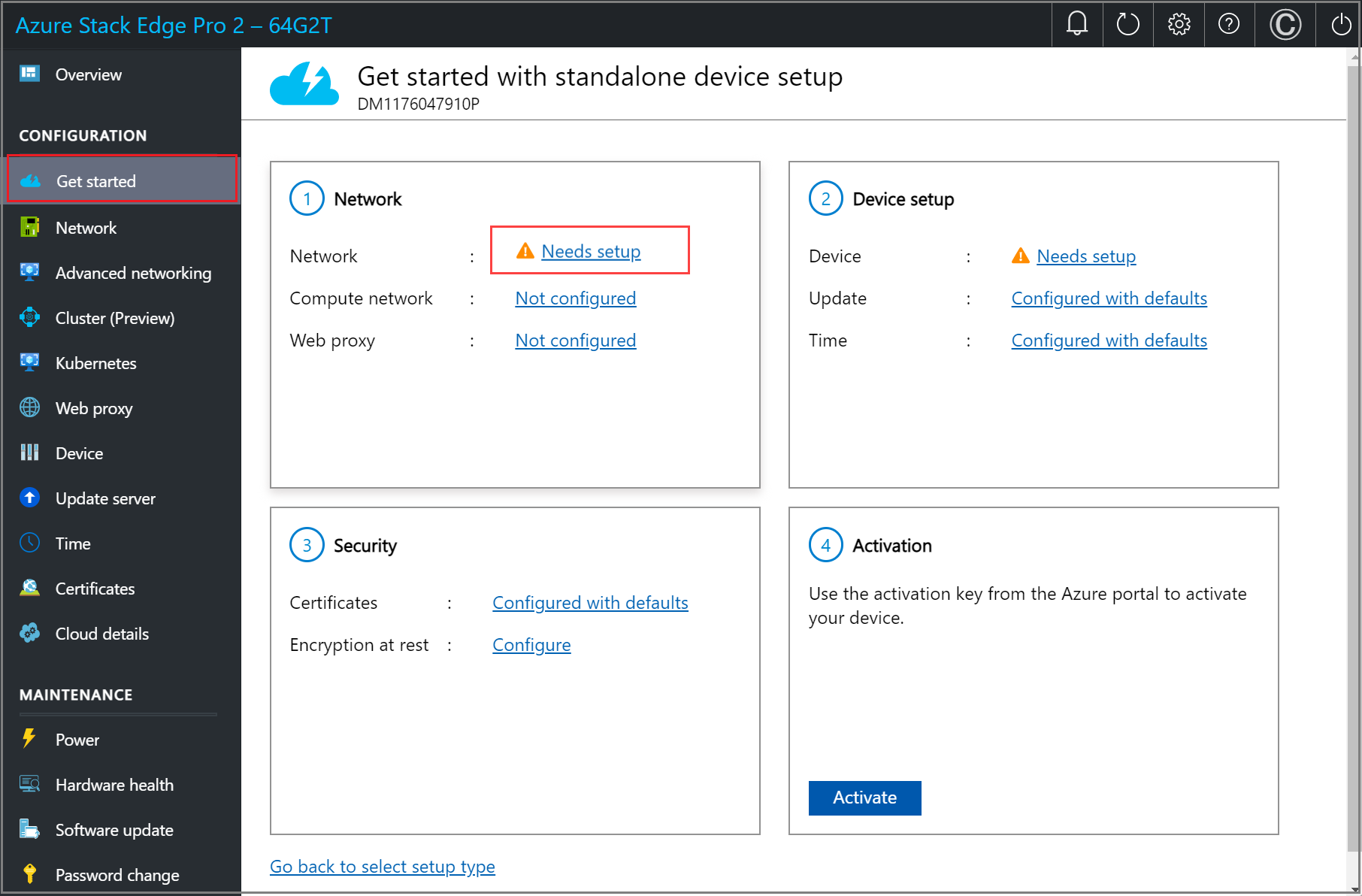
Executing a network configuration follows a logical bottom-up approach, starting with internet access, moving to local routing and switching, and finishing with endpoint connectivity.
Step 1: Configuring the Core Router
The core router acts as the gateway to the internet and the primary traffic controller for your internal network.
- Connect to the Router: Plug an Ethernet cable from your computer into a LAN port on the router, or connect to its default wireless SSID. Open a web browser and navigate to the default gateway IP address (commonly
192.168.1.1or192.168.0.1), or access the CLI via SSH/console cable for enterprise gear. - Update Administrative Credentials: Immediately change the default factory username and password to a strong, unique passphrase.
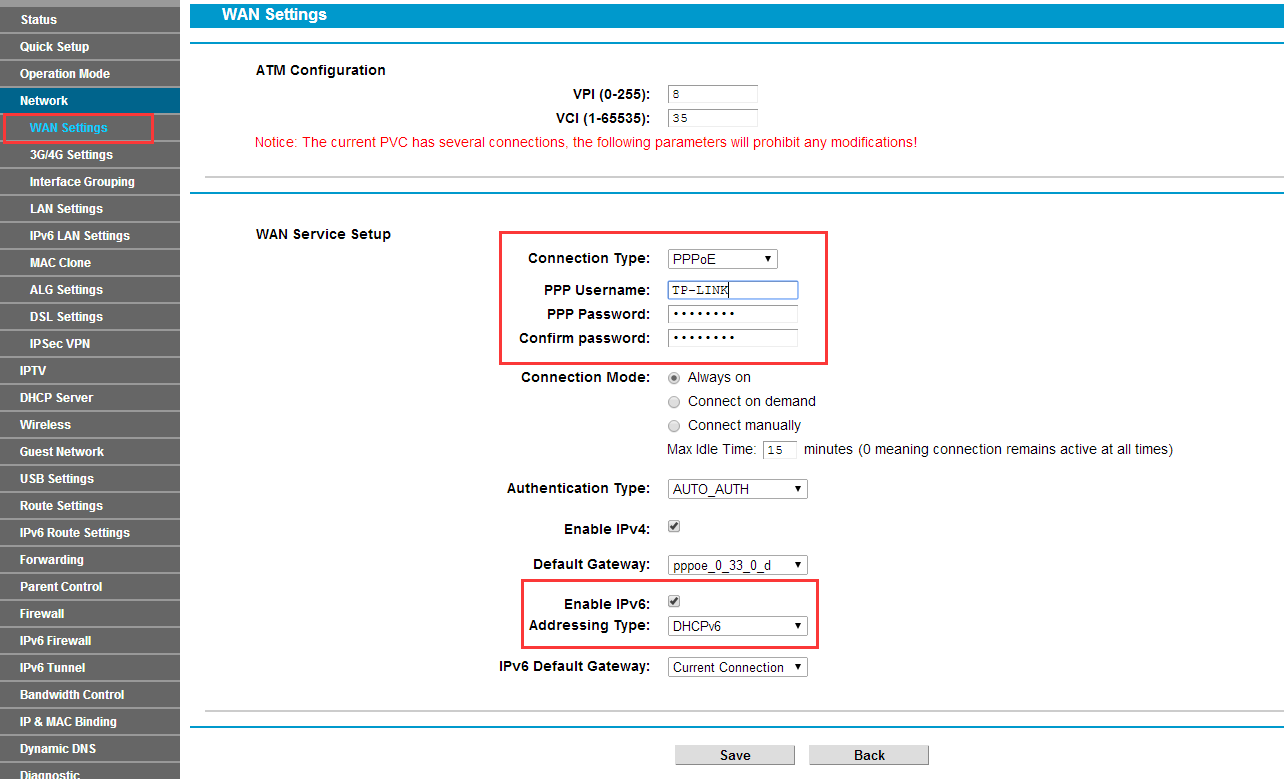
- Configure WAN Settings: Set the Wide Area Network (WAN) connection type based on your ISP requirements. Common protocols include Dynamic IP (DHCP), Static IP, or PPPoE (Point-to-Point Protocol over Ethernet).
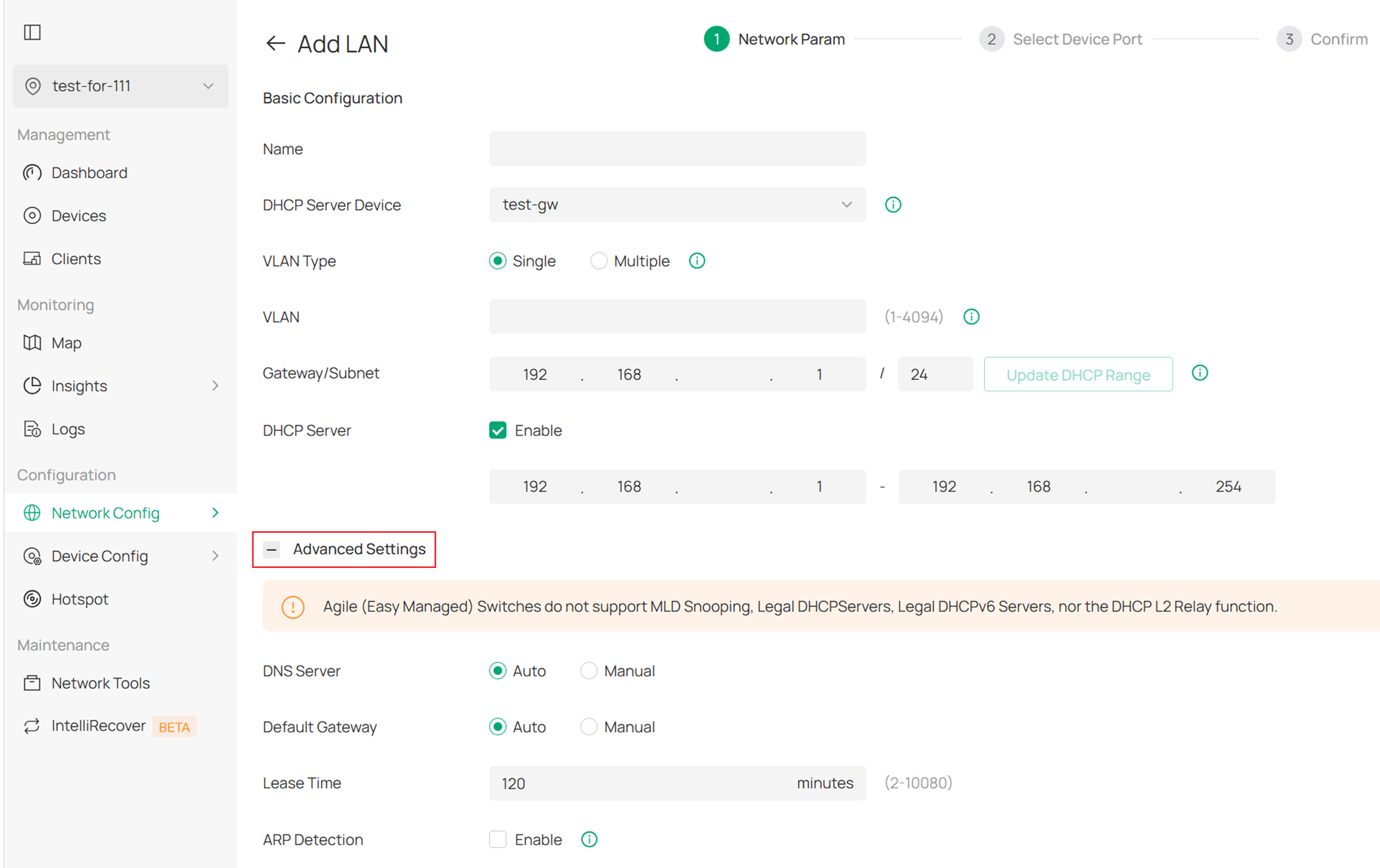
- Configure LAN Settings: Define your local IP gateway address and enable the internal DHCP server. Specify the DHCP pool range (e.g., assigning leases from
192.168.1.100to192.168.1.250) to leave room for static servers and network hardware.
Step 2: Setting Up Switches and VLAN Segmentation
For larger environments, unmanaged switches simply pass traffic, but managed switches allow network administrators to segment traffic using VLANs (Virtual Local Area Networks).
- Create VLANs: Log into the managed switch management interface and define logical segments (e.g., VLAN 10 for Corporate Data, VLAN 20 for Guest Wi-Fi, VLAN 30 for VoIP phones).
- Configure Access and Trunk Ports: Set access ports for end devices that belong to a single VLAN. Configure trunk ports on links connecting switches or routers to carry tagged traffic for multiple VLANs simultaneously.
- Inter-VLAN Routing: Enable router-on-a-stick or layer 3 switching capabilities so devices on different VLANs can communicate securely under strict firewall rules.
Step 3: Implementing Wireless Access Points (WAPs)
Deploying Wi-Fi infrastructure requires selecting optimal physical placements to eliminate dead zones and minimizing channel interference.
- SSID Separation: Create distinct Service Set Identifiers (SSIDs) for internal corporate use (secured with WPA3-Enterprise or WPA3-Personal) and guest access (isolated via client isolation settings).
- Channel Optimization: On the 2.4 GHz band, utilize non-overlapping channels 1, 6, and 11. On the 5 GHz and 6 GHz bands, perform a site survey to select clean channels with minimal neighboring interference.
Technical Comparison of Network Device Types
Selecting the correct hardware tier depends on performance requirements, scalability, and security granularity.
| Device Type | Primary Function | Management Layer | Security Features | Scalability |
|---|---|---|---|---|
| Unmanaged Switch | Expands wired ports via plug-and-play | None (Hardware-based) | Basic physical isolation | Low (Fixed port count) |
| Managed Switch | Controls traffic via VLANs and QoS | CLI, Web GUI, SNMP | Port security, 802.1X, ACLs | High (Stackable models) |
| Consumer Router | Connects LAN to WAN, basic NAT | Simple Web Interface | Basic SPI Firewall, UPnP | Low (Single subnet focus) |
| Enterprise Router | Advanced routing, VPNs, deep inspection | CLI, Netconf, API | Stateful firewalls, IPSec, BGP | Very High |
Verification and Testing Procedures
Once physical and logical configurations are complete, systematic testing ensures the network operates as intended.
- Local Loopback Test: Open the command terminal on an endpoint and ping the local loopback address (
ping 127.0.0.1) to verify the local network stack is functioning correctly. - Gateway Connectivity Test: Ping your default gateway (e.g.,
ping 192.168.1.1) to confirm physical and link-layer communication between the device and the router. - External Name Resolution: Test DNS resolution and internet routing by pinging an external domain or public DNS resolver (e.g.,
ping 8.8.8.8ornslookup google.com). - Bandwidth and Latency Checks: Run performance utilities like
iperfor trusted online speed tests to verify throughput aligns with your ISP service tier and hardware capabilities.
Common Configuration Mistakes and Troubleshooting
Network administrators frequently encounter specific hurdles during deployment. Recognizing these pitfalls accelerates resolution.
- IP Address Conflicts: Occurs when two devices are manually assigned the same static IP address. Solution: Maintain an updated IP address management (IPAM) log or enforce strict DHCP reservations to eliminate manual entry errors.
- Subnet Mask Mismatches: If devices on the same physical switch have differing subnet masks (e.g., one set to
/24and another to/16), they will fail to communicate directly. Solution: Standardize subnet masks across all endpoints within the same broadcast domain. - DNS Misconfiguration: Devices connect to the local network and obtain an IP address but fail to load web pages. Solution: Verify that correct primary and secondary DNS server addresses (such as Cloudflare
1.1.1.1or Google8.8.8.8) are populated in the router's DHCP scope or endpoint settings. - Firewall Rule Blocking: Overzealous firewall rules can block internal management traffic or essential protocols like DHCP and ICMP. Solution: Review firewall logs and temporarily disable specific filtering rules to isolate the bottleneck.
Frequently Asked Questions
What is the difference between static and dynamic IP addresses?
A static IP address is manually configured on a device and never changes, making it ideal for servers, printers, and network hardware that require consistent reachability. A dynamic IP address is assigned automatically by a DHCP server for a designated lease time, simplifying device onboarding for large user populations.
How do I secure my Wi-Fi network configuration?
To secure a wireless network, always use the strongest available encryption standard, such as WPA3-Personal or WPA3-Enterprise, disable legacy protocols like WEP and WPA, change administrative router passwords, and enable client isolation on guest networks to prevent guests from accessing internal devices.
What causes intermittent network drops after configuration?
Intermittent drops are frequently caused by faulty physical cabling, electromagnetic interference near unshielded Ethernet runs, overheating network hardware, or ISP-side signal degradation. Inspect physical link lights, check switch logs for cyclic redundancy check (CRC) errors, and test connection stability directly at the modem.
How can I isolate guest traffic from my main corporate network?
Guest traffic isolation is achieved by configuring a dedicated guest VLAN on managed switches and Wi-Fi access points. Apply firewall rules or Access Control Lists (ACLs) that permit guest devices to access the internet while explicitly denying routing access to the internal private subnet.
Why can devices connect to the local network but not access the internet?
This symptom typically points to a WAN configuration failure on the router, an incorrect default gateway setting, or a DNS resolution breakdown. Check that the router has successfully established a WAN session with your ISP and verify that valid DNS servers are deployed to your local clients.
Next Actions
To finalize your network setup, document your complete topology, record all static IP allocations in a secure inventory sheet, and schedule routine firmware updates for your routers, switches, and access points to patch emerging security vulnerabilities.
Image Gallery