Custom Roku Themes: How to Customize Your Roku Interface and Home Screen
Customizing your Roku interface involves using Roku's built-in Theme Packs, changing system wallpapers, configuring custom screensavers via Roku Photo Streams, or leveraging Developer Mode for custom channel UI development. While Roku...
Customizing your Roku interface involves using Roku's built-in Theme Packs, changing system wallpapers, configuring custom screensavers via Roku Photo Streams, or leveraging Developer Mode for custom channel UI development. While Roku OS restricts uploading external system-wide theme files for security, users can deeply personalize their home screen visuals and audio through official system settings.
Contents
Understanding Roku Theme Capabilities and Platform Restrictions
Roku devices run on a proprietary operating system (Roku OS) designed for rapid boot times, low memory consumption, and platform stability across hardware generations. Because of these architectural constraints, Roku handles visual customization differently than open platforms like Android TV or Fire OS. Understanding what Roku permits—and where its boundaries lie—helps set realistic expectations for visual modification.
- Roku Visual Personalization
- Standard Consumer Customization
- System Theme Packs
- Wallpapers & Sounds
- Roku Photo Streams
- Screensavers & Backdrops
- Developer Channel Customization
- SceneGraph UI XML
- Color Palettes & Fonts
- Sideloaded App Builds
- Standard Consumer Customization
Standard end-users cannot download arbitrary .zip files, APKs, or third-party executable skins from external websites to replace the core Roku OS system launcher. Roku locks down system-level code execution to prevent security vulnerabilities, malware distribution, and memory bloat that could impair lower-spec hardware like streaming sticks.
However, Roku OS provides native mechanisms to transform the look and feel of the interface:
- System Theme Packs: Bundled design sets that modify the home screen background graphic, system accent colors, highlight boxes, menu text tones, and navigational audio effects simultaneously.
- Individual Wallpapers: Static or subtle dynamic graphics that change the background image behind app tiles without altering audio tones or icon highlighting styles.
- Custom Photo Streams: User-uploaded personal photo libraries displayed as screen backgrounds or screensavers via Roku's cloud sync service.
- Sound Effects (Audio Themes): Audio profiles that replace the default Roku navigation "clicks" and selection chimes with themed sound effects.
- Developer Mode Customization: Custom graphical user interfaces (GUIs) engineered using Roku’s SceneGraph XML markup language and BrightScript, which allow developers to skin individual channels (apps) deployed directly onto the device.
How to Change and Customize Roku Themes from Settings
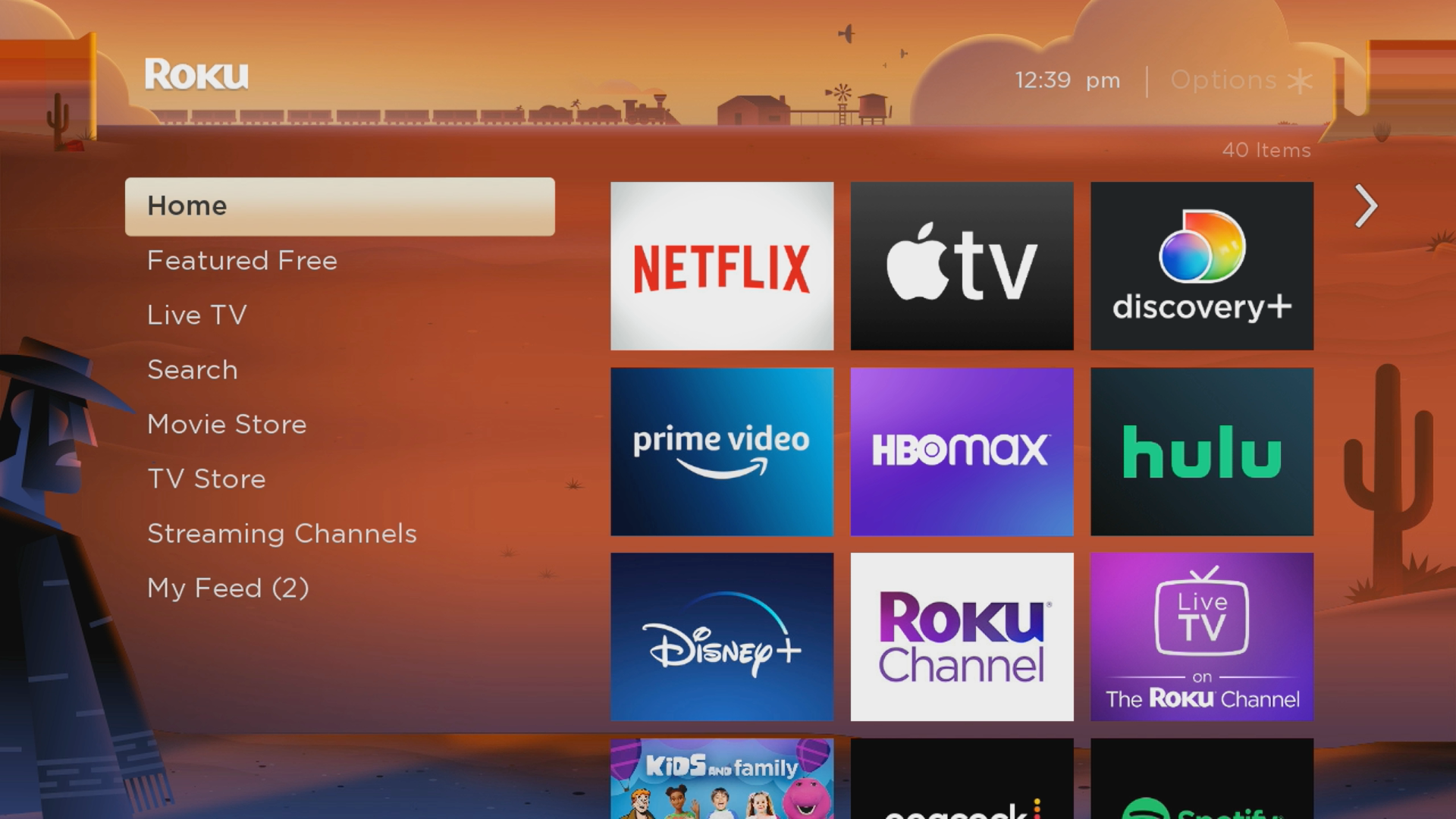
The primary method for altering the look of a Roku TV or streaming player is through the native system settings menu. Roku maintains an extensive catalog of official themes, ranging from minimalistic modern gradients to branded seasonal releases.
Step-by-Step Navigation
To select and apply a new system theme on any Roku device running current software:
Press the Home button on your Roku remote control to access the main launcher.
Scroll down the left sidebar menu and select Settings.
Select Theme from the settings list.
Choose Theme packs or Wallpapers to browse available visual styles.
Highlight a theme to view a live background preview.
Press OK on your remote, then select Get theme pack (or Set theme pack) to download and apply it instantly.
Home Menu
Settings
Theme
Theme Packs / Wallpapers
Apply
Disabling Automatic Theme Overrides
A common source of confusion for users is Roku’s default behavior of automatically changing the home screen theme for holidays, major film releases, or seasonal events (such as Halloween, Earth Day, or New Year's Eve). When an event occurs, Roku temporarily overrides your selected theme with a sponsored or seasonal theme.
If you prefer your chosen custom theme to remain active permanently without automated interruption, you must disable seasonal themes in the settings menu:
- Navigate to Settings > Theme.
- Select Custom settings (or Seasonal themes depending on your Roku OS build version).
- Toggle the option for Seasonal themes or Featured themes to Off.
Disabling this setting ensures that your selected theme, wallpaper, and sound effects profile persist year-round.
Using Roku Photo Streams for Custom Personal Wallpapers
For users seeking true personalization beyond pre-made Roku themes, Roku Photo Streams allows you to display your personal photo albums directly on the home screen background and screensaver. This feature turns your Roku device into a digital photo frame when idle, while offering custom visual backdrops during active navigation.
Setting Up Roku Photo Streams
Configuring personal photo backgrounds requires linking your Roku account to the web-based Photo Streams portal or the Roku Mobile App.
- Roku Mobile App / Web (Upload Photos to Stream)
- Cloud Sync
- Roku Account Cloud
- Sync Engine
- Roku Device (Settings > Theme > Screensaver Select: Photo Streams)
Method 1: Via Web Browser
- Open a web browser on your computer or mobile device and visit the official Roku Photo Streams Portal.
- Sign in using your primary Roku account credentials.
- Click Create Stream and enter a title for your custom photo album.
- Upload high-resolution images (
.jpgor.pngformat). For optimum quality on 4K TVs, upload images with a resolution of 3840x2160 pixels or a standard 16:9 aspect ratio. - Save the stream and generate an optional share link if you wish to allow family members to add photos remotely.
Method 2: Via the Roku Mobile App
- Launch the free Roku Mobile App on your iOS or Android smartphone.
- Tap the Account icon in the top right corner and verify you are logged into the same account connected to your Roku device.
- Select Photo Streams.
- Create a new album and select photos directly from your smartphone’s camera roll.
Activating Photo Streams on Your TV
Once your photo album is uploaded to the cloud:
- Return to your Roku device and navigate to Settings > Theme > Screensaver.
- Select Roku Photo Streams from your installed screensavers.
- Choose Change screensaver settings to select which specific album to display, set slide transition speeds (ranging from 5 seconds to several minutes), and toggle metadata overlays like date and photo titles.
Technical Comparison of Roku Interface Customization Methods
Selecting the right customization technique depends on whether you seek simple visual tweaks, dynamic family slideshows, or complete application UI development. The table below compares each approach across key criteria:
| Customization Method | Visual Scope | Technical Skill Needed | Network Dependency | Primary Use Case | Performance Impact |
|---|---|---|---|---|---|
| Official Theme Packs | System Background, Accents, Audio | None (UI Selection) | Initial Download Only | Quick full aesthetic refresh | Negligible |
| System Wallpapers | Background Graphic Only | None (UI Selection) | Initial Download Only | Subtle visual change without new audio | None |
| Roku Photo Streams | Background & Active Screensaver | Low (Photo Upload) | Active Internet Required | Personal family photos & custom artwork | Minimal (Memory cache) |
| Roku Backdrops | Ambient Artwork Gallery | None (UI Selection) | Periodic Cloud Sync | Transforming TV into museum art display | Minimal |
| Developer Mode (SceneGraph) | Custom Channel UI / App Layouts | High (XML, BrightScript) | Local Network (Sideloading) | Custom private apps & bespoke player UIs | Depends on code efficiency |
Developer-Level Customization: SceneGraph and BrightScript UI Skinning
While end-users operate within the boundaries of built-in settings, application developers can customize every pixel of an interface within their own custom Roku channels. If you are building a custom private application or testing a digital signage deployment on Roku, visual skinning is executed using Roku’s BrightScript programming language and Roku SceneGraph (RSG) XML components.
Enabling Roku Developer Mode
To deploy custom-skinned channel packages onto a physical Roku device, you must enable Developer Mode via a secret remote control sequence.
Take your standard Roku remote and enter the following key combination in precise sequence:
- Press Home 3 times
- Press Up 2 times
- Press Right 1 time
- Press Left 1 time
- Press Right 1 time
- Press Left 1 time
- Press Right 1 time
The Developer Settings secret screen will appear, displaying your device's local IP address and an prompt to enable the installer.
Select Enable installer and restart.
Read and agree to the Developer Protection Agreement.
Set a secure Developer Password when prompted. This password authenticates local web server connections to your Roku player.
The Roku device will automatically reboot to complete activation.
Home x3
Up x2
Right, Left, Right, Left, Right
Secret Dev Screen
Implementing Custom Themes via SceneGraph XML
Developers define custom visual themes by editing the XML nodes of SceneGraph components. By extending the standard Scene or Poster nodes, developers can dictate custom colors, background art, text rendering, and custom focused states.
Below is an example of an XML component file (MainScene.xml) defining a custom color palette and background image for a developer build:
In this SceneGraph structure:
pkg:/images/custom_hd_background.pngpoints to a high-resolution graphical asset zipped inside the development package.- Color codes use 8-digit hexadecimal values formatted as RGBA (e.g.,
0x1A1A23FFfor a dark slate blue sidebar,0x00FF88FFfor neon green menu text). - The package is sideloaded by navigating to the Roku device’s local IP address in a desktop browser (
http://), logging in with the developer usernamerokudevand your custom password, and uploading the compiled application ZIP file.
To learn more about the formal specifications for component styling, review the official Roku Developer Documentation.
Troubleshooting Common Roku Theme and Background Issues
Customizing your Roku interface is generally straightforward, but visual glitches, sync failures, or unwanted setting resets can occur. Here are diagnostic steps to solve common problems.
Problem 1: Roku Theme Keeps Reverting to Default or Changing Automatically
If your home screen background switches back to the basic purple theme or changes to promotional movie graphics without your input:
- Cause: The Seasonal themes feature is overriding your explicit selection, or the active theme was part of a temporary developer trial.
- Solution: Navigate to Settings > Theme > Custom settings (or Seasonal themes) and switch the toggle to Off. Additionally, check Settings > System > Zip code to ensure your local time zone matches your actual location, as mismatched region settings can trigger out-of-sync theme updates.
Problem 2: Photo Streams Wallpapers Are Blurred, Cut Off, or Distorted
When personal images appear stretched, pixelated, or incorrectly framed on modern displays:
- Cause: Image aspect ratio mismatch or insufficient resolution. Roku stretches lower-resolution mobile photos to fit full 1080p or 4K display canvases.
- Solution: Pre-crop your images using photo editing software to a strict 16:9 aspect ratio (e.g., 1920x1080 pixels for 1080p HDTVs, or 3840x2160 pixels for 4K UHD TVs) before uploading them to the Roku Photo Streams portal. Avoid vertical portrait-mode photos unless you utilize built-in pillar-boxing options.
Problem 3: Roku Navigation Feels Sluggish After Applying Custom Themes
Older streaming sticks (such as legacy Roku Streaming Stick models or entry-level Roku Express units) may experience menu navigation lag, dropped frames, or slow icon rendering after installing rich visual themes.
- Cause: High-resolution dynamic themes consume hardware RAM and GPU resources that budget streaming devices prioritize for video decoding.
- Solution: Revert to a lightweight static theme. Go to Settings > Theme > Theme packs and select Roku Default or Graphene. Static themes eliminate high-overhead graphical elements, restoring fluid navigation speed on older hardware.
Problem 4: Sideloaded Developer Theme Fails to Install
When attempting to upload a custom SceneGraph application via the local Web Developer Installer:
- Cause: Corrupted package hierarchy, missing manifest details, or invalid color hex formats inside the XML files.
- Solution: Ensure your app archive contains a valid
manifestfile at the root level of the ZIP file, not inside a subfolder. Verify that all color strings in XML components follow strict 8-digit hexadecimal notation (0xRRGGBBAA).
Frequently Asked Questions
Can you download custom third-party Roku themes from external websites?
No. Roku OS operates as a closed ecosystem. End-users cannot download .zip, .xml, or skin files from third-party websites and install them directly onto a consumer Roku player. All system-wide theme packs and wallpapers must be installed through the official Roku Channel Store interface on the device.
How do I stop Roku from changing my home screen background during holidays?
To prevent Roku from automatically applying holiday or sponsored event themes, go to Settings > Theme > Custom settings (or Seasonal themes) on your Roku remote and turn the setting Off. This locks your current theme choice permanently.
What is the difference between a Roku Theme Pack and a Roku Wallpaper?
A Theme Pack alters your entire UI aesthetic, including the background image, menu highlight styles, pop-up window colors, tile selection outlines, and navigational sound effects. A Wallpaper only changes the static background image file while retaining your system's default sounds and interface accents.
Does using a custom photo stream background drain more home network bandwidth?
Roku Photo Streams caches your selected photos locally in the device's temporary memory after the initial upload sync. While downloading high-resolution images initially uses minimal data, displaying cached photos as static wallpapers or screensavers does not consume ongoing Internet bandwidth.
How do I reset my Roku back to its original default purple factory look?
To restore the default theme:
- Press the Home button on your remote.
- Select Settings > Theme > Theme packs.
- Scroll through the installed themes, highlight Roku Default (or Default), and press OK to apply it instantly.
Practical Recommendations for Customizing Your Roku
To build an aesthetically pleasing, responsive visual interface on your Roku streaming player:
- Optimize Hardware Performance First: If you use an entry-level Roku Express or older Streaming Stick, stick to official static wallpapers like Graphene or Default to maximize system responsiveness and prevent menu lag.
- Pre-Format Photo Streams Media: Crop family photos to a 16:9 aspect ratio (3840x2160 pixels) before uploading them to the Roku Photo Streams service to eliminate stretching, black bars, and blurriness on 4K TVs.
- Lock Down Theme Preferences: Disable Seasonal Themes in the Theme settings menu if you prefer a consistent, static home screen environment free from promotional background takeovers.
- Use Developer Tools for Commercial Projects: If you are building bespoke video interfaces for digital signage or custom application streaming, leverage Roku’s native Developer Mode and SceneGraph XML architecture rather than attempting end-user settings modifications.
Image Gallery