Understanding a PSP RSS Channel: Features, Specifications, and Configuration
A PlayStation Portable (PSP) RSS channel is an automated media syndication feed configured using the RSS 2.0 standard to deliver audio, video, and image content directly to Sony PSP handheld devices over a Wi-Fi connection. Integrated...
A PlayStation Portable (PSP) RSS channel is an automated media syndication feed configured using the RSS 2.0 standard to deliver audio, video, and image content directly to Sony PSP handheld devices over a Wi-Fi connection. Integrated into the system software, it allows users to stream or download web-hosted podcasts and vodcasts formatted specifically for the PSP hardware specs.
Contents
What Is a PSP RSS Channel and How Does It Work?
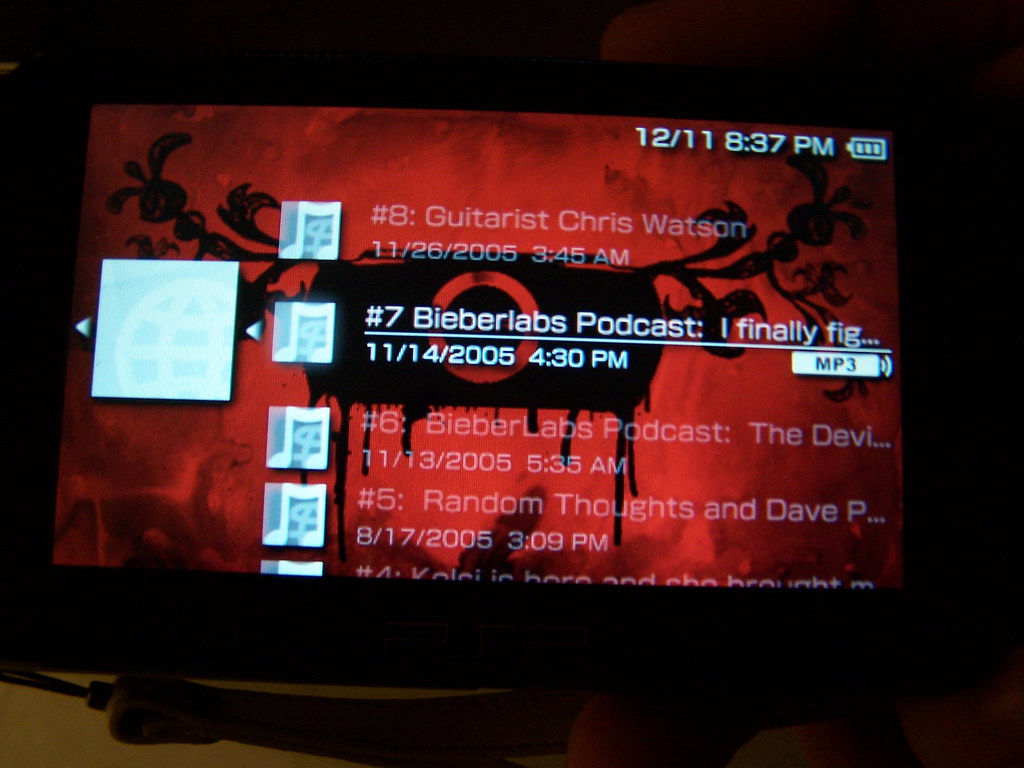
The RSS (Really Simple Syndication) Channel functionality on the PlayStation Portable was one of Sony's early initiatives to transform its handheld gaming console into a comprehensive multimedia device. Introduced in system software updates during the mid-2000s, the PSP RSS Channel serves as an integrated feed aggregator. It parses standardized XML files hosted on remote web servers, identifies media enclosures, and presents available episodes or broadcasts in a native user interface under the system's Network column on the XrossMediaBar (XMB).
Unlike standard web browser downloads, the PSP RSS Channel architecture operates as a dedicated background client. When a user subscribes to an RSS feed—either by manually entering the feed URL, downloading an anchor link via the PSP Internet Browser, or importing a pre-configured channel file—the PSP stores the channel metadata on the Memory Stick Duo. Whenever the device connects to an active Wi-Fi network, the system checks the XML feed for updates, displays recent media entries, and allows direct streaming or downloading to local storage.
Historical Evolution Across System Firmware
Sony rolled out RSS capabilities incrementally across several official system software updates to expand media compatibility:
- Firmware Update 2.60 (December 2005): Introduced initial RSS Channel support, restricted strictly to audio feeds. This allowed users to stream or download MP3, AAC, and ATRAC3plus podcast files directly to the Memory Stick.
- Firmware Update 2.80 (July 2006): Expanded the RSS engine to support video feeds (often referred to as "vodcasts"). It also added support for image enclosures and allowed users to save video downloads directly into the system's native video directory.
- Firmware Update 3.00 and Later: Refined feed organization, added support for higher bitrate media playback, and integrated the RSS Channel function closer to the PSP's internal LocationFree Player and media management subroutines.
Technical Architecture and Media Format Specifications
To deliver media reliably to a handheld device powered by a 333 MHz MIPS R4000 CPU and limited onboard RAM (32 MB on PSP-1000 models; 64 MB on 2000, 3000, and PSP Go models), the PSP RSS parser relies on rigid technical criteria. The internal RSS reader enforces strict constraints on XML file structure, MIME types, container formats, and encoding bitrates.
XML Feed Requirements
A PSP-compliant RSS channel relies on the standard RSS 2.0 specification. The critical component is the tag located within each node. The enclosure tag must explicitly state three attributes:
url: The direct HTTP or HTTPS address of the media file.length: The precise file size in bytes.type: The standard MIME type corresponding to a PSP-supported media format.
If an enclosure tag contains an unsupported MIME type or points to an improperly encoded container, the PSP XMB interface displays a "Cannot play this content" error or filters out the item entirely.
Supported Audio, Video, and Image Specifications
The following table details the technical specifications required for media files to function properly within a PSP RSS Channel:
| Media Type | Container / Extension | Codec Specifications | Maximum Resolution / Bitrate |
|---|---|---|---|
| Audio (MP3) | .mp3 |
MPEG-1 Audio Layer III | Up to 320 kbps, 44.1 kHz / 48 kHz sampling rate |
| Audio (AAC) | .m4a, .mp4, .aac |
MPEG-4 AAC-LC / HE-AAC | Up to 320 kbps, 44.1 kHz sampling rate |
| Audio (ATRAC) | .oma, .aa3 |
ATRAC3 / ATRAC3plus | Up to 352 kbps (ATRAC3plus) |
| Video (MPEG-4) | .mp4 |
MPEG-4 Part 2 Simple Profile | 320x240, 480x272; max 2 Mbps video bitrate |
| Video (AVC/H.264) | .mp4 |
H.264 / AVC Baseline or Main Profile | 480x272, 720x480 (scaled); AAC-LC audio stream |
| Image | .jpg, .png, .bmp |
Baseline JPEG, Standard PNG, 24-bit BMP | Native display scaled to 480x272 screen resolution |
Setting Up and Accessing RSS Channels on the PSP
Adding an RSS channel to a PlayStation Portable requires specific network setup and properly formatted web destinations.
Network Prerequisites and Hardware Setup
Before establishing an RSS feed connection, the PSP must be properly connected to an active wireless local area network (WLAN).
- WLAN Switch: Ensure the physical WLAN switch on the left or top edge of the PSP console is turned ON.
- Infrastructure Mode Connection: Navigate to Settings > Network Settings > Infrastructure Mode on the XMB to create a new connection profile.
- Security Constraints: PSP hardware (1000, 2000, 3000, and Go) natively supports only 802.11b Wi-Fi on the 2.4 GHz spectrum. Security standards are limited to Unsecured, WEP, or WPA-PSK (TKIP). The hardware does not support modern WPA2-PSK (AES) or WPA3 security protocols.
Subscribing to an RSS Channel
Once connected to the internet, users can register RSS feeds using two primary methods:
Method 1: Using the PSP Web Browser
- Launch the Internet Browser from the Network column on the XMB.
- Navigate to a website hosting an RSS feed link containing a valid
.xmlor.rssextension. - Select the RSS link using the Cross button. The system automatically intercepts the RSS feed and prompts: "Do you want to add this RSS Channel to [RSS Channel]?"
- Confirm by selecting Yes. The feed is saved directly into the RSS Channel menu under the Network column.
Method 2: Manual Data Entry or Import
- Navigate to Network > RSS Channel on the XMB.
- Select Add Channel (if supported by your firmware revision) or open an existing channel list.
- Enter the exact URL of the target XML feed using the on-screen virtual keyboard.
- Name the channel and save the profile to the Memory Stick.
Creating and Hosting Custom PSP-Compatible RSS Feeds
Because official Sony network hubs and legacy podcast directories are no longer active, modern enthusiasts and retro computing collectors host custom local RSS feeds to stream media to physical PSP hardware.
Structuring the XML File
To create a functional feed, save the following XML structure as podcast.xml on an HTTP-accessible web server or local computer:
PSP Custom Retro Feed http://192.168.1.100/psp/feed.xml Local podcast feed formatted for PSP hardware. en-us Episode 01 - Audio Broadcast Standard MP3 audio enclosure for PSP playability. Mon, 12 Jan 2026 12:00:00 GMT Episode 02 - Video Broadcast H.264 MP4 video encoded specifically at 480x272 resolution. Tue, 13 Jan 2026 15:30:00 GMT
Server and Hosting Considerations
- HTTP vs. HTTPS: Firmware versions on original PSP consoles lack updated SSL/TLS root certificates required by modern HTTPS endpoints. Custom feeds must be served over plain HTTP (Port 80) or hosted behind a proxy server that strips modern TLS requirements.
- MIME Type Alignment: Configure the web server (e.g., Apache, Nginx, or a lightweight Python HTTP server) to serve
.xmlfiles asapplication/rss+xmlortext/xml,.mp3files asaudio/mpeg, and.mp4files asvideo/mp4.
Troubleshooting Common PSP RSS Errors
When configuring or consuming RSS feeds on legacy PSP hardware, several technical issues may arise:
1. "A connection error has occurred. (80410410)"
- Cause: The PSP failed to negotiate a wireless handshake with the router.
- Solution: Verify that the router's 2.4 GHz band is enabled, supports 802.11b rates, and uses WPA-TKIP or WEP security rather than WPA2-AES/WPA3. Alternatively, set up a dedicated legacy guest network or a temporary smartphone mobile hotspot configured without encryption.
2. "The content cannot be displayed." or "Unsupported Format"
- Cause: The media file linked in the RSS enclosure tag exceeds the PSP's resolution limits, uses an unsupported video profile (such as High Profile H.264), or specifies an incorrect MIME type.
- Solution: Re-encode the video using HandBrake or FFmpeg. Constrain the output resolution to 480x272, use the H.264 Baseline Profile (Level 3.0 or lower), and set the audio stream to AAC-LC at 44.1 kHz.
3. "Communication with the server failed."
- Cause: The target website is forcing an HTTPS redirect with modern TLS 1.2/1.3 encryption, which the PSP's internal network stack cannot process.
- Solution: Ensure the feed URL points directly to an unencrypted
http://IP address or domain name.
Frequently Asked Questions
Can a PSP still download RSS channels using modern Wi-Fi routers?
Generally, no, not without adjusting your network settings. Modern Wi-Fi routers use WPA2-AES or WPA3 encryption, which PSP hardware cannot read. To connect a PSP to Wi-Fi, you must enable a 2.4 GHz network broadcasting in 802.11b mode with WPA-TKIP security, or use an unsecured guest network/mobile hotspot.
What is the maximum resolution for video RSS channels on the PSP?
The native display resolution of the PSP screen is 480x272 pixels. While some late-stage firmware updates allow playback of standard-definition videos up to 720x480 pixels (scaled down), encoding RSS video enclosures at exactly 480x272 pixels ensures maximum compatibility and smooth frame rates without excessive buffering.
Where does the PSP store downloaded RSS media files?
Downloaded audio files from RSS channels are stored on the Memory Stick Duo in the ms0:/MUSIC/ directory. Downloaded video files are saved to ms0:/VIDEO/. System metadata and feed subscription profiles are maintained in hidden subfolders located within ms0:/PSP/SYSTEM/RSSCH/.
Do I need custom firmware (CFW) to use PSP RSS channels?
No. Official Sony System Software (Firmware 2.60 and higher) natively supports RSS audio feeds, while Firmware 2.80 and higher supports RSS video feeds. Custom firmware is not required to read valid RSS 2.0 XML feeds, provided the network connection and media formats meet hardware requirements.
Why does my PSP say "There are no items" when opening a valid RSS feed?
This occurs if the XML feed lacks valid tags or uses media extensions that the PSP does not recognize. Ensure that every item in the RSS XML file contains a fully formed node specifying a valid URL, file size, and standard MIME type (audio/mpeg or video/mp4).
Recommended Next Steps
If you are restoring or utilizing a PSP for media playback, begin by checking your current system software version under Settings > System Settings > System Information. Ensure your PSP is running Firmware 6.60 or 6.61 to maximize format compatibility. For hosting local content, set up a simple HTTP web server on your local area network (LAN), format your video files using 480x272 H.264 Baseline profile settings, and construct a clean RSS 2.0 XML file following the enclosure specifications outlined above.
Image Gallery