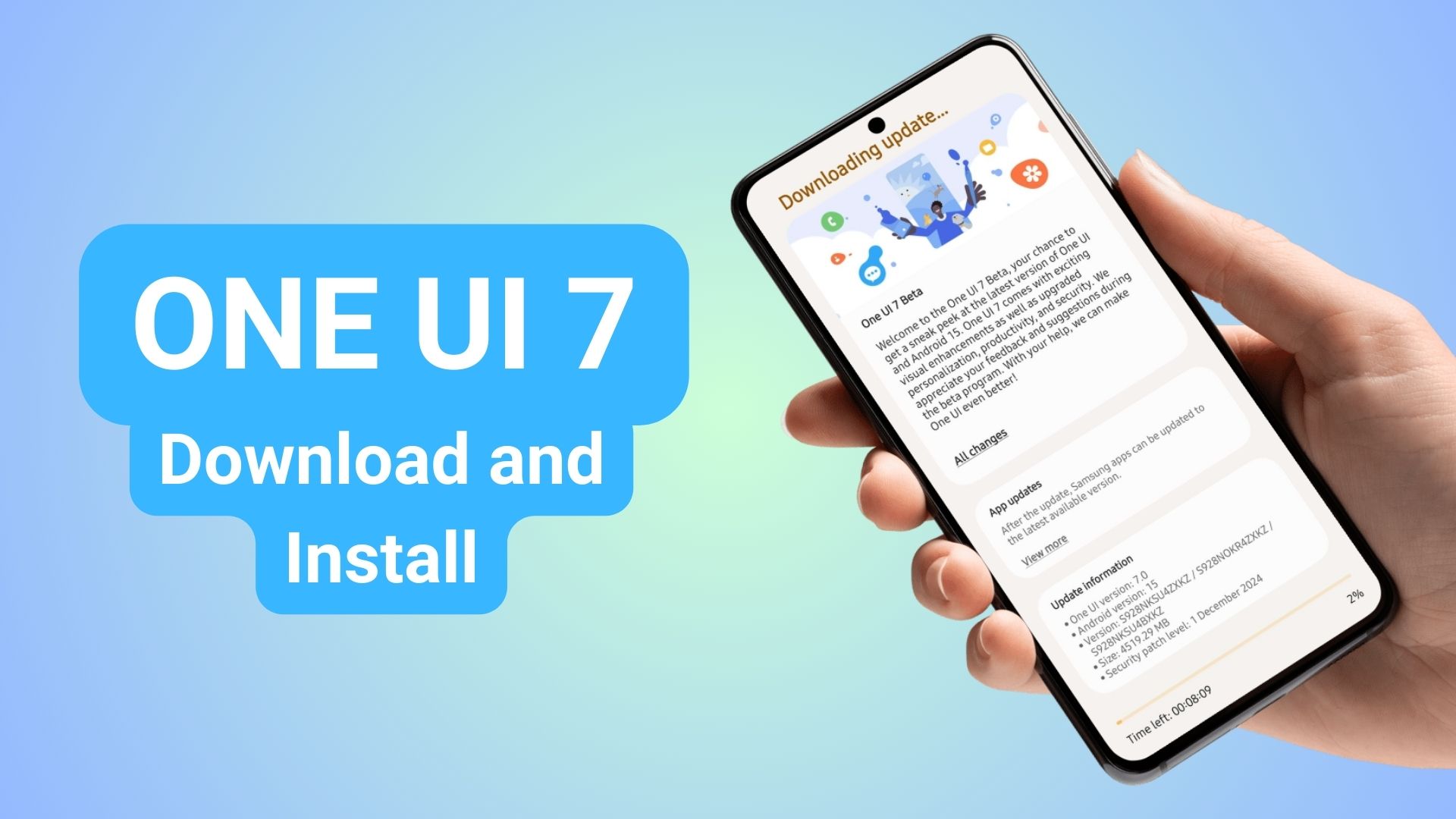
How to Get the One UI Home APK: A Comprehensive Guide
Getting the One UI Home APK involves downloading and installing the official launcher application package for Samsung Galaxy devices, typically to access new features early, restore a missing system app, or bypass regional update delay...
Getting the One UI Home APK involves downloading and installing the official launcher application package for Samsung Galaxy devices, typically to access new features early, restore a missing system app, or bypass regional update delays. Because One UI Home is proprietary software developed by Samsung Electronics, acquiring the correct, uncompromised APK requires understanding system compatibility, security configurations, and safe sourcing methods to protect your device from malware.
Contents
Understanding the One UI Home Launcher
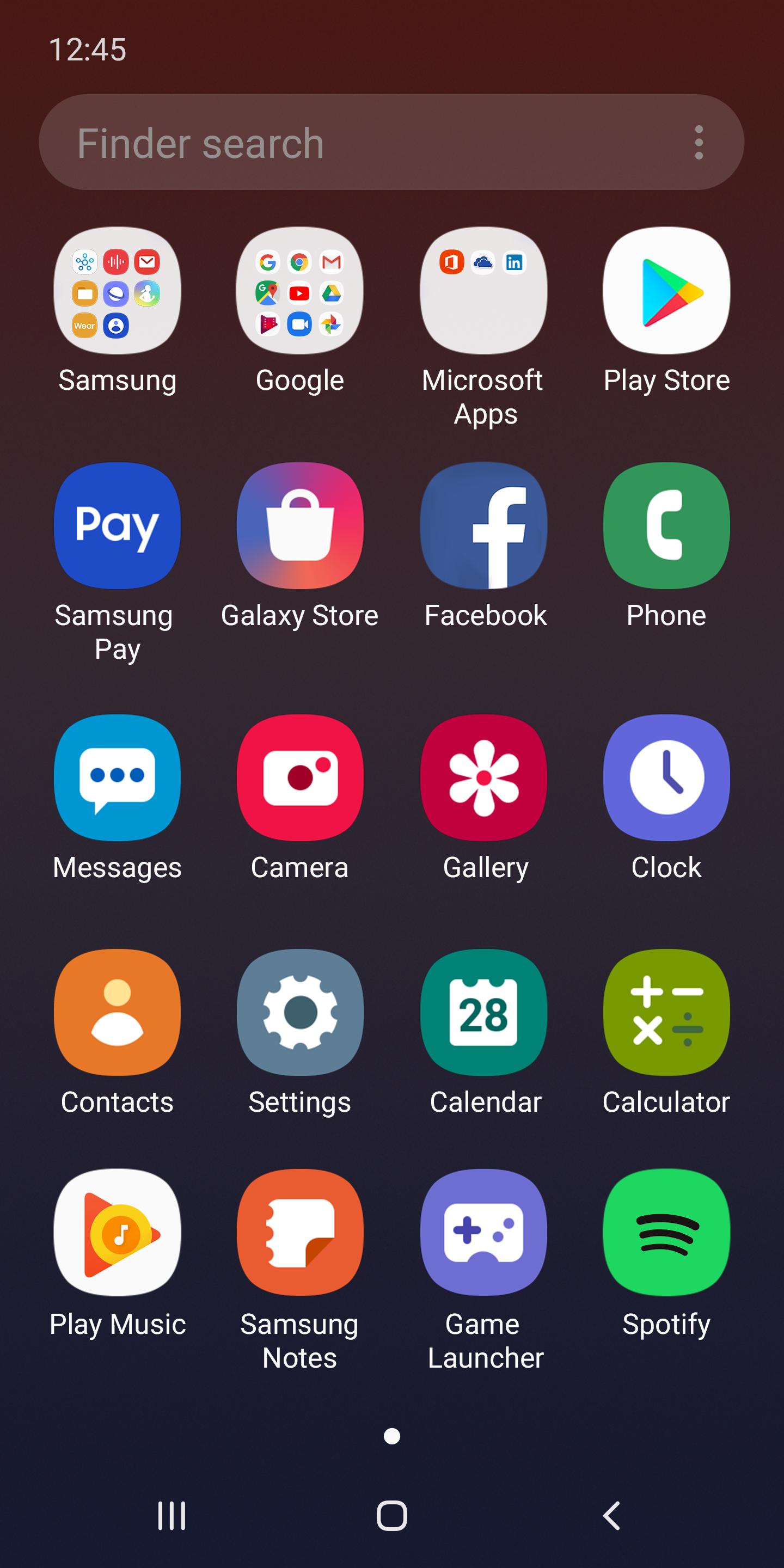
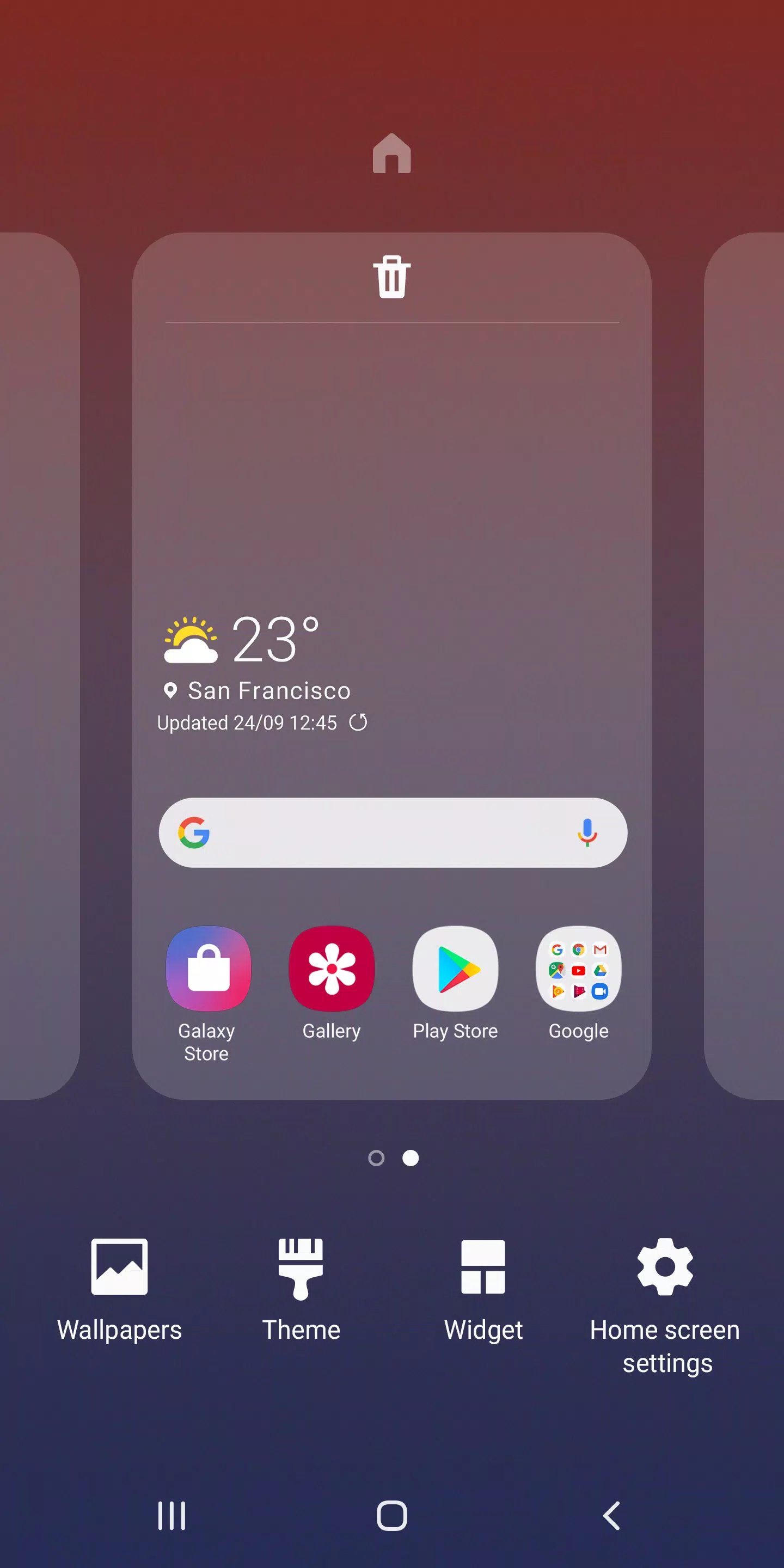
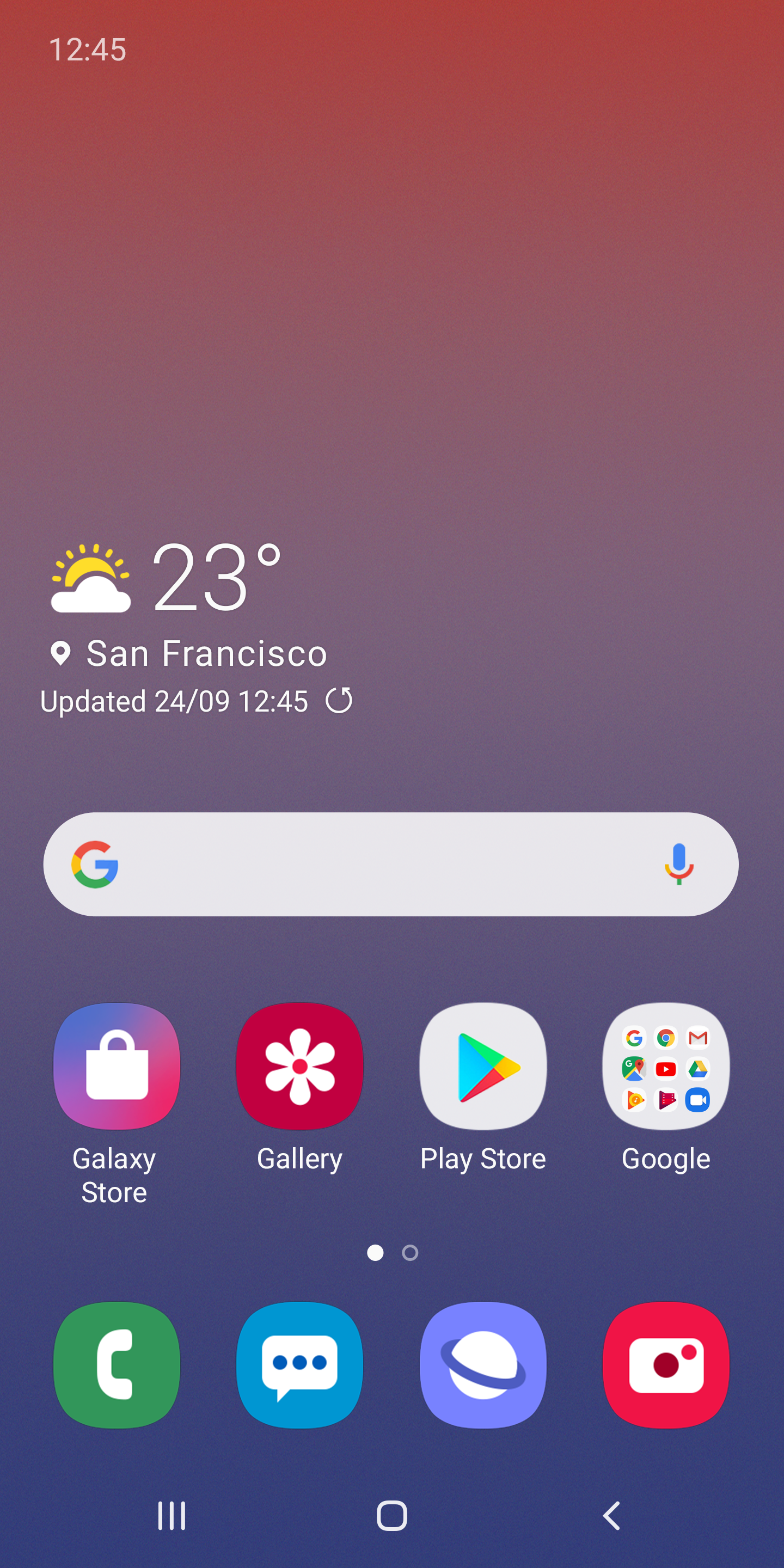
One UI Home serves as the default graphical user interface and application launcher for Samsung smartphones and tablets running the One UI software skin over Android. It manages the home screen layout, app drawer, widget integration, folder organization, recent apps overview, and overall gesture navigation. Samsung updates this core application regularly through the Galaxy Store and Google Play, often tying new iterations to major Android and One UI version upgrades.
When users search for the One UI Home APK, they are usually trying to solve a specific problem. Some enthusiasts want to test leaked or newly released beta launcher versions on older or differently configured devices before an official rollout reaches their region. Others may have accidentally uninstalled or corrupted their system launcher via custom ROM modifications, root access, or debloating scripts, leaving their device without a functioning home screen. Knowing how to obtain and install the correct file safely prevents boot loops, continuous crashing errors, and security vulnerabilities.
Prerequisites and Compatibility Requirements
Before attempting to download or install any APK file related to Samsung's system launcher, you must evaluate several technical constraints. Installing an incompatible package version will result in persistent parsing errors or continuous "One UI Home keeps stopping" notifications.
Android and One UI Version Matching
One UI Home APKs are strictly bound to underlying Android operating system versions and One UI iterations. For example, a launcher APK extracted from a One UI 6.0 build (based on Android 14) will generally not install or function correctly on a device running One UI 5.1 (based on Android 13). Always check your device's current software version by navigating to Settings > About phone > Software information before searching for a matching package.
Device Ecosystem Restrictions
While developers occasionally port Samsung apps to non-Samsung devices through custom modifications, the official One UI Home application is explicitly designed for Samsung Galaxy hardware. Attempting to install the stock APK on Google Pixel, Motorola, or OnePlus devices will fail outright unless you are running a specialized, heavily modified port within a custom ROM ecosystem.
Safe Methods to Get the One UI Home APK
Sourcing APK files requires extreme caution. Third-party APK repositories frequently host modified files that may contain adware, spyware, or malicious code payloads.
| Sourcing Method | Safety Level | Recommended Use Case | Potential Risks |
|---|---|---|---|
| Official Galaxy Store | Highest | Standard updates and missing app recovery | Region locks or staged rollout delays |
| Trusted APK Archives (e.g., APKMirror) | Moderate-High | Manual side-loading of specific version numbers | User error in selecting correct architecture |
| Random Third-Party APK Sites | Low | None | High risk of malware, repackaged payloads, and trojans |
Method 1: Using the Official Channels (Recommended)
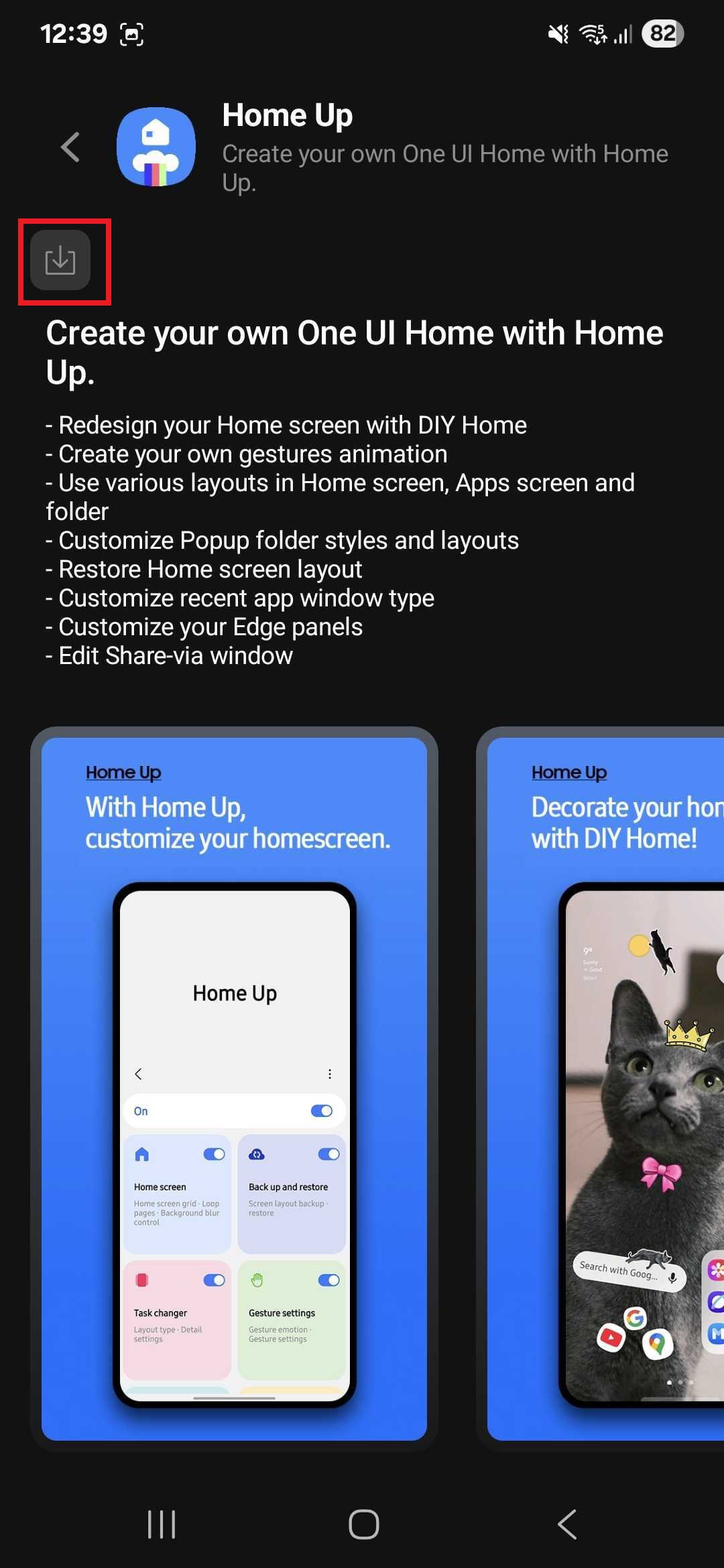
Before looking for standalone APK files, verify whether you can obtain or update the launcher through official channels. If the app was accidentally disabled or removed, you can often reinstall it directly by visiting the app listing in the Galaxy Store or by performing a system software update via Settings > Software update > Download and install. This guarantees cryptographic signature verification and complete compatibility.
Method 2: Downloading from Verified Archival Repositories
If you require a specific older or newer version that has not yet hit your device via official channels, archival platforms like APKMirror offer cryptographically verified, untouched APKs directly extracted from official firmware.
When using an archival repository, follow these verification steps:
- Search for "One UI Home" specifically within the trusted repository's internal search engine.
- Examine the version history to find the build matching your precise Android OS version.
- Verify that the package signature matches Samsung's official developer signature (
com.sec.android.app.launcher). - Download the appropriate file architecture (typically
arm64-v8afor modern Samsung Galaxy processors).
Step-by-Step Installation Instructions
Once you have safely acquired the verified APK file on your Samsung device, follow these sequential steps to complete the installation process.
- Enable Unknown Sources: Modern versions of Android require explicit permission to install applications from sources outside the official app stores. Navigate to Settings > Security and privacy > Install unknown apps, locate the browser or file manager app you used to download the APK, and toggle Allow from this source to the enabled position.
- Locate the File: Open your device's native file manager application (such as My Files) and navigate to the Downloads folder.
- Initiate the Installation: Tap on the downloaded
One_UI_Home.apkfile. A system prompt will appear asking if you want to install an update to this existing application. - Confirm and Apply: Tap Install or Update. The system will verify the package signature and overwrite or update the existing launcher files.
- Revert Permissions: For optimal security, return to Settings > Security and privacy > Install unknown apps and revoke the installation permission from your file manager or browser.
- Set as Default: If the system prompts you to choose a home app after installation, select One UI Home and choose Always. If the layout does not load properly, clear the cache of the app via Settings > Apps > One UI Home > Storage > Clear Cache and restart your device.
Common Mistakes and Troubleshooting
Installing system-level applications manually can occasionally introduce unexpected software behaviors. Understanding common pitfalls helps resolve issues quickly without requiring a factory reset.
"App Not Installed" Error
This error occurs primarily for two reasons: architecture mismatch or signature conflict. If you downloaded an APK compiled for a different Android version, or if you attempted to install an unsigned custom build over an official signed system app, Android will reject the installation outright. Ensure your download source matches your exact Android version.
Continuous Crashing and Force Closes
If your home screen enters a loop of crashing after installing a newer APK version, the package is incompatible with your current framework framework. To fix this:
- Boot your device into Safe Mode by holding the power button, then pressing and holding the Power off icon until the Safe Mode prompt appears.
- Once in Safe Mode, navigate to Settings > Apps > One UI Home.
- Tap Storage, select Clear Data and Clear Cache.
- Tap the three-dot menu in the top right corner and select Uninstall updates to revert to the factory-stable version.
- Restart your phone normally.
Frequently Asked Questions
Can I install One UI Home on a non-Samsung phone?
No, the official One UI Home APK relies heavily on Samsung's proprietary framework APIs (touchwiz and samsung extensions). Without these underlying system libraries present in Samsung's One UI firmware, the application will refuse to run or crash immediately upon launch.
Is downloading the One UI Home APK safe?
It depends entirely on the source. Downloading untouched files from reputable, cryptographic signature-verifying archives like APKMirror is generally safe. Downloading from random blog posts or unverified file-sharing links carries a high risk of malware infection.
Will manual APK installation void my warranty?
Installing an official, unmodified APK via standard side-loading mechanisms does not trip Samsung Knox or void your hardware warranty. However, using modified APKs that require root access or custom recovery flashing can alter system partitions and affect warranty status.
How do I revert to the stock version if the new APK fails?
You can easily revert by navigating to Settings > Apps > One UI Home, tapping the menu icon, and selecting Uninstall updates. This restores the factory version that came pre-installed with your device's current firmware.
Final Recommendations
When seeking to update or restore your device's launcher, always prioritize official update channels through the Galaxy Store or system settings. If manual side-loading via an APK file is strictly necessary, verify version compatibility against your current Android and One UI release, download exclusively from trusted archival platforms, and remove unknown installation permissions immediately after completing the process to maintain device integrity.
Image Gallery