How to Install youtube-dl on Windows, macOS, and Linux
To install youtube-dl, you primarily need a Python environment and the FFmpeg multimedia framework. Most users on Windows download the standalone executable, while macOS and Linux users typically utilize package managers like Homebrew...
To install youtube-dl, you primarily need a Python environment and the FFmpeg multimedia framework. Most users on Windows download the standalone executable, while macOS and Linux users typically utilize package managers like Homebrew or Terminal-based installers. Once the core files are placed in your system's PATH, the tool is accessed via the command line.
Contents
Since its inception, youtube-dl has remained the industry-standard command-line media downloader, allowing users to archive content from thousands of websites. As we move through 2026, the tool continues to be a cornerstone for researchers, archivists, and power users who require granular control over media metadata, quality, and formats. While the landscape of web streaming has evolved, the installation process remains grounded in a few technical prerequisites that ensure the tool functions correctly across different operating systems.
Essential Prerequisites for youtube-dl
Before attempting to install youtube-dl, you must ensure your system meets two critical requirements. Without these, the program may fail to launch, or it may only be able to download low-quality video files without audio.
Python Environment
The youtube-dl program is written in Python. While some versions are bundled as standalone executables (particularly for Windows), having a native Python installation is highly recommended for stability and ease of updates. As of 2026, you should have Python 3.8 or newer installed on your system. Python acts as the interpreter that executes the youtube-dl scripts. You can verify your current version by typing python --version or python3 --version in your terminal.
FFmpeg Multimedia Framework
This is perhaps the most important secondary component. Most modern video platforms, including YouTube, stream high-definition video (1080p and above) and audio as separate streams. To provide you with a high-quality MP4 or MKV file, youtube-dl must download these streams separately and "mux" them together. FFmpeg is the engine that performs this merging. If FFmpeg is missing, you will often find yourself limited to 720p resolution or lower. You can obtain the latest builds from the official FFmpeg website.
Installing youtube-dl on Windows
Windows users have two primary paths for installation: the standalone executable or the Python package manager (pip). The executable is simpler for beginners, while the pip method is preferred for those who already use Python for other tasks.
Method 1: The Standalone Executable
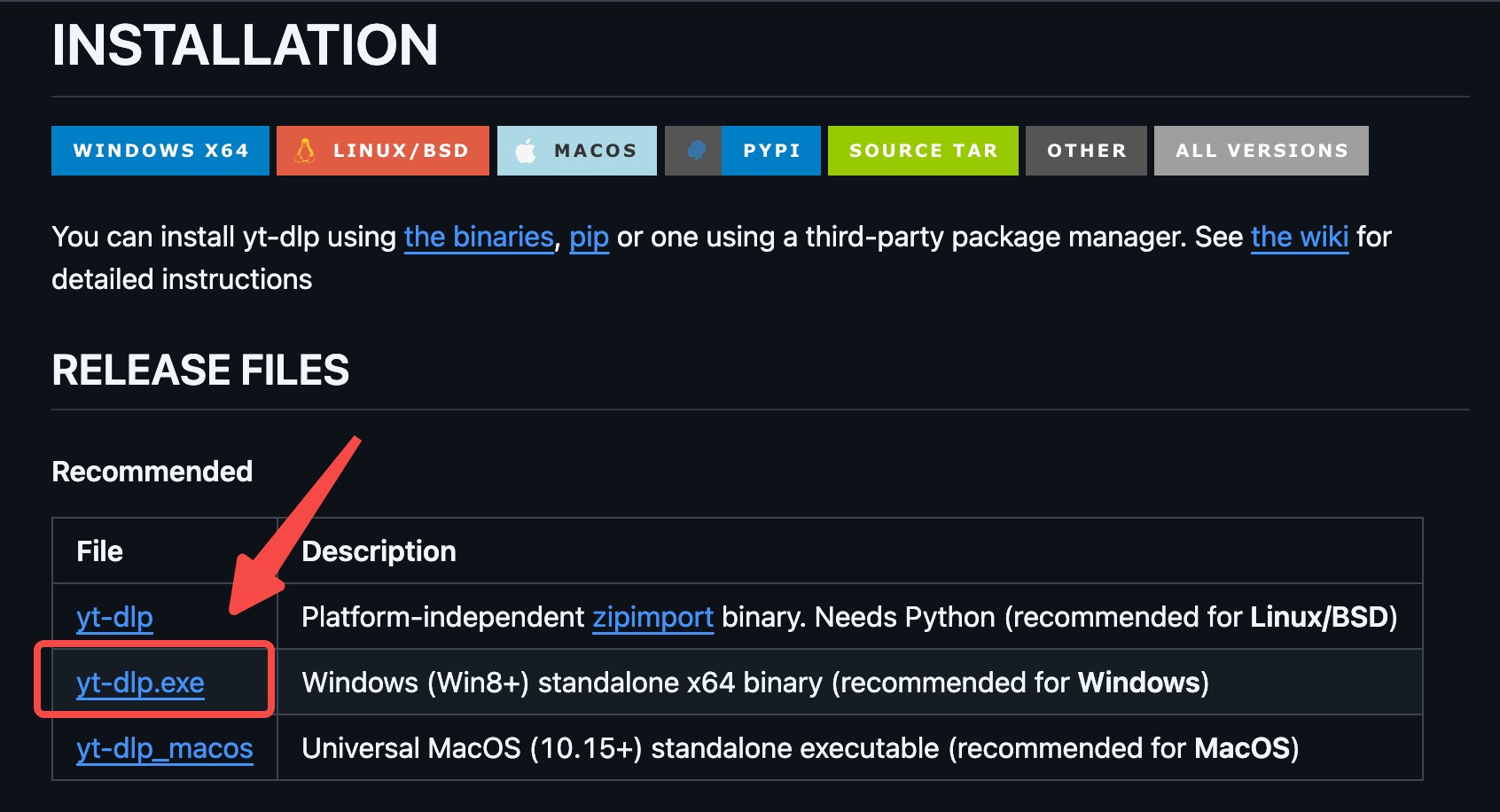
- Visit the official youtube-dl download page or the GitHub releases repository.
- Download the youtube-dl.exe file.
- Move this file to a dedicated folder, such as C:\bin\ or C:\youtube-dl.
- To run it from anywhere, you must add this folder to your system's Path Environment Variables. Search for "Edit the system environment variables" in your Start menu, click "Environment Variables," find "Path" under System Variables, and add the directory where you saved the exe.
Method 2: Using Python (pip)
If you have Python installed, open the Command Prompt or PowerShell and type: pip install youtube-dl This command fetches the latest version from the Python Package Index (PyPI) and handles the installation automatically. One advantage of this method is that updating the tool is as simple as running pip install -U youtube-dl.
Installing youtube-dl on macOS
For Mac users, the most efficient way to manage command-line tools is through Homebrew, a package manager that simplifies the installation of software that Apple doesn't include by default.
Step-by-Step Homebrew Installation
- Open the Terminal application (found in Applications > Utilities).
- If you don't have Homebrew, install it by pasting the installation script from brew.sh.
- Once Homebrew is ready, type the following command: brew install youtube-dl
- Homebrew will automatically download the script and its dependencies. It also handles the PATH configuration, meaning you can immediately type youtube-dl in any terminal window to start using it.
Alternative: Manual Curl Installation
If you prefer not to use Homebrew, you can use the curl command to download the binary directly to your local bin directory: sudo curl -L https://yt-dl.org/downloads/latest/youtube-dl -o /usr/local/bin/youtube-dl sudo chmod a+rx /usr/local/bin/youtube-dl The second command is crucial; it grants "execute" permissions to the file, allowing the operating system to run it as a program.
Installing youtube-dl on Linux
Linux distributions vary in how they handle packages, but the process is generally straightforward using the native package manager or the universal pip method.
Using Apt (Ubuntu/Debian/Mint)
On Debian-based systems, you can use the standard repository: sudo apt update sudo apt install youtube-dl However, be aware that Linux distribution repositories sometimes lag behind the official releases. Since video sites change their code frequently, an outdated version of youtube-dl may break often.
The Universal Linux Binary
For the most up-to-date version on any Linux distro, use the curl method: sudo wget https://yt-dl.org/downloads/latest/youtube-dl -O /usr/local/bin/youtube-dl sudo chmod a+rx /usr/local/bin/youtube-dl
Installation Method Comparison
| Method | OS Compatibility | Ease of Update | Recommended For |
|---|---|---|---|
| Standalone .exe | Windows | Manual Download | Beginners |
| Python (pip) | All (Win/Mac/Linux) | High (Single Command) | Developers / Power Users |
| Homebrew | macOS / Linux | High | Mac Users |
| Apt / Dnf | Linux | Medium (Repo-dependent) | Stability-focused users |
| Manual Binary | Linux / macOS | Manual | Minimalist setups |
Configuration and Path Verification
The most common point of failure during installation is the "command not found" error. This happens when the operating system does not know where the youtube-dl file is located.
To verify your installation, open a new terminal window and type: youtube-dl --version
If a date appears (e.g., 2021.12.17 or a 2026 update), the installation was successful. If you receive an error, you must ensure that the directory containing the file is in your PATH. On Windows, this is managed in the System Properties. On macOS and Linux, you may need to add a line to your .zshrc or .bashrc file, such as: export PATH=$PATH:/usr/local/bin
Integrating FFmpeg
Once youtube-dl is installed, verify that it can "see" FFmpeg. Run: youtube-dl --check-formats If the tool lists various resolutions and mentions "merging" capability, FFmpeg is correctly linked. If not, ensure the ffmpeg.exe (Windows) or the ffmpeg binary (macOS/Linux) is in the same folder as youtube-dl or within the system PATH.
Troubleshooting Common Installation Issues
Even with a perfect installation, you may encounter obstacles based on your network or system security settings.
1. SSL/Certificate Errors
On older versions of Python or certain macOS setups, you might see "SSL: CERTIFICATE_VERIFY_FAILED." This usually means Python cannot verify the security certificate of the download server. On macOS, you can often fix this by running the command: /Applications/Python\ 3.x/Install\ Certificates.command (Replace "3.x" with your specific version).
2. Permissions Denied
If you are on Linux or macOS and see "Permission denied" when trying to run the tool, it means the file is not marked as executable. Use the chmod +x command followed by the path to the file to resolve this.
3. Signature Extraction Errors
If youtube-dl installs correctly but fails when you try to download a video, the site's code has likely changed. Because youtube-dl development has slowed in recent years, many users in 2026 utilize the yt-dlp fork. The installation for yt-dlp is nearly identical (e.g., pip install yt-dlp), and it offers better compatibility with modern site changes.
Advanced Setup: Creating a Configuration File
To avoid typing the same preferences every time (like preferred resolution or file naming conventions), you can create a configuration file.
- Windows: Create a file named youtube-dl.conf in %APPDATA%/youtube-dl/config.txt.
- macOS/Linux: Create a file at /etc/youtube-dl.conf or ~/.config/youtube-dl/config.
Inside this file, you can add lines like: --format bestvideo+bestaudio/best --output "%(title)s.%(ext)s"
Frequently Asked Questions
Is youtube-dl legal to install and use?
The tool itself is a piece of open-source software designed for downloading and archiving. In many jurisdictions, creating a personal backup of content you have the right to access is permitted under fair use or private copying exceptions. However, downloading copyrighted material without permission may violate the terms of service of the hosting platform and local copyright laws.
Why do I need FFmpeg if I just want the video?
Most platforms serve video and audio as separate files to optimize streaming (DASH or HLS). Without FFmpeg, youtube-dl cannot combine these two files into a single, playable video file. Without it, you are often stuck with "legacy" formats that are limited to 720p or 360p.
Can I install youtube-dl on Android or iOS?
Yes, on Android, you can use the Termux app to create a Linux-like environment. From there, you can install Python and then install youtube-dl via pip. On iOS, the process is significantly more restricted, though some third-party shortcuts or specialized terminal apps (like iSH) can run it with limited performance.
How do I update youtube-dl to the latest version?
If you installed via pip, use pip install -U youtube-dl. If you used Homebrew, use brew upgrade youtube-dl. For the standalone Windows executable, you can often run youtube-dl -U directly in the command prompt, though this may require administrator privileges depending on where the file is stored.
What should I do if youtube-dl stops working on a specific site?
First, try updating the program. If it still fails, the site may have updated its encryption or layout. In 2026, many users pivot to the yt-dlp fork, which is updated more frequently to address these specific site-breaking changes.
Final Recommendations
For the best experience in 2026, we recommend installing youtube-dl via the Python (pip) method, as it provides the most consistent behavior across different platforms. Ensure you have the latest stable version of FFmpeg installed and properly mapped to your system's PATH. If you encounter frequent "Signature Extraction" errors, consider trying yt-dlp as a drop-in replacement, as it maintains the same command-line syntax while offering more frequent patches for modern web updates.
Image Gallery