Comprehensive Guide to Koikatsu Party Character Cards: Importing, Creating, Mod Management, and Troubleshooting
Koikatsu Party cards are specialized PNG image files containing embedded 3D character model data, outfit configurations, and custom sliders hidden within the file's steganographic metadata. Users can import these cards into Koikatsu Pa...
Koikatsu Party cards are specialized PNG image files containing embedded 3D character model data, outfit configurations, and custom sliders hidden within the file's steganographic metadata. Users can import these cards into Koikatsu Party simply by placing them in the game’s character directory, allowing instant loading of community-created custom avatars and outfits in both the Character Maker and Studio modes.
Contents
Technical Overview: How Koikatsu Character Cards Store 3D Model Data
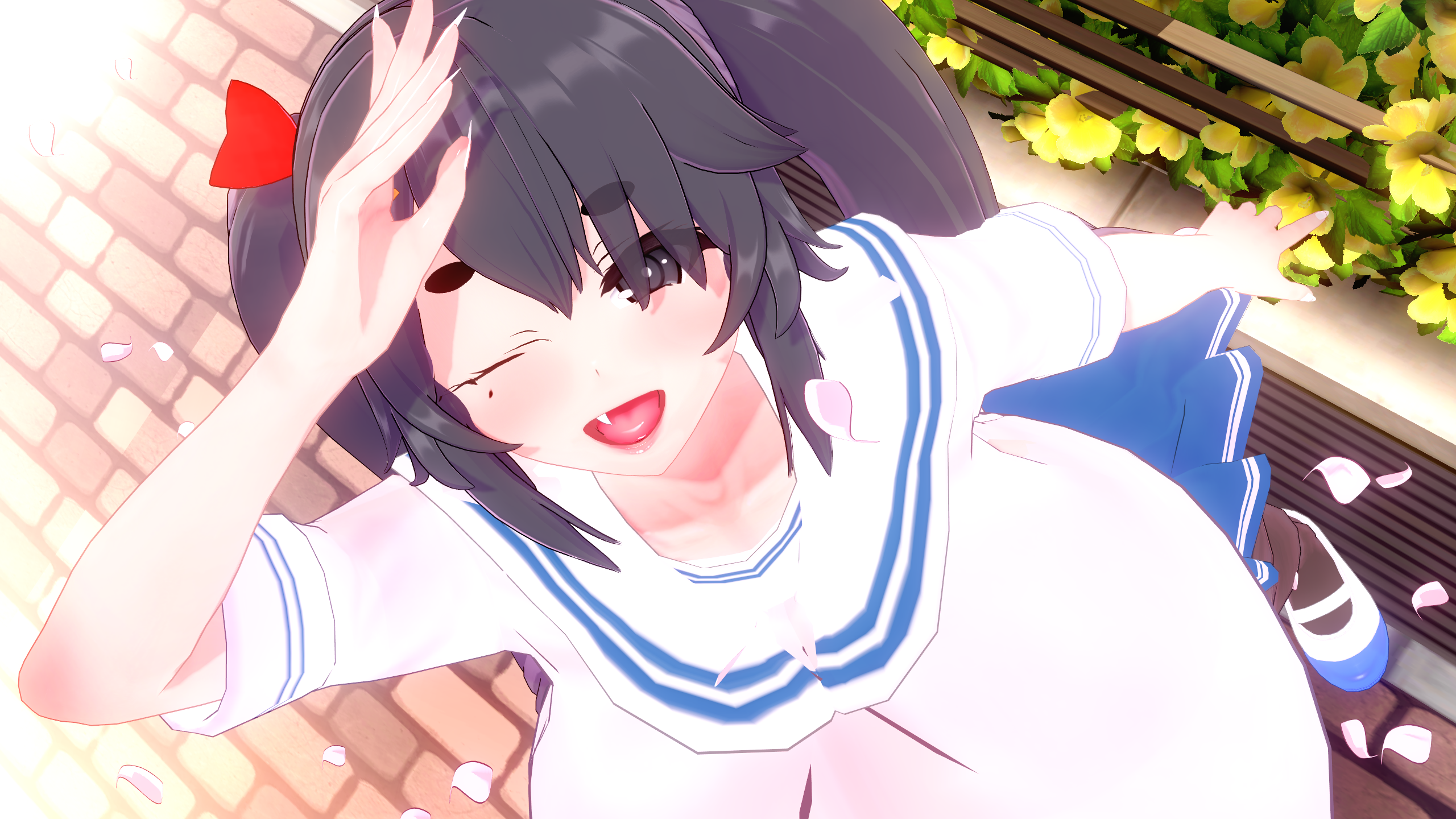
At first glance, a Koikatsu Party card appears to be a standard 2D image file previewing a character or outfit. However, the file functions as a dual-layer data container. The visual image serves as the human-readable thumbnail, while the underlying binary file structure embeds serialized C# data structures directly within non-visual PNG metadata chunks (specifically custom iTXt or eXIf data blocks).
When Koikatsu Party or its underlying Unity engine reads a .png file located within the designated user data folders, the game engine parses these binary chunks. It decodes parameters ranging from facial mesh deformations and bone scales to color palettes, hair layer indices, personality assignments, and voice pitch settings. Because the parameters are stored inside standard image files, sharing character configurations requires no complex database exports—transferring the image file itself transfers the complete 3D model recipe.
(Note: Conceptual architecture—no ASCII graphics used) - PNG Header & IDHR Chunk: Standard image metadata for preview render. - Custom Metadata Chunks: Embedded Unity byte arrays (Character parameters, slider scales, material settings). - ExtendedSave Mod Data: Plugin-specific data (Additional accessories, custom overlays, advanced bone manipulation).
Card File Categories and Directory Destinations
To ensure the game engine recognizes imported cards correctly, files must be sorted into specific target directories inside your main installation folder. Placing a character card into an outfit folder, for instance, prevents the asset from rendering in-game.
| Card Category | File Extension | Target Directory Path | Primary Function |
|---|---|---|---|
| Female Character Cards | .png |
\UserData\chara\female\ |
Full female character models, including body presets, face sliders, voice choices, and default clothes. |
| Male Character Cards | .png |
\UserData\chara\male\ |
Full male character models, customizable for main protagonists or background NPCs. |
| Coordinate (Outfit) Cards | .png |
\UserData\coordinate\ |
Clothing, accessory layer, and footwear configurations that can be applied to any existing character. |
| Studio Scene Cards | .png |
\UserData\studio\scene\ |
Pre-built 3D scenes, camera angles, lighting setups, and posed character arrangements for Studio mode. |
| Studio Pose Cards | .png |
\UserData\studio\pose\ |
Individual or paired character poses saved for quick application inside Studio mode. |
Modding Prerequisites for Advanced Character Cards
While vanilla Koikatsu Party supports basic character cards created using stock assets, the vast majority of community-shared cards rely on third-party mods, custom shaders, and external asset packages (Zipmods). Loading a modded card into an unmodded game typically results in missing hair, floating accessories, default blue textures, or completely invisible character models.
Essential Mod Frameworks
- BepInEx Unity Plugin Framework: The foundational modding engine that allows dynamic code injection into the game's executable. It enables all secondary plugins to intercept card loading sequences and render custom data.
- HF Patch (Heavily Framed Patch): The community-standard cumulative update package. It aggregates critical modding engines, translation patches, engine bug fixes, and essential asset packs into a single automated installer.
- Sideloader (Zipmod System): An isolated asset loading framework. Instead of overwriting original game archives (
.unity3dfiles), Sideloader dynamically loads custom clothing, hair, and props packed inside.zipmodarchives located in the\mods\folder. - Extended Save (KK_Plugins): Expands the baseline PNG metadata capacity. It allows cards to save advanced parameters such as uncapped accessory limits, precise bone transforms, custom material colors, and dynamic skin overlays.
- Maker Accessories Overlap / MoreAccessories: Removes vanilla constraints on accessory placement, allowing creators to attach dozens of custom items to any bone node on the character model.
Operational Standard: Always ensure your installation of the HF Patch and BepInEx runtime is up to date before importing cards created after major community releases. Legacy game builds cannot parse metadata generated by newer versions of ExtendedSave plugins.
Step-by-Step Guide: Importing and Managing Character Cards
Managing a library of thousands of cards manually can quickly lead to duplicated files and broken dependencies. Below are the standard manual and automated workflows for importing cards into your game.
Method 1: Manual Drag-and-Drop Installation
- Download the target
.pngcharacter card from a verified community repository or artist page. - Verify that the downloaded file remains in its native
.pngformat. (Ensure web browsers or mobile transfer tools have not converted the image to.webpor compressed.jpg, which destroys the embedded metadata). - Navigate to your root installation directory (e.g.,
C:\Program Files (x86)\Steam\steamapps\common\Koikatsu Party\). - Open the
UserDatafolder, then selectchara, and openfemale(ormaledepending on the asset). - Drag and drop the
.pngfile directly into the target folder. - Launch Koikatsu Party or Studio. The new character will appear automatically in the character selection carousel without requiring a system reboot.
Method 2: Automated Management via KKManager
KKManager is an open-source asset management tool designed specifically for Illusion games. It automates card organization, mod dependency checking, and asset updates.
- Download and extract the latest standalone release of KKManager.
- Point the software to your root Koikatsu Party installation directory upon first launch.
- Use the built-in Cards Browser tab to view local cards alongside cloud-hosted repositories.
- To install new cards, drag image files directly into the KKManager window. The software automatically parses the card headers, verifies whether it is a character, outfit, or scene, and writes it to the correct subdirectory.
- Run the Check for Missing Mods utility. KKManager analyzes the embedded GUIDs inside the card and alerts you if specific
.zipmodfiles are missing from your\mods\folder.
Troubleshooting Common Card Rendering Issues
When importing cards shared across the global modding community, technical anomalies can arise due to missing dependencies, corrupted metadata, or version mismatches.
1. The Character Appears Completely Naked or Missing Hair
- Primary Cause: The card relies on custom hair or clothing assets stored inside
.zipmodfiles that are not present in your local\mods\directory. - Resolution Strategy: Open the card inside KKManager or use the in-game Missing Mods Finder plugin. Identify the specific Mod Name and GUID listed in yellow/red text. Download the corresponding mod package from community archives or update your HF Patch core asset database.
2. Red Text Warnings Upon Loading Cards
- Primary Cause: Hard dependency failure where a required BepInEx script plugin (e.g., Material Editor, Dynamic Bone, or Overlay Mods) is missing entirely.
- Resolution Strategy: Re-run the HF Patch installer and select the full mod distribution check box. Ensure that KK_Plugins.dll and ExtendedSave.dll are present in
\BepInEx\plugins\.
3. The Card Loads as a Standard Default/Preset Character
- Primary Cause: Image compression or format conversion. If a website compresses the uploaded image to JPEG or WebP, the non-visual metadata chunks containing the character data are permanently stripped.
- Resolution Strategy: Re-download the card from the original source host, ensuring you download the full-resolution file rather than a compressed preview thumbnail. Verify the file extension is strictly
.png.
4. Clothing Textures Render as Solid Light Blue or Magenta
- Primary Cause: Material Shader mismatch. The card was saved using a custom shader plugin (such as UTS2 or DHH Shader Extensions) that is inactive or disabled in your graphics set.
- Resolution Strategy: Install the KK_MaterialEditor plugin via BepInEx, which provides fallback shaders for custom materials when the original render pipeline is absent.
How to Create and Export Optimized Character Cards
Creating high-quality cards that load efficiently for other players requires proper optimization techniques inside the Character Maker (Chara Maker).
Customization Workflow in Character Maker: Base Model Setup -> Hair & Face Sculpting -> Material/Color Tweaks -> Accessory Placement -> Thumbnail framing -> Export (.PNG)
Best Practices for Card Creation
- Camera Framing and Pose Setup: Before saving, use the built-in card preview camera controls to frame the character's face and upper torso clearly. A clean preview helps other users identify the character in large libraries.
- Accessory Node Clean-up: Avoid attaching multiple redundant accessories to default body anchors. Use parent-child attachments cleanly to prevent physics glitches when loaded into Studio.
- Minimize Hard External Dependencies: Where possible, utilize assets included in baseline HF Patch releases rather than niche, single-user custom mods. This ensures maximum compatibility for users downloading your cards.
- Metadata Sanitization: If you are sharing cards publicly on distribution platforms, check your privacy settings inside BepInEx to prevent local file paths or personal notes from being appended to the card's extended save data.
Asset Source Comparison: Card Repositories vs. Mod Packages
Understanding where character assets originate helps maintain a clean, stable game installation.
| Source / Resource Type | Content Provided | Mod Dependency Risk | Recommended Use Case |
|---|---|---|---|
| Vanilla Game Exports | Standard .png files using official textures and meshes. |
Zero Risk (Works on unmodded games). | Sharing base models with players using baseline software. |
| HF Patch Standard Cards | Pre-packaged cards included with community patches. | Low Risk (Assets pre-installed). | Expanding initial game rosters safely without manual mod hunts. |
| Illusion Cards DB / Booru Hosts | Massive, user-submitted public libraries of anime character cards. | Moderate to High (Requires active mod management). | Finding specific anime characters, original creations, and pop-culture avatars. |
| Private Creator Downloads | High-detail custom models featuring bespoke textures and meshes. | High Risk (Requires unique .zipmod downloads). |
Photorealistic or highly stylized scene creation in Studio mode. |
Safe Downloading and File Integrity Checks
Because Koikatsu cards are .png files, standard operating systems treat them as basic raster images. However, users should follow security standards when sourcing files from public modding hubs:
- Executable File Spoofing: Ensure the downloaded file end with
.pngand NOT.png.exeor.png.bat. Genuine character cards do not require executable permissions to function. - Metadata Integrity: Valid Koikatsu cards typically range in file size from 1 MB to 15 MB. Files under 200 KB generally indicate stripped preview thumbnails that lack character model data. Files exceeding 50 MB typically indicate that ultra-high-resolution custom textures have been directly baked into the card's ExtendedSave payload.
Frequently Asked Questions
Can I use Koikatsu Sunshine cards in Koikatsu Party?
Koikatsu Sunshine (the sequel release) uses an updated card file structure. While Koikatsu Party cannot natively open Sunshine cards, community tools such as KK Card Converter or integrated plugins within BepInEx can backport Sunshine character cards for use in Koikatsu Party, provided equivalent clothing and hair assets exist in both games.
Why does my character card look different in Studio than in Character Maker?
Differences in render quality usually stem from Studio's custom lighting, camera filters (such as Post-Processing Enablers), and shader setups. Furthermore, plugins like Material Editor or Dynamic Bone may execute physics or reflection maps differently between the Maker viewport and the Studio workspace.
How do I remove missing mod warnings permanently from a card?
Load the affected card into the Character Maker, open the Missing Mods Resolver or KK_Plugins menu, and select the option to strip missing accessory bindings. Once cleared, save the character as a new card. This overwrites the old metadata array and removes broken mod pointers.
Will installing thousands of character cards slow down my game?
A high card count does not impact in-engine rendering frame rates directly, but it significantly increases initial loading times for Character Maker menus and Studio selection carousels. Using KKManager to stash inactive card packs outside your primary \UserData\ directory helps maintain fast game launch performance.
Image Gallery