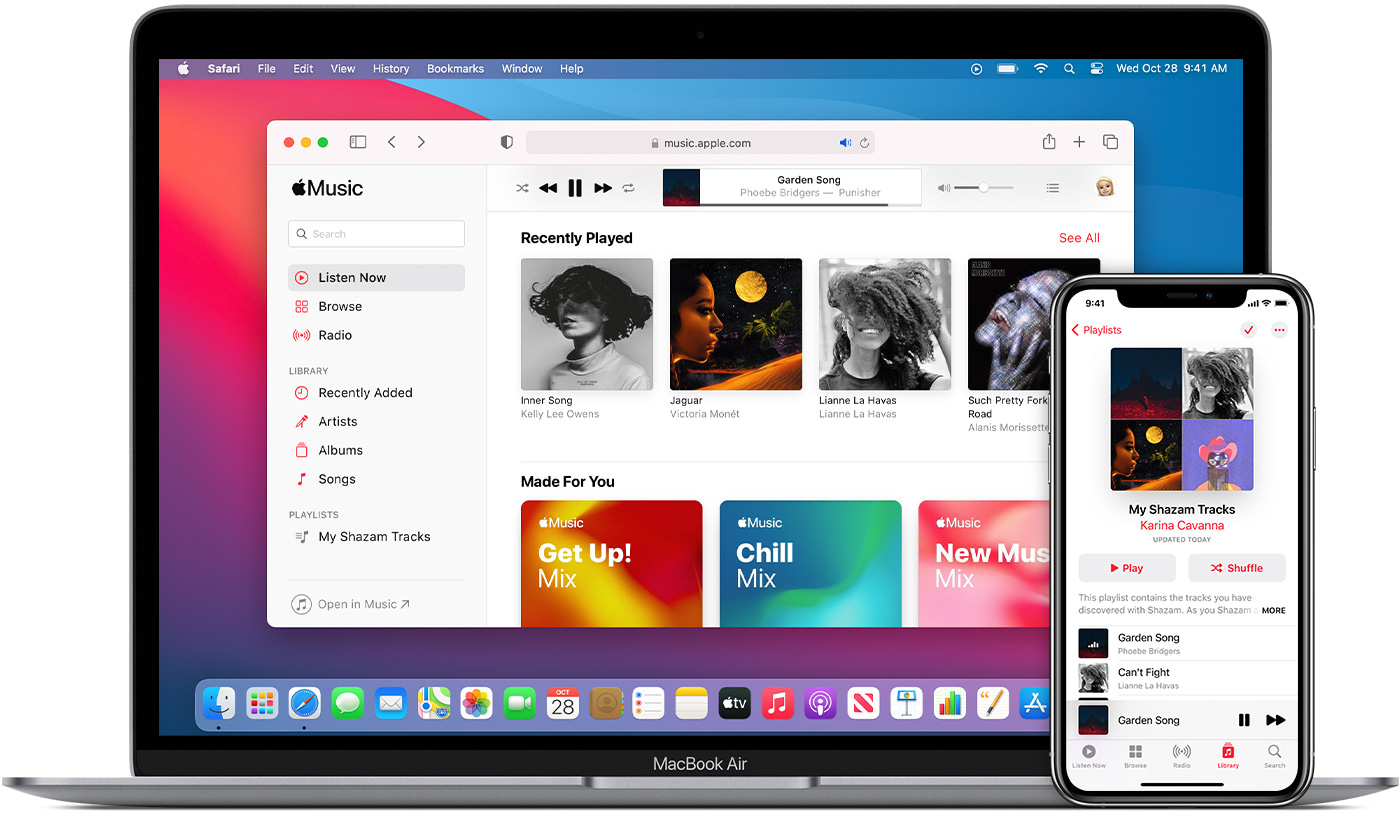
Apple Music Sign In: A Comprehensive Guide for 2026
Signing in to Apple Music requires an active Apple Account (formerly known as Apple ID) linked to a valid subscription or a trial period. Whether you are accessing your library on an iPhone, Android device, Windows PC, or the web, the...
Signing in to Apple Music requires an active Apple Account (formerly known as Apple ID) linked to a valid subscription or a trial period. Whether you are accessing your library on an iPhone, Android device, Windows PC, or the web, the authentication process uses the Apple ecosystem’s unified security framework to sync your music preferences, playlists, and lossless audio settings across all registered devices.
Contents
Prerequisites for Seamless Authentication
Before attempting to sign in, ensure your device meets the minimum technical requirements to support the Apple Music application and the current security protocols in place for 2026. Apple frequently updates its authentication services to enhance user privacy and account security; therefore, maintaining up-to-date software is the primary way to avoid sign-in errors.
- Active Apple Account: You must have a functional Apple Account with two-factor authentication (2FA) enabled, as this is now the standard for all Apple services.
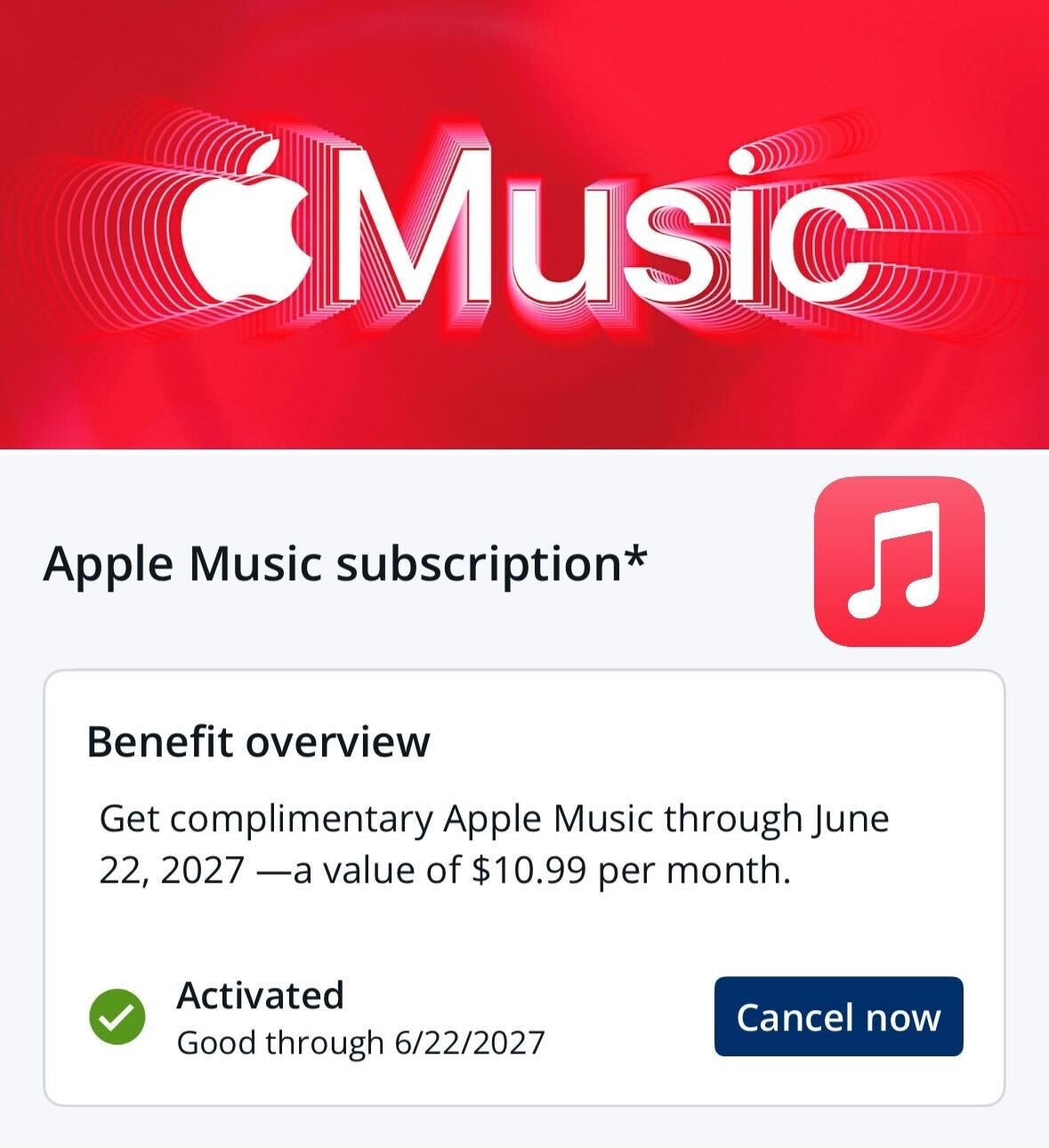
- Subscription Status: Verify that your Apple Music subscription is active. If your subscription has expired, you can sign in to the app, but playback functionality will be restricted until a payment method is successfully processed.
- Network Stability: A stable internet connection is required to communicate with Apple’s servers. If you are using a VPN or a corporate firewall, these may occasionally block the handshake required for authentication.
- Device Compatibility: Ensure your operating system is compatible with the latest version of the Apple Music app or the web interface.
Step-by-Step Sign-In Workflows Across Platforms
The process for signing in varies slightly depending on the ecosystem you are using. Below is the technical breakdown for the most common platforms.
Apple Devices (iOS, iPadOS, macOS)
On Apple-branded hardware, the Apple Music app typically inherits the account credentials from the system settings.
- Open the Music app.
- Tap or click the Account icon (usually found in the top right corner).
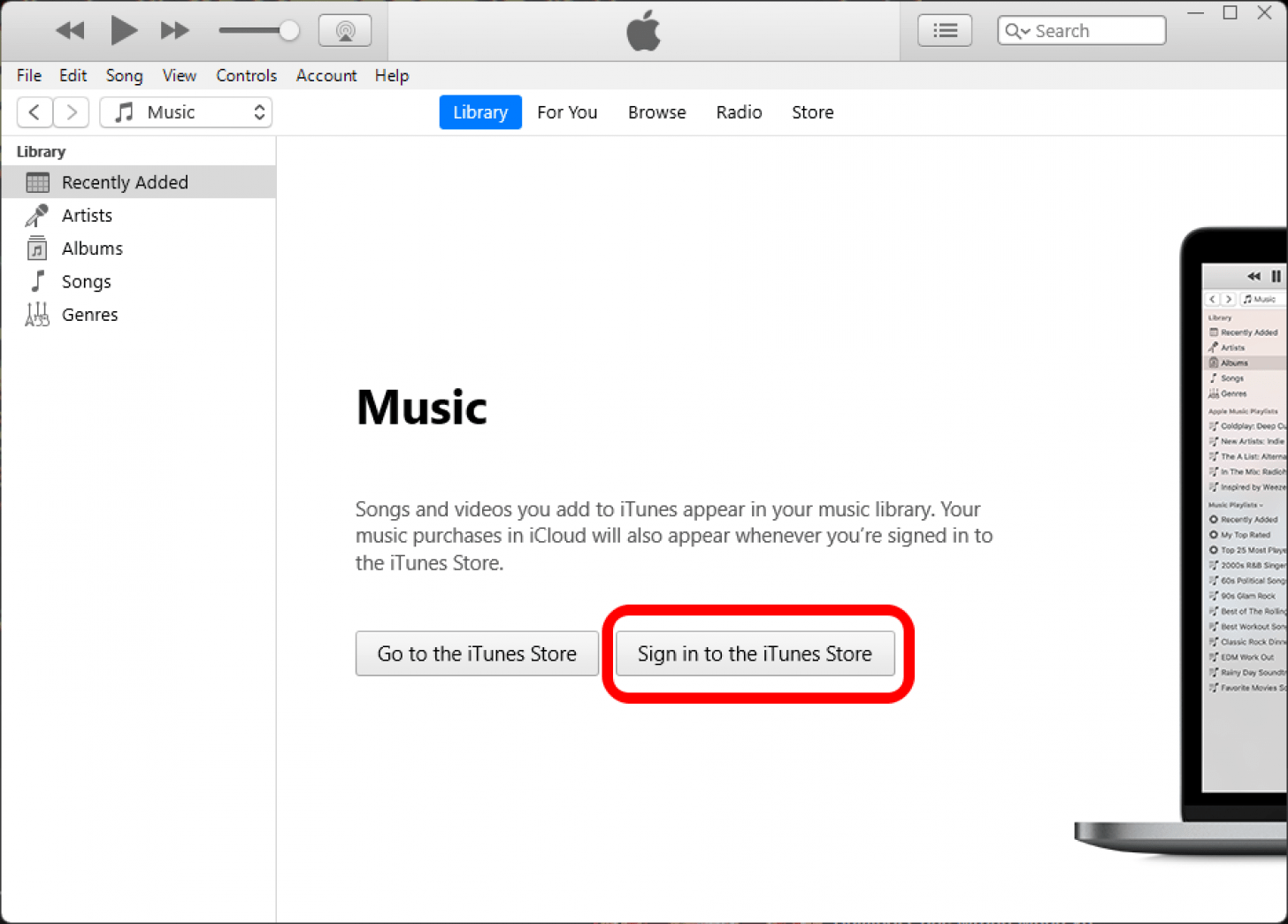
- Select "Sign In."
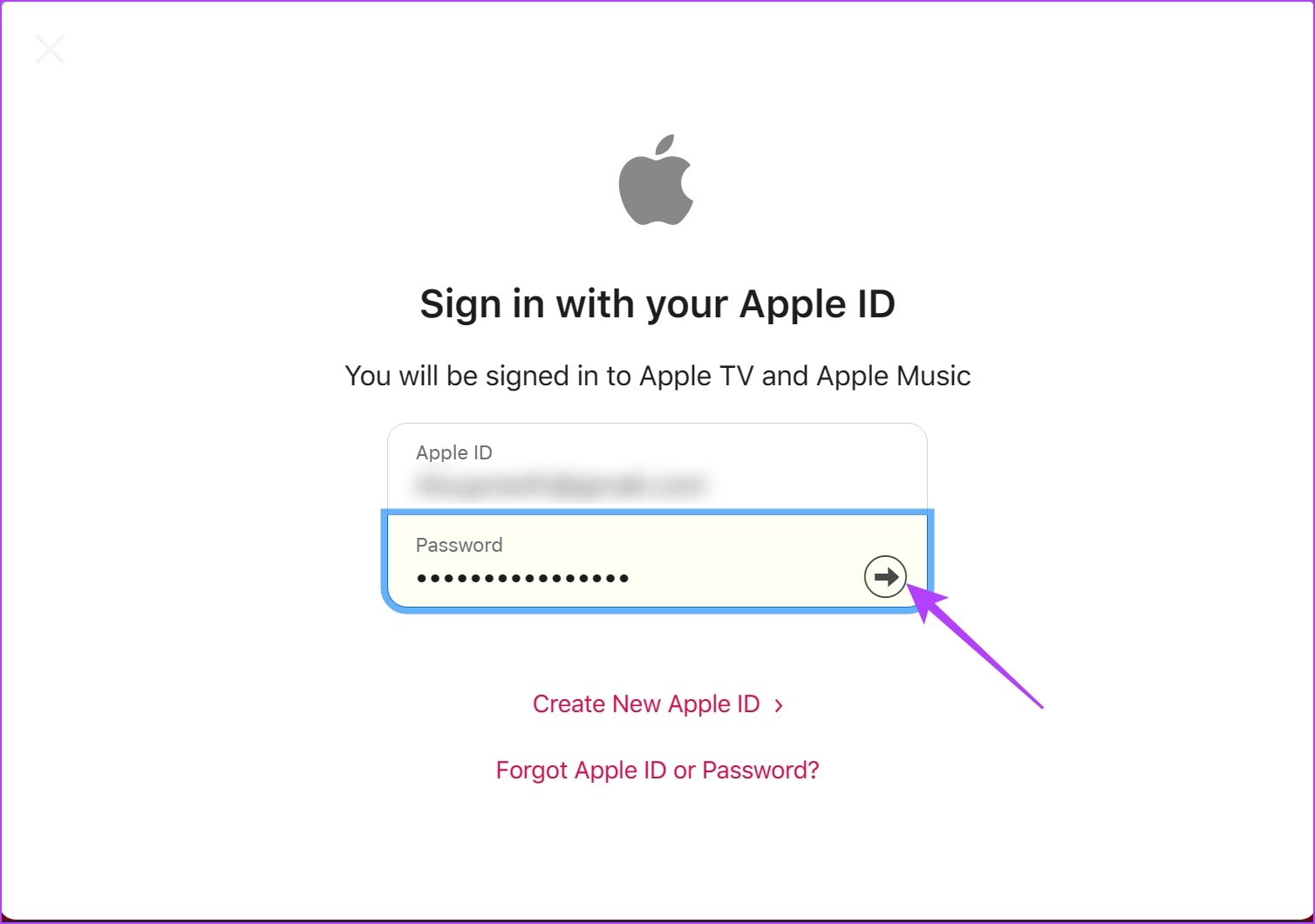
- Enter your Apple Account email and password.
- Approve the login request on another trusted device or enter the verification code sent to your trusted phone number.
Android Devices
Apple Music for Android is a standalone application that requires manual entry of credentials.
- Download Apple Music from the Google Play Store.
- Open the app and navigate to the Settings menu.
- Select "Account."
- Enter your credentials. Ensure "Allow cross-tracking" is toggled according to your privacy preferences.
Web Interface (music.apple.com)
The web player is the most accessible method for users on Linux or restricted hardware.
- Visit the official Apple Music website.
- Click the "Sign In" button located in the top right header.
- A secure overlay window will appear. Enter your credentials.
- If you have enabled hardware security keys, you may be prompted to authenticate using your security key or biometric sensor on your browser.
Troubleshooting Common Authentication Errors
Technical friction during the sign-in process is usually related to cached credentials, expired sessions, or network configuration. Use this table to diagnose specific issues.
| Error Message | Likely Cause | Recommended Resolution |
|---|---|---|
| "Verification Failed" | Network latency or server downtime | Toggle Airplane Mode or check the Apple System Status page. |
| "Account Not Found" | Typo in email or wrong account | Verify your primary email associated with your Apple Account. |
| "Cannot Connect to Server" | VPN or Firewall interference | Disable VPNs and ensure ports 80/443 are open. |
| "Subscription Expired" | Payment method failure | Visit apple.com/billing to update your payment information. |
Technical Security Standards and Privacy
In 2026, Apple maintains a rigorous security posture regarding user data. When you sign in to Apple Music, you are not just logging into a music player; you are authenticating with the iCloud infrastructure.
Important Security Protocol Two-Factor Authentication (2FA) Mandatory Enrollment All Apple Accounts are now required to have 2FA enabled to access Apple Music. This involves a password combined with a six-digit verification code sent to your trusted devices. If you lose access to all trusted devices, you will need to utilize your Account Recovery Key—a 28-character code generated during the initial setup of your account. Do not store this key on a digital device accessible by others.
Managing Account Credentials and Payment Methods
If you are unable to sign in due to account-related issues rather than application errors, you must address the issue through the broader Apple Account portal.
- Password Recovery: If you have forgotten your password, navigate to iforgot.apple.com. You will need access to the phone number associated with the account to reset it.
- Payment Failures: If the sign-in is successful but you cannot play music, your payment method may have been declined. Navigate to your device's "Media & Purchases" settings to verify that your card has not expired or reached its limit.
- Family Sharing: If you are part of an Apple Family Sharing plan, ensure the family organizer has not removed your account or that the subscription has not been canceled by the account owner.
Frequently Asked Questions
Why does my Apple Music ask me to sign in repeatedly? This often occurs if your device has a corrupted cache or an expired security token. Try signing out of the app entirely, restarting your device, and signing in again to force a fresh token exchange with Apple’s servers.
Can I use a different Apple Account for Music than I do for iCloud? Yes, on iOS and macOS, you can sign in with a secondary Apple Account specifically for "Media & Purchases" while keeping your primary account for iCloud syncing. This is common for users with legacy accounts from different regions.
What should I do if I am traveling abroad and cannot sign in? Apple Music is region-locked based on your account's billing address. If you move to a new country, you must update your Apple Account region, which requires canceling active subscriptions and adding a valid payment method issued in the new country.
Is there a way to sign in without a password? If you have a Face ID or Touch ID-enabled device, you can sign in to Apple Music using biometric authentication after the initial login. Enable this in your "Face ID & Passcode" or "Touch ID & Passcode" settings.
How do I manage devices that are signed into my Apple Music? Navigate to the "Devices" section within your Apple Account settings on your iPhone or Mac. Here, you can view a list of all devices currently using your account and remove any that are no longer in your possession.
Final Recommendations for Account Maintenance
To ensure a smooth experience with Apple Music in 2026, keep your recovery contact information updated. If your primary email address changes, ensure you update it in your Apple Account settings immediately, as this is the primary identifier for your subscription status. If you experience persistent issues that none of the above steps resolve, visit the official Apple Support community or contact AppleCare, as they can perform a diagnostic check on your account status to identify backend discrepancies that prevent successful authentication.
Image Gallery