CaneLink Miami Login: Student, Faculty, and Proxy Portal Access Guide
To log into CaneLink, navigate directly to CaneLink and select your specific user affiliation: Student, Faculty/Staff, or Proxy/Delegate. Enter your University of Miami CaneID and password, then approve the secondary authentication pus...
To log into CaneLink, navigate directly to CaneLink and select your specific user affiliation: Student, Faculty/Staff, or Proxy/Delegate. Enter your University of Miami CaneID and password, then approve the secondary authentication push via the Duo Mobile app. CaneLink serves as the university's centralized student information and academic management hub.
Contents
Identity Verification Notice CaneLink relies on unified CaneID authentication. Never enter your credentials on non-miami.edu domains. If your credentials fail across multiple university services, manage or reset your access through the official CaneID Self-Service portal before contacting the IT Help Desk.
Understanding CaneLink and the University of Miami Digital Architecture
CaneLink is the primary Student Information System (SIS) for the University of Miami, built on Oracle's PeopleSoft Campus Solutions architecture. While UM utilizes several enterprise applications to manage higher education operations, each system serves a distinct institutional purpose. Understanding where CaneLink fits into this structure prevents common navigational mistakes during course enrollment, tuition billing, and grade submission.
- CaneLink (Student Information System): Manages student academic records, class schedules, course registration shopping carts, transfer credit evaluations, official transcripts, degree progress audits, and direct student billing.
- Canvas (Learning Management System): Houses day-to-day coursework, syllabus documents, lecture recordings, quizzes, discussion boards, and assignment submission portals.
- Workday: Serves as the Human Capital Management (HCM) platform for student employees, graduate assistants, faculty, and full-time university staff to manage payroll, direct deposit configurations, and tax withholdings.
- Navigate Student: Functions alongside CaneLink as the undergraduate academic advising, appointment scheduling, and retention management platform.
Authentication across all these systems is tethered to your central CaneID. A single credential update in the identity management system shifts your security profile across both CaneLink and its auxiliary systems simultaneously.
Step-by-Step CaneLink Login Instructions by User Role
Accessing CaneLink requires navigating through specific role-based entry gates to ensure the system loads the correct security profile, permission sets, and page layouts.
1. Current Students and Applicants
Undergraduate, graduate, law, and medical students access their enrollment records through the standard student dashboard.
- Open an updated web browser (Google Chrome, Mozilla Firefox, or Apple Safari) and navigate to the CaneLink Portal.
- Click the primary Student Login button.
- On the unified Single Sign-On (SSO) prompt, enter your assigned CaneID username and password.
- Submit the form to trigger the multi-factor prompt.
- Check your registered mobile device and approve the Duo Mobile push notification, or enter the rotating six-digit passcode generated inside the Duo app.
- Upon verification, the browser redirects automatically to the CaneLink Student Home screen.
Prospective students who have submitted an application through the Common Application or Coalition Application use this same process once UMIT issues their initial CaneID setup email.
2. Faculty, Instructors, and Academic Advisors
Faculty and instructors utilize CaneLink to review class rosters, record mid-term and final grades, verify student academic attendance, and lift registration advising holds.
- Navigate to CaneLink and select Faculty/Staff Login.
- Authenticate using your standard university CaneID credentials.
- Complete the Duo Mobile two-factor verification.
- Select the Faculty Center or Advisor Center tile on the administrative dashboard.
- If you hold multiple appointments (such as teaching within the College of Arts and Sciences while serving on an administrative committee), toggle your operational role using the top navigation drop-down menu.
3. Parents, Guardians, and Authorized Delegates (Proxy Access)
The Family Educational Rights and Privacy Act (FERPA) restricts the university from disclosing student academic and financial records to third parties without explicit authorization. Students must grant parental or sponsor access via the CaneLink "Proxy Access" module before external users can log in.
- The student must first log into CaneLink, navigate to the Profile tile, select Proxy Access, and designate an authorized user along with their specific permissions (view grades, view bill, make payments).
- The designated proxy receives an automated email containing an initial access link, temporary password, and a cryptographic token.
- Navigate to the designated Proxy Login link found on the main CaneLink landing page.
- Enter the email address registered by the student and the established proxy password.
- Enter the secondary verification pin sent via email or SMS when prompted.
Authentication Requirements and Security Configurations
Securing academic, personal, and financial data within CaneLink requires continuous alignment between the user's local setup and the university's cybersecurity standards.
CaneID Standards and Password Maintenance
Your CaneID is your unique personal identifier at the University of Miami. It consists of an alphanumeric identifier distinct from your numeric Cane Card ID (C-Number).
- Complexity Rules: Passwords must span a minimum of 12 characters and combine uppercase letters, lowercase letters, numbers, and allowed special characters.
- Expiration Schedules: Depending on user classification and security permissions, CaneID passwords expire at regular intervals. Expired passwords automatically prevent CaneLink access until updated through CaneID Self-Service.
- Account Lockouts: Entering incorrect credentials five consecutive times triggers an automatic 30-minute lockout to defend against brute-force attacks.
Duo Mobile Multi-Factor Authentication (MFA)
All CaneLink logins require two-factor identity proofing managed by Duo Security. The system operates through modern Universal Prompt protocols.
- Recommended Method: The Duo Mobile application installed on an iOS or Android device using cryptographic push verification.
- Alternative Methods: Hardware security keys (FIDO2/WebAuthn), SMS passcodes (contingent on operational policy), or UMIT-issued hardware tokens.
- Remember Device: Selecting "Trust this browser" maintains your authenticated MFA session for up to 30 days on that specific machine, provided browser cookies remain intact and private browsing modes are not engaged.
Navigating Core Student Services Inside CaneLink
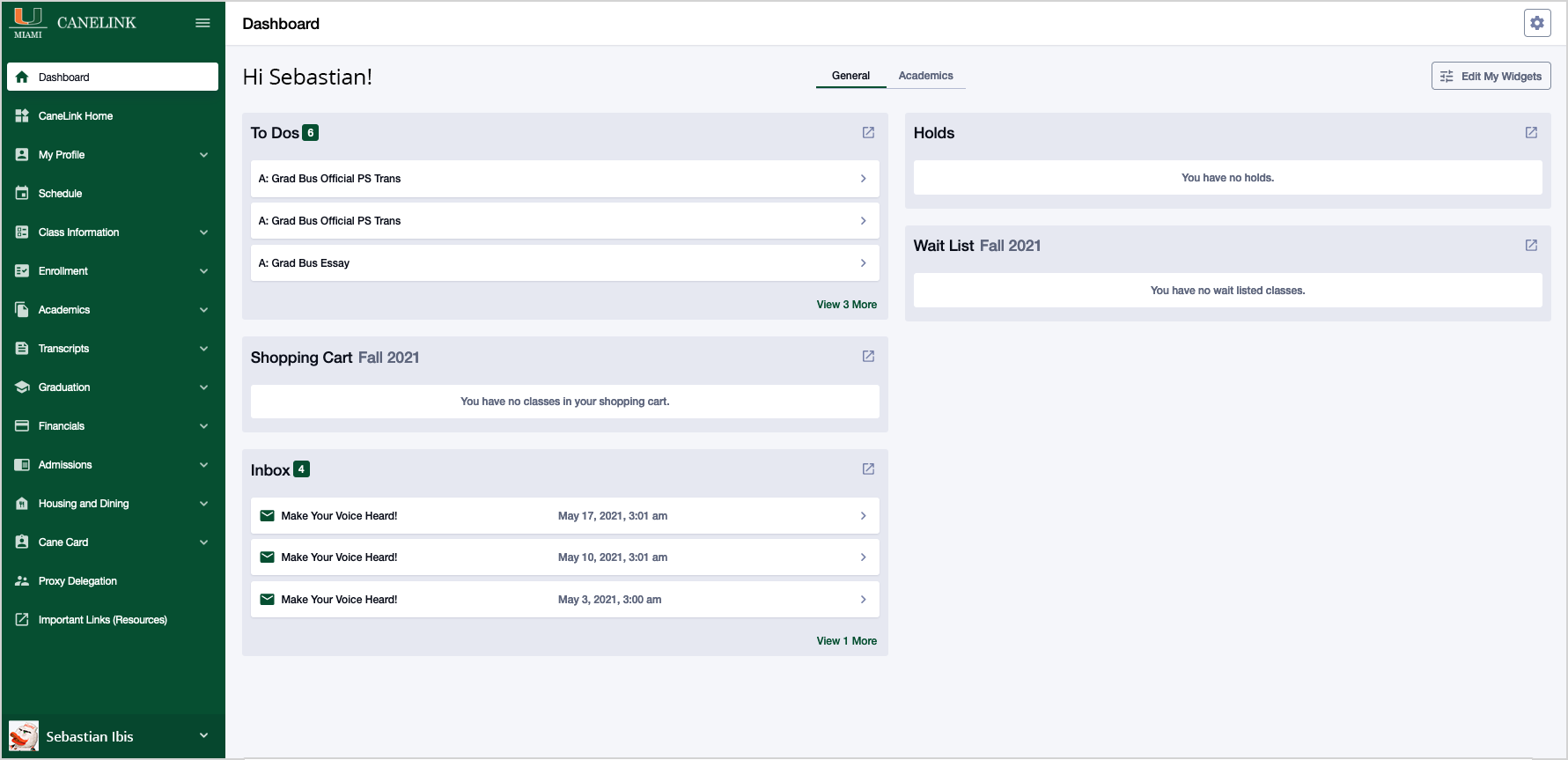
Once past the authentication screen, the CaneLink home interface presents modular tiles configured around core university workflows.
1. Academic Records and Enrollment
The Manage Classes tile handles the full enrollment lifecycle for fall, spring, and summer terms:
- Schedule Builder: Allows students to input preferred course numbers, block out athletic or work commitments, and generate conflict-free course schedule options.
- Shopping Cart: Holds intended course sections prior to an assigned registration appointment window. Validating the shopping cart runs real-time checks for prerequisite fulfillment, time conflicts, and instructor consent requirements.
- Drop/Add/Swap: Facilitates course drops, adds, and conditional swaps. The swap function protects existing course seats by dropping an enrolled class only after registration into the target class succeeds.
- Degree Progress Report (DPR): Analyzes completed and in-progress credits against general education requirements, major areas of study, minors, and overall GPA benchmarks.
2. Student Accounts, Billing, and Financial Aid
The Finances and Financial Aid tiles oversee tuition payments and awards:
- Account Inquiry: Displays itemized line items for tuition, laboratory fees, mandatory student health insurance fees, housing charges, and meal plan costs.
- Payment Gateway Integration: Redirects users to the university's Nelnet payment processing partner to establish monthly payment plans, initiate direct debit transfers, or make card payments.
- Financial Aid Status: Outlines institutional merit scholarships, federal grant allotments, subsidized and unsubsidized loan opportunities, and outside aid awards.
- Tax Documents: Generates official IRS Form 1098-T (Tuition Statement) PDFs each January for eligible students.
3. Resolving Holds and Completing Tasks
The Tasks tile aggregates blocking conditions, action items, and regulatory agreements.
- Advising Holds: Placed by academic departments prior to semester enrollment windows. These require an advising session before CaneLink permits course registration.
- Bursar Holds: Triggered by past-due account balances exceeding institutional thresholds. A financial hold prevents class changes, transcript releases, and future enrollment.
- Immunization Holds: Enforced by the Student Health Service. Documentation verifying measles, mumps, rubella, hepatitis B, and other required immunizations must be cleared to eliminate enrollment stops.
System Feature and Portal Comparison
The table below outlines the boundaries between the University of Miami's primary enterprise systems to guide your daily tasks.
| Platform | Primary Target Audience | Primary Function & Scope | Authentication Method | Associated Office |
|---|---|---|---|---|
| CaneLink | Students, Faculty, Academic Advisors, Proxies | Course registration, grade rosters, official transcripts, tuition billing, financial aid, degree audits | CaneID + Duo MFA (or Proxy PIN) | Office of the University Registrar / 'Canes Central |
| Canvas | Students, Teaching Assistants, Instructors | Course materials, assignment submissions, internal class discussions, midterm course grading | CaneID + Duo MFA | Academic Technologies / Provost |
| Workday | Faculty, Staff, Student Employees, Graduate Assistants | Payroll processing, W-2 forms, benefits administration, expense reports, institutional procurement | CaneID + Duo MFA | University Human Resources / Payroll |
| Navigate Student | Undergraduate Students, Professional Advisors | Academic advising appointment scheduling, early academic alerts, peer tutoring connections | CaneID + Duo MFA | Office of Academic Support Systems |
| CaneID Self-Service | All UM Affiliates, Alumni, Applicants | Password resets, account recovery setups, phone number modifications, Duo device management | Security Questions / SMS recovery / CaneID | University of Miami Information Technology (UMIT) |
Resolving Common CaneLink Login and Access Issues
Enterprise systems experience browser cache conflicts, identity synchronization drops, and connection time-outs. Follow these diagnostic steps to clear access barriers.
Authentication Loops and Single Sign-On Failures
If submitting your CaneID returns you immediately to a blank login prompt or generates an "HTTP 400 Bad Request" error:
- Clear Local Site Data: Clear the cache, cookies, and local session storage for all
miami.edudomains inside your browser settings. Old session tokens often conflict with current SAML assertions. - Bypass Extensions: Ad-blocking software, script blockers, and aggressive cookie-isolation extensions frequently break the redirection handshake between the single sign-on screen and PeopleSoft.
- Test Private Window: Launch an incognito or private browsing window. If CaneLink loads successfully, the issue stems from an active browser extension or corrupted browser cache.
Duo MFA Verification Problems
If the Duo Mobile application does not display authentication requests:
- Manual Passcode Generation: Open the Duo Mobile app on your mobile device, select the University of Miami entry, and read the numeric passcode. On the CaneLink login screen, choose the Enter a Passcode option and type the digits directly.
- Network Desynchronization: If connected to public or cellular networks with aggressive traffic shaping, switch to Wi-Fi (such as the SecureCanes network when on campus) or cycle airplane mode on your device to reset the push socket.
- Device Replacement: If you acquired a new mobile device with the same phone number, select "Manage Devices" on the Duo screen to prompt an SMS verification and re-link the app. If your phone number changed, you must contact UMIT directly for an identity verification and temporary bypass code.
Missing Tiles or Incomplete Security Permissions
New students and newly hired teaching personnel sometimes encounter a barren CaneLink dashboard showing no functional tiles.
- System Provisioning Delays: Newly created accounts require up to 24 hours after matriculation or appointment processing for access roles to replicate across databases.
- Identity Provisioning Sync: If your affiliation changes (e.g., transitioning from an undergraduate to a graduate program, or moving from student status to a staff role), identity systems may leave your default landing page set to the prior profile. Use the dashboard drop-down at the top center of the screen to switch between views (such as "Student Homepage" and "Employee Self-Service").
University of Miami IT Support and Campus Contact Channels
When automated recovery processes fail, direct administrative and technical intervention is available through official university channels.
- University of Miami Information Technology (UMIT) Help Desk: Provides primary tier-1 technical support for CaneID recovery, Duo provisioning, and system outages. Reach the central help desk by phone at (305) 284-6565 or via email at
itsupport@miami.edu. The physical central support counter is located at the Coral Gables Campus inside the Richter Library on the first floor. - 'Canes Central: Manages functional issues involving the underlying records accessed through CaneLink, including student accounts, billing discrepancies, financial aid distributions, and registrar functions. 'Canes Central is situated on the Coral Gables campus at the Student Services Building, first floor, accessible via web inquiry at Canes Central.
- Medical Campus IT Support (UHealth / Miller School of Medicine): Students and faculty located at the medical campus complex in downtown Miami can reach specialized medical IT support at (305) 243-5999.
Frequently Asked Questions About CaneLink Miami Access
How do I reset a forgotten CaneID password for CaneLink?
Navigate to the official CaneID Self-Service portal and select the "Forgot Password" link. You will be prompted to supply your registered CaneID or primary email address along with answers to your predefined security verification questions to establish a new password.
Following the password reset, wait approximately five to ten minutes before attempting to log back into CaneLink. This delay allows the identity platform to sync the new cryptographic hash across all distributed PeopleSoft server nodes.
Why does CaneLink display a "System Error" or "Access Denied" message after logging in?
This issue typically indicates a stale browser cookie session or an active permissions conflict within the PeopleSoft Campus Solutions database. Resolving it generally requires completely clearing your browser's cookies and site cache, disabling blocking extensions, or opening the portal inside an incognito/private browser window.
If the error persists across private windows and multiple devices, your user account may be missing the baseline security role required to view the Student or Faculty Homepage, which requires direct intervention from the UMIT Help Desk.
Can parents access CaneLink to pay tuition directly?
Yes, parents and guardians can view billing statements and submit payments if the student formally establishes them as an authorized delegate through CaneLink's Proxy Access system. After setup, delegates log in via the dedicated Proxy portal using their own email address and credentials.
Federal FERPA laws strictly prohibit students from sharing their primary CaneID credentials with parents. Operating through individual Proxy accounts protects system security and preserves the student's legal privacy choices across academic and disciplinary records.
How do I log into CaneLink if I don't have access to my Duo MFA device?
If your primary Duo device is lost, uncharged, or broken, select the "Other options" link on the Duo Universal Prompt screen to route a secondary passcode via SMS or an alternate registered telephone number. If no secondary methods were pre-registered, you must contact UMIT Help Desk support.
UMIT representatives will execute an out-of-band identity verification check before generating a temporary bypass code. This temporary numeric token allows entry into CaneLink without requiring your standard mobile device.
Where do I find my final course grades inside the CaneLink system?
From the CaneLink Student Homepage, click the Academic Records tile and choose View Grades from the left navigation menu. Select the academic term you wish to review to see a breakdown of completed courses, earned letter grades, and term GPA calculations.
If an expected grade is missing at the conclusion of a semester, confirm that the final grading window has officially closed according to the University Registrar's calendar, and verify that your account has no active financial or administrative holds blocking record releases.
Verify that your browser extensions allow secure redirects, keep your Duo Mobile security application up to date, and authenticate directly via CaneLink to coordinate your University of Miami course registration, tuition management, and academic records.
Image Gallery