Why Is My Roku Blinking Red? (And How to Fix It Quickly)
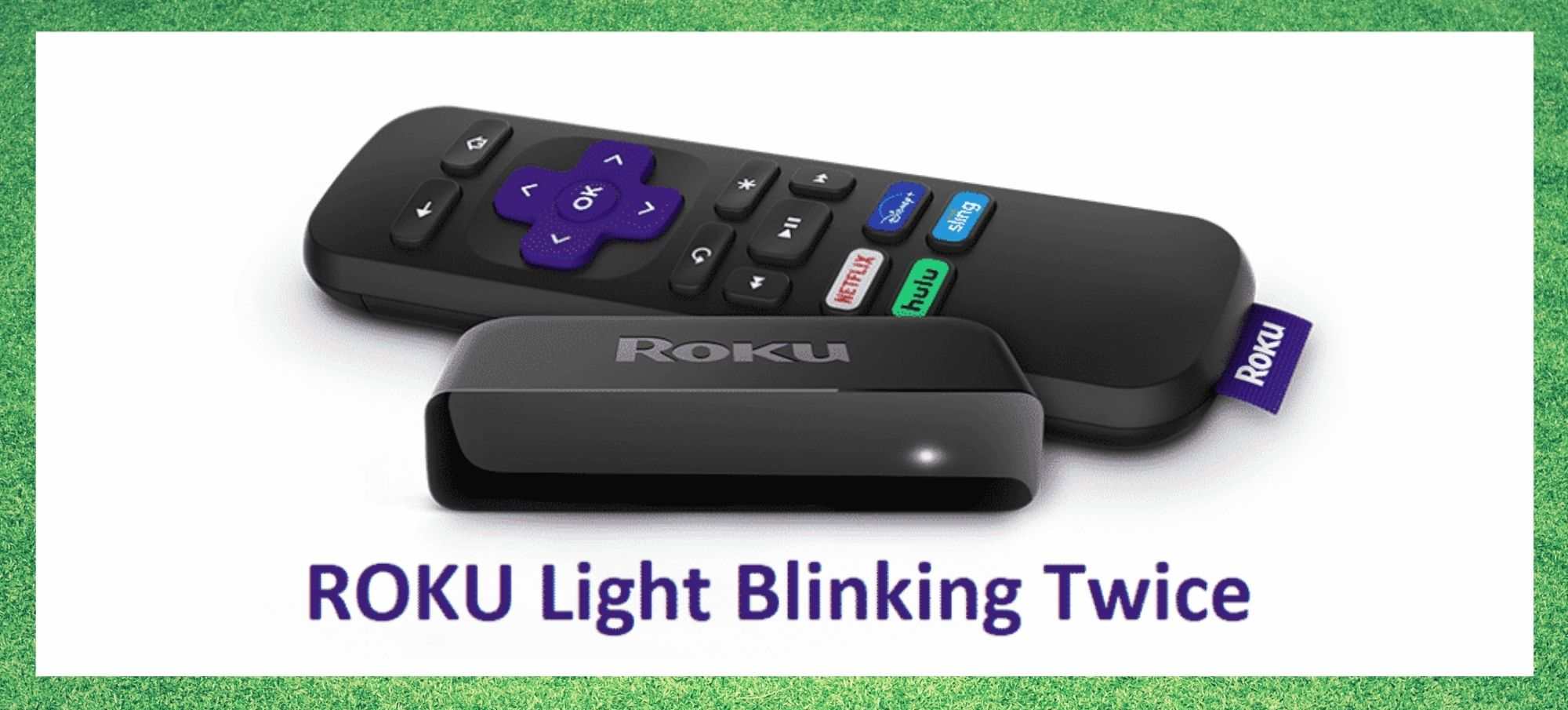
A blinking red light on your Roku device usually indicates an insufficient power supply. If the LED light on your Roku streaming player or stick is flashing red, the device is not receiving enough electrical current to run properly. Ho...
A blinking red light on your Roku device usually indicates an insufficient power supply. If the LED light on your Roku streaming player or stick is flashing red, the device is not receiving enough electrical current to run properly. However, if the light is solid red, the device is overheating. On a Roku remote or Roku Smart TV, a blinking red light signifies low batteries, lost pairing, or system standby status.
Contents
Understanding Roku LED Light Patterns
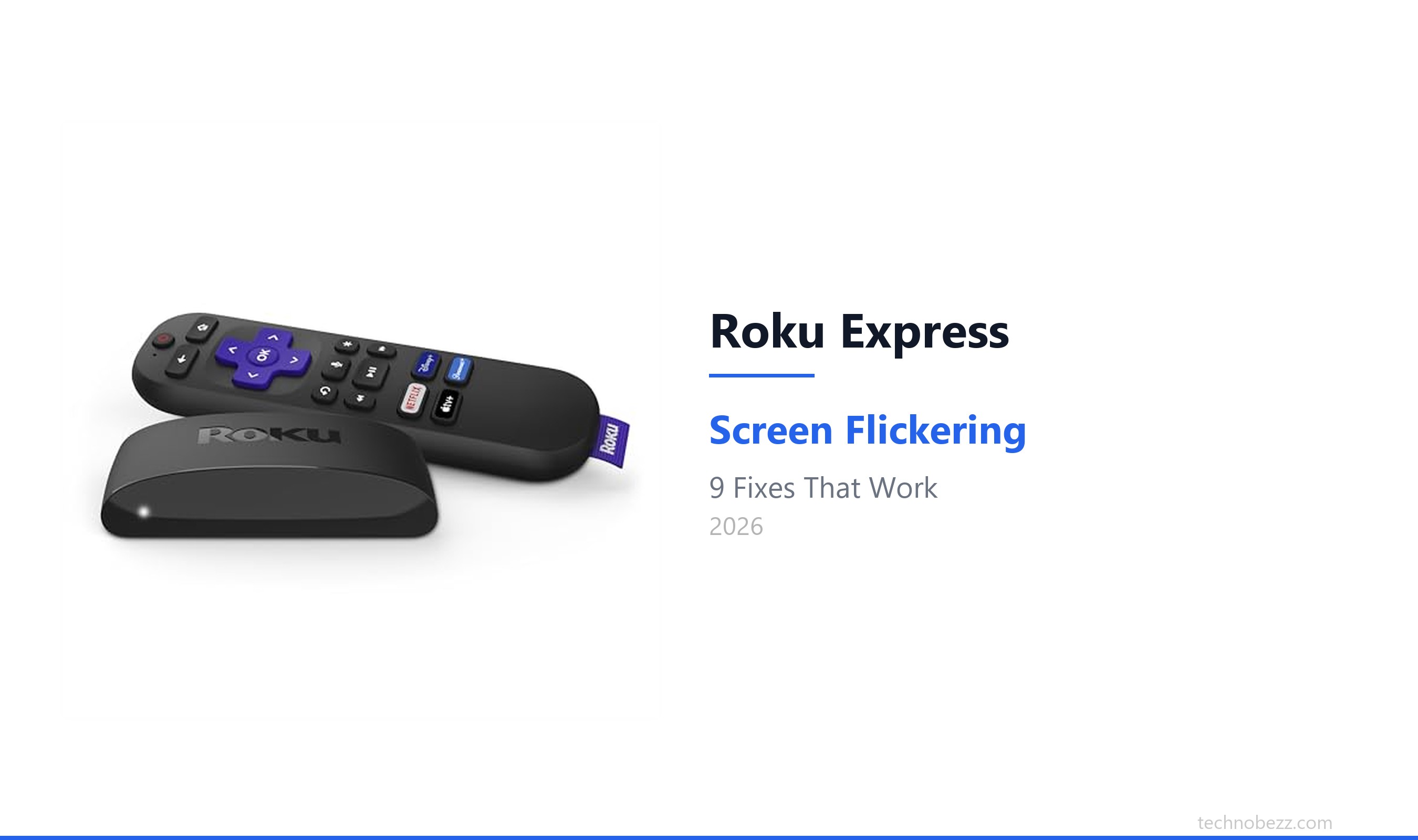
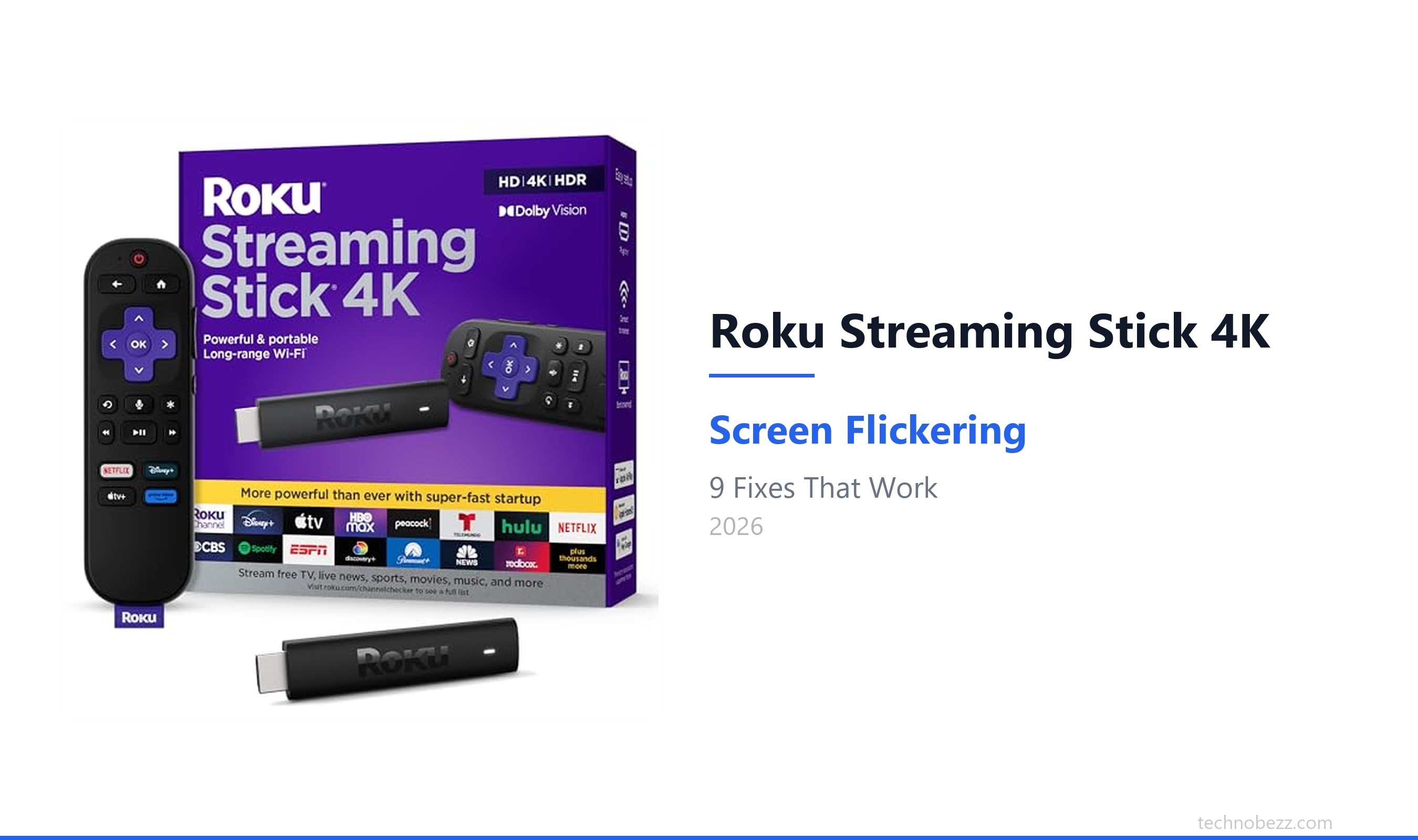
Roku streaming devices use front-mounted light-emitting diodes (LEDs) to communicate power status, network activity, and system diagnostics. Because different Roku models—such as the Roku Express, Roku Streaming Stick, Roku Ultra, and Roku Smart TVs—handle status lights differently, identifying the exact pattern is essential for accurate troubleshooting.
Before unplugging your device, observe whether the light is flashing or solid, and note which hardware component is displaying the light.
- Flashing Red Light (Roku Player): Indicates low electrical power. The streaming device is powered on, but the voltage or amperage supplied to the Micro-USB or USB-C power port falls below the minimum required threshold.
- Solid Red Light (Roku Player): Indicates device overheating. The internal thermal sensor has triggered a safety warning, meaning the processor temperature has exceeded safe operational limits.
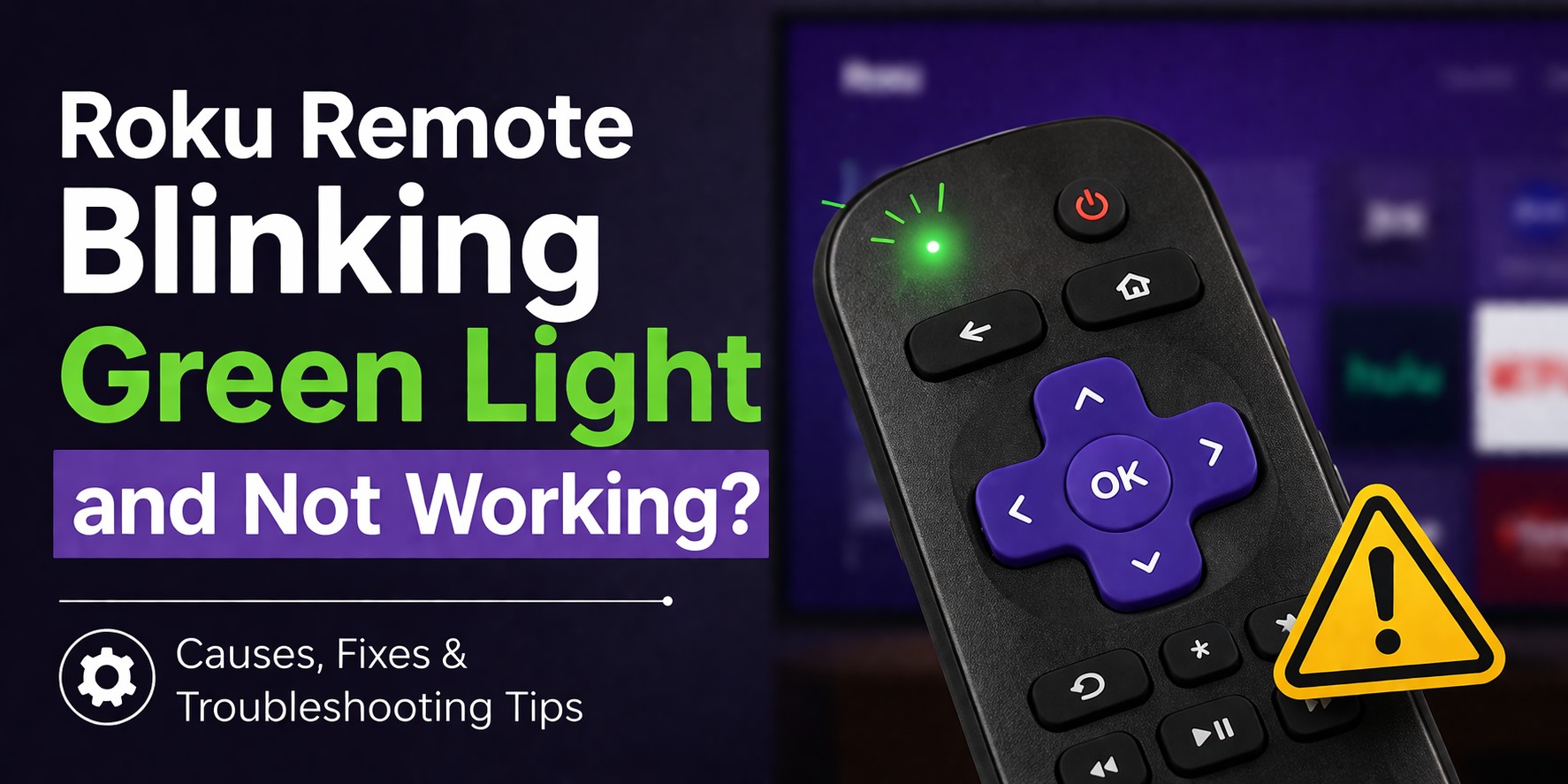
- Flashing Red Light (Roku Remote): Indicates low battery voltage or an interrupted wireless connection between a Roku Voice Remote and the host streaming unit.
- Flashing Red Light (Roku Smart TV): Indicates standby state, loss of network connectivity, or an internal hardware/power board error depending on the flash frequency.
Cause 1: Insufficient Power (Flashing Red Light on Roku Player)
The single most common cause of a flashing red light on a standalone Roku streaming stick or player is powering the unit directly from a television's built-in USB port.
- TV USB Port (0.5A Output)
- Insufficient Power
- Roku Player: Blinks Red
- Insufficient Power
- Wall Adapter (1.0A+ Output)
- Stable Power
- Roku Player: Solid White/Off
- Stable Power
Why TV USB Ports Cause Power Drops
Standard USB 2.0 ports on many televisions are engineered to output a maximum power current of 0.5 Amps (2.5 Watts) at 5 Volts. While this electrical throughput is sufficient for reading USB flash drives or low-power accessories, modern streaming players require continuous drawn power ranging between 1.0 Amp (5 Watts) and 1.5 Amps (7.5 Watts).
When a Roku device boots up, renders 4K HDR content, or executes background system updates, power consumption spikes. If the TV port cannot supply the required amperage, the device experiences a brownout state, causing the hardware controller to trigger a flashing red LED warning.
How to Resolve Power Bottlenecks
- Switch to the Wall Power Adapter: Disconnect the USB cable from your TV’s USB port. Connect the cable to the official Roku AC wall adapter (or a third-party USB wall charger rated for at least 5V / 1.0A or 5V / 2.0A), then plug it directly into an operational electrical outlet or surge protector.
- Inspect the USB Cable: Damaged, kinked, or excessively long third-party USB power cables can cause voltage drops along the line. Replace thin aftermarket cables with a high-gauge, short USB power cable designed for high-amperage transfer.
- Avoid Unpowered USB Hubs: If you are using a multi-port USB splitter or unpowered hub between your power source and the Roku device, remove it. Power hubs redistribute current across multiple channels, depriving the Roku unit of steady power.
Cause 2: Overheating (Solid Red Light on Roku Player)
While a flashing red light points to power deprivation, a solid red light indicates thermal stress. Compact streaming sticks mounted directly behind flat-screen televisions are particularly susceptible to heat buildup.
Why Roku Devices Overheat
Roku streaming sticks rely on passive cooling rather than internal fans. Thermal accumulation typically happens due to:
- Enclosed mounting spaces behind ultra-thin wall-mounted TVs with minimal clearance.
- Proximity to TV exhaust vents that blow hot air directly onto the streaming stick.
- Direct sunlight hitting the television chassis.
- Continuous high-bitrate 4K streaming in warm ambient room temperatures.
When internal components hit dangerous temperatures, an on-screen warning message may appear alongside the solid red light, reading: "Your device is overheating." If unaddressed, the device automatically shuts down to prevent permanent silicon damage.
How to Cool Down an Overheating Roku
- Unplug Immediately: Disconnect the power cable and HDMI connection from the Roku unit.
- Allow Thermal Dissipation: Let the device rest in a cool, well-ventilated area for at least 10 to 15 minutes until the casing returns to room temperature.
- Use an HDMI Extender: Installing a short (4 to 8 inch) HDMI extension cable moves the Roku stick away from the back panel of the television. This dramatically increases air circulation around the aluminum heat sink inside the stick. Roku offers free HDMI extenders for registered stick owners via their official support portal.
- Reposition Surrounding Electronics: Ensure gaming consoles, AV receivers, or soundbars are not blowing warm exhaust air toward your streaming player.
Cause 3: Roku Remote Blinking Red
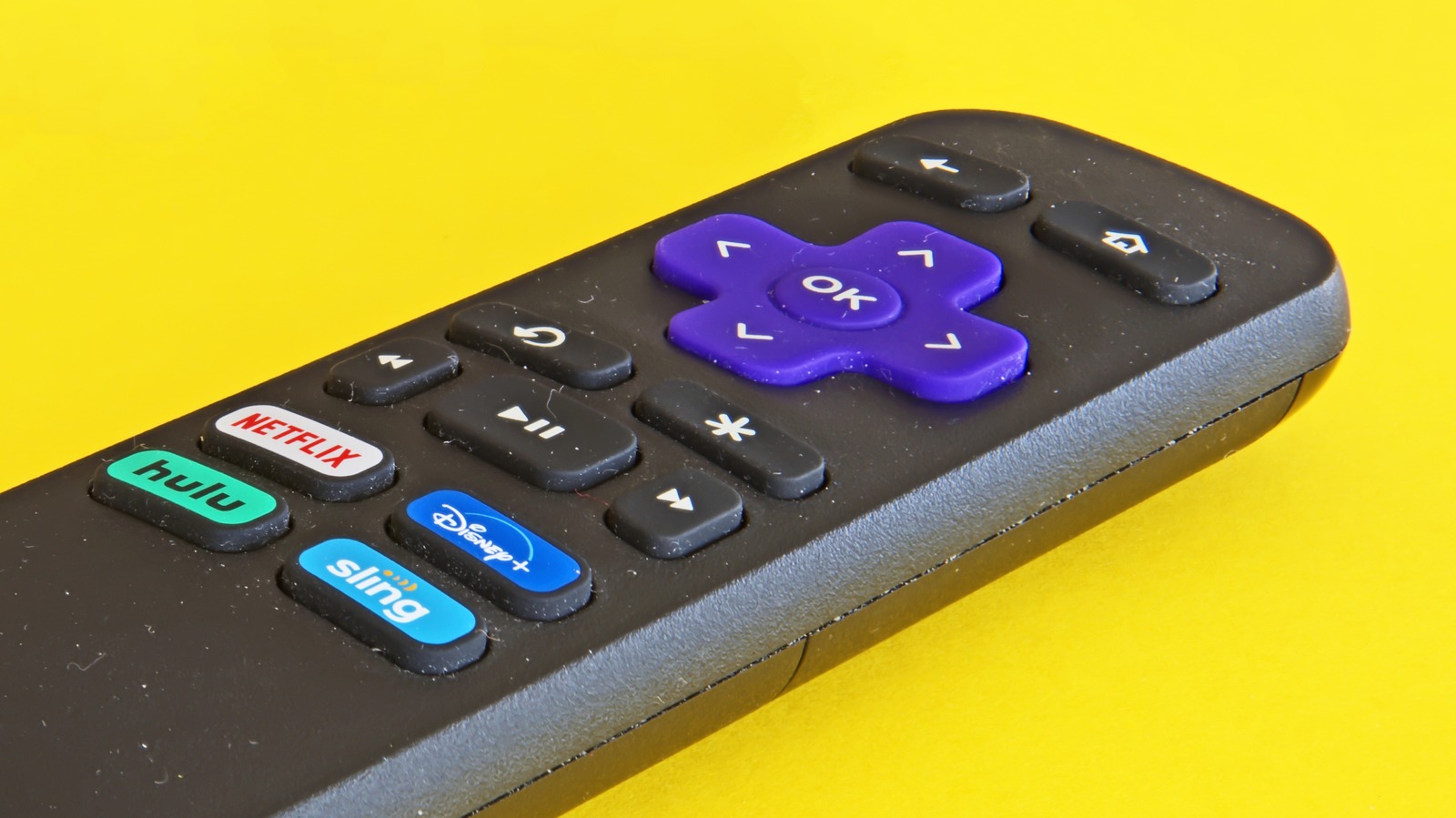
If the red light is blinking on your Roku Voice Remote (or Voice Remote Pro) rather than the streaming box itself, the issue stems from power depleted batteries or a dropped wireless handshake.
Unlike basic infrared (IR) remotes that require direct line-of-sight, Roku Voice Remotes communicate via Wi-Fi Direct or Bluetooth. Maintaining a continuous wireless connection requires substantially more energy than traditional IR signals.
Roku Remote Red Light Diagnostics
| Light Pattern | Likely Cause |
|---|---|
| Flashing slowly during use | Battery charge depleted below 15% |
| Continuous flashing after reset | Pairing memory lost / Sync failure |
| Flashing while connected to cable | Charging circuit active (Pro model) |
Fixing Remote Battery and Pairing Issues
For Standard Battery-Powered Voice Remotes:
- Replace Batteries: Remove old AA or AAA batteries. Insert a fresh pair of matching alkaline batteries. Avoid mixing old and new batteries or combining carbon-zinc with alkaline chemistry.
- Re-pair the Remote:
- Unplug the power cable from your Roku streaming device for 10 seconds, then plug it back in.
- When the Roku home screen appears, open the battery compartment on the back of the remote.
- Press and hold the Pairing Button (located below the battery slot or near the base) for 5 seconds until the status light begins flashing red or green.
- Wait 30 seconds while the remote negotiates a new wireless connection with the player.
For Rechargeable Voice Remote Pro:
- Connect to Power: Plug the micro-USB or USB-C charging cable into a dedicated 5V power adapter. A flashing light indicates the unit is charging.
- Execute a Hardware Reset: If the remote remains unresponsive, hold the Pairing Button and the Home button simultaneously for 20 seconds to reset the internal remote firmware, then re-pair it to the console.
Cause 4: Roku Smart TV Blinking Red Status Light
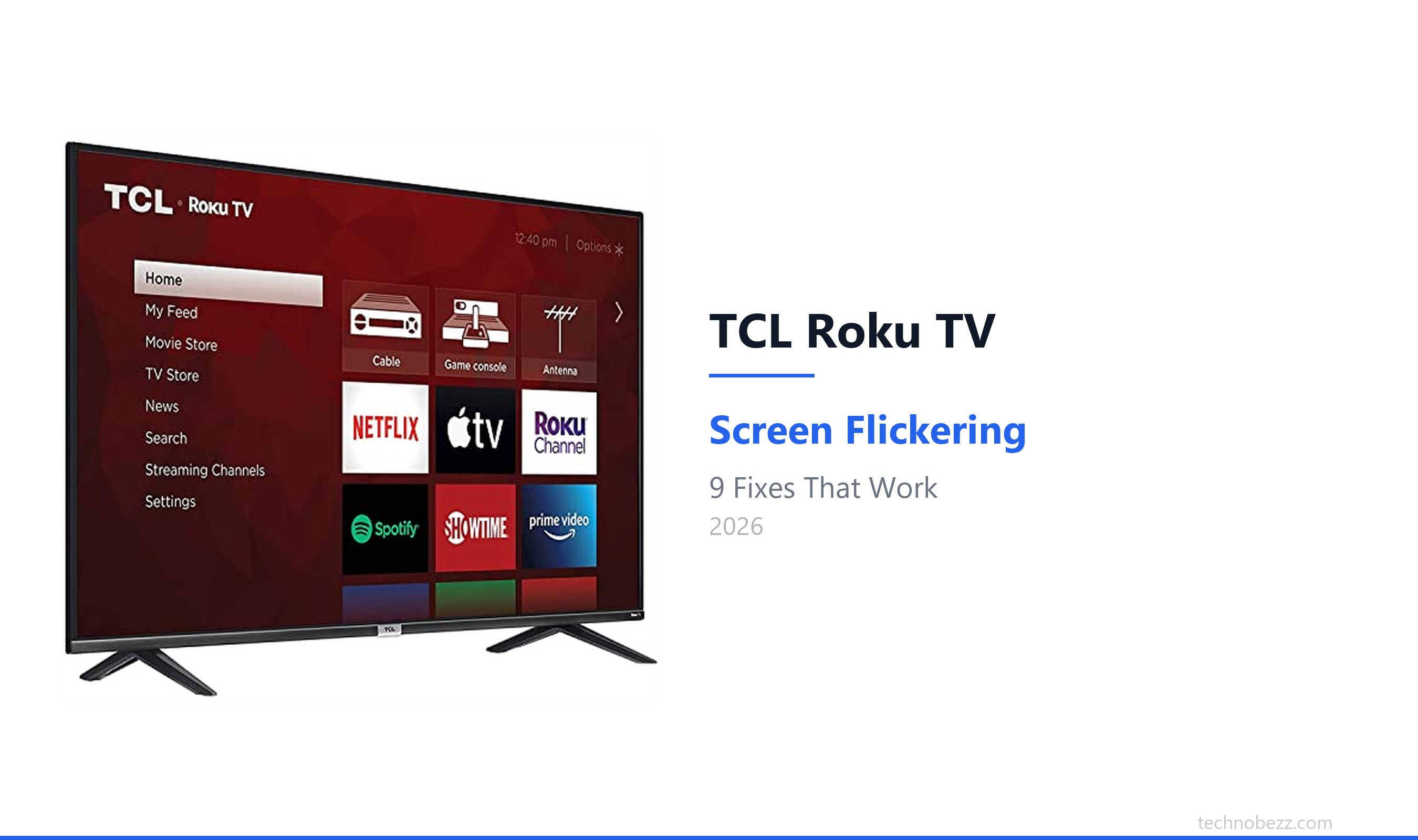
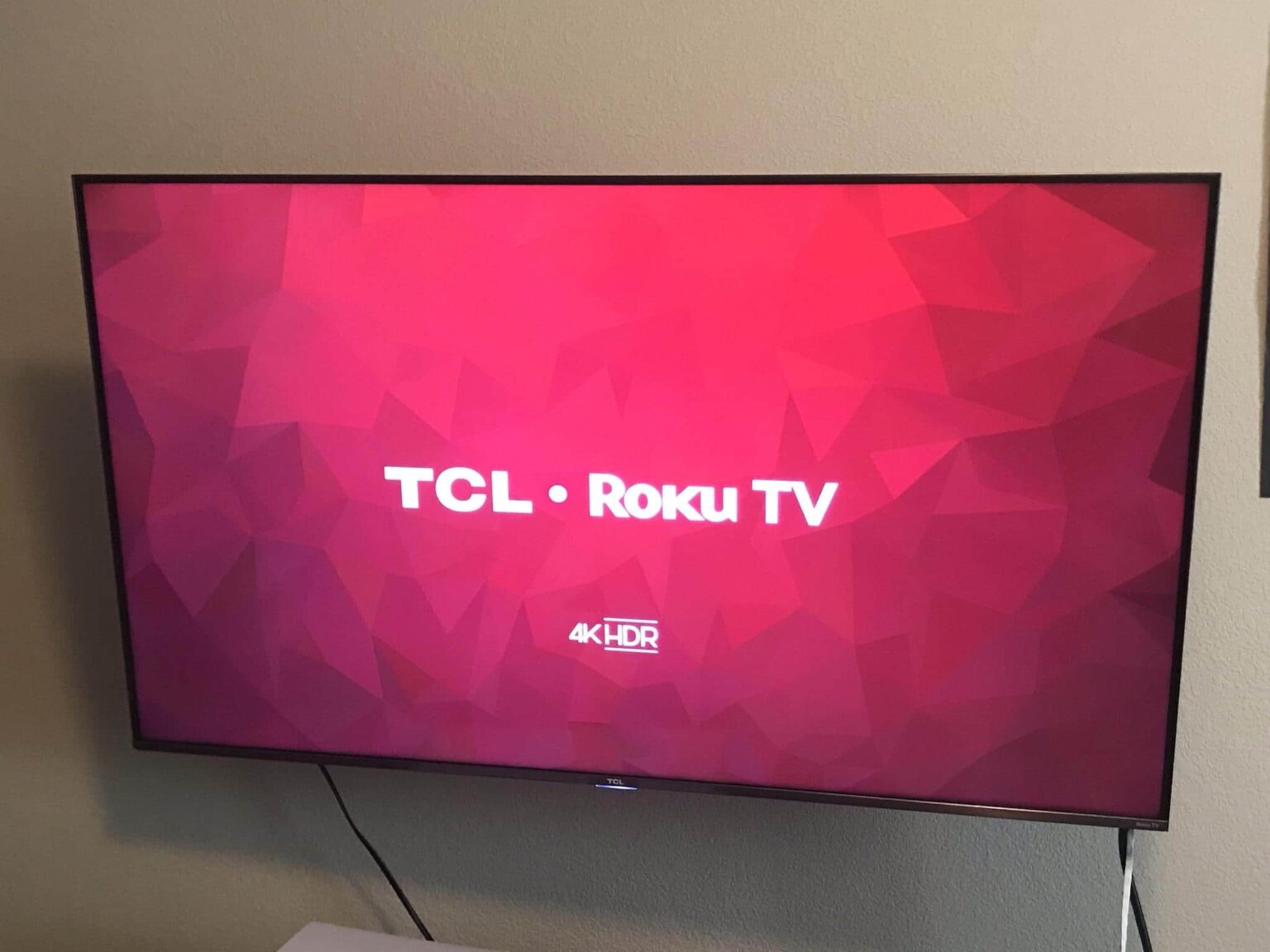
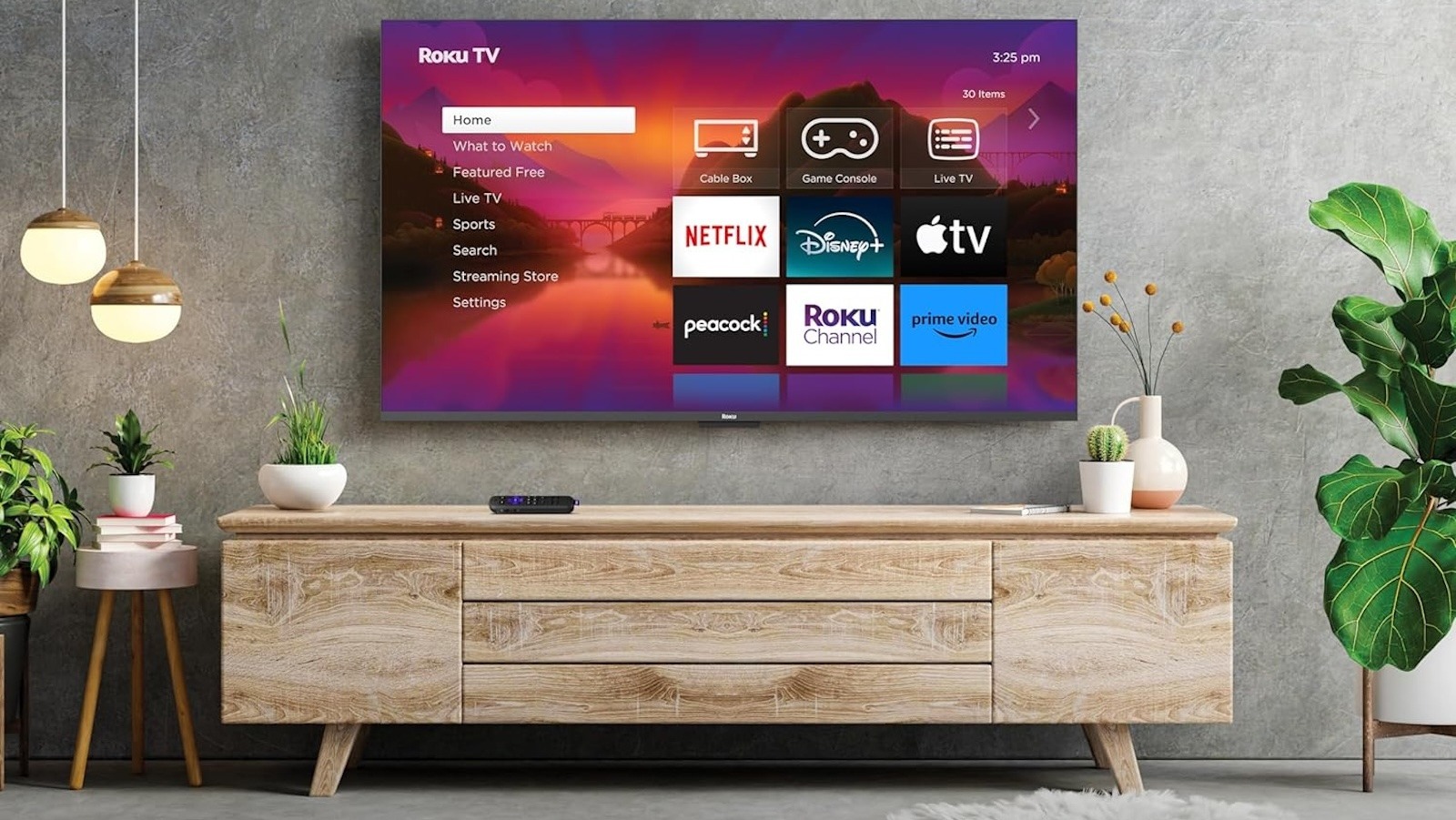
Integrated Roku Smart TVs (manufactured by TCL, Hisense, Sharp, Philips, or Roku's in-house Select/Plus series) feature a physical status LED, usually located on the bottom bezel beneath the manufacturer logo. The red light behavior on Smart TVs differs slightly from streaming dongles.
Status Light Behaviors on Smart TVs
- Slow, Constant Blinking (Every Few Seconds): The television is in Standby mode while connected to power, but the main display panel is turned off. This is normal operational behavior for many models when ambient light sensors or power-saving modes are active.
- Rapid Blinking (Continuous): Indicates the TV is receiving signals from a remote control or that the network connection was dropped while attempting an automatic system update.
- Blinking Red 3 Times Repeatedly: Indicates a network connection error or a failure to detect a valid Wi-Fi / Ethernet signal during bootup.
- Blinking Red Code (e.g., 5 or 12 Flashes): Signals an internal power supply board failure, main board fault, or LED backlight inverter error.
Troubleshooting Roku Smart TV Blinking Lights
- Perform a System Power Drain (Cold Boot):
- Unplug the TV power cord from the wall outlet.
- Press and hold the physical Power Button on the TV frame (not the remote) for 30 continuous seconds to discharge internal capacitors.
- Leave the TV unplugged for 5 minutes.
- Plug the power cable back directly into a wall socket and turn the unit on.
- Verify Network Connections: If the light blinks three times, restart your home Wi-Fi router. A dropped connection during background channel synchronization often causes temporary status light errors.
- Check for Hardware Faults: If the screen remains entirely black while the red light flashes in a repeating numeric sequence, the internal power board may have suffered a component breakdown requiring technician repair or warranty replacement.
Roku Diagnostic & Resolution Matrix
The following table summarizes the primary red light symptoms across all Roku hardware configurations and outlines the verified fix for each scenario.
| Device Type | Red Light Pattern | Primary Cause | Severity Level | Recommended Action |
|---|---|---|---|---|
| Roku Player / Stick | Flashing Red | Low Power / Undervoltage | Moderate | Switch from TV USB port to an AC wall adapter (5V / 1A+). |
| Roku Player / Stick | Solid Red | Device Overheating | High | Unplug immediately, allow 15 minutes to cool, attach HDMI extender. |
| Roku Voice Remote | Slow Flashing Red | Depleted Batteries | Low | Replace with fresh alkaline batteries or charge via USB cable. |
| Roku Voice Remote | Rapid Flashing Red | Lost Connection / Pairing Mode | Low | Re-pair remote using the physical pairing button behind battery door. |
| Roku Smart TV | Blinks 3 Times | Wi-Fi / Connection Error | Low to Moderate | Power cycle TV and restart home wireless router. |
| Roku Smart TV | Continuous Rapid Flash | Mainboard / Power Supply Fault | High | Perform power drain; contact manufacturer if screen remains black. |
Advanced Troubleshooting Solutions
If changing power sources and letting the device cool down does not resolve the flashing red light on your Roku player, proceed through these advanced technical steps.
1. Perform a Hard Hardware Reset
If a corrupted firmware update causes the system controller to lock up, a hardware reset clears the volatile memory (RAM) and restores factory settings.
- Physical Factory Reset Button
- Micro-USB Port
- HDMI Connector
- RESET HOLE / BUTTON
- Press & Hold 10 Secs
- Locate the physical Reset Button or Pinhole Reset on the back or bottom of your Roku hardware casing.
- While the device is connected to a power source, press and hold the reset button firmly for 10 to 15 seconds. If using a pinhole, insert a paperclip.
- Continue holding the button until the status light flashes rapidly, then release it.
- The device will perform a full factory cycle and reboot to the initial setup screen.
2. Inspect HDMI CEC Interoperability
In rare instances, corrupted Consumer Electronics Control (HDMI-CEC) handshakes between an AV receiver, soundbar, and the Roku player cause voltage feedback loops through the HDMI line. This leads to erratic LED flashing.
- Disconnect all HDMI cables connected to the TV.
- Power cycle both the TV and the Roku unit.
- Reconnect the Roku device to a different HDMI input port (preferably HDMI 1 or HDMI 2) without routing through external switches or audio splitters.
3. Verify Power Outlet Voltage Output
Power strips and surge protectors can degrade over time, leading to unstable voltage outputs. Plug your Roku AC adapter directly into an isolated wall receptacle to eliminate degraded surge suppression circuits as a variable.
Frequently Asked Questions
Can a bad HDMI cable cause my Roku to blink red?
No. An HDMI cable carries audio and video data, not primary operational power. A damaged HDMI cable causes black screens, signal dropouts, audio cutting out, or snow/distortion, but it does not trigger the red low-power indicator light on the Roku casing. A blinking red light on a streaming player is strictly related to electrical power input.
Why is my Roku blinking red even though it is plugged into the wall?
If your Roku flashes red while connected to a wall socket, the AC wall adapter itself may be defective, or the Micro-USB/USB-C power cable may have broken internal wiring. Try using a verified 5V/2A smartphone wall charger and a replacement USB power cable. Additionally, ensure the outlet is live by testing it with another appliance.
Will overheating permanently damage my Roku?
Modern Roku streaming players feature built-in thermal protection circuits designed to shut down the hardware before internal processor temperatures reach destructive levels. However, exposing the silicon components to prolonged high heat over months can degrade component lifespan, cause premature memory corruption, and lead to persistent stability issues.
How do I know if my Roku remote is charging or blinking due to an error?
When plugging in a rechargeable Roku Voice Remote Pro, a solid or slowly pulsing light near the charging port indicates active charging. If the light flashes rapidly in red while plugged in, the charging circuit has detected an battery fault or an incompatible voltage input. Disconnect the charger, reset the remote, and use a standard 5V USB port.
How long do batteries last in a Roku Voice Remote?
Under standard usage conditions, high-quality alkaline batteries in a Roku Voice Remote last between 2 to 4 months. Because Voice Remotes process private listening audio through the headphone jack and maintain active RF wireless links, they consume power substantially faster than traditional infrared remotes.
Final Troubleshooting Action Plan
To fix your Roku device immediately, follow this sequence:
- If the light is FLASHING RED on a player: Disconnect the USB power cable from your TV's USB port. Plug it into an AC wall adapter rated for 5V/1A or higher, and plug that directly into a wall socket.
- If the light is SOLID RED on a player: Power down the unit immediately. Move it to an open area away from TV heat vents and let it cool for 15 minutes. Use an HDMI extension cable to isolate the stick from thermal accumulation behind the screen.
- If the light is FLASHING RED on a remote: Swap in fresh alkaline batteries and press the internal Pairing Button for 5 seconds to re-establish the Wi-Fi Direct connection.
- If hardware fixes fail: Perform a 15-second physical pinhole factory reset to clear corrupt system firmware state.
If the red LED continues to flash rapidly after verifying wall power, testing alternative cables, and executing a hard factory reset, the internal power management IC has likely suffered hardware failure. In this case, contact Roku Customer Support to initiate a warranty replacement or upgrade to a current-generation streaming device.
Image Gallery