How Samsung Cloud Data Works for Students: A Comprehensive Guide
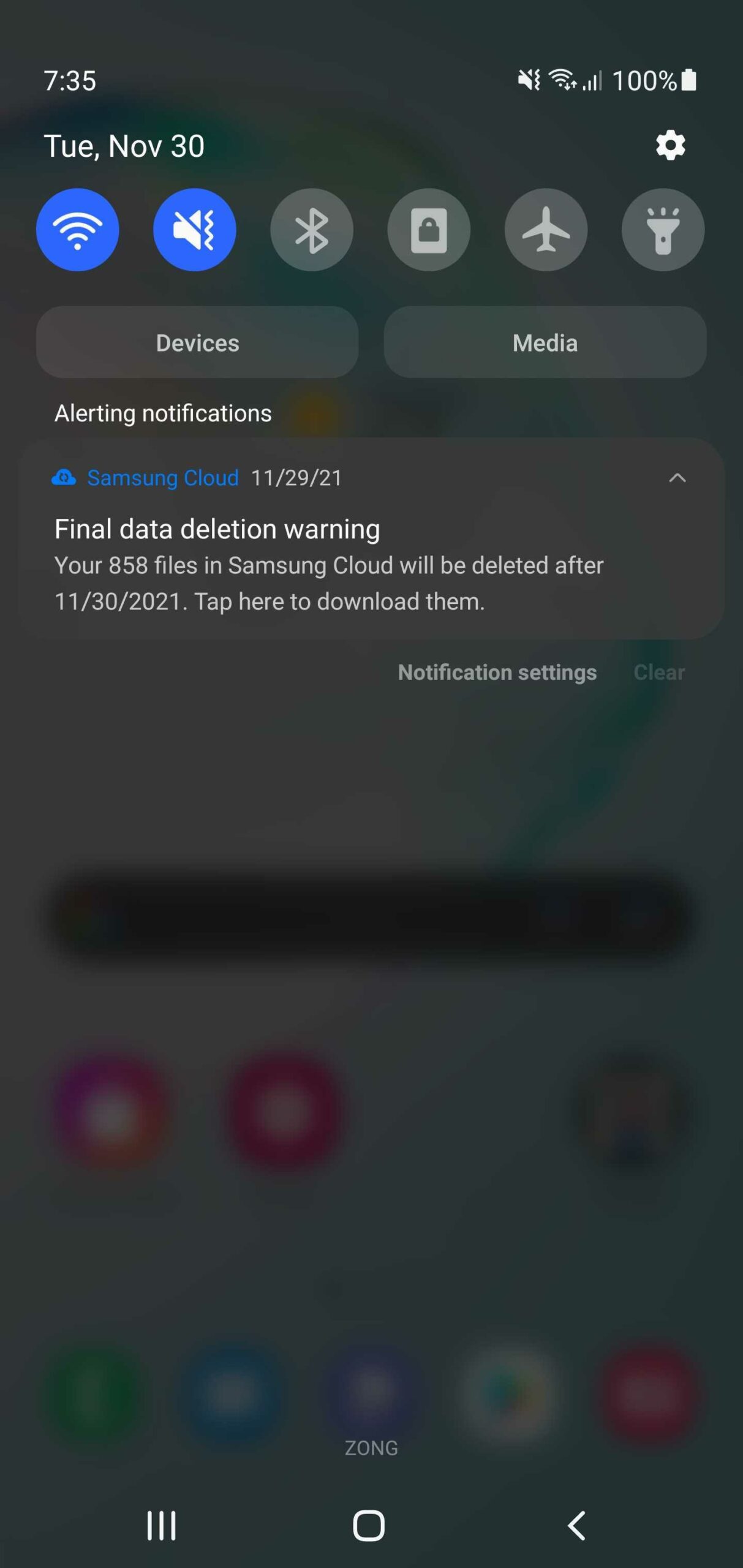
For students using Samsung devices, managing cloud data primarily involves the integration of Samsung Cloud and Microsoft OneDrive. Samsung Cloud currently functions as a synchronization service for device-specific data—such as call lo...
For students using Samsung devices, managing cloud data primarily involves the integration of Samsung Cloud and Microsoft OneDrive. Samsung Cloud currently functions as a synchronization service for device-specific data—such as call logs, messages, and home screen layouts—while Microsoft OneDrive acts as the primary repository for Gallery photos, videos, and documents, ensuring that educational materials remain accessible across multiple devices.
Contents
Understanding the Architecture: Samsung Cloud vs. Microsoft OneDrive
To effectively leverage cloud storage, it is critical to understand the division of labor between Samsung’s native systems and Microsoft’s infrastructure. In 2021, Samsung transitioned its legacy cloud storage services (specifically My Files and Gallery sync) to Microsoft OneDrive.
When you set up a Samsung device, you are not simply using one "Samsung Cloud." Instead, you are interacting with two distinct, interconnected ecosystems:
- Samsung Cloud (Device Sync): This service is designed to preserve your device’s environment. It handles settings, layouts, and system-level data. If you lose your phone or upgrade to a new Galaxy model, Samsung Cloud allows you to restore your personal configuration quickly.
- Microsoft OneDrive (File/Media Storage): This is where your actual academic files reside. By linking your Samsung Account to a Microsoft Account, your photos, videos, and documents are automatically uploaded to the cloud. This allows students to access lecture notes, PDFs, and project images from a laptop, tablet, or mobile phone simultaneously.
Prerequisites and Initial Setup for Students
Before you can rely on this system for your academic workflow, you must ensure your accounts are correctly configured.
- The Samsung Account: This is your master key for Samsung services. Ensure your student email is associated with this account if you intend to keep your data distinct from personal files.
- The Microsoft Account: Since Samsung Cloud relies on OneDrive for file hosting, you must have an active Microsoft account. Many educational institutions provide students with free Microsoft 365 subscriptions, which often include 1TB of OneDrive storage. Always check if your university or school provides this, as it significantly exceeds the free 5GB tier offered by a standard personal Microsoft account.
- The Linkage Process: Navigate to Settings > Accounts and backup. From there, you will see the option to link your Samsung and Microsoft accounts. Once linked, the "Sync with OneDrive" toggle becomes available in your Gallery and Samsung Notes settings.
Managing Academic Files: Samsung Notes and OneDrive
Samsung Notes is arguably the most important application for a student in the Samsung ecosystem. It supports handwriting, audio recording synced to notes, and PDF annotations.
When synchronization is enabled, Samsung Notes saves your work directly to your OneDrive folder under a designated "Samsung Notes" directory. This is vital for academic continuity:
- Automatic Updates: When you edit a note on your Galaxy Tab during a lecture, the update is pushed to the cloud and becomes immediately visible on your desktop or secondary tablet.
- Version Control: While basic, the integration ensures that your latest save is the one reflected across your linked devices. However, students should be aware that Samsung Notes does not function like a real-time collaborative document editor (such as Google Docs); therefore, avoid editing the same note simultaneously on two devices to prevent sync conflicts.
Comparison of Storage Tiers and Costs
Students often face budgetary constraints. Understanding the cost-to-benefit ratio of cloud storage tiers is essential for long-term file management.
| Tier | Provider | Best For | Typical Cost (Annual/Monthly) |
|---|---|---|---|
| Free | Microsoft/Samsung | Basic document backups | $0 |
| Personal (100GB) | Microsoft 365 | High-resolution photography | Varies by region |
| Education/Enterprise | Institutional | Massive academic databases | Included with tuition |
| Basic (Free 5GB) | Microsoft | Essential text files | $0 |
Note: Always verify with your campus IT department regarding cloud storage inclusions, as many students receive institutional licenses that provide significantly more storage than consumer-grade plans.
Troubleshooting Common Sync Issues
Students may occasionally encounter scenarios where files do not appear on secondary devices. Before assuming data loss, follow these troubleshooting steps:
- Wi-Fi Sync Settings: By default, Samsung devices are often set to sync large files only over Wi-Fi to save mobile data. If you are working on a cellular connection, your lecture notes may not upload until you reach a Wi-Fi zone. Check your Gallery Settings > Sync with OneDrive to see your current preferences.
- Storage Capacity Limits: If your OneDrive storage limit is reached, syncing will pause immediately. Students who scan large textbooks or record high-definition lecture videos often hit these limits quickly. Check your storage status in the OneDrive app to ensure you haven't exceeded your quota.
- Account Mismatch: A common error occurs when a student is signed into one Microsoft account on their phone and a different one on their laptop. Ensure that both devices are authenticated using the exact same login credentials.
Practical Tips for Academic Success
- Offline Access: Do not rely solely on the cloud. For critical papers or final presentations, use the "Make available offline" feature in the OneDrive app. This pins the files to your device’s local storage, ensuring you can access them even if the campus Wi-Fi fails or your login session expires.
- Document Scanning: Use the built-in scanner within the Samsung Camera app or the Microsoft Lens integration. These tools convert physical handouts into PDFs and sync them directly to your cloud-backed folders.
- Security Measures: Enable "Secure Folder" for sensitive academic documents. While cloud syncing is convenient, sensitive research or personal information should be protected by the hardware-backed security of Knox, Samsung’s security platform.
Frequently Asked Questions
Does deleting a photo from my phone delete it from the cloud? Yes. When OneDrive sync is active, it functions as a mirror. If you delete an item from your Gallery app while it is synced, it will also be deleted from your OneDrive storage. Always check the "Recycle Bin" in OneDrive if you accidentally delete an important file.
Can I sync my Samsung Notes to Google Drive instead? No. Samsung Notes is natively integrated with Microsoft OneDrive. If you prefer Google Drive, you must manually export your notes as PDFs or Word documents, which removes the ability to edit them in the native Samsung Notes interface.
What happens to my data if I graduate and lose my school email? If your Microsoft account is managed by your university, you will lose access once your student email is deactivated. Before graduating, you must download your data or migrate it to a personal Microsoft account to ensure your academic work is preserved.
Is Samsung Cloud secure for research data? Samsung Cloud and OneDrive utilize encryption for data in transit and at rest. However, for highly sensitive academic research involving human subjects or proprietary data, always adhere to your university’s specific data governance and storage policies.
Why are my voice recordings not appearing on my laptop? Ensure the "Sync with OneDrive" setting is enabled within the Samsung Voice Recorder app settings. Recording files can be large, so if your sync is restricted to Wi-Fi only, they will stay local to your phone until a connection is established.
Next Action: Audit Your Storage
To ensure your academic semester proceeds without data interruption, perform an audit of your storage today. Open the OneDrive app, check your available space, and verify that your most important folders (such as "Samsung Notes" or "Documents") are set to "Sync." If you are nearing your storage capacity, archive old semester files to a secondary hard drive or an external archive service to clear space for current work.
Image Gallery