A Comprehensive Guide to Configuring a ZKTeco Cloud Server
Configuring a ZKTeco cloud server involves establishing a centralized communication bridge between biometric hardware devices and a cloud-based management platform. This process requires configuring network parameters on the hardware,...
Configuring a ZKTeco cloud server involves establishing a centralized communication bridge between biometric hardware devices and a cloud-based management platform. This process requires configuring network parameters on the hardware, establishing a secure handshake with the server's domain, and syncing personnel data via the proprietary ZKTeco communication protocols to ensure real-time attendance and access control synchronization.
Contents
Understanding the ZKTeco Cloud Infrastructure
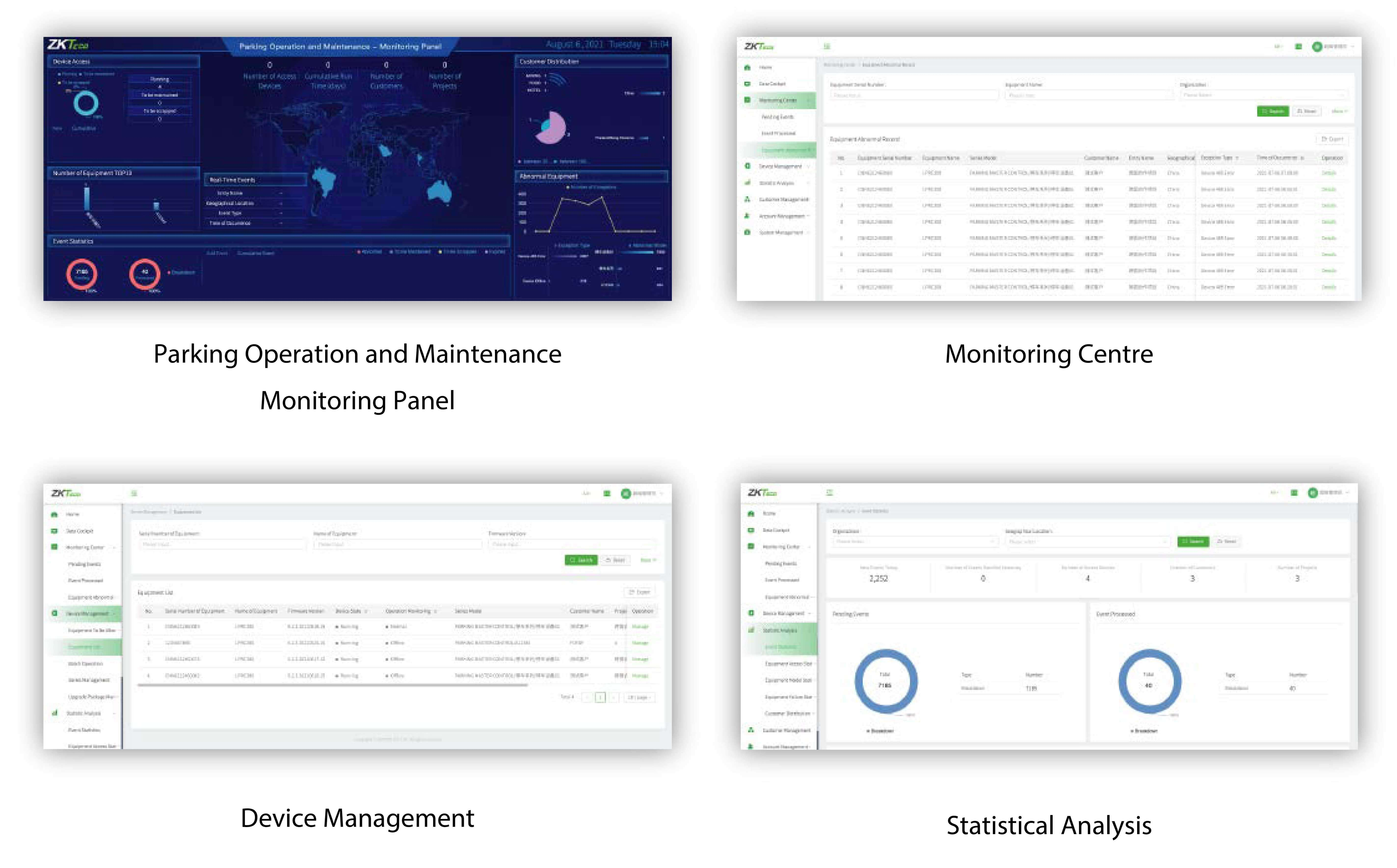
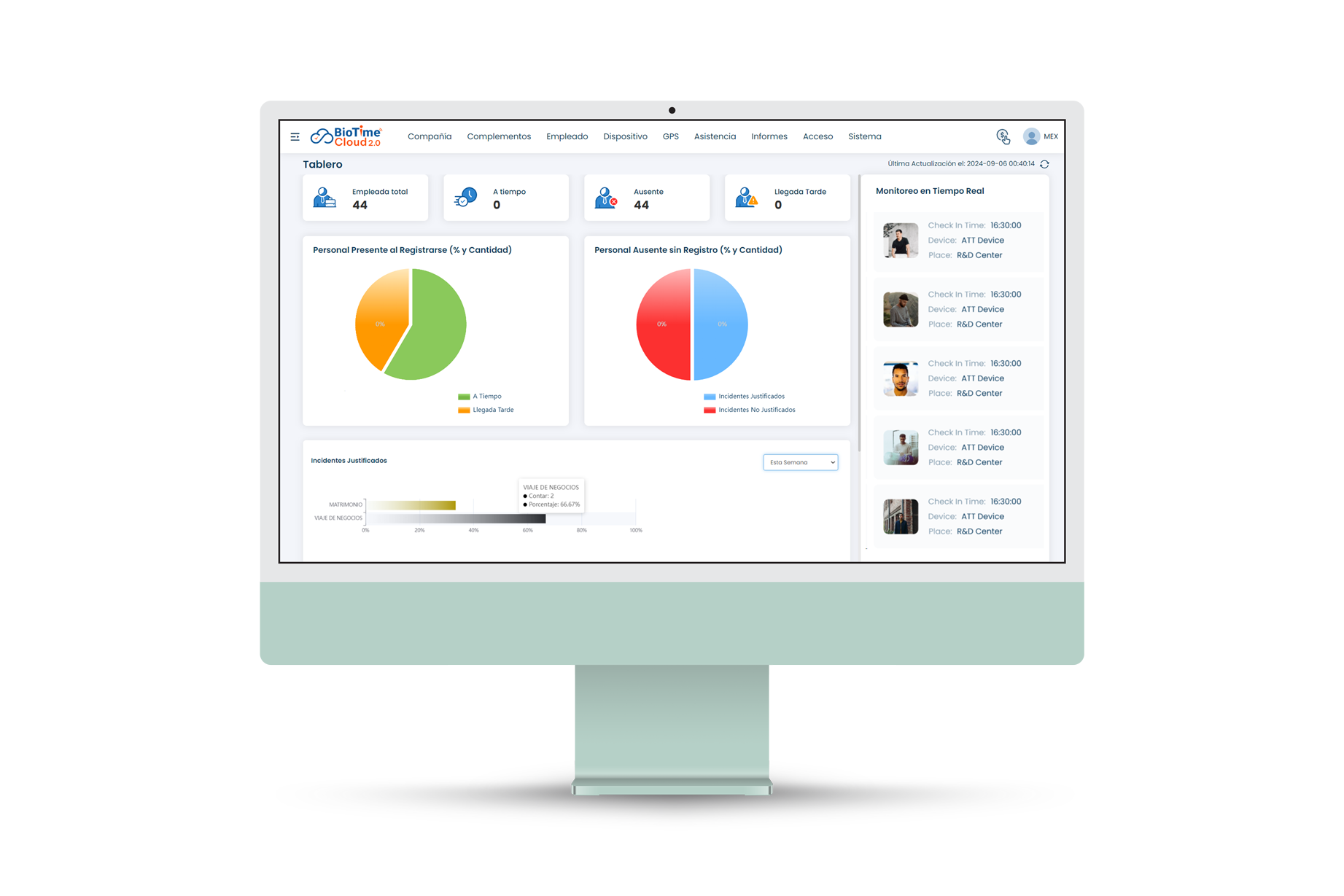
ZKTeco cloud solutions, such as ZKBioCloud or the cloud-integrated versions of ZKBioSecurity, serve as the backbone for distributed physical security. Unlike legacy on-premises installations, a cloud server architecture allows administrators to manage multiple sites—even those in different geographic regions—through a single, centralized web dashboard.
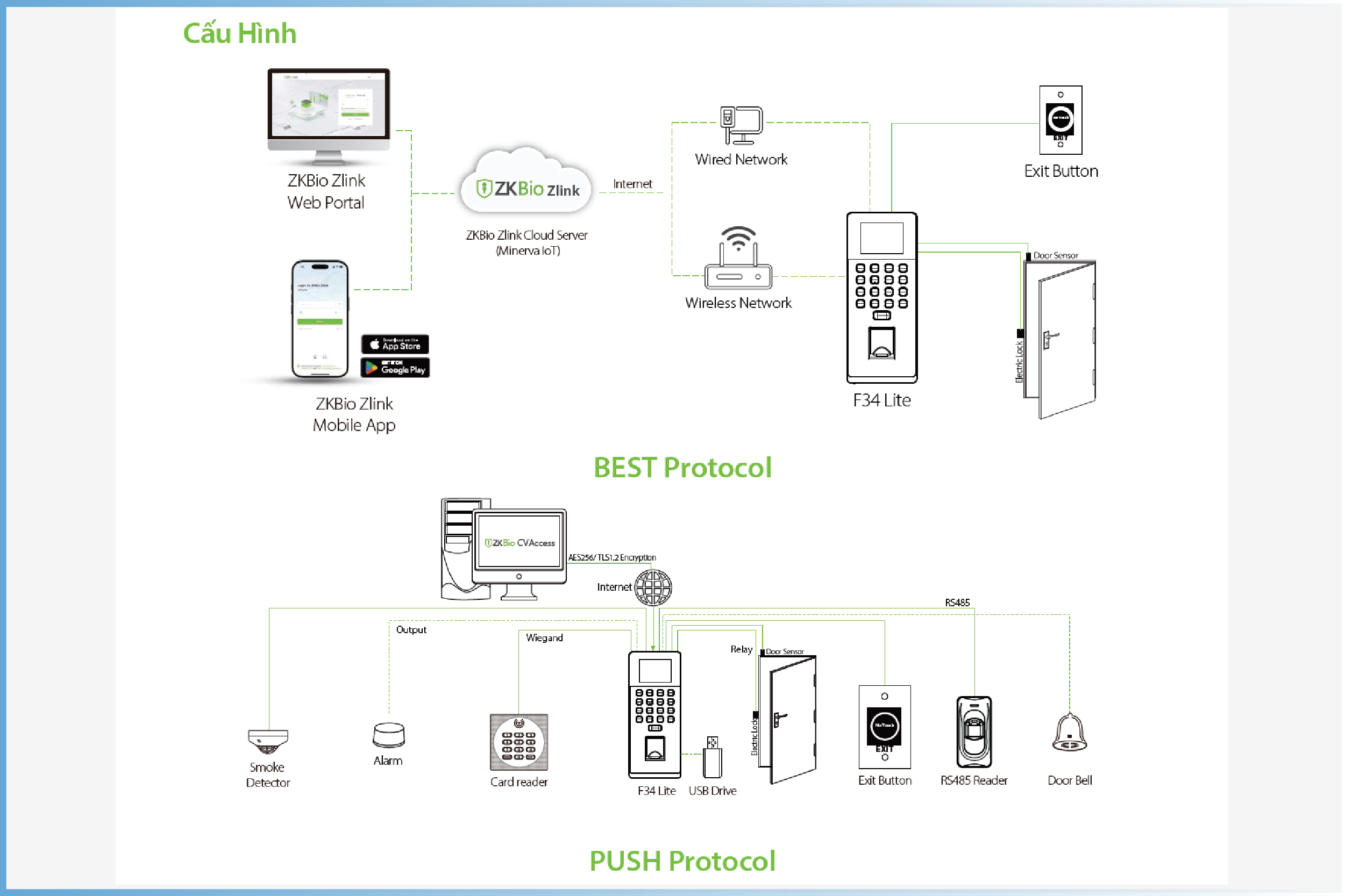
The configuration process relies on the device’s ability to "push" data to the server. Instead of the server constantly polling the device for updates, the ZKTeco device is configured to reach out to a specific server URL or IP address. This "push" architecture is critical for modern deployments because it eliminates the need for static public IP addresses or complex VPN tunnels at every physical site, drastically reducing IT overhead.
Prerequisites for Cloud Server Integration
Before attempting to point your hardware to the cloud, ensure you have the following prerequisites in place:
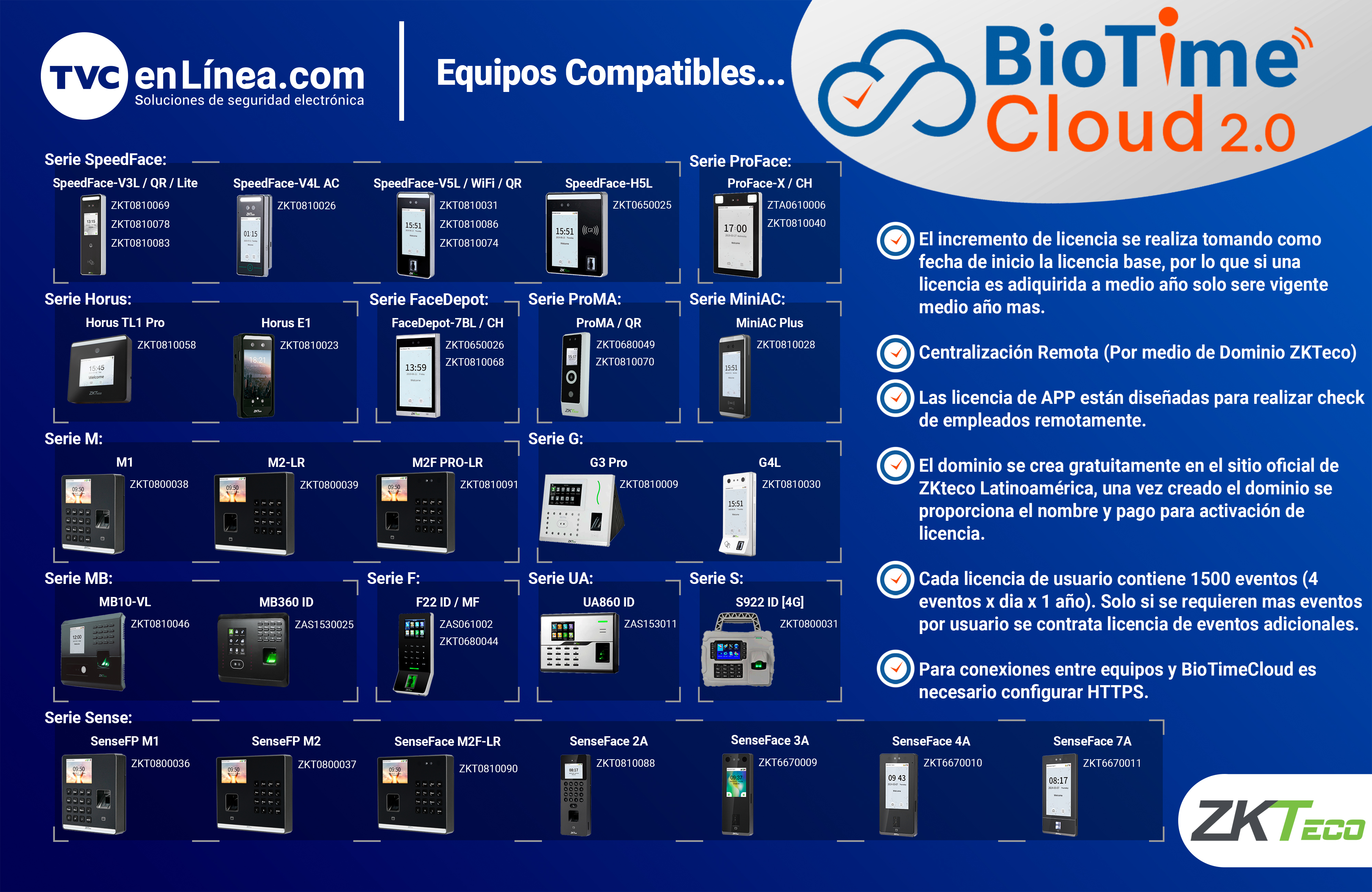
- Verified Firmware: Not all older ZKTeco models support cloud push protocols. Ensure your device is running the latest firmware version that supports "ADMS" (Automatic Data Master Server) or "Cloud" functionality.
- Network Connectivity: Devices must have outbound access to the internet on specific ports (typically port 8080 or 443 depending on the configuration).
- Administrative Access: You require credentials for both the physical device's local menu and the administrative dashboard of the ZKTeco cloud server platform.
- Unique Identifier: Each device needs a unique device ID or serial number to prevent data collision within the server database.
Step-by-Step Configuration Workflow
Step 1: Preparing the Cloud Server
Log in to your cloud management console. Navigate to the "Device Management" or "Cloud Terminal" section. You must add the device to the system by its serial number or a unique ID provided by the ZKTeco documentation. This "pre-registration" ensures that when the device eventually calls home, the server is ready to accept its data stream and assign it to the correct organization or site profile.
Step 2: Configuring the Device Network
On the biometric terminal, navigate to the network settings menu:
- TCP/IP Settings: Ensure the device has a valid gateway and DNS settings. Without correct DNS resolution, the device will fail to resolve the cloud server's domain name.
- Cloud/ADMS Settings: Locate the "Cloud Server" or "ADMS" menu. Enter the server URL or the public IP address provided by your cloud service administrator.
- Port Configuration: Ensure the port number matches the server's listening port.
Step 3: Enabling Data Synchronization
Once the network parameters are set, navigate to the "Data Sync" or "Push Options" menu on the device. Here, you define the frequency of data synchronization. For high-security environments, set the interval to "Real-Time." For sites with limited bandwidth, you may choose a periodic schedule to reduce network load.
Comparison of Connectivity Architectures
| Connection Type | Infrastructure Requirement | Pros | Cons |
|---|---|---|---|
| Push (ADMS/Cloud) | Outbound Internet | No static IP needed; easy scaling. | Dependent on internet stability. |
| Pull (SDK/Static IP) | Static Public IP + Port Forwarding | Granular control; no external cloud server. | High security risk; complex firewall rules. |
| Hybrid | VPN + Local Server | High security; internal data control. | Expensive; high maintenance. |
Troubleshooting Common Configuration Failures
When a device fails to communicate with the cloud server, follow this systematic approach:
- DNS Resolution Errors: If the device cannot "ping" the cloud server URL, manually input the server's public IP address as a test. If this succeeds, your local DNS settings on the biometric device are incorrect.
- Firewall Interference: Many corporate firewalls block outbound connections on non-standard ports (like 8080). Check your network logs to see if packets originating from the device are being dropped.
- Time Synchronization: The cloud server relies on timestamp matching to verify logs. If the device's local time deviates significantly from the server time, the server may reject the incoming log data to maintain database integrity. Ensure both the server and the device are synced to an NTP (Network Time Protocol) server.
- Invalid Certificate/SSL: If you are using HTTPS, ensure the device firmware supports the required SSL/TLS version used by your cloud server. Older devices often lack modern encryption certificates, leading to a silent failure in connection.
Operational Best Practices
To maintain a high-performance environment, manage your bandwidth effectively. If you have 500+ devices reporting to a single cloud server, the cumulative traffic can saturate a standard broadband connection. Implement traffic shaping at the router level if you notice latency in user authentication or enrollment updates.
Additionally, perform regular firmware updates on your terminals. ZKTeco frequently releases patches that optimize the "push" protocol efficiency, often resolving issues where devices might drop off the network intermittently.
Frequently Asked Questions
Why does my ZKTeco device show as "Offline" on the cloud server?
This usually indicates a network handshake failure. Check the device's "Cloud" menu to ensure the server URL and port are correct. If the network is functional, the server may be blocking the device due to an incorrect Device ID or an expired license key.
Does cloud configuration impact the device's standalone performance?
No. ZKTeco devices use local caching. Even if the cloud connection is severed, the device continues to log attendance and grant access based on the internal database. Once the network is restored, the device automatically pushes the buffered logs to the cloud.
Can I connect multiple devices to one cloud server account?
Yes. The cloud architecture is designed for multi-site, multi-device management. You can group devices by location, department, or function within the cloud console to organize your personnel data effectively.
What happens if the internet goes down?
The device enters "offline mode." It continues to function for access control purposes. Once internet access is restored, the device will handshake with the server and upload all attendance logs generated during the downtime.
Is it secure to use cloud-based biometric storage?
Security depends on the implementation. Ensure your ZKTeco cloud server uses encrypted connections (HTTPS) and that you follow strong password policies for your administrative account. Data privacy regulations, such as GDPR, should be considered when storing biometric templates in a cloud environment.
Next Actions
To successfully finalize your setup, begin by establishing a single "test" device connection. Once you confirm data is flowing into the cloud dashboard, scale the rollout to the rest of your hardware fleet. If you encounter persistent network errors, engage your network administrator to verify that the traffic on the communication port is not being intercepted or filtered by enterprise security appliances.
Image Gallery