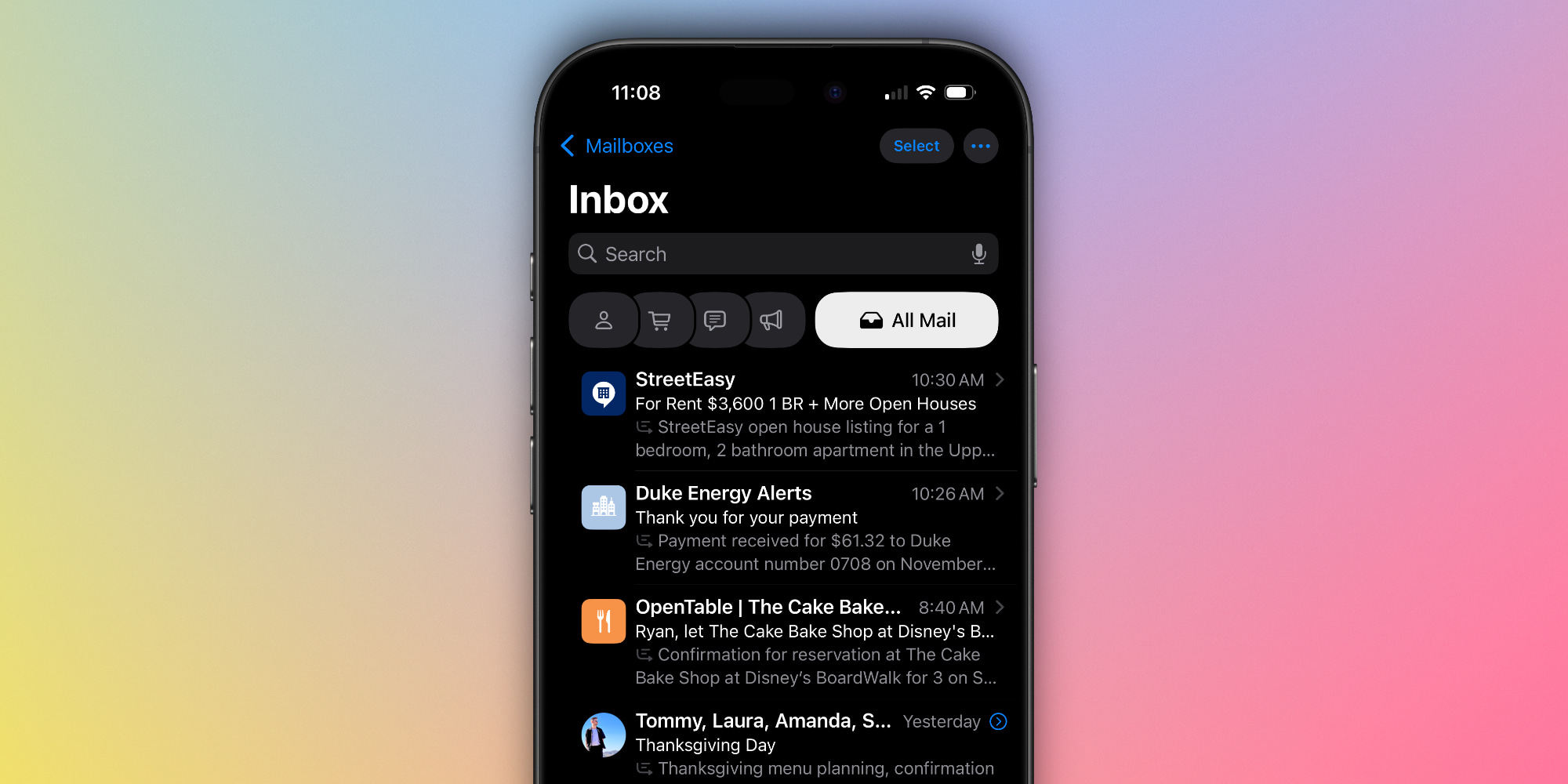
Best Mail App iOS: The Ultimate Guide for 2026
Choosing the best mail app for iOS in 2026 depends on whether you prioritize deep AI-driven organization, strict privacy encryption, or a streamlined minimalist design. While the built-in Apple Mail app offers robust ecosystem integrat...
Choosing the best mail app for iOS in 2026 depends on whether you prioritize deep AI-driven organization, strict privacy encryption, or a streamlined minimalist design. While the built-in Apple Mail app offers robust ecosystem integration and advanced security features, third-party powerhouses like Outlook, Spark, and Edison Mail provide cross-platform synchronization, advanced email scheduling, and intuitive unified inboxes that elevate mobile productivity.
Contents
Understanding the iOS Email Ecosystem in 2026
The iOS email client landscape has evolved far beyond basic protocol support like IMAP and POP3. Apple's native platform APIs allow third-party developers to deeply integrate with iOS widgets, Live Activities, Siri shortcuts, and system-wide notifications. When evaluating mail applications for iPhone and iPad, users must balance proprietary cloud processing versus local-only device parsing, especially when handling sensitive corporate or personal correspondence.
Modern email apps utilize background fetch optimizations and push notifications to deliver messages instantly without draining excessive battery life. Selecting the right client requires an assessment of your daily volume, the number of distinct accounts you manage, and your tolerance for automated data categorization.
Key Features to Demand in a Modern iOS Email Client
Before committing to a specific email application, certain technical and functional benchmarks must be met to ensure long-term utility and security.
- Unified Inbox Architecture: The ability to aggregate multiple IMAP, Exchange, iCloud, Gmail, and Yahoo accounts into a single, cohesive feed without switching contexts.
- Smart Categorization and Triage: Algorithmic filtering that separates newsletters, promotional spam, and transactional updates from primary human conversations.
- Privacy and Tracking Protection: Built-in blockers for remote tracking pixels, transparent data-handling policies, and support for end-to-end encryption standards like PGP or S/MIME.
- Offline Functionality: Robust local caching allowing users to read, draft, search, and delete messages while completely disconnected from cellular or Wi-Fi networks.
- Deep Integration: Native support for iOS Share Sheet, Lock Screen widgets, interactive notifications, and calendar sync.
Comprehensive Comparison of Top iOS Mail Apps
To determine the best mail app for iOS, we evaluate the leading contenders across performance, security, and interface design.
| Email App | Primary Strength | Privacy Level | Pricing Model | Best For |
|---|---|---|---|---|
| Apple Mail | Ecosystem Integration & Privacy | High (Local processing) | Free (Built-in) | General users & privacy purists |
| Microsoft Outlook | Corporate & Exchange Sync | Enterprise-Grade | Free / Premium Tier | Business professionals |
| Spark Mail | Team Collaboration & Triage | Moderate (Cloud synced) | Free / Subscription | Power users & teams |
| Edison Mail | Speed & Assistant Features | Moderate | Free / Subscription | Fast inbox management |
| Proton Mail | Zero-Access Encryption | Maximum (E2EE) | Free / Paid Tiers | Security-focused individuals |
Detailed Breakdown of the Best iOS Mail Applications
Apple Mail: The Default Contributor with Enterprise Muscle
Apple Mail remains the default standard for millions of iOS users. Over recent cycles, Apple has enhanced the client with advanced search indexing, follow-up reminders, send-later capabilities, and link previews. Its primary advantage is zero third-party data harvesting; account credentials and emails remain securely stored on your device or iCloud keychain. Privacy Protection features actively mask your IP address and block invisible tracking pixels embedded in marketing emails.
Microsoft Outlook: The Enterprise Standard
For users embedded in Microsoft 365 or corporate Exchange environments, Outlook for iOS is unmatched. It features a brilliant "Focused Inbox" that automatically separates important communications from automated clutter. The application also integrates seamlessly with Microsoft Teams, OneDrive, and the native iOS calendar, making it an indispensable productivity hub for enterprise workers and heavy schedule coordinators.
Spark Mail: Smart Inbox for Power Users
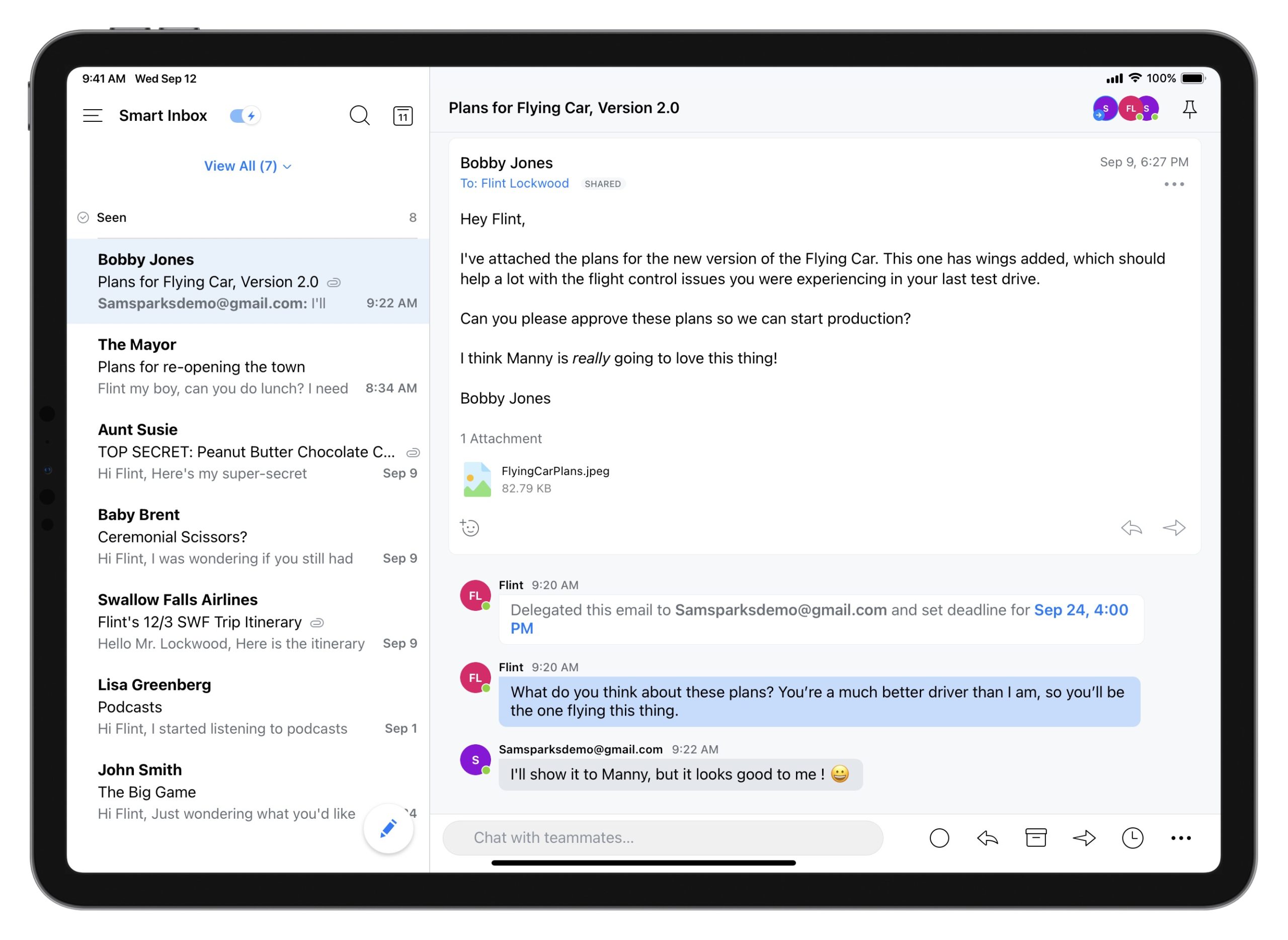
Developed by Readdle, Spark is engineered for individuals who manage overwhelming email volumes. Its defining feature is the Smart Inbox, which automatically groups emails into categories such as Personal, Notifications, and Newsletters. Spark also introduces innovative team collaboration tools, allowing users to discuss specific threads via private comments, share draft links, and delegate emails within a shared workspace.
Proton Mail: Fortress-Level Security
When privacy is your absolute top priority, Proton Mail offers zero-access encryption and end-to-end security. Even Proton cannot read your messages. The iOS app brings this uncompromising security to mobile devices without sacrificing modern UI conveniences. It supports custom domains, self-destructing messages, and seamless PGP encryption handling, making it the premier choice for journalists, legal professionals, and privacy advocates.
Step-by-Step Guide: Setting Up and Optimizing Your iOS Mail Client
Configuring your chosen email client correctly ensures optimal battery performance, timely notifications, and reliable synchronization.
- Download and Install: Navigate to the App Store, search for your preferred mail application, and authorize the download using Face ID or your Apple ID password.
- Add Primary Account: Open the application and select your email provider (e.g., Google, Microsoft, iCloud, or Other Provider). Enter your full email address and authenticate via OAuth token verification for maximum security.
- Configure Push Notifications: Navigate to iOS Settings > Notifications > [App Name]. Enable Time-Sensitive Notifications and Badges while disabling non-essential sound alerts to prevent notification fatigue.
- Set Up Signatures and Preferences: Access the app's internal settings menu to customize swipe gestures, default reply behaviors, signature text, and dark mode display parameters.
- Add Secondary Accounts: If utilizing a unified inbox, repeat the account addition process for professional, personal, or secondary alias addresses.
Pros and Cons of Using Third-Party Mail Apps vs. Apple Mail
Transitioning away from the stock Apple Mail app introduces distinct operational trade-offs.
- Pros of Third-Party Apps:
- Advanced algorithmic categorization that outperforms native filtering.
- Richer snooze, reminder, and send-later automation workflows.
- Better cross-platform synchronization with Windows, Android, and macOS web clients.
- Cons of Third-Party Apps:
- Potential privacy trade-offs if third-party servers route, cache, or index your email metadata.
- Inability to set third-party apps as the absolute universal default for deep system hooks in older iOS versions.
- Occasional battery drain increases due to aggressive background synchronization routines.
Troubleshooting Common iOS Mail Issues
Even the most reliable email applications encounter synchronization bottlenecks on iOS. Implement these troubleshooting steps when facing connectivity issues:
- Stuck Outbox or Failed Sends: Check your outbound SMTP server settings and verify that your cellular data or Wi-Fi connection is stable. Toggle Airplane Mode on and off to reset network handshakes.
- Delayed Push Notifications: Go to iOS Settings > Mail (or your third-party app) > Accounts > Fetch New Data. Ensure your account is set to "Push" rather than "Fetch," and verify that Low Power Mode is disabled, as it throttles background fetching.
- Authentication Loops: If your login repeatedly fails despite correct credentials, revoke app access permissions within your Google or Microsoft account security dashboard, then re-authenticate fresh via OAuth.
Frequently Asked Questions
Which iOS mail app offers the best overall privacy?
Proton Mail offers the highest level of privacy on iOS due to its zero-access architecture and client-side end-to-end encryption. Apple Mail is the runner-up for users who prefer keeping all data processing local to their device without relying on third-party cloud servers.
Can I use multiple email providers in a unified inbox on iPhone?
Yes, applications like Apple Mail, Spark, Outlook, and Edison Mail all support unified inbox views that seamlessly combine Gmail, Outlook, iCloud, Yahoo, and IMAP accounts into a single feed.
Does using a third-party email app drain iPhone battery life?
Third-party apps that rely on cloud-based proxy servers to push notifications can consume slightly more battery than native Apple Mail. However, modern iOS background task management minimizes this impact significantly.
How do I stop email tracking pixels on iOS?
Apple Mail includes a built-in "Protect Mail Activity" feature located in iOS Settings > Mail > Privacy Protection. For third-party apps, check the application's internal security settings to enable remote image blocking.
Which mail app is best for managing high volumes of business email?
Microsoft Outlook and Spark Mail are widely considered the best options for high-volume email management due to their intelligent automated sorting and integrated calendar workflows.
To elevate your daily communication workflow, evaluate your specific security requirements and account volume, then download the iOS mail client that aligns with your productivity style today.
Image Gallery