A Comprehensive Guide to Amazon Virtual Server Hosting with Amazon EC2
Amazon virtual server hosting, primarily facilitated through Amazon Elastic Compute Cloud (EC2), provides resizable compute capacity in the cloud. It allows users to launch virtual servers, configure security and networking, and manage...
Amazon virtual server hosting, primarily facilitated through Amazon Elastic Compute Cloud (EC2), provides resizable compute capacity in the cloud. It allows users to launch virtual servers, configure security and networking, and manage storage, offering a flexible alternative to physical on-premises hardware for hosting applications, websites, and data-intensive workloads.
Contents
Understanding Amazon Virtual Server Hosting
At its core, "Amazon virtual server hosting" refers to the provisioning of virtualized instances via Amazon Web Services (AWS). Unlike traditional hosting where a customer might rent a specific physical machine or a portion of a shared server, AWS EC2 provides "instances"—virtual machines—that run on top of AWS’s massive physical infrastructure.
When you deploy a virtual server on AWS, you are not tethered to fixed hardware constraints. Instead, you select from a wide array of instance types, each optimized for different use cases, such as memory-intensive databases, high-performance computing (HPC), or general-purpose web applications. This model removes the overhead of hardware procurement and maintenance, allowing organizations to focus exclusively on the configuration and deployment of their software stacks.
Prerequisites for Deploying Virtual Servers
Before you initiate your first deployment, there are several foundational requirements to address to ensure your infrastructure is secure and performant:
- AWS Account: You must have an active AWS account. This requires a valid payment method, as AWS operates on a pay-as-you-go billing model.
- Identity and Access Management (IAM): Never use your root account for daily operations. Configure IAM users with the principle of least privilege, granting only the permissions necessary for managing instances.
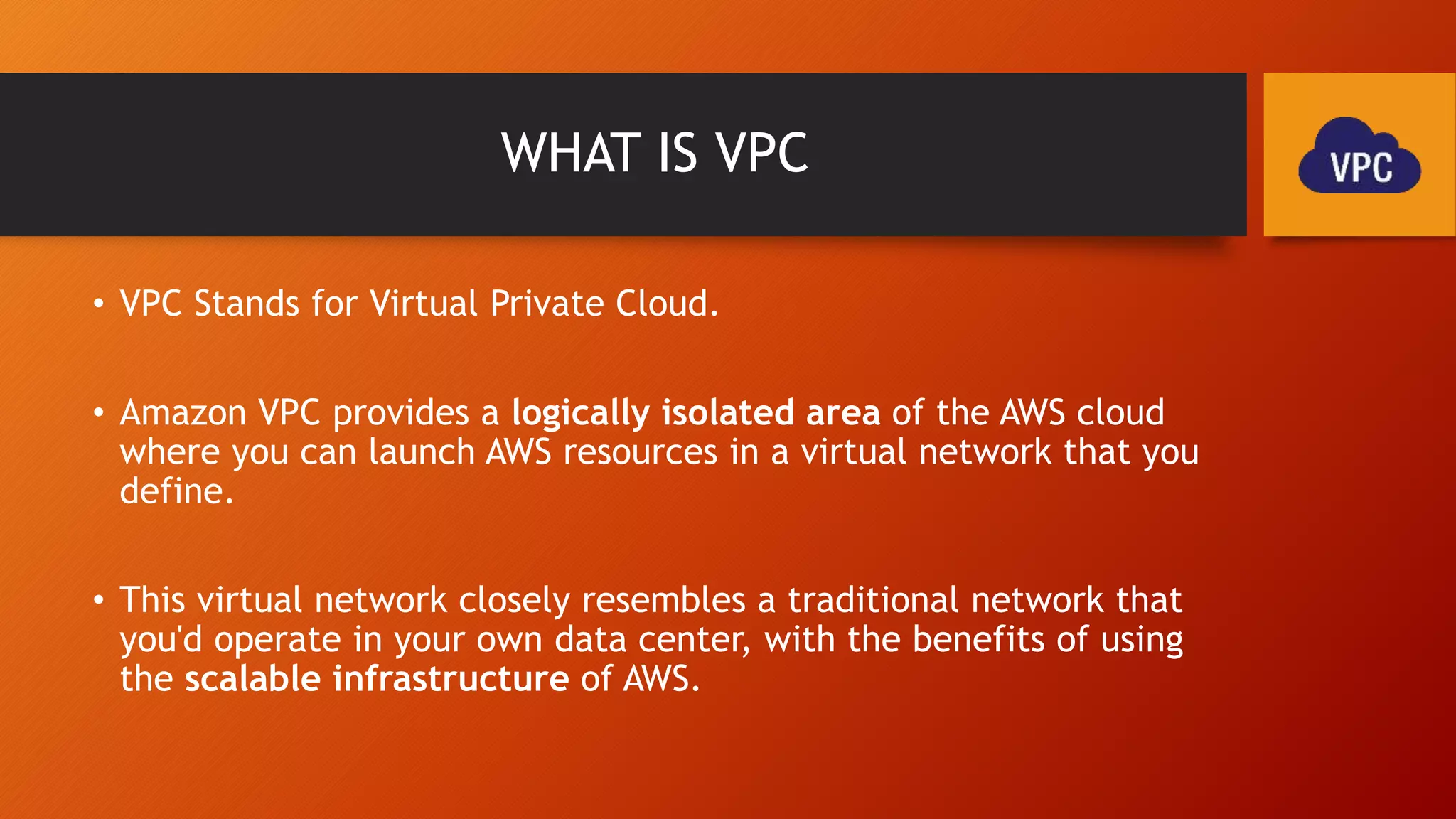
- Networking Knowledge: Understanding Virtual Private Clouds (VPCs), subnets, and security groups is mandatory. A security group acts as a virtual firewall for your instance, controlling both inbound and outbound traffic.
- Key Pair Management: AWS does not use traditional passwords for SSH access to Linux instances. You must generate a public/private key pair, keep the private key secure, and use it to authenticate your login.
Steps to Provision Your First Instance
The process of launching a virtual server on Amazon EC2 follows a standardized workflow designed to ensure your environment is tailored to your specific software requirements.
- Select an Amazon Machine Image (AMI): An AMI is a template that contains the software configuration (operating system, application server, and applications) required to launch your instance. You can choose from official Amazon Linux, Ubuntu, Red Hat, Windows Server, and many others, or use community-provided AMIs.
- Choose an Instance Type: This determines the hardware resources allocated to your server. Examples include the t3 family for general-purpose workloads, m7g for balanced compute/memory, and r7g for memory-intensive tasks.
- Configure Network Settings: Place your instance within a VPC and a specific subnet. Decide whether the instance requires a public IP address (to be reachable from the internet) or should remain private (for internal microservices).
- Add Storage: Define the size and type of the Amazon Elastic Block Store (EBS) volume. EBS provides persistent block-level storage that remains available even if the virtual server is stopped.
- Configure Security Groups: Define the ingress rules. For example, if you are hosting a web server, you must open port 80 (HTTP) or 443 (HTTPS). If you need to manage the server remotely, you will need to open port 22 (SSH for Linux) or 3389 (RDP for Windows).
Cost Considerations and Management
One of the most significant advantages of Amazon virtual server hosting is the granular control over costs. However, without proper management, cloud spending can escalate.
- On-Demand Instances: Ideal for unpredictable workloads. You pay for the compute capacity by the second, with no long-term commitment.
- Savings Plans: If you have a steady-state workload, committing to a consistent amount of compute usage (measured in $/hour) for a 1-year or 3-year term can provide significant discounts compared to on-demand pricing.
- Spot Instances: These allow you to take advantage of unused EC2 capacity at steep discounts. However, AWS can reclaim these instances with a two-minute warning, making them suitable only for fault-tolerant, stateless, or batch-processing applications.
Comparison of Popular Instance Categories
| Instance Family | Primary Use Case | Hardware Optimization |
|---|---|---|
| General Purpose (t3, m7g) | Web servers, small databases | Balanced CPU, memory, and networking |
| Compute Optimized (c7g) | Batch processing, gaming servers | High performance-per-core ratio |
| Memory Optimized (r7g) | Real-time big data analytics | High RAM-to-CPU ratio |
| Accelerated Computing (g5) | Machine learning, 3D rendering | Integrated GPU hardware |
Common Mistakes and Troubleshooting
Even experienced administrators encounter issues when transitioning to AWS cloud hosting. One common mistake is neglecting to stop or terminate instances when they are no longer required, leading to "zombie" resources that continue to accrue charges.
Another frequent issue is improper security group configuration. If your server is unreachable, verify that your security group allows traffic from your current public IP address. Always check the System Status Checks in the AWS Management Console; these checks monitor the underlying physical infrastructure. If an instance fails a status check, it is often due to hardware issues on the host machine, and simply stopping and starting the instance will move it to a healthy host.
Frequently Asked Questions
1. Is Amazon virtual server hosting the same as Lightsail? While both use the underlying AWS infrastructure, Amazon EC2 is a highly configurable, enterprise-grade service, whereas Amazon Lightsail is a simplified virtual private server (VPS) solution. Lightsail provides a fixed-price, bundle-based model that includes networking, storage, and compute, making it better suited for simple websites or small applications.
2. How do I scale my virtual server? You can scale horizontally by adding more instances or vertically by switching to a larger instance type. AWS Auto Scaling can be configured to automatically add or remove instances based on defined performance metrics like CPU utilization.
3. Is my data secure in an Amazon virtual server? AWS follows a "Shared Responsibility Model." AWS secures the physical infrastructure, while you are responsible for securing the data, the operating system configuration, and the firewall settings within the guest instance. You should always use encryption for EBS volumes and maintain up-to-date OS patches.
4. Can I migrate an existing on-premises server to AWS? Yes. Tools like the AWS Application Migration Service (MGN) help automate the process of lifting and shifting physical or virtual servers from your data center to the AWS cloud by replicating your server data continuously into an AWS environment.
5. What happens to my data if I terminate an instance? When you terminate an instance, the root EBS volume is deleted by default. If you need to keep your data, ensure you either detach the volume before termination or set the "DeleteOnTermination" attribute to false on your storage configuration during the launch phase.
Recommendation
For those just beginning with Amazon virtual server hosting, start by launching a t3.micro instance within the AWS Free Tier (if eligible) to familiarize yourself with the console and network security groups. Once you understand the workflow of configuring VPCs and security groups, transition your production workloads to larger instance types optimized for your specific application requirements. Regularly review your AWS Cost Explorer reports to identify opportunities to optimize your spending through Savings Plans.
Image Gallery