How to Connect Your Phone to Wi-Fi: A Comprehensive Setup and Troubleshooting Guide
To connect your phone to Wi-Fi, navigate to the Settings menu, select Wi-Fi (or Network & Internet), and ensure the toggle is switched to On. Tap the name of the network you wish to join, enter the required password, and select Connect...
To connect your phone to Wi-Fi, navigate to the Settings menu, select Wi-Fi (or Network & Internet), and ensure the toggle is switched to On. Tap the name of the network you wish to join, enter the required password, and select Connect. Your device will then authenticate and establish a wireless internet connection.
Contents
Reliable internet connectivity is the backbone of modern smartphone utility. Whether you are using a flagship device running the latest Android 16 or an iPhone operating on iOS 19 in 2026, the process of connecting to a local area network (LAN) remains a fundamental skill. While the basic steps are intuitive, understanding the underlying protocols, security measures, and troubleshooting techniques can prevent common frustrations and ensure your data remains secure.
Prerequisites for a Successful Connection
Before attempting to connect your phone to a wireless network, several environmental and hardware factors must be aligned. By 2026, most residential and commercial environments utilize Wi-Fi 6, 6E, or the high-performance Wi-Fi 7 standards.
- SSID Knowledge: You must know the Service Set Identifier (SSID), which is the technical name for the Wi-Fi network.
- Security Credentials: Most private networks are encrypted. You will need the WPA2 or WPA3 security key (password).
- Hardware Compatibility: Ensure your phone’s wireless radio is functioning. Modern phones support multi-band frequencies (2.4GHz, 5GHz, and 6GHz).
- Proximity: Wireless signals degrade with distance and physical obstructions. For the initial connection, staying within 20 to 30 feet of the router or access point is recommended.
Step-by-Step Connection Guide for Android Devices
Android's interface can vary slightly depending on the manufacturer (such as Samsung’s One UI or Google’s Pixel UI), but the core networking logic remains consistent across the platform.
Accessing Network Settings
Swipe down from the top of your screen to access the Quick Settings panel. You can long-press the Wi-Fi icon to go directly to the settings, or follow the traditional path:
- Open the Settings app.
- Tap on Network & Internet or Connections.
- Select Internet or Wi-Fi.
Selecting and Joining a Network
Once in the Wi-Fi menu, your phone will automatically scan for nearby broadcasted SSIDs.
- Locate your network name in the list. If it does not appear, ensure the router is broadcasting and tap Scan or refresh the list.
- Tap the network name. A dialog box will appear requesting a password.
- Carefully enter the password. You can often tap a "Show Password" eye icon to ensure accuracy.
- Tap Connect.
Advanced Android Options
Under the "Network Preferences" or "Advanced" tab, you can enable features like Notify for public networks or Turn on Wi-Fi automatically, which uses location services to re-enable your Wi-Fi when you are near a saved network.
Step-by-Step Connection Guide for iOS (iPhone)
Apple’s iOS provides a streamlined experience for connecting to wireless networks, emphasizing security and integration with the broader Apple ecosystem.
Accessing Wi-Fi Settings
On an iPhone, you can access settings through the Control Center or the main app:
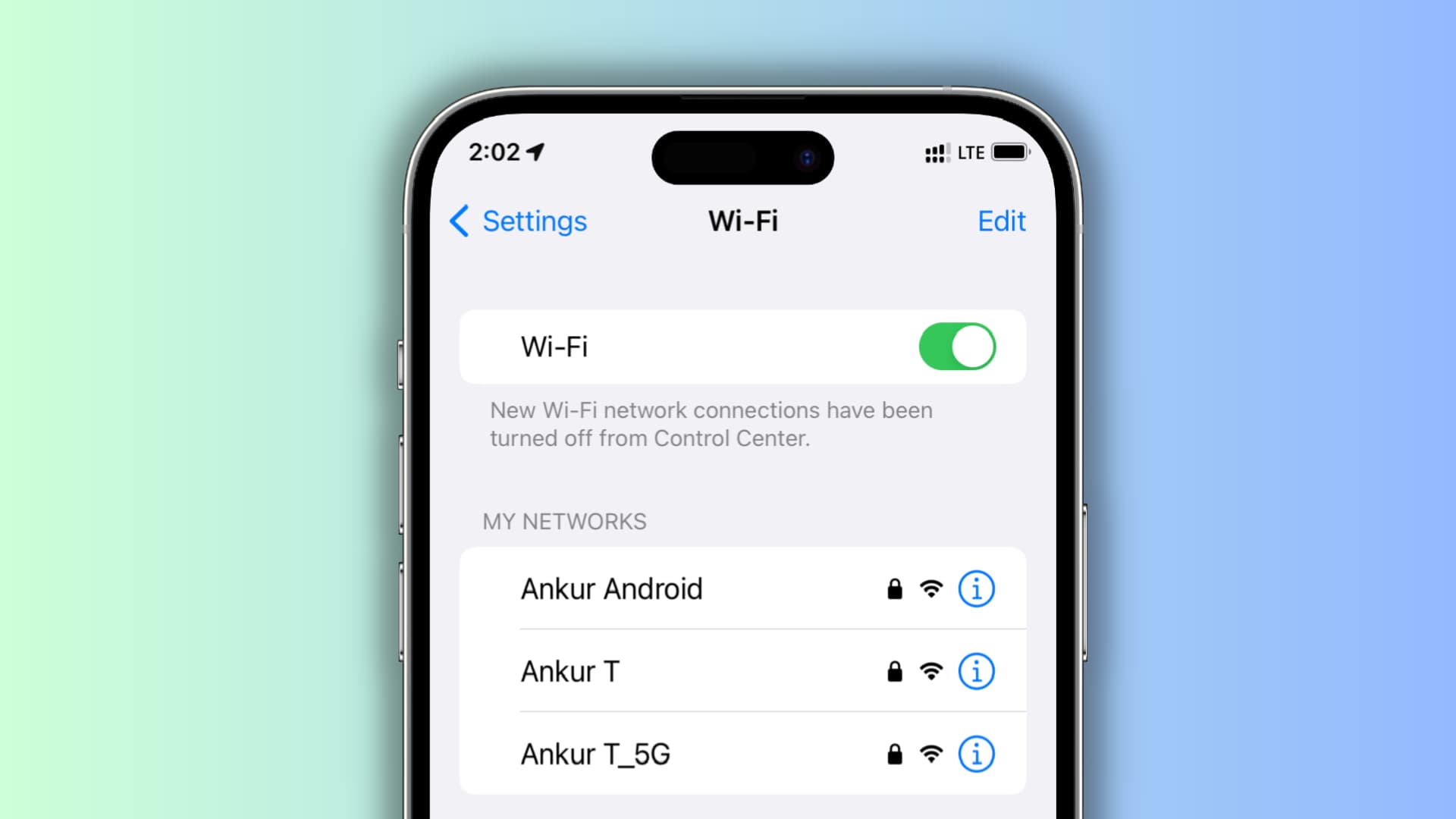
- Open the Settings app.
- Tap Wi-Fi.
- Ensure the Wi-Fi switch is green (On).
Authenticating the Connection
- Wait for the "Other Networks" list to populate.
- Tap the name of the network you want to join.
- Enter the password. If you have another Apple device (like a Mac or iPad) already connected to this network nearby, a pop-up may appear on that device asking if you want to share the Wi-Fi password automatically.
- Tap Join in the upper right corner.
Managing Known Networks
In 2026, iOS versions allow users to view and edit saved passwords directly within the Wi-Fi menu. By tapping the Edit button in the top right corner, you can see every network your iPhone has ever joined and remove those that are no longer needed, which helps prevent your phone from connecting to insecure, legacy hotspots.
Alternative Connection Methods: QR Codes and WPS
Entering long, complex passwords manually is increasingly becoming a legacy method. Modern smartphones support more efficient ways to bridge the gap between the device and the router.
QR Code Scanning
Most routers and smartphones now support QR code sharing.
- To Share: An Android or iPhone user already on the network can generate a QR code from their Wi-Fi settings.
- To Join: Open your phone’s camera or a dedicated QR scanner. Point it at the code, and a prompt will appear asking if you want to "Join Network." This bypasses the need to type passwords entirely.
Wi-Fi Protected Setup (WPS)
While WPS was a standard for many years, it has been largely phased out in 2026 due to security vulnerabilities. However, some older routers still use it. This involves pressing a physical button on the router and selecting "WPS Push Button" in the phone's advanced Wi-Fi settings. Use this method with caution and only on trusted hardware.
Comparison of Wi-Fi Standards in 2026
When connecting your phone, the standard supported by the router dictates your maximum speed and latency.
| Wi-Fi Standard | Frequency Bands | Max Theoretical Speed | Ideal Use Case |
|---|---|---|---|
| Wi-Fi 5 (802.11ac) | 5 GHz | 3.5 Gbps | General browsing, HD streaming |
| Wi-Fi 6 (802.11ax) | 2.4 GHz, 5 GHz | 9.6 Gbps | 4K Streaming, Smart homes |
| Wi-Fi 6E | 2.4, 5, 6 GHz | 9.6 Gbps | High-density areas, reduced lag |
| Wi-Fi 7 (802.11be) | 2.4, 5, 6 GHz | 46 Gbps | 8K streaming, VR/AR, Low-latency gaming |
Troubleshooting Connection Issues
Even with the correct password, a phone may fail to connect to Wi-Fi. Understanding the specific error messages is key to a resolution.
"Authentication Problem" or "Incorrect Password"
This is the most common error. It indicates that the security key provided does not match what the router expects.
- Solution: Re-enter the password. Remember that passwords are case-sensitive. If the issue persists, "Forget" the network in your settings and try a fresh connection.
"Obtaining IP Address" Loop
If your phone gets stuck at this stage, it means the router's DHCP (Dynamic Host Configuration Protocol) server is failing to assign an IP address to your phone.
- Solution: Restart the router and toggle your phone's Airplane Mode on and off. If this fails, you may need to assign a Static IP in the phone's advanced Wi-Fi settings, though this requires technical knowledge of the network's gateway.
"Connected, No Internet"
This status means your phone successfully joined the local network, but the router itself does not have a path to the wider internet.
- Solution: Check your modem or ISP (Internet Service Provider) status. This is rarely a phone-specific issue and usually requires a router reboot or contacting your service provider.
Captive Portals (Public Wi-Fi)
At hotels or airports, you may connect to a network but find that nothing loads. These networks often require a "Captive Portal" login.
- Solution: Open your mobile browser and type
neverssl.comor1.1.1.1. This often forces the login or "Terms of Service" page to appear.
Security and Privacy Considerations
Connecting your phone to Wi-Fi involves data exchange that should be protected.
WPA3 Encryption
Whenever possible, connect to networks using WPA3, the latest security standard as of 2026. It provides superior protection against "brute-force" password guessing attacks compared to the older WPA2 standard.
Randomized MAC Addresses
Modern phones use a "Private Wi-Fi Address" or "Randomized MAC" feature. This prevents network operators from tracking your device's movement across different access points by masking your hardware's unique identifier. It is highly recommended to keep this setting Enabled for public networks.
Public Wi-Fi Risks
Unencrypted public Wi-Fi is a significant risk for data interception. If you must connect to a public hotspot:
- Avoid accessing sensitive accounts (banking, healthcare).
- Use a reputable Virtual Private Network (VPN) to encrypt your traffic.
- Disable "Auto-Join" for public networks to prevent your phone from connecting to rogue hotspots without your knowledge.
Optimizing Your Connection for Better Performance
Once connected, you can take steps to ensure your phone maintains a high-quality link.
- Disable Battery Saver: Some phones throttle the Wi-Fi radio when battery-saving modes are active to conserve energy.
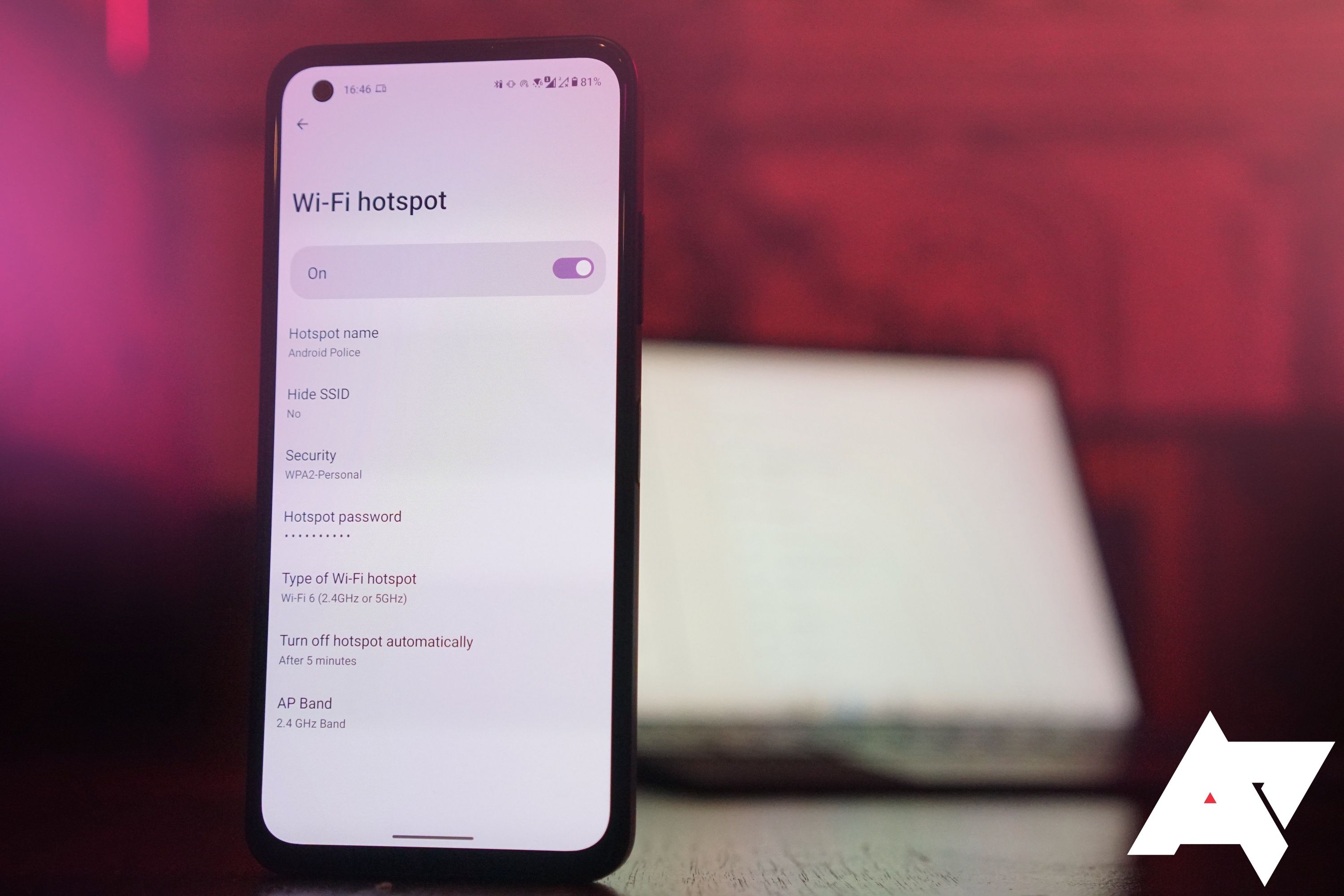
- Use the 6GHz or 5GHz Band: If your router supports multiple bands, ensure your phone is on the 5GHz or 6GHz band for faster speeds. The 2.4GHz band is slower and more prone to interference from household appliances like microwaves.
- Reset Network Settings: If your phone consistently struggles with all Wi-Fi networks, you may need to reset the network stack. Note that this will erase all saved Wi-Fi passwords and Bluetooth pairings.
Frequently Asked Questions
Why won't my phone find my Wi-Fi network?
If your network name doesn't appear, the router may be set to "Hidden SSID" mode, or it may be broadcasting on a frequency your phone doesn't support. Try moving closer to the router or restarting the router to see if the broadcast resumes.
Does connecting to Wi-Fi use my cellular data?
No. Once a Wi-Fi connection is active, your phone typically routes all data through the wireless network, saving your cellular data allowance. However, features like "Wi-Fi Assist" (iOS) or "Adaptive Wi-Fi" (Android) may use small amounts of cellular data if the Wi-Fi signal becomes extremely poor.
How do I find my Wi-Fi password on my phone?
On Android 14+, go to your Wi-Fi settings, tap the gear icon next to your current network, and select "QR Code." The password is often printed in plain text below the code. On iOS, go to Wi-Fi settings, tap the "i" icon, and tap the obscured "Password" field to reveal it via FaceID or TouchID.
Is Wi-Fi 7 worth it for my phone?
If you have a Wi-Fi 7 compatible phone and router, yes. It significantly reduces latency and increases throughput, which is vital for high-bandwidth tasks like cloud gaming or high-resolution video conferencing.
What should I do if my Wi-Fi keeps disconnecting?
Frequent disconnections are often caused by signal interference or an overloaded router. Try changing the "Wi-Fi Channel" in your router's settings to a less crowded one, or remove old devices from the network to free up bandwidth.
Practical Recommendation
For the best experience, always keep your phone's operating system updated to the latest version available in 2026. Software updates frequently include "baseband" or "firmware" patches that improve how your phone communicates with modern routers and resolves known connectivity bugs. If you find yourself frequently struggling with public connections, investing in a high-quality VPN service is the most effective way to stay connected while maintaining personal privacy.
Image Gallery