How to Get the Walmart App on Your Phone: A Complete Installation and Setup Guide
To get the Walmart app on your phone, visit the Apple App Store for iPhones or the Google Play Store for Android devices. Search for "Walmart," select the official app developed by Walmart, and tap "Get" or "Install." The application i...
To get the Walmart app on your phone, visit the Apple App Store for iPhones or the Google Play Store for Android devices. Search for "Walmart," select the official app developed by Walmart, and tap "Get" or "Install." The application is free and provides access to grocery delivery, Walmart Pay, and Walmart+ benefits.
Contents
The Walmart app has evolved into a central hub for millions of shoppers in 2026, bridging the gap between digital convenience and physical retail. Whether you are looking to streamline your weekly grocery run, manage a Walmart+ membership, or utilize the "Scan & Go" feature to skip the checkout lines, having the app installed correctly is the first step. This guide provides a comprehensive walkthrough of the installation process, system requirements, and initial configuration steps to ensure you get the most out of the platform.
Understanding the Prerequisites for Installation
Before attempting to download the Walmart app, it is essential to ensure that your hardware and software meet the current standards for 2026. As the app has integrated more advanced features like Augmented Reality (AR) for furniture placement and AI-driven personal shoppers, the technical requirements have become more specific.
Device Compatibility and Operating Systems
For a smooth experience, your smartphone must run a relatively modern operating system. While Walmart attempts to support older devices as long as possible, the 2026 version of the app typically requires:
- iOS Users: An iPhone running iOS 15.0 or later. This ensures compatibility with the latest security protocols and Apple’s integrated payment systems.
- Android Users: A device running Android 9.0 (Pie) or higher. Higher-end features may require Android 11 or above to handle the sophisticated location services and camera-based scanning features.
Storage and Connectivity
The initial download size of the Walmart app is approximately 150MB to 200MB, but this grows as the app caches store maps, product images, and your personal shopping history. It is recommended to have at least 500MB of free space to allow for updates and smooth performance. Additionally, a stable Wi-Fi connection or a reliable 5G/LTE data plan is necessary for the download. If you are downloading the app while inside a Walmart store, you can often connect to the "WalmartFreeWiFi" network to save on cellular data.
Step-by-Step Guide: Getting the App on an iPhone (iOS)
Apple users can find the Walmart app exclusively through the official App Store. Following these steps ensures you are downloading the authentic version and not a third-party imitation.
- Launch the App Store: Locate the blue icon with a white "A" on your home screen or within your App Library.
- Use the Search Function: Tap the magnifying glass icon at the bottom right of the screen. Type "Walmart" into the search bar at the top.
- Identify the Correct App: Look for the app titled "Walmart" with the iconic yellow spark logo on a blue background. The developer should be listed as "Walmart Inc."
- Initiate Download: Tap the "Get" button. If you have downloaded it previously, you may see a cloud icon with a downward arrow instead.
- Authenticate the Installation: Depending on your iPhone model and settings, you will need to confirm the download via FaceID, TouchID, or by entering your Apple ID password.
- Open and Initialize: Once the download circle completes, tap "Open." The app will ask for various permissions, including location services and notifications. Allowing location access is highly recommended so the app can automatically identify your local store and provide accurate inventory levels.
Step-by-Step Guide: Getting the App on an Android Phone
Android devices, such as those from Samsung, Google, and Motorola, primarily use the Google Play Store for app management.
- Open the Google Play Store: Tap the multicolored triangle icon on your home screen or in your app drawer.
- Search for the App: Use the search bar at the top of the interface and type "Walmart."
- Select the Official Listing: Choose the app published by "Walmart." Be wary of apps with similar names that focus only on coupons or third-party delivery; the official app is a comprehensive shopping tool.
- Tap Install: The Play Store will begin downloading the files and automatically installing them on your device.
- Manage Permissions: Upon opening the app for the first time, Android will prompt you to allow the app to access your camera (for scanning barcodes and Walmart Pay) and your location. In 2026, Android's privacy dashboard allows you to grant these permissions "Only while using the app," which is the best balance of functionality and privacy.
- Shortcut Creation: The app icon will typically appear on your home screen automatically. If not, you can find it in your app drawer and drag it to your main screen for quick access.
Initial Setup and Account Configuration
Simply downloading the app is only half the process. To use features like "Scan & Go" or to track your orders, you must configure your account properly.
Signing In or Creating an Account
If you already have a Walmart.com account, use your existing email and password. For new users, tapping "Create Account" will require a first and last name, an email address, and a secure password. In 2026, Walmart strongly encourages the use of Two-Factor Authentication (2FA), which sends a code to your mobile phone to verify your identity. This is particularly important if you plan to store credit card information or use Walmart Pay.
Setting Your Home Store
The app relies heavily on knowing which store you frequent. By setting a "Home Store," the app can show you aisle locations for specific items. For example, if you search for "milk," the app will not only tell you if it is in stock but also direct you to "Aisle G22" in your specific local store.
Linking Payment Methods
To utilize the app for checkout, navigate to the "Account" section and select "Wallet." Here, you can add credit cards, debit cards, or Walmart Gift Cards. This setup is required if you wish to use Walmart Pay, a touchless payment system that generates a QR code at the register, allowing you to pay without ever pulling out your physical wallet.
Key Features of the Walmart App
The 2026 version of the Walmart app is designed to be a "Swiss Army Knife" for retail. Understanding these features can help you decide how much access you want to give the application.
| Feature | Primary Function | Best Used For |
|---|---|---|
| Scan & Go | Scan items as you shop in-store | Skipping the checkout line (Walmart+ members) |
| Walmart Pay | Secure, touchless QR code payment | Fast checkouts and digital receipt storage |
| Store Map | Interactive layout of your local store | Finding specific products in unfamiliar aisles |
| Grocery Delivery | Schedule same-day delivery or pickup | Busy schedules and bulk ordering |
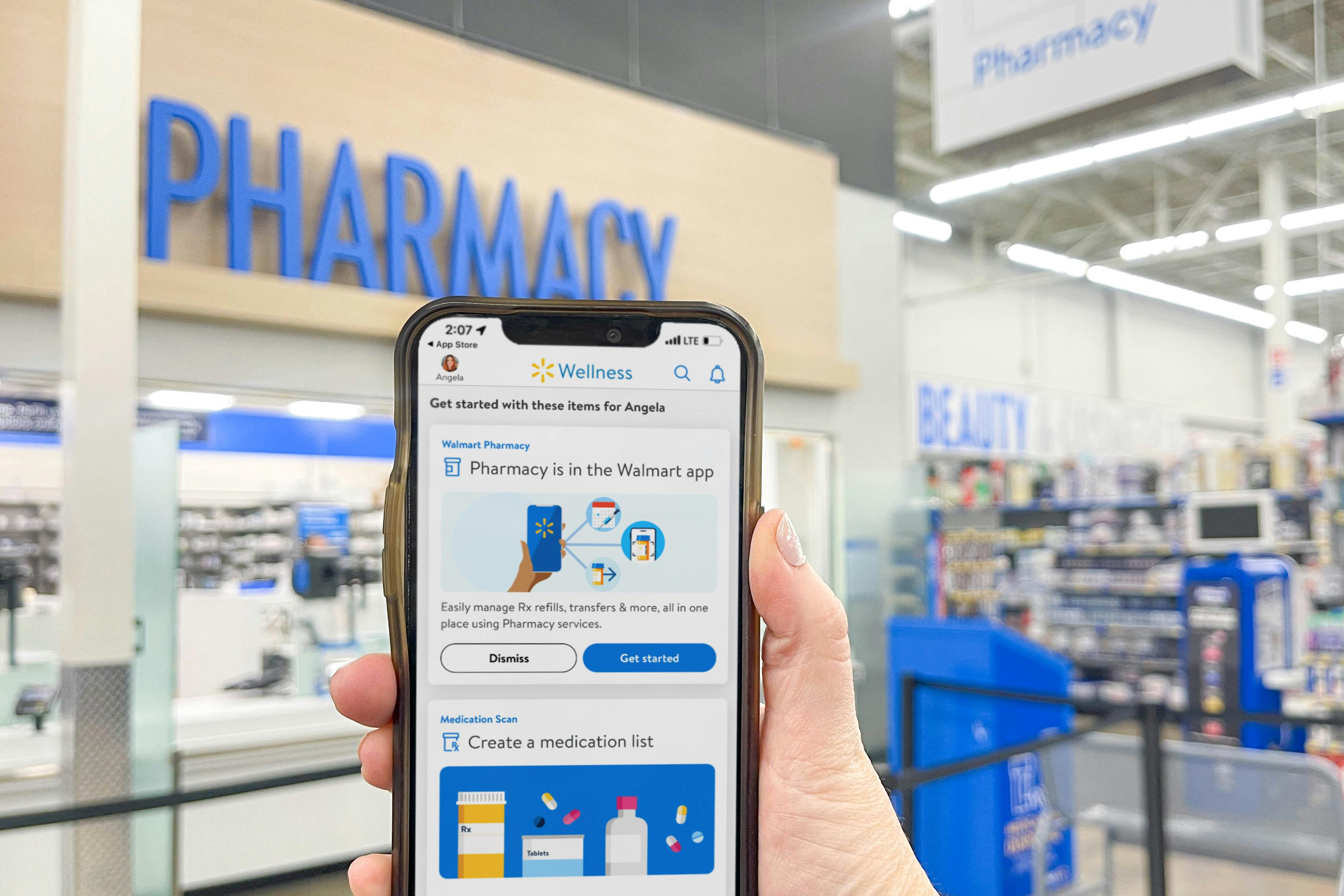
| Pharmacy Portal | Refill prescriptions and track status | Managing health needs and medication history |
| Walmart+ Hub | Manage membership and fuel discounts | Accessing member-exclusive perks and savings |
Troubleshooting Common Download Issues
Sometimes, getting the app on your phone isn't as straightforward as tapping a button. Here are the most common obstacles and how to resolve them.
"App Not Compatible With This Device"
If you see this message in the Play Store or App Store, it usually means your phone's operating system is too old. Check for system updates in your phone's settings. If your hardware is older than five or six years, it may no longer support the latest version of the Walmart app. In this case, you can still use the Walmart website via your mobile browser (Chrome or Safari), which offers many of the same shopping features without the need for an app installation.
Download Pending or Stuck
On Android, a "Download Pending" status often occurs if other apps are updating in the background. Go to "My Apps & Games" in the Play Store and stop any current updates to prioritize the Walmart app. On iOS, if the download is stuck, a simple restart of the device or toggling your Wi-Fi off and then back on usually clears the bottleneck.
Regional Availability
The Walmart app is region-locked to the countries where Walmart operates (primarily the United States and Mexico). If your App Store or Play Store account is registered to a different country, the app may not appear in search results. You would need to change your store region in your account settings, which often requires a local payment method and address.
Managing App Updates for 2026
To ensure security and access to new features, keeping the app updated is vital. By default, most smartphones have auto-updates enabled. However, if you prefer manual control, you should check for updates at least once a month. Walmart frequently releases "hotfixes" to resolve bugs in the checkout process or to update store maps for seasonal changes.
To update manually:
- iOS: Open the App Store, tap your profile icon, and scroll down to see "Available Updates."
- Android: Open the Play Store, tap your profile, select "Manage apps & device," and check "Updates available."
Practical Recommendation for New Users
After you have successfully downloaded and signed into the Walmart app, your next step should be to explore the Walmart+ tab if you are a frequent shopper. Even if you don't subscribe to the paid membership, the app allows you to browse "Member Prices" on fuel and see which items are eligible for free shipping. Additionally, take a moment to enable "Push Notifications" specifically for "Order Updates." This ensures that if a grocery item is out of stock or your delivery driver is approaching, you will receive an immediate alert on your lock screen, preventing missed deliveries or confusion at pickup.
Frequently Asked Questions
Does the Walmart app cost money to download?
No, the Walmart app is completely free to download and install on both iOS and Android platforms. There are no "pro" versions of the app itself. However, within the app, you have the option to subscribe to Walmart+, a paid membership service that offers benefits like free delivery and fuel discounts.
Can I use the Walmart app on a tablet?
Yes, the Walmart app is compatible with iPads and most Android tablets. The interface is optimized for larger screens, making it easier to browse large catalogs of items or view detailed store maps. The installation process is identical to the smartphone process described above.
Why does the app need my location even when I'm not in the store?
The app uses your location to provide accurate pricing and inventory for the store nearest to you. If you move between cities, the app updates its data so you aren't looking at stock for a store hundreds of miles away. You can set the location permission to "While Using the App" if you are concerned about privacy.
What should I do if the app keeps crashing?
If the app crashes, first ensure you are running the latest version. If it is up to date, try clearing the app's cache (on Android) or deleting and reinstalling the app (on iOS). This removes any corrupted temporary files that may be interfering with the software's stability.
Is my payment information safe in the Walmart app?
Walmart uses industry-standard encryption and secure socket layers (SSL) to protect your data. In 2026, the app also supports biometric authentication (fingerprint or facial recognition) to authorize payments via Walmart Pay, adding an extra layer of security that physical cards lack.
Image Gallery