How to Use AWS Cost Management Tools: A Complete Implementation Guide
To use AWS Cost Management tools effectively, you must activate AWS Cost Explorer to visualize historical and forecasted spend, configure Cost Allocation Tags to track costs by business unit, set up AWS Budgets to alert on threshold br...
To use AWS Cost Management tools effectively, you must activate AWS Cost Explorer to visualize historical and forecasted spend, configure Cost Allocation Tags to track costs by business unit, set up AWS Budgets to alert on threshold breaches, and deploy AWS Cost Anomaly Detection to catch unexpected spend spikes in real time.
Contents
Managing cloud expenditure in Amazon Web Services (AWS) requires continuous visibility, strict governance, and active optimization. Without proactive monitoring, cloud infrastructure costs can escalate rapidly due to unallocated resources, over-provisioned instances, or unexpected traffic spikes. AWS provides a native suite of cost management and FinOps tools within the AWS Billing and Cost Management console designed to help organizations inspect, control, and optimize their cloud spend.
This comprehensive guide walks you through configuring and operating the primary AWS cost management tools, setting up automated governance, querying granular billing data, and applying data-driven resource optimization strategies across your organization.
Step 1: Set Up Prerequisites and IAM Permissions
Before leveraging AWS Cost Management tools, you must ensure that billing access is enabled for your Identity and Access Management (IAM) users and roles, and that cost governance structures are established.
Step-by-Step IAM Configuration
By default, the AWS account root user is the only identity with access to billing metrics. To grant administrative or read-only access to team members:
- Enable IAM Access to Billing Information: Sign in to the AWS Management Console as the root user, navigate to Account Settings, scroll to IAM User and Role Access to Billing Information, and click Edit. Check the box to activate IAM access and save changes.
- Assign IAM Policies: Attach granular permissions to IAM roles or users. Avoid using legacy
aws-portalactions. Instead, use modern service-specific policy actions such as:ce:*for AWS Cost Explorer.budgets:*for AWS Budgets.cur:*for AWS Cost and Usage Reports.bcm-data-exports:*for Data Exports and CUR 2.0.cost-optimization-hub:*for consolidated optimization recommendations.
For official security guidance on AWS IAM billing permissions, refer to the AWS Billing User Guide.
Activating Cost Allocation Tags
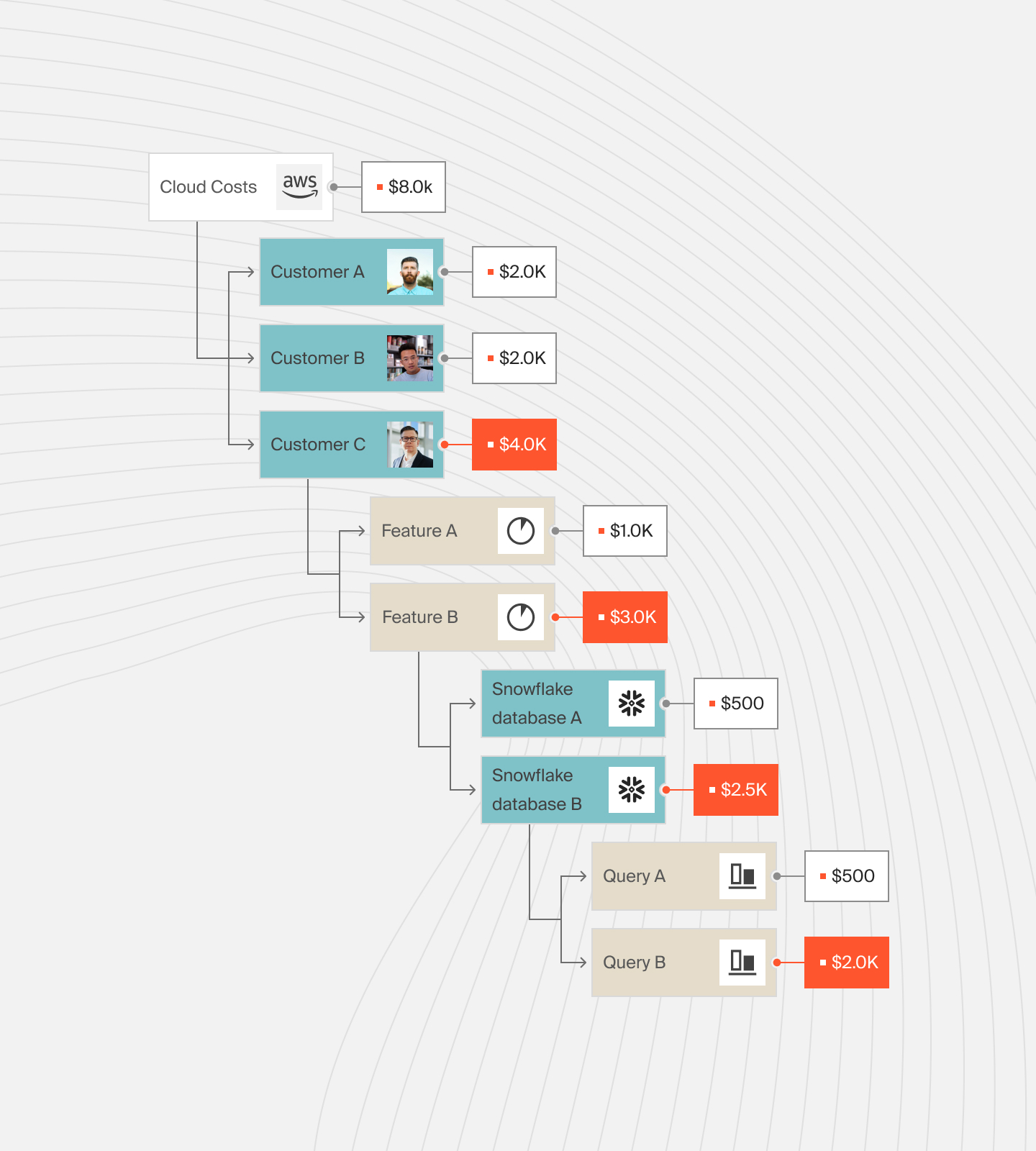
Cost Allocation Tags allow you to categorize and track AWS costs by project, environment, owner, or cost center.
- AWS-Generated Tags: Activate tags created automatically by AWS, such as
aws:createdByoraws:cloudformation:stack-name. Navigate to Cost Allocation Tags in the AWS Billing console, select the AWS-generated cost allocation tags tab, and click Activate. - User-Defined Tags: Custom tags added to resources (e.g.,
Environment=Production,Owner=DevOps) must be explicitly activated. Under the User-defined cost allocation tags tab, select the required tag keys and click Activate.
Note: Cost allocation tags are not retroactive; they only track costs from the time of activation forward. It can take up to 24 hours for activated tags to appear in AWS Cost Explorer.
Step 2: Analyze Spend with AWS Cost Explorer
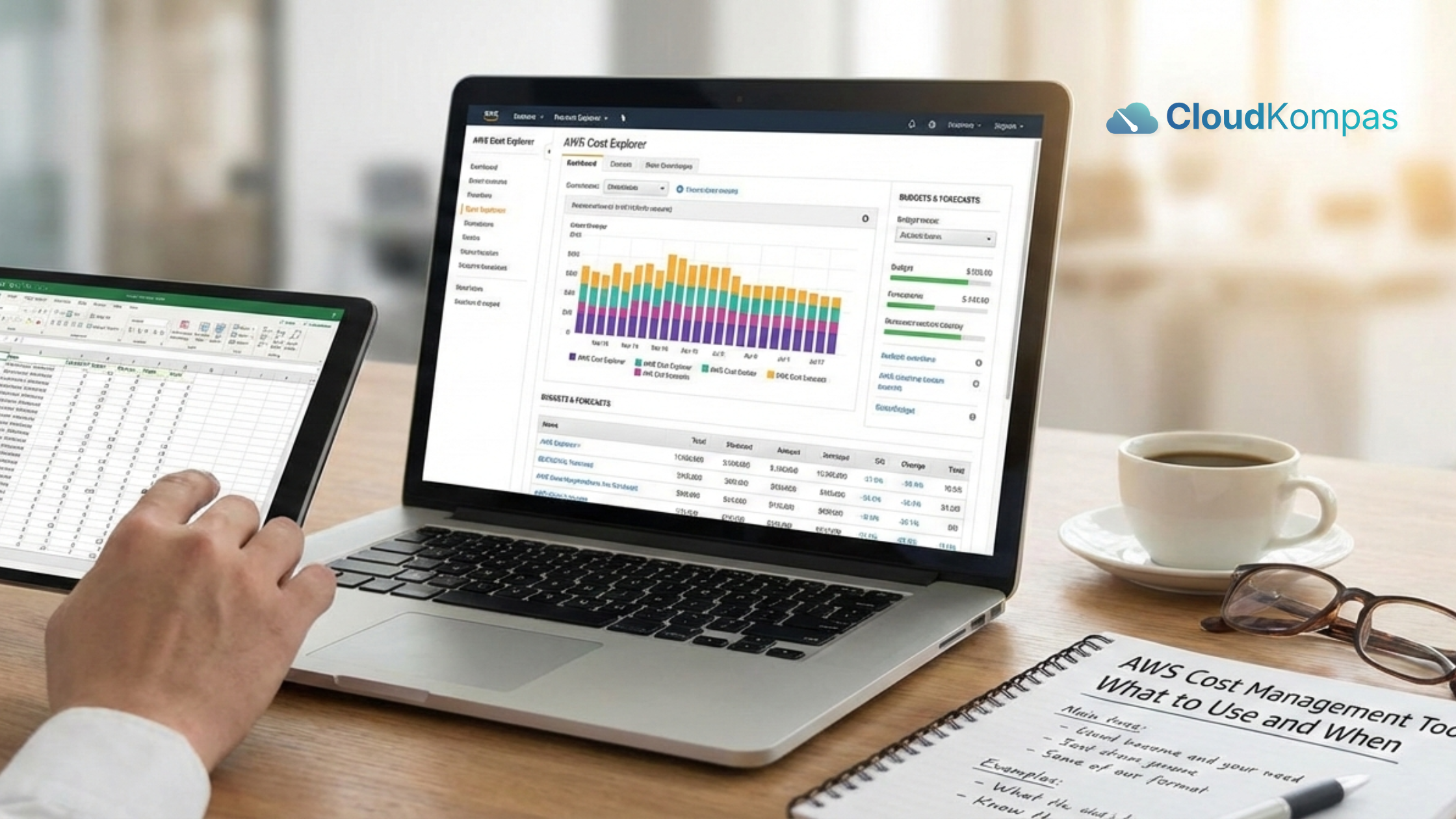
AWS Cost Explorer is the primary visual tool for inspecting, filtering, and forecasting your AWS costs and usage over time.
- AWS Cost Explorer
- Time Range: Daily / Monthly
- Granularity: Hourly / Daily
- Grouping: Service, Tag, Account, Region, Usage Type
- Metrics: Unblended Costs, Amortized Costs, Net Amortized Costs
- Key Analytical Reports
- Savings Plans Utilization & Coverage
- Reserved Instance (RI) Tracking
- 12-Month Spend Forecasting
Enabling and Launching Cost Explorer
- Navigate to the AWS Cost Management Console.
- Select Cost Explorer from the navigation pane.
- Click Enable Cost Explorer (if launching for the first time). AWS will populate up to 12 months of historical data and generate a 12-month forecast within 24 hours.
Key Features and Filtering Mechanics
Cost Explorer provides several core parameters to isolate specific cost drivers:
- Time Horizon and Granularity: View data daily, monthly, or enable hourly granularity (note that hourly data management incurs minor operational costs).
- Charge Metrics:
- Unblended Costs: Shows cash-basis costs on the day charges were billed.
- Amortized Costs: Distributes upfront and recurring Reserved Instance (RI) and Savings Plans fees evenly across the billing period, reflecting true daily usage burn rates.
- Net Amortized Costs: Accounts for upfront payments, recurring fees, and applies post-purchase discounts.
- Grouping & Filtering: Group spending by Service (e.g., Amazon EC2, Amazon S3), Usage Type, Linked Account, Region, or custom Cost Allocation Tag.
To learn more about advanced Cost Explorer filters, explore the AWS Cost Explorer Documentation.
Step 3: Implement Guardrails with AWS Budgets
While Cost Explorer visualizes past spend, AWS Budgets proactively monitors spending levels and usage metrics, sending notifications or executing automated responses when thresholds are crossed.
- AWS Budgets
- Actual Spend Alert (Triggered at 80% Threshold)
- Forecasted Spend Alert (Triggered if 100% Projected)
- Notification Channels
- SNS Topic
- Email Alerts
- Slack / Teams Bot
- AWS Budget Actions
Creating Cost and Usage Budgets
- Navigate to AWS Budgets in the Cost Management console and click Create budget.
- Select a budget type:
- Cost Budget: Monitors total monetary spend.
- Usage Budget: Monitors physical resource consumption (e.g., S3 GBs, EC2 Hours).
- RI / Savings Plans Coverage Budget: Ensures a specific percentage of compute usage is covered by commitment discounts.
- Set budget parameters:
- Period: Daily, Monthly, Quarterly, or Annually.
- Budgeted Amount: Set a fixed dollar amount or configure a auto-adjusting budget based on historical spend patterns.
Configuring Alerts and Automated Actions
To prevent budget overruns, configure alerts based on both Actual and Forecasted values:
- Alert Threshold 1 (Actual): Set an alert at 80% of the budgeted amount to receive an early warning via email or Amazon Simple Notification Service (Amazon SNS).
- Alert Threshold 2 (Forecasted): Set an alert at 100% of forecasted spend. This fires if AWS predicts your end-of-month spend will exceed your limit, even if actual spend is currently low.
- AWS Budget Actions: Configure automated responses when a threshold is breached, such as attaching an IAM policy to restrict resource creation or stopping specific EC2 instances via execution target scripts.
Detailed configuration steps are documented in the AWS Budgets User Guide.
Step 4: Detect Unintended Costs with AWS Cost Anomaly Detection
AWS Cost Anomaly Detection uses machine learning models to continually monitor your billing data, identify anomalous spend patterns, and determine root causes automatically.
Configuring Anomaly Monitors and Subscriptions
- Open the AWS Cost Anomaly Detection console.
- Click Create monitor.
- Choose a monitor type:
- AWS Services: Evaluates each AWS service independently (ideal for broad coverage without manual setup).
- Linked Account: Tracks total spend per AWS account.
- Cost Allocation Tag: Tracks spend for specific business tags.
- Cost Category: Monitors user-defined logical groupings of accounts and resources.
- Set up an Alert Subscription:
- Name your subscription and define an impact threshold (e.g., notify only if an anomaly's projected impact exceeds $50 or 20% of service spend).
- Assign an Email frequency (Immediate, Daily Summary, or Weekly Summary) or route alert payloads to an Amazon SNS Topic for integration with Slack, PagerDuty, or Microsoft Teams.
Step 5: Advanced Analytics with AWS Cost and Usage Reports (CUR 2.0) and Amazon Athena
For deep architectural audits, enterprise chargeback, or custom business intelligence analytics, standard dashboard visuals are often insufficient. The AWS Cost and Usage Report (CUR / CUR 2.0) delivers detailed raw line-item billing files directly to an Amazon S3 bucket.
Setting Up a CUR Export
- Open Billing and Cost Management and navigate to Data Exports (or Cost and Usage Reports).
- Click Create export.
- Choose Legacy CUR or Data Exports (CUR 2.0) for structured, standardized schema integration.
- Configure options:
- Include resource IDs to track granular costs down to individual EC2 instances or S3 buckets.
- Enable integration with Amazon Athena ( parquet format, automated cataloging).
- Specify a target Amazon S3 bucket with secure access policies.
Querying Billing Data with Amazon Athena
Once CUR data lands in Amazon S3, you can execute SQL queries directly against raw billing records.
-- Query top 10 most expensive resources in the past month SELECT line_item_resource_id, line_item_product_code, SUM(line_item_unblended_cost) AS total_cost FROM athena_cur_table WHERE line_item_usage_start_date >= DATE '2026-03-01' GROUP BY line_item_resource_id, line_item_product_code ORDER BY total_cost DESC LIMIT 10;
Refer to the official AWS Data Exports User Guide for technical schema specifications.
Step 6: Identify Savings with AWS Compute Optimizer and Cost Optimization Hub
Visualization and alerting must be paired with operational remediation. AWS provides specialized tools to generate actionable rightsizing guidance.
Using AWS Compute Optimizer
AWS Compute Optimizer analyzes historical CloudWatch utilization metrics (CPU, memory, disk I/O, network) to identify underutilized resources.
- Enable AWS Compute Optimizer in the console.
- Allow up to 24 hours for the service to ingest metrics and build machine learning performance models.
- Review recommendations across target categories:
- Amazon EC2: Identifies over-provisioned instance types and suggests rightsizing options (e.g., shifting from
m5.2xlargetom6i.xlarge). - Amazon EBS: Suggests migrating attached volumes from legacy
gp2to cost-effectivegp3storage types. - AWS Lambda: Identifies functions with excessive allocated memory.
- Amazon ECS on Fargate: Recommends optimized CPU and memory sizing for container tasks.
- Amazon EC2: Identifies over-provisioned instance types and suggests rightsizing options (e.g., shifting from
Centralizing Insights via the Cost Optimization Hub
The Cost Optimization Hub consolidates optimization recommendations across multiple AWS accounts and regions into a single dashboard.
- It aggregates recommendations from Compute Optimizer, AWS Budgets, Savings Plans, and Reserved Instance suggestions.
- It calculates total estimated monthly savings, allowing cloud operations teams to prioritize remediation efforts by dollar impact.
Technical Comparison of AWS Cost Management Tools
The following table summarizes the primary capabilities, use cases, and update cadences of the key AWS Cost Management tools:
| Tool | Primary Use Case | Access Method | Data Refresh Cadence | Core Output / Deliverable |
|---|---|---|---|---|
| AWS Cost Explorer | Visual trend analysis, filtering, and 12-month forecasting | Console / CLI / SDK (ce API) |
Daily (Hourly optional) | Custom charts, trends, CSV exports |
| AWS Budgets | Enforcing financial guardrails and automated responses | Console / CLI / SDK (budgets API) |
8–12 hours | SNS alerts, emails, automated remediation |
| AWS Cost Anomaly Detection | Real-time, machine-learning-driven spend spike identification | Console / SNS / EventBridge | Continuous (Multiple times daily) | Root cause analysis alerts |
| AWS Cost & Usage Reports (CUR) | High-granularity raw data export for SQL analytics and FinOps | Amazon S3 / Amazon Athena | Up to 3 times per day | Parquet / CSV raw billing logs |
| AWS Compute Optimizer | Resource rightsizing recommendations (EC2, EBS, Lambda) | Console / CLI / SDK | Daily | Performance/cost optimization recommendations |
| Cost Optimization Hub | Consolidated multi-account optimization prioritization | Console / CLI | Daily | Unified action dashboard and savings totals |
Implementation Framework: A 30-Day FinOps Rollout Plan
To ensure effective adoption of these tools across your organization, follow a structured rollout plan:
- 30-DAY FINOPS IMPLEMENTATION
- DAYS 1–7: Enable Access, Cost Explorer, & Cost Allocation Tags
- DAYS 8–15: Deploy AWS Budgets & Anomaly Detection Alerts
- DAYS 16–23: Export CUR to S3 & Configure Amazon Athena Queries
- DAYS 24–30: Review Compute Optimizer & Execute Rightsizing Actions
Days 1–7: Visibility & Tagging
- Grant billing access to FinOps personnel via IAM.
- Enable AWS Cost Explorer across all management and member accounts in AWS Organizations.
- Activate mandatory user-defined and AWS-generated Cost Allocation Tags.
Days 8–15: Guardrails & Anomaly Prevention
- Build monthly organization-wide and project-specific Cost Budgets.
- Configure 80% actual and 100% forecasted budget alerts targeting team communication channels.
- Enable AWS Cost Anomaly Detection with an AWS Services monitor and email/SNS subscriptions.
Days 16–23: Advanced Telemetry Setup
- Create a Data Export / CUR 2.0 feeding into a centralized Amazon S3 bucket.
- Configure Amazon Athena integration for custom chargeback reporting.
Days 24–30: Optimization & Rightsizing
- Enable AWS Compute Optimizer.
- Audit recommendations via the Cost Optimization Hub.
- Execute easy wins: upgrade
gp2EBS volumes togp3, release unattached Elastic IPs, and downsize underutilized EC2 instances.
Frequently Asked Questions
Why is there a delay between my resource usage and Cost Explorer data?
AWS updates billing and Cost Explorer data up to three times a day. As a result, usage incurred today may take between 8 to 24 hours to reflect accurately in Cost Explorer visualizations and CUR exports.
What is the difference between Unblended Costs and Amortized Costs?
Unblended costs represent cash-basis charges, billing upfront fees on the exact day they are incurred. Amortized costs amortize upfront and recurring Savings Plans or Reserved Instance commitment charges evenly across the commitment term, providing an accurate view of daily operational costs.
How much do AWS Cost Management tools cost to use?
Most AWS cost management tools—including AWS Cost Explorer (console view), AWS Cost Anomaly Detection, AWS Compute Optimizer, and the Cost Optimization Hub—are offered at no additional charge. However, querying CUR data with Amazon Athena incurs standard S3 storage and Athena query charges ($5 per TB scanned). Additionally, programmatic access via the Cost Explorer API costs $0.01 per request.
Can AWS Budgets automatically stop resources to prevent overspending?
Yes. When configuring an AWS Budget, you can attach an AWS Budget Action. These actions can automatically apply restrictive IAM policies, stop EC2 instances, or execute AWS Systems Manager Automation runbooks when defined thresholds are crossed.
How does AWS Cost Anomaly Detection differ from AWS Budgets?
AWS Budgets alerts against predefined static thresholds (e.g., spend reaching $5,000). AWS Cost Anomaly Detection uses machine learning to evaluate historical baseline trends, alerting you when spending spikes unnaturally, even if the total spend remains well within overall budget limits.
Next Steps for Cloud Cost Management
To keep your cloud infrastructure optimized, transition from manual spend reviews to an automated FinOps operational cadence:
- Conduct an Immediate Tagging Audit: Verify that all production, staging, and development workloads are properly tagged so costs can be categorized accurately in Cost Explorer.
- Review the Cost Optimization Hub: Access the hub weekly to identify underutilized resources and high-impact compute rightsizing opportunities.
- Automate Budget Remediation: Implement AWS Budget Actions for non-production environments to automatically halt run-away workloads before they cause budget overruns.
Image Gallery