How to Stop Facebook Emails: A Comprehensive Guide to Managing Notifications
To stop receiving Facebook emails, navigate to Settings & Privacy > Settings > Notifications. Under the "How You Get Notifications" section, select Email. From here, you can toggle off specific categories or change your "Email Frequenc...
To stop receiving Facebook emails, navigate to Settings & Privacy > Settings > Notifications. Under the "How You Get Notifications" section, select Email. From here, you can toggle off specific categories or change your "Email Frequency" to Only about your account, security, and privacy to block all non-essential updates.
Contents
The persistence of social media notifications can often lead to "notification fatigue," a state where the sheer volume of alerts diminishes their value and creates digital clutter. For Facebook users in 2026, the challenge remains balancing the need for account security with the desire to eliminate promotional and social "noise." Facebook’s notification engine is designed to drive engagement, frequently defaulting to a high frequency of alerts for tags, comments, birthdays, and "suggested" content. Fortunately, the platform provides granular controls to help users regain control of their inboxes.
Prerequisites for Managing Facebook Notifications
Before attempting to modify your email settings, ensure you have the necessary access and the latest version of the platform's interface. In 2026, Facebook (Meta) continues to route most preferences through the centralized Account Center, which synchronizes settings across Facebook, Instagram, and Messenger.
- Account Access: You must be logged into the specific account you wish to modify. If you have multiple accounts, settings must be adjusted individually for each.
- Verified Email: Ensure you have access to the primary email address associated with your account to verify any major security changes, though changing notification preferences typically does not require secondary verification.
- App Updates: If you are using a mobile device, ensure your Facebook app is updated to the latest version available in the App Store or Google Play Store to ensure the menu paths match current documentation.
How to Stop Facebook Emails on a Desktop (Web Browser)
The desktop interface offers the most comprehensive view of your notification settings, making it the preferred method for users who want to perform a thorough "digital cleanup."
Step 1: Access the Settings Menu
Log in to your Facebook account on a desktop browser. Click on your profile picture in the top right corner of the screen. From the dropdown menu, select Settings & Privacy, and then click on Settings.
Step 2: Navigate to Notifications
On the left-hand sidebar, look for the Notifications tab. This section manages how Facebook communicates with you via push notifications, SMS, and email. In 2026, this menu is often organized by "What Notifications You Receive" and "How You Get Notifications."
Step 3: Edit Email Preferences
Scroll down to the bottom of the page to find the section titled How You Get Notifications. Click on the Email row to expand the options. Here, you will see a toggle for Email Frequency.
To stop almost all emails, change this setting from "All" or "Suggested" to Only about your account, security, and privacy. This is known as the "minimum" setting. It ensures you still receive critical alerts—such as password reset requests or unrecognized login attempts—while silencing alerts about friend requests, group posts, and marketplace listings.
How to Stop Facebook Emails via the Mobile App (iOS and Android)
The mobile process is slightly different due to the condensed nature of the interface but provides the same level of control through the Meta Account Center.
- Open the Menu: Tap the three horizontal lines (the "hamburger" menu) or your profile icon in the bottom right (iOS) or top right (Android).
- Open Settings: Tap the gear icon at the top or scroll down to Settings & Privacy and tap Settings.
- Find Notifications: Under the Preferences section, tap on Notifications.
- Select Email: Scroll to the bottom of the "Where You Receive Notifications" list and tap Email.
- Adjust Frequency: Similar to the desktop version, you can select the "Email Frequency" and set it to the most restrictive level. Alternatively, you can manually toggle off specific categories like "Reminders" or "More activity about you."
Understanding the Different Levels of Email Frequency
Facebook categorizes its email communications into three distinct tiers. Understanding these is essential for determining how much "silence" you actually want.
| Notification Level | Description | Recommended For |
|---|---|---|
| All | You receive an email for every single notification on the platform. | Users who rarely check the app but want to stay updated. |
| Suggested | Facebook’s AI selects updates it thinks are relevant (tags, close friends). | Users who want to see important social updates without the "fluff." |
| Required (Security/Privacy) | Only sends emails related to account security, legal notices, and privacy. | Users who want to stop all social and promotional emails entirely. |
The "Nuclear Option": Required Notifications Only
For the vast majority of users asking how to stop Facebook emails, the Required setting is the intended goal. This setting acts as a filter that blocks everything except for high-priority administrative messages. In 2026, Facebook still mandates these emails because they are vital for protecting user data and fulfilling legal obligations regarding account changes.
Managing Specific Notification Categories
If you do not want to go to the "Required Only" extreme, you can choose to silence only the most annoying categories. This is useful if you still want to receive, for example, group updates but want to stop hearing about birthdays or Facebook Marketplace.
Tags and Comments
These are often the most frequent emails. If you are active in many threads, every "Like" or "Reply" can trigger an email. In the Notifications menu, you can enter the Tags or Comments sub-menus and specifically turn off the "Email" toggle while keeping "Push" notifications active for your phone.
Group Activity
Groups can be a major source of email spam. Instead of turning off all emails, you can go to the Groups section within Notification settings and adjust the frequency for each specific group. You can set them to "Highlights Only" or "Off" for email, while still seeing them in your Facebook feed.
Marketplace and Fundraisers
These are considered "promotional" or "transactional" by Facebook's algorithm. If you have ever looked at an item on Marketplace, you may receive "Suggested for You" emails. These can be toggled off individually under the Marketplace tab in the Notifications settings.
Using the "Unsubscribe" Link in Emails
Every automated email sent by Facebook is required by law (such as the CAN-SPAM Act in the US or GDPR in the EU) to include an unsubscribe mechanism.
When you receive a Facebook email, scroll to the very bottom. You will see a link that says Unsubscribe. Clicking this link usually takes you to a one-click confirmation page.
Warning: Using the unsubscribe link in a "Friend Request" email may only unsubscribe you from Friend Request emails. It does not necessarily stop emails about "Memories" or "Group Updates." To truly stop all emails, you must use the internal settings menu described above. Furthermore, be cautious of clicking links in emails that look like Facebook notifications but are actually phishing attempts. Always verify the sender address ends in @facebookmail.com.
Troubleshooting: Why Am I Still Getting Emails?
Even after changing settings, some users report that emails continue to arrive. This is usually due to one of three technical reasons:
1. The "Propagation Delay"
When you change your settings on Meta’s servers, it can take up to 24–48 hours for the changes to propagate across all global data centers. If you receive an email an hour after changing your settings, it was likely already in the "send queue."
2. Multiple Accounts
Many users have old accounts or "shadow" accounts linked to the same or similar email addresses. If you are still getting emails, look closely at the "To" field and the username mentioned in the email. You may be receiving notifications for an old account you forgot existed.
3. App-Level vs. Account-Level Settings
In some cases, if you use the Facebook Business Suite or manage a Page, those notifications are handled in a separate section. You must go to Page Settings > Notifications to silence emails related to business pages or professional accounts.
Advanced Filtering: Using Your Email Provider
If you find that Facebook's internal settings are too confusing or if you simply don't trust the platform to honor your requests, you can use your email provider's tools to block them at the gate.
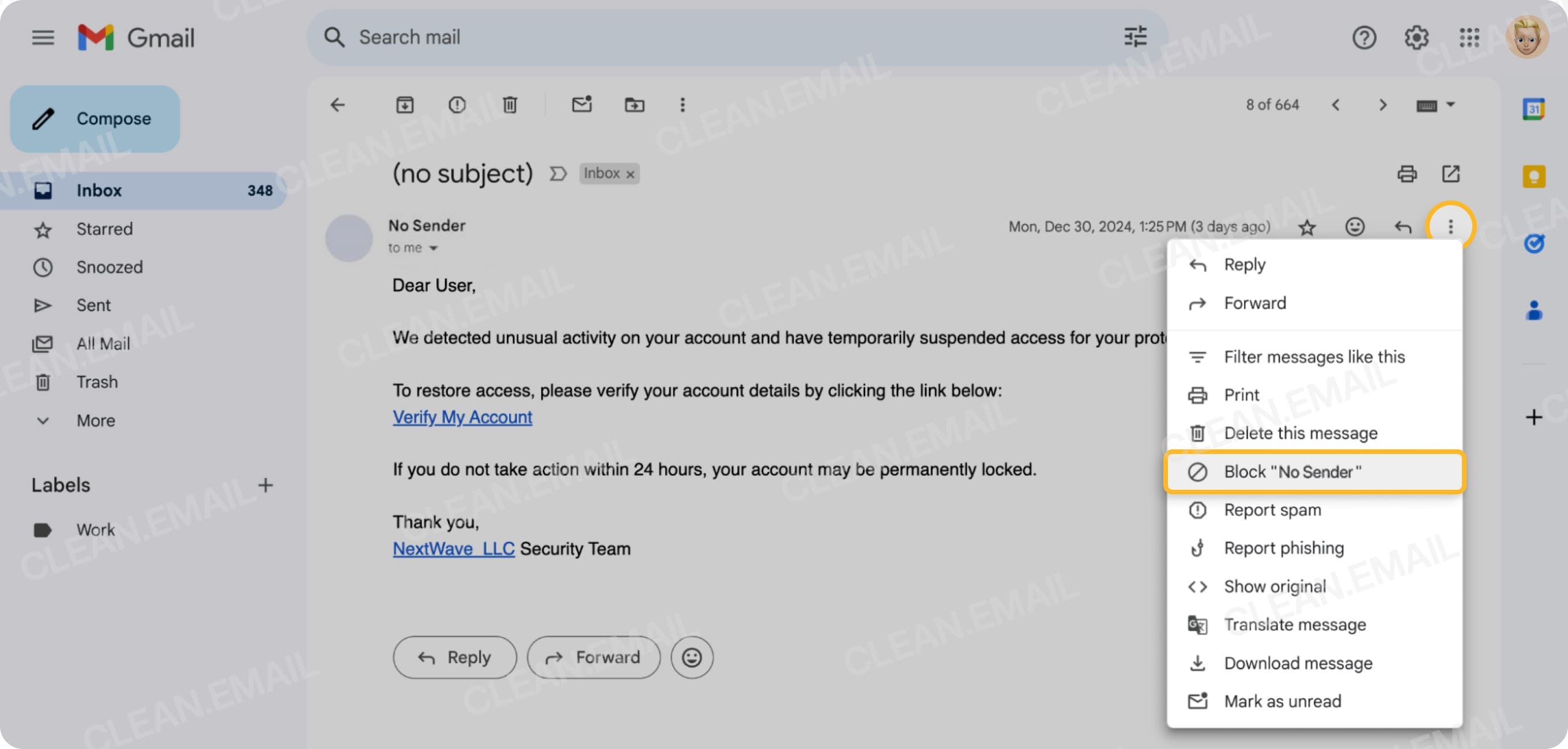
Gmail Filters
- Open a Facebook email in Gmail.
- Click the three dots (More) and select Filter messages like these.
- Click Create filter.
- Select Delete it or Skip the Inbox (Archive it).
Outlook Rules
- Right-click a Facebook email in your inbox.
- Select Rules > Create Rule.
- Set the condition to "Sender contains 'facebookmail.com'" and the action to Move the item to folder: Junk Email or Delete.
Identifying Official Facebook Emails vs. Phishing
As you manage your notifications, it is critical to distinguish between real Facebook settings and scams. In 2026, phishing remains a primary method for account hijacking.
- Official Senders: Facebook only sends emails from
@facebookmail.com,@meta.com, or@support.facebook.com. - The "Security and Login" Tab: If you receive an email saying your password was changed, do not click the link in the email. Instead, go directly to
www.facebook.com, log in, and check your "Security and Login" settings. Facebook maintains a log of "Recent Emails" it has sent you within the Security tab so you can verify if an email is authentic.
FAQ
Can I stop Facebook from sending emails about birthdays? Yes. Go to Settings > Notifications > Birthdays and toggle off the "Email" option. You can still keep push notifications enabled if you wish to see them on your phone without cluttering your inbox.
Will I still get emails if someone tries to hack my account? Yes, provided you have not disabled security alerts. Even if you select the "Only about your account" setting, Facebook will still send emails regarding "Login Alerts" and "Password Reset Requests" as these are essential for account protection.
Why does Facebook send me "Suggestions" even when I turned them off? Check if you have "Marketing" emails enabled. These are often buried in a different sub-menu under Settings > Notifications > Other Notifications. Ensure all promotional toggles are set to "Off."
Does unsubscribing from Facebook emails also stop Instagram emails? Not necessarily. While the Account Center in 2026 links these accounts, notification preferences are often still managed per-platform. You should check your Instagram settings separately under Settings and Privacy > Notifications > Email Notifications.
Can I block all Facebook emails entirely, including security ones? It is not recommended and often not possible through Facebook's own settings. Facebook requires a way to reach you for legal and security reasons. If you absolutely want no contact, you would need to use an email filter through your provider (like Gmail or Outlook) to automatically delete everything from the Facebook domain.
Final Recommendation
To maintain a clean inbox in 2026, the most effective strategy is to set your Facebook email frequency to Only about your account, security, and privacy. This eliminates the need to manage dozens of individual category toggles while ensuring you are alerted to genuine security threats. After applying this change, allow 48 hours for the system to update. If emails persist, check for secondary accounts or use your email provider's "Filter" function to redirect remaining alerts to a dedicated folder.
Image Gallery