How to Combine Multiple PDFs on Mac: Complete Native Guide
Combining multiple PDFs on a Mac is fast, secure, and requires no third-party software. The quickest method is selecting your files in Finder, right-clicking, and choosing Quick Actions > Create PDF. For precise page selection or custo...
Combining multiple PDFs on a Mac is fast, secure, and requires no third-party software. The quickest method is selecting your files in Finder, right-clicking, and choosing Quick Actions > Create PDF. For precise page selection or custom reordering, open your primary document in Apple Preview, enable the Thumbnails sidebar, and drag additional files or individual pages directly into place.
Contents
Privacy and Data Security Advantage Processing document modifications locally using native macOS architecture ensures sensitive legal, financial, and personal information never leaves your machine. Online PDF converters require uploading raw files to third-party cloud servers, creating potential regulatory and privacy compliance risks. Local consolidation preserves exact file security and original document fidelity.
Understanding macOS Native PDF Processing Architecture
macOS handles PDF rendering and manipulation at the core operating system level using Apple's Quartz 2D graphics engine. Quartz provides high-performance vector graphics rendering, image rasterization, and document composition natively. When you combine PDF documents using built-in Mac utilities, the Quartz engine parses the underlying PDF object trees, merges the cross-reference (XRef) tables, and consolidates media boxes without re-encoding text layers or degrading raster graphics.
This native architecture offers distinct technical advantages over web-based utilities and unverified software:
- Vector Text & Font Preservation: Embedded TrueType and OpenType fonts remain intact, maintaining sharp text scaling at any magnification.
- Color Profile Accuracy: Embedded ICC color profiles (such as sRGB or Display P3) are preserved, ensuring print production consistency.
- Layer and Metadata Retention: Table of contents outlines, hyperlinks, and document metadata survive consolidation intact when using structured methods.
- Zero Compression Overhead: File sizes increase strictly by the sum of the combined assets rather than suffering artificial resolution loss or lossy re-compression.
Method 1: Combining PDFs Fast Using Finder Quick Actions
The Quick Actions feature integrated into macOS Finder provides the fastest workflow for merging full PDF documents into a single file without opening an application.
Step-by-Step Finder Quick Action Instructions
- Open Finder and navigate to the directory holding the documents you wish to combine.
- Select the files you want to merge. Hold the Command key while clicking individual files, or hold Shift to select an unbroken sequence of files.
- Right-click (or Control + Click) on any highlighted document to bring up the contextual menu.
- Hover over Quick Actions and select Create PDF.
Finder immediately generates a newly combined PDF document titled after the primary selected item (e.g., Document Name (Combined).pdf) in the exact same folder location.
Controlling Page Sequence in Quick Actions
Finder sequences combined PDFs based on the active sorting arrangement of your Finder window. If your window is sorted by Name, the Quick Action merges files in alphabetical order. If sorted by Date Modified, it merges them according to file timestamps.
To ensure your combined PDF appears in a specific sequence:
- Numeric Naming: Rename source files with numeric prefixes prior to merging (e.g.,
01_CoverLetter.pdf,02_Resume.pdf,03_Portfolio.pdf). - Manual Sorting: Change Finder view to Icons or List, sort strictly by Name, verify the layout, select the items, and execute the Quick Action.
Method 2: Merging Specific Pages via Apple Preview
When your document requires custom page selection, deletion of unnecessary sections, or manual page reordering across different documents, Apple Preview offers absolute granular control.
How to Merge Entire Files in Preview
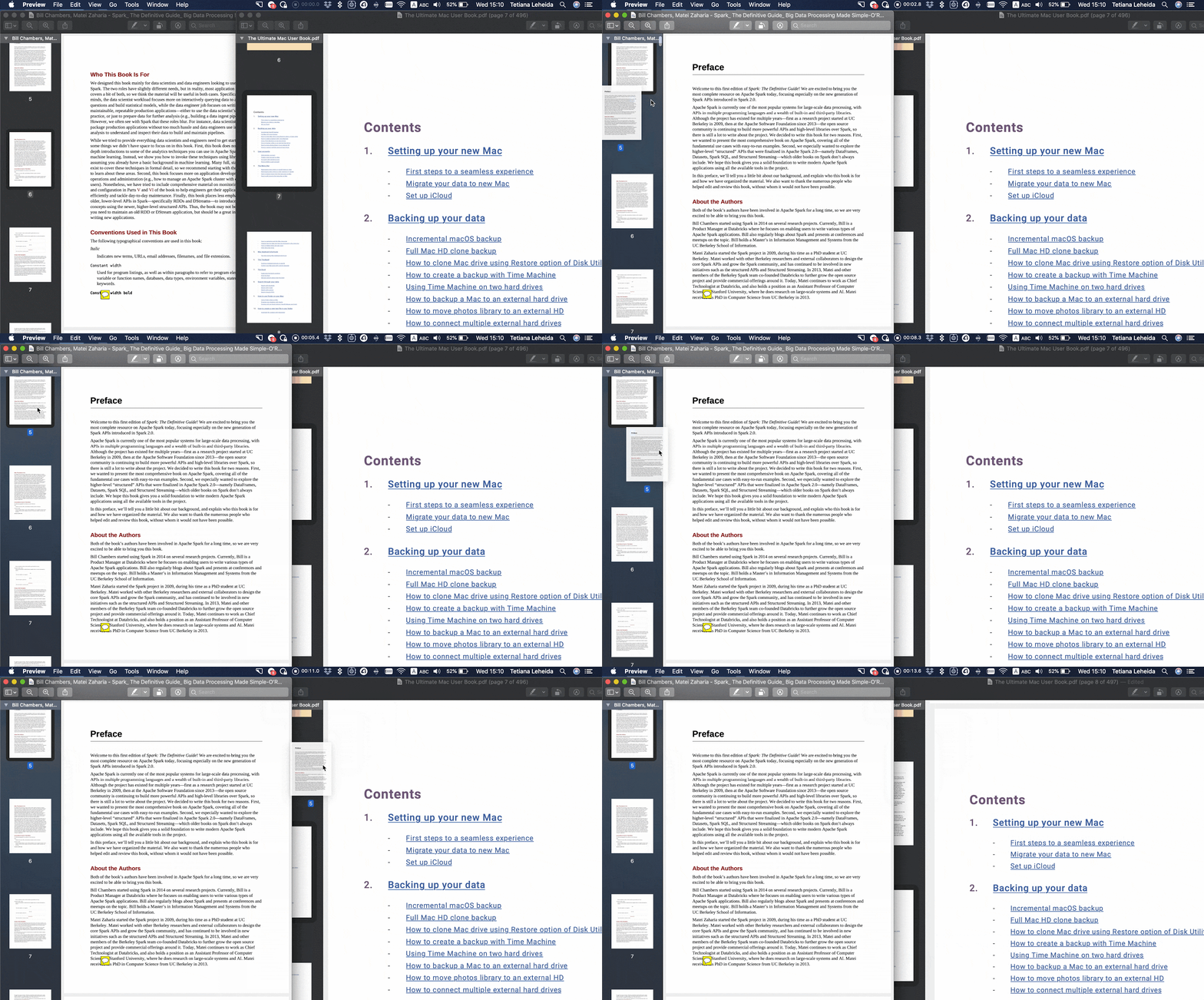
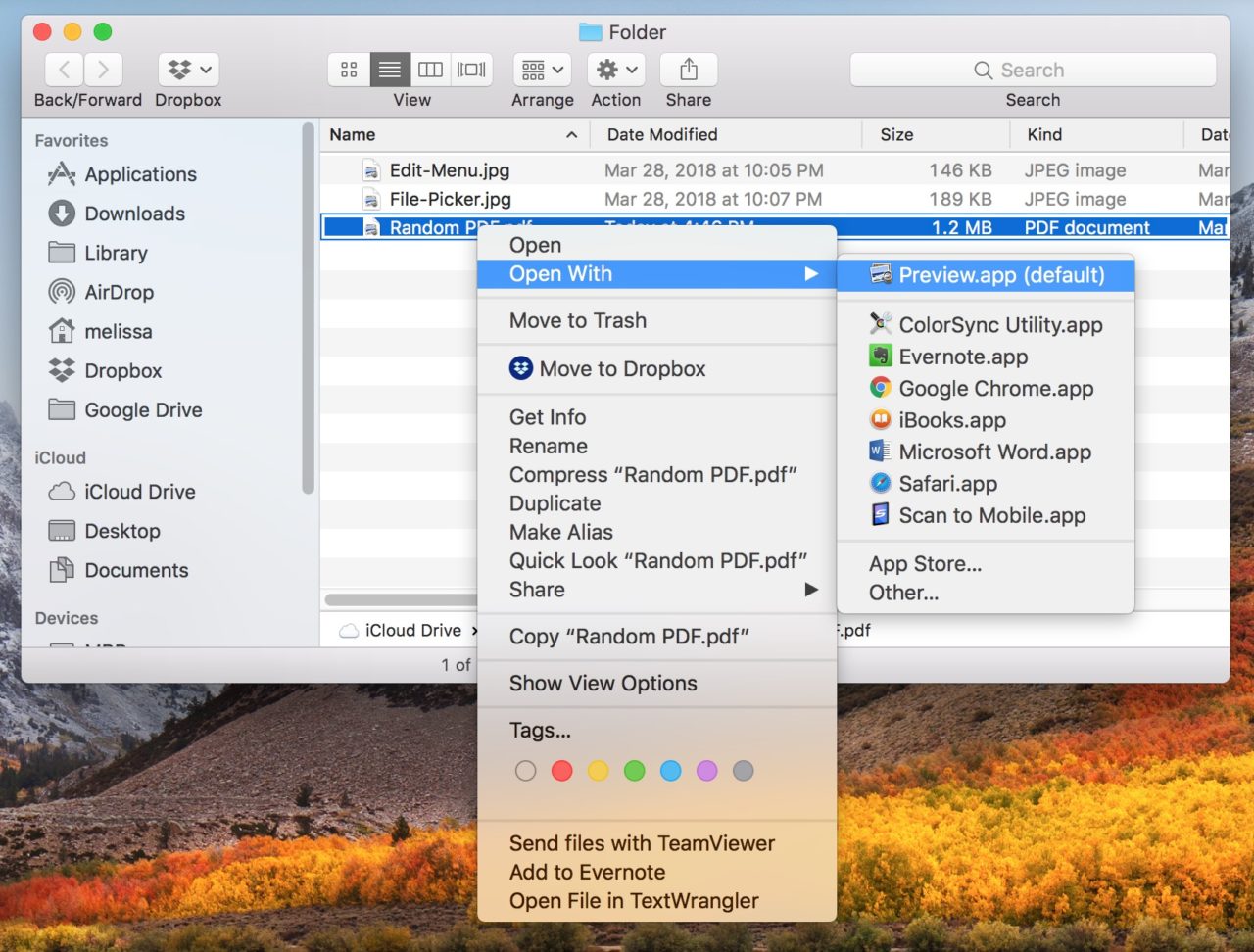
- Double-click your primary PDF file to launch it within Apple Preview.
- Display the navigation sidebar by clicking View > Thumbnails from the top menu bar, or press Option + Command + 2.
- Open a second Finder window containing the additional PDF files you wish to add.
- Drag the additional PDF file icon directly from Finder and drop it into the Preview Thumbnails sidebar.
- To append the file to the end, drop it below the last page thumbnail.
- To insert the file at the beginning or between pages, drop it directly above or between specific thumbnail frames.
How to Merge Selected Pages Between PDF Documents
- Open both source PDF files in separate Preview windows side-by-side.
- Enable the thumbnail sidebar in both windows by pressing Option + Command + 2.
- Select specific page thumbnails from the source document sidebar. Hold Command to select non-contiguous pages (e.g., pages 1, 4, and 7).
- Drag the highlighted page thumbnails across from the source window and drop them into the exact position required inside the target document’s thumbnail panel.
- Save your modifications by choosing File > Export as PDF... to generate a distinct consolidated document, or click File > Save (Command + S) to update the current open file.
Document Integrity Tip Always choose File > Export as PDF... instead of File > Save when combining master copies. Exporting creates an entirely clean, standalone PDF stream with refreshed page offsets while preserving your original source files unaltered.
Method 3: Automating Multi-PDF Consolidation with Mac Shortcuts
For professionals who frequently compile reports, invoices, or research papers, macOS includes the Shortcuts app, allowing you to build a reusable, single-click automation tool.
Building a Batch PDF Combination Shortcut
- Open the Shortcuts application from your Applications folder or via Spotlight (Command + Space).
- Click the plus button (+) in the toolbar to create a brand-new shortcut. Title it Combine Selected PDFs.
- In the right-hand action library search bar, search for and drag the following actions into the editor pane in order:
- Get Selected Files in Finder: Set this to receive file inputs.
- Combine PDF Pages: Choose to combine pages sequentially.
- Save File: Configure destination settings or enable Ask Where to Save for dynamic folder selection.
- Click the Shortcut Details inspector button (sidebar icon on the far right) and check the option Use as Quick Action. Check Finder under the Quick Actions services options.
- Close the Shortcuts editor.
You can now highlight any group of PDFs anywhere in Finder, right-click, select Quick Actions > Combine Selected PDFs, and the system will run your custom script instantly without launching preview windows.
Method 4: Advanced Command-Line Merging via macOS Terminal
For software engineers, system administrators, or power users handling multi-directory batch processes, terminal utilities process complex PDF merges significantly faster than graphical interfaces.
Using Poppler Utilities (pdfunite)
The open-source Poppler library provides pdfunite, a command-line tool built specifically for high-speed PDF concatenation without document re-sampling.
- Ensure Homebrew is installed, then open Terminal (Command + Space, type
Terminal). - Install Poppler by running the command: brew install poppler
- Navigate to the directory containing your files: cd ~/Documents/Reports
- Execute
pdfunitespecifying input files followed by the desired output path:- pdfunite input1.pdf input2.pdf input3.pdf combined_output.pdf
To merge every single PDF located in the current working directory into one output document, execute:
- *pdfunite .pdf all_combined.pdf
Comparing macOS PDF Merging Tools and Methods
| Method | Ideal Use Case | Page-Level Editing | Processing Speed | Privacy & Security | Technical Skill Required |
|---|---|---|---|---|---|
| Finder Quick Actions | Fast combination of complete files | No (merges whole files) | Instant (< 1 second) | 100% Local (Air-Gapped) | Beginner |
| Apple Preview | Granular selection, page reordering, page deletion | Yes (full individual page control) | Fast (Manual drag & drop) | 100% Local (Air-Gapped) | Beginner |
| Apple Shortcuts App | Batch processing and automated routines | Limited (Rule-based sequence) | Instant | 100% Local (Air-Gapped) | Intermediate |
| Terminal (pdfunite) | Developer workflows & script integration | Script-dependent | Blazing Fast (Headless) | 100% Local (Air-Gapped) | Advanced |
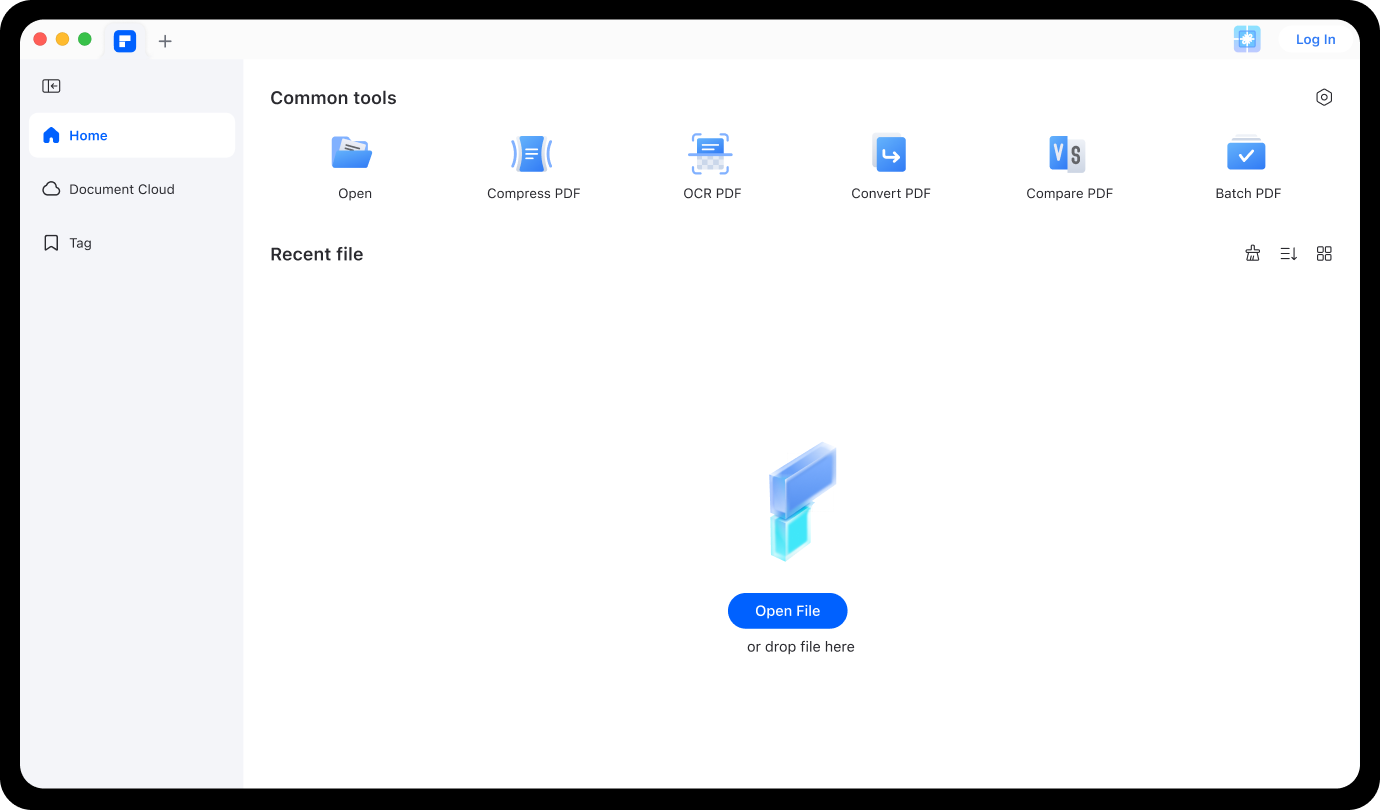
| Adobe Acrobat Pro | Enterprise form compliance & OCR tagging | Advanced (Forms, layers, metadata) | Moderate | Local or Cloud optional | Intermediate |
Troubleshooting Common PDF Merging Errors on macOS
Issue 1: Password-Protected or Encrypted Files Fail to Merge
When a PDF contains owner restriction encryption or open-password locks, native Quartz engines block compilation to prevent unauthorized document alteration.
- Symptom: Quick Actions fail silently, or Preview displays a lock screen when dropping thumbnails.
- Solution: Open the encrypted document individually in Preview. Type the decryption password when prompted. Navigate to File > Export as PDF..., save a decrypted copy to your desktop, and run your preferred merging method on the unlocked file.
Issue 2: Inconsistent Page Orientation and Aspect Ratios
Merging documents compiled from different sources (e.g., landscape spreadsheet exports mixed with portrait text documents) can result in awkward viewing orientation.
- Symptom: Mixed landscape and portrait pages present upside-down or sideways within the unified PDF.
- Solution: Open the combined file in Preview. Open the Thumbnails sidebar (Option + Command + 2). Click on the incorrectly oriented page thumbnail and press Command + L (rotate left) or Command + R (rotate right) until aligned. Save the file (Command + S).
Issue 3: Interactive PDF Form Fields (AcroForms) Lose Data
When combining interactive form documents containing fillable text fields, checkboxes, or digital signature boxes, native merging can flatten or wipe active form values.
- Symptom: Form entries appear blank or uneditable after combining.
- Solution: Before merging, print the interactive form to a static vector format. Open the form in Preview, choose File > Print, select the bottom dropdown menu, and choose Save as PDF. This flattens the form fields into immutable graphics, preserving all entered data during consolidation.
Issue 4: Combined File Size Becomes Exceedingly Large
Combining dozens of scanned documents or high-DPI image assets creates unwieldy file sizes that exceed email attachment limits or web portal upload restrictions.
- Symptom: The output combined file expands to hundreds of megabytes.
- Solution: Open the combined PDF in Preview. Go to File > Export... (not Export as PDF). Locate the Quartz Filter dropdown menu and select Reduce File Size. Click Save to apply vector-optimized compression algorithms to embedded images.
Frequently Asked Questions
How do I combine PDFs on Mac for free without downloading third-party software?
You can combine PDFs on Mac using native tools like Finder Quick Actions or Apple Preview. Simply select your PDF files in Finder, right-click, and choose Quick Actions > Create PDF to instantly merge them for free.
This native functionality has been built directly into macOS since macOS Mojave, meaning every modern Mac running current operating systems can process document merging out of the box without requiring paid subscriptions or external applications.
Why can't I combine certain PDF files on my Mac?
PDFs fail to combine primarily due to file password protection, digital rights management (DRM) restrictions, or localized file corruption. You must unlock encrypted PDFs with their authorized password before merging them with other documents.
Additionally, ensure that the target file permissions are set to Read & Write. You can verify permissions by selecting the problem file in Finder, pressing Command + I, expanding the Sharing & Permissions tab, and granting your user account full privileges.
How do I merge selected pages from multiple PDFs instead of entire files?
Open your primary PDF in Apple Preview, show the Thumbnail sidebar by pressing Option + Command + 2, and open your second PDF in a separate window. Drag individual page thumbnails directly from one sidebar to another.
This technique gives you complete granular freedom to cherry-pick individual pages, delete unwanted sections using the Delete key, and reorder content sequentially before choosing File > Export as PDF... to finalize the document.
Will combining PDFs on a Mac reduce text resolution or image quality?
No, using native macOS tools like Preview and Quick Actions preserves original vector text formatting, image dpi resolution, and color matrices without applying lossy compression.
File degradation only occurs if you manually apply a compression Quartz filter during export. Unless you explicitly execute a compression filter, the Quartz engine performs raw object-level merging that maintains 100% vector fidelity.
Is it safe to use online PDF merging tools instead of Mac native tools?
Using native Mac tools is significantly safer than using online tools because all document processing occurs entirely offline on your device local storage, ensuring sensitive data remains private.
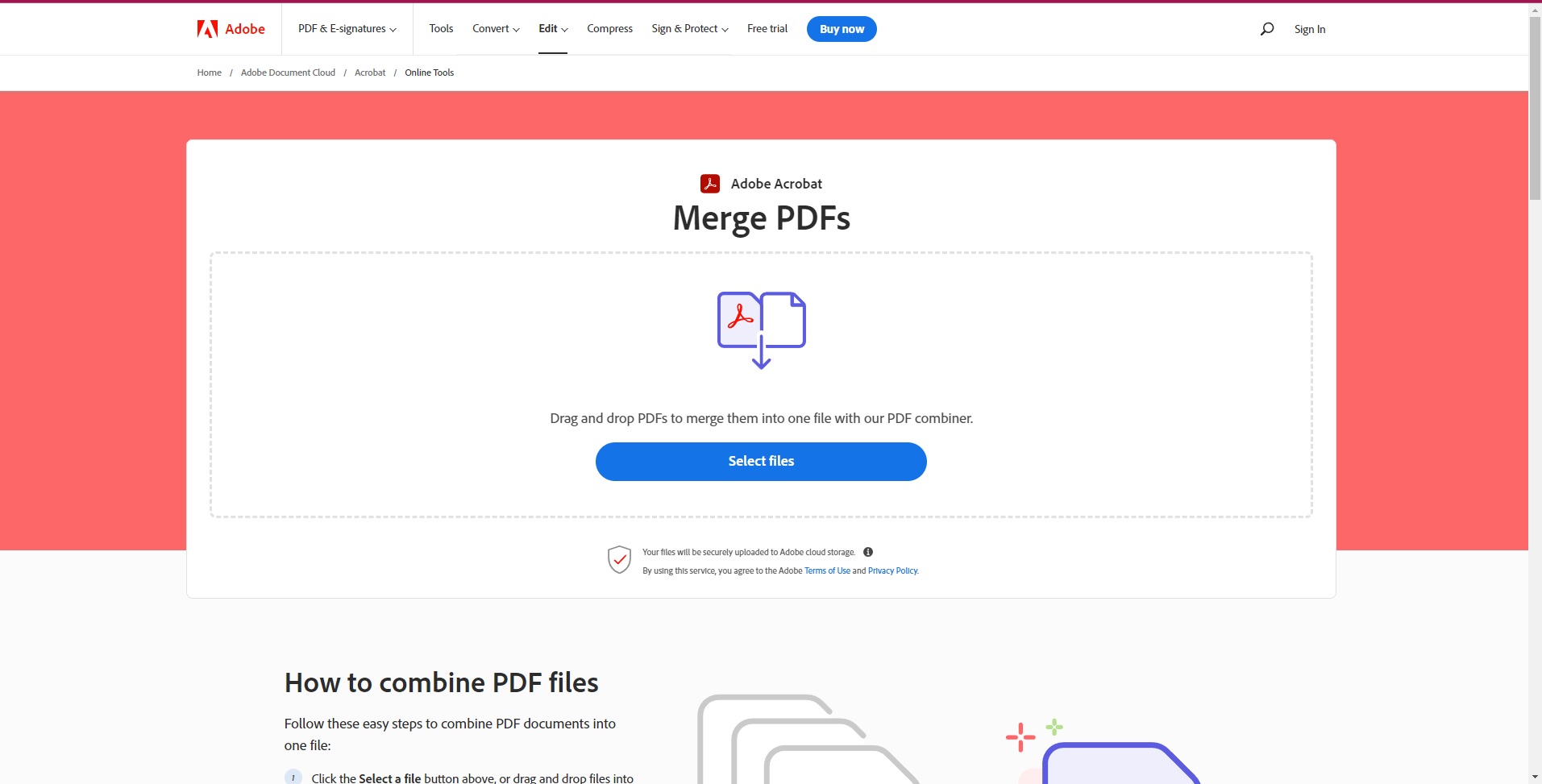
Online conversion platforms upload your documents to third-party cloud servers. This presents severe data privacy risks under regulatory compliance frameworks such as GDPR, HIPAA, and CCPA when handling financial statements, medical records, or legal contracts.
Streamlining Your macOS Document Workflows
Mastering native macOS document utilities elevates daily office productivity while safeguarding sensitive organizational data. By leveraging local execution options—ranging from instantaneous Finder Quick Actions for daily tasks to Apple Preview for complex page ordering and Terminal scripts for enterprise automation—you maintain complete control over document layout, security, and rendering quality without paying for redundant software subscriptions.
Image Gallery