How to Connect a Sony TV to Wi-Fi Without a Remote
Connecting a Sony TV to Wi-Fi without a physical remote requires leveraging alternative control interfaces such as a USB mouse, a physical keyboard, an HDMI-CEC enabled source device, or network-based smartphone applications. By exploi...
Connecting a Sony TV to Wi-Fi without a physical remote requires leveraging alternative control interfaces such as a USB mouse, a physical keyboard, an HDMI-CEC enabled source device, or network-based smartphone applications. By exploiting these hardware and software bypasses, users can navigate the Android TV or Google TV setup menus to establish a wireless internet connection.
Contents
Modern smart televisions rely heavily on wireless networks to deliver streaming media, firmware updates, and interactive applications. When a physical remote is misplaced, damaged, or lost, gaining access to the operating system settings becomes a logistical challenge. Sony televisions—running either legacy custom operating systems, Android TV, or the newer Google TV platform—offer built-in fallback mechanisms and universal input support. Understanding how these interfaces interact with the television's firmware allows you to bridge the gap between an offline screen and your home network.
Prerequisites and Initial Assessment
Before attempting any connection methods, you must assess the specific hardware generation and interface ports available on your Sony television. Different generations of Sony smart TVs handle peripheral input and network configurations differently. Identifying your television's model tier dictates which workaround will succeed.
Identifying Your Sony TV Platform
Sony televisions generally fall into three distinct software eras:
- Legacy Sony Smart TVs (Pre-2015): These models use proprietary operating systems with limited peripheral support. They often rely entirely on infrared remote signals or side-panel buttons.
- Android TV Models (2015–2020): Powered by the Android operating system, these sets feature robust USB host controllers capable of recognizing standard computer mice and keyboards.
- Google TV Models (2021–Present): Featuring the streamlined Google TV interface, these sets prioritize app-based control and Bluetooth pairing, though they retain full USB HID (Human Interface Device) support.
Physical Port Audit
Locate the input ports on the side or back panel of your Sony television. You will need:
- A functional USB port: Required if you intend to plug in a wired or wireless USB mouse/keyboard.
- An Ethernet port (LAN): Useful for a temporary wired bridge to set up wireless capabilities or download control applications.
- HDMI ports supporting HDMI-CEC (Consumer Electronics Control): Necessary if you plan to use an external streaming box or gaming console to control the TV interface.
Method 1: Using a USB Mouse or Keyboard
One of the most reliable ways to navigate a Sony Android TV or Google TV without a remote is by plugging a standard USB mouse or wired keyboard directly into the television's USB port. Sony's smart TV platforms feature native drivers for standard USB Human Interface Devices (HID), allowing basic pointer and keystroke navigation.
Step-by-Step Implementation
- Power on the TV: Turn on your Sony television using the physical power button, typically located underneath the Sony logo, on the lower edge, or on the back panel.
- Connect the USB Device: Plug a USB mouse or a wired USB keyboard into an available USB port on the television. If using a wireless mouse with a USB dongle, insert the dongle into the USB port.
- Awaken the Cursor: Once plugged in, a standard desktop mouse cursor should appear on the screen. If using a keyboard, pressing the arrow keys, Tab, or Enter will begin highlighting interface elements.
- Navigate to Settings: Use the mouse pointer to click on the gear icon (Settings) usually located in the top right corner of the home screen, or press the Windows key or Home equivalent on the keyboard.
- Access Network Settings: Click through to Network & internet or Network setup.
- Select Wi-Fi: Click on Wi-Fi, toggle it to the ON position, select your wireless network from the scanned list, and click to connect.
- Enter the Password: If your network is secured, an on-screen virtual keyboard will appear. Use your physical USB mouse to click out the characters of your Wi-Fi password, or type it directly using your connected physical keyboard.
Method 2: Utilizing HDMI-CEC via External Devices
If your Sony TV has HDMI-CEC enabled (often branded by Sony as Bravia Sync), you can control the television interface using a connected source device—such as a PlayStation, a Blu-ray player, an Apple TV, or a Roku streaming stick—provided that device already has a working remote control.
How HDMI-CEC Bridges the Gap
HDMI-CEC allows HDMI-connected devices to command each other. When an external device sends navigation commands, the television interprets those signals as if they originated from a Sony remote.
| External Device | Connection Type | CEC Capability | Setup Requirement |
|---|---|---|---|
| PlayStation 4 / 5 | HDMI | Full Navigation | Bravia Sync enabled on TV |
| Apple TV / Roku | HDMI | Power & Volume / Basic Nav | HDMI-CEC active in source settings |
| Blu-ray Player | HDMI | Direct Menu Access | Compatible Sony or third-party deck |
| Fire TV Stick | HDMI | Full UI Control | CEC enabled in Fire TV display settings |
Execution Steps
- Plug your external media player or gaming console into any active HDMI port on the Sony TV.
- Turn on the external device using its dedicated remote. This should automatically trigger the TV to switch to that HDMI input via CEC protocols.
- Use the external device's remote to access its settings menu, ensure HDMI-CEC is enabled, and test if directional arrows pass through to control the underlying Sony TV system menus.
- If the menu pass-through functions, navigate through the external device to access the TV's broader system settings, locate the network configuration panel, and input your Wi-Fi credentials.
Method 3: Temporary Ethernet Bridge and Smartphone Apps
If your television is completely locked out of wireless menus and lacks USB responsiveness, you can use a temporary wired network connection to link the TV to your local area network (LAN), allowing smartphone applications to take over control.
Step-by-Step Bridge Configuration
- Connect an Ethernet cable directly from an open LAN port on your Wi-Fi router to the Ethernet port on the back of the Sony TV.
- Because a wired connection bypasses wireless authentication, the television will instantly connect to your home network without requiring a Wi-Fi password.
- Ensure your smartphone or tablet is connected to the exact same Wi-Fi network router.
- Download an official control application, such as Google TV (for modern models) or Sony | Bravia Connect / Android TV Remote (depending on the TV release year) from the Apple App Store or Google Play Store.
- Open the application and follow the on-screen pairing prompts. Because both the phone and the TV share the same local network subnet, the app will discover the television automatically and display a pairing PIN on the TV screen.
- Once paired, use the virtual directional pad within the mobile application to navigate to Settings > Network & internet > Wi-Fi.
- Configure your wireless network credentials through the app interface.
- Unplug the Ethernet cable. The television will seamlessly transition to the newly configured Wi-Fi connection.
Troubleshooting Common Connection Roadblocks
Attempting to configure network settings without an official remote frequently exposes minor software or hardware snags. Review the following scenarios if your workaround fails to yield results.
USB Mouse Cursor Not Appearing
If you plug in a USB mouse and no cursor appears, the television's USB port may be unpowered during standby or the specific Android/Google TV build may lack generic driver support for that precise mouse model. Try moving the USB plug to a different port on the TV. Alternatively, switch to a basic wired keyboard, as keyboards often initialize hardware interrupts more reliably than mice on embedded Linux or Android builds.
Mobile App Fails to Discover the TV
If your smartphone app cannot locate the Sony TV, verify that your router does not have AP Isolation (Client Isolation) enabled. AP Isolation blocks wireless devices from communicating with wired devices on the same local network. Turning off AP Isolation within your router's web management console usually resolves discovery failures instantly.
On-Screen Keyboard Input Errors
When typing a complex Wi-Fi password using a physical USB keyboard, regional keyboard layout mismatches (e.g., QWERTY vs. AZERTY) can result in incorrect characters being registered. Before typing your actual password, open a blank search field on the TV (such as a YouTube search bar) to verify that the keys you press match the characters appearing on the screen.
Long-Term Prevention and Alternatives
Relying on temporary workarounds is cumbersome. Once you successfully connect your Sony TV to Wi-Fi using one of the methods above, take immediate steps to prevent future remote emergencies.
- Download a Backup App: Keep the Google TV or Bravia Connect app permanently installed on your primary smartphone.
- Purchase a Universal IR/Bluetooth Remote: Inexpensive replacement remotes compatible with Sony Bravia televisions are widely available online and pair automatically via infrared without requiring manual programming.
- Enable Network Standby: Ensure that Remote Start or Networked Standby is enabled in your TV power settings. This keeps the Wi-Fi module active even when the screen is turned off, ensuring your smartphone app can wake and control the television at a moment's notice.
Frequently Asked Questions
Can I connect my Sony TV to Wi-Fi using just the physical buttons on the TV?
No. Physical buttons on Sony televisions are typically limited to Power, Channel Up/Down, Volume Up/Down, and Input Selection. They do not feature directional navigation pads required to traverse nested Wi-Fi configuration menus.
Will any standard USB keyboard work with a Sony smart TV?
Most standard plug-and-play USB wired keyboards and 2.4GHz wireless keyboards with a USB dongle work out of the box with Sony Android TV and Google TV models. Bluetooth keyboards cannot be paired without a working remote because the Bluetooth pairing menu is inaccessible.
What should I do if my Sony TV does not have an Ethernet port?
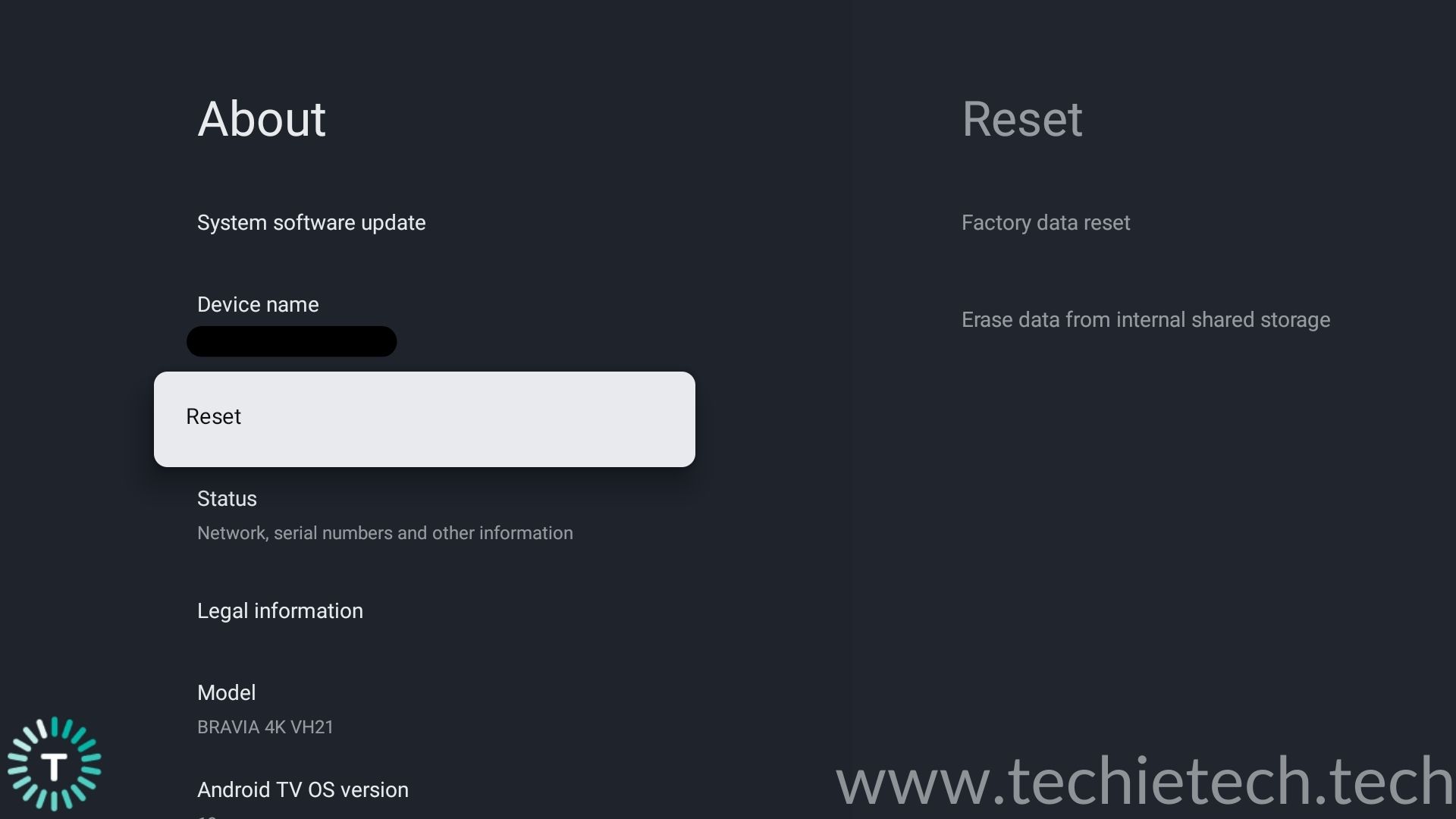
If your TV lacks an Ethernet port and USB peripherals fail to register, your remaining options are utilizing HDMI-CEC via a smart streaming box (like an Apple TV or Fire Stick) or performing a factory data reset using the physical chassis buttons (if a recovery key combination exists for your specific model series) to trigger initial setup wizards.
Do I need internet access on the TV to use the smartphone control app?
No. The smartphone app communicates with the Sony TV locally over your home Wi-Fi or local network router. As long as both devices are linked to the same router (either via Ethernet or Wi-Fi), local packet transmission occurs independently of active internet bandwidth.
Why won't my Sony TV remember my Wi-Fi password after a power outage?
If a Sony television loses network configurations persistently, it usually indicates outdated firmware or corrupted system cache partitions. Once connected to Wi-Fi using a temporary workaround, immediately navigate to Settings > System > About > System update to install the latest software patches.
Conclusion and Next Actions
Connecting a Sony TV to Wi-Fi without a remote is entirely achievable by exploiting peripheral input support or network bridges. Start by testing a wired USB mouse or keyboard for direct menu control. If peripherals fail, deploy a temporary Ethernet cable to link the television to your local network, enabling full control via official smartphone applications. Once connectivity is restored, immediately update your TV firmware and install a backup mobile remote app to prevent future access lockouts.
Image Gallery