OneDHS Login Guide: Secure Access, Portal Navigation, and Account Troubleshooting
The OneDHS login portal serves as the centralized single sign-on (SSO) gateway for the Department of Human Services—primarily within the State of Tennessee—enabling clients, licensed child care providers, vendors, and state employees t...
The OneDHS login portal serves as the centralized single sign-on (SSO) gateway for the Department of Human Services—primarily within the State of Tennessee—enabling clients, licensed child care providers, vendors, and state employees to access vital public assistance programs, provider management applications, and internal administrative systems. Access requires validated account credentials and mandatory multi-factor authentication (MFA) through official state digital services.
Contents
(Internal note: Executing direct answer under H1 without labeling. No blockquote bullets, no code blocks, strict 2026 timeframe context.)
Understanding the OneDHS Platform Architecture and User Ecosystem
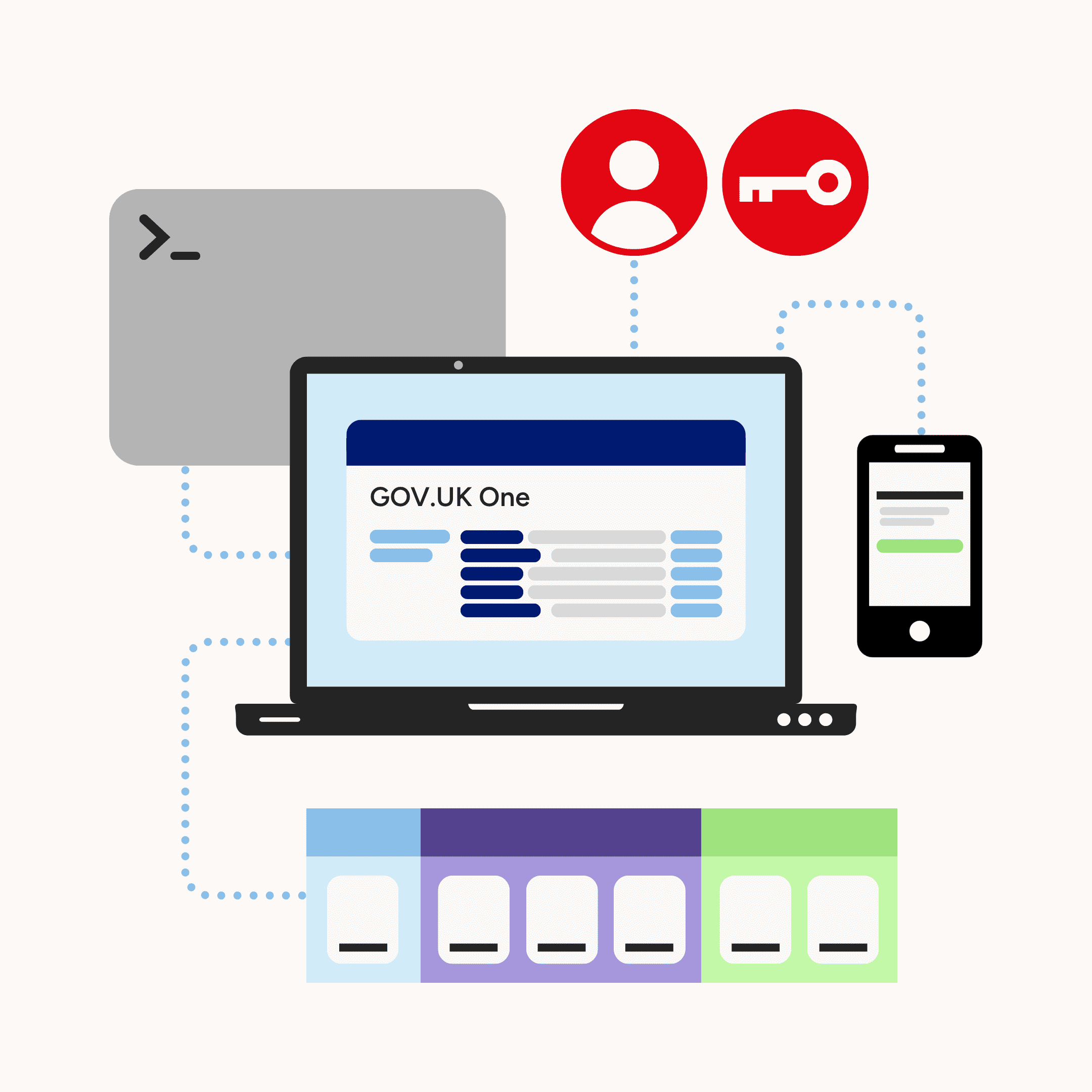
The OneDHS digital ecosystem modernizes public benefit delivery and administrative management by unifying multiple state human services programs into a single secure infrastructure. Rather than maintaining disparate logins for child care assistance, child support services, family assistance, and administrative management, the platform utilizes an enterprise identity and access management (IAM) framework.
Depending on your relationship with the Department of Human Services (DHS), the system routes authentication through distinct user pathways designed to protect sensitive personal identifiable information (PII) and federal tax information (FTI) in compliance with federal cybersecurity standards.
1. Customer and Client Access Pathway
Citizens applying for or receiving state assistance utilize the OneDHS Customer Portal. This portal allows individuals to:
- Submit and track applications for Temporary Assistance for Needy Families (TANF/Families First) and Supplemental Nutrition Assistance Program (SNAP) benefits.
- Upload required verification documents, such as proof of income, residency, and identity.
- Monitor child support case details, payment histories, and court order updates.
- Manage Child Care Payment Assistance applications and submit annual eligibility renewals.
2. Licensed Provider and Partner Gateway
Child care facility operators, community partners, and contracted service vendors access specialized management tools through the OneDHS Provider Portal. This interface supports operational requirements including:
- Attendance reporting and daily billing submission for state-subsidized child care slots.
- Managing facility licensing documentation, inspection compliance reports, and background check clearances.
- Submitting grant applications and tracking state reimbursement payments.
3. Employee and Agency Workforce Identity System
State employees, field caseworkers, and authorized contractors access internal workforce tools via the OneDHS Staff Authentication Portal. Powered by state enterprise single sign-on (SSO) platforms such as Okta or Microsoft Entra ID, this portal provides role-based access control (RBAC) to confidential case management systems, eligibility determination engines, and internal communications networks.
Security AdvisoryAlways confirm that your web browser displays an official government domain suffix (.gov) before entering user credentials. Official state portals encrypt data via TLS 1.3 encryption. Never enter your login details on third-party benefit tracker websites or unverified mobile applications.
Technical Requirements and Pre-Login Checklist
To ensure uninterrupted access to the OneDHS portal and prevent session dropouts during document uploads or application submissions, your device and web browser must meet baseline hardware and security standards.
Supported Browsers and Settings
- Google Chrome: Version 120 or higher (Recommended for optimal portal rendering).
- Mozilla Firefox: Version 122 or higher.
- Microsoft Edge: Chromium-based versions running current operational updates.
- Apple Safari: Version 17 or higher (macOS and iOS).
- JavaScript & Cookies: First-party cookies and JavaScript must be explicitly enabled in your browser settings to maintain authenticated sessions across form pages.
Multi-Factor Authentication (MFA) Requirements
In accordance with updated state data protection guidelines, all OneDHS accounts require secondary authentication. Prepare one of the following verification methods prior to initiating login:
- Time-based One-Time Password (TOTP) Authenticator Apps: Google Authenticator, Microsoft Authenticator, or Okta Verify.
- SMS/Text Messaging: A mobile device capable of receiving short-code text messages.
- Registered Email Address: Access to the primary email account associated with your profile for verification passcodes.
Step-by-Step OneDHS Login Procedures
Depending on your account type, follow the designated operational workflow below to securely log into the system.
(Workflow instructions using numbered lists and bold headers, avoiding ASCII charts or backtick code blocks)
Option A: Logging into the Customer Benefits Portal
- Navigate to the Official Portal: Open your browser and navigate directly to the official state Department of Human Services web portal (e.g., Tennessee DHS customer management gateway).
- Select Account Sign-In: Click the primary Sign In or Customer Login button located at the top right corner of the homepage.
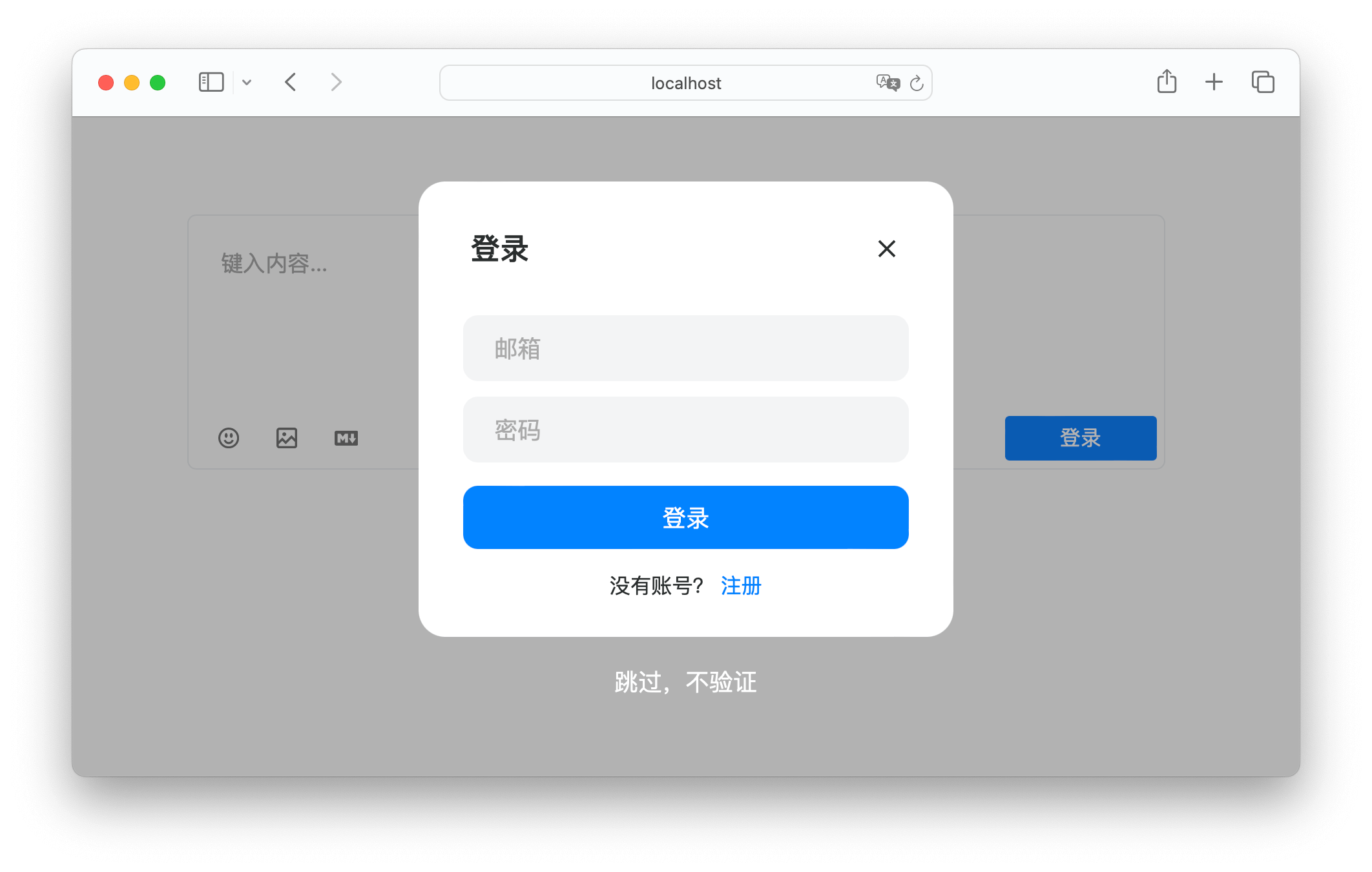
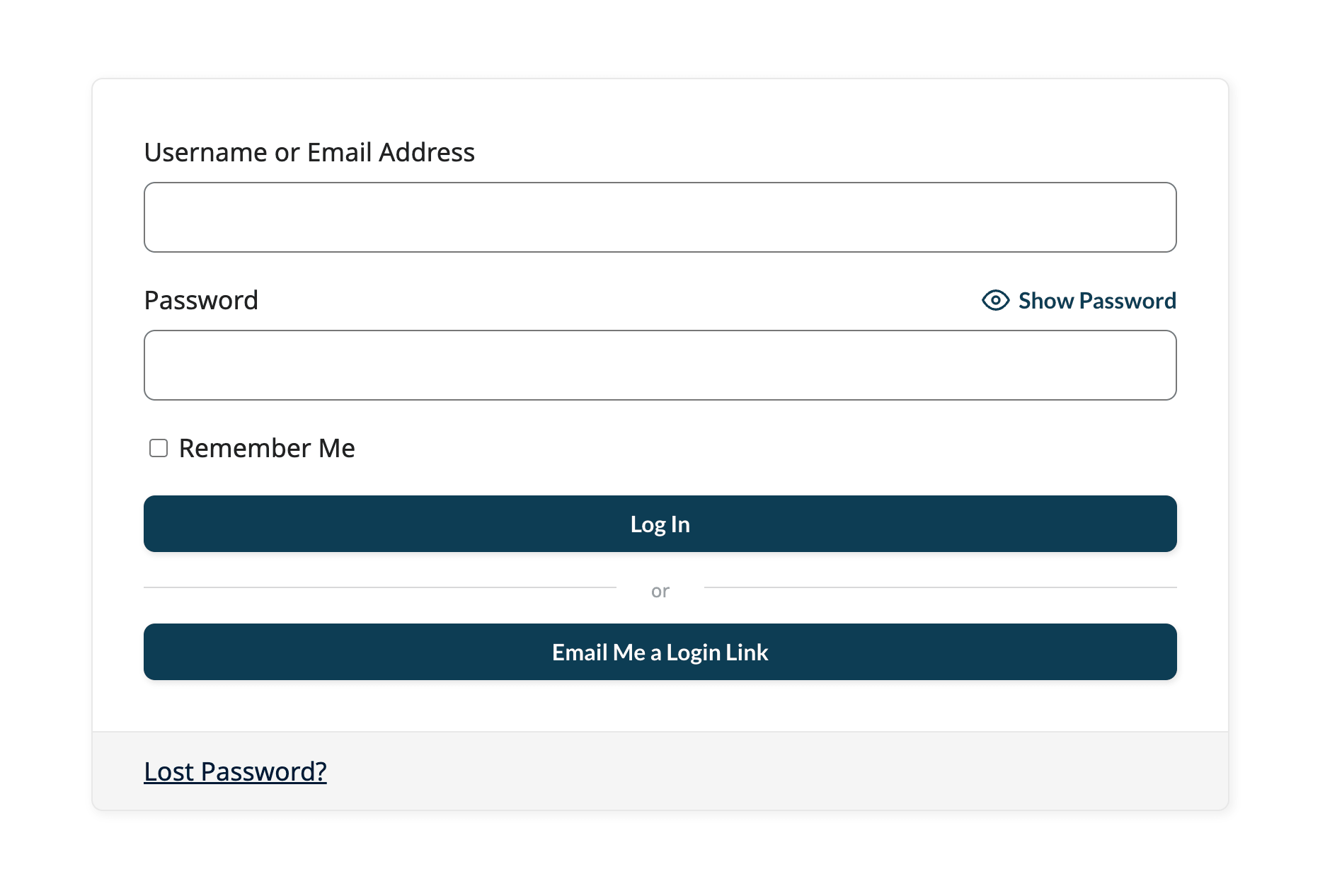
- Enter Credentials: Type your registered Email Address or Username and your secret Password into the designated authentication fields.
- Complete MFA Challenge: When prompted, open your registered authenticator app or check your mobile phone for a six-digit verification code. Input the code within the 300-second expiration window.
- Access Dashboard: Upon successful authentication, the system redirects you to your personal client dashboard, displaying active benefit summaries and pending action items.
Option B: Logging into the Child Care Provider Portal
- Access the Provider Gateway: Navigate to the dedicated OneDHS Provider portal URL.
- Provide FEIN or Provider ID: Some provider logins require inputting your State Provider Identification Number or Registered Facility FEIN alongside user credentials.
- Input Account Password: Enter your secure administrative password.
- Submit Identity Verification: Complete the secondary device validation via SMS or authenticator app.
- Review Facility Worklist: Once validated, navigate to your facility portal to process attendance, update staffing records, or review state contract reimbursements.
Option C: Logging into the State Employee / Staff SSO System
- Open the Internal SSO Entry Point: Staff must use their state-issued device or connect via an approved Virtual Private Network (VPN) before accessing the internal OneDHS staff authentication page.
- Enter State User ID: Input your official government email address (e.g.,
user.name@tn.gov). - Authenticate via Okta / Enterprise Identity: The browser will automatically redirect to the state enterprise sign-on screen. Input your network password.
- Approve Push Notification: Approve the push prompt on your registered Okta Verify or Microsoft Authenticator enterprise app.
- Launch Staff Workspace: Access role-assigned modules including eligibility processing software, document management tools, and field management systems.
OneDHS Portal Features and Access Matrix
The following reference matrix outlines the access parameters, authentication standards, and core services across different OneDHS user classifications.
| User Role | Primary Portal Endpoint | Default Authentication | Primary Platform Functions | Primary Support Contact |
|---|---|---|---|---|
| Public Assistance Client | Customer Self-Service Portal | Username/Password + SMS/Email MFA | Check SNAP/TANF balance, upload verifications, track child support | Local County DHS Office / Customer Service Hotline |
| Child Care Provider | Provider Portal Gateway | Email + FEIN/Provider ID + MFA | Submit monthly attendance, billing claims, licensing compliance | DHS Provider Helpdesk / Licensing Specialist |
| Community Partner / Vendor | Partner Service Portal | Federated Single Sign-On (SSO) | Contract tracking, referral management, program reporting | Assigned Program Operations Director |
| DHS Employee / Contractor | State Enterprise SSO (Okta) | Government ID + Okta Push / Hardware Key | Case processing, eligibility determination, benefit issuance | State OIT / Enterprise IT Help Desk |
Troubleshooting Common OneDHS Login Errors
Authentication errors typically stem from credential mismatches, browser caching issues, expired security tokens, or temporary system maintenance. Use these technical remedies to resolve common access roadblocks.
1. Error: "Invalid Credentials or Account Locked"
- Cause: Repeatedly entering an incorrect password triggers an automated security lockout after 5 consecutive failed attempts to prevent brute-force attacks.
- Resolution: Wait 15 to 30 minutes for the temporal lockout window to expire. If you forgot your password, click the Forgot Password? link on the login prompt. Enter your registered email address to receive a secure password reset link. Ensure your new password contains at least 12 characters, including uppercase letters, lowercase letters, numbers, and allowed special symbols.
2. Error: "Multi-Factor Authentication Code Expired or Invalid"
- Cause: System time desynchronization between your smartphone authenticator application and the state authentication servers.
- Resolution: Open your authenticator app settings and select Time Correction for Codes (on Android) or toggle Set Automatically off and back on under your iOS Date & Time settings. If receiving codes via SMS, ensure your mobile device has active cellular reception.
3. Error: "HTTP 400 / Session Token Expired"
- Cause: Stale browser cookies or cached portal data interfering with the updated single sign-on token.
- Resolution: Clear your browser cache, temporary files, and cookies for the past 24 hours. Alternatively, launch an Incognito or Private Browsing window and initiate a fresh session at the official portal URL.
4. Error: "Identity Verification Failure During Registration"
- Cause: The Social Security Number (SSN), Date of Birth (DOB), or legal name entered during portal sign-up does not match the master record maintained by the state agency database.
- Resolution: Verify that your legal name is spelled exactly as it appears on your official state identity card or Social Security card. If you recently changed your surname due to marriage or court order, contact your local DHS caseworker to update your master profile before attempting online registration.
Account Recovery and Security Best Practices
Protecting your public assistance profile and personal records requires vigilant digital hygiene. State agencies will never call, text, or email you requesting your password or full multi-factor authentication passcodes.
Secure Account Recovery Process
If you lose access to your primary email account or mobile phone number registered with OneDHS, follow this account recovery protocol:
- Locate your state-issued caseworker contact details or visit your local County DHS office in person.
- Bring two forms of government identification (e.g., Driver's License, State ID, Social Security Card, or Passport).
- Request an identity verification reset for your digital account.
- Once verified, an authorized representative will issue a temporary one-time activation code sent to an updated, verified email address.
Crucial Data Protection RulesNever share your login credentials with unverified benefit management apps. Avoid saving your password on shared or public computers, such as those in public libraries. Always select Log Out when ending your session rather than simply closing your browser window.
Frequently Asked Questions
What should I do if I change my mobile phone number and can no longer receive OneDHS MFA codes?
Log into your account using a backup verification method, such as an authenticated email address or secondary authenticator app. Once inside your portal dashboard, navigate to Account Settings > Security & 2FA and update your primary mobile phone number. If you cannot access the account at all, you must contact customer support to verify your identity and reset your authentication methods.
Why does the OneDHS portal redirect me to an Okta login screen?
The Department of Human Services uses Okta as its secure enterprise identity management partner. When logging in as an employee, contractor, or specific provider type, the system routes your request through an official Okta domain to process your credentials securely before returning you to your platform dashboard.
Can I access the OneDHS customer portal from a mobile device?
Yes, the OneDHS portal is fully responsive and compatible with modern mobile browsers on iOS and Android devices. For optimal security and performance, ensure your device's operating system and mobile browser (Safari or Chrome) are updated to their latest security releases.
How often do I need to update my OneDHS portal password?
Client accounts typically do not require mandatory periodic password changes unless a security risk is detected. However, state staff, contractors, and certain child care providers must update their portal passwords every 90 to 180 days in compliance with state enterprise cybersecurity policies.
What hours is the OneDHS online login system available?
The digital self-service portal is generally available 24 hours a day, 7 days a week. However, scheduled routine maintenance windows typically occur during off-peak hours (such as late Sunday nights or early Monday mornings), during which system access may be temporarily paused.
Accessing Official Department of Human Services Support
If technical troubleshooting steps do not resolve your login difficulties, reach out directly to official state support channels. Have your Client ID, Provider ID, or official correspondence available when contacting customer service representatives.
- Client & Customer Self-Service Assistance: Contact your state's official Department of Human Services toll-free helpline or visit your local county office.
- Child Care Provider Support: Contact the dedicated Child Care Services helpdesk or consult your assigned licensing specialist.
- Employee IT Service Desk: Contact your internal agency IT help desk or submit a ticket through the enterprise service management portal.
Always double-check web addresses to ensure you are interacting directly with official state government systems ending in .gov.
Image Gallery