CRM Software Banner Best Practices: Design, Implementation, and Personalization
CRM software banners serve two critical operational functions: internally, they deliver timely workflow alerts, system updates, and data-entry reminders to sales and support teams within dashboard interfaces; externally, they display p...
CRM software banners serve two critical operational functions: internally, they deliver timely workflow alerts, system updates, and data-entry reminders to sales and support teams within dashboard interfaces; externally, they display personalized, dynamic promotional messages to customers based on CRM segment data. Implementing best practices requires balancing visual visual hierarchy, responsive technical specifications, precise audience targeting, and strict frequency capping to prevent user fatigue.
Contents
Whether you are configuring custom dashboard banners in enterprise platforms like Salesforce or HubSpot, deploying CRM-driven web banners to logged-in customers, or designing B2B acquisition banners for CRM software, adhering to established design and technical guidelines ensures high engagement without disrupting operational workflows.
Understanding the Three Core Types of CRM Banners
To apply the correct design and operational rules, you must first distinguish between the three distinct environments where CRM banners function:
- Internal CRM Dashboard Banners: Rendered directly inside administrative tools (such as Salesforce Lightning or Dynamics 365). These inform internal users about quarterly goals, missing data fields, system maintenance, or high-priority lead assignments.
- CRM-Driven Web & Portal Banners: Embedded on customer-facing websites or portals, using dynamic content rules powered by CRM contact records (e.g., lifecycle stage, industry, or past purchases).
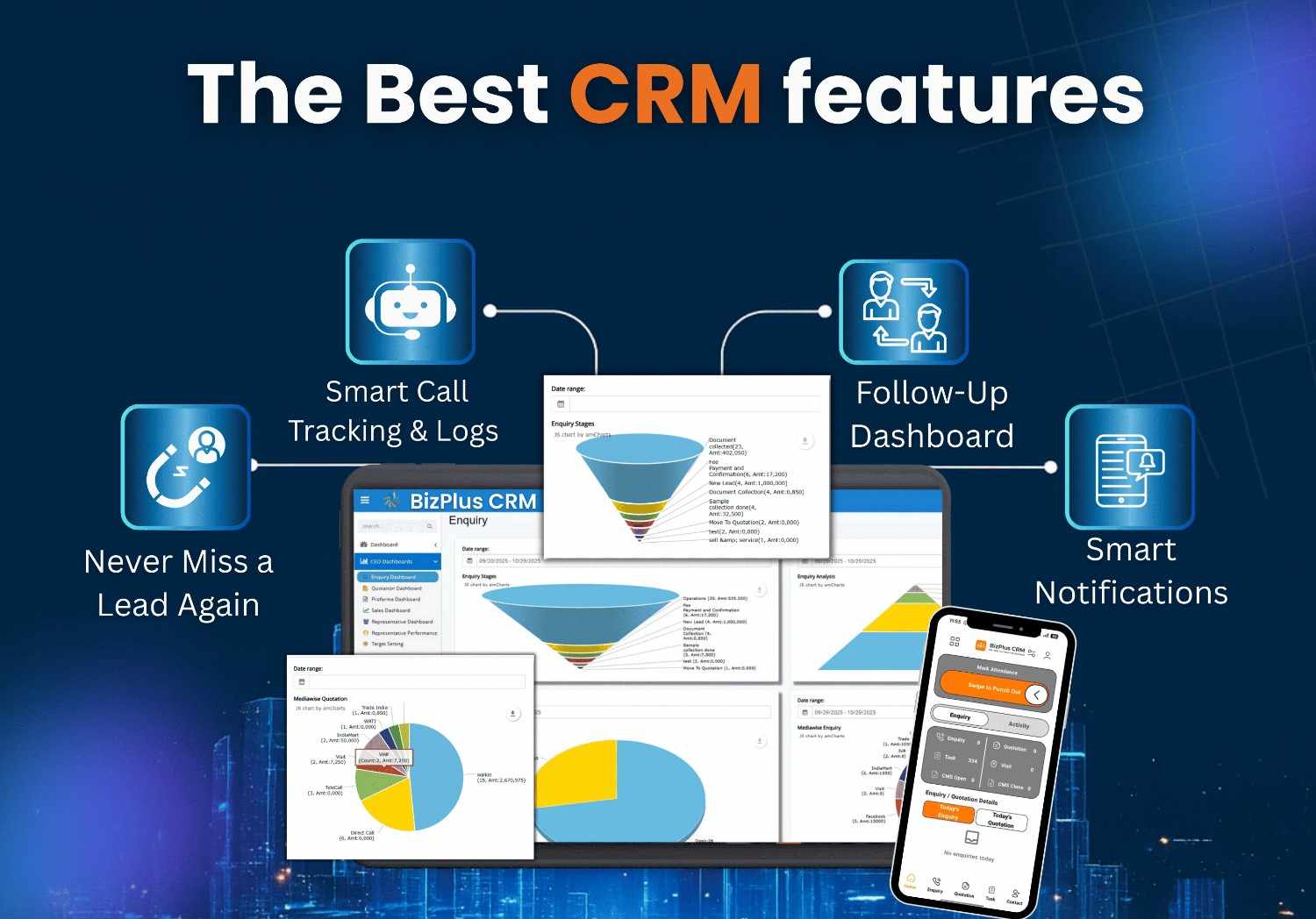
- B2B Acquisition Display Banners: Digital advertising banners deployed on third-party networks (like LinkedIn or Google Display Network) designed to market CRM software platforms to business buyers.
Each environment demands tailored visual proportions, microcopy structures, and performance benchmarks.
Technical Specifications and Dimension Standards
Choosing correct ratios and lightweight file formats ensures fast load times and clean rendering across devices. The standard technical specifications for both internal dashboard banners and external marketing banners follow recognized web standards.
| Banner Category | Standard Dimensions (Pixels) | Primary Target Placement | Ideal File Format | Recommended Max File Size |
|---|---|---|---|---|
| Internal CRM Header Alert | 1200 x 90 or Full-Width Fluid | Top of CRM Dashboard / App Header | SVG, WebP | < 50 KB |
| CRM Sidebar Notice | 300 x 250 or 300 x 600 | CRM Utility Bar or Widget Area | WebP, PNG | < 100 KB |
| Customer Portal Hero Banner | 1920 x 450 (Responsive) | User Account Home Page | WebP, SVG | < 150 KB |
| In-App Notification Strip | 100% width x 48 height | Top Sticky Notification Bar | CSS / Inline Code | < 20 KB |
| External Display Ad (Leaderboard) | 728 x 90 | Third-Party Web Publishing | HTML5, WebP | < 150 KB |
| External Display Ad (Medium Rectangle) | 300 x 250 | Web Content In-Line | HTML5, WebP | < 150 KB |
For official design system guidelines on internal platform banners, review the Salesforce Lightning Design System (SLDS) Alert Guidance.
Design Principles for Maximum Engagement
1. Maintain Strict Visual Hierarchy and High Contrast
A CRM banner must be legible within milliseconds. Whether an employee is reviewing lead records or a customer is navigating a portal, high-contrast typography and clear visual anchoring are required.
- Background Contrast: Use solid background colors with a contrast ratio of at least 4.5:1 against text to satisfy accessibility standards (WCAG 2.1 AA).
- Iconography: Incorporate universally understood status icons (e.g., an info circle for updates, an exclamation mark for urgent compliance tasks) aligned to the left of the text body.
- Single Focal Point: Avoid cluttered graphics or multiple competing buttons. Feature one distinct graphic element alongside the call to action (CTA).
2. Write Action-Oriented Microcopy
Space on a CRM banner is strictly constrained. Microcopy must communicate context, value, and action in under 15 words.
- Headline: Limit to 3–6 words (e.g., "Update Q3 Pipeline Forecast" or "Upgrade Your Storage Allocation").
- Body Text: Use 10–12 words max to explain the action or implication.
- CTA Button: Use active verbs (e.g., "Verify Now," "Claim Offer," or "View Records"). Avoid generic labels like "Submit" or "Click Here."
3. Ensure Responsive Fluidity and Accessibility
Banners displayed inside web application frameworks or mobile CRM apps must adapt smoothly to varied screen dimensions.
- Use dynamic CSS sizing (
max-width: 100%) rather than fixed pixel widths for modern SaaS layout containers. - Ensure touch targets for mobile CRM platforms measure at least 44 x 44 pixels so users can easily tap CTAs or dismiss banners on handheld devices.
- Include appropriate
aria-labelattributes on dismiss buttons for screen reader compatibility.
Personalization and Behavioral Triggering
The true power of CRM-driven customer banners lies in dynamic rules based on active user metadata. Instead of broadcasting static messages to all visitors, configure banner display engines based on real-time database conditions.
- CRM DATABASE TRIGGER
- (User Lifecycle Stage = "Existing Customer" & Plan = "Starter")
- DYNAMIC BANNER ENGINE
- Evaluates: Account Activity > 80% Usage Limit & Last Login < 48 Hours
- TARGETED DISPLAY
- Banner: "Unlock Enterprise Features - Save 20% on Upgrade Today"
Key CRM Triggers to Implement
- Lifecycle Stage Alignment: Show onboarding instructions to new signups, feature discovery banners to active users, and renewal notifications to accounts nearing contract expiration.
- Behavioral Thresholds: Display upgrade prompts when a team reaches 85% of their contacts, API calls, or storage quota inside the CRM platform.
- Role-Based Internal Delivery: Show revenue-tracking banners exclusively to sales managers, while routing data hygiene alerts (e.g., "35 unassigned leads in queue") to sales operations roles.
Governance, Frequency Capping, and Banner Fatigue
Deploying too many banners within a web software UI degraded productivity and creates "banner blindness"—where users reflexively close or ignore notifications without reading them.
Governance Rules for Internal & External Banners
- Enforce Frequency Capping: Limit promotional or informational web banners to a maximum of 2–3 impressions per unique user session.
- Provide Clear Dismissal Controls: Always include an explicit close icon (
X) that updates user preference states via local storage or API cookies. Once dismissed, do not re-render the same banner for at least 30 days unless it represents a critical system emergency. - Prioritize Alert Severity: Establish a organizational color-code system for internal CRM alerts:
- Blue / Gray: Informational (System maintenance, product updates).
- Yellow / Orange: Warning (Required profile verification, approaching usage limits).
- Red: Critical / Error (System downtime, payment failure, security updates).
Measuring Performance and Optimization
To evaluate banner efficiency, track metrics aligned specifically to the banner's intended operational goal.
Critical CRM Banner Metrics
- Click-Through Rate (CTR): Measures banner visual engagement. Standard CTR for internal SaaS banners ranges from 3% to 8%, while external personalized CRM web banners typically achieve 1.5% to 4%.
- Task Completion Rate: For operational banners (e.g., data hygiene reminders), track the percentage of users who successfully complete the targeted CRM task after clicking.
- Dismissal Rate: A high immediate dismissal rate (>60% within 2 seconds) indicates poor targeting, intrusive positioning, or irrelevant messaging.
- Conversion Value per Impression: Evaluates cross-sell or upsell revenue generated per banner display in customer portals.
Common Mistakes to Avoid
- Hardcoding Text into Image Files: Never export banner text directly inside PNG or JPEG graphics. Embedded image text scales poorly on retina display monitors, cannot be translated dynamically by localized CRM instances, and is unreadable by web accessibility crawlers. Use HTML/CSS text layered over background graphics.
- Neglecting Dark Mode Compatibility: Modern enterprise CRM suites support user-selected light and dark themes. Ensure background containers and text styles utilize design tokens or adaptive CSS variables to render correctly across theme settings.
- Failing to Test Multi-Browser Rendering: Test banner renderings across WebKit (Safari), Chromium (Chrome, Edge), and Gecko (Firefox) engines to guarantee layout containers do not overflow software toolbars.
Frequently Asked Questions
What is the ideal file format for enterprise CRM banners?
SVG (Scalable Vector Graphics) is ideal for iconography, logos, and vector layout components due to crisp resolution and tiny file sizes. For photographic graphics, modern compressed WebP or optimized PNG formats offer the best performance balance.
How do I prevent internal CRM banners from slowing down dashboard load times?
Store static visual assets on a CDN (Content Delivery Network), use asynchronous script loading for banner rendering engines, keep overall asset sizes under 100 KB, and avoid heavy JavaScript animation loops inside dashboard views.
How often should CRM banner messaging be updated?
Internal operational banners should be updated whenever workflow priorities or campaign cycles change—typically monthly or quarterly. Customer-facing promotional banners should be continuously evaluated using automated A/B testing to refine messaging every 4 to 6 weeks.
What is the difference between an alert banner and an inline notification in CRM UI design?
An alert banner spans full structural widths at the top of a page container to communicate broad status or platform-wide messages. An inline notification appears inside a specific data card, form block, or record field to provide context localized to that item.
Strategic Action Plan
To establish an effective CRM banner deployment process, follow this checklist:
- Audit Existing Banners: Review all current internal and portal banners to clear outdated messages, fix broken links, and remove unneeded visual clutter.
- Standardize Design Specs: Create a design template library based on standard dimensions (e.g., 1200x90 header alerts, 300x250 sidebar widgets) and high-contrast color palettes.
- Configure Audience Rules: Connect banner delivery software directly to CRM attributes so users only see messages relevant to their lifecycle stage, account tier, or user role.
- Implement Capping and Tracking: Set up strict frequency caps (max 2–3 views per session), clean close buttons, and analytics tracking for CTR and task completion rates.
Image Gallery