Can You Transfer Everything from iPhone to Samsung? A Complete 2026 Migration Guide
Yes, you can transfer the vast majority of your data from an iPhone to a Samsung Galaxy device using the Samsung Smart Switch app. This process covers contacts, photos, videos, messages, call history, and calendar events. While most di...
Yes, you can transfer the vast majority of your data from an iPhone to a Samsung Galaxy device using the Samsung Smart Switch app. This process covers contacts, photos, videos, messages, call history, and calendar events. While most digital assets move seamlessly, certain limitations remain regarding paid applications, game progress, and end-to-end encrypted chats that require specific manual steps.
Contents
Switching ecosystems was once a fragmented, technical nightmare that often resulted in data loss. However, as of 2026, the interoperability between iOS and Android—specifically Samsung’s implementation—has reached a level of maturity where a near-total migration is possible in under an hour. To achieve a successful "everything" transfer, you must understand the technical requirements, the limitations of the "walled garden," and the specific tools designed to bridge the gap.
Understanding the Migration Infrastructure
Before beginning the transfer, it is essential to recognize that "everything" is a relative term in mobile technology. While user-generated content (photos and contacts) moves easily, system-level data and licensed software do not "transfer" so much as they are "matched."
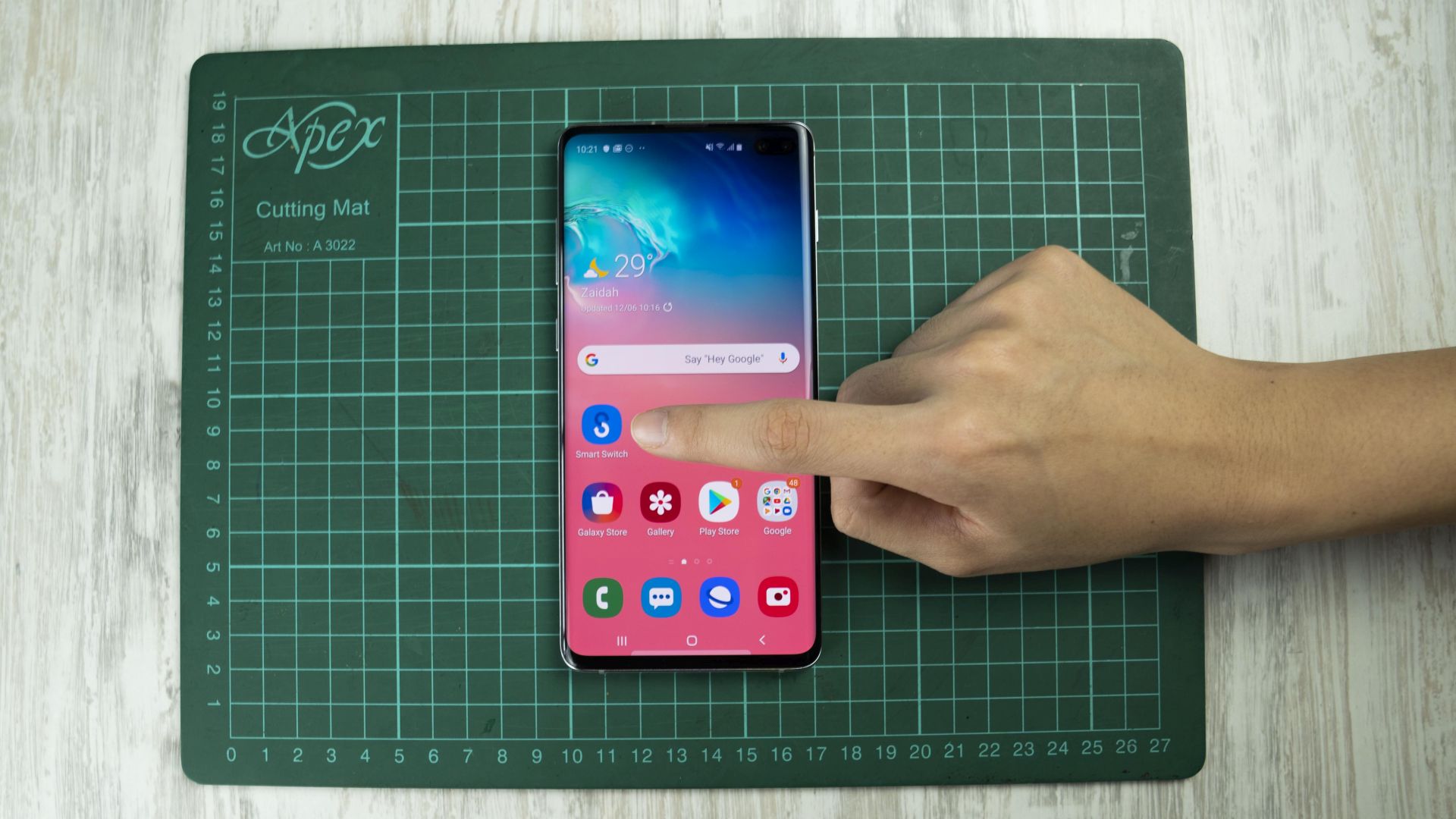
Samsung utilizes a proprietary tool called Smart Switch, which is pre-installed on all Galaxy devices. This software acts as a bridge, pulling data from an iPhone via a physical cable connection or wirelessly through an iCloud backup. In 2026, the wired method remains the gold standard for speed and data integrity, especially for users with storage capacities exceeding 256GB.
Prerequisites for a Seamless Transfer
To ensure the process does not stall or fail, verify the following conditions:
- Battery Levels: Both devices should be charged to at least 80%. The transfer process is processor-intensive and can drain batteries rapidly.
- Cables and Adapters: For the most reliable transfer, use a USB-C to Lightning cable or a USB-C to USB-C cable (for iPhone 15 and newer models). If using an older iPhone with a standard USB-A to Lightning cable, you will need a USB-A to USB-C "On-The-Go" (OTG) adapter.
- Updated Software: Ensure the iPhone is running at least iOS 12.0 and the Samsung device has the latest version of Smart Switch from the Galaxy Store or Google Play Store.
- Disabled iMessage: You must turn off iMessage and FaceTime in the iPhone settings before removing the SIM card to ensure that incoming SMS messages are correctly routed to your new Samsung device.
The Step-by-Step Wired Transfer Process
A wired connection is the only way to ensure that large 4K video files and high-resolution images are transferred without compression or network interruptions.
- Connect the Devices: Plug the Lightning/USB-C end into your iPhone and the USB-C end into your Samsung Galaxy.
- Launch Smart Switch: On your new Samsung, open the Smart Switch app and select "Receive data," then choose "iPhone/iPad."
- Trust the Device: On the iPhone, a prompt will appear asking if you trust the connected computer/device. Tap "Trust" and enter your iPhone passcode.
- Scanning for Content: The Samsung device will scan the iPhone to determine what data is available. This can take several minutes depending on the volume of data.
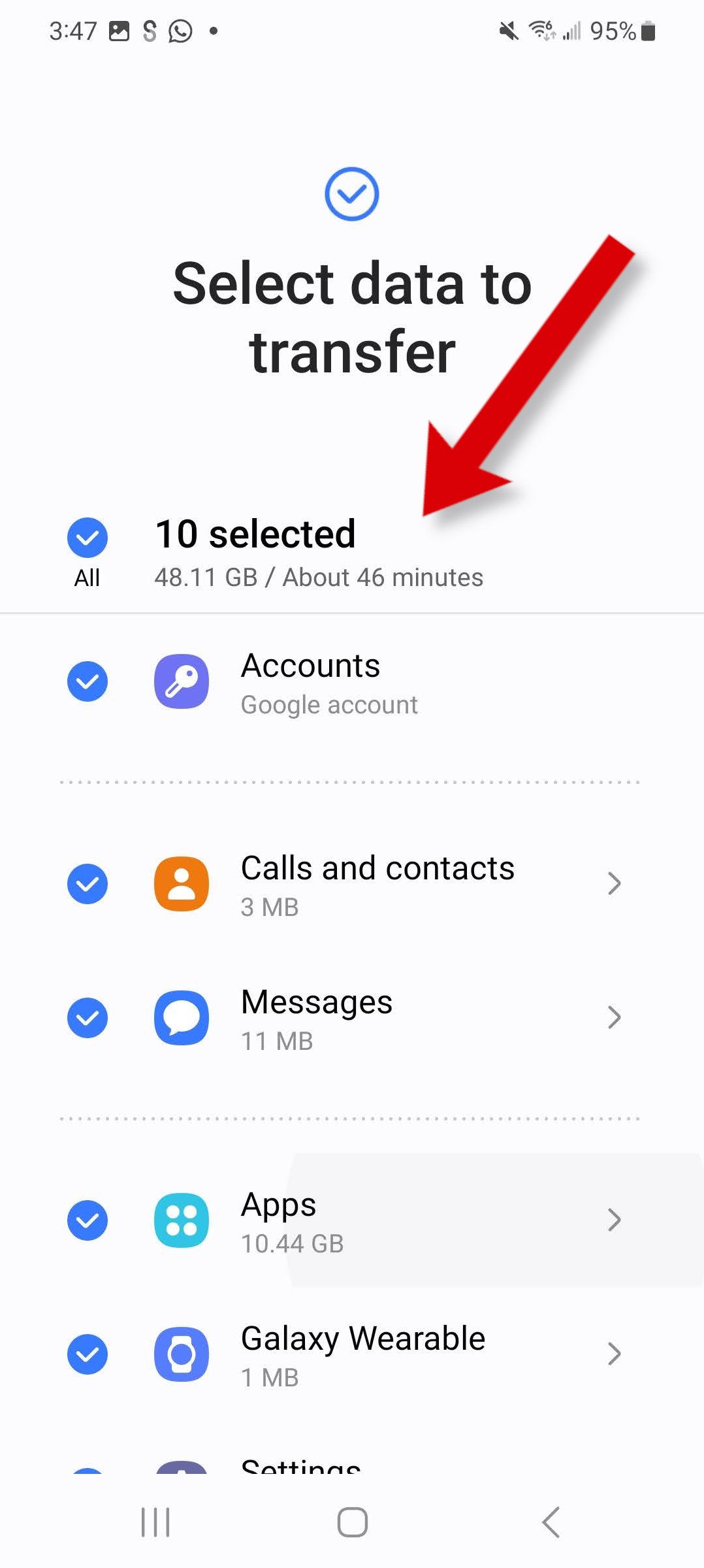
- Select Your Data: You will be presented with a list of categories (Contacts, Messages, Apps, Images, etc.). You can select "All" or customize the selection.
- The Transfer: Tap "Transfer" and wait. Do not disconnect the cable or close the apps until the Samsung device confirms the process is 100% complete.
What Specifically Moves (and What Stays Behind)
While Smart Switch is powerful, the architectural differences between iOS and Android create a few "untransferable" zones. Understanding these prevents frustration after the initial setup.
What Transfers Successfully
- Personal Information: Contacts, call logs, calendar entries, and notes (local notes only; synced notes like those in Outlook or Gmail will sync when you log into those accounts).
- Media: Photos, videos, voice memos, and even some DRM-free music.
- Messages: SMS, MMS, and iMessage history (which is converted into standard text format).
- Device Settings: Wi-Fi passwords, alarms, and home screen wallpapers.
- Apps: Samsung does not "copy" the app files. Instead, it identifies the free apps you had on your iPhone and finds their Android equivalents in the Google Play Store to download automatically.
What Does Not Transfer
- Paid Applications: If you purchased an app on the Apple App Store, you must repurchase it on the Google Play Store. Licensing agreements do not cross-platform.
- In-App Purchases and Game Progress: Most game data is tied to "Sign in with Apple" or iCloud. Unless the game uses a cross-platform login (like Epic Games, Supercell ID, or Facebook), your progress will likely stay on the iPhone.
- End-to-End Encrypted Data: Certain secure folders and third-party encrypted messaging apps (like Signal) require manual backup and restore procedures unique to their own platforms.
- Digital Wallets: Apple Wallet passes and credit cards do not move. You must manually add your cards to Samsung Pay or Google Wallet.
Special Case: Moving WhatsApp Data
WhatsApp represents the most common hurdle for users switching to Samsung. Because iPhone backups are stored in iCloud and Android backups are stored in Google Drive, the two systems are not natively compatible.
Fortunately, Samsung and Meta have integrated a direct transfer feature. During the Smart Switch process, a QR code will appear on the Samsung screen. Scanning this with your iPhone’s camera initiates a direct device-to-device migration of your entire chat history, including media. This must be done during the initial setup of the Samsung phone; if you skip it, you may need to factory reset the device to try again.
Comparing Transfer Methods
| Feature | Wired Transfer (Cabled) | Wireless Transfer (iCloud) | Manual Cloud Sync (Google Drive) |
|---|---|---|---|
| Speed | Fastest (up to 1GB/min) | Depends on Wi-Fi speed | Slowest |
| Reliability | Highest; no signal drops | Moderate; requires stable internet | High for small files |
| Data Scope | Full: Media, Apps, Settings | Limited: Contacts, Photos, Calendars | Limited: Files and Photos only |
| Requirements | Physical cable + OTG adapter | iCloud backup + Apple ID | Google account on both devices |
| Best For | Power users with 128GB+ data | Users without a cable | Minimalists moving only files |
Troubleshooting Common Issues
Even in 2026, the transition can hit snags. Most issues stem from security settings or hardware limitations.
The "Stuck at 99%" Problem
This usually occurs when the Samsung device is attempting to reconcile corrupted files or large media libraries. If the transfer hangs for more than 30 minutes at the very end, check the Samsung's notification shade. Often, the transfer is actually finished, but the app is still "organizing" the data in the background.
Missing Photos
If you use "Optimize iPhone Storage," your full-resolution photos are stored in iCloud, not on the physical device. Smart Switch can only see what is physically on the iPhone. To fix this, you must either download the photos to the iPhone first or use the "Import from iCloud" option within Smart Switch, which requires your Apple ID and password.
App Mismatches
Not every iOS app has an Android counterpart. If an app was exclusive to the Apple ecosystem (like Bear Notes or certain Apple-published utilities), Smart Switch will simply omit it. In these cases, you will need to find a functional alternative on the Google Play Store.
Technical Specifications and Formatting
When photos move from iPhone to Samsung, they may arrive in the HEIC (High-Efficiency Image Coding) format. Modern Samsung devices (since the S20 series) support HEIC natively. However, if you plan to share these photos with older Windows PCs, you may want to go into the Samsung Camera settings and toggle "Convert HEIF photos when sharing" to ensure maximum compatibility.
Similarly, 4K videos recorded in ProRes or HDR10+ on the iPhone are generally compatible with Samsung’s high-end displays, though the metadata for specialized Apple-only features (like Cinematic Mode focus points) will be flattened and no longer editable on the Android device.
Summary of Next Actions
Moving from iPhone to Samsung is a comprehensive process that, while automated, requires attention to detail. Your first action should be to backup your iPhone to a computer (iTunes/Finder) or iCloud as a safety net. Next, procure the necessary USB-C cable for the fastest transfer.
Once the transfer is complete, give the Samsung device several hours to index the new files and download the app equivalents from the Play Store. During this time, the phone may run warm and the battery may drain faster than usual—this is a normal behavior of the Android Media Storage service as it cataloged your newly imported library.
Finally, verify your banking apps and multi-factor authentication (MFA) tools. These security-sensitive applications will always require manual re-authorization on a new device for your protection.
Frequently Asked Questions
Can I transfer my Apple Music library to Samsung?
Yes. If you use the Apple Music subscription service, you can simply download the Apple Music app from the Google Play Store on your Samsung and log in. Your playlists, library, and preferences will be there. If you have local MP3 files, Smart Switch will move them into the Samsung Music folder.
Will my text messages stay in order?
Generally, yes. Smart Switch is designed to maintain the chronological metadata of SMS and MMS threads. However, if there are massive gaps in your message history or if you have "Auto-delete old messages" enabled on your iPhone, only the messages currently on the device will migrate.
Do I lose my iCloud data?
No. Your iCloud data remains on Apple's servers. Switching to a Samsung device does not delete your iCloud account. You can still access your data via a web browser at iCloud.com or sync it to a Mac or iPad.
Can I transfer my passwords?
If you use a third-party password manager like Bitwarden, 1Password, or LastPass, you simply log into the app on your Samsung. If you use Apple's built-in iCloud Keychain, you will need to manually export your passwords to a CSV file (via a Mac) and import them into Google Password Manager or a Samsung Pass account.
Does transferring data slow down the new phone?
The transfer itself does not permanently slow down the phone. However, for the first 24 to 48 hours, the system will be performing heavy background tasks like indexing photos for the Gallery search and optimizing the newly installed apps. Performance will stabilize once these background processes finish.
Image Gallery