How Do I Make an Email Group in Gmail for Efficient Communication
Creating an email group in Gmail allows you to send a single message to multiple recipients at once by utilizing Google Contacts labels. While Gmail does not feature a direct group creation button inside the inbox interface itself, you...
Creating an email group in Gmail allows you to send a single message to multiple recipients at once by utilizing Google Contacts labels. While Gmail does not feature a direct group creation button inside the inbox interface itself, you can easily build and manage these distribution lists through the integrated Google Contacts dashboard to streamline your daily messaging workflow.
Contents
Understanding Gmail Contact Labels and Distribution Lists
Before setting up your first group, it helps to understand how Google structures email distribution. Google Contacts uses a labeling system instead of traditional standalone address books. A label acts as a container for multiple email addresses. When you type that label name into the "To" field of a new Gmail message, the system automatically pulls in every email address associated with that tag.
This architecture offers superior flexibility compared to legacy desktop mail clients. You can assign a single contact to multiple labels—for instance, placing a colleague in both a "Project Alpha" label and a "Management Team" label. Any updates you make to a contact's email address or phone number in Google Contacts instantly propagate across all labels containing that person, preventing outdated contact information from breaking your distribution workflow.
Core Prerequisites for Creating Gmail Groups
- A personal Google account or a Google Workspace organizational account.
- Access to a modern web browser logged into your Google account.
- A pre-populated list of email addresses saved within your Google Contacts directory.
Step-by-Step Guide to Creating an Email Group in Google Contacts
The entire process takes place outside the main Gmail inbox window, utilizing the dedicated Google Contacts web application. Follow these structured steps to build your communication list from scratch.
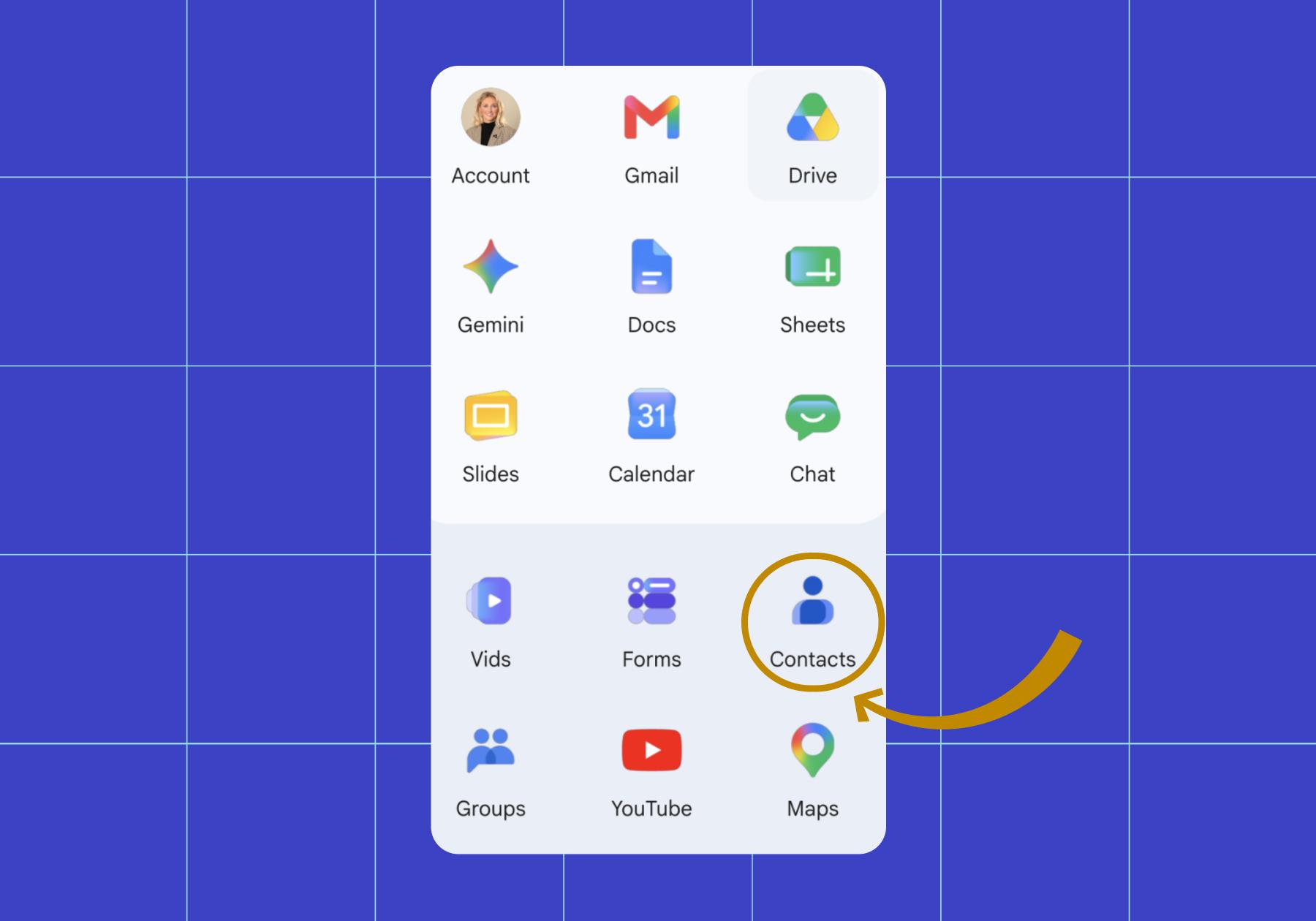
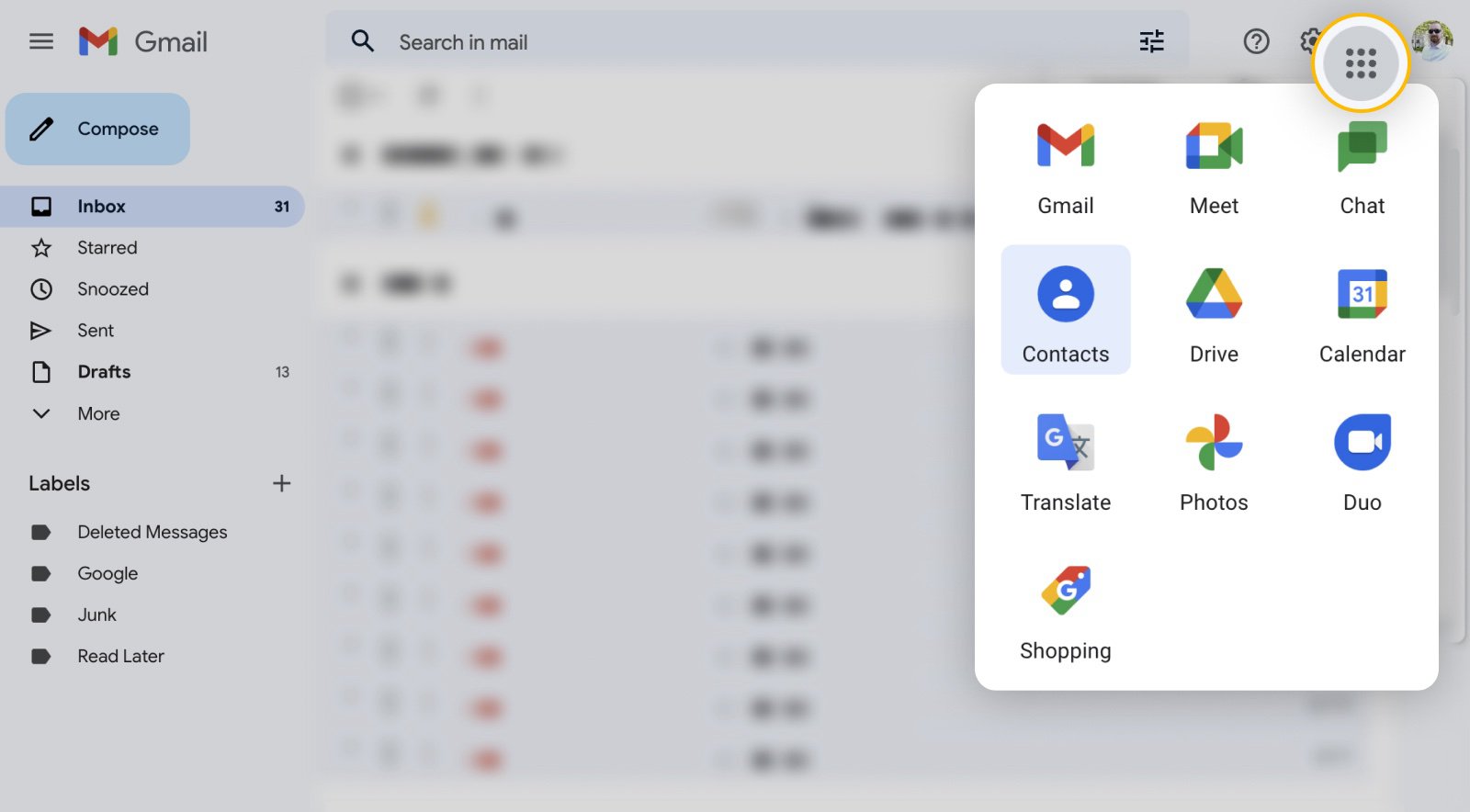
- Open your web browser and navigate to the Google Contacts website by typing contacts.google.com into your address bar, or by clicking the Google Apps grid icon (the nine dots) in the top-right corner of your Gmail screen and selecting the Contacts icon.
- Select the specific email contacts you want to include in your new group by hovering your mouse over each contact's profile picture or avatar and clicking the checkbox that appears on the left side.
- Once you have selected all desired contacts, look toward the top action toolbar of the interface and click on the Manage labels icon, which resembles a small luggage tag or label shape.
- In the dropdown menu that appears, click the Create label option at the very bottom.
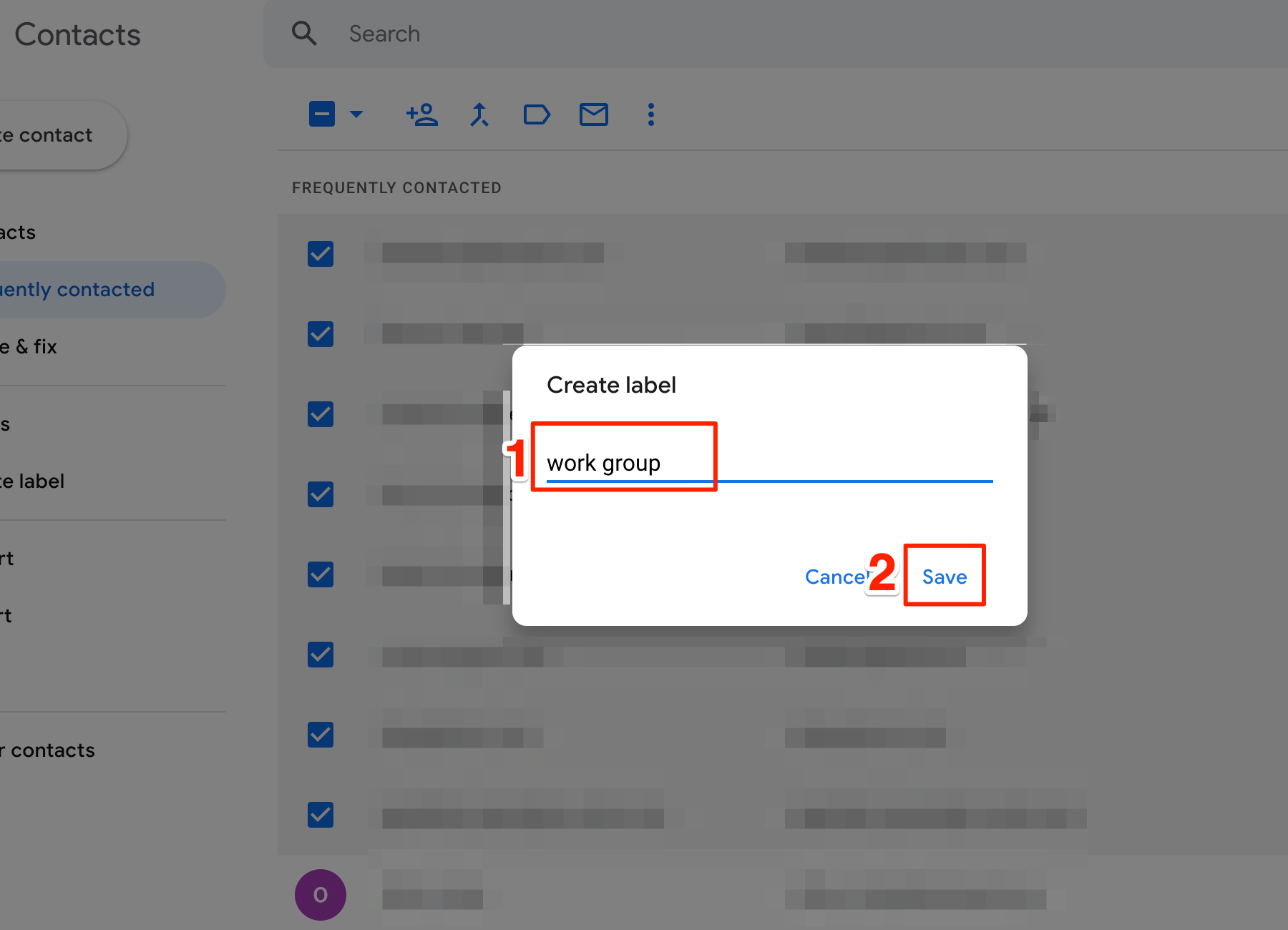
- Type a clear, recognizable name for your new group in the input field—such as "Marketing Team" or "Board Members"—and click the Save button.
- Verify that the label has been successfully applied by checking the left-hand sidebar menu under the Labels section, where your newly created group name will now appear.
Alternative Methods for Building Distribution Lists
Depending on your workflow preferences, you can also add contacts to a label individually rather than selecting them in bulk. Open an existing contact card within Google Contacts, click the three-dot menu icon in the upper right corner of that contact's detailed view, select Change labels, and check your target group name.
If you frequently receive emails from new clients or team members whom you want to add to an existing group, you can open a message in Gmail, hover over the sender's name to open their contact card, click the three-dot menu on the card, and add them directly to your Google Contacts list with the appropriate label applied.
How to Send an Email to Your New Gmail Group
Once your label and contacts are established, utilizing the group inside Gmail requires just a few keystrokes.
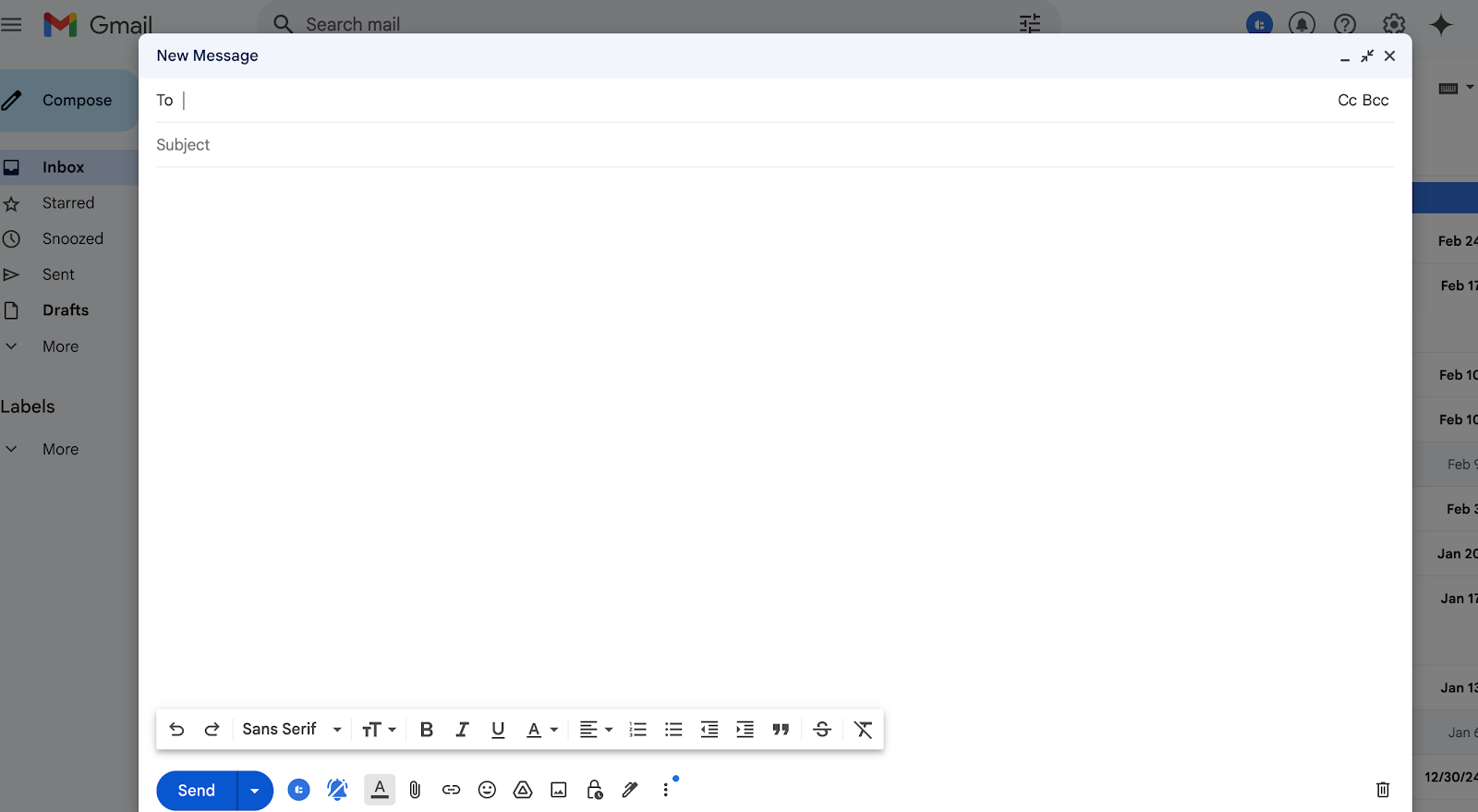
- Open Gmail and click the Compose button in the upper-left corner to open a new message window.
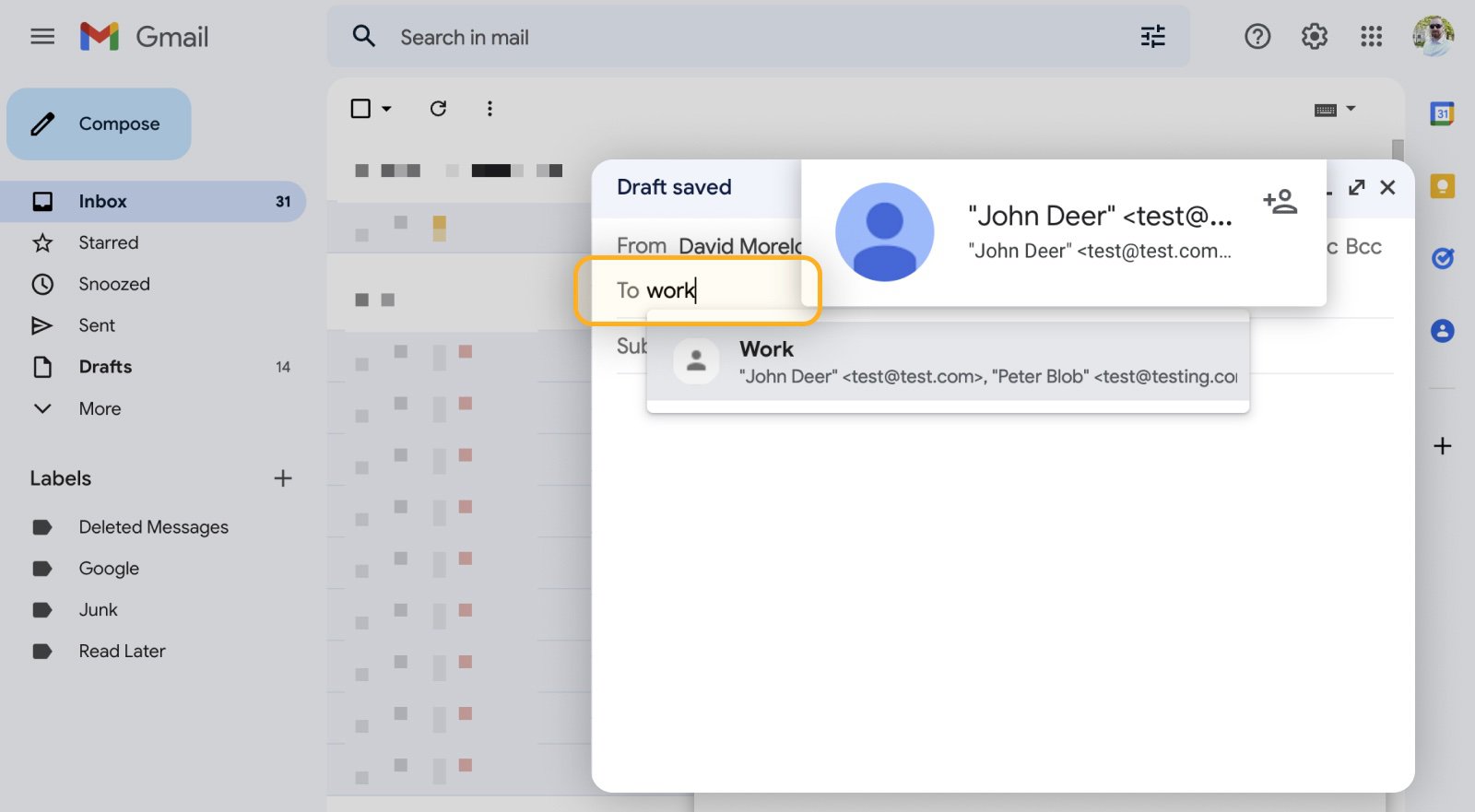
- In the "To", "Cc", or "Bcc" recipient field, begin typing the exact name of the label you created in Google Contacts.
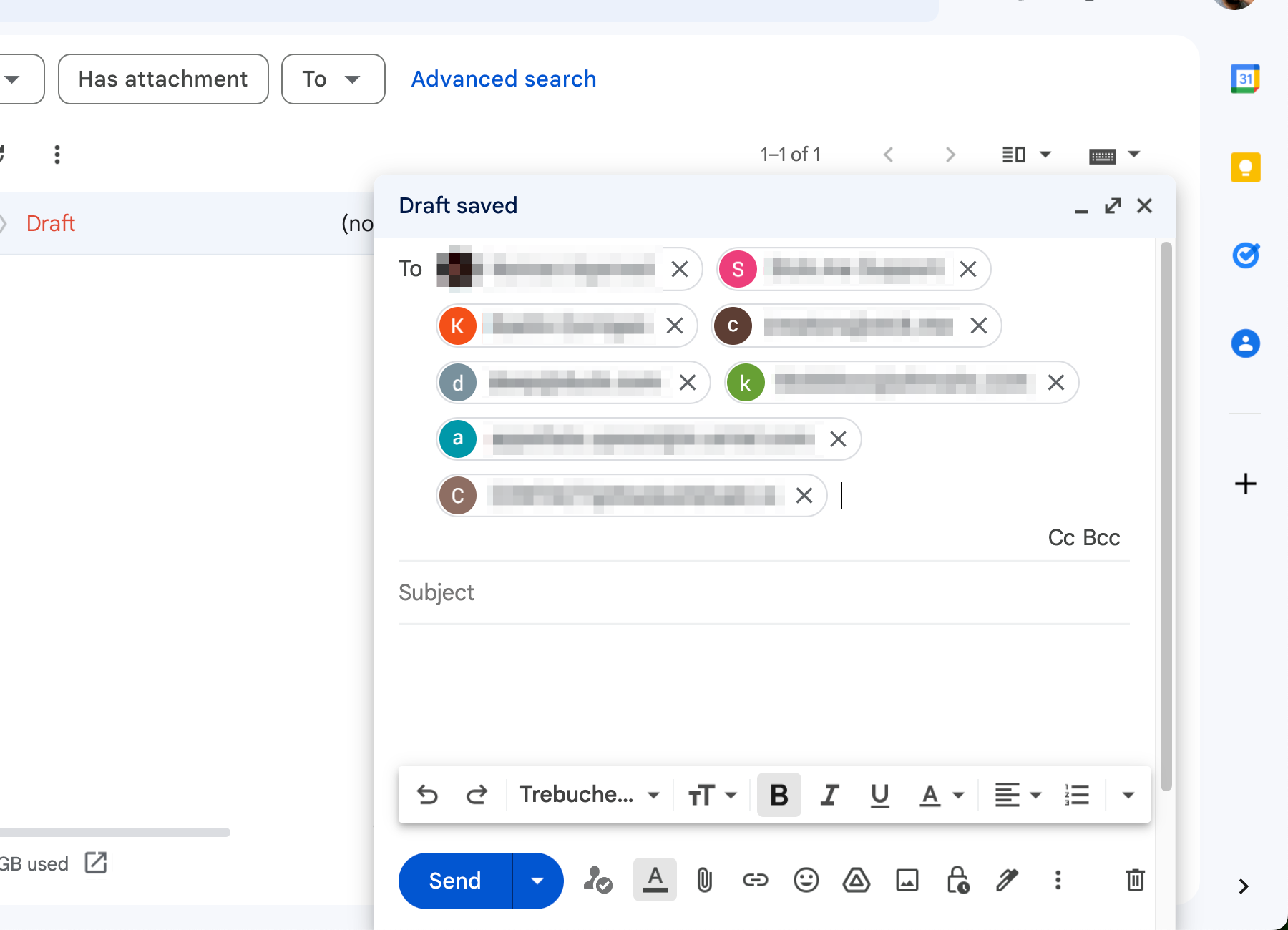
- As you type, Gmail’s autocomplete dropdown menu will display the label name alongside a count of how many members belong to it. Click on that label suggestion.
- Gmail will instantly expand the label, populating the recipient field with every individual email address contained within that group.
- Compose your subject line and message body normally, then click Send to deliver the communication to every member simultaneously.
| Method | Where to Execute | Best Used For | Primary Benefit |
|---|---|---|---|
| Bulk Selection | Google Contacts Web App | Creating new groups from scratch with existing address lists | Fast setup for large lists of 10 or more people |
| Individual Edit | Google Contacts Web App | Adding single contacts to pre-existing labels | Precise control during contact updates |
| Gmail Compose Autocomplete | Gmail Inbox Interface | Everyday message delivery to established groups | Zero friction when sending recurring updates |
Managing, Editing, and Deleting Your Gmail Email Groups
Maintaining your communication channels requires knowing how to add new members, remove outdated contacts, or delete entire groups when projects conclude.
To add someone to an existing group, locate their entry in Google Contacts, click the label icon at the top of their contact card, and check the box next to the group name. To remove a member, navigate directly to the specific label via the left-hand sidebar of Google Contacts, hover over the contact's row, click the three-dot menu icon on the right, and select Remove from label. This action removes them solely from that group without deleting the contact from your main directory.
If you need to delete an entire group, click the label name in the left sidebar of Google Contacts. Hover over the label header and click the trash can icon. A prompt will appear asking whether you want to delete the label only or delete both the label and all contacts contained within it. Always choose "Keep all contacts" unless you explicitly want to erase those people entirely from your address book.
Pros and Cons of Using Gmail Contact Labels for Groups
Evaluating the limitations and advantages of native Google Contacts labels helps determine whether this tool fits your organizational scale.
Operational Advantages Zero Cost and Seamless Integration: Native Gmail groups require no third-party software installation, plugin subscriptions, or external database management. They synchronize instantly across all devices logged into your Google account, including mobile phones and tablets.
Limitations and Constraints Visibility and Privacy Considerations: When you send an email to a group label, every recipient can see all other email addresses in the "To" or "Cc" fields unless you place the label into the "Bcc" (Blind Carbon Copy) field. For large external mailing lists, failing to use Bcc exposes personal email addresses and raises privacy concerns. Furthermore, native Google labels cap out at recommended limits for standard personal accounts, making them less suitable for massive marketing campaigns compared to dedicated email service providers.
Troubleshooting Common Gmail Group Issues
Even with a straightforward setup, users occasionally encounter synchronization delays or autocomplete errors. Review these common failure points to resolve issues quickly.
- Autocomplete fails to find the label: If typing your group name yields no results in Gmail, verify that you are logged into the exact same Google account where you created the contact label. Synchronization can occasionally take a few moments; refreshing your browser tab or restarting the Gmail web interface usually forces the contact cache to update.
- Missing email addresses in an expanded group: If a label populates fewer addresses than expected, open Google Contacts, check the specific label, and ensure that every intended contact actually has a valid email address field populated. Contacts with only phone numbers will not appear in Gmail recipient expansions.
- Mobile app synchronization discrepancies: If your newly created group appears on your computer but not inside the Gmail mobile app on iOS or Android, ensure your device's contacts sync settings are enabled within your phone's system accounts menu.
Frequently Asked Questions About Gmail Email Groups
Can I create an email group directly inside the Gmail mobile app?
No, the mobile Gmail app does not currently support creating or editing Google Contacts labels. You must create and manage your email groups using a web browser by visiting contacts.google.com, after which the groups will automatically become accessible for autocomplete in your mobile compose window.
What is the maximum number of people I can put in a Gmail email group?
For standard consumer Gmail accounts, Google limits total daily sending recipients to 500. For Google Workspace accounts, the daily sending limit is typically 2,000 recipients. Exceeding these limits can result in temporary account restrictions to prevent spam abuse.
How do I hide recipient email addresses when sending to a group?
To protect recipient privacy, place your group label into the "Bcc" (Blind Carbon Copy) field rather than the "To" field. This ensures that every recipient receives the message individually without seeing the email addresses of the other group members.
Can external people email my custom Gmail group?
Native Google Contact labels are private distribution lists tied entirely to your individual account. External users cannot send an email to your label name to trigger a broadcast; the group function only operates when you personally compose an outbound message from your account.
Why are some contacts missing when I type my group name into Gmail?
This typically occurs if a contact card contains multiple email addresses without a designated primary address, or if the contact entry lacks an email address entirely. Review the contact details in Google Contacts to ensure valid formatting.
Streamline Your Communications Today
Setting up an email group in Gmail transforms cumbersome messaging tasks into a single-click operation, saving you valuable time when coordinating projects, teams, or social circles. By leveraging Google Contacts labels properly, you maintain total control over your recipient lists without needing complex third-party tools. Open Google Contacts right now, organize your key contacts under a new label, and experience faster, more efficient emailing.
Image Gallery