Smithfield Okta Com App: Secure Employee Portal Access Guide 2026
Accessing the Smithfield Okta Com App portal requires a registered enterprise account, multi-factor authentication enrollment, and a secure connection to authenticate corporate credentials safely. This guide outlines the essential prer...
Accessing the Smithfield Okta Com App portal requires a registered enterprise account, multi-factor authentication enrollment, and a secure connection to authenticate corporate credentials safely. This guide outlines the essential prerequisites, step-by-step login workflows, security verification standards, and troubleshooting procedures required for Smithfield Foods personnel in 2026.
Contents
Understanding the Smithfield Okta Enterprise Ecosystem
The Okta identity management platform functions as the centralized single sign-on (SSO) gateway for Smithfield Foods employees, contractors, and authorized vendors. By centralizing authentication, the organization ensures that access to internal resources, payroll systems, HR portals, and corporate communication channels remains strictly protected against unauthorized access.
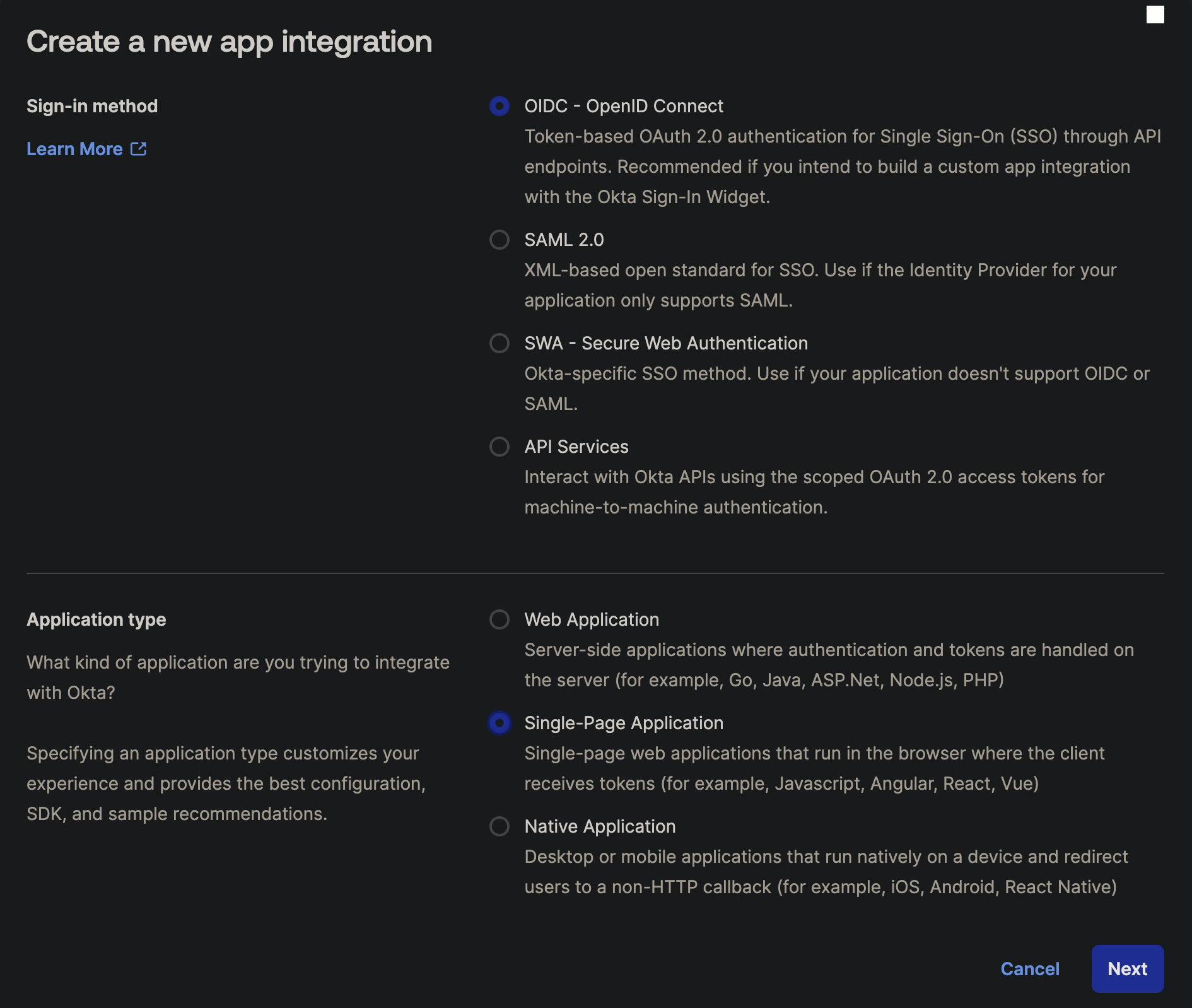
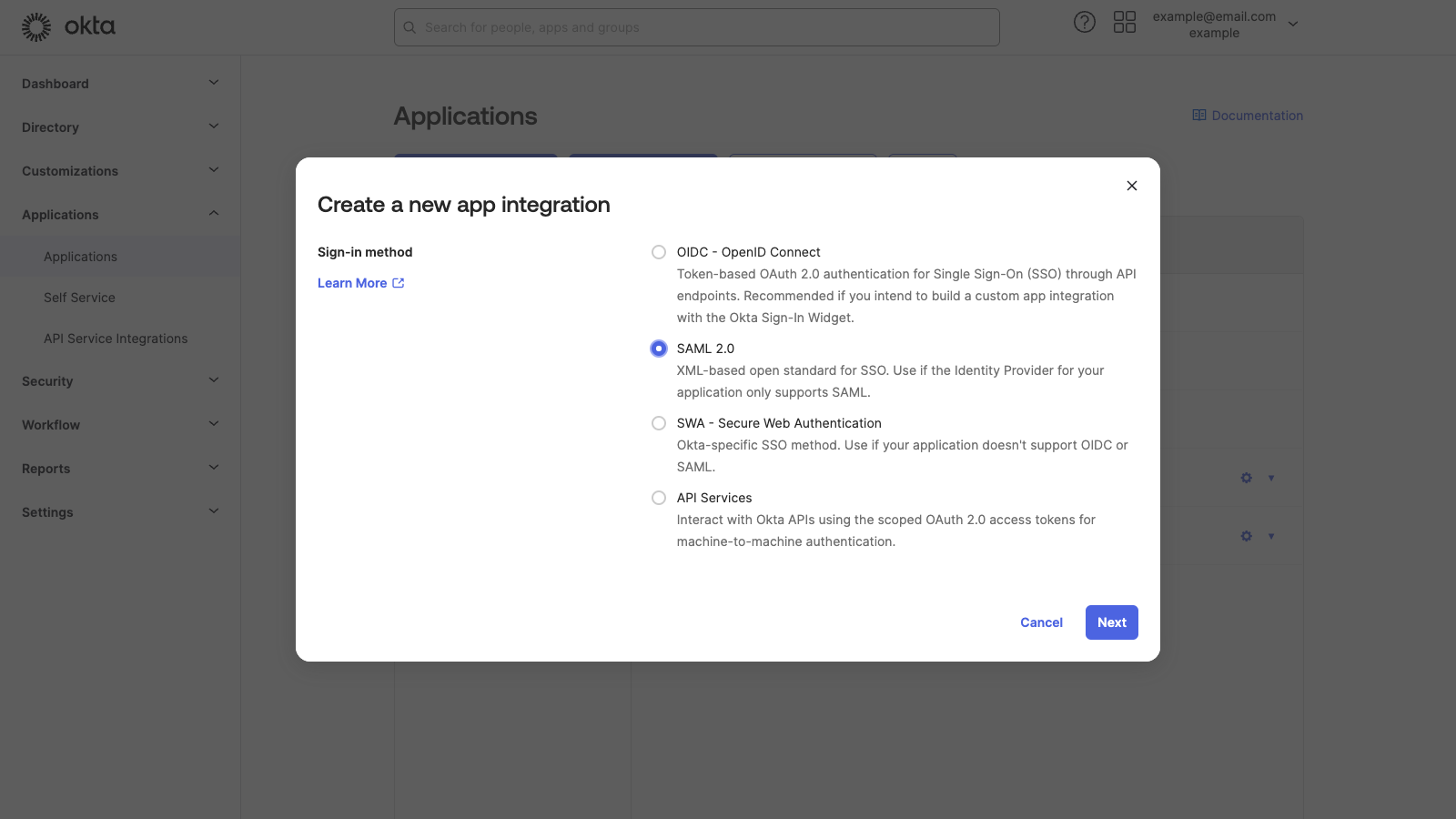
Enterprise identity governance relies on modern protocols like SAML (Security Assertion Markup Language) and OIDC (OpenID Connect). When a user submits credentials to the portal, Okta verifies the identity and issues a secure token, allowing seamless navigation across multiple corporate applications without requiring repeated logins.
Corporate access management policies mandate regular security audits and strict adherence to identity verification protocols. Understanding these foundational requirements helps prevent account lockouts and minimizes security vulnerabilities across personal and corporate-issued devices.
Essential Prerequisites Before Logging In
Before attempting to authenticate through the Okta gateway, users must ensure they meet specific technical and administrative prerequisites. Attempting to log in without proper setup or an incompatible environment often results in authentication errors or blocked access.
- Active Corporate Account: Users must possess an active, non-expired network username and a temporary or permanent password issued by Smithfield IT administration.
- Enrolled Multi-Factor Authentication (MFA): Every account requires at least one secondary verification method, such as the Okta Verify mobile application, SMS text messaging, or a physical security key.
- Supported Web Browser: Access requires an up-to-date, standards-compliant web browser such as Google Chrome, Microsoft Edge, Mozilla Firefox, or Apple Safari with JavaScript and cookies enabled.
- Network Connectivity: A stable broadband internet connection or an authorized Virtual Private Network (VPN) connection if attempting to reach internal-only zones from external networks.
Step-by-Step Guide to Accessing Your Account
Navigating the login procedure correctly ensures your session establishes securely. Follow these structured steps to complete your authentication successfully.
- Launch Your Browser: Open your preferred web browser and navigate to the official enterprise Okta portal address designated for Smithfield personnel.
- Input Credentials: Enter your corporate username (typically formatted as your corporate email address or network ID) and your secure password into the designated input fields.
- Initiate Verification: Click the sign-in button to prompt the secondary authentication challenge based on your pre-configured security preferences.
- Complete MFA Challenge: Approve the push notification sent to your smartphone via Okta Verify, or input the dynamic six-digit time-based one-time password (TOTP).
- Access Your Dashboard: Upon successful verification, your personalized application dashboard will load, displaying icons for payroll, benefits, email, and other authorized tools.
Security Standards and MFA Options Comparison
Different multi-factor authentication methods offer varying levels of cryptographic security and user convenience. Choosing the right method depends on device availability and corporate policy mandates.
| Authentication Method | Security Level | Convenience Factor | Offline Support | Hardware Requirement |
|---|---|---|---|---|
| Okta Verify Push | High | Very High | No | Smartphone (iOS/Android) |
| FIDO2 Security Key | Maximum | High | Yes | USB / NFC Hardware Token |
| TOTP Authenticator App | High | Moderate | Yes | Smartphone or Tablet |
| SMS Text Message | Low to Moderate | Moderate | No | Mobile Phone with Cellular Service |
Troubleshooting Common Login Failures
Users frequently encounter specific roadblocks during the authentication process. Reviewing these common issues and their resolutions can restore access quickly without requiring IT intervention.
- Incorrect Credentials: Ensure that Caps Lock is disabled and verify that your username matches your official corporate assignment. If you recently updated your active directory password, ensure you are using the newest iteration.
- Push Notification Delays: If the Okta Verify push notification fails to arrive, check your device's cellular or Wi-Fi data connection, or switch to manual TOTP entry within the app.
- Account Lockout: Multiple consecutive failed login attempts will temporarily lock the account as a defensive measure. Users must wait out the lockout timer or contact the IT Service Desk for a manual reset.
- Browser Cache Conflicts: Corrupted browser cookies or cache files can disrupt the authentication handshake. Clearing browser cache data or attempting login via an incognito/private window often resolves these rendering errors.
Frequently Asked Questions
What should I do if I forget my Smithfield Okta password?
You can initiate a self-service password reset by clicking the "Need help signing in?" link on the login page and following the identity verification prompts. If self-service recovery fails, contact the corporate IT support desk for assistance.
Is the Smithfield Okta app accessible from personal mobile devices?
Yes, authorized personnel can download the Okta Verify application and access the portal from personal smartphones or tablets, provided the device complies with corporate security policies and enterprise device management guidelines.
Why am I being prompted for multi-factor authentication every time I log in?
Frequent MFA prompts occur due to strict security policies, browsing in private/incognito mode that clears session cookies, or changing network locations that trigger risk-based adaptive authentication.
Who should I contact if my account remains locked after a password reset?
You should reach out directly to the internal Smithfield IT Service Desk or system administrator responsible for employee identity access management to verify your account status.
Can I use third-party authenticator apps instead of Okta Verify?
Certain organizational policies permit the use of standard TOTP applications like Google Authenticator or Microsoft Authenticator, though Okta Verify remains the recommended and most deeply integrated option for push notifications.
Conclusion and Administrative Support
Maintaining secure, uninterrupted access to the Smithfield Okta portal safeguards both individual employee data and broader corporate infrastructure. Always adhere to corporate security guidelines, keep your multi-factor authentication devices updated, and report any suspicious account activity immediately to the internal IT security team.
Image Gallery