How to Combine PDF Files on Mac: The Complete 2026 Guide
Combining PDF files on a Mac is a straightforward process built directly into macOS, allowing you to merge multiple documents without purchasing third-party software. Whether you use the native Preview app, the Finder interface, or ded...
Combining PDF files on a Mac is a straightforward process built directly into macOS, allowing you to merge multiple documents without purchasing third-party software. Whether you use the native Preview app, the Finder interface, or dedicated third-party tools, managing your digital paperwork efficiently saves time and keeps your files organized.
Contents
Understanding Native macOS PDF Management Capabilities
Modern versions of macOS feature robust document-handling utilities natively integrated into the operating system. Before downloading external software or utilizing browser-based merge tools—which may pose privacy risks when handling sensitive financial, legal, or medical documents—users should explore built-in utilities like Preview and Finder.
Native tools process files locally on your Mac's Apple Silicon (M-series) or Intel processor. This local processing ensures complete data privacy, eliminates subscription fees, and operates without requiring an active internet connection. Understanding how macOS handles document structures helps prevent common formatting errors, such as upside-down pages, incorrect page sequencing, or bloated file sizes.
Prerequisites and System Requirements for Mac PDF Merging
Preparing your documents correctly before attempting to combine them prevents frustrating formatting errors. Ensuring your system is up to date guarantees access to the latest interface improvements and security patches.
- macOS Version: The native methods outlined below work seamlessly on macOS Ventura, macOS Sonoma, and macOS Sequoia.
- File Permissions: Ensure none of the target PDF files are locked, password-protected, or encrypted. Encrypted PDFs must be unlocked using their master password before they can be integrated into a new document structure.
- Storage Space: Verify that your Mac has sufficient free storage space to accommodate the newly generated combined file, especially when merging high-resolution scanned documents containing dense imagery.
- File Organization: Group the target documents into a single designated folder on your Desktop or in your Documents directory to streamline the selection process.
Method 1: Using the Native Preview App
The Preview application is the default image and PDF viewer on macOS. It contains a hidden, highly efficient page-management sidebar that lets you drag and drop pages or entire documents together.
Step-by-Step Instructions for Preview
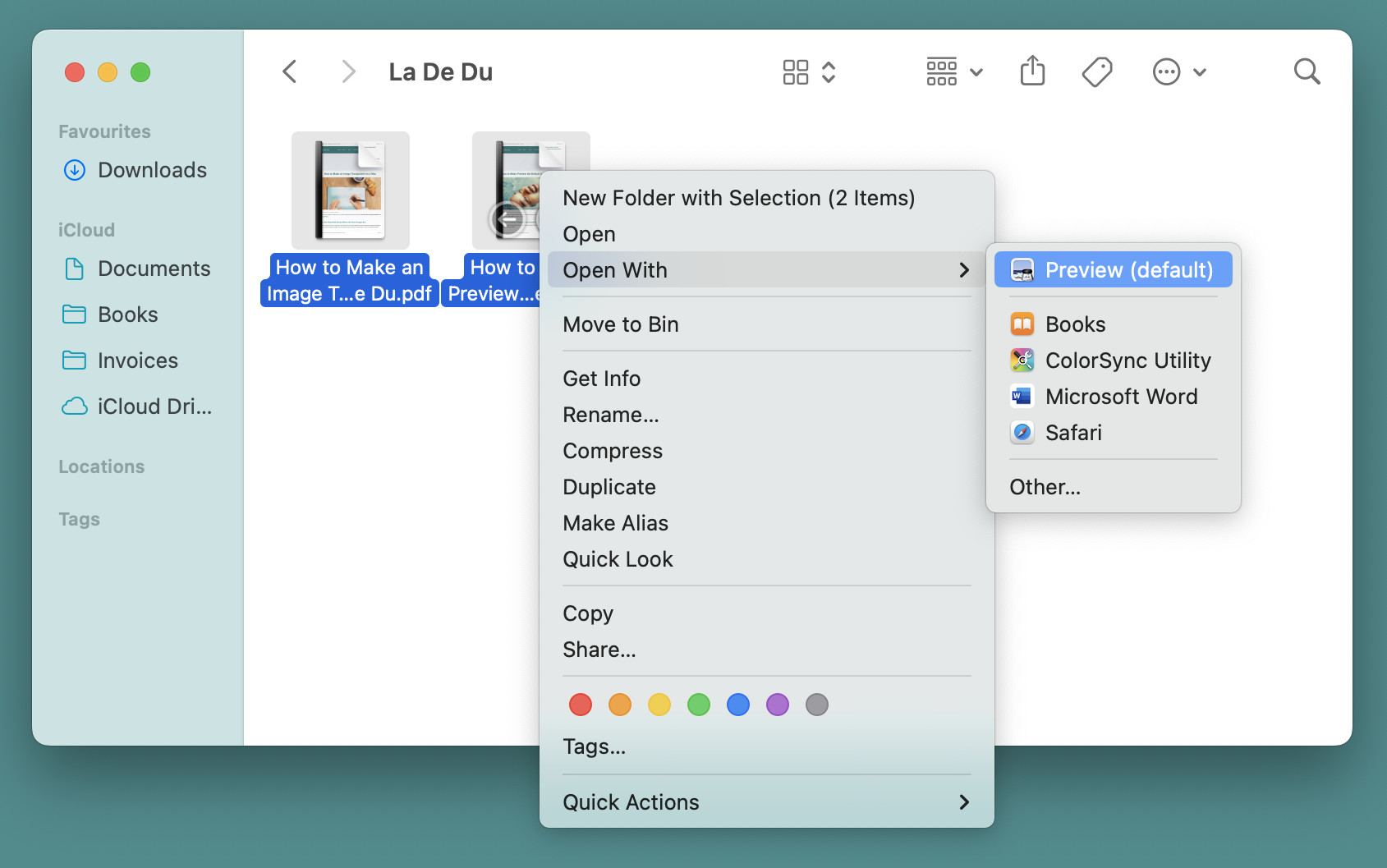
- Open your primary PDF file by double-clicking it. If Preview is not your default viewer, right-click the file, select Open With, and choose Preview.
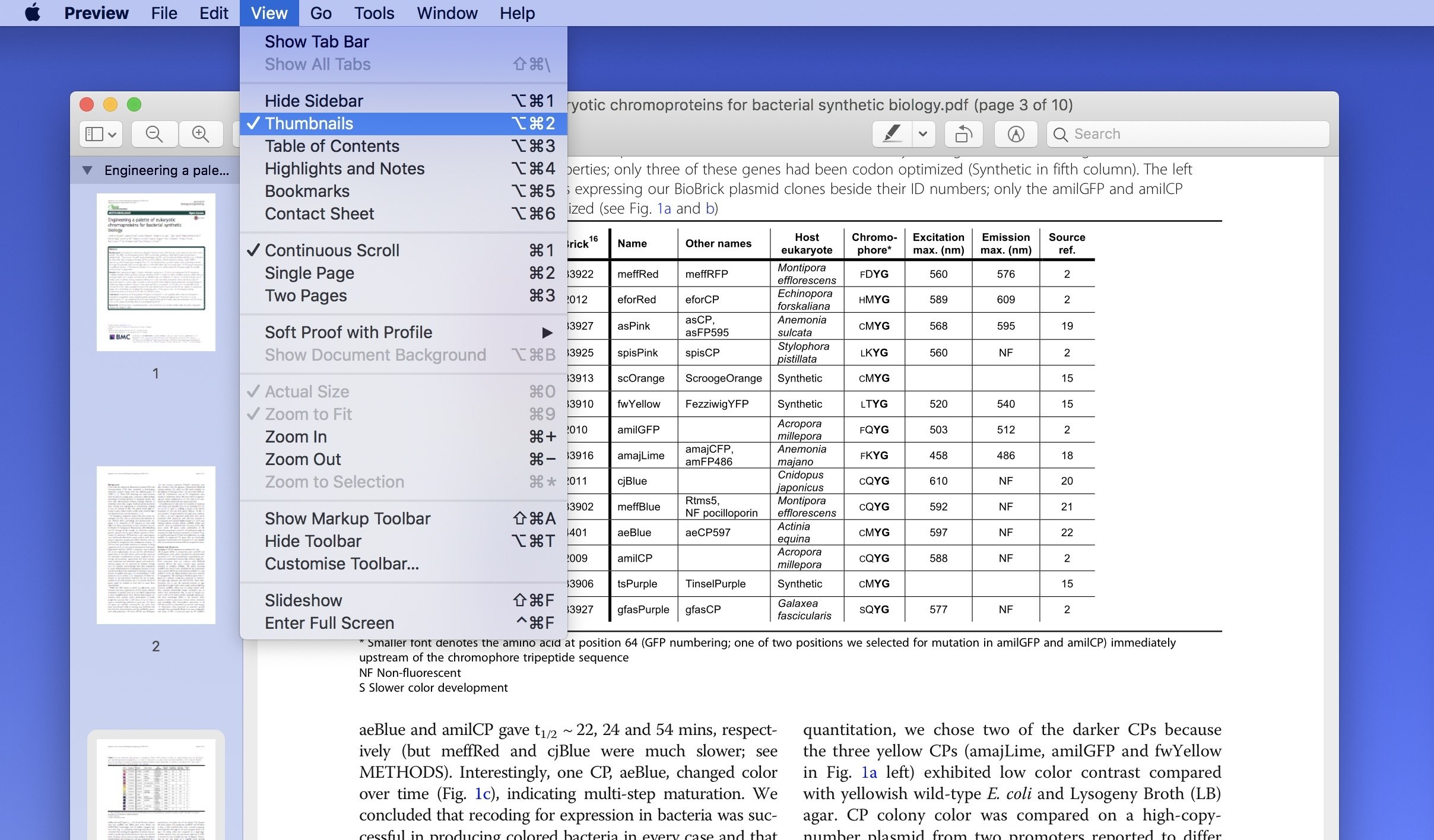
- Navigate to the top menu bar, click View, and select Thumbnails. This opens a sidebar on the left side of the window displaying visual representations of every page in the document.
- Drag the second PDF file directly from your Finder window or desktop and drop it into the thumbnail sidebar of the first PDF. You can drop it at the very bottom of the sidebar or between specific pages where you want the new content to insert.
- Reorder the pages by clicking and dragging individual thumbnails up or down within the sidebar until your desired sequence is achieved.
- Save your newly combined document by navigating to File > Export as PDF..., or simply select File > Save to overwrite the original file (though exporting a new copy is recommended as a safety backup).
Method 2: Combining PDFs Instantly via Finder Quick Actions
macOS allows users to combine PDFs directly from the desktop or Finder window without even opening an application window, utilizing built-in Quick Actions powered by Automator.
Step-by-Step Instructions for Finder Quick Actions
- Open the Finder folder containing the PDF files you want to merge.
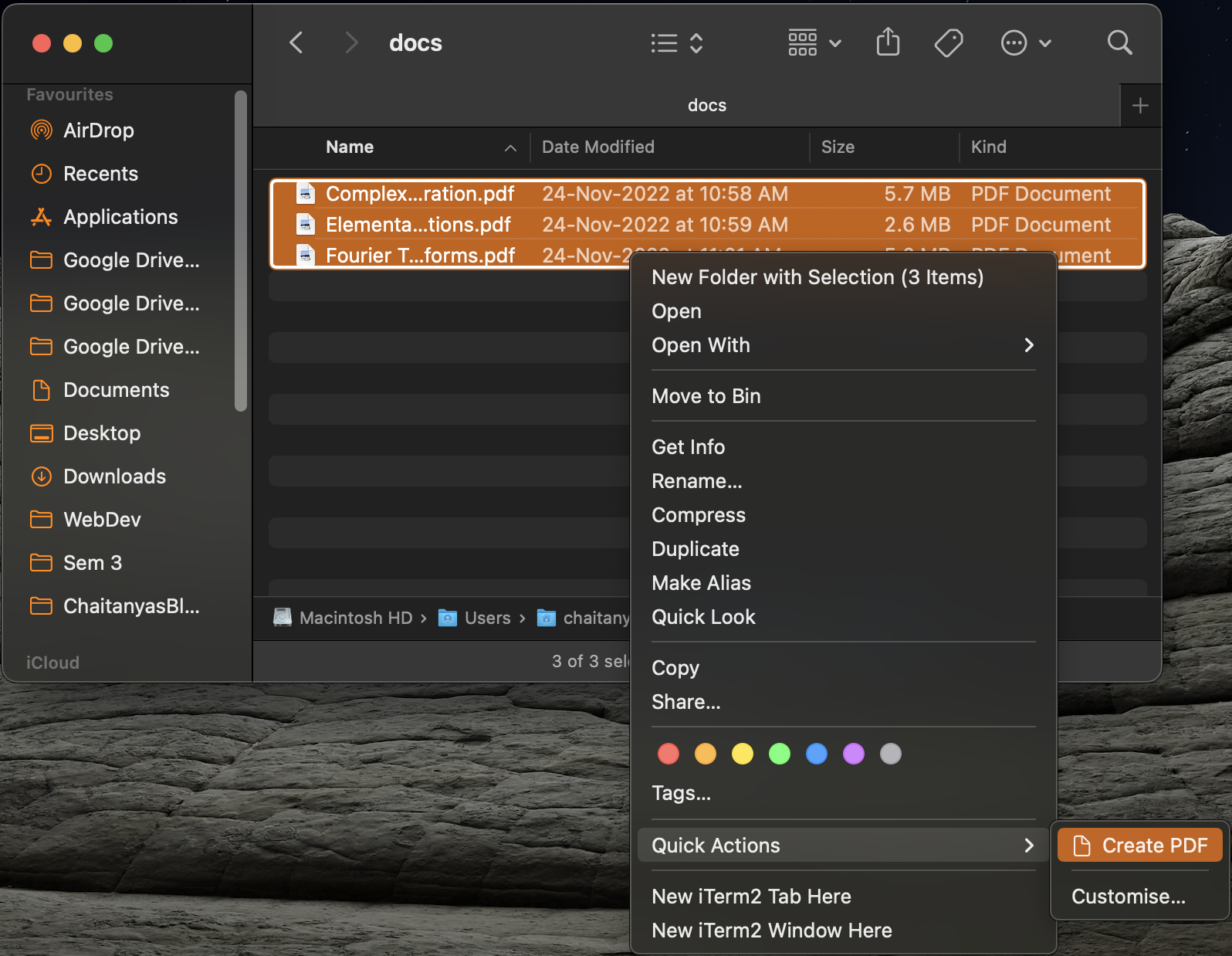
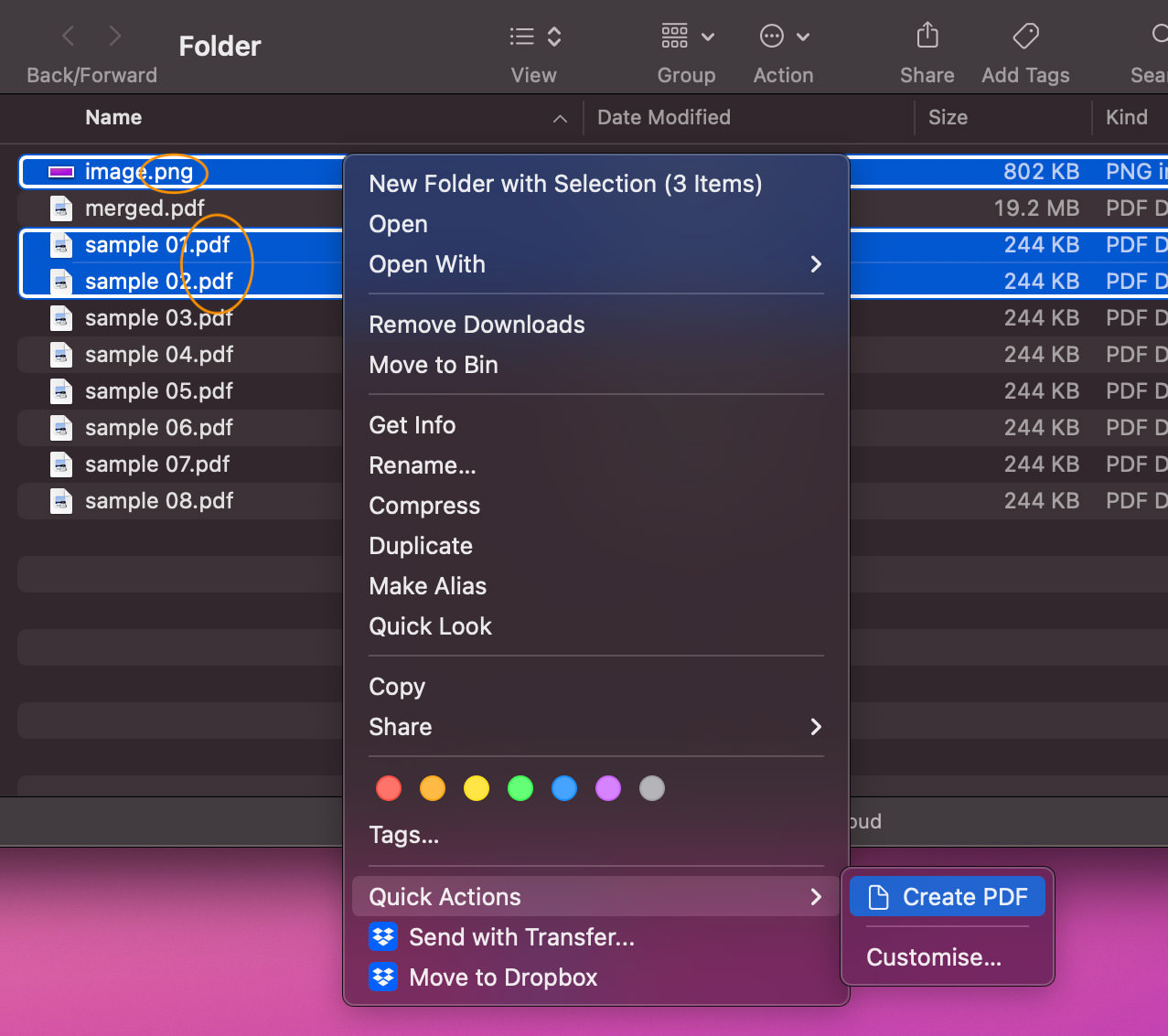
- Select all the target PDF files by holding down the Command (⌘) key while clicking each file individually. To merge them in a specific order, rename the files sequentially (e.g., 01_intro.pdf, 02_body.pdf, 03_conclusion.pdf) or arrange them in Finder using List or Column view.
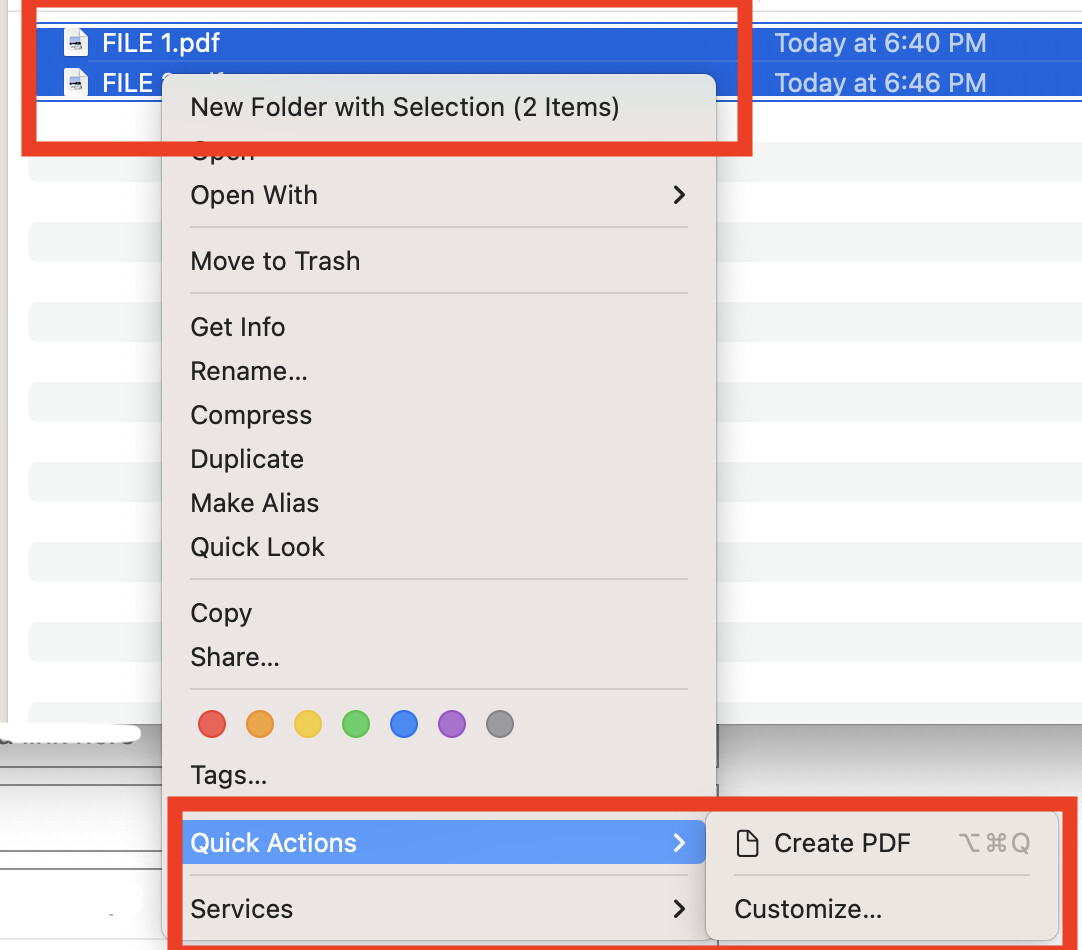
- Right-click (or control-click) the highlighted selection of files to open the contextual menu.
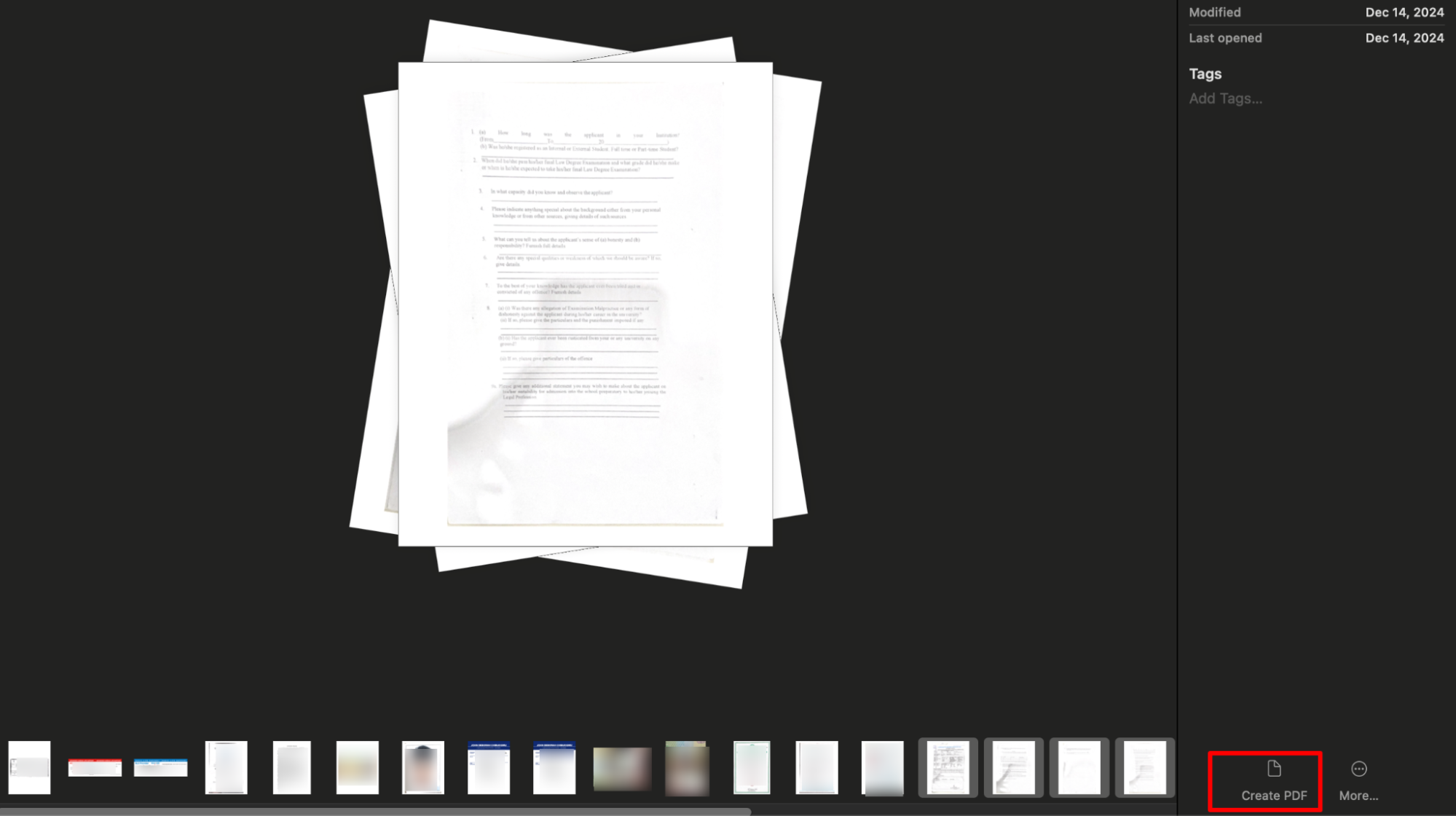
- Hover over Quick Actions and click Create PDF.
- macOS will instantly generate a new combined PDF file in the same folder, typically named after the first selected file or designated as "Combined.pdf." Rename this file immediately to keep your directory organized.
Method 3: Utilizing Third-Party Software and Online Tools
While native macOS tools handle most standard merging tasks, certain workflows require advanced features like optical character recognition (OCR), page compression, or digital signatures.
Comparison of PDF Merging Solutions for Mac
| Tool Name | Type | Privacy & Security | Cost | Best Suited For |
|---|---|---|---|---|
| Apple Preview | Native macOS App | 100% Local (High Privacy) | Free (Built-in) | Quick, everyday merges without installation |
| Finder Quick Actions | Native OS Feature | 100% Local (High Privacy) | Free (Built-in) | Instant batch combining from the desktop |
| Adobe Acrobat Pro | Desktop Application | Local processing with cloud sync options | Paid Subscription | Professional editing, form creation, and OCR |
| PDF Expert | Desktop Application | Local processing | Paid (One-time or Sub) | Fast navigation and heavy-duty annotation |
| Online PDF Mergers | Web-Based Service | Cloud Upload (Variable Privacy) | Free / Freemium | Emergency use when Mac is unavailable |
Troubleshooting Common PDF Merging Errors
Even with robust operating systems, users occasionally encounter roadblocks when combining documents. Review these common failure points and their solutions.
- "The document could not be saved" Error: This typically occurs when the target file is currently open in another application or cloud sync service (like iCloud Drive or Dropbox) is actively locking the file. Close the file everywhere, pause your sync client, and try exporting again.
- Blank Pages Appearing: Scanned documents often contain hidden blank pages. Check the thumbnail sidebar in Preview before saving to spot and delete empty pages by selecting them and pressing the Delete key.
- Massive File Sizes: Merging high-resolution scanned documents creates unmanageable file sizes. In Preview, go to File > Export... and select a Quartz Filter such as Reduce File Size to compress the output document for easier email attachment.
- Inverted Page Orientation: If certain pages appear sideways, select those specific thumbnails in Preview, navigate to Tools > Rotate Left (or Rotate Right) until the orientation matches the rest of the document.
Frequently Asked Questions
Can I combine PDF files on a Mac without downloading any extra software?
Yes, you can combine PDF files natively on a Mac using either the built-in Preview application or the Quick Actions feature directly inside the Finder. Both methods are completely free, require no internet connection, and keep your files secure on your local drive.
How do I change the order of pages when merging PDFs in Preview?
Once you drag the second PDF into the thumbnail sidebar of the first PDF, simply click and drag any individual page thumbnail up or down the sidebar to your preferred position. You can mix and match individual pages from multiple documents before saving the final file.
Why does the Quick Actions "Create PDF" option not appear in my Finder menu?
If the Quick Actions menu does not display the "Create PDF" option, verify your view settings or check your System Settings under Privacy & Security > Extensions > Finder to ensure the Quick Actions extension is enabled. Alternatively, you can use an Automator Quick Action workflow if an older macOS version lacks the default shortcut.
Does combining PDFs reduce the quality of images inside the documents?
Using native macOS tools like Preview or Finder Quick Actions preserves the original resolution and quality of the text and embedded images. However, if you choose a compressed export filter, Preview may downsample images to reduce the overall file size.
Are online PDF merger tools safe to use for confidential documents?
Online web-based PDF mergers require you to upload your files to external third-party servers. For confidential financial statements, legal agreements, or medical records, relying on local native tools like Preview is strongly recommended to protect your data privacy.
Conclusion
Combining PDF files on a Mac is an efficient process that does not require third-party subscriptions or complex software installations. By leveraging the native capabilities of Preview and Finder Quick Actions, you can merge, reorder, and organize your documents securely in seconds. Take advantage of built-in local processing to maintain complete control over your private files while streamlining your digital workflow.
Image Gallery