Accessing Chase VDI: Complete Security, Setup, and Troubleshooting Guide for Remote Enterprise Access
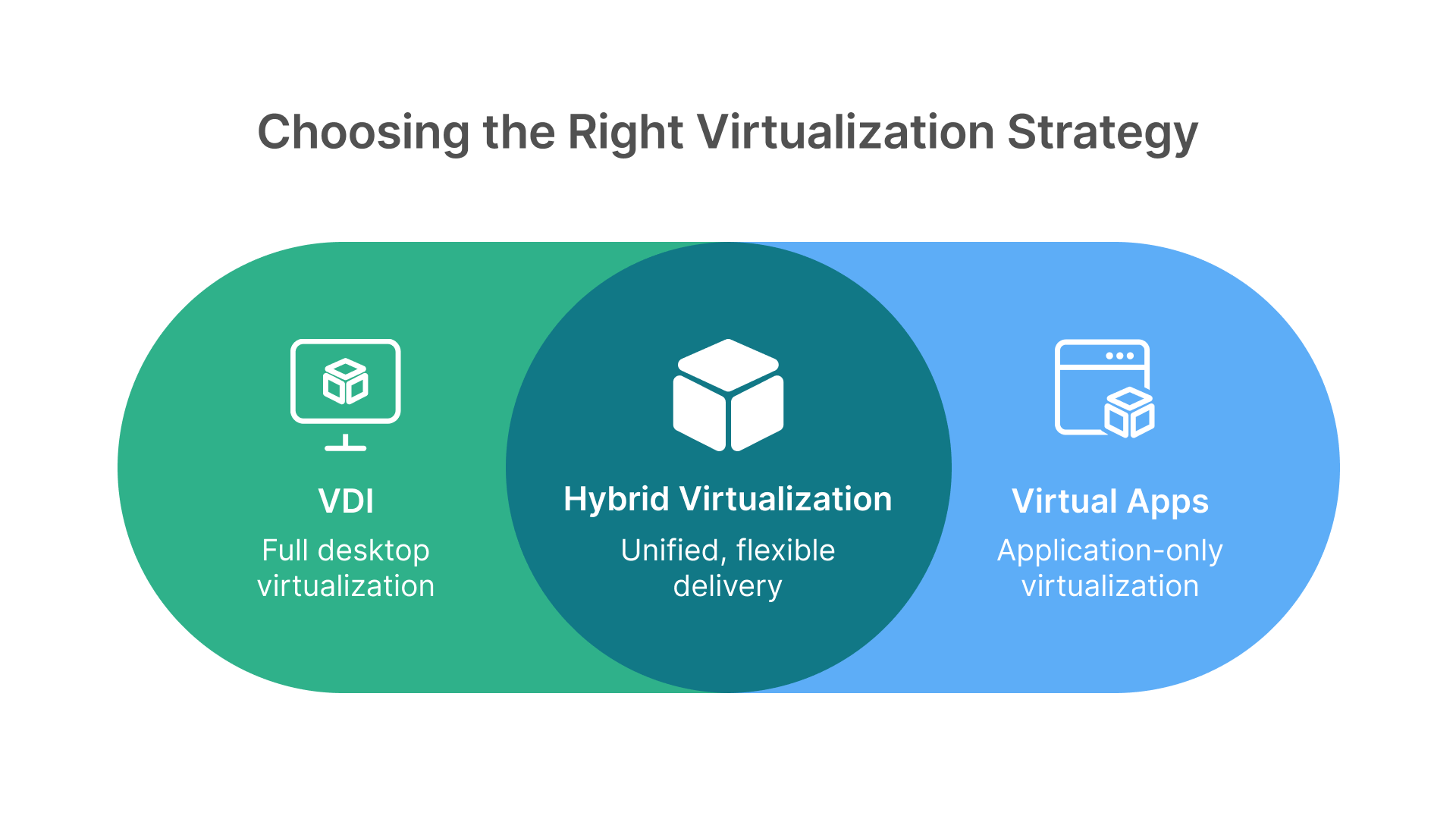
Chase VDI (Virtual Desktop Infrastructure) is the secure virtual desktop environment utilized by JPMorgan Chase & Co. employees, contractors, and authorized third-party vendors to access internal corporate applications and data remotel...
Chase VDI (Virtual Desktop Infrastructure) is the secure virtual desktop environment utilized by JPMorgan Chase & Co. employees, contractors, and authorized third-party vendors to access internal corporate applications and data remotely. Operating under a Zero Trust security model, it delivers isolated virtual sessions through enterprise virtualization clients paired with mandatory multi-factor authentication (MFA) and device compliance checks.
Contents
Technical Architecture and Core Prerequisites of Chase VDI
The Chase Virtual Desktop Infrastructure relies on enterprise virtualization frameworks—typically engineered on Citrix Virtual Apps and Desktops or VMware Horizon platforms—integrated with robust Identity and Access Management (IAM) controls. Rather than executing business applications directly on local hardware, Chase VDI processes compute operations within centralized, highly secured enterprise data centers and cloud nodes.
To establish a stable, secure session, endpoints must satisfy strict infrastructure and security baseline prerequisites prior to authentication.
Key Technical Components
- Virtual Gateway Endpoints: Connections route through redundant, encrypted Access Gateway clusters utilizing TLS 1.3 encryption. These gateways negotiate incoming traffic, enforce protocol optimization, and terminate external sessions before bridging to internal network zones.
- Identity Provisioning Engine: User identity validation relies on unified IAM gateways (such as Ping Identity, Azure AD/Entra ID, or RSA SecurID). Authentication requires hardware tokens, push notifications, or FIDO2-compliant security keys alongside corporate single sign-on (SSO) credentials.
- Profile and Storage Management: Non-persistent virtual desktop instances leverage profile container technology, such as FSLogix or Citrix App Layering. User settings, application configurations, and authorized cache data dynamically attach at login and cleanly detach upon session termination.
- Endpoint Analysis (EPA) Agents: Before granting access to the virtual desktop, automated Host Checker or Endpoint Analysis scripts evaluate the local host's compliance state.
Device Compliance Prerequisites
Endpoints connecting to the Chase VDI environment must maintain compliance with enterprise endpoint security baselines:
- Supported Operating Systems: Updated 64-bit operating systems including Windows 11 Enterprise, macOS Sequoia, or approved enterprise Linux distributions with active security patch levels.
- Endpoint Protection: Active, enterprise-managed anti-malware software (such as CrowdStrike Falcon or Microsoft Defender for Endpoint) with current definitions and real-time monitoring enabled.
- Firewall and OS Integrity: System native firewalls must be active, with Secure Boot enabled in UEFI settings and disk encryption (BitLocker or FileVault) verified.
- Authorized Workspace Client: The current, enterprise-supported build of Citrix Workspace App or VMware Horizon Client configured for secure real-time protocols (HDX/EDT or Blast Extreme).
Security Advisory: Connecting to Chase VDI from unpatched personal endpoints, rooted mobile devices, or open public Wi-Fi networks without an encrypted transport layer violates corporate access controls and will trigger automated session termination by network protection systems.
Step-by-Step Guide to Configuring and Launching Chase VDI
Accessing the Chase remote desktop environment requires a structured sequence to confirm host security, authenticate user identity, and initialize the virtual workspace session.
Step 1: Pre-Launch Endpoint Preparation
Prior to logging into the secure portal, verify that your local computer meets connection requirements:
- Disconnect any non-standard personal VPN clients or local proxy configurations that might interfere with enterprise domain routing.
- Ensure a high-speed internet connection with low network latency (ideally under 50 ms ping to regional access points) and at least 15 Mbps dedicated bandwidth per active session.
- Verify that your designated hardware token or mobile MFA application (e.g., PingID, RSA SecurID) is synced and ready to receive authentication prompts.
Step 2: Access Portal Authentication
- Open an approved enterprise web browser (Microsoft Edge, Google Chrome, or Apple Safari) updated to the latest standard release.
- Navigate to the official, designated Chase remote access URL provided by corporate IT onboarding documentation (e.g., secure access web gateways ending in
jpmorganchase.comorchase.com). - Enter your assigned Corporate ID (standard Sid/User ID) and current network password on the enterprise single sign-on interface.
- When prompted by the MFA screen, approve the push notification on your registered mobile device or enter the six-digit time-based one-time password (TOTP) from your security key.
Step 3: Session Delivery Options
Once authenticated, the virtual resource portal displays the assigned virtual desktops and application suites allocated to your specific organizational role.
| Launch Method | Execution Environment | Best Use Case | Performance & Security Characteristics |
|---|---|---|---|
| Native Enterprise Client (Recommended) | Runs within local Citrix Workspace or VMware Horizon Client. | Full-time remote work, heavy multitasking, multi-monitor setups. | Optimal GPU acceleration, low-latency UDP protocol support, full peripheral mapping (smart cards, dual displays). |
| HTML5 Web Client | Executes inside modern browser sandboxes without local software installation. | Temporary remote work, emergency kiosk access, approved secondary hardware. | TCP-bound traffic, limited multi-monitor support, restricted peripheral passthrough, strict memory quotas within browser tabs. |
Step 4: Virtual Desktop Session Launch
- Click on the designated desktop icon (e.g., "Chase Standard Desktop" or "Secure Financial Workstation").
- If using the native client, browser download handlers will execute an
.icaor.vmwareconfiguration file, which automatically triggers the installed desktop agent. - Wait for the profile container to mount user preferences and load network drives.
- Verify system availability by confirming access to internal intranets, standard corporate productivity suites, and designated department databases.
Security Controls and Data Loss Prevention (DLP) Policies
Chase VDI environments enforce strict Data Loss Prevention (DLP) controls designed to safeguard Sensitive Personal Information (SPI), Personally Identifiable Information (PII), and internal financial telemetry. Understanding these automated guardrails prevents unexpected session interruptions and policy alerts.
- Local Client Device
- Keyboard/Mouse
- Access Client
- Endpoint Posture Check
- TLS 1.3 Encrypted Tunnel
- Chase Access Gateway & Firewall
- Identity Verification & MFA Token Validation
- Isolated Internal Network
- Secure Virtual Desktop
- FSLogix Profile
- Corporate Network Apps
- DLP Monitors
- Clipboard Redirection Restrictions: Copy-and-paste functionality between the local host computer and the remote virtual desktop is typically disabled or restricted to plain-text formats. Attempting to transfer rich media, binaries, or large files via clipboard triggers DLP monitoring alerts.
- Drive Mapping Disablement: Local hard drives, USB thumb drives, and external storage media attached to the physical endpoint are blocked from mounting within the VDI session to prevent unauthorized data extraction.
- Screen Capture and Watermarking Protections: Session frames may feature faint, dynamic watermarks displaying your Corporate ID and current IP address. Screen-capture tools on local endpoints may render blacked-out windows when targeting active VDI boundaries.
- Inactivity Timeout Enforcements: Desktops automatically lock after a standardized period of user inactivity (typically 15 minutes). Inactive sessions are completely terminated after designated thresholds to reclaim hypervisor resources and minimize endpoint exposure risks.
Comparative Overview: Access Modalities in Chase Remote Computing
Different operational needs across enterprise roles necessitate distinct access patterns. The table below outlines how standard Chase VDI deployment compares to alternative corporate remote access configurations.
| Attribute | Chase VDI (Non-Persistent) | Enterprise Managed Laptop (DirectAccess/VPN) | Secure Vendor Jump Box | HTML5 Emergency Portal |
|---|---|---|---|---|
| Network Isolation | High; session traffic strictly isolated on hypervisors. | Medium; endpoint sits directly on virtual private network routes. | Very High; restricted, monitored host access. | High; encapsulated entirely inside browser execution threads. |
| Data Persistence | None locally; state saved to encrypted network drives. | Full local storage encrypted via enterprise BitLocker/FileVault. | None; ephemeral session environment. | None; cache purged upon browser closure. |
| Endpoint Requirements | Flexible; requires native VDI client and security posture agent. | Strict; requires enterprise-issued managed hardware. | Strict; controlled host configuration with explicit IP whitelisting. | Minimal; any compliant, modern web browser. |
| Peripheral Passthrough | Restricted (smart cards, audio, limited displays). | Complete local peripheral availability. | Heavily restricted or disabled entirely. | Keyboard and mouse inputs only. |
| Network Protocol | Citrix HDX / EDT (UDP) or VMware Blast Extreme. | IPSec / SSL VPN Tunnels. | Secure Shell (SSH) / Encrypted RDP over TLS. | HTTPS / WebSockets (TCP 443). |
| Network Status | ACTIVE STANDARD | ACTIVE STANDARD | RESTRICTED ACCESS | CONTINGENCY ONLY |
Advanced Troubleshooting and Session Optimization
When experiencing latency, connection failures, or client conflicts while using Chase VDI, applying structured diagnostic procedures helps resolve issues quickly.
1. Resolving Authentication and Gateway Connection Errors
- Symptom: Gateway connection timeouts, "Invalid Credentials" failures despite correct passwords, or infinite MFA authentication loops.
- Resolution:
- Clear your browser's SSL state, cache, and cookies for corporate domains.
- Confirm that your mobile device running PingID or RSA SecurID has network connectivity and that its system clock is set to automatic network time synchronization. Time drift exceeding 30 seconds breaks TOTP verification.
- If accessing via a corporate network proxy, ensure that your client honors local bypass configurations for remote access endpoints.
2. Remediating Screen Freeze, Audio Distortion, and Latency
- Symptom: Mouse lag, delayed keystrokes, pixelated screen updates, or choppy audio during virtual conferencing calls inside VDI.
- Resolution:
- Switch your underlying local physical connection from Wi-Fi to a direct Gigabit Ethernet cable.
- Open your VDI client settings and enable hardware acceleration (e.g., leveraging local Intel Quick Sync, NVIDIA, or AMD graphics rendering).
- Ensure real-time communications (such as Teams or Zoom) utilize VDI Optimization Packs (Citrix HDX RealTime Optimization Pack or Microsoft Teams VDI Optimization), which offload audio/video encoding directly to the physical endpoint's hardware.
3. Handling Endpoint Analysis (EPA) Verification Failures
- Symptom: The access portal displays errors such as "Host Integrity Check Failed" or "Security Compliance Failure" prior to desktop enumeration.
- Resolution:
- Confirm that your local operating system has installed the latest cumulative security updates.
- Open your local anti-malware software, force a manual virus definition update, and run a quick scan to clear temporary alert flags.
- Restart the VDI client service and local endpoint analysis background processes (e.g., restarting the EPA Plugin or Opswat agent services).
4. Fixing Resolution and Multi-Monitor Display Scaling Issues
- Symptom: Remote desktop contents span across monitors improperly, text appears blurry, or sub-monitors display black screens.
- Resolution:
- Match the DPI scaling settings (e.g., 100%, 125%, 150%) across all physical displays attached to your host system prior to launching the VDI session.
- Within client connection properties, set display layout options explicitly to "Extend to All Displays" rather than using automatic stretch functions.
- Avoid unplugging or plugging in external monitors while an active VDI session is open; save work, log off the session, adjust hardware connections, and log back in.
Best Practices for Maintaining Virtual Desktop Integrity
Operating efficiently within a virtualized enterprise infrastructure requires adopting practices that maximize resource performance and prevent security disruptions:
- Log Off Cleanly at End of Day: Always perform a full system logoff from the virtual Windows Start menu rather than simply disconnecting or closing the workspace app window. Logging off releases host hypervisor memory, ensures proper profile synchronization to network storage, and prevents orphan processes from corrupting user settings.
- Manage Network Storage Proactively: Save all work exclusively to designated network drives (such as enterprise OneDrive or secure network shares). Local VDI virtual disk space (
C:\) is non-persistent and reinitialized upon every logoff; files saved to local temporary desktop paths will be lost permanently. - Maintain Endpoint Hygiene: Regularly reboot your local physical access machine to clear memory leaks, apply client patch updates, and keep network stack adapters operating efficiently.
Frequently Asked Questions
What is Chase VDI?
Chase VDI is the Virtual Desktop Infrastructure platform used by JPMorgan Chase to provide employees, contractors, and third-party vendors with secure, remote access to internal tools, applications, and corporate systems from anywhere.
It isolates computing environments inside central corporate data centers, delivering encrypted display feeds to authorized users while ensuring sensitive business data remains protected behind Zero Trust protocols.
Why does my Chase VDI session repeatedly disconnect or freeze?
Repeated disconnects typically result from high network latency, packet loss over Wi-Fi, or local network congestion interfering with UDP/TCP transport protocols.
Switching to a wired Ethernet connection, closing bandwidth-heavy apps on your local device, and ensuring your Citrix Workspace or VMware Horizon client is updated to the latest stable build will usually resolve performance instability.
Can I run Chase VDI on a personal device?
Yes, authorized personnel may access Chase VDI from non-corporate physical hardware, provided the device satisfies strict security baselines established by enterprise risk management.
Your personal computer must run an updated OS, feature active anti-malware tools, pass automated Host Checker endpoint scans, and connect through mandatory Multi-Factor Authentication (MFA).
How do I fix a blank screen or black window after launching my virtual desktop?
A persistent black screen usually points to a display driver mismatch, improper DPI scaling settings, or an unoptimized multi-monitor configuration between your host PC and the VDI hypervisor.
To resolve this, set display scaling across all physical monitors to uniform percentages (e.g., 100% or 125%), update local graphics drivers, and ensure hardware acceleration is toggled on inside your client settings.
What should I do if my MFA code or PingID token is rejected by the gateway?
If authentication codes fail, verify that your mobile device's date and time settings are set to automatic network sync, as time drift causes token invalidation.
If time synchronization is verified and inputs still fail, request an administrative MFA session reset through the internal IT Helpdesk self-service portal or your designated corporate access administrator.
Technical Access Summary
To maintain seamless, compliant access to the Chase Virtual Desktop Infrastructure ecosystem, ensure your access clients, operating systems, and authentication mechanisms remain updated to modern enterprise standards. Adheres strictly to security policies governing remote access, verify hardware baseline readiness before initiating sessions, and utilize proper log-off workflows to maintain profile integrity across your virtual workspace.
Image Gallery