How Microsoft Office Project Management Works: A Comprehensive Guide
Microsoft Project functions as a robust portfolio and project management ecosystem that enables organizations to plan, execute, and monitor complex work streams through centralized scheduling, resource allocation, and reporting tools....
Microsoft Project functions as a robust portfolio and project management ecosystem that enables organizations to plan, execute, and monitor complex work streams through centralized scheduling, resource allocation, and reporting tools. Unlike standard spreadsheet software, it utilizes a sophisticated scheduling engine based on the Critical Path Method (CPM) to calculate task dependencies, constraint impacts, and finish dates automatically, providing a structured framework for project managers to manage time, budget, and personnel efficiency.
Contents
The Architectural Foundation of Microsoft Project
At its core, Microsoft Project is built on a relational database model that distinguishes it from general office applications. While tools like Excel serve as manual containers for data, Microsoft Project acts as a calculation engine. When you input a task, duration, and dependency, the software evaluates the entire project network. If a single predecessor task is delayed, the engine propagates that delay forward, recalculating the finish date for all downstream tasks.
This functionality is managed through several key pillars:
- The Task Schedule: Every item is defined by its duration, constraints (e.g., "Must Finish On"), and link types (Finish-to-Start, Start-to-Start, etc.).
- The Resource Pool: Resources are not just labels; they represent availability, cost rates (standard, overtime, and per-use), and calendars.
- The Calendar System: Project uses base, project, and resource calendars to determine when work can actually occur, accounting for holidays, shift patterns, and non-working days.
Deployment Models: Desktop vs. Cloud
As of 2026, Microsoft offers Project in different configurations to suit varying organizational needs. Understanding these is essential for determining how your team will interact with the data.
Project Professional and Standard (Desktop)
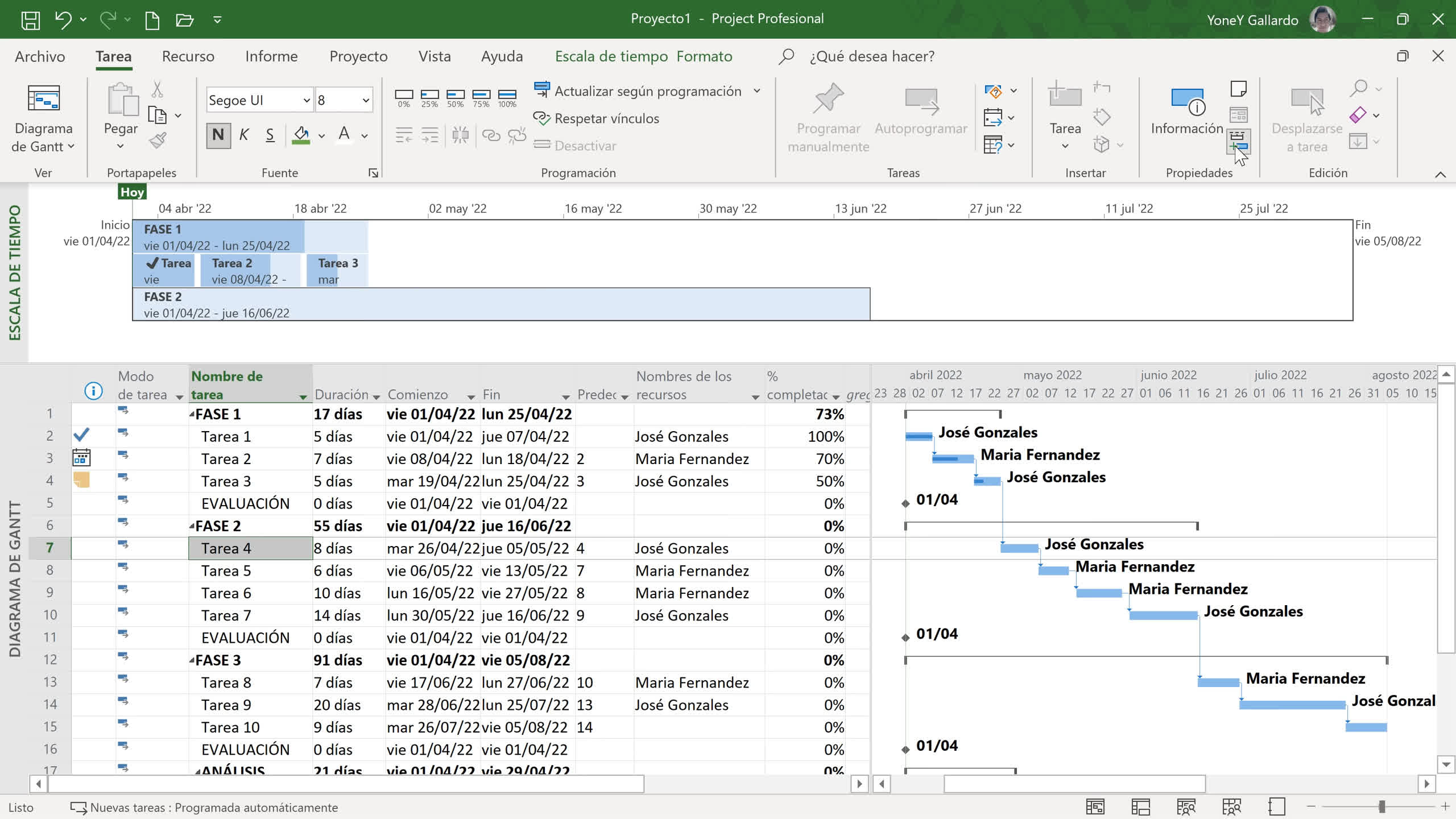
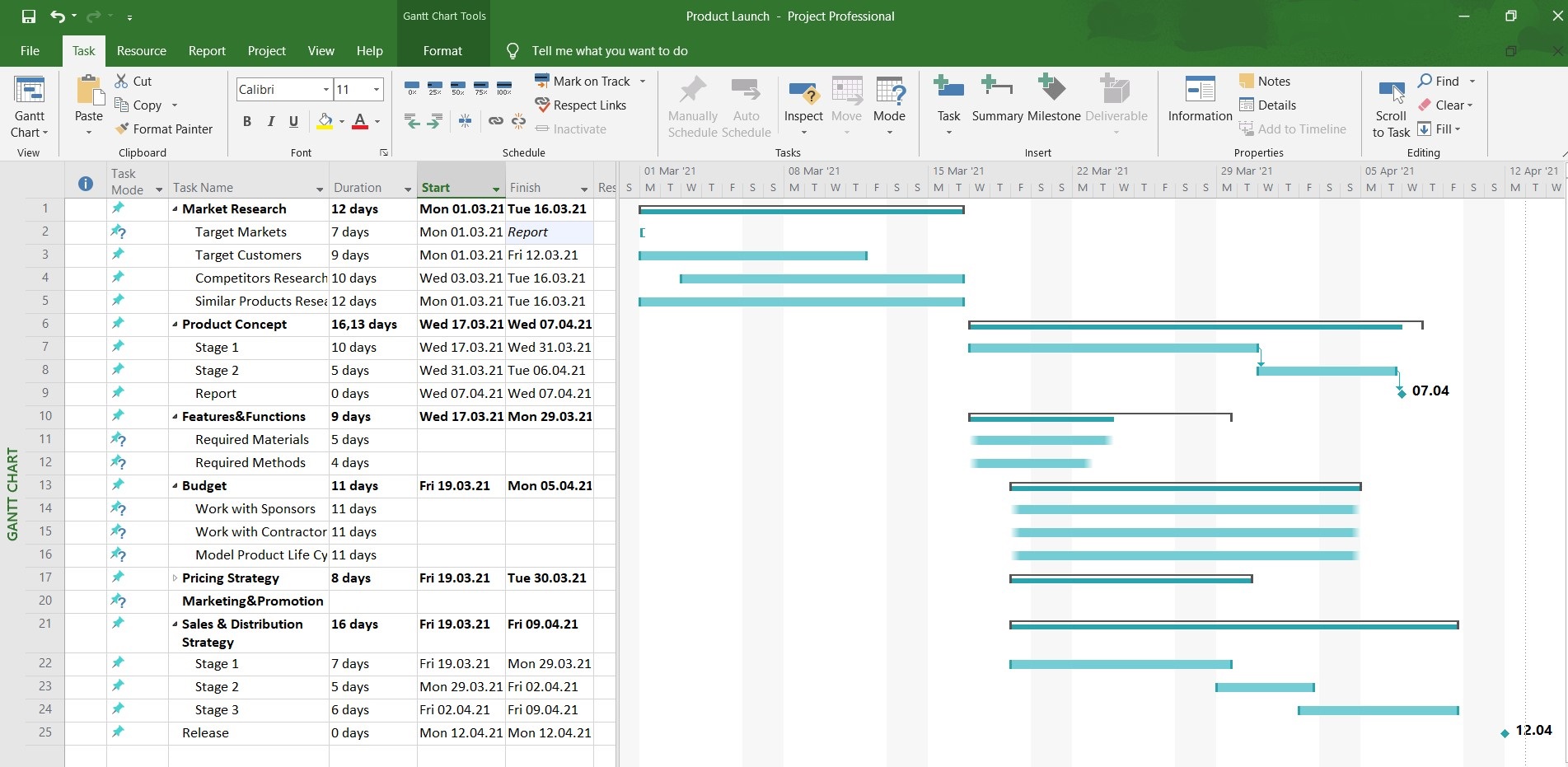
The desktop client is designed for individual project managers who need deep, granular control. It is a feature-rich application that allows for complex manual scheduling, high-level reporting, and local file management. It is primarily used for constructing the "Master Schedule" and performing complex sensitivity analysis.
Project for the Web (Cloud-Native)
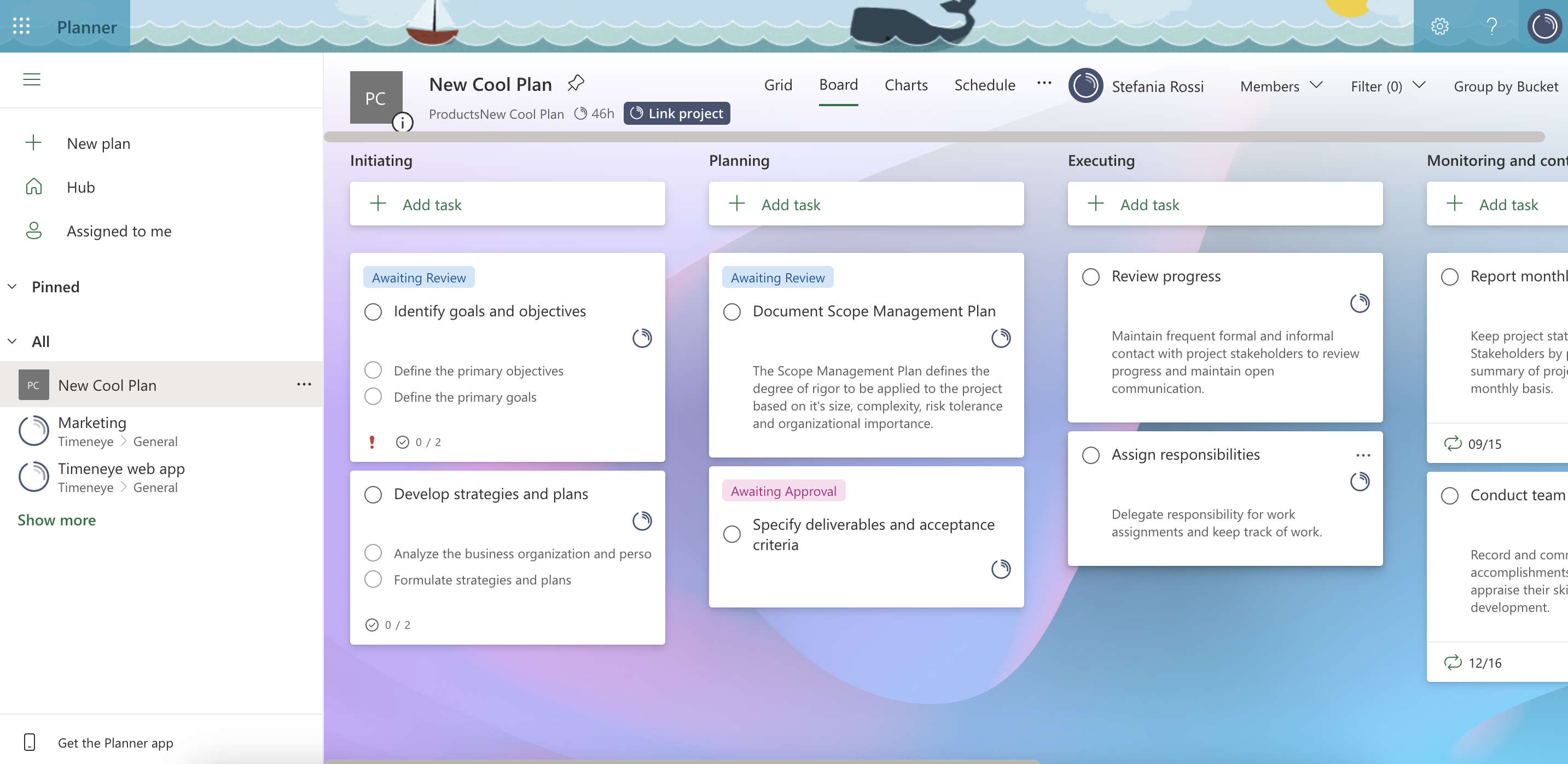
Built on the Microsoft Power Platform, this is the modern interface for collaborative work management. It moves away from the rigid structure of the traditional .mpp file format and instead focuses on grid, board, and timeline views that are easier for cross-functional teams to digest. It is designed for those who need visibility without the overhead of heavy-duty administrative scheduling.
Project Online (Portfolio Management)
This is the enterprise-grade solution that integrates with Project Web App (PWA). It provides a centralized environment for resource management across the entire organization. It allows stakeholders to compare different project proposals, manage budget approvals, and track high-level KPIs across multiple departments.
Comparison of Project Management Capabilities
The following table summarizes how the different Microsoft project solutions support core management functions.
| Feature | Project Professional | Project for the Web | Project Online (PWA) |
|---|---|---|---|
| Scheduling Engine | Advanced (CPM) | Simplified | Advanced (CPM) |
| Resource Management | High Granularity | Basic Assignment | Enterprise Capacity |
| User Interface | Traditional Ribbon | Modern/Web | Browser-based |
| Integration | Local .mpp files | Power Platform | SharePoint/SQL Server |
| Target User | Experienced PM | Team Members/Leads | PMO / Executives |
Core Workflow: From Planning to Execution
To effectively utilize Microsoft Project, organizations generally follow a standardized workflow designed to minimize data corruption and scheduling errors.
1. Project Initiation and Setup
Before adding tasks, a project manager must define the Project Calendar and the global settings. This includes defining working hours, holidays, and fiscal year structures. Skipping this step leads to inaccurate forecasting, as the software will assume work can happen on weekends or holidays unless explicitly told otherwise.
2. Developing the Work Breakdown Structure (WBS)
The WBS is the backbone of your project. It involves breaking down the project into manageable phases, deliverables, and work packages. In Microsoft Project, you use the "Indent" and "Outdent" features to create a hierarchical structure. This hierarchy is not just visual; it allows for the rolling up of durations, costs, and work hours to summary task levels.
3. Establishing Dependencies and Constraints
Once the tasks are defined, you must link them. A common mistake is using manual dates for every task. To leverage the power of the engine, rely on dependency links. By linking tasks, the software maintains the project logic. If the start date of the project shifts, the entire project timeline moves accordingly, maintaining the integrity of your plan.
4. Assigning Resources and Costing
Resource management involves mapping team members to tasks. You should distinguish between "Work" resources (people), "Material" resources (consumables), and "Cost" resources (fixed fees). Once assigned, the software calculates total labor costs based on the duration of the task multiplied by the resource’s hourly rate, adjusted for any overtime settings.
5. Baselining and Tracking
The "Baseline" is a snapshot of your project plan at a specific point in time. It captures the initial start and finish dates, as well as the planned budget. Throughout the execution phase, you input "Actuals"—actual hours worked and percentage of completion. Comparing current status against the baseline provides the "Variance" (e.g., Schedule Variance or Cost Variance), which is the primary indicator of project health.
Addressing Common Challenges and Limitations
While Microsoft Project is powerful, it is not without operational constraints. Users often struggle with "over-allocation," where a single resource is assigned to more tasks than they have hours in a day. The software includes a "Resource Leveling" feature, but this should be used with caution; automatic leveling can push project completion dates significantly further out by delaying tasks to resolve resource conflicts.
Furthermore, the complexity of the enterprise version (Project Online) requires dedicated administrative support. Setting up custom fields, views, and security permissions requires a clear governance strategy. Without a defined process, the tool can become cluttered with inconsistent data, leading to inaccurate reports for management.
Frequently Asked Questions
1. Is Microsoft Project included in every Microsoft 365 subscription? No. Microsoft Project is a separate licensing tier. While many business plans include Microsoft Planner for simple task management, Project requires specific licenses like Project Plan 3 or Plan 5 for advanced capabilities.
2. Can I move my data from Excel to Microsoft Project? Yes. You can import Excel data, but you must map the columns correctly. It is recommended to create your WBS in Project first to ensure the hierarchy is preserved correctly, rather than forcing a flat Excel list into a complex scheduling structure.
3. What is the difference between a Task and a Milestone? In Microsoft Project, a milestone is any task with a duration of zero days. It represents a significant point in the project, such as the completion of a phase or a regulatory approval date.
4. How do I handle sudden project delays? If a project is delayed, update the status of the affected tasks with the actual finish date. The software will show the impact on the "Critical Path." You should then re-evaluate the dependency links or resource availability to see if the delay can be compressed later in the schedule.
5. Does Microsoft Project provide automatic risk management? While it does not have an automated risk engine, you can create "Risk" tasks with durations of zero or track risks as items within the task list to see their impact on the timeline should they materialize.
Practical Next Steps for Implementation
To successfully implement Microsoft Project, begin by defining a clear project management process within your organization. Identify who will be the "Master Scheduler" responsible for maintaining the project file and who will be the "Team Members" responsible for reporting status. Start with a single pilot project to standardize your view configurations and reporting templates before rolling it out to the wider enterprise. Always verify that your resource calendars are accurate, as this is the most common cause of scheduling discrepancies in professional environments.
Image Gallery