Understanding What a Drive App Is: Features, Architecture, and Practical Use
A drive app is a software application that connects a computer, smartphone, or tablet to remote cloud storage or connected hardware drives. Most commonly, it refers to cloud storage applications—such as Google Drive, Microsoft OneDrive...
A drive app is a software application that connects a computer, smartphone, or tablet to remote cloud storage or connected hardware drives. Most commonly, it refers to cloud storage applications—such as Google Drive, Microsoft OneDrive, or Dropbox—that allow users to store files, synchronize data across multiple devices, collaborate in real time, and access documents securely from anywhere with an internet connection.
Contents
Core Functions of Cloud Drive Applications
Drive apps serve as a bridge between local storage hardware (such as a hard drive or solid-state drive) and secure, remote data centers. Instead of keeping files locked to a single physical device, a cloud drive application mirrors or streams those files across all authorized devices linked to an account.
File Synchronization and Cross-Device Access
The primary function of a drive app is automatic file synchronization. When you save a file in a designated drive folder on your laptop, the app uploads the file to a cloud server. If you later open the drive app on a smartphone or desktop computer, the updated file appears automatically.
Modern drive apps utilize background synchronization services to detect changes instantly. When a file is altered, the app calculates the modified portions (often using block-level or delta sync techniques) and transmits only the updated data, minimizing bandwidth consumption and speeding up transfers.
Cloud Storage and Automatic Backup
Drive apps function as virtual external drives. By storing files in cloud infrastructure managed by providers like Google, Microsoft, or Apple, users protect their data against local hardware failures, accidental deletion, lost devices, and ransomware attacks. Most drive services offer redundancy by storing copies of your data across multiple geographic regions within fault-tolerant server clusters.
Real-Time Collaboration and Content Authoring
Beyond basic file storage, modern cloud drive apps integrate directly with web-based productivity suites. Applications like Google Drive Support and Microsoft OneDrive Support allow multiple users to edit documents, spreadsheets, and presentations simultaneously. The app tracks edits in real time, displays live cursors, maintains version history, and resolves editing conflicts without creating duplicated files.
Selective Sync and On-Demand File Hydration
To prevent remote cloud data from consuming all the physical storage on a local phone or laptop, drive apps employ smart streaming features—such as OneDrive Files On-Demand, Google Drive for Desktop, or iCloud Smart Sync. These protocols display your entire cloud directory on your device as lightweight placeholder files. The full contents are downloaded ("hydrated") only when you double-click or open the file.
Types of Drive Apps: Disambiguating the Term
While the term drive app most frequently refers to cloud file storage solutions, it can occasionally refer to hardware management tools or telematics applications depending on context.
- Drive Apps
- Cloud Storage Drive Apps
- Google Drive
- Microsoft OneDrive
- Apple iCloud Drive
- Dropbox
- Driving & Telematics Apps
- Insurance telematics tracking
- Connected vehicle management
- Commercial fleet dispatching
- Safe-driving monitoring
- Cloud Storage Drive Apps
- Cloud Storage Drive Apps (Dominant Category): Consumer and enterprise tools designed for document management, file sharing, media backup, and team collaboration.
- Driving & Telematics Apps: Mobile applications used in the automotive sector to monitor driving habits, track vehicle location via GPS, or collect telematics data for insurance programs (such as Progressive Snapshot or Allstate Drivewise) and fleet management platforms.
- Hardware & Drive Utility Apps: Desktop utilities supplied by storage manufacturers (such as Western Digital or Seagate) to format external drives, run diagnostics, configure RAID arrays, or schedule local backups.
This guide focuses primarily on cloud storage drive applications, as they represent the most widespread usage of the term across personal, educational, and enterprise environments.
Security Protocols and Technical Architecture
Understanding how drive apps protect data requires examining the security protocols applied during transit and at rest.
Encryption Standards
Leading drive platforms implement end-to-end encryption frameworks to safeguard sensitive documents against unauthorized access or interception:
- Encryption at Rest: Files stored on cloud servers are encrypted using Advanced Encryption Standard (AES) with 256-bit keys.
- Encryption in Transit: Data transferred between your device and the cloud provider is encrypted using Transport Layer Security (TLS 1.2 or TLS 1.3), blocking eavesdropping or man-in-the-middle attacks.
To review recognized standards for data protection and cryptosystems, consult the NIST Computer Security Resource Center.
Access Controls and Permission Scopes
Drive apps implement granular Access Control Lists (ACLs) to regulate who can view, comment on, or edit a specific file. When generating a shareable link, users can choose between three general access levels:
- Viewer: Read-only access; users cannot alter content, add comments, or re-share the file unless granted permission.
- Commenter: Allows users to view the file and append marginal notes or suggested edits without altering the underlying document directly.
- Editor: Full operational rights to change content, delete entries, invite secondary collaborators, and alter access rules.
Enterprise drive apps add governance controls, such as link expiration dates, password protection, download prevention, and Data Loss Prevention (DLP) rules that automatically block sharing sensitive data like credit card numbers or Social Security information.
Comprehensive Comparison of Major Drive Apps
Selecting the right drive app depends on operating system integration, ecosystem preferences, storage allocation, and productivity tools.
| Feature / Criteria | Google Drive | Microsoft OneDrive | Apple iCloud Drive | Dropbox |
|---|---|---|---|---|
| Free Tier Storage | 15 GB (shared across Google services) | 5 GB | 5 GB | 2 GB |
| Primary Ecosystem | Web, Android, ChromeOS, iOS, Windows, macOS | Windows 11/10, Office 365, Android, iOS, macOS | macOS, iOS, iPadOS, Web, Windows | Cross-platform (Agnostic) |
| Native Office Suite | Google Docs, Sheets, Slides | Microsoft Word, Excel, PowerPoint | Apple Pages, Numbers, Keynote | Paper (Integrates with Word/Docs) |
| Block-Level Syncing | Selective file sync | Partial support | Native across Apple devices | Advanced Delta Sync |
| File Restoration History | 30 days (default) | 30 days (up to 90 days enterprise) | 30 days | 30 days (up to 180 days paid) |
| Key Advantage | Seamless real-time web editing & search | Deep integration with Windows & Office | Built directly into iOS/macOS System Settings | Fast sync engine & versatile API ecosystem |
Step-by-Step Guide: Setting Up and Optimizing a Drive App
To configure a cloud drive app for maximum efficiency, security, and storage economy, follow these operational steps.
Step 1: Installation and Account Linking
- Download the official application for your platform from verified provider pages or official application stores (e.g., Apple Support or Dropbox Help Center).
- Sign in using your centralized account credentials (such as your Google, Microsoft, or Apple ID).
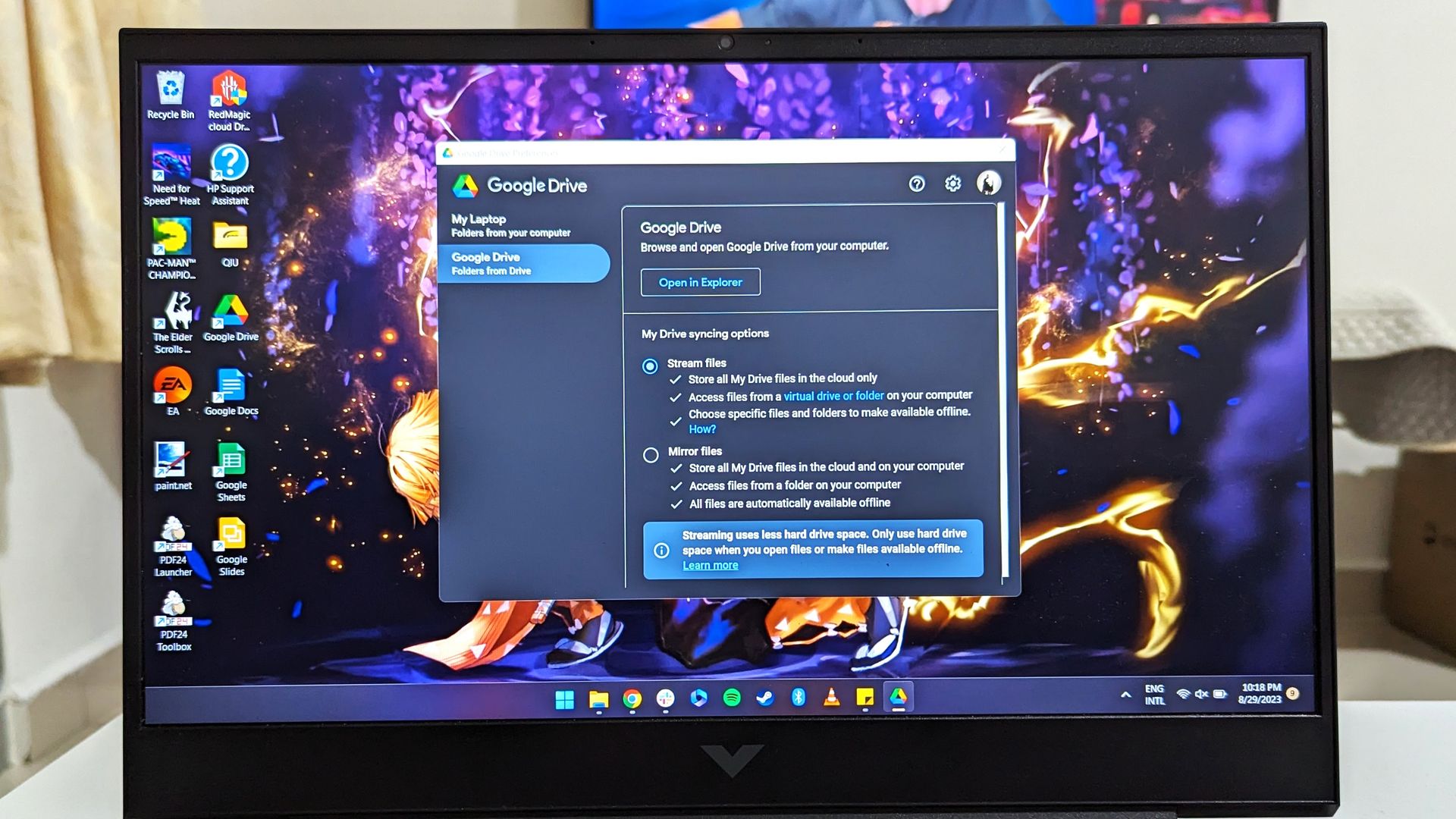
- Select whether you want the app to operate as a local virtual drive (streaming mode) or maintain a full mirror of your cloud files on your physical disk (mirroring mode).
Step 2: Configure Selective Sync and Storage Offloading
To prevent local hard drives from running out of disk space:
Open the application's Preferences or Settings panel.
Locate the Sync or Folders tab.
Enable Files On-Demand (OneDrive), Stream Files (Google Drive), or Optimize Mac Storage (iCloud).
Uncheck heavy folders (e.g., raw video archives, disc images) so they remain accessible through the web browser without storing full offline copies on your local hard disk.
Local Computer
- Streams Placeholders
Drive App Synchronization Engine
- TLS 1.3
Cloud Storage Datacenter
Step 3: Implement Security Rules and Multi-Factor Authentication
- Enable Multi-Factor Authentication (MFA) or Two-Factor Authentication (2FA) on your parent account to require an authenticator app code or hardware key during sign-in.
- Review sharing defaults to ensure public link generation is turned off by default.
- Periodically run security checkups within the app to review which third-party applications have permission to read your drive contents.
Common Drive App Issues and Troubleshooting Solutions
Even robust cloud synchronization applications run into technical hiccups. Here is how to diagnose and solve the most frequent operational problems.
1. Synchronization Stalled or Stuck
- Symptom: Files placed in the drive folder display a perpetual "syncing" or "upload pending" icon.
- Root Causes: Network firewalls blocking background ports, file path names exceeding operating system limits (e.g., 256 characters in Windows), or temporary locking of open files by local software.
- Resolution:
- Restart the drive app process using your system manager.
- Verify that the file name contains no illegal characters (e.g.,
/ \ : * ? " < > |). - Pause and resume sync within the app menu to force a re-index of the sync queue.
2. Storage Quota Exceeded Errors
- Symptom: Incoming emails bounce, new files fail to save, or the app reports "Drive Full" notifications.
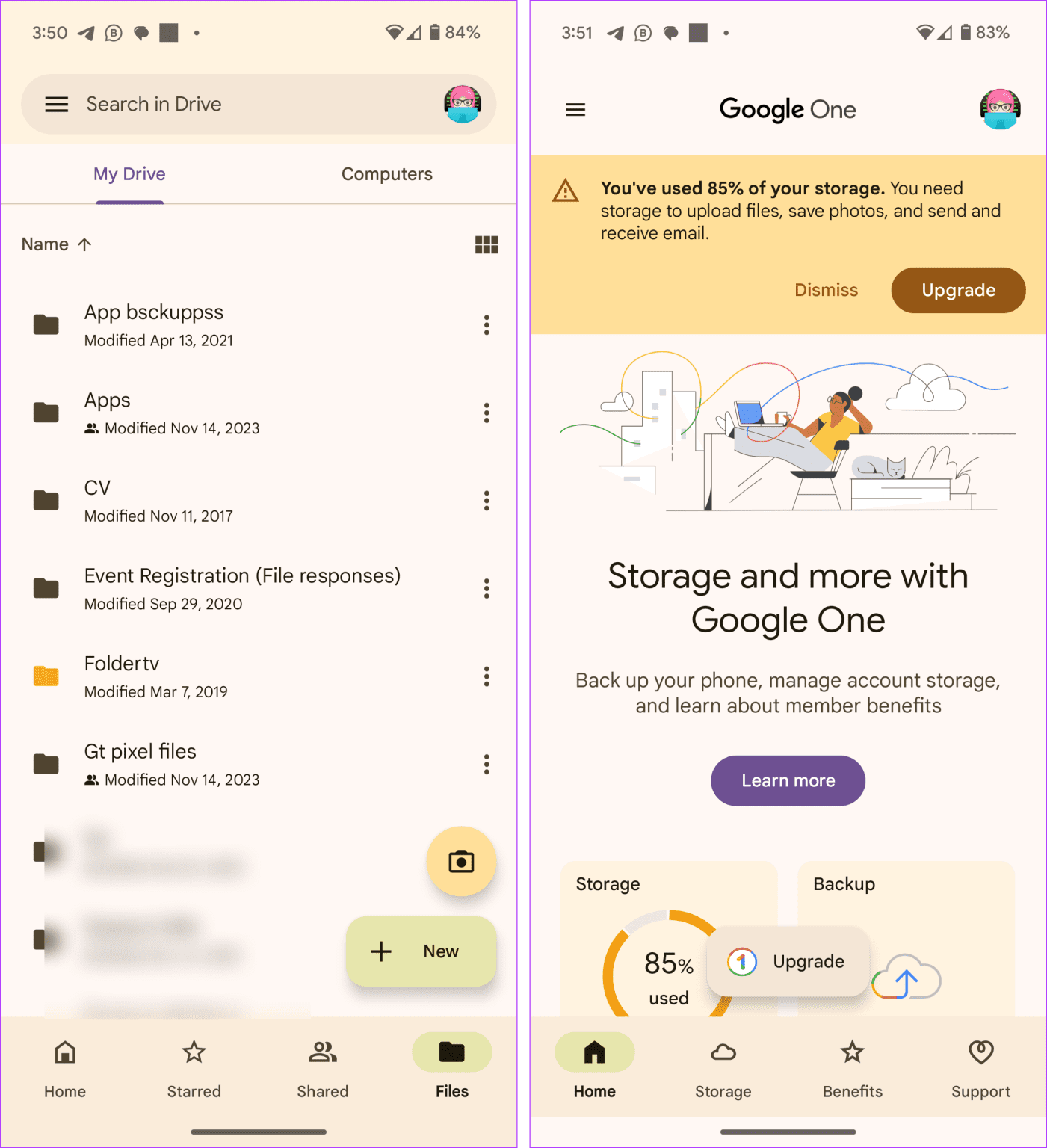
- Root Causes: Hidden trash/bin items consuming quota, raw photo backups, or shared folders owned by your account taking up space.
- Resolution:
- Empty the application's internal Trash or Bin folder (deleted files often remain in storage for 30 days before permanent purging).
- Search for large files using sorting filters (e.g.,
size:largein Google Drive). - Convert proprietary media formats to compressed versions or upgrade to a higher storage plan tier.
3. File Version Conflicts and Duplicate Files
- Symptom: The drive app creates files with appended names like "Document (Conflicted Copy)" or "File_DeviceName_Conflict".
- Root Causes: Two users edited the same file simultaneously while offline, or background sync pushed conflicting revisions before a write lock could be established.
- Resolution:
- Compare the timestamps and contents of both versions manually.
- Consolidate changes into a single master file.
- Use built-in web tools to access the Version History menu, select the desired historical snapshot, and click Restore.
Frequently Asked Questions
What is the main difference between local storage and a drive app?
Local storage refers to physical media directly attached to or installed inside your device, such as a Hard Disk Drive (HDD) or Solid State Drive (SSD). Data stored locally is accessible only from that specific machine. A drive app stores your files on remote cloud servers via internet connectivity, mirroring or streaming those files across all your mobile phones, tablets, and computers automatically.
Can I access my files in a drive app without an active internet connection?
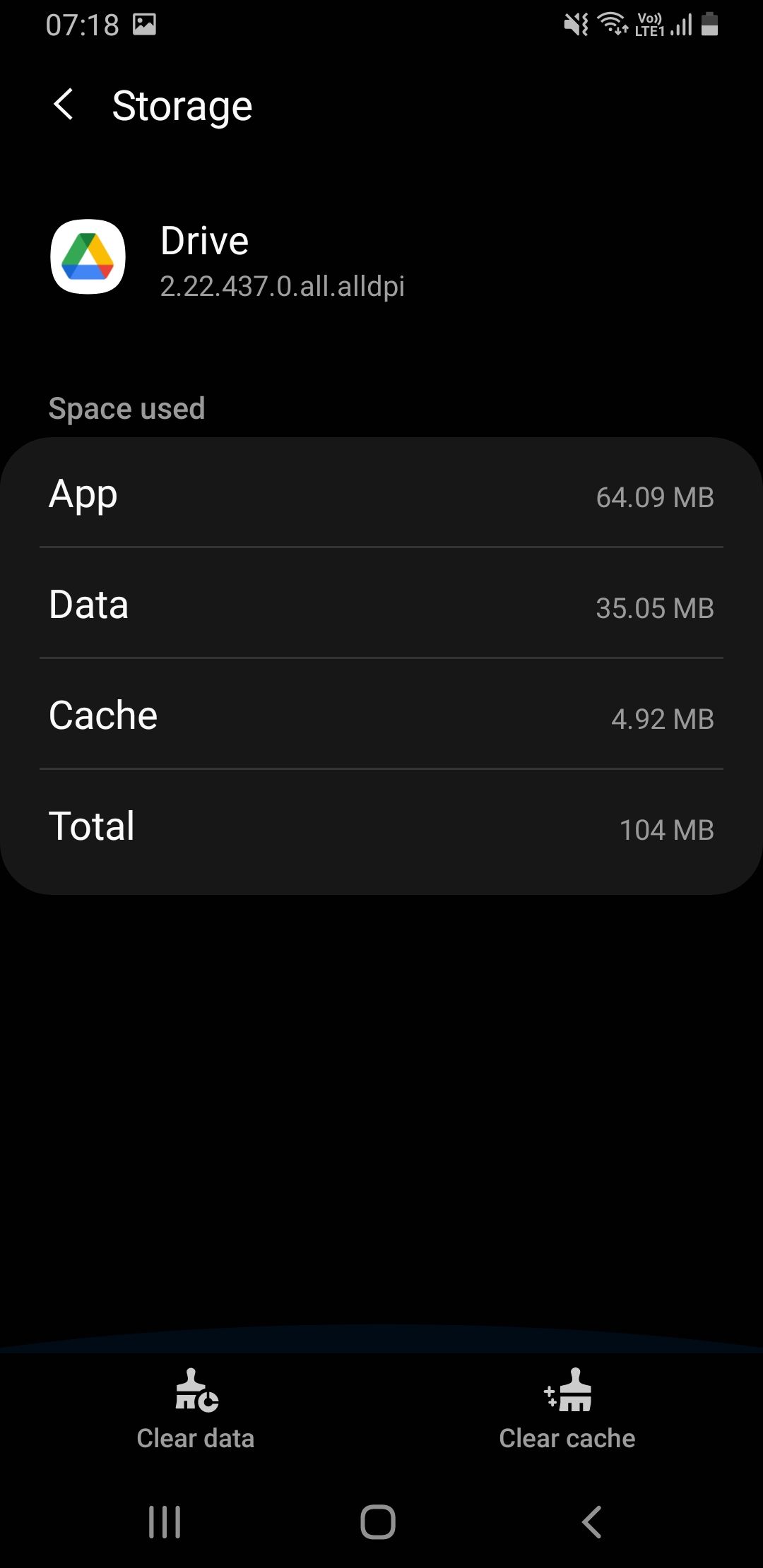
Yes, provided you enable offline access beforehand. By default, many drive apps use on-demand streaming to save disk space, which requires internet access to download files. However, you can right-click any specific file or folder and select "Make available offline" or "Always keep on this device." The app will cache a complete copy locally, allowing you to view and edit it offline. Any edits made offline will sync back to the cloud automatically once your internet connection is restored.
Are drive apps secure enough for confidential business files?
Major drive apps employ enterprise-grade security controls, including AES 256-bit encryption for stored data, TLS encryption for transfers, multi-factor authentication, and strict compliance with regulations such as GDPR and HIPAA (when appropriate business associate agreements are signed). However, security relies heavily on user habits; accounts must be protected with strong credentials, multi-factor authentication, and carefully audited file-sharing permissions.
What happens to my files if I uninstall a drive app from my phone or laptop?
Uninstalling a drive app removes the software client and local cached files from that specific physical device, but it does not delete your data from the cloud. All your documents, photos, and folders remain safely stored on the cloud servers. You can access them at any time by logging into the provider's official web browser interface or by reinstalling the drive app on another device.
How do I stop a drive app from consuming too much internet bandwidth?
Most desktop drive apps feature bandwidth throttling options in their settings menu. Open the app's Preferences, navigate to the Network or Advanced tab, and set custom rate limits for upload and download speeds. This prevents the sync engine from maxing out your home or office internet connection while uploading large files or media libraries.
Final Guidance and Next Actions
Understanding and utilizing a drive app effectively comes down to choosing an application that fits seamlessly into your daily workflow and operating system environment:
- Assess your ecosystem: Windows and Microsoft 365 users benefit most from Microsoft OneDrive; Apple hardware users gain seamless background integration with iCloud Drive; users seeking collaborative web editing across mixed operating systems should opt for Google Drive.
- Audit local storage: Set up Files On-Demand or File Streaming immediately after installation to ensure cloud files do not overwhelm your local hard drive capacity.
- Lock down account access: Enable multi-factor authentication (MFA) on your underlying account to prevent unauthorized access to your cloud files.
- Schedule periodic file audits: Review shared links every few months to revoke access for users who no longer require permission to read or edit your documents.
Image Gallery