Allied Universal eHub Login: A Comprehensive Guide for Employees in 2026
The Allied Universal eHub portal serves as the centralized digital interface for employees to manage payroll, view work schedules, update personal information, and access human resources documentation. To access your account, navigate...
The Allied Universal eHub portal serves as the centralized digital interface for employees to manage payroll, view work schedules, update personal information, and access human resources documentation. To access your account, navigate to the official Allied Universal eHub website or utilize the designated mobile application using your verified employee credentials. Ensure your browser is updated to the latest 2026 security standards to maintain data integrity and prevent unauthorized access during your session.
Contents
Understanding the Allied Universal eHub Platform
Allied Universal utilizes the eHub system—often powered by TeamTime or WinTeam integrations—as a critical operational backbone. For security professionals, site supervisors, and branch staff, this portal is the primary gateway for administrative tasks that historically required manual paperwork or direct supervisor intervention.
In 2026, the platform continues to function as a self-service hub, reducing the administrative burden on HR departments while providing staff with instantaneous access to their employment data. Understanding how to navigate this ecosystem is essential for maintaining accurate timekeeping, which directly impacts your bi-weekly or weekly compensation cycles.
Prerequisites for Successful Account Access
Before attempting to log in, you must ensure your profile is fully provisioned in the Allied Universal enterprise system. New hires typically receive their login credentials during the onboarding process. If you have not received these, you must contact your local branch office or designated HR representative.
- Employee Identification Number: You must have your unique AUS employee ID, which is distinct from any badge or site-specific ID numbers.
- Verified Credentials: Your password must meet the 2026 corporate security requirements, which prioritize multi-factor authentication (MFA) to protect sensitive payroll data.
- Network Connectivity: Use a secure, private internet connection. Avoid public Wi-Fi networks when accessing the eHub portal to minimize the risk of credential interception.
- Device Compatibility: The portal is optimized for current versions of Chrome, Edge, and Safari. Ensure your mobile operating system is updated to the latest version to ensure app stability.
Step-by-Step Login Procedure
Following the correct technical workflow ensures your data is saved accurately and that you are not locked out of your account due to excessive failed attempts.
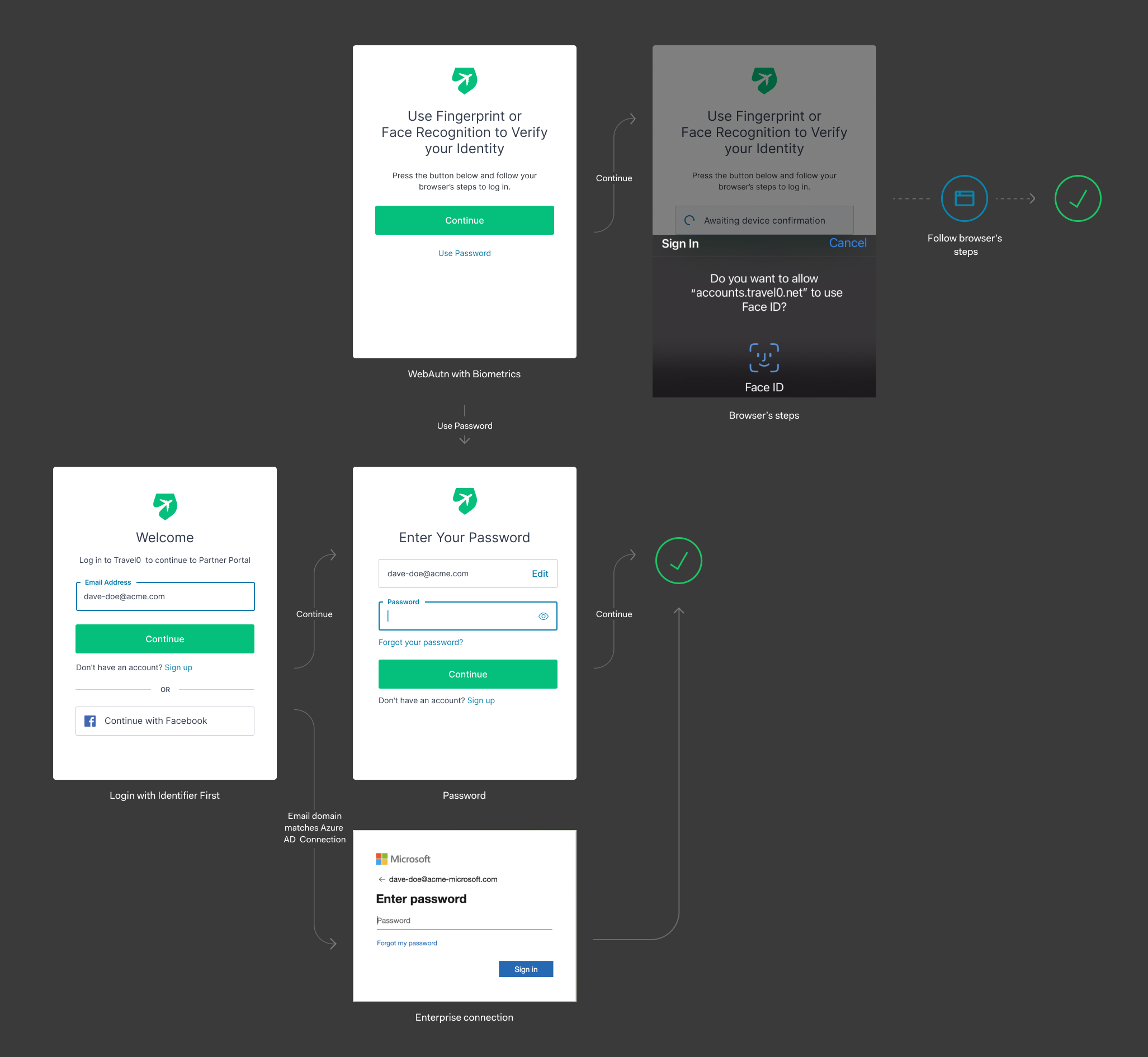
- Navigate to the Official Portal: Access the web-based eHub portal via the official Allied Universal employee resources URL provided by your regional office.
- Enter Credentials: Input your designated username (often your employee ID or corporate email) and your secure password.
- Perform MFA Verification: If prompted, complete the multi-factor authentication step by inputting the code sent to your registered mobile device or email address.
- Dashboard Navigation: Once authenticated, the landing page will display your primary dashboard containing links to Pay Stubs, Schedule, and Personal Profile.
- Session Termination: Always select the Logout button after completing your tasks, especially if using a shared computer or mobile device.
Troubleshooting Common Login Failures
Technical issues often arise from simple misconfigurations or cached browser data. If you encounter an error message, follow these systematic troubleshooting steps:
Clear Browser Cache and Cookies Accumulated temporary data from previous sessions or older portal versions can cause script errors. Clear your browser cache and cookies, then attempt to log in using an Incognito or Private window to determine if the issue is local to your browser configuration.
Password Reset Protocol If you have forgotten your password, use the "Forgot Password" link on the login screen. You will be required to verify your identity using the secondary contact information associated with your employee profile. Do not attempt to guess your password more than three times, as this may trigger an automated account lockout.
Comparison of Access Methods
Allied Universal provides multiple ways to interact with eHub. The following table illustrates the utility of each platform method.
| Feature | Web Portal (Desktop) | Mobile App (iOS/Android) |
|---|---|---|
| Best For | Detailed document review | Rapid schedule checking |
| Ease of Use | High (Keyboard/Mouse) | High (Biometric login) |
| Data Security | Standard SSL/TLS | Enhanced with Biometrics |
| Document Export | Direct PDF download | Limited/View only |
| Availability | 24/7 Global Access | 24/7 Global Access |
Administrative and Operational Benefits
The eHub platform is not merely a login page; it is a vital tool for workforce management. By utilizing this system, employees can track their hours worked against their scheduled hours, identifying potential discrepancies before they impact payroll processing.
- Payroll Accuracy: Reviewing electronic pay stubs allows for the immediate identification of errors related to tax withholding, benefits deductions, or hours logged.
- Schedule Transparency: The system provides real-time updates regarding shift changes, ensuring personnel are aware of site assignments and coverage requirements.
- Documentation Access: Accessing W-2 forms, benefit enrollment summaries, and company policy handbooks is streamlined through the central document library.
Frequently Asked Questions
Why does the system indicate that my employee ID is invalid? This typically occurs if the ID entered does not match the active record in the national database. Please verify your ID on your most recent pay stub or reach out to your local HR representative to confirm your account status.
Can I use the eHub app on a rooted or jailbroken mobile device? For security compliance, the Allied Universal mobile application may restrict access on devices that have been modified (rooted or jailbroken). This is a standard security measure to protect sensitive employee and company data from malware.
How do I update my personal information such as my address or bank details? After logging into the eHub portal, navigate to the "My Profile" or "Employee Information" section. Follow the prompts to update your contact details or banking information; note that these changes may require a validation period before taking effect.
Is my data secure while using the eHub portal? Allied Universal employs industry-standard encryption protocols to secure the transmission and storage of your personal data. In 2026, the company maintains rigorous compliance with data privacy regulations, ensuring your information is handled with appropriate technical safeguards.
What should I do if I am locked out of my account? Wait at least 30 minutes before attempting to log in again. If the account remains locked, you must contact the IT support desk or your direct supervisor to request an account reset.
Secure Your Access Today
Maintaining access to your eHub account is a mandatory responsibility for all Allied Universal personnel. By keeping your contact information current and practicing secure login habits, you ensure that your payroll, scheduling, and HR communications remain uninterrupted. For persistent technical difficulties that cannot be resolved through standard troubleshooting, consult your facility’s standard operating procedures regarding IT help desk escalation.
Image Gallery