How to Merge Two PDFs on Mac
Merging two PDFs on a Mac is a straightforward process that can be accomplished natively using the built-in Preview application or the Finder app, without requiring any third-party software subscriptions or downloads. Whether you are c...
Merging two PDFs on a Mac is a straightforward process that can be accomplished natively using the built-in Preview application or the Finder app, without requiring any third-party software subscriptions or downloads. Whether you are combining scanned documents, financial reports, or academic papers, macOS provides robust tools to organize, rearrange, and unify your files securely and efficiently.
Contents
Understanding PDF Management Capabilities in macOS
Before diving into the process of combining documents, it helps to understand how macOS handles document structure natively. The operating system treats PDF pages as individual graphical elements that can be manipulated independently. This architectural approach allows users not only to append entire files to one another but also to extract, rotate, and interleave pages across multiple documents.
Managing files locally on your Mac ensures total data privacy, as sensitive documents never need to be uploaded to third-party web services or conversion tools. This is particularly crucial when dealing with confidential records, legal documentation, or corporate assets.
Prerequisites and File Preparation
Proper preparation ensures that your merged document retains high visual fidelity and remains easy to navigate. Before combining your files, verify the following prerequisites:
- File Access: Ensure both source PDF files are saved locally on your Mac desktop or in an accessible folder such as Documents.
- Unlock Permissions: Verify that neither of the source files is encrypted with a master password that restricts editing or assembly. If a file is password-protected, you will need to enter the owner password to modify its structure.
- Page Orientation Check: Open both files briefly to ensure pages are oriented correctly. Fixing rotations beforehand prevents tedious re-editing after the merge is complete.
Method 1: Merging PDFs Using the Preview App
The Preview application is the default PDF viewer on macOS and includes powerful sidebar tools designed for document assembly. This method is ideal when you want to combine entire files or select specific pages from multiple documents.
- Open the first PDF file by double-clicking it in Finder, which automatically launches Preview.
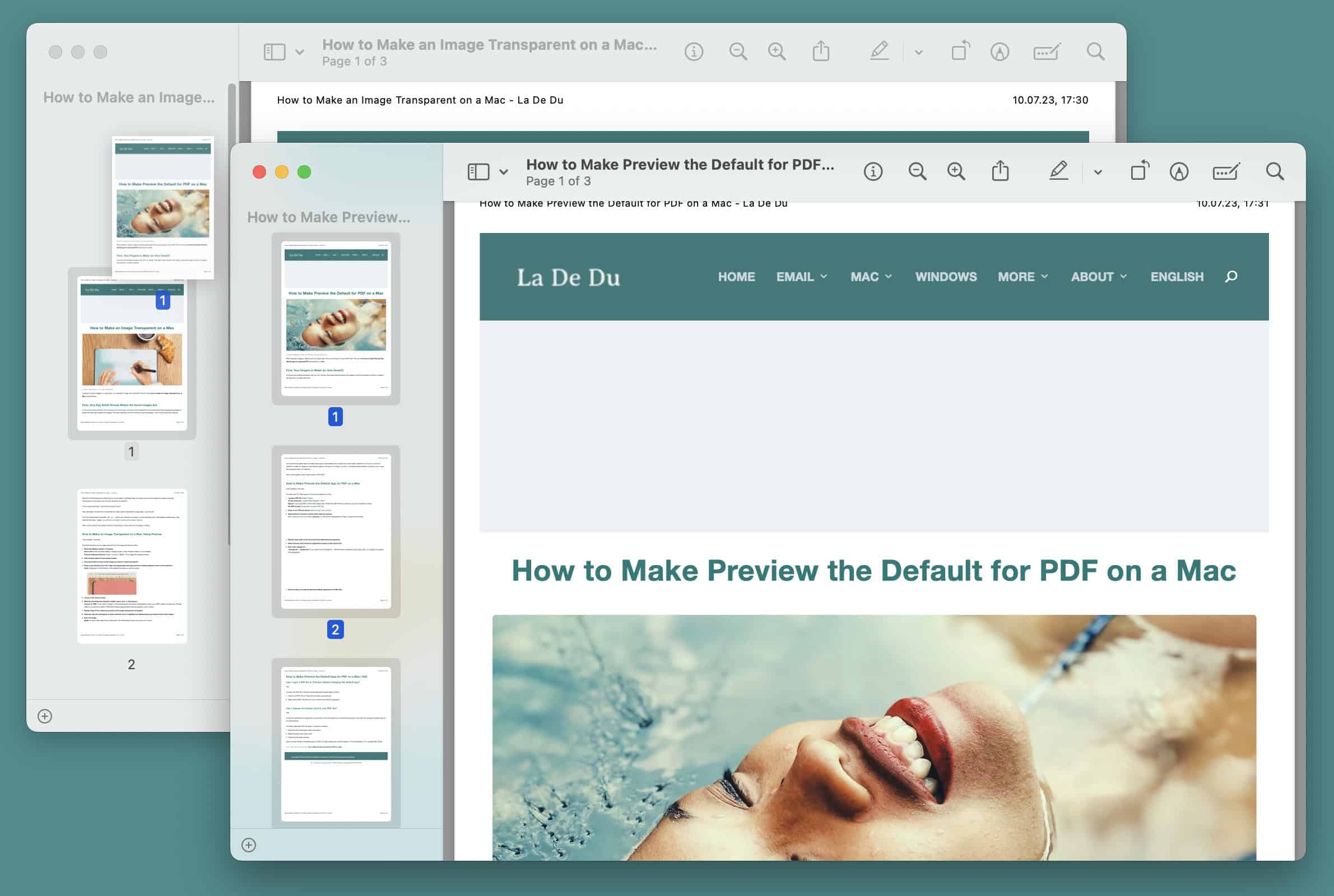
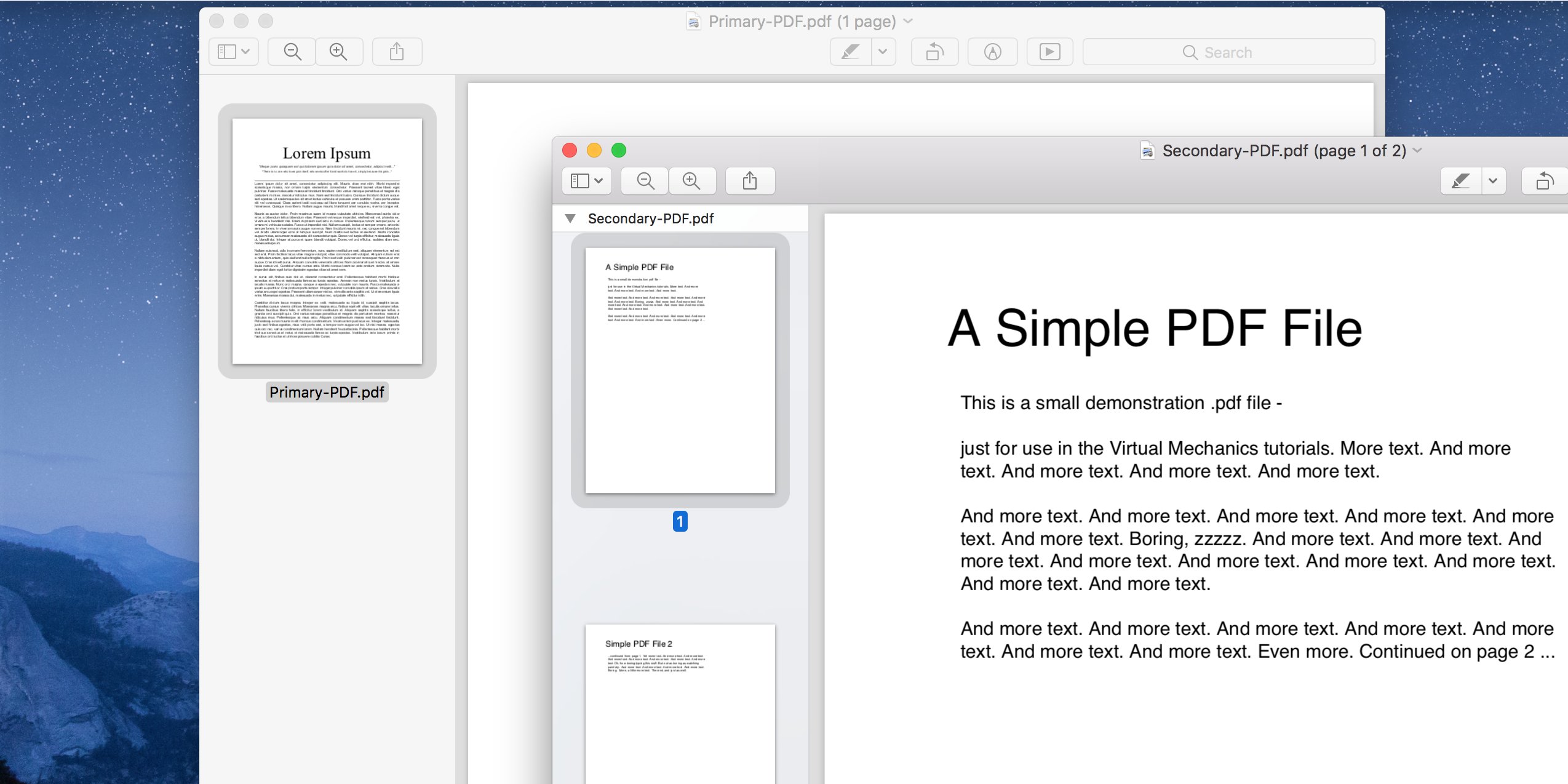
- Navigate to the top menu bar, click on View, and select Thumbnails from the dropdown menu to expose the page sidebar on the left side of the window.
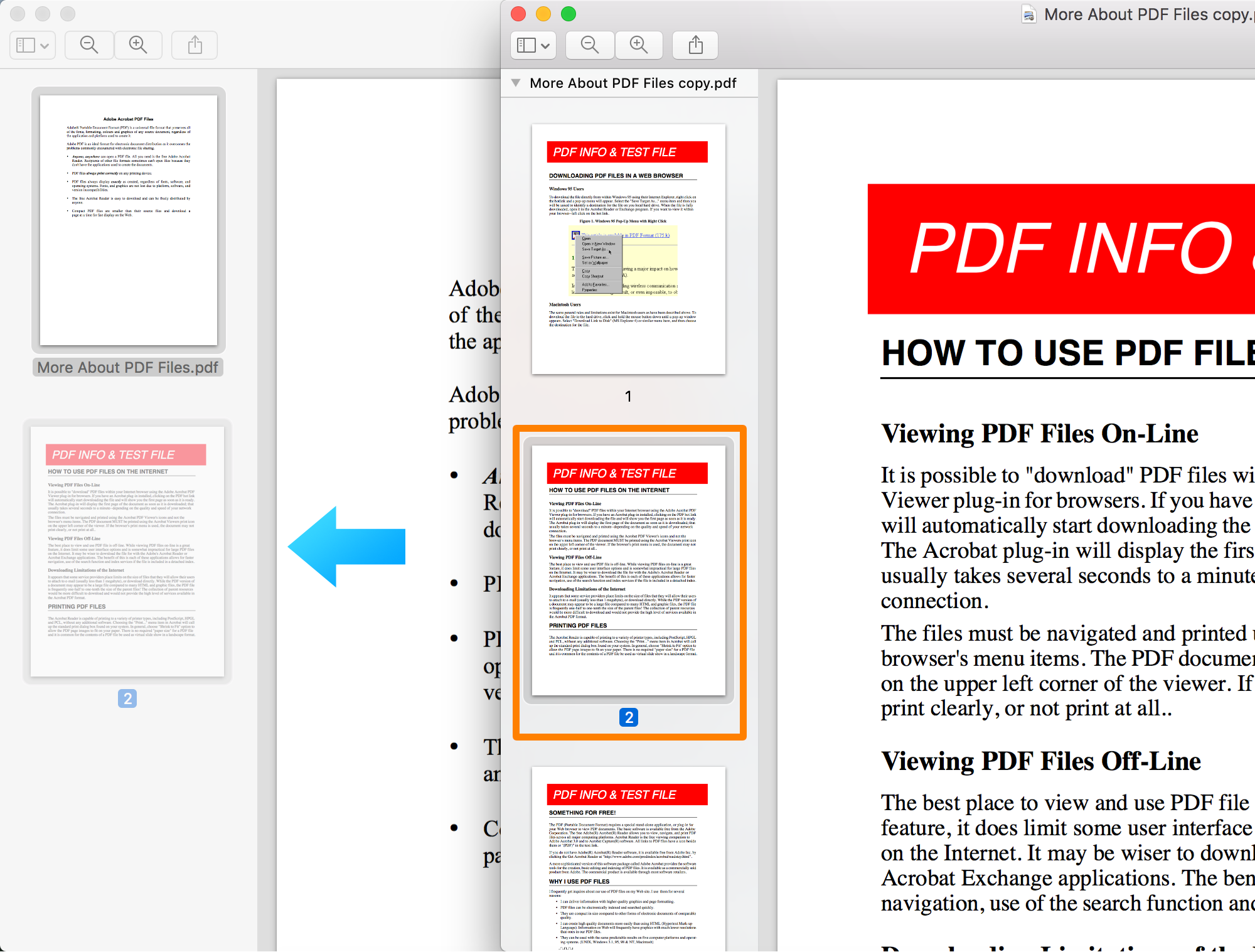
- Drag and drop the icon of the second PDF file directly into the thumbnail sidebar of the first document. Alternatively, you can go to Edit, select Insert, choose Page from File, and locate your second PDF.
- Reposition the newly added pages by clicking and dragging their thumbnails up or down within the sidebar to place them in your desired sequence.
- Save your newly combined document by navigating to File, then selecting Export as PDF or pressing the standard save shortcut. Assign a new filename to preserve your original source files.
Method 2: Combining PDFs Quickly via Finder Quick Actions
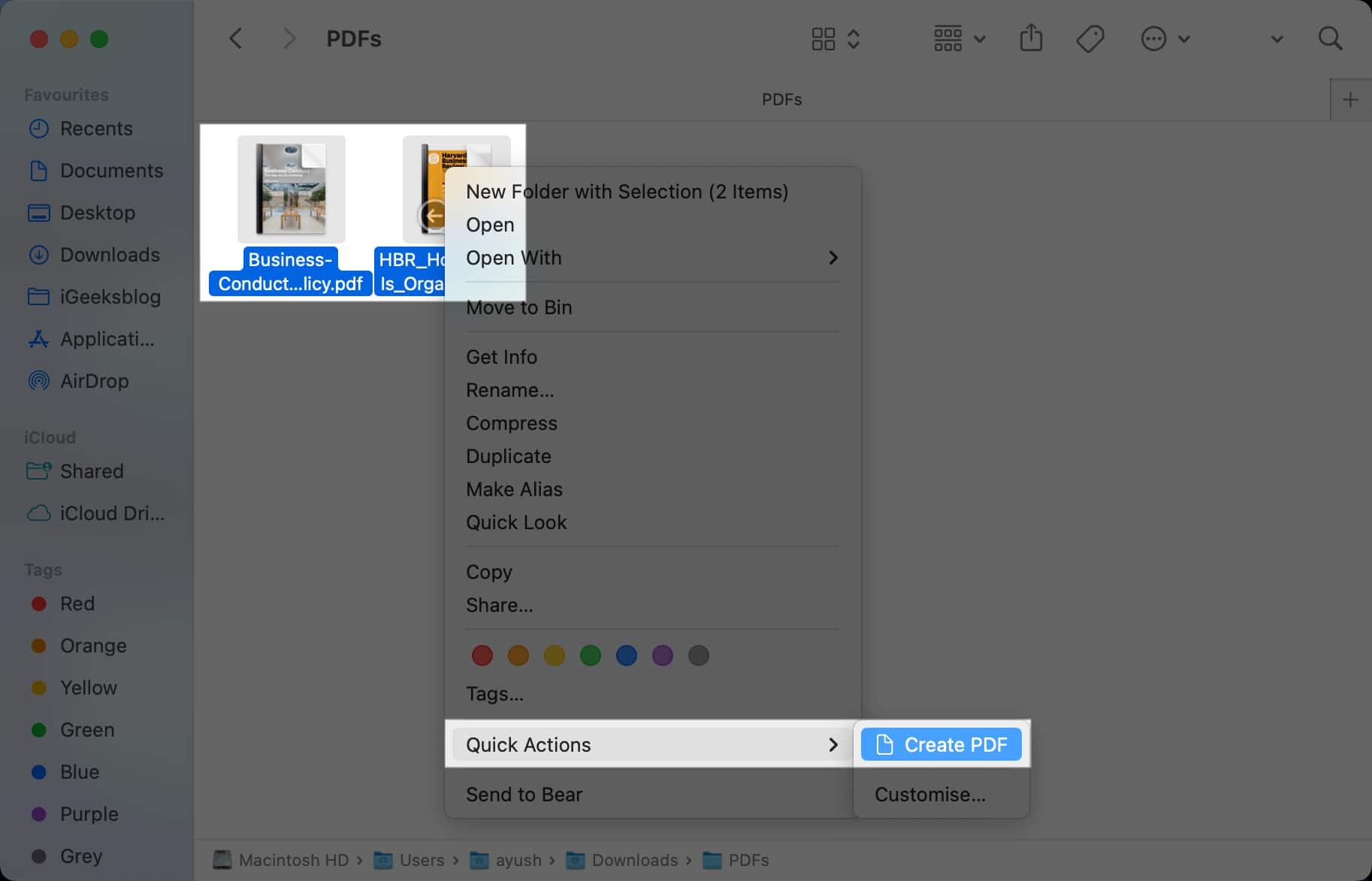
For users looking for speed without opening multiple application windows, macOS Finder offers a built-in Quick Action that merges files instantly in the background.
- Open Finder and locate the specific PDF files you wish to combine.
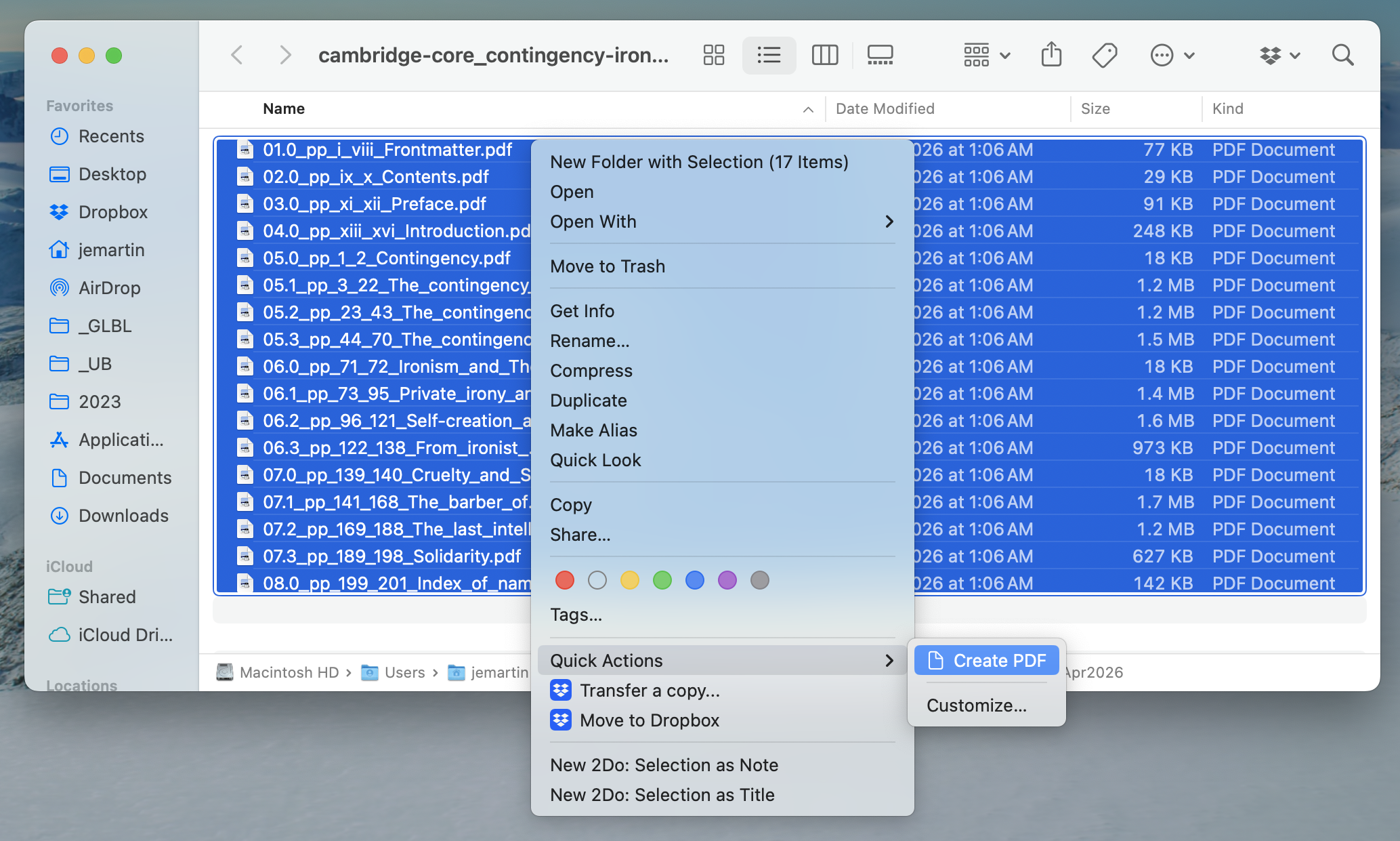
- Select both PDF files simultaneously by holding down the Command (⌘) key while clicking each file.
- Right-click (or control-click) on the highlighted files to open the context menu.
- Hover over Quick Actions and select Create PDF.
- macOS will automatically generate a new combined PDF file in the exact same folder location, usually named with a derivative of the original filenames.
Comparing PDF Merging Methods on macOS
Choosing the right approach depends on whether you need fine control over page ordering or a quick, automated merge.
| Feature / Capability | Preview App Method | Finder Quick Action Method |
|---|---|---|
| Speed | Moderate (requires app interaction) | Instant (background processing) |
| Page Reordering | Full control before saving | None (combines in alphabetical/selection order) |
| Selective Page Merging | Yes (can insert individual pages) | No (combines entire files only) |
| Third-Party App Needed | No (Native macOS tool) | No (Native macOS tool) |
| Privacy / Security | 100% Local processing | 100% Local processing |
Troubleshooting Common PDF Merging Issues
Even with native tools, you may occasionally encounter roadblocks during the document combination process. Here is how to resolve the most frequent errors:
- Grayed-Out Insert Options: If the option to insert pages is disabled, the primary PDF is likely locked or restricted. Check the inspector panel in Preview to review security permissions.
- Corrupted or Blank Pages: If certain pages render incorrectly after merging, the source PDF may utilize non-standard fonts or embedded vector data that Preview failed to interpret. Rasterizing the PDF pages or converting them via a standard print-to-PDF pipeline usually resolves the rendering anomaly.
- Excessive File Size: Combining multiple high-resolution scanned documents can result in massive file sizes that are difficult to email. To reduce the file size, open the merged PDF in Preview, select Export as PDF, and choose the Reduce File Size quartz filter from the filters dropdown menu.
Frequently Asked Questions
Can I merge PDFs on Mac without installing third-party software?
Yes, you can easily merge PDFs natively using either the built-in Preview app or the Quick Actions feature directly inside the macOS Finder. These native tools handle local file assembly securely without requiring external downloads or paid subscriptions.
How do I change the page order after combining two PDFs?
Once you open your primary document in the Preview app and make the thumbnail sidebar visible, you can click and drag individual page thumbnails up or down to rearrange them before saving the final file.
Why won't Finder let me create a PDF from my selected files?
Finder Quick Actions require valid, unencrypted PDF files to function properly. If your selection includes locked documents, image files mixed with PDFs, or files missing proper extensions, the create option may remain inactive until resolved.
Does merging PDFs affect the quality of the original documents?
Native merging via Preview or Finder does not compress or degrade vector text and images, ensuring that your output maintains the exact visual fidelity of the original source files.
Is it safe to use online PDF mergers instead of Mac native tools?
While many online converters exist, uploading sensitive financial, legal, or personal documents to web servers poses privacy risks. Using native macOS tools guarantees that your data never leaves your local machine.
Streamlining your workflow by mastering native macOS document management saves time and protects your private information. Open your Preview app or highlight your files in Finder today to combine your PDFs cleanly and securely.
Image Gallery