University of Miami Lockdown Browser Setup, Troubleshooting, and Academic Integrity Guidelines
The University of Miami utilizes Respondus LockDown Browser and Monitor to secure online examinations in platforms like Canvas, ensuring a controlled and fair testing environment for all students. This guide provides an in-depth walkth...
The University of Miami utilizes Respondus LockDown Browser and Monitor to secure online examinations in platforms like Canvas, ensuring a controlled and fair testing environment for all students. This guide provides an in-depth walkthrough for downloading, configuring, troubleshooting, and successfully completing proctored assessments under academic integrity policies.
Contents
Understanding the University of Miami Testing Framework
Online and hybrid courses at the University of Miami rely heavily on learning management systems integrated with secure web browsers. To maintain the validity of institutional credentials and programmatic accreditations, the university mandates specific remote proctoring software for high-stakes quizzes, midterm examinations, and final exams.
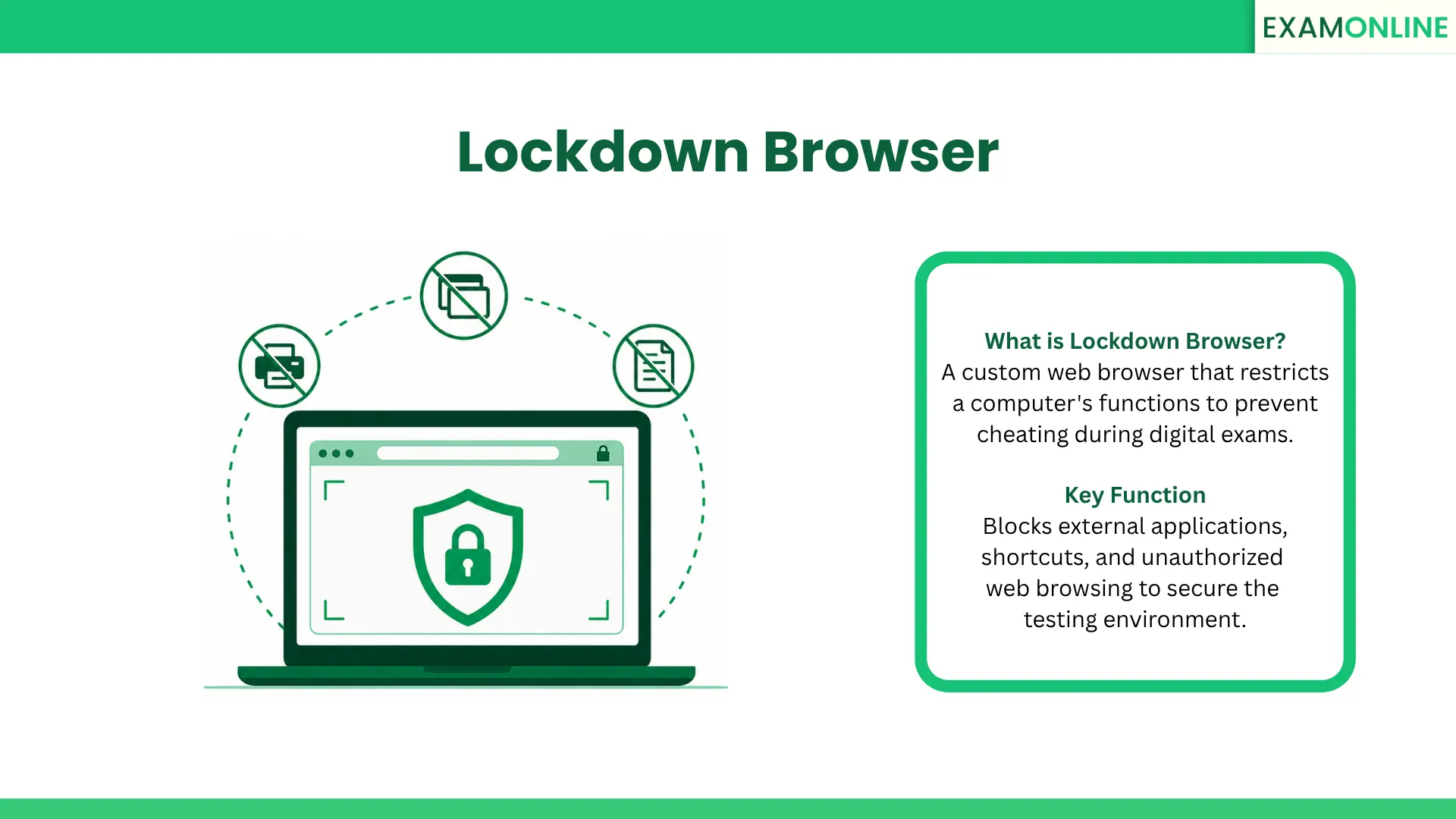
The software architecture prevents students from opening unauthorized applications, accessing secondary web pages, capturing screenshots, or copying test questions. When paired with webcam monitoring tools like Respondus Monitor, the system records video and audio feeds, utilizing automated facial detection algorithms to flag suspicious behavior for faculty review. Understanding how this ecosystem interacts with personal computer hardware and operating system security protocols is the first step toward a friction-free testing experience.
Essential Prerequisites and System Compatibility
Before downloading any software, verifying that your computer meets the technical baseline established by the University of Miami and the software vendor is critical. Incompatible operating systems or outdated hardware configurations are the leading causes of examination day failures.
Supported Operating Systems
- Windows: Windows 11 and Windows 10 (Home, Pro, Enterprise, and Education editions). S Mode in Windows 10/11 is explicitly not supported.
- macOS: macOS Sonoma (14), macOS Ventura (13), and macOS Monterey (12).
- Chromebooks: ChromeOS version 102 or later, provided the institutional administrator has enabled the extension within the school domain.
- iPads: iPadOS 14 or later, only when explicitly permitted by the course instructor. Note that iPhones and Android smartphones are generally incompatible with standard institutional setups.
Hardware Specifications
- Processor: Minimum dual-core 2.0 GHz or higher.
- Memory (RAM): 4 GB minimum for Windows and macOS; 8 GB recommended for stable performance during extended webcam recording.
- Hard Drive Space: At least 2 GB of free storage space for installation and temporary cache files generated during exams.
- Peripherals: A functional internal or external webcam, a working microphone, and a reliable broadband internet connection with a minimum upload/download speed of 5 Mbps.
Step-by-Step Installation Guide for University of Miami Students
Downloading the generic version of LockDown Browser from the public internet will often result in connection errors when attempting to access University of Miami courses. You must use the customized institutional installer linked directly through your Canvas portal.
- Log into Canvas: Navigate to the official University of Miami Canvas portal using a standard browser such as Google Chrome, Mozilla Firefox, or Apple Safari.
- Access Your Course: Open the specific course page where your proctored assessment is located.
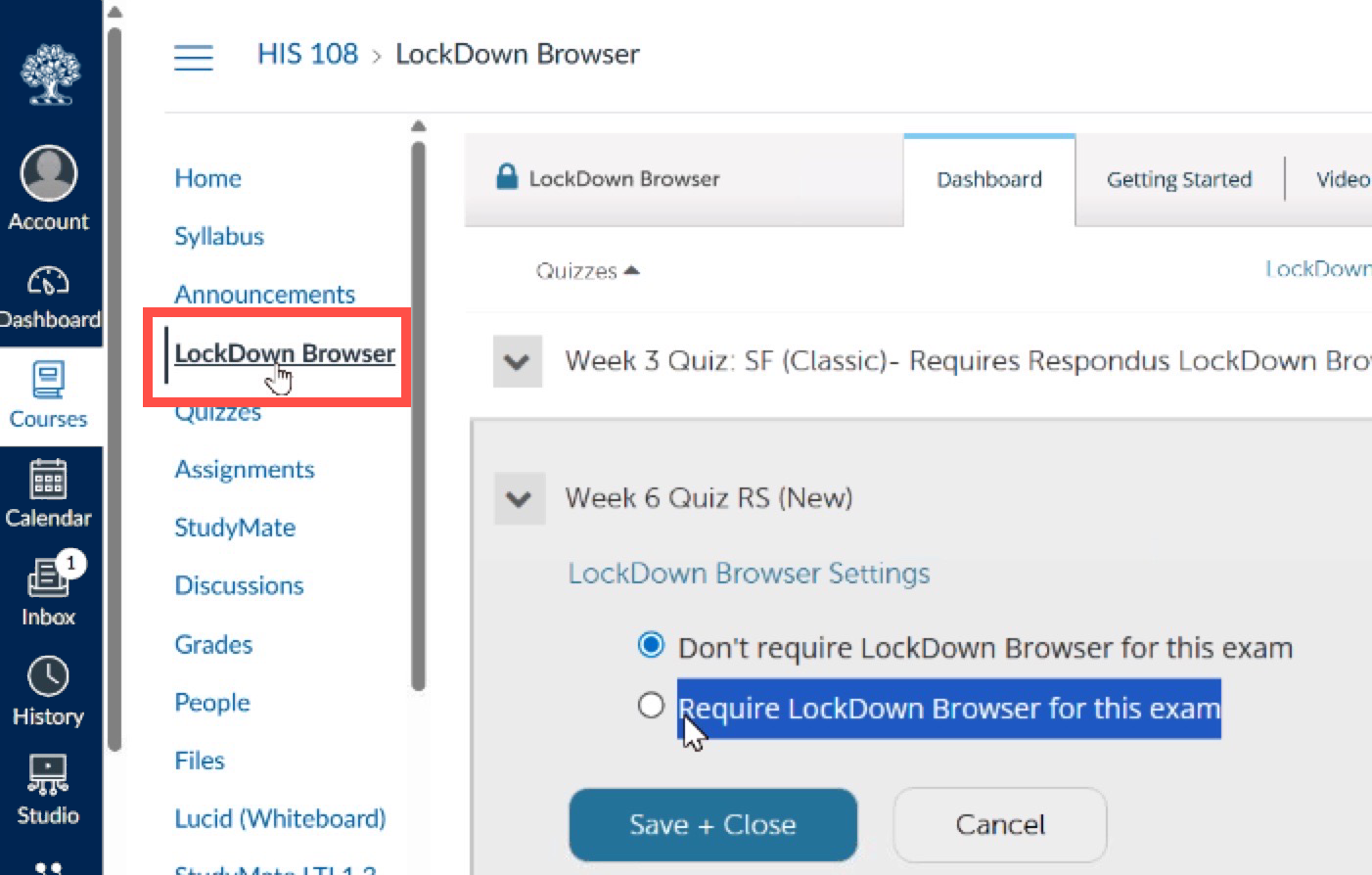
- Locate the Exam Link: Click on the quiz or exam title that requires LockDown Browser. If you do not have the software installed, the system will display a prompt indicating that the secure browser is required.
- Download the Installer: Click the provided download link within the prompt, which will automatically direct you to the custom University of Miami download page.
- Execute the Installer: Run the downloaded executable file (
.exefor Windows,.pkgfor Mac) and follow the on-screen setup wizard instructions to completion. - Close Conflicting Applications: Before launching the newly installed program, close all active chat applications, streaming services, background utilities, and standard web browsers.
| Operating System | Recommended Browser for Download | Primary Installer File Format | Typical Installation Path |
|---|---|---|---|
| Windows | Google Chrome / Firefox | Executable (.exe) |
C:\Program Files (x86)\Respondus\LockDown Browser |
| macOS | Safari / Google Chrome | Package (.pkg) |
/Applications/LockDown Browser.app |
| Chromebook | Google Chrome Web Store | Chrome Extension | Managed via Google Workspace Admin Console |
| iPadOS | Apple App Store | Native App | Managed via iOS Springboard |
Preparing for a Secure Exam Session
Completing a dry run before your actual testing window minimizes technical anxiety and ensures hardware readiness. Faculty members often provide an ungraded practice quiz specifically designed to test your webcam, microphone, and internet stability.
Pre-Exam Checklist
- Reboot Your Machine: Restart your computer completely to clear active background processes and temporary RAM caches.
- Secure Your Workspace: Clear your desk of prohibited items such as textbooks, notes, phones, and secondary monitors, unless explicitly permitted by the instructor's syllabus.
- Optimize Lighting: Ensure your face is clearly illuminated from the front so that facial recognition software can verify your identity without obstruction.
- Disable Notifications: Turn off operating system notification centers, update prompts, and virtual assistant listening tools (such as Siri or Cortana) to prevent unexpected application pop-ups.
- Hardwire When Possible: If using a Wi-Fi connection, ensure you have a strong signal, or plug directly into your router via an Ethernet cable to avoid mid-exam disconnects.
The Startup Sequence and Identity Verification
When you launch LockDown Browser and navigate to your Canvas course, the application takes over your operating system desktop. You will no longer be able to switch to other windows or use keyboard shortcuts.
The startup sequence typically involves a series of mandatory checks managed by Respondus Monitor:
- Webcam Check: The software confirms your camera feed is active and clear.
- Student Photo: You will be prompted to take a clear photograph of your face using the webcam.
- ID Check: Showing a valid University of Miami Cane Card or government-issued photo identification to the camera.
- Environment Check: Panning your webcam around your room to demonstrate that your workspace complies with exam rules.
- Facial Detection Match: The algorithm continuously verifies that the person taking the exam matches the initial identification photo.
Comparison of Browser Environments
Evaluating the functional differences between standard consumer browsers and a secure institutional testing browser clarifies why strict limitations are enforced.
| Feature / Capability | Standard Browser (Chrome, Safari, Edge) | University of Miami LockDown Browser |
|---|---|---|
| URL Bar Access | Fully functional; unrestricted navigation. | Locked to authorized institutional domains only. |
| Tab Management | Multiple tabs and windows allowed. | Single-window mode; opening new tabs is blocked. |
| Clipboard Operations | Copy, paste, and screen clipping enabled. | Copy and paste functions are disabled entirely. |
| Screen Capture | Screenshots and video recording permitted. | Blocked at the kernel and operating system level. |
| Printing & Saving | Full printing and file download capabilities. | Printing, saving, and exporting are prohibited. |
| AI Proctoring Integration | Varies widely; often lacks institutional hooks. | Seamlessly integrates with Canvas and Respondus Monitor. |
Common Troubleshooting Scenarios and Expert Solutions
Even with careful preparation, technical anomalies can occur. Knowing how to resolve common errors quickly prevents panic during high-pressure testing situations.
The "Close Application" Prompt Loop
If LockDown Browser repeatedly tells you to close a background application that you cannot find in your task manager:
- Open the Task Manager (Windows:
Ctrl + Shift + Esc) or Activity Monitor (Mac:Cmd + Space, search "Activity Monitor"). - Sort processes by name or CPU usage to identify hidden helper apps, such as Skype, Discord, Zoom background services, or cloud sync tools.
- Force quit those applications entirely before relaunching the secure browser.
Webcam and Microphone Failures
If the startup sequence fails to detect your camera:
- Verify that no other application (like Zoom or Teams) is actively holding onto the camera feed in the background.
- Check your operating system privacy settings to ensure LockDown Browser has explicit permission to access your camera and microphone.
- Restart your computer to reset the hardware drivers.
Infinite Loading or Network Timeouts
If Canvas fails to load inside the secure browser:
- Clear the browser's local cache using the built-in settings menu accessible via the "Help" button on the LockDown Browser toolbar.
- Switch from a congested wireless network to a stable wired connection or a mobile hotspot if local ISP issues persist.
- Contact the University of Miami IT Department immediately if the error stems from an institutional server outage.
Frequently Asked Questions
Can I use a dual-monitor setup while taking an exam with LockDown Browser?
No. LockDown Browser forces a single-display mode and will automatically disable secondary monitors. Attempting to use multiple screens will result in an error message or an automatic exam submission.
What should I do if my computer crashes in the middle of a timed exam?
Restart your computer immediately, relaunch LockDown Browser, log back into Canvas, and re-enter the exam. The system typically allows you to resume where you left off, provided the testing window has not closed. Notify your professor via email as soon as possible to document the technical hiccup.
Does LockDown Browser record my computer screen continuously?
Yes, when paired with Respondus Monitor, the software records video and audio of your workspace and captures your screen activity throughout the duration of the examination for faculty review.
Are virtual machines or remote desktop software permitted?
No. LockDown Browser is engineered to detect virtual machine environments, remote desktop protocols, and emulation software, blocking their use to maintain strict security standards.
Who should I contact for technical assistance outside of normal business hours?
University of Miami students can access 24/7 support resources directly through the Help button inside the LockDown Browser toolbar or by submitting a ticket through the official UMIT service portal.
Professional Support Recommendation
If you encounter persistent installation errors, severe webcam malfunctions, or account-level authorization blocks that prevent you from taking your exam, do not wait until the last minute. Reach out immediately to the University of Miami Information Technology (UMIT) help desk or utilize the 24/7 live chat support widget located within your Canvas dashboard to secure timely resolution before your testing deadline arrives.
Image Gallery