How to Use Regex Replace in Alteryx for Data Cleansing and Transformation
In Alteryx, the Regex Replace function is a powerful tool accessed through the Formula tool that allows users to identify specific text patterns using regular expressions and replace them with new content or formatting. By utilizing th...
In Alteryx, the Regex Replace function is a powerful tool accessed through the Formula tool that allows users to identify specific text patterns using regular expressions and replace them with new content or formatting. By utilizing the REGEX_REPLACE function, you can perform complex string manipulation—such as removing special characters, reformatting dates, or extracting specific segments of a string—all within a single, efficient workflow expression.
Contents
Understanding the Role of Regex in Alteryx
Regular Expressions, commonly referred to as "regex," provide a flexible and standardized method for searching and manipulating strings. While standard Alteryx functions like Replace() or ReplaceFirst() are suitable for simple, static text swaps, they lack the logic required to handle dynamic patterns.
In Alteryx, the Regex tool and the REGEX_REPLACE function in the Formula tool allow you to define rules based on patterns. For example, if you need to remove all non-numeric characters from a phone number field, a standard replace function would require a separate line of code for every possible digit or symbol. With regex, you can define a single pattern—such as \D to match any non-digit character—and replace it with an empty string, effectively cleansing the data in one step.
Prerequisites for Using Regex Replace
Before implementing REGEX_REPLACE, ensure your data is prepared. The function operates on text data types (String, VString, or WString). If your data is currently stored as an integer, date, or boolean, you must first use a Select tool or a conversion function like ToString() to convert it into a string format.
Additionally, familiarize yourself with the basic syntax of the Alteryx formula:
REGEX_REPLACE(String, Pattern, ReplaceString)
- String: The field or incoming text you want to modify.
- Pattern: The regular expression used to identify the target text.
- ReplaceString: The character or sequence you wish to insert in place of the matched pattern.
Step-by-Step Implementation
To effectively utilize REGEX_REPLACE in your workflow, follow this structural approach:
- Insert a Formula Tool: Drag a Formula tool from the Preparation category onto your canvas and connect it to your data stream.
- Create or Update a Column: Select an existing field to modify or create a new column to store the results.
- Enter the Function: Type
REGEX_REPLACE(in the expression editor. - Define the Pattern: Enclose your regex pattern in double quotes. For example, to remove all characters except digits, use
REGEX_REPLACE([Field], "[^0-9]", ""). - Validate: Click the "Apply" or "Save" button. Alteryx will notify you if the expression syntax is invalid. Always preview the results in the Results Window to ensure the pattern is matching exactly what you intended.
Common Regex Patterns for Alteryx Users
Mastering regex involves understanding the syntax of the PCRE (Perl Compatible Regular Expressions) engine used by Alteryx. Below is a table highlighting common patterns used for data cleaning tasks.
| Goal | Regex Pattern | Explanation |
|---|---|---|
| Remove non-digits | [^0-9] |
Matches any character that is not a number (0-9). |
| Remove non-alphabetical | [^a-zA-Z] |
Matches any character that is not a letter. |
| Replace multiple spaces | \s{2,} |
Matches two or more whitespace characters. |
| Extract prefix | ^([A-Z]{3})- |
Captures exactly three uppercase letters at the start. |
| Remove special symbols | [^\w\s] |
Matches any character that is not a word character or space. |
Advanced Manipulation with Capture Groups
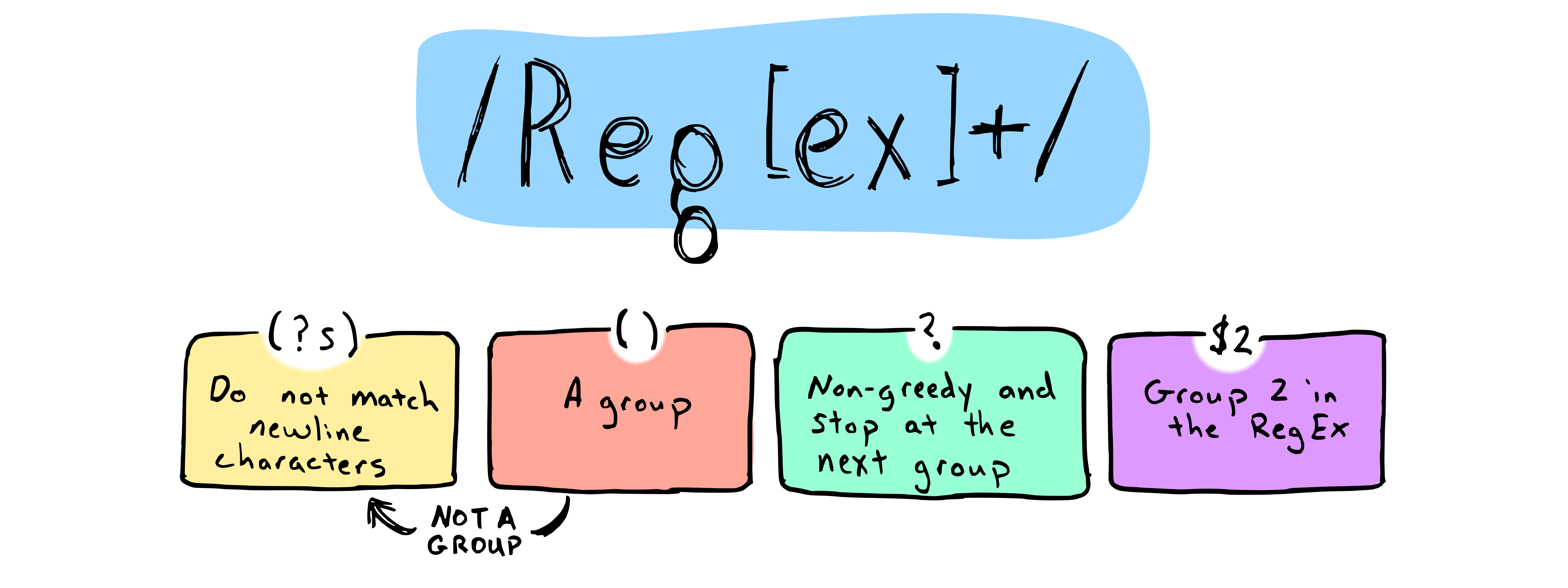
One of the most robust features of REGEX_REPLACE is the use of capture groups, defined by parentheses (). These groups allow you to identify specific parts of a string and reorder them during the replacement process.
For instance, if you have a date string in "YYYY-MM-DD" format and you need to transform it to "DD/MM/YYYY," you can define the pattern to recognize three groups: (\d{4})-(\d{2})-(\d{2}). In the replacement string, you reference these groups using $1, $2, and $3. To reorder them, your replace string would be $3/$2/$1. This functionality is essential for standardizing inconsistent date formats across large datasets.
Troubleshooting Common Errors
Even experienced analysts encounter issues when building regex patterns. The most common errors include:
- Escaping Special Characters: Regex uses special characters like
.*+and?as operators. If you need to match these characters literally, you must escape them with a backslash (e.g.,\.to match a literal period). - Case Sensitivity: By default, regex patterns in Alteryx are case-sensitive. If your data contains inconsistent casing, you may need to adjust your pattern to
(?i)to make the search case-insensitive, or use theLowerCase()function on your input string before applying the regex. - Greedy vs. Lazy Matching: By default, patterns like
.*are "greedy," meaning they will capture as much text as possible. If your regex is matching too much of your string, try using a "lazy" quantifier (e.g.,.*?) to stop matching at the first occurrence of the following character.
Performance Considerations
While REGEX_REPLACE is powerful, it is computationally more intensive than standard string functions. If you are processing millions of records, use regex only when simpler functions cannot achieve the desired result. If a simple Replace() function works, it will execute faster than a complex regular expression. Always perform your regex operations on the smallest subset of data possible, or use the Filter tool to remove rows that do not require processing before applying the formula.
Frequently Asked Questions
How does Regex Replace differ from the Regex tool?
The Formula tool's REGEX_REPLACE function is designed for string transformation, outputting a modified string within a single column. The Regex tool, conversely, is designed for parsing and extraction, allowing you to split a single string into multiple columns based on capture groups.
Can I use multiple regex operations in one expression?
Yes, you can nest functions. For example, REGEX_REPLACE(REGEX_REPLACE([Field], "[a-z]", ""), "[A-Z]", "") would perform two separate cleaning passes on the same field in one single expression.
What happens if the pattern finds no match?
If the regex pattern finds no matches in the input string, the REGEX_REPLACE function simply returns the original string unchanged, without errors or warnings.
Is it possible to perform lookaheads in Alteryx regex?
Yes, Alteryx supports PCRE lookaheads. You can use (?=...) for positive lookaheads to ensure a pattern follows without including it in the replacement, which is useful for complex validation requirements.
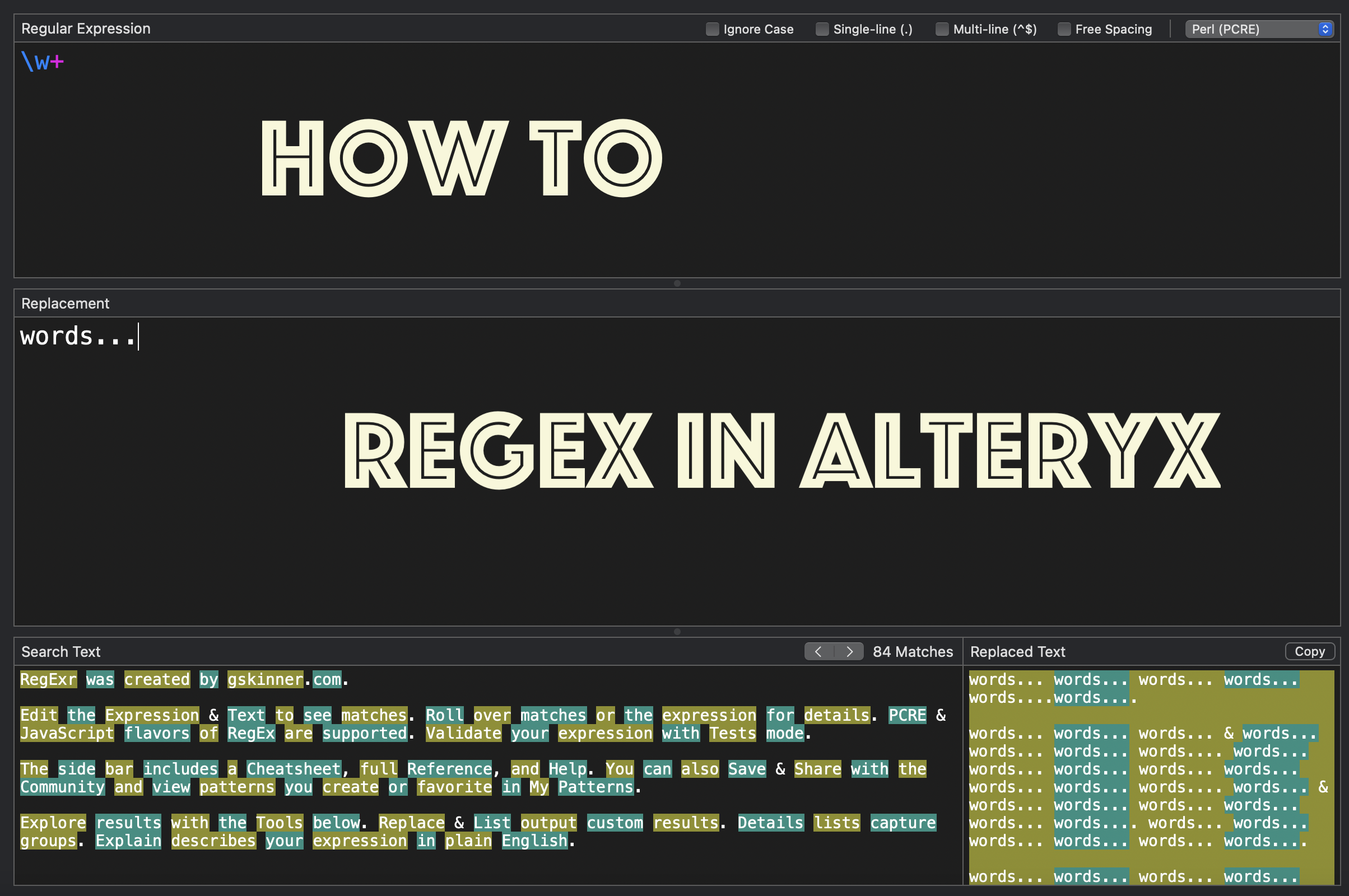
How do I test my regex patterns before applying them? The best practice is to use the "RegEx" tool in "Parse" mode to visualize your matches on a small sample of your data. Once you verify that the expression correctly identifies the desired text, move the pattern into your Formula tool.
Recommended Next Steps
To become proficient with regex in Alteryx, begin by identifying a recurring data-cleaning bottleneck in your current workflow—such as removing inconsistent delimiters or stripping prefix codes. Start by creating a simple "scratchpad" workflow using a Text Input tool to test various patterns. As you gain confidence, incorporate capture groups to solve reformatting tasks. For complex regex needs, consult the official Alteryx Community documentation for specific PCRE syntax supported by the software version you are currently utilizing.
Image Gallery