How to Create and Manage a Professional Email Signature in Gmail for 2026
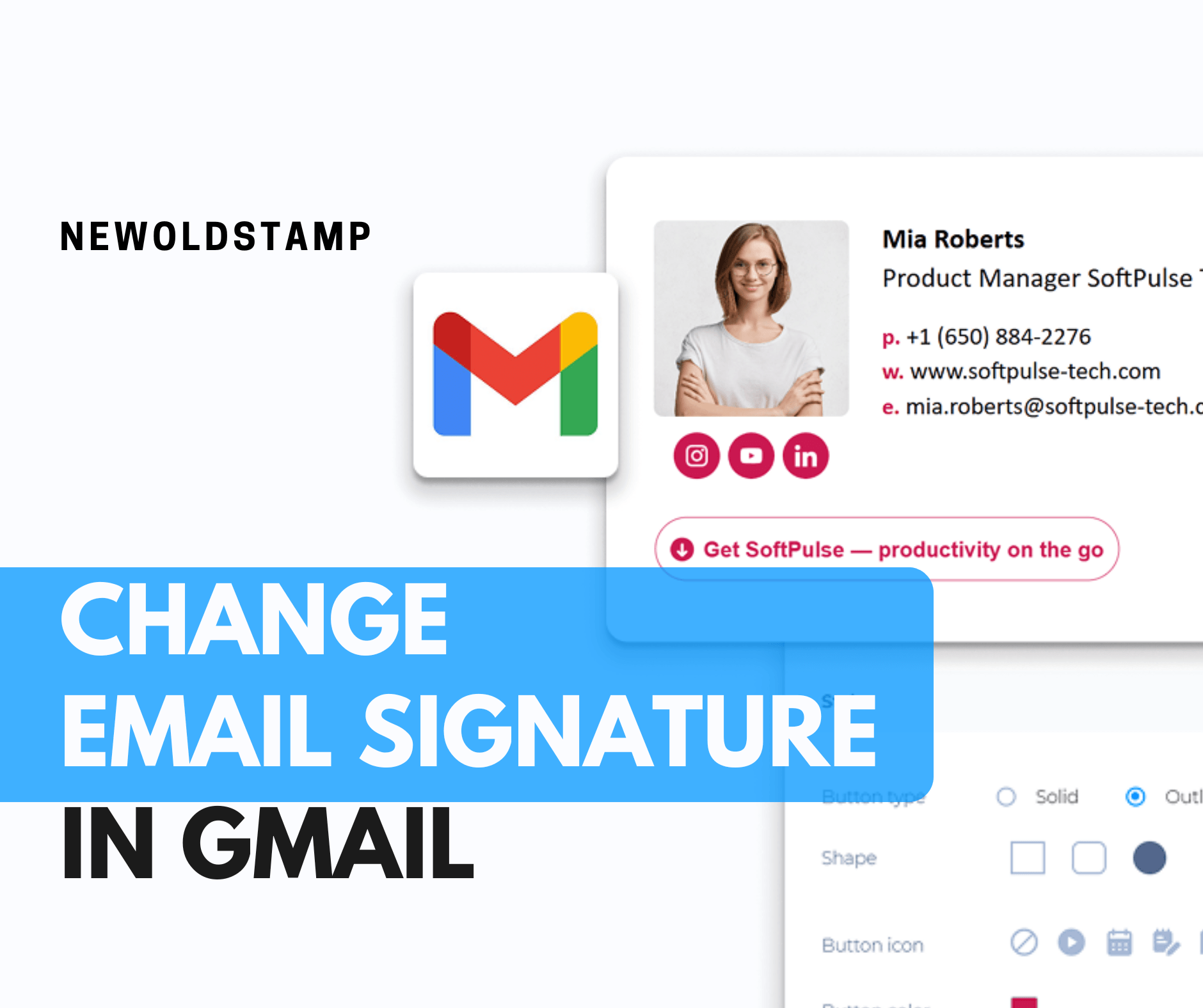
Setting up a professional email signature in Gmail requires navigating the platform's native settings menu to ensure your contact details, branding, and social links appear consistently across all outgoing correspondence. By configurin...
Setting up a professional email signature in Gmail requires navigating the platform's native settings menu to ensure your contact details, branding, and social links appear consistently across all outgoing correspondence. By configuring your signature through the web-based Gmail interface, you establish digital credibility and provide recipients with essential touchpoints, such as your professional title, website, or verified contact information.
Contents
Understanding the Role of Gmail Signatures in Professional Communication
A well-structured email signature acts as a digital business card. In the professional landscape of 2026, where email remains the primary vehicle for business-to-business and business-to-consumer correspondence, your signature serves three critical functions: brand identity, accessibility, and trust verification.
Beyond the aesthetic appeal, a properly configured signature ensures that your metadata—specifically your display name and contact channels—is indexed correctly by the recipient's email client. When designing your signature, prioritize clarity and brevity. Avoid cluttering the footer with oversized images or excessive social media icons that may trigger spam filters or display issues on mobile devices.
Step-by-Step Configuration of Your Gmail Signature
To implement a signature that meets modern professional standards, follow these specific configuration steps within the Gmail web application:
- Log into your Google Workspace or personal Gmail account on a desktop web browser.
- Click the Gear icon located in the upper-right corner and select "See all settings."
- Remain on the "General" tab and scroll down until you reach the "Signature" section.
- Click "+ Create new" and assign a descriptive name to your signature.
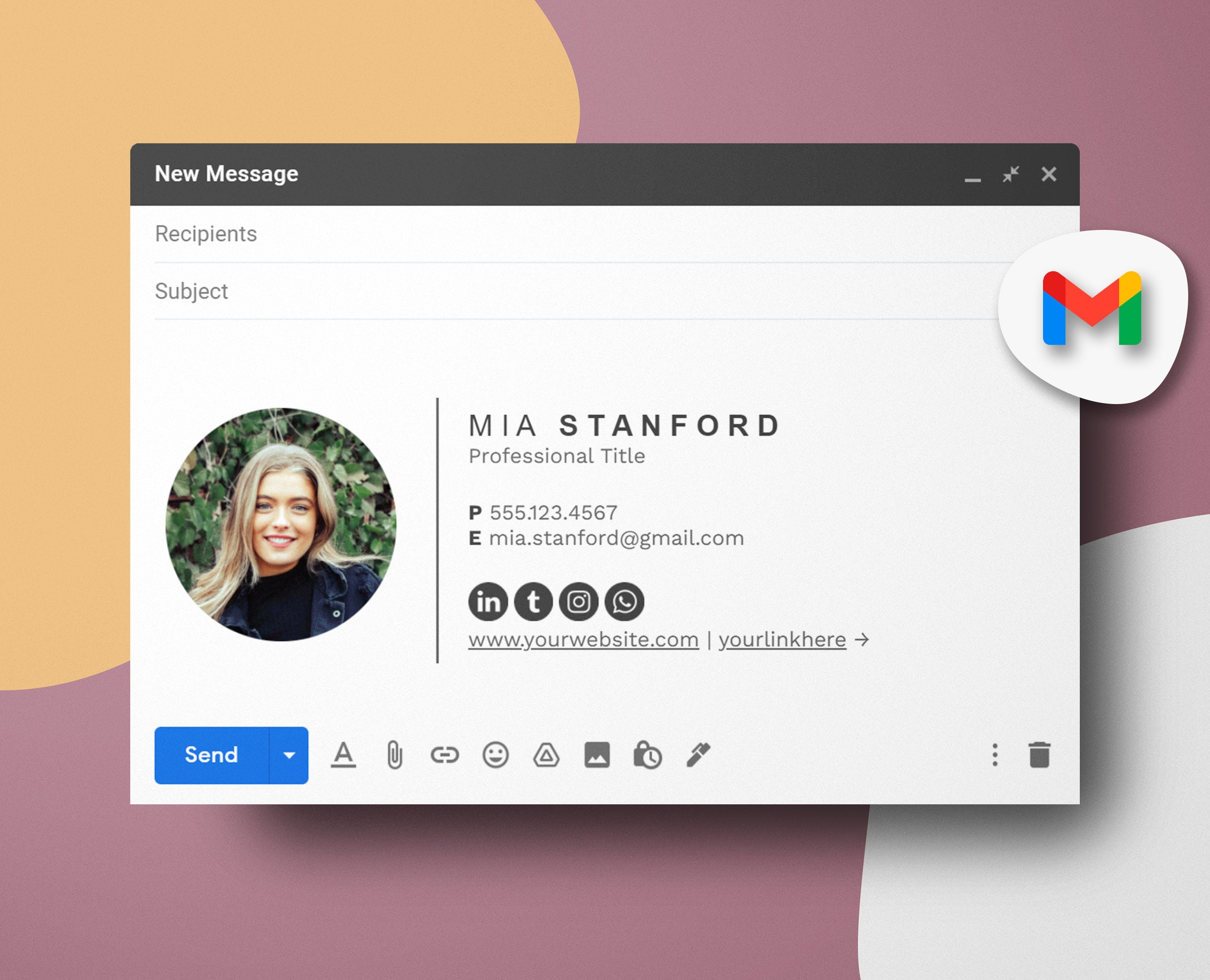
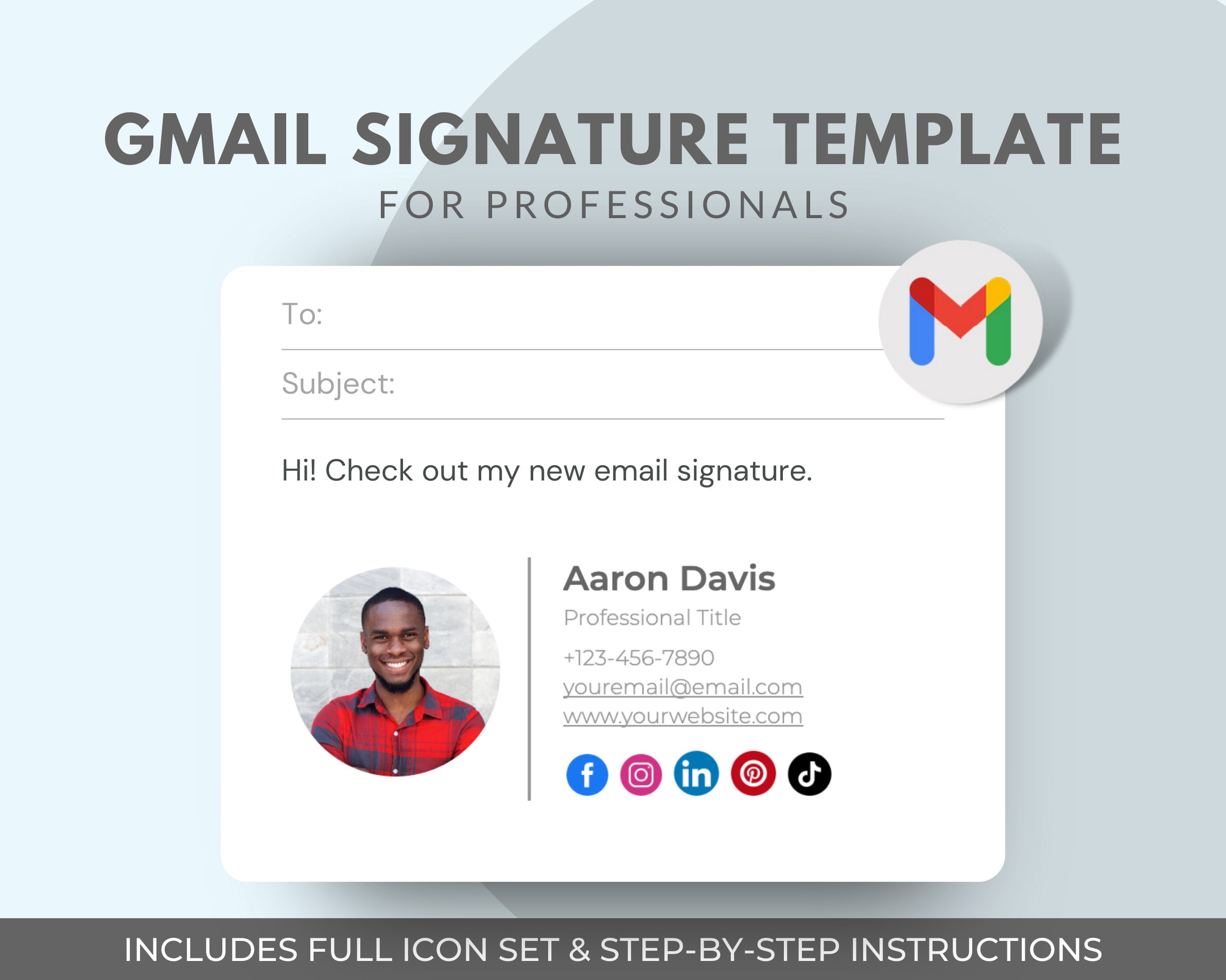
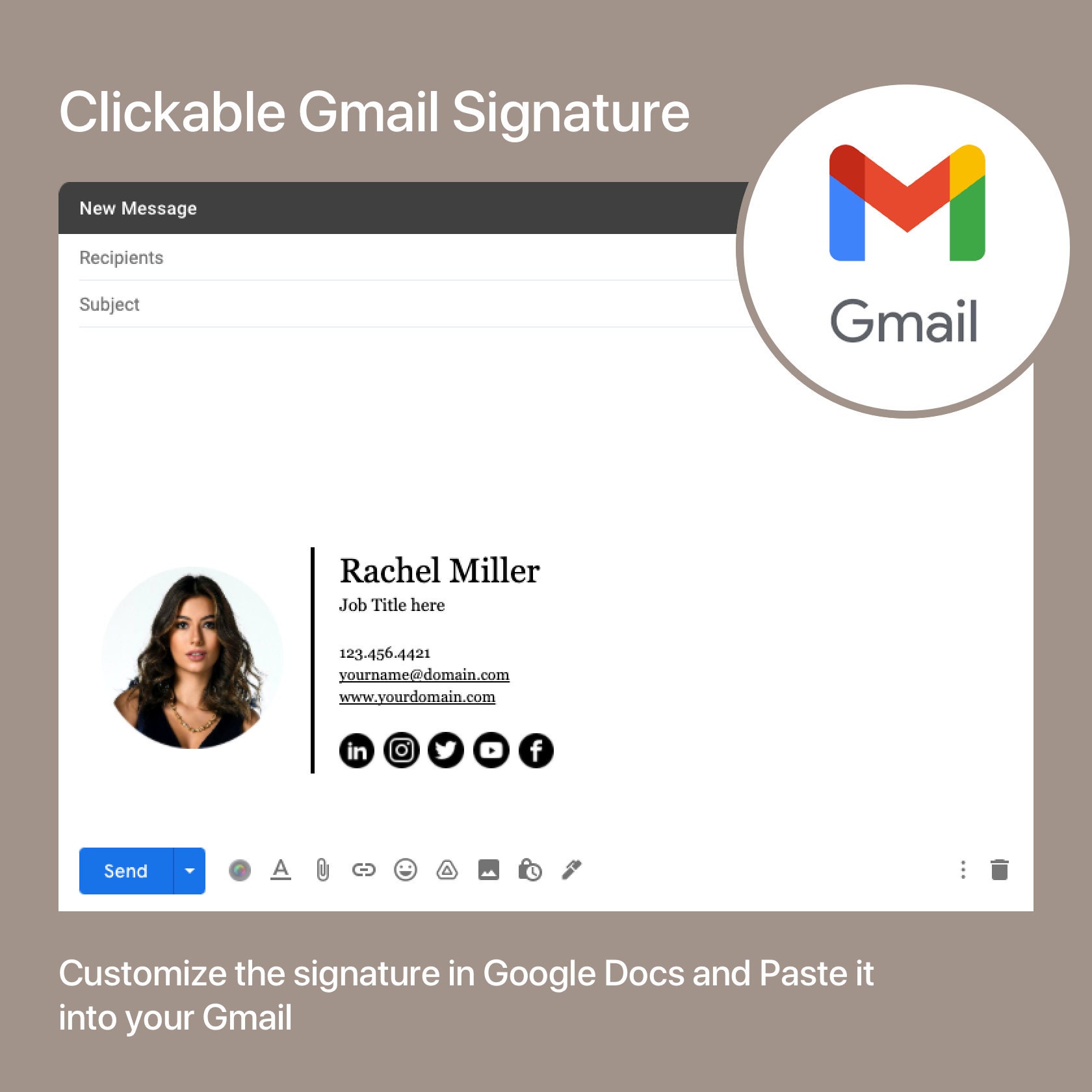
- Input your contact details in the text box. Utilize the formatting toolbar to adjust font sizes, styles, and color schemes to match your branding.
- Insert your professional logo or professional headshot using the image icon. Ensure the image file is optimized (ideally under 100KB) to prevent slow load times for the recipient.
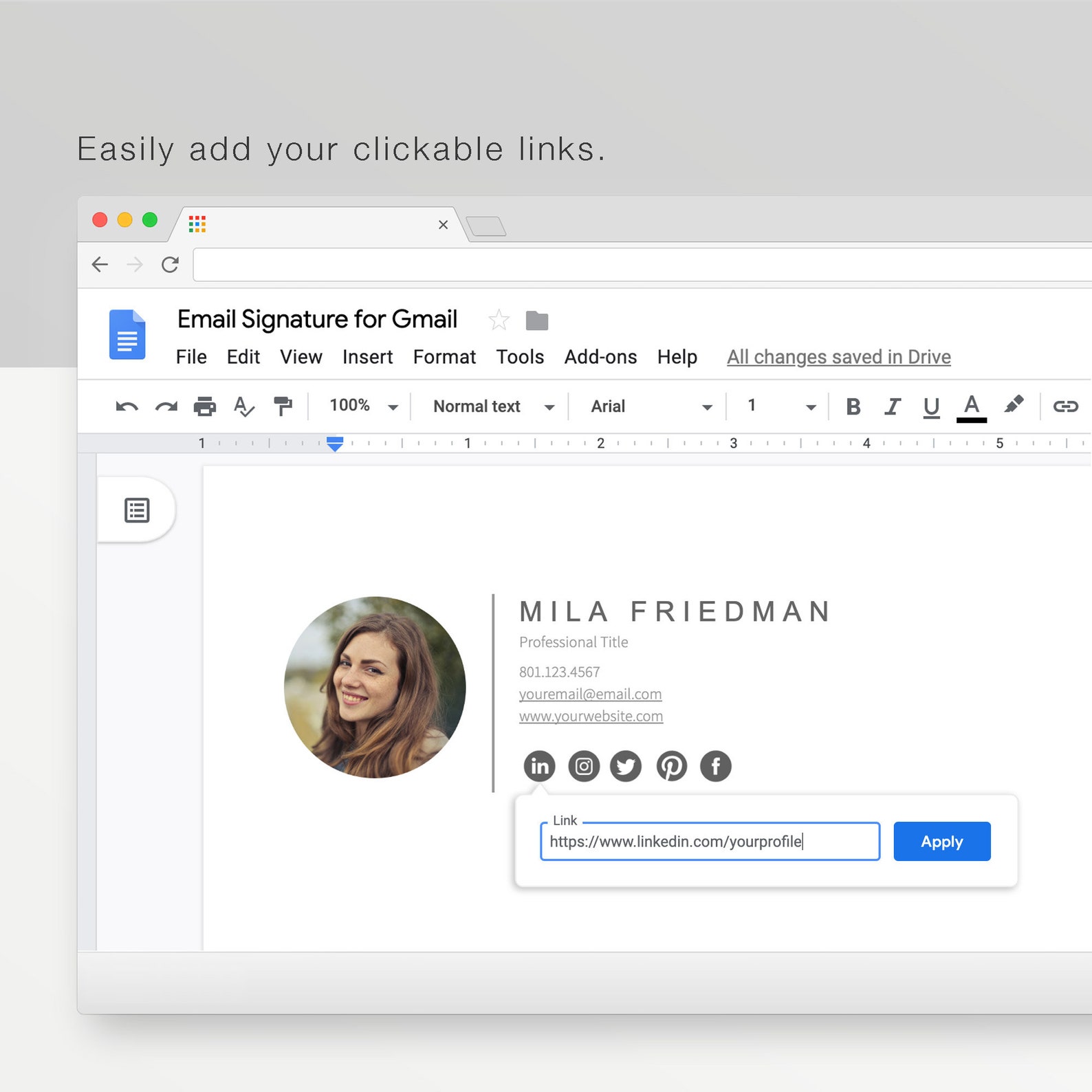
- Hyperlink your website and professional profile URLs using the link tool to ensure they are clickable.
- Scroll to the bottom of the page and select "Save Changes."
Technical Specifications and Best Practices for Optimal Rendering
Achieving cross-platform consistency is the greatest challenge in email signature design. Because Gmail, Outlook, Apple Mail, and mobile clients render HTML differently, you must adhere to strict technical guidelines to ensure your signature does not appear broken or garbled.
- Font Selection: Stick to web-safe fonts such as Arial, Verdana, Helvetica, or Georgia. Custom web fonts often fail to render, causing the recipient's device to default to Times New Roman.
- Image Handling: Never embed images as attachments. Host your images on a secure web server (HTTPS) and link to them within the HTML signature. This prevents the "missing image" icon that often appears in corporate filters.
- Layout Constraints: Keep your layout simple. A single-column design is the safest choice for mobile responsiveness. Avoid complex tables that might stretch or collapse when viewed on smaller smartphone screens.
- Character Limits: Gmail limits the signature field to 10,000 characters. While this is expansive, brevity is preferred. Focus on essential information: Name, Job Title, Company, Phone Number, and a primary Website link.
Comparison of Signature Management Strategies
Choosing between a manual setup and a centralized management platform depends on the scale of your organization.
| Strategy | Best For | Technical Effort | Scalability |
|---|---|---|---|
| Manual Configuration | Individual users and freelancers | Low | None |
| Standardized Templates | Small teams (2-10 users) | Moderate | Manual updates required |
| Enterprise Management | Organizations (10+ users) | High (Initial Setup) | High (Automatic updates) |
Troubleshooting Common Gmail Signature Issues
If your signature is not appearing or is appearing incorrectly, verify these common failure points:
- Signature Assignment: Ensure you have assigned your signature to "New emails" and "Reply/Forward" in the Signature Defaults section of the settings.
- Rich Text vs. Plain Text: Verify your compose mode. If you are accidentally using "Plain Text Mode," images and formatting will be stripped out. Click the "More options" (three vertical dots) menu in the compose window to toggle "Plain text mode" off.
- Signature Rotation: If you have multiple signatures for different aliases, verify that the active signature corresponds to the correct "From" email address.
- Mobile App Synchronization: Changes made on the desktop web version do not always automatically sync to the Gmail mobile app. You may need to navigate to the "Signature settings" within the mobile app and manually input or refresh your signature there.
Frequently Asked Questions About Gmail Signatures
Can I use an HTML file to create my Gmail signature? Yes, you can copy and paste rendered HTML content directly into the signature box. If you are using a designer, ensure they provide an HTML file that has been optimized for Gmail's specific formatting quirks to prevent alignment issues.
Does my email signature affect my sender reputation? Yes, an overly heavy signature containing multiple external scripts or excessive tracking pixels can negatively impact deliverability. Always keep your signature code clean and avoid unnecessary external tracking code.
Are there legal requirements for email signatures in 2026? Depending on your jurisdiction, you may be legally required to include specific information, such as your registered company address, registration number, or place of incorporation. Consult with your legal department to ensure compliance with regional mandates like GDPR or CCPA.
Why do my images look pixelated in my signature? This is typically due to the source image being scaled incorrectly within the Gmail editor. Always resize your image to the exact dimensions you intend to display before uploading or linking it to your signature to maintain image fidelity.
Can I set different signatures for different email addresses? Yes, Gmail allows you to create multiple signatures. Under the "Signature defaults" section, you can map specific signatures to specific email addresses if you have multiple aliases configured within your account.
Maintaining Your Digital Professionalism
Managing your email signature is an ongoing aspect of your digital presence. Review your contact information quarterly to ensure that all links, phone numbers, and job titles remain current. By maintaining a clean, professional, and functional signature, you ensure that every email you send reinforces your professional reputation and provides clear paths for communication. If you are part of a larger organization, consider implementing a standardized policy to ensure that all outgoing communications maintain brand integrity.
Image Gallery