How to See Your Hours Played on PS5: The Definitive Guide for 2026
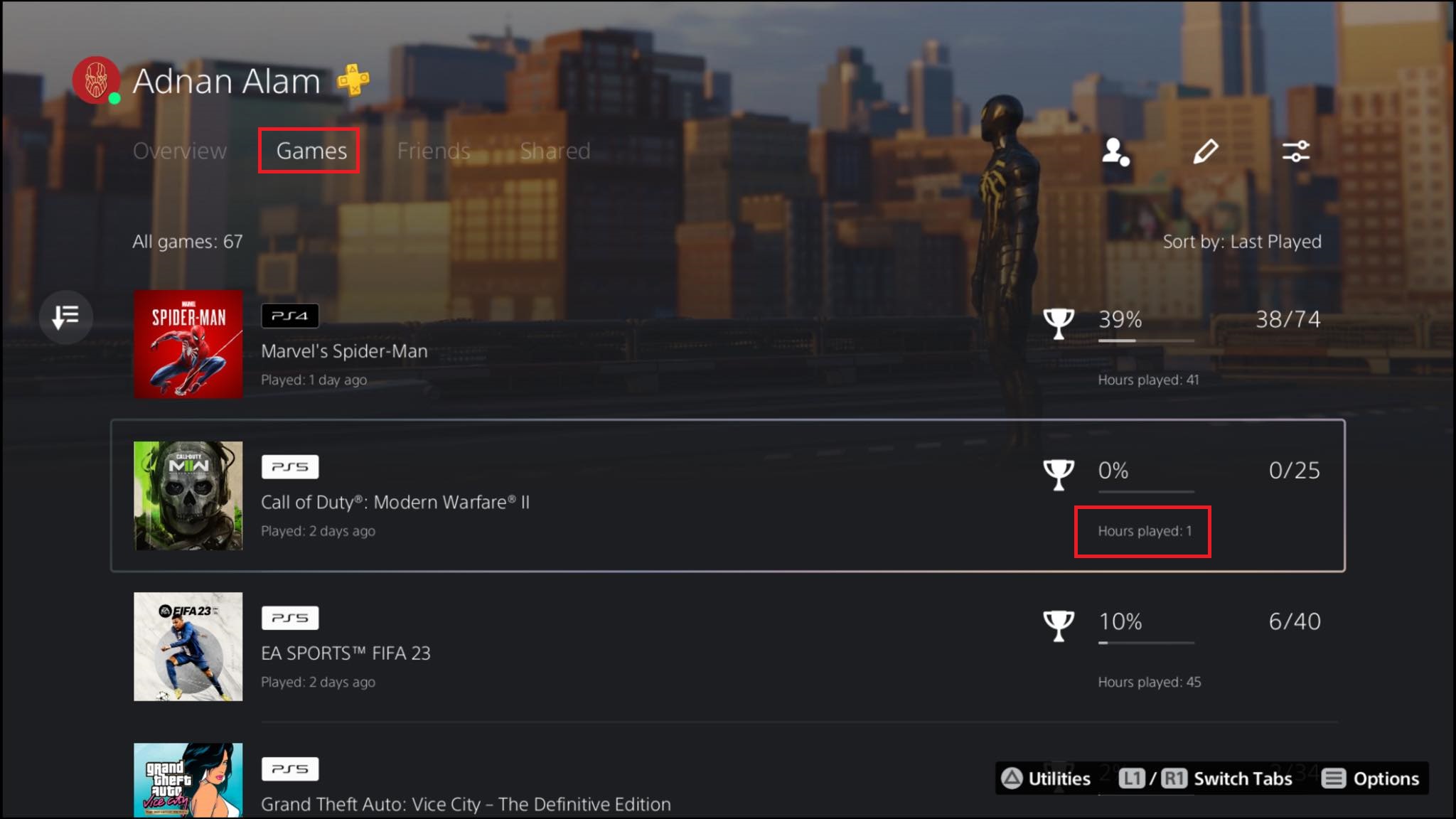
To see your hours played on PlayStation 5, navigate to the Profile icon on the top right of the home screen and select Games. This section displays your entire library, showing the total time spent in each title and the date you last p...
To see your hours played on PlayStation 5, navigate to the Profile icon on the top right of the home screen and select Games. This section displays your entire library, showing the total time spent in each title and the date you last played, updated in real-time via Sony’s servers.
Contents
Accessing Play Time Directly on the PlayStation 5 Console
The most immediate and accurate way to track your gaming habits in 2026 remains the native interface of the PlayStation 5. Unlike previous generations where play time was often hidden or limited to specific in-game menus, Sony integrated this data directly into the User Experience (UX) at launch and has refined it through subsequent firmware updates.
To access this data, follow these steps:
- Turn on your PS5 and log into your primary user account.
- Navigate to the top right corner of the home screen and select your Profile Picture.
- From the dropdown menu, select Profile.
- Tab over to the Games section.
In this list, you will see every game associated with your account. Beneath the title of each game, the PS5 displays two critical pieces of information: the number of hours you have played and how long ago you last launched the application. This tracking is retroactive for PlayStation 4 titles as well, meaning if you played a game on your PS4 and then transitioned to PS5, the total accumulated time is typically reflected here, provided your save data and account were correctly synced to the PlayStation Network (PSN).
The "Games" tab serves as a central hub for your digital footprint on the console. It provides a chronological view of your history, which is particularly useful for completionists who want to gauge how much time they have left in a massive RPG or for players looking to manage their digital well-being by monitoring their total screen time.
Using the PlayStation App for Mobile Tracking
In 2026, the integration between the console and mobile devices is seamless. The PlayStation App (available on iOS and Android) provides an alternative way to check your statistics without needing to power on your console. This is especially helpful for gamers who want to share their stats with friends or check their progress while away from home.
To view your hours on the app:
- Open the PlayStation App and sign in.
- Tap on the Play tab (the controller icon) or your Profile icon.
- Look for the Recently Played section.
- Tap on a specific game to see detailed stats, including total hours played.
The mobile app often provides a more streamlined view, though it may occasionally lag behind the console's live data by a few minutes. It is important to ensure that your console is set to "Stay Connected to the Internet" in Rest Mode to allow the PSN servers to sync your most recent session data to the cloud. Without this synchronization, the app might display outdated information from your last full shutdown.
Leveraging PlayStation Wrap-Up for Long-Term Statistics
Sony continues its tradition of providing the PlayStation Wrap-Up (often rebranded as "Your Year in Play") at the end of every calendar year. As we look back at the 2025 data in early 2026, these reports offer a much deeper dive than the standard "Hours Played" counter on the dashboard.
The annual Wrap-Up typically includes:
- Total hours played across the entire year.
- Top five most-played games with specific hour breakdowns for each.
- Trophy counts, distinguishing between Bronze, Silver, Gold, and Platinum.
- Play style analysis, such as identifying if you are an "Action-Adventure" enthusiast or a "Competitive Multiplayer" fan.
These reports are usually accessible via a dedicated website (wrapup.playstation.com) for a limited time between December and February. They provide a "big picture" view that helps players understand their yearly trends, which the standard console UI does not aggregate into a single total.
Third-Party Tracking Services and Their Benefits
For gamers who require more granular data, such as historical graphs or global leaderboards, third-party services like Exophase and PSNProfiles remain the gold standard. These platforms use the PSN API to pull data from your public profile and display it in a more analytical format.
To use these services, you must ensure your PS5 privacy settings allow "Anyone" to see your gaming history. Once your profile is public, these sites can track:
- Daily play time: Exactly how many hours you played on a specific Tuesday three months ago.
- Time to Platinum: How your play time compares to the global average for earning a Platinum trophy.
- Milestones: The exact date and hour you reached 1,000 hours in a specific title.
While these sites offer superior depth, they are dependent on Sony’s privacy infrastructure. If you set your profile to private, these trackers will cease to function. Many players use these tools to participate in community challenges or to verify "speedrun" claims that require external validation of time spent in-game.
Understanding Accuracy: Why Your Hours Might Seem Incorrect
A common frustration among PS5 users is the perceived inaccuracy of the "Hours Played" timer. It is important to understand how Sony calculates this metric. The timer begins the moment the application is launched and stops when the application is fully closed or the console enters Rest Mode.
| Issue | Impact on Play Time | Mitigation |
|---|---|---|
| Rest Mode | If a game is suspended, the timer usually stops, but some titles continue to count idle time. | Close the game application fully before entering Rest Mode. |
| Main Menus | Time spent on the title screen or in pause menus counts toward the total. | Exit to the home screen if you plan to step away for an extended period. |
| Offline Play | Hours logged while offline may not sync immediately. | Connect to PSN periodically to update the server-side counter. |
| Account Sharing | Play time is tied to the specific user profile, not the console hardware. | Ensure guests use a separate "Guest" or "User" profile. |
| Server Latency | Changes may take 24-48 hours to reflect in the UI. | Be patient; the internal database usually reconciles the data eventually. |
The most frequent cause of "inflated" hours is leaving a game running in the background while using other media apps like YouTube or Netflix. While the PS5 is designed to handle multitasking, some game engines do not correctly signal to the OS that they are "paused," leading to the system counting time while you are actually watching a movie.
Privacy Settings: Controlling Who Sees Your Play Time
Not every gamer wants their library and play habits to be public knowledge. Sony provides robust privacy controls that allow you to hide your hours played from friends or the general public. This is particularly relevant in 2026 as digital privacy becomes an increasingly scrutinized aspect of gaming.
To adjust who can see your play time:
- Go to Settings > Users and Accounts.
- Select Privacy > View and Customize Your Privacy Settings.
- Scroll down to Gaming History.
- Choose between Anyone, Friends of Friends, Friends Only, or No One.
If you select "No One," your games will no longer appear on your profile to others, and the hours played will be hidden. However, you will still be able to see this information for yourself when logged into your own account. This setting also affects third-party trackers; if you want to use Exophase or PSNProfiles, you must set this to "Anyone."
Digital Well-being and Tracking Ethics
In the current gaming landscape of 2026, the ability to track hours played is more than just a novelty; it is a tool for digital well-being. With many modern titles designed around "live service" models and daily engagement loops, it is easy to lose track of time. Sony has acknowledged this by providing more transparent data, allowing players to make informed decisions about their hobby.
Parents also utilize these features through PlayStation Parental Controls. By setting up a "Family Management" account, parents can see exactly how much time their children spend on specific games and set hard limits on daily play time. This data is pulled from the same tracking system that powers the "Games" tab, ensuring consistency across the ecosystem.
Frequently Asked Questions
Does the PS5 count time spent in the media gallery or settings?
No, the hour counter is strictly tied to game applications and specific media apps. Time spent navigating the home screen, adjusting settings, or editing clips in the Media Gallery does not contribute to the "Hours Played" total shown in your profile.
Can I reset the hours played for a specific game?
Currently, there is no official way to reset or "zero out" the hours played on a specific title. The data is permanently tied to your PSN ID. The only way to start fresh is to play the game on a completely different PSN account.
Why is there a difference between in-game timers and the PS5 dashboard?
Many games, such as Elden Ring or Final Fantasy, have internal clocks that only count active gameplay. The PS5 dashboard, however, tracks the total time the application was open. If you spend significant time in the game's main menu or loading screens, the PS5 dashboard will always show a higher number than the in-game save file.
Does the PS5 track hours for physical disc games?
Yes, the console tracks play time for both digital downloads and physical discs. As long as the game is launched and your account is signed into PSN, the system will log the hours to your profile regardless of the format.
Will my PS5 hours transfer to the PS6?
While Sony has not officially detailed the specifications of future hardware in early 2026, the current architecture suggests that your PSN profile—and the associated metadata like play time—will likely transition to future consoles, just as PS4 data transitioned to the PS5.
Practical Recommendation
To get the most accurate look at your gaming habits, check your Profile > Games tab on the console at the end of each week. If you notice your hours are significantly higher than expected, develop the habit of manually closing the game application (Options Button > Close Game) rather than just putting the console into Rest Mode. This ensures the timer stops precisely when you finish your session and provides a cleaner data set for your year-end Wrap-Up.
Image Gallery