Mastering Gimkit Comjoin And Enter: A Complete Guide for 2026
Joining a live Gimkit session using the standard web portal requires understanding the exact URL routing, game code mechanics, and system requirements needed to jump straight into the action. Whether you are a student attempting to log...
Joining a live Gimkit session using the standard web portal requires understanding the exact URL routing, game code mechanics, and system requirements needed to jump straight into the action. Whether you are a student attempting to log into a teacher-hosted classroom activity or an educator organizing a review session, navigating the platform efficiently prevents connection bottlenecks and ensures a seamless interactive learning experience.
Contents
Understanding the Gimkit Game Entry Ecosystem
Gimkit operates as a live, game-show-style learning platform where students answer questions on their own devices to earn in-game currency. To participate, users do not necessarily need a pre-existing student account; instead, the primary method of entry relies on a temporary, dynamic five-digit or six-digit game code generated by the host.
The entry architecture is designed for speed and accessibility across multiple modern web-enabled devices. When educators reference joining a game, they typically point participants toward the core web utility where session routing takes place. The system instantly verifies the active code against active server databases, matching players to the correct lobby without requiring complex credential handshakes for basic student participation.
Core Components of a Live Gimkit Session
- The Game Code: A unique numeric identifier generated by the host when a live assignment or classic game begins.
- The Player Name: The moniker displayed on the leaderboard, which can be restricted by teachers to ensure classroom appropriateness.
- The Device Terminal: Any smartphone, tablet, Chromebook, or desktop computer running a modern web browser with active internet connectivity.
Step-by-Step Instructions to Join and Enter a Gimkit Game
Participating in an active session requires a straightforward sequence of browser actions. Follow these structured steps to transition from an idle screen to the active game lobby without errors.
- Launch a Web Browser: Open a standards-compliant browser such as Google Chrome, Mozilla Firefox, Microsoft Edge, or Apple Safari on your device.
- Navigate to the Portal: Type the official platform address into the URL navigation bar or use a direct invitation link provided by your instructor.
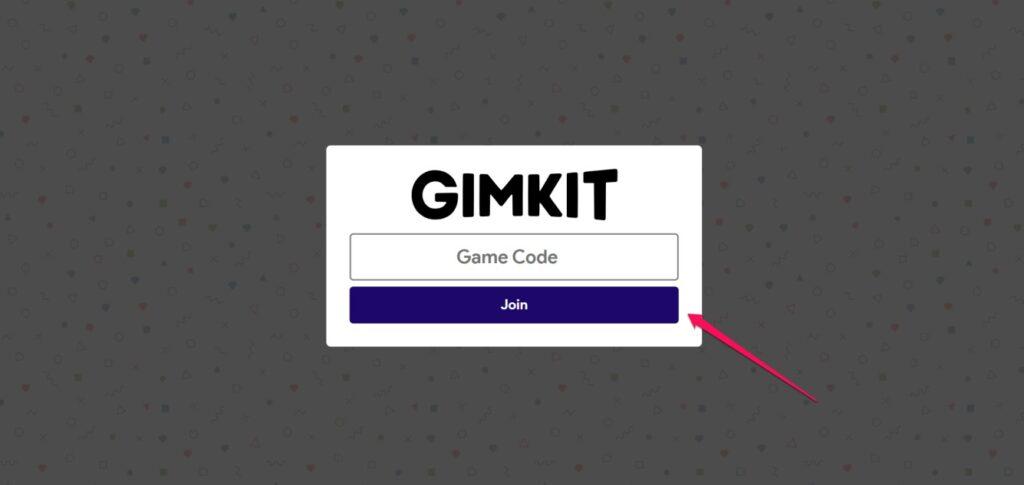
- Input the Game Code: Locate the prominent text field designated for game codes on the landing screen and type the exact numbers provided by the game host.
- Submit and Proceed: Click the join action button or press the enter key on your keyboard to transmit the code to the server.
- Enter Your Name: Type your preferred or assigned player name into the prompt box. If the host has enabled specific naming filters or class rosters, ensure you follow their exact naming conventions.
- Wait in the Lobby: Once successfully authenticated, your device will display a waiting screen while the host prepares to start the match. Do not close or refresh the tab during this phase.
Technical Requirements and Network Prerequisites
Ensuring a lag-free experience requires meeting baseline technical thresholds. Because Gimkit relies on real-time synchronization between the central server and dozens of student devices, network stability directly impacts gameplay performance.
Browser Compatibility and Performance Standards
Modern web applications leverage JavaScript frameworks and real-time WebSocket connections to update scores, power-ups, and game states instantly. Users should ensure their browser is updated to the latest stable release. Outdated browsers may experience rendering issues with the game's interactive graphics or fail to establish secure web socket handshakes.
Network Configuration and Firewall Considerations
In institutional environments like schools or universities, local network administrators frequently implement strict web filters. To ensure seamless entry into live sessions, certain domains and protocols must be whitelisted by IT departments:
- HTTPS Protocol: All traffic must be permitted over port 443 to ensure secure encryption.
- WebSocket Traffic: Persistent connections must be allowed through school content filters to prevent mid-game disconnections or frozen leaderboards.
- Media and Asset Delivery: Content delivery networks used by the platform must not be blocked by web filtering software, ensuring images and audio files load correctly.
Comparison of Gimkit Access Methods and Account Types
Understanding the functional differences between anonymous student entry, registered student accounts, and educator accounts helps clarify permission levels and feature availability across the platform.
| Access Type | Account Required? | Primary Capabilities | Session Limitations |
|---|---|---|---|
| Anonymous Guest Player | No | Enter game codes, play live games, earn in-game cash, view leaderboards. | Cannot save historical stats, purchase permanent cosmetic items, or host games. |
| Registered Student | Free Email Sign-up | Track historical learning progress, customize avatars, save earned currency. | Cannot host games beyond free tier limits without an upgraded educator license. |
| Educator / Teacher | Verified Educator Account | Host live games, assign homework, create custom kits, access analytics. | Subject to tier-specific limits (Free vs. Gimkit Pro subscription models). |
Troubleshooting Common Entry Errors and Connection Failures
Even with a straightforward entry process, technical hiccups can occur. Reviewing these diagnostic remedies helps resolve the most frequent connection roadblocks encountered during session launch.
Invalid Game Code Error: If the system rejects your code with an error message, double-check the digits with the game host. Game codes are temporary and expire immediately after a session concludes or if the host cancels the lobby.
Infinite Loading Screens: If your browser hangs on the loading animation after submitting your name, clear your browser cache and cookies, or try switching from Wi-Fi to a stable cellular hotspot to bypass restrictive local network firewalls.
Name Submission Blocks: If the platform flags your chosen name as inappropriate or unavailable, select a neutral identifier. Many educators enforce strict naming policies to maintain a focused digital environment.
Frequently Asked Questions About Joining Gimkit Sessions
Do I need to create an account to join a Gimkit game as a student?
No, an account is not required to participate. Students can join anonymously by simply typing the active game code and entering a display name chosen by or approved by their instructor.
Why is the game code not working when I try to enter?
Game codes are dynamically generated and expire as soon as the host ends the session or if you attempt to use a code from a previous day. Confirm the current code directly with your instructor and ensure there are no typos.
Can I play Gimkit on a mobile phone or tablet?
Yes, the platform is fully responsive and optimized for mobile web browsers on smartphones and tablets, eliminating the need to download a dedicated native application from an app store.
What should I do if I get disconnected during a live match?
If your connection drops mid-game, you can re-enter the active session by navigating back to the portal, entering the same game code, and logging back in, though accumulated in-game cash from the previous streak may reset depending on the game mode settings.
How can teachers prevent unauthorized users from entering their game?
Educators can utilize features such as name restriction settings, roster integration, and locking the game lobby once all expected students have successfully entered the virtual room.
Practical Recommendations for Smooth Session Launches
Maximizing instructional time during interactive classroom activities requires proactive preparation. Hosts should project the game code clearly on a central screen while advising participants to have their devices charged and browsers open prior to the start bell. By establishing a standardized routine for entering game codes, participants can minimize downtime and maximize engagement throughout the learning session.
Image Gallery