A Comprehensive Guide on How to Logout of Game Center
To log out of Game Center on an Apple device, you must navigate to the settings menu, locate the Game Center entry within the Apple ID profile section, and toggle the feature off or sign out of the associated Apple ID. This process eff...
To log out of Game Center on an Apple device, you must navigate to the settings menu, locate the Game Center entry within the Apple ID profile section, and toggle the feature off or sign out of the associated Apple ID. This process effectively detaches your current gaming progress and social connectivity from the active profile on your iPhone, iPad, or Mac.
Contents
Understanding Game Center Functionality
Game Center is a social gaming network developed by Apple that allows users to track achievements, compete on leaderboards, and engage in multiplayer gaming sessions across the Apple ecosystem. Since its integration into the iOS and macOS architecture, it has served as a centralized hub for syncing game saves via iCloud and maintaining a unified player profile.
Logging out is a common requirement for users who share devices, wish to switch between multiple gaming accounts, or prefer to play games in a local, offline capacity without the intrusion of social notifications or cloud-syncing conflicts. Understanding that Game Center is inextricably linked to your primary Apple ID is the most important prerequisite. Because the service does not function as a standalone account, you are effectively managing your Apple ID session when you manipulate Game Center status.
Prerequisite Considerations Before Logging Out
Before you initiate the sign-out process, it is critical to verify the current state of your game data. Most modern iOS and macOS games utilize iCloud synchronization to back up your progress, in-app purchases, and character development. If you sign out of Game Center, you may lose access to these cloud-saved states if the game relies exclusively on Apple’s infrastructure.
- Verify Progress Backups: Check if your specific game provides an in-game account system (e.g., an email-based login or a third-party service like Facebook or developer-specific cloud storage). If such a system exists, ensure you are logged into it before disconnecting from Game Center.
- Review Active Subscriptions: Certain games accessible through Apple Arcade require an active Game Center connection to validate your subscription. Logging out may temporarily restrict access to premium features or saved data associated with these titles.
- Data Security: Remember that signing out does not delete your game data from Apple’s servers; it merely terminates the active session on your specific hardware. Your achievements and high scores remain stored against your Apple ID for future access.
Step-by-Step Procedure for iOS and iPadOS
On iPhones and iPads, the management of Game Center is located within the system Settings app. As of 2026, the pathway remains consistent across modern iOS versions.
- Open the Settings App: Locate the grey gear icon on your home screen or App Library.
- Access Game Center: Scroll down through the primary menu list until you find the "Game Center" tab, usually situated between the "Passwords" and "Siri & Search" sections.
- Manage Your Profile: Once inside, you will see your linked Apple ID email address at the top.
- Sign Out: Scroll to the bottom of the page. You will see a button labeled "Sign Out." Tapping this will immediately disconnect your current Apple ID from Game Center.
- Alternative Toggling: If you do not wish to sign out completely but simply want to prevent your device from automatically logging into games, you may toggle the "Game Center" switch to the "Off" position at the top of the menu instead.
Managing Game Center on macOS
The process for macOS users involves slightly different interface navigation, as system settings are handled through the System Settings menu (formerly System Preferences).
- Open System Settings: Click the Apple logo in the top-left corner of your screen and select "System Settings."
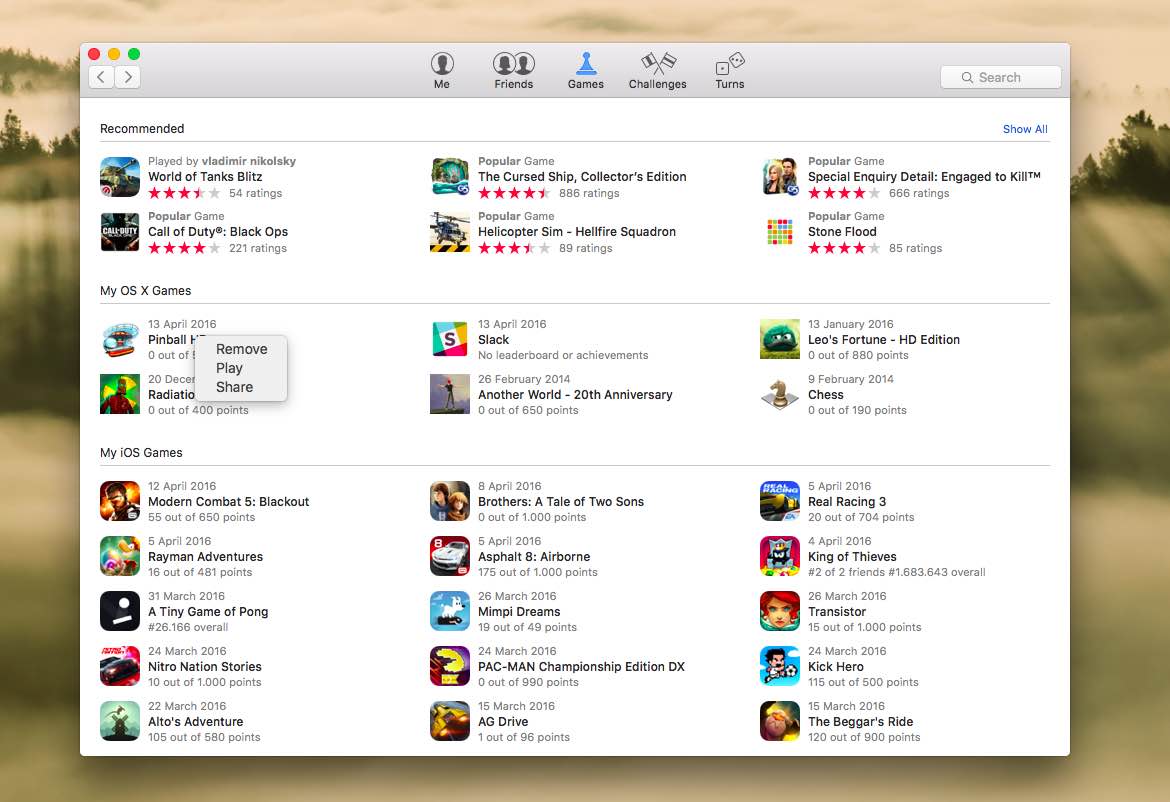
- Navigate to Game Center: In the sidebar, click on "Game Center." You may need to click on your Apple ID name first if the option is not immediately visible.
- Disconnect: If you are signed in, you will see your profile information. Select the option to "Sign Out" or toggle the "Use Game Center" switch to off.
- Confirm Changes: Once finished, the interface should reflect that the service is disabled, and your Mac will stop prompting you to authenticate with Game Center when launching compatible gaming applications.
Comparison of Sign-Out Methods
Users often confuse disabling notifications with signing out of the service entirely. The following table clarifies the differences and impacts of various management choices.
| Action | Purpose | Effect on Game Data | Effect on Social Features |
|---|---|---|---|
| Sign Out | Completely disconnects the Apple ID | Stops iCloud sync for games | All social features disabled |
| Disable Game Center | Disables the service globally | Prevents new cloud saves | Stops notifications/invites |
| Turn Off Notifications | Reduces UI distraction | No impact on sync | Only banners/alerts are hidden |
| Delete Account | Permanent data removal | Data is purged from servers | Permanent loss of history |
Troubleshooting Common Issues
If you encounter errors when attempting to sign out, or if the system seems to log you back in automatically, consider these common technical hurdles.
- Restarting the Device: A simple system reboot is often enough to clear stuck sessions. This forces the OS to re-authenticate with the Apple ID servers, which can resolve persistent connection errors.
- Network Connectivity: Ensure your device has an active internet connection. If the device cannot communicate with Apple's servers, the sign-out command may not be processed correctly, leading to a "hanging" state.
- Parental Controls: If your device is managed by Screen Time or a mobile device management (MDM) profile, certain restrictions might prevent you from altering Game Center settings. You must disable these restrictions or contact the account administrator to regain control.
- Third-Party Sync Conflicts: Some games force-prompt a login screen when launched. If you sign out of Game Center but the game continues to request credentials, it is likely that the specific app uses a secondary authentication layer. You must navigate to that app’s internal settings to disconnect from that specific provider.
Frequently Asked Questions
What happens to my achievements if I log out? Your achievements are tied to your Apple ID, not the local device. If you log out, you will no longer see your progress, but your historical data remains safe on Apple’s servers. You can reclaim this progress at any time by logging back into the same Apple ID.
Can I switch to a different Game Center account without logging out? Apple’s architecture does not support concurrent Game Center logins. You must sign out of the existing account before signing in with a different one. Switching accounts frequently may trigger security prompts from Apple, requiring you to verify your identity.
Why does my game keep asking me to sign in? This usually occurs because the game is configured to require Game Center for cloud saves or multiplayer functionality. If you do not want to use the service, you will have to dismiss the prompt every time you launch the game, as there is no universal "disable" switch for these prompts within the games themselves.
Will I lose in-app purchases if I sign out? Most in-app purchases are linked to the Apple ID used to make the transaction, not Game Center itself. However, if the game relies on Game Center to verify the purchase for functionality, you might encounter issues accessing paid content while logged out.
Is it possible to delete my Game Center profile entirely? Yes, but this is a permanent action. You can delete your Game Center profile through your Apple ID settings, which will erase your leaderboard positions, achievement history, and friend lists. This does not delete the game application or your local save data, but it severs the link between your progression and the social network forever.
Final Recommendation
For users seeking to simply stop social interruptions, I recommend toggling off the "Game Center" setting within your privacy or notification menus rather than signing out entirely. This maintains your cloud save functionality while silencing the social layer. If you are preparing to sell or trade your device, ensure you sign out of your Apple ID entirely, which automatically handles the Game Center sign-out process and protects your personal data from future users.
Image Gallery