How to Create a Netflix Profile: A Comprehensive 2026 Guide
To create a Netflix profile, sign in to your account on any compatible device, navigate to the "Manage Profiles" screen, and select "Add Profile." You can assign a unique name, choose an avatar, and set maturity ratings for each of the...
To create a Netflix profile, sign in to your account on any compatible device, navigate to the "Manage Profiles" screen, and select "Add Profile." You can assign a unique name, choose an avatar, and set maturity ratings for each of the five permitted profiles to ensure personalized recommendations and viewing history.
Contents
Netflix remains the world’s leading streaming service in 2026, largely due to its sophisticated personalization algorithms. These algorithms rely entirely on individual profiles to function correctly. Without separate profiles, a single account shared by a household would result in a chaotic "Recommended for You" list that mixes children’s cartoons with gritty dramas and niche documentaries. By creating distinct profiles, every user ensures their viewing history, "My List," and playback progress remain isolated and accurate.
Understanding Netflix Profile Limits and Requirements
Before setting up a new profile, it is essential to understand the technical limitations and structural requirements of a Netflix account. As of 2026, Netflix maintains a strict limit on the number of profiles allowed per account, regardless of the subscription tier.
The Five-Profile Limit
Every Netflix account supports a maximum of five profiles. This limit includes the primary account holder's profile and any additional profiles created for family members or household residents. It is important to distinguish between "profiles" and "simultaneous streams." While you can have five profiles, the number of devices that can watch content at the same time depends on your specific plan:
- Standard with Ads: Supports 2 simultaneous streams.
- Standard (Ad-Free): Supports 2 simultaneous streams.
- Premium (4K/HDR): Supports 4 simultaneous streams.
Profile vs. Extra Member Slots
In recent years, Netflix has transitioned away from unregulated password sharing. If you wish to share your account with someone living outside your primary household, you may need to purchase an "Extra Member" slot. Creating a profile for someone in your own home is free, but adding an extra member involves a separate billing process and allows that individual to have their own standalone profile and login credentials.
Step-by-Step: How to Create a Netflix Profile on All Devices
The process for creating a profile is streamlined but varies slightly depending on whether you are using a web browser, a mobile app, or a smart TV interface.
Creating a Profile via Web Browser (PC/Mac)
- Access the Website: Open your preferred browser and navigate to the Netflix homepage.
- Sign In: Click the "Sign In" button and enter your credentials.
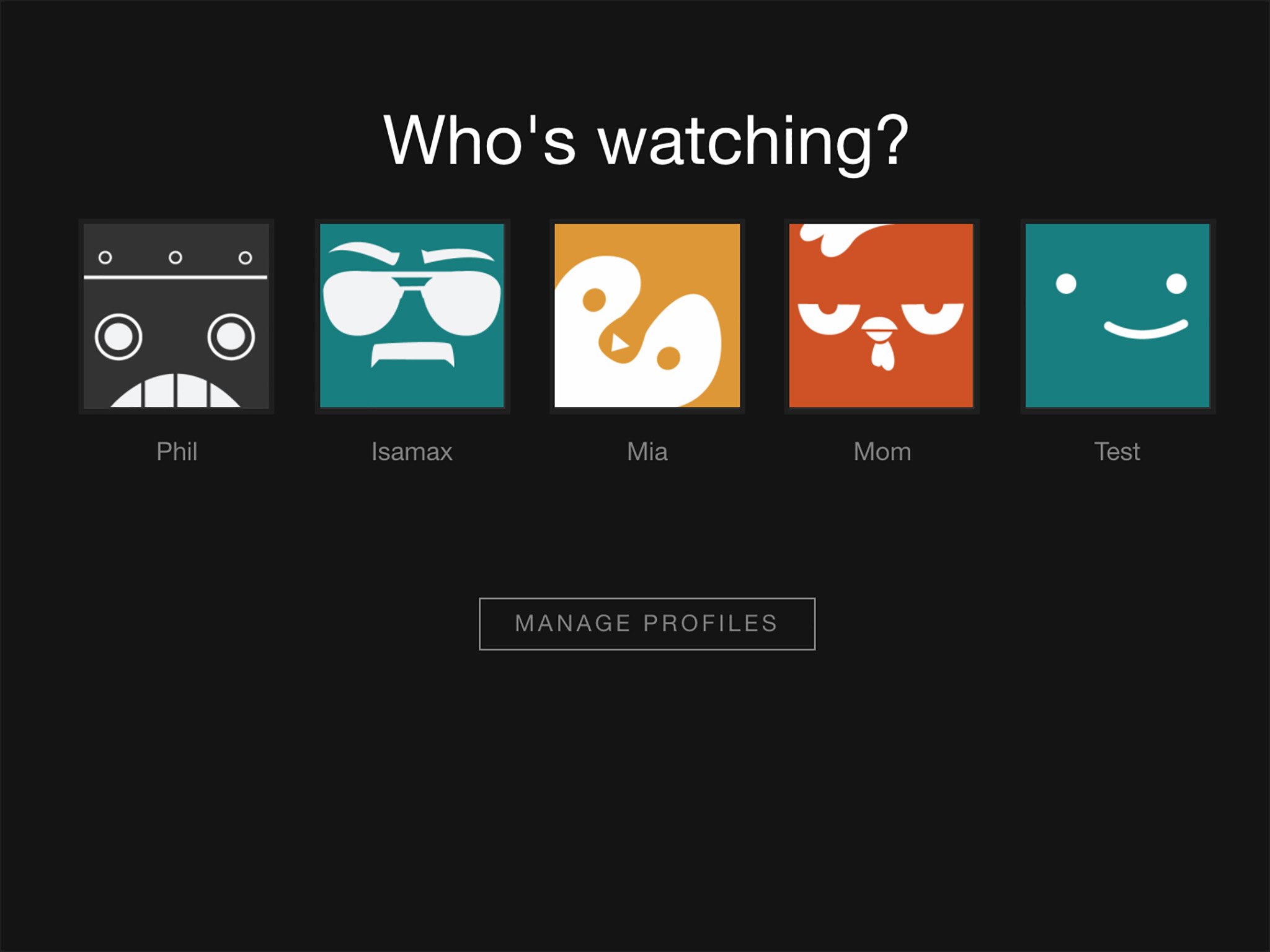
- Manage Profiles: If you are already logged in, hover over your profile icon in the top right corner and select Manage Profiles.
- Add Profile: Click the large plus sign labeled "Add Profile."
- Configure Details: Enter a name for the profile. If this is for a child, check the "Kid?" box to automatically apply age-appropriate filters.
- Save: Click "Continue" or "Save" to finalize the creation.
Creating a Profile on Mobile (Android/iOS)
- Open the App: Launch the Netflix app on your smartphone or tablet.
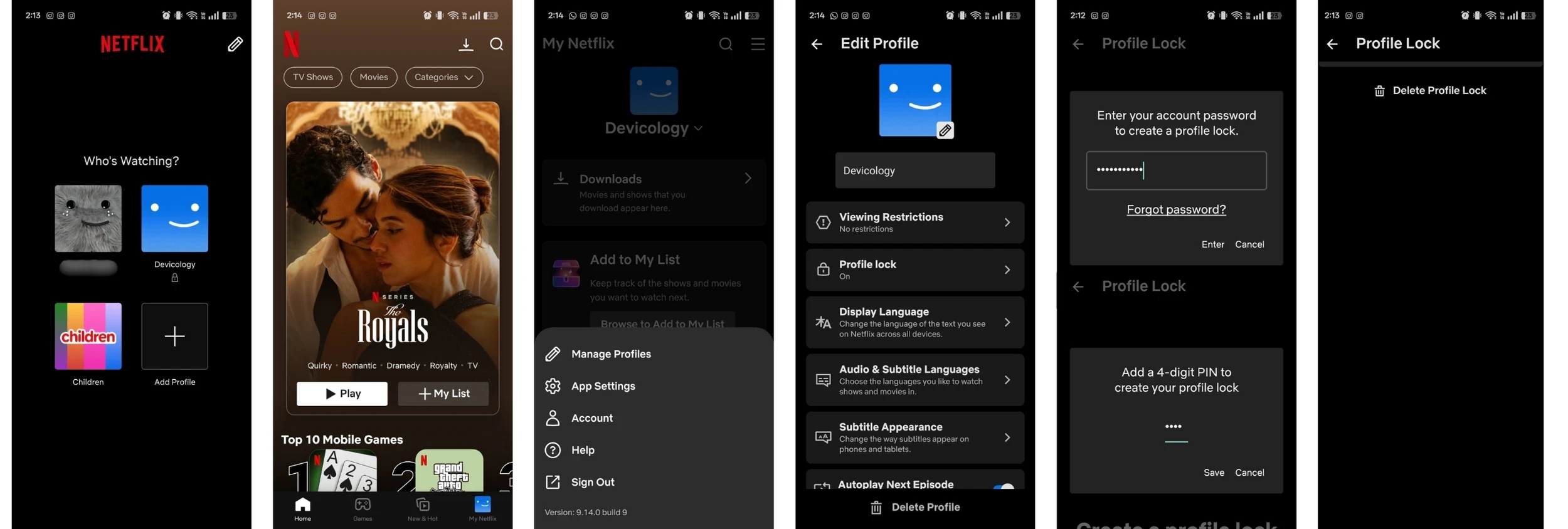
- Navigation: Tap the "My Netflix" icon (or your profile icon) in the bottom right corner of the screen.
- Profile Selection: Tap on your current profile name at the top to open the profile selection menu.
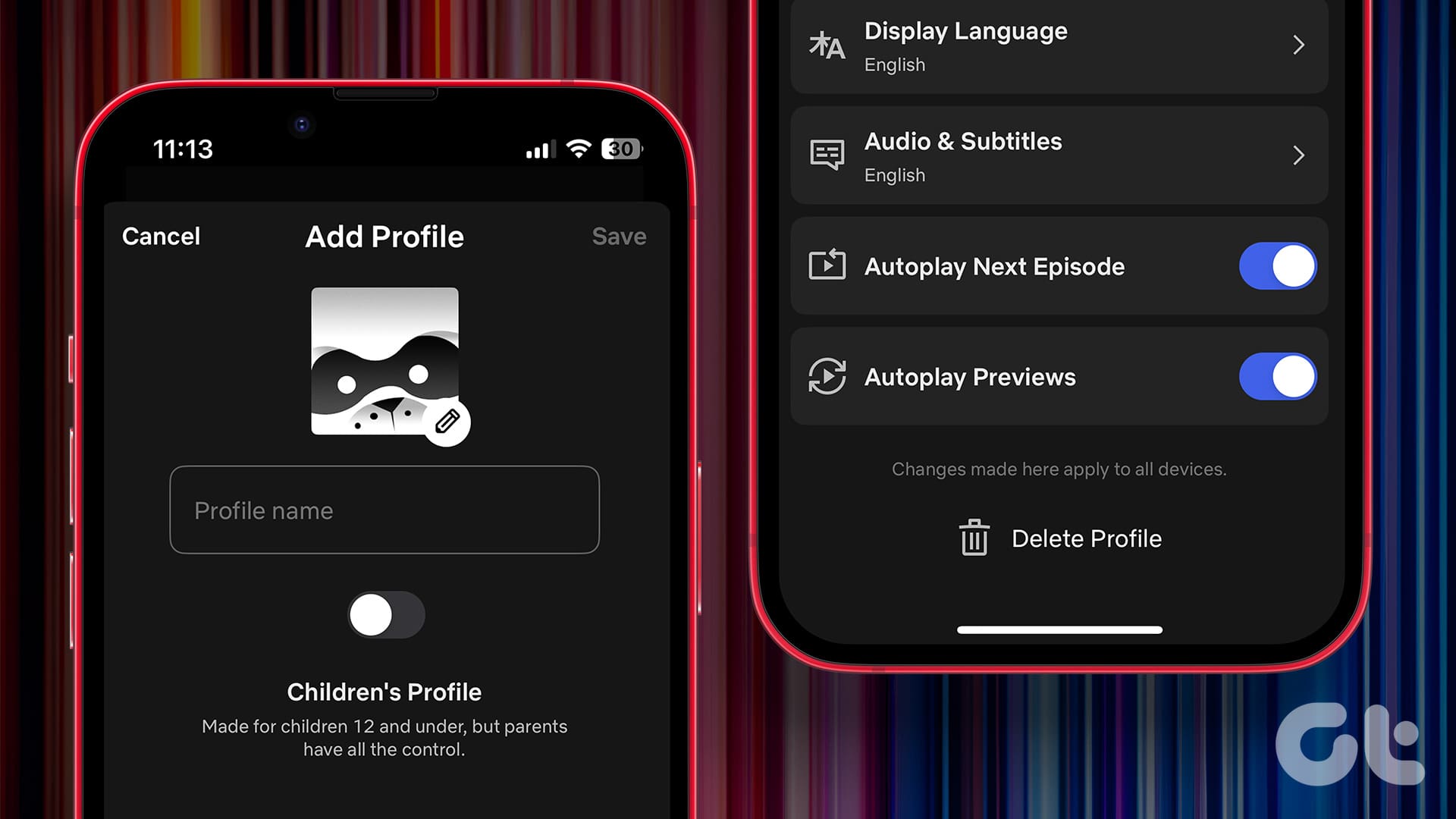
- Edit/Add: Tap "Manage Profiles" at the top right, then select "Add Profile."
- Personalize: Choose an icon and name. Use the toggle for "Kids" if necessary.
- Complete: Tap "Done" or "Save."
Creating a Profile on Smart TVs and Game Consoles
- Launch Netflix: Open the app on your TV or console.
- Switch User: Navigate to the far left of the screen to open the sidebar menu.
- Navigate Up: Scroll to the top of the menu where the profile names are listed.
- Add Profile: Select the "plus" (+) icon or "Add Profile" option.
- Entry: Follow the on-screen prompts to enter a name using the virtual keyboard.
| Feature | Primary Profile | Standard Profile | Kids Profile |
|---|---|---|---|
| Quantity Limit | 1 (Fixed) | Up to 4 additional | Included in 5-total limit |
| Maturity Settings | Full access (All ratings) | Customizable | Restricted (G, PG, etc.) |
| Profile PIN | Supported | Supported | Supported |
| Viewing History | Private | Private | Private |
| Transfer Eligibility | Yes | Yes | Limited |
Customizing and Securing Your New Profile
Once a profile is created, the "default" settings may not provide the optimal experience. Personalization and security are key components of modern streaming management.
Selecting a Profile Icon
Netflix offers a vast library of avatars, ranging from classic icons to characters from "Stranger Things," "The Crown," and other original series. Choosing a distinct icon is more than just an aesthetic choice; it serves as a visual cue to prevent users from accidentally clicking into the wrong profile and skewing another person's recommendation algorithm.
Setting Maturity Ratings
For households with teenagers or diverse viewing habits, setting specific maturity ratings is vital. Within the "Profile & Parental Controls" section of the main Account page, you can restrict a profile to specific age categories (e.g., TV-PG, TV-14, or TV-MA). This ensures that younger users cannot access mature content even if they are using a non-Kids profile.
Implementing Profile PINs
To ensure true privacy, especially in shared living situations, you can lock a profile with a four-digit PIN.
- Navigate to the Account settings via a web browser.
- Find the Profile & Parental Controls section.
- Select the specific profile and click Profile Lock.
- Enter your account password and then set your unique PIN. This prevents others in the household from seeing your viewing history or interfering with your "Continue Watching" queue.
Transferring an Existing Profile
In 2026, the "Profile Transfer" feature is a common tool for individuals moving out of a shared household or starting their own subscription. This feature allows you to move an entire profile—including recommendations, viewing history, and "My List"—to a brand-new account. This preserves years of algorithmic data that would otherwise be lost if you simply started a fresh account. To initiate this, the account owner must enable "Allow profile transfers" in the account settings.
Common Troubleshooting Steps
While creating a profile is usually a seamless process, certain errors can occur.
- "Maximum Profiles Reached": If you already have five profiles, the "Add Profile" button will disappear. You must delete an existing profile to make room for a new one. Note that deleting a profile permanently erases its history.
- Greyed Out "Save" Button: This usually occurs if the name field is empty or contains unsupported special characters. Stick to alphanumeric characters for the best results.
- App Synchronization Issues: If you create a profile on a computer but don't see it on your TV, try signing out and signing back in on the TV app to force a refresh of the account data.
Frequently Asked Questions
Can I have more than 5 profiles if I pay for the Premium plan?
No. In 2026, the five-profile limit remains a platform-wide standard regardless of the subscription tier. The Premium plan increases the number of devices that can stream simultaneously and provides 4K resolution, but it does not expand the number of unique profiles allowed on a single account.
Does deleting a profile also delete the viewing history?
Yes. When you delete a profile, all data associated with it—including the "My List" collection, specific ratings you’ve given to shows, and your entire viewing history—is permanently removed. This action cannot be undone. If you might want that data later, consider using the "Profile Transfer" feature to move it to a different account instead.
How do I change a regular profile into a Kids profile?
You can modify this in the "Manage Profiles" section. Select the "Edit" icon (the pencil) on the desired profile. There is a "Kids" toggle or a "Maturity Rating" setting. Changing this will trigger the simplified Netflix Kids interface, which features character-based navigation and curated, age-appropriate categories.
Can I lock my profile so my kids can't use it?
Absolutely. This is best handled through a Profile PIN. By locking your adult profile with a 4-digit code, you ensure that children using the same account on a communal TV cannot switch into your profile to view restricted content or disrupt your personalized recommendations.
Final Recommendation
To get the most out of your Netflix subscription, treat profiles as personal digital spaces. Beyond just creating a profile, take five minutes to set up a Profile PIN and calibrate the Maturity Settings. This not only protects your privacy but also ensures that Netflix’s recommendation engine remains finely tuned to your specific tastes. If you are setting up a profile for someone who will eventually get their own account, remember to use the Profile Transfer tool to ensure their data remains portable in the future.
Image Gallery