How to Create and Manage a Windows 10 Guest Account in 2026
To enable guest access on Windows 10 in 2026, you must create a local user account without a password and manually assign it to the Guests group. Since Microsoft deprecated the native one-click Guest account feature to enhance system s...
To enable guest access on Windows 10 in 2026, you must create a local user account without a password and manually assign it to the Guests group. Since Microsoft deprecated the native one-click Guest account feature to enhance system security, users must now utilize the Command Prompt or Local Users and Groups manager to simulate a restricted environment for temporary visitors.
Contents
Understanding the Evolution of Guest Access in Windows 10
As we navigate through 2026, Windows 10 remains a critical operating system for millions of workstations and legacy systems that prioritize stability over the aesthetic shifts of newer iterations. However, one of the most common points of confusion for administrators remains the Guest account. Historically, Windows included a built-in Guest account that could be toggled on or off. Starting with early builds and persisting into the current long-term support versions available in 2026, Microsoft has effectively disabled this feature because it presented significant security vulnerabilities, particularly regarding lateral movement across local networks.
The primary reason for this shift was the way Windows handled permissions for the default Guest profile. It often allowed unauthenticated users to view certain directory structures or execute basic scripts that could be leveraged for privilege escalation. In today’s cybersecurity landscape, where zero-trust architecture is the standard, the old Guest account model is considered obsolete. Instead, Windows 10 now utilizes a more granular approach where administrators create a standard local account and then strip away its permissions to mimic the guest experience.
For those managing shared computers in 2026—whether in a small business, a library, or a household—understanding how to properly configure these restricted accounts is vital. A properly configured "pseudo-guest" account ensures that a visitor can browse the web or use specific software without having the ability to change system settings, install new applications, or access the private files of other users on the machine.
Prerequisites for Setting Up Guest Access
Before attempting to create a guest-like environment, ensure that your system meets the necessary administrative requirements. You cannot create or modify user accounts from a standard user profile; you must be logged in as an Administrator.
- Administrative Privileges: Ensure your current profile has full administrative rights.
- Windows Edition Check: Users on Windows 10 Pro, Enterprise, or Education have access to the Local Users and Groups (lusrmgr.msc) snap-in, which provides the most precise control. Windows 10 Home users must rely on the Command Prompt or Settings app.
- Storage Space: Ensure there is at least 2GB of free space for the new user profile to be initialized.
- Security Software Compatibility: Verify that your 2026-era antivirus or EDR (Endpoint Detection and Response) solution does not have "Strict Profile" policies that might block the creation of new local accounts.
Important Security Note for 2026
When creating a visitor account, never use the word Guest as the actual username. Windows 10 still reserves the name Guest for the internal, disabled system account. Using this name will result in a conflict error. Instead, use names like Visitor, TempUser, or Friend to avoid system-level naming collisions.
Step-by-Step Guide: Creating a Guest Account via Command Prompt
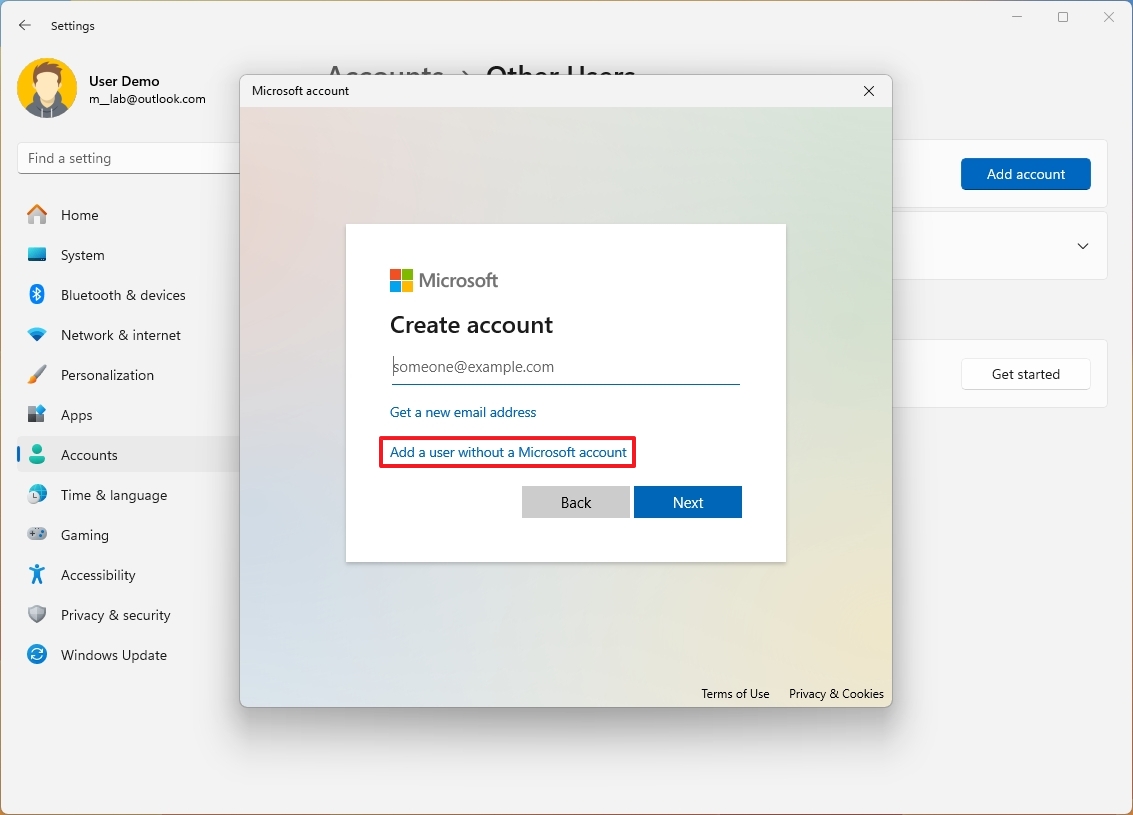
This method is the most reliable across all versions of Windows 10 in 2026. It bypasses the limitations of the modern Settings UI, which often forces users to sign in with a Microsoft Account (Outlook/Live) rather than a local one.
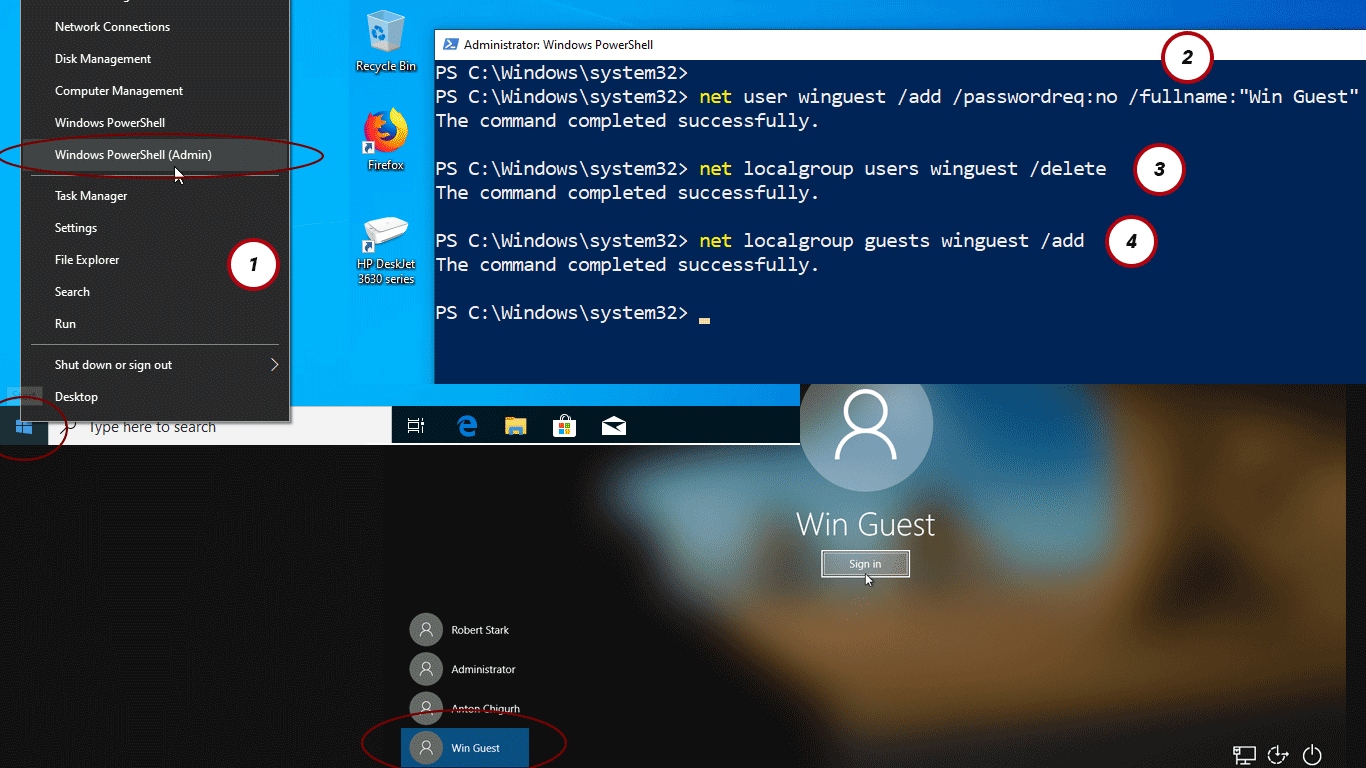
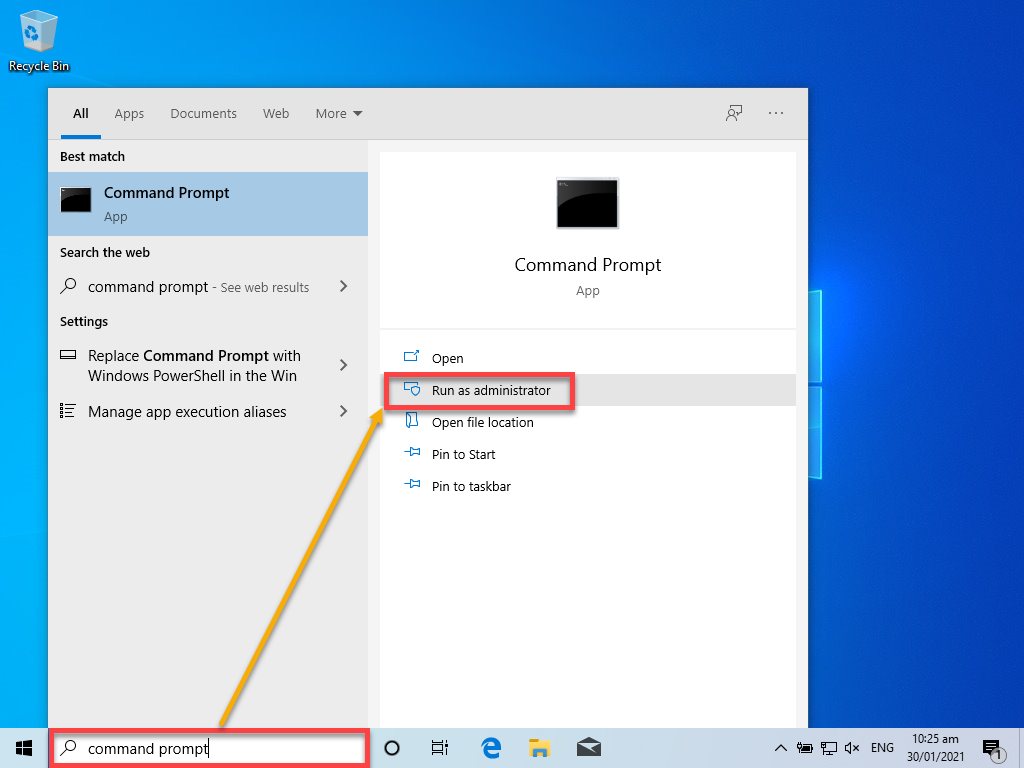
- Open the Command Prompt as Administrator: Click the Start button, type cmd, right-click the result, and select Run as administrator.
- Create the User Account: Type the following command and press Enter: net user Visitor /add /active:yes. (Replace Visitor with your preferred name).
- Clear the Password: To ensure the guest can log in without a password, type: **net user Visitor ***. When prompted to type a password, press Enter twice to leave it blank.
- Remove from Standard Users: By default, new accounts are added to the Users group. To restrict it, first remove it by typing: net localgroup Users Visitor /delete.
- Add to the Guests Group: Now, move the account into the highly restricted Guests group by typing: net localgroup Guests Visitor /add.
Once these steps are completed, the account will appear on your login screen. When someone logs into the Visitor account, Windows will create a temporary profile. Any changes they make to the desktop or browser settings will technically remain, but they will be unable to modify any system-level files or access other user folders.
Configuring Assigned Access (Kiosk Mode) for Maximum Restriction
In many 2026 professional environments, a general guest account provides too much freedom. If you only want a visitor to use a single application—such as Microsoft Edge for web browsing—the "Assigned Access" feature (Kiosk Mode) is the superior choice.
- Navigate to Settings: Go to Accounts and then select Family & other users.
- Set up a Kiosk: Under the Set up a kiosk section, select Assigned access.
- Choose the Account: Select the account you created (e.g., Visitor).
- Choose the App: Select a single app (like Microsoft Edge) that the user will be allowed to use.
When this mode is active, the computer will boot directly into that app. The user cannot close the app, access the desktop, or change any system settings. This is the gold standard for public-facing terminals in 2026, as it effectively eliminates the risk of accidental system misconfiguration.
Feature Comparison: Guest vs. Standard vs. Administrator
Understanding the limitations of each account type is essential for maintaining a secure environment. The table below outlines the default permissions for these roles as of the latest 2026 Windows 10 security baselines.
| Feature / Permission | Guest Account (Manual) | Standard User Account | Administrator Account |
|---|---|---|---|
| Password Required | No (Optional) | Yes | Yes |
| Install Software | Blocked | Requires Admin Password | Allowed |
| Modify System Registry | Blocked | Highly Restricted | Full Access |
| Access Other Users' Files | Blocked | Blocked | Allowed |
| Change System Time/Date | Blocked | Blocked | Allowed |
| Browser History Retention | Session-only (Optional) | Permanent | Permanent |
| Network Discovery | Disabled by Default | Enabled | Enabled |
| Command Prompt Access | Limited / Non-Admin | Standard Access | Full Elevated Access |
Advanced Hardening for Guest Accounts in 2026
If you are using Windows 10 Pro or Enterprise, you can further harden the guest account using the Local Group Policy Editor (gpedit.msc). This ensures that even within the "Guests" group, the user has the absolute minimum level of interaction with the OS.
Disabling Shutdown and Restart Rights
To prevent a guest user from accidentally or intentionally shutting down a shared machine, you can modify the User Rights Assignment. Navigate to: Computer Configuration > Windows Settings > Security Settings > Local Policies > User Rights Assignment. Locate "Shut down the system" and ensure the Guests group is not listed there.
Restricting Hard Drive Access
By default, a guest can see that other drives exist, even if they cannot open the folders. To hide specific drives, you can use the policy: User Configuration > Administrative Templates > Windows Components > File Explorer > Hide these specified drives in My Computer. This is particularly useful in 2026 for systems with multiple partitioned SSDs where sensitive data may be stored on a secondary (D: or E:) drive.
Troubleshooting Common Guest Account Issues
Even with a perfect setup, Windows 10 updates can sometimes alter how local accounts behave. Here are the most common issues encountered in 2026 and their technical remedies.
- Account Not Appearing on Login Screen: This usually happens if the account is not "Active." Open the Command Prompt as admin and run: net user Visitor /active:yes. Additionally, check if the account is disabled in lusrmgr.msc.
- "The User Profile Service failed the sign-in": This indicates a corrupted profile template. The fastest fix is to delete the account using net user Visitor /delete and recreate it.
- Guest Account Asking for a Password: If you accidentally set a password, you can remove it via the Control Panel > User Accounts or by using the **net user Visitor *** command and pressing Enter twice.
- Limited Internet Access: Some 2026 security suites treat the "Guests" group as an untrusted network entity. Check your firewall settings to ensure that the Guests group is permitted to communicate via Port 80 (HTTP) and Port 443 (HTTPS).
Frequently Asked Questions
Can I still use the "net user guest /active:yes" command in 2026?
No, while the command may return a "command completed successfully" message, the built-in Guest account is hard-coded to be unusable in modern Windows 10 versions. You must create a new local user with a different name and add them to the Guests group manually.
Does a guest account slow down my computer?
Creating the account itself does not impact performance. However, every time a new guest logs in, Windows creates a temporary profile and registry hive. If you have dozens of different guest accounts, it can consume disk space. For a single "Visitor" account used by many people, the impact is negligible.
Is my data safe if someone uses a Guest account?
Yes, provided your data is stored within your own user folders (Documents, Pictures, Desktop). Windows 10 uses NTFS permissions to ensure that members of the Guests group cannot enter the C:/Users/YourName directory. However, always ensure your own account is password protected.
How do I delete the guest account when I no longer need it?
You can delete it by going to Settings > Accounts > Other Users, selecting the account, and clicking "Remove." Alternatively, use the command net user Visitor /delete in an elevated Command Prompt to instantly remove the user and their associated data.
Will the Guest account have access to my Wi-Fi passwords?
Guest accounts cannot view saved Wi-Fi passwords or manage network profiles. They can connect to the internet if the machine is already connected, but they cannot see the security keys used for the connection.
Can guests download files from the internet?
Guests can download files (e.g., PDFs or images) to their own temporary "Downloads" folder, but they cannot execute installers (.exe or .msi files) that require administrative approval to write to the Program Files directory.
Best Practices for Maintaining Guest Environments
Managing a guest account in 2026 requires a balance between usability and security. As a technical strategist, I recommend implementing a "Clean Slate" policy. Use third-party "deep freeze" software or Windows 10's native "Unified Write Filter" (available in Enterprise and IoT versions) if you want the guest account to completely reset to a blank state every time the computer reboots. This ensures that no browsing history, cookies, or temporary files persist between different visitors.
Furthermore, always keep your Windows 10 installation updated with the latest 2026 security patches. Even though the OS is in its mature phase, Microsoft continues to release "Microcode" and "Security Intelligence" updates that protect local accounts from modern kernel-level exploits. By following the manual creation method and applying Group Policy restrictions, you provide a safe, isolated environment for any user who needs temporary access to your hardware.
Image Gallery