How to Effectively Block Ads on Chrome for iPhone in 2026
Chrome for iOS utilizes Apple’s WebKit engine rather than the Chromium Blink engine found on desktop platforms. Because of this architectural requirement, Chrome on iPhone cannot natively support the same extensions used on desktop ver...
Chrome for iOS utilizes Apple’s WebKit engine rather than the Chromium Blink engine found on desktop platforms. Because of this architectural requirement, Chrome on iPhone cannot natively support the same extensions used on desktop versions. To block ads in Chrome on your iPhone, you must configure iOS system-level content blockers via Settings or utilize a secondary browser engine that supports integrated filtering.
Contents
Understanding the Technical Architecture of Chrome on iOS
To understand why standard ad-blocking extensions do not function on iPhone’s Chrome, you must recognize the Apple App Store Review Guidelines. All web browsers released for iOS are required to use the WebKit framework. While the user interface remains branded as Chrome, the underlying rendering engine is restricted to Apple’s proprietary technology.
Consequently, browser extensions—which are designed for Chromium-based architectures—cannot be installed or executed within the iOS version of Chrome. Instead, iOS offers a specific Content Blocking API. This API allows third-party applications to provide Safari with lists of content to block, which then apply globally to the system’s web rendering. Chrome for iOS interacts with these system-level permissions, meaning you cannot toggle an "Ad Blocker" switch inside the Chrome app settings. You must instead manage these settings through the iOS Content Blocker framework.
Configuring iOS Content Blockers for Web-Wide Filtering
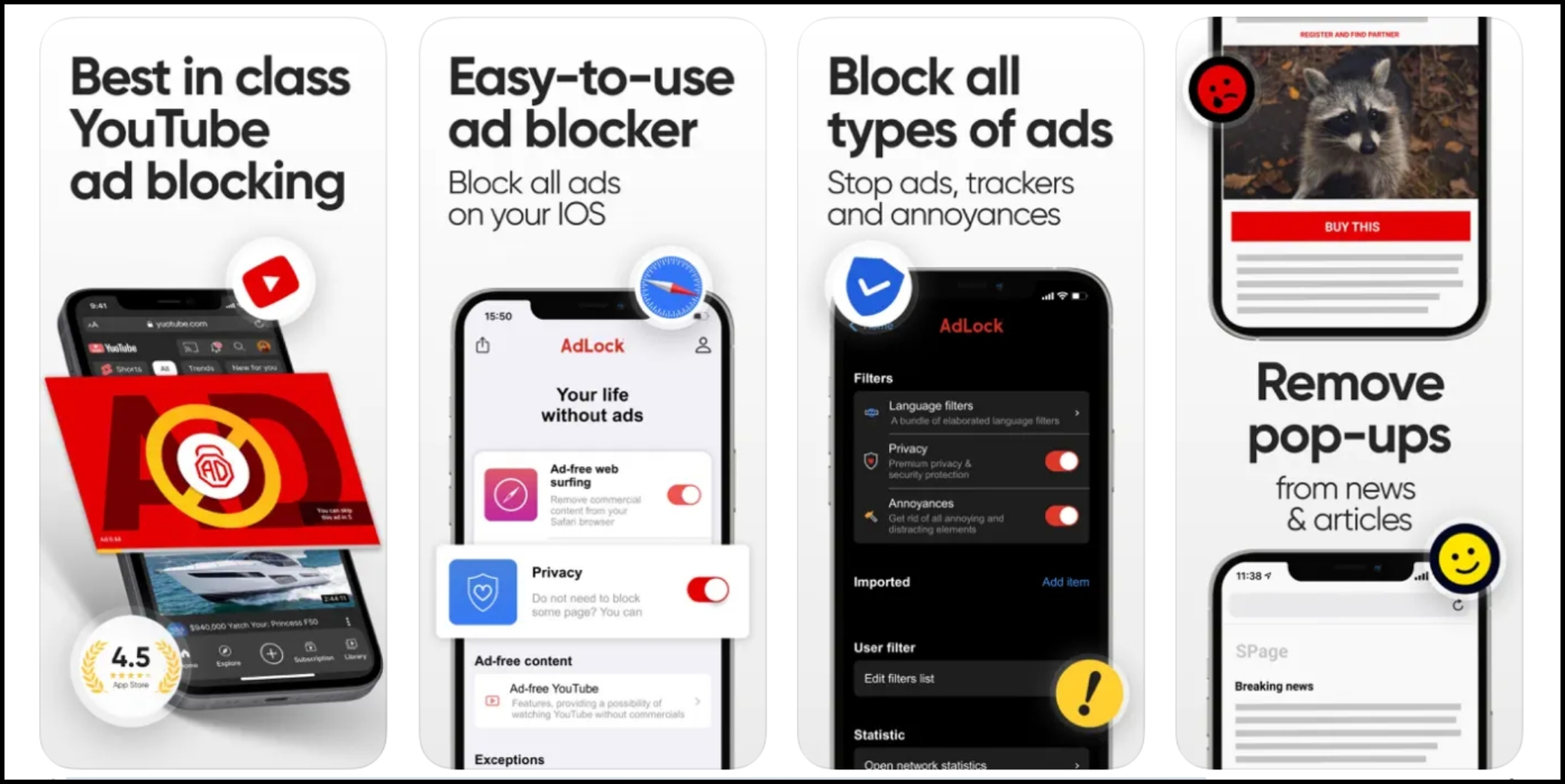
Since Chrome relies on the WebKit engine, the most effective way to filter advertisements while browsing on your iPhone is to utilize a reputable content blocker. When you install an ad-blocking application from the App Store, it registers itself with the iOS system.
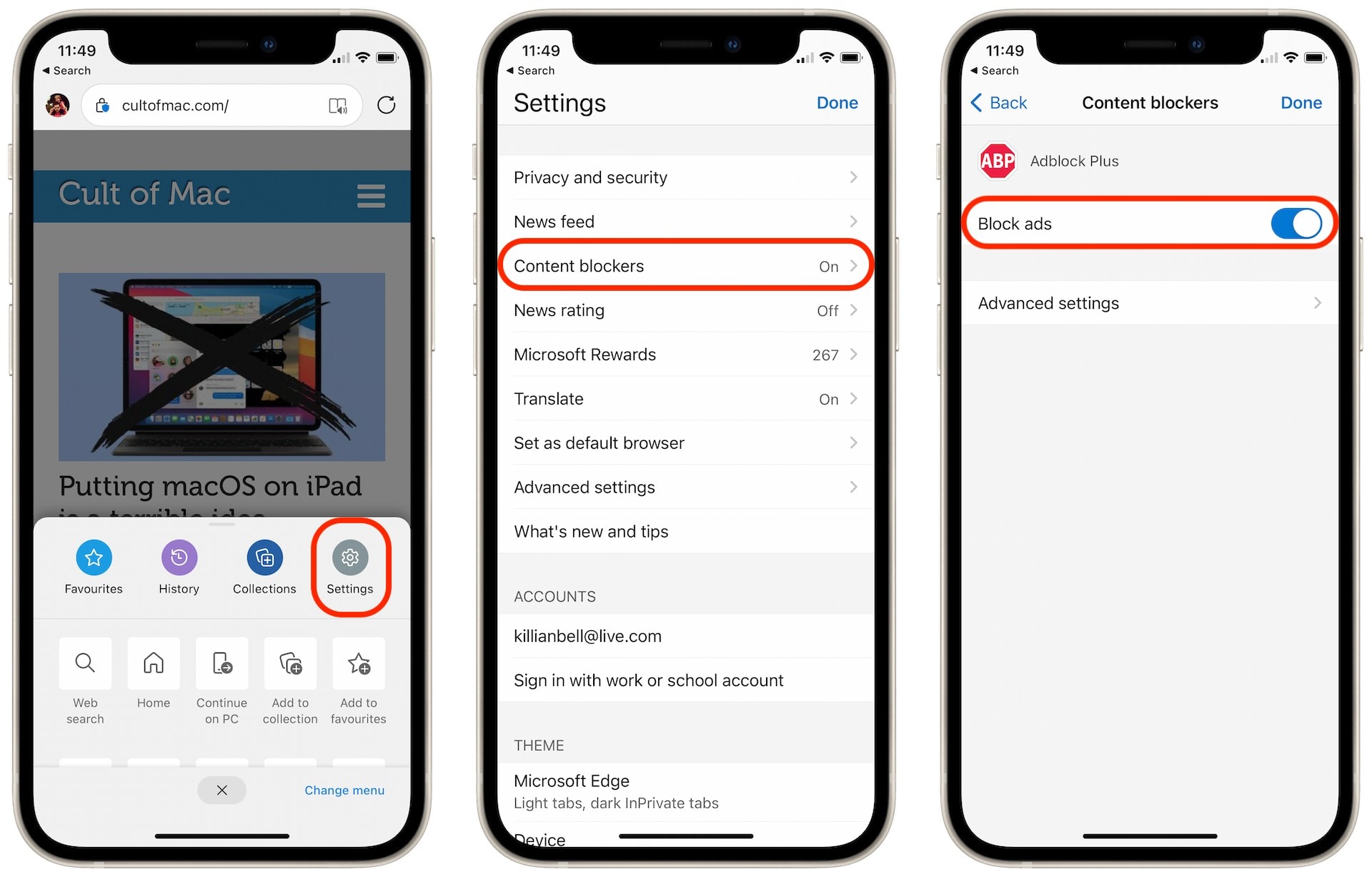
Follow these steps to ensure your device is prepared to filter traffic across your browser sessions:
- Download a trusted content blocker application from the Apple App Store.
- Navigate to the iOS Settings application.
- Scroll down to find the section labeled Safari.
- Locate the Extensions menu.
- Tap on Content Blockers.
- Toggle the switches for the installed ad-blocking application to the On position.
By enabling these settings, the content blocking rules are pushed to the WebKit engine. When you browse using Chrome, the rendering engine checks requested page elements against the active block lists, preventing ad servers from loading scripts, trackers, and display assets.
Comparison of Ad-Blocking Strategies for iPhone Users
Choosing the right tool depends on your requirement for privacy, performance, and cross-platform synchronization. Below is a comparison of common methods to mitigate advertisements on an iPhone in 2026.
| Strategy | Integration Method | Primary Benefit | Limitation |
|---|---|---|---|
| System-Level Content Blockers | iOS Settings / Safari API | Blocks ads in any WebKit-based app | Requires manual App Store installation |
| Dedicated Ad-Blocking Browsers | Standalone Application | Deep integration and advanced filters | Does not sync with your Google Chrome data |
| DNS-Based Filtering | VPN / Private DNS | Network-wide protection | Can interfere with certain regional content |
| Chrome Built-in Basic Filter | Chrome Settings | Prevents "intrusive" ads only | Does not block majority of web ads |
The Role of DNS Filtering as a Complementary Measure
Beyond local content blocking on the device, DNS (Domain Name System) filtering provides an additional layer of protection. By changing your iPhone’s DNS server to one that supports ad-blocking, you can prevent your device from even resolving the addresses of known advertising and tracking servers.
To implement this on your iPhone:
- Navigate to Settings > Wi-Fi or Cellular.
- Select Configure DNS and change it to Manual.
- Add the server addresses provided by privacy-focused DNS providers (such as NextDNS or AdGuard DNS).
- Save the configuration.
This method is highly effective because it operates at the network layer. Regardless of whether you use Chrome, Safari, or other apps, the DNS provider will refuse to return the IP address for ad-delivery domains, effectively "silencing" the ads before they reach your device.
Troubleshooting Common Ad-Blocking Failures
Even with content blockers active, you may occasionally encounter advertisements. This is rarely a failure of the blocking software itself and is usually due to the way modern websites serve dynamic content.
Technical Discrepancies in Content Delivery
Many websites use "anti-adblock" scripts or serve ads from the same primary domain as the content. If the advertisement is loaded via a first-party script, a content blocker might not be able to identify it as a distinct advertising element without breaking the page functionality.
Updating Filter Lists
Most content blocking applications rely on community-maintained lists. Ensure your application is set to auto-update its filter database. If a specific site is still showing ads, use the "Report an Issue" feature within your chosen ad-blocker app. Developers use this data to update block lists in the next version release.
Frequently Asked Questions
Can I install Chrome desktop extensions on my iPhone?
No. Chrome desktop extensions are built for the Chromium engine, which is not permitted on the iOS platform. Apple requires all browsers to use the WebKit engine, making desktop extensions incompatible.
Does Chrome for iPhone have an "incognito" ad-blocker?
Chrome's Incognito mode does not automatically block ads. It only prevents the browser from saving your history, cookies, and site data. To block ads in Incognito, you must still have a system-level content blocker enabled in your iOS settings.
Are free ad blockers safe to use?
Safety depends on the developer's privacy policy. Always check the App Store for open-source projects or established companies with transparent data handling. Avoid "free" blockers that require a VPN connection unless you trust the provider, as they can technically monitor your unencrypted traffic.
Why do some websites detect my ad blocker?
Websites often use "ad-blocker detection" scripts. If the site detects a lack of ad revenue, they may prompt you to disable your blocker. While some advanced blockers can circumvent this, it often leads to page layout breakage.
Will ad blocking improve my battery life?
Yes. By preventing the browser from downloading and executing heavy ad-tracking scripts and media-rich banners, you reduce the CPU and memory load on your iPhone, which generally leads to a marginal improvement in battery longevity during heavy web usage.
Recommendation for Optimal Browsing
For the most robust experience in 2026, combine a high-quality system-level content blocker with a privacy-focused DNS service. This layered approach ensures that even if a tracker evades local browser-based blocking, the DNS query will be intercepted and blocked at the network level. Always ensure your iOS software is up to date to maintain compatibility with the latest WebKit security patches and content-blocking APIs.
Image Gallery