How to Redeem Codes on PlayStation: Complete Step-by-Step Guide
To redeem a code on PlayStation, sign into your PlayStation Network (PSN) account on your PS5, PS4, the official PlayStation App, or a web browser. Access the Redeem Code menu, enter the 12-digit alphanumeric voucher code without dashe...
To redeem a code on PlayStation, sign into your PlayStation Network (PSN) account on your PS5, PS4, the official PlayStation App, or a web browser. Access the Redeem Code menu, enter the 12-digit alphanumeric voucher code without dashes, and confirm your redemption to instantly add wallet funds, games, downloadable content (DLC), or PlayStation Plus subscriptions to your account.
Contents
Prerequisites for Redeeming PlayStation Voucher Codes
Before attempting to redeem any digital voucher code or gift card on the PlayStation Network, several technical and account requirements must be satisfied to prevent processing failures or lost digital assets.
1. Active PlayStation Network Account
Voucher redemptions are tied permanently to the specific PSN account signed in during the transaction. Once redeemed, content, subscription time, and wallet funds cannot be transferred to another account or re-issued. Ensure you are logged into the exact account intended to hold the purchase.
2. Matching Account Region and Voucher Currency
PlayStation voucher codes are strictly region-locked. The country or region designated in your PlayStation Network account settings must match the regional origin of the voucher code.
- A voucher card purchased in USD can only be redeemed on a US-region PSN account.
- A voucher code issued in Euros (EUR) or British Pounds (GBP) will fail on a North American account.
- Account regions cannot be changed once created; users with foreign codes must either create a regional secondary account or contact the retailer for a compatible exchange.
3. Understanding Code Formats
PlayStation utilizes two distinct types of promotion codes, each requiring a different input location during the redemption process:
- 12-Digit Voucher Codes: Consisting of numbers and capital letters (e.g.,
ABCD-1234-EFGH), these add wallet credit, games, add-on content, or PlayStation Plus memberships directly to your account catalog or wallet balance. - 10-Digit Discount Codes: Used exclusively during the store checkout process on a shopping cart total to apply promotional percentage discounts. These cannot be redeemed via standard voucher entry menus.
4. Child Account Restrictions
Child accounts registered under a PlayStation Family Management group cannot hold an independent PlayStation Store wallet. When a child account redeems a wallet funding voucher, the funds are automatically added to the designated Family Manager's wallet balance. However, the child account can still redeem content vouchers (such as specific game activations or DLC) if permitted by set parental controls and age rating limits.
Method 1: How to Redeem Codes on a PlayStation 5 (PS5)
The PlayStation 5 interface allows users to enter voucher codes either through the dedicated system settings or directly within the integrated PlayStation Store application.
- PlayStation 5 Console
- Route A:
- PlayStation Store Icon
- [...] Menu
- Redeem Code
- Route B:
- Settings
- Users and Accounts
- Account
- Payment & Subscriptions
- Redeem Code
- Route A:
Route A: Via PlayStation Store Menu (Recommended)
- Turn on your PS5 console and select your active user profile.
- Select the PlayStation Store icon from the main media home screen.
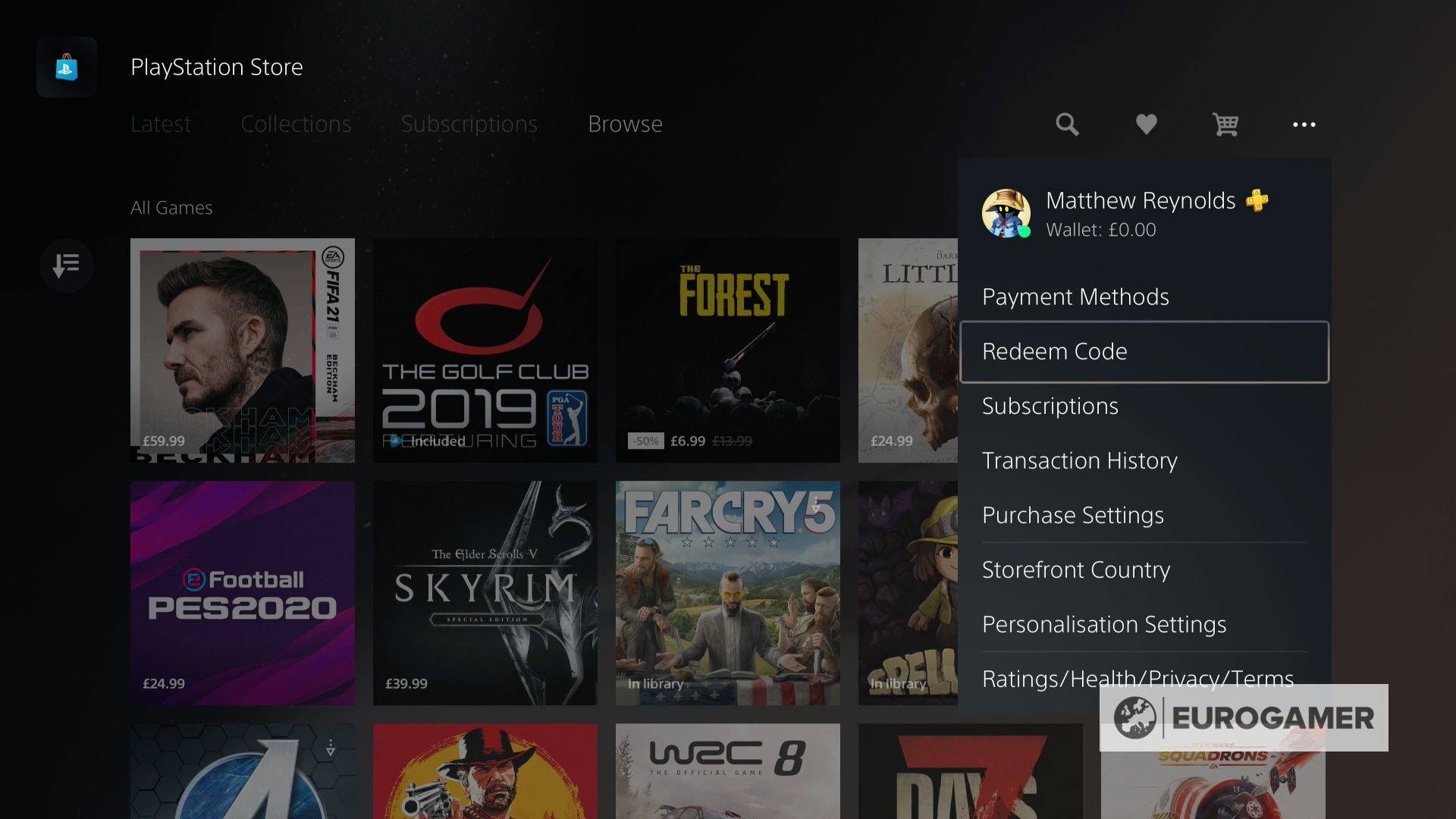
- Navigate to the top-right corner of the store screen and select the ... (More Options) icon located next to the search icon.
- Select Redeem Code from the drop-down menu.
- Enter the 12-digit voucher code using the on-screen keyboard or a connected USB/Bluetooth keyboard. Hyphens are omitted automatically.
- Select Redeem. The system will present a confirmation screen detailing the items or wallet funds being claimed.
- Click Confirm to finalize the claim. Games or add-ons will immediately display a Download button.
Route B: Via System Settings
- Open Settings (gear icon) from the top-right menu of the PS5 home screen.
- Navigate to Users and Accounts > Account.
- Select Payment and Subscriptions.
- Choose Redeem Code.
- Input your 12-digit alphanumeric code and select Redeem.
Method 2: How to Redeem Codes on a PlayStation 4 (PS4)
Although the PS4 user interface differs from the PS5, code redemption remains straightforward through the legacy PlayStation Store layout.
- PlayStation 4 Console
- PlayStation Store
- Scroll down side menu
- Select "Redeem Codes"
- Enter 12 Digits
- Power on your PS4 console and log into your primary user profile.
- Select the PlayStation Store application from the left side of the main dashboard.
- Scroll down the store's left-hand navigation sidebar to the bottom sections and select Redeem Codes.
- Enter your 12-digit code carefully into the input box provided.
- Press the R2 button on your controller or select Continue on the screen.
- Review the item summary displayed on screen (e.g., wallet top-up value or game title).
- Select Confirm to complete the voucher redemption.
Method 3: How to Redeem Codes via the PlayStation App
Using the official PlayStation App for iOS and Android is often the fastest method for entering long code strings, as it supports both mobile device keyboards and direct optical camera scanning.
- Mobile Device - PS App
- Open PS App
- Tap Store Icon (Center)
- Tap Hamburger Menu (Top Right)
- Select "Redeem Code"
- Type Code OR Scan Voucher with Camera
- Download and open the PlayStation App on your smartphone or tablet.
- Sign in using your PlayStation Network account credentials.
- Tap the PlayStation Store tab (the shopping bag icon located in the lower-center navigation bar).
- Tap the Menu icon (three horizontal lines) located in the upper-right corner of the screen.
- Select Redeem Code from the list of options.
- Choose your entry method:
- Manual Entry: Tap the text field and type the 12-character code using your mobile keyboard.
- Camera Scan: Tap Scan Code to activate your device camera, then align the physical voucher code inside the designated on-screen frame.
- Review the prompt displaying your item or wallet balance adjustment and tap Confirm.
Method 4: How to Redeem Codes via a Web Browser
If you are away from your console or managing account details from a PC, Mac, or desktop-class mobile browser, you can claim codes via the official web portal.
- Web Browser
- Navigate to store.playstation.com
- Sign In
- Click Avatar
- Select "Redeem Code"
- Launch your web browser and navigate to the official PlayStation Store Web Portal.
- Click Sign In at the top right of the screen and enter your PSN account details.
- Click your personal profile Avatar/Icon in the upper-right corner next to the cart icon.
- Select Redeem Code from the drop-down account management menu.
- Enter the 12-digit alphanumeric code in the input field provided.
- Click Next or Redeem.
- Confirm the detailed claim screen to apply the funds or add the digital license to your library.
Comparison of PlayStation Code Redemption Methods
| Method | Supported Code Types | Camera Scanning Support | Best Use Case |
|---|---|---|---|
| PS5 Console Interface | 12-Digit Vouchers | No | Instant direct download to console after claiming games or DLC. |
| PS4 Console Interface | 12-Digit Vouchers | No | Direct local activation while operating legacy hardware. |
| PlayStation Mobile App | 12-Digit Vouchers | Yes | Rapid mobile redemption using phone camera scanning; ideal for physical gift cards. |
| Web Browser Portal | 12-Digit Vouchers | No | Bulk code processing, remotely queueing downloads, or managing accounts away from hardware. |
| Cart Checkout Screen | 10-Digit Discount Codes | No | Applying percentage promotional discounts to total store cart purchases. |
How to Apply 10-Digit Discount Codes at Store Checkout
Unlike 12-digit voucher codes, 10-digit discount codes do not add funds or standalone assets to your account library. They apply an active percentage discount to the current contents of your shopping cart.
- Shopping Cart Checkout
- PlayStation Store Cart
- Enter 10-Digit Code in "Enter Discount Code" Field
- Apply
- Open the PlayStation Store on your console, app, or web browser.
- Add eligible games, add-ons, or digital items to your shopping cart.
- Open your Cart/Checkout screen.
- Locate the field labeled Enter Discount Code or Promo Code.
- Input the 10-digit code carefully and select Apply.
- Verify that the total order cost recalculates to reflect the discount percentage.
- Complete the checkout transaction using your preferred payment method or wallet balance.
Note: 10-digit discount codes cannot be combined with other discount codes and typically exclude PlayStation Plus subscription renewals, physical hardware, and pre-orders unless explicitly stated.
Troubleshooting Common PlayStation Code Errors
When a redemption attempt fails, PlayStation systems display specific error messages or numeric status codes indicating the root cause of the issue.
- Redemption Failure Diagnostics
- Code Typo / Misread Characters?: Check for 'B' vs '8', 'O' vs '0', 'I' vs '1'
- Region Mismatch?: Match PSN Account Region to Retail Card Origin
- Inactive Card?: Contact Original Retailer to Verify Checkout Activation
- System Error Code?: Check PlayStation Network Server Status
1. Invalid Code or Typographical Errors
- Symptom: "The code you entered may not be correct or may no longer be valid."
- Solution: Re-check individual characters for common visual confusion.
- The letter O is often confused with the number 0.
- Capital letter I can be mistaken for the number 1 or lowercase l.
- The letter B can be mistaken for the number 8. Ensure no extra spaces were accidentally pasted before or after the code sequence.
2. Regional Mismatch Restrictions
- Symptom: "The voucher code cannot be redeemed in your region."
- Solution: Verify the issuing country printed on the physical voucher or digital receipt. If your primary PSN account region is set to the United States, you cannot redeem a code purchased in Canada, Europe, or Asia. You must either redeem the code on a secondary regional account set up for that specific country or obtain a replacement voucher matching your home account region.
3. Retail Activation Failures
- Symptom: "This code has not been activated yet."
- Solution: Physical PlayStation gift cards purchased at retail locations (such as supermarkets or electronics vendors) must be scanned and activated at the checkout cash register. If the retail worker failed to scan the card properly, the code remains locked in Sony's database. You must take the gift card back to the point of purchase along with the sales receipt to request manual activation.
4. Expired Voucher Dates
- Symptom: The voucher fails to register despite typing it correctly.
- Solution: Check the reverse side of physical cards or the fine print of promotional promotional emails for an expiration date. Promotional items (such as pre-order bonus DLC or pack-in game codes bundled with console hardware) often carry strict validity deadlines. Expired codes cannot be renewed or re-issued by PlayStation Support.
5. Common PlayStation Network Error Codes
- WS-45485-6 / WC-40376-0: Indicates that the voucher code has already been redeemed on an account. Check your PSN Transaction History (Settings > Account Management > Transaction History) to confirm whether the content or funds are already present.
- WS-116521-4: Indicates that PlayStation Network services are currently undergoing scheduled maintenance or experiencing an outage. Wait until network services resume operational status before trying again.
Managing Redeemed Content and Downloading Purchased Items
Once a 12-digit voucher code successfully processes, the associated asset automatically registers to your PlayStation Network account license registry.
Downloading Games and Add-Ons
If you redeemed a game or DLC code, the content is ready for immediate deployment:
- On PS5: Go to Game Library > Your Collection > Select the game title > Click Download.
- On PS4: Go to Library > Purchased > Select the game title > Click Download.
- Via Web/App: Access your account Game Library online and click Download to Console to initiate a remote installation (provided your linked PS5 or PS4 console is powered on or set to Rest Mode with network features active).
Verifying PlayStation Wallet Balance
If you redeemed a currency cash card, your current wallet balance updates immediately. To view your available funds:
- Navigate to Settings > Users and Accounts > Account > Payment and Subscriptions.
- Select Add Funds or Payment Methods.
- Your updated total wallet balance will display prominently at the top of the interface.
Frequently Asked Questions
Can I transfer funds or game licenses to a different PlayStation account after redeeming a code?
No. All voucher code redemptions are final and permanently assigned to the specific PlayStation Network account logged in during the process. Digital funds, games, and subscriptions cannot be transferred, gifted, or split across multiple accounts.
What should I do if a physical PlayStation voucher code is damaged or unreadable?
If you accidentally scratch off digits on a physical gift card, collect your purchase receipt and the damaged card. Contact PlayStation Support directly. Once support verifies proof of purchase and card serial numbers, they can issue replacement digital codes.
Do PlayStation gift card wallet funds expire?
PlayStation Network wallet funds derived from official gift cards do not expire once redeemed to your PSN account. However, unused physical gift cards or digital codes must be redeemed prior to any specific promotional expiration date listed in the card terms and conditions.
Can child accounts spend funds from redeemed gift cards directly?
Child accounts cannot maintain an independent wallet balance. When a child account redeems a funding voucher code, the money transfers directly to the designated Family Manager account wallet. The child account can then spend these funds up to the monthly spending limits established in the system's Parental Controls menu.
Why does my PlayStation Plus voucher code fail when entering it?
PlayStation Plus subscription vouchers may fail if your current subscription tier does not match the tier of the voucher code, or if your payment region differs from the code origin. Additionally, if an active subscription was canceled due to payment processing disputes, your account may require resolving pending wallet balances before accepting new subscription codes.
Next Steps and Recommendations
To ensure smooth redemption of your PlayStation digital codes, verify your logged-in profile and regional compatibility before entering any key strings.
If you frequently purchase physical gift cards, download the PlayStation App on your smartphone to utilize the camera scanning feature; this eliminates typographical errors and speeds up the process significantly. For issues involving unactivated gift cards or damaged scratch-off panels, retain your physical receipt and open a ticket with PlayStation Customer Support for official code replacement.
Image Gallery