Managing and Optimizing Pop-Up Notifications in Modern Operating Systems
Pop-up notifications in modern operating systems act as essential communication bridges, delivering real-time updates from applications and system services directly to the user interface. By 2026, these alerts have evolved from simple...
Pop-up notifications in modern operating systems act as essential communication bridges, delivering real-time updates from applications and system services directly to the user interface. By 2026, these alerts have evolved from simple text boxes into interactive, AI-sorted elements that allow users to manage workflows, respond to messages, and monitor system health without switching active windows.
Contents
The Evolution of the Notification Ecosystem
The landscape of user alerts has shifted dramatically over the last decade. In the early eras of computing, a "pop-up" was often synonymous with intrusive browser advertisements or critical system errors that halted all user activity. Today, modern operating systems—including Windows, macOS, Linux, iOS, and Android—utilize a centralized notification architecture. This design prioritizes user focus, security, and cross-device synchronization.
By 2026, the primary goal of these systems is no longer just delivery, but contextual relevance. Modern kernels and desktop environments now employ sophisticated "Focus Modes" and "Do Not Disturb" (DND) logic to ensure that a notification only interrupts the user when the priority of the alert matches the user's current activity level. This prevents "notification fatigue," a state of cognitive overload caused by a constant barrage of low-value pings.
Technical Architecture: Local vs. Push Notifications
To manage notifications effectively, it is vital to understand the two technical pillars upon which they are built: Local Notifications and Remote (Push) Notifications.
Local Notifications
Local notifications are scheduled and triggered by an application residing on the local device. These do not require an internet connection to function. For example, a calendar app may set a local timer to alert you five minutes before a meeting. Because the logic stays on the hardware, these are highly private and have virtually zero latency.
Remote (Push) Notifications
Remote notifications involve a cloud-based server sending data to the device. This process typically utilizes a persistent connection between the operating system and a specific gateway, such as the Apple Push Notification service (APNs) for macOS/iOS or Firebase Cloud Messaging (FCM) for Android and Windows.
When a server (like a news outlet or a messaging platform) has new information, it sends a payload to the gateway, which then "pushes" the alert to the target device. This architecture is energy-efficient because the individual apps do not need to run in the background to check for updates; only the OS-level listener remains active.
Platform-Specific Implementation and Controls
Each major operating system provides a unique set of tools for customizing how these alerts appear and behave.
Windows 11 and Windows 12
In the current Windows environment, the Notification Center (accessible via the date/time click or Win+N) serves as the repository for all missed alerts. Microsoft has integrated "Focus Sessions" directly into this panel.
- Priority Breakouts: Users can whitelist specific "Priority" apps that are allowed to break through Do Not Disturb settings.
- Top-of-Stack Logic: Windows now utilizes AI to move frequently dismissed apps to the bottom of the stack, eventually suggesting that the user turn off notifications for that specific program entirely.
macOS (Sequoia and Beyond)
Apple’s approach focuses heavily on Focus Filters. These allow notifications to change behavior based on the user's "Focus" state (e.g., Work, Personal, Sleep).
- Notification Summaries: Instead of receiving twenty separate pings from social media, macOS bundles them into a "Summary" delivered at a time of the user's choosing.
- Interactive Widgets: Many macOS notifications now include small input fields or buttons, allowing for "Quick Reply" functionality directly from the banner.
Linux (GNOME and KDE Plasma)
Linux distributions have pioneered granular control over notification positioning and persistence.
- GNOME: Features a minimalist notification list integrated into the calendar popover. It adheres strictly to the "FreeDesktop" notification specification, allowing for high levels of cross-app compatibility.
- KDE Plasma: Offers perhaps the most technical depth, allowing users to script specific actions when certain notification strings are detected.
Comparison of Notification Features Across Platforms (2026)
| Feature | Windows (11/12) | macOS (Sequoia+) | Android 15/16 | iOS 18/19 |
|---|---|---|---|---|
| Central Hub Name | Notification Center | Notification Center | Notification Shade | Notification Center |
| Primary Focus Tool | Focus Sessions | Focus Filters | Digital Wellbeing | Focus Modes |
| Interactive Replies | Supported | Supported | Supported (Bubbles) | Supported |
| AI Sorting | Yes (Priority) | Yes (Summaries) | Yes (Smart Reply) | Yes (Intelligence) |
| Cross-Device Sync | Via Phone Link | Via iCloud | Via Google Account | Via iCloud |
Managing Notification Fatigue and Productivity
As the number of installed applications grows, the risk of digital distraction increases. Managing notifications is no longer just a matter of convenience; it is a requirement for professional productivity.
- Auditing Permissions: Both desktop and mobile OSs now require explicit "opt-in" for notifications. It is a best practice to deny notification permissions to any app that does not provide time-sensitive value.
- Configuring Scheduled Summaries: On mobile platforms, use "Scheduled Summary" features to batch non-urgent alerts (like shopping apps or newsletters) for delivery during lunch or after work hours.
- Utilizing "Quiet Hours": Automatically syncing "Do Not Disturb" across all devices ensures that a notification on a tablet doesn't wake a user when their phone is silenced for the night.
Security and Privacy Implications
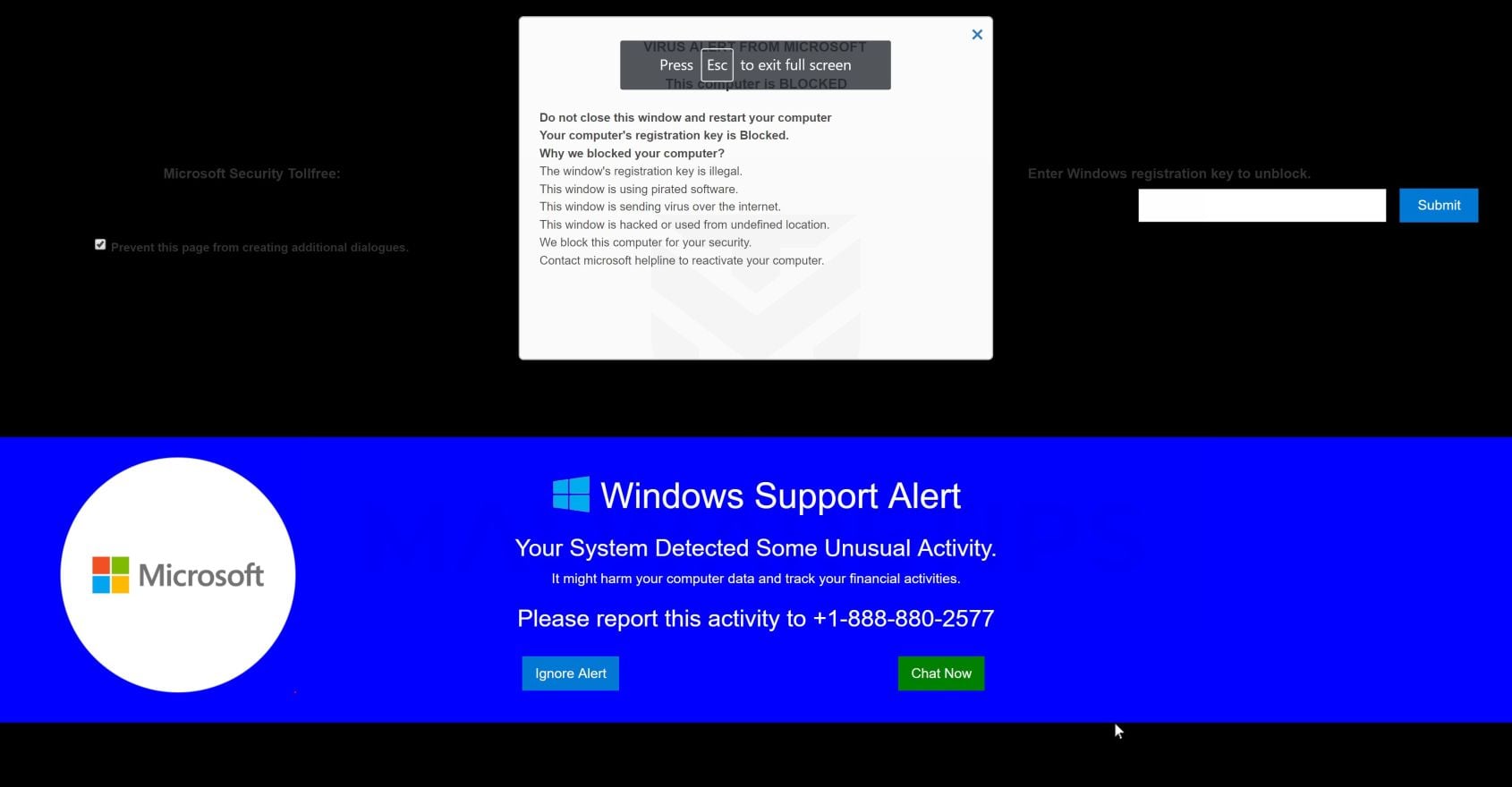
Pop-up notifications are a common vector for social engineering and phishing. One of the most prevalent threats in 2026 is "Browser Notification Spam." This occurs when a user inadvertently grants a website permission to send notifications. Malicious actors use this to mimic system alerts, claiming the computer is infected with a virus or that a password must be reset.
How to Stay Secure:
- Never click links inside a notification that asks for credentials. Instead, navigate to the official website via a browser or open the app directly.
- Inspect the source: In Windows and macOS, the name of the app or browser sending the alert is always listed at the top of the notification banner.
- Use Biometric Verification: Ensure that sensitive notifications (like those containing 2FA codes or financial data) are hidden on the lock screen until the device is unlocked via FaceID, TouchID, or Windows Hello.
Troubleshooting Common Notification Issues
If notifications are not appearing, the cause is usually a conflict in settings rather than a software bug.
- Check Focus/DND Status: The most common culprit is an active "Do Not Disturb" mode that was forgotten. Ensure no "Quiet Hours" or "Focus" sessions are currently running.
- Background Data Restrictions: On mobile devices and laptops in "Battery Saver" mode, operating systems often kill the background processes responsible for push notifications. Disable power-saving mode to see if alerts resume.
- App-Level Permissions: Verify in the System Settings (Notifications section) that the specific app has "Allow Notifications" toggled on.
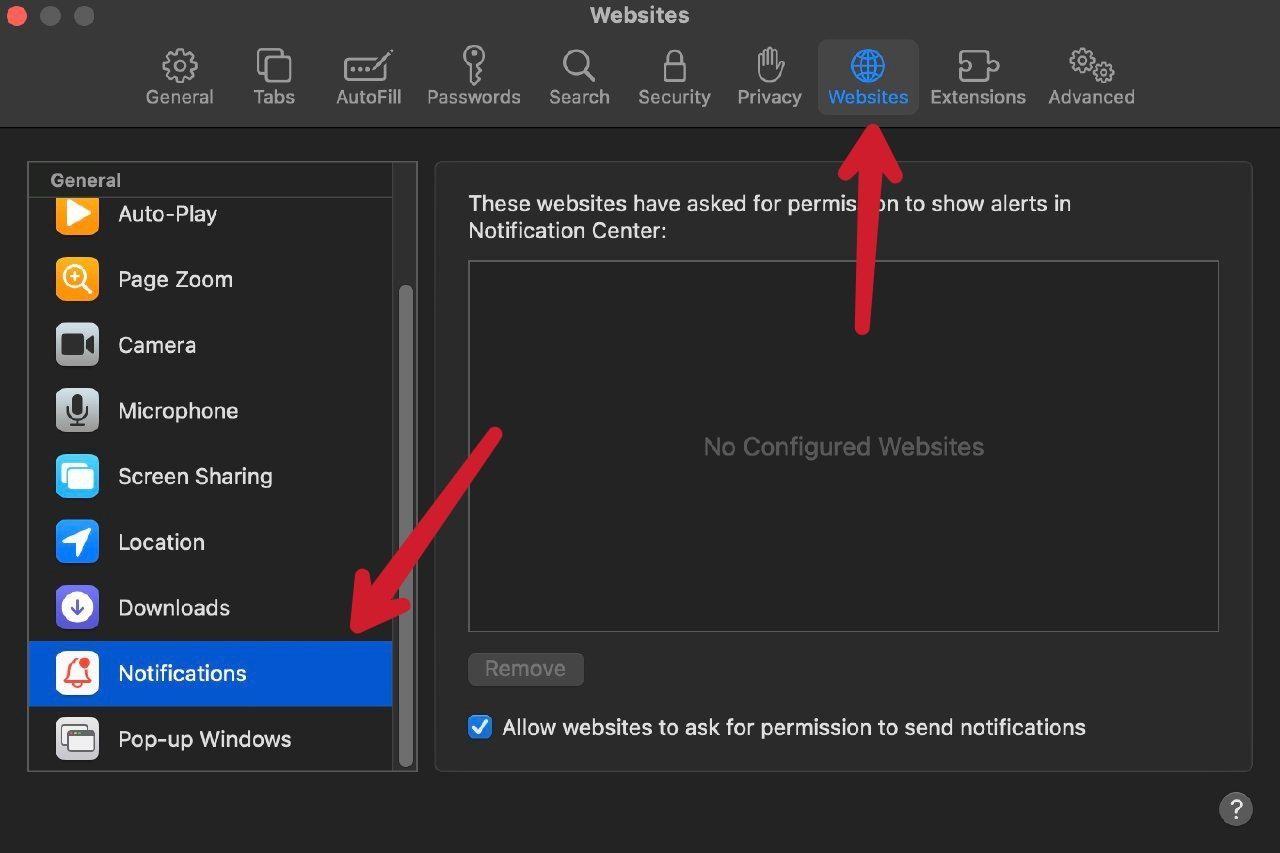
- Clear Browser Cache: For web-based notifications, clearing the site's "Permissions" in your browser settings (Chrome, Safari, or Edge) will reset the notification handshake.
The Future of Notifications: Toward Ambient Intelligence
Looking ahead, notifications are moving toward an "ambient" model. Instead of banners that slide in and out, we are seeing the rise of "Live Activities" and "Persistent Indicators." These elements live in areas like the iPhone's Dynamic Island or the Windows Taskbar, providing a constant, low-distraction stream of information (such as the arrival time of a ride-share or the status of a file upload) without the need for a disruptive pop-up.
Summary of Best Practices
For the best experience in 2026, users should adopt a "Minimum Viable Notification" strategy:
- Enable Instant Alerts only for direct human communication (calls, texts) and security warnings.
- Move all social media and news to Scheduled Summaries.
- Hard-block all Browser Notifications unless the site is a trusted productivity tool (e.g., Slack or Gmail).
FAQ
How do I turn off all pop-up notifications on my computer? To silence all alerts, activate "Do Not Disturb" (macOS) or "Focus" (Windows). On Windows, go to Settings > System > Notifications and toggle "Notifications" to Off. On macOS, click the Control Center icon in the menu bar and select a Focus mode. Note that this may also silence critical security warnings, so it is often better to customize specific app permissions instead.
Why are my notifications delayed? Delayed notifications are usually caused by aggressive battery optimization or poor network connectivity. Operating systems often "batch" notifications to save power. To fix this, ensure the app is excluded from battery optimization settings and that "Background App Refresh" is enabled.
Can websites send notifications even if the browser is closed? Yes, if you have granted permission, modern browsers use "Service Workers" that run in the background to listen for push events. This allows a site to send a notification even if you do not have a tab open. You can revoke these permissions in your browser's Privacy or Site Settings menu.
Are pop-up notifications the same as "toast" notifications? In technical documentation, particularly for Windows developers, pop-up alerts are often referred to as "Toast Notifications." This term describes the way the alert "pops up" from the bottom or side of the screen, similar to toast emerging from a toaster.
Is it possible to sync my Android notifications to my Windows PC? Yes, by using the Microsoft Phone Link app. Once paired, your Android notifications will appear in the Windows Notification Center, allowing you to view and dismiss them from your desktop.
Final Recommendation: To maintain peak productivity in 2026, take ten minutes to audit your notification settings. Navigate to your operating system's Notification Center settings and disable the "Banners" and "Sounds" for any application that does not require an immediate response. This simple step can reduce digital interruptions by up to 80%.
Image Gallery