Metro Login: Official Guide to Accessing Your Metro by T-Mobile Account
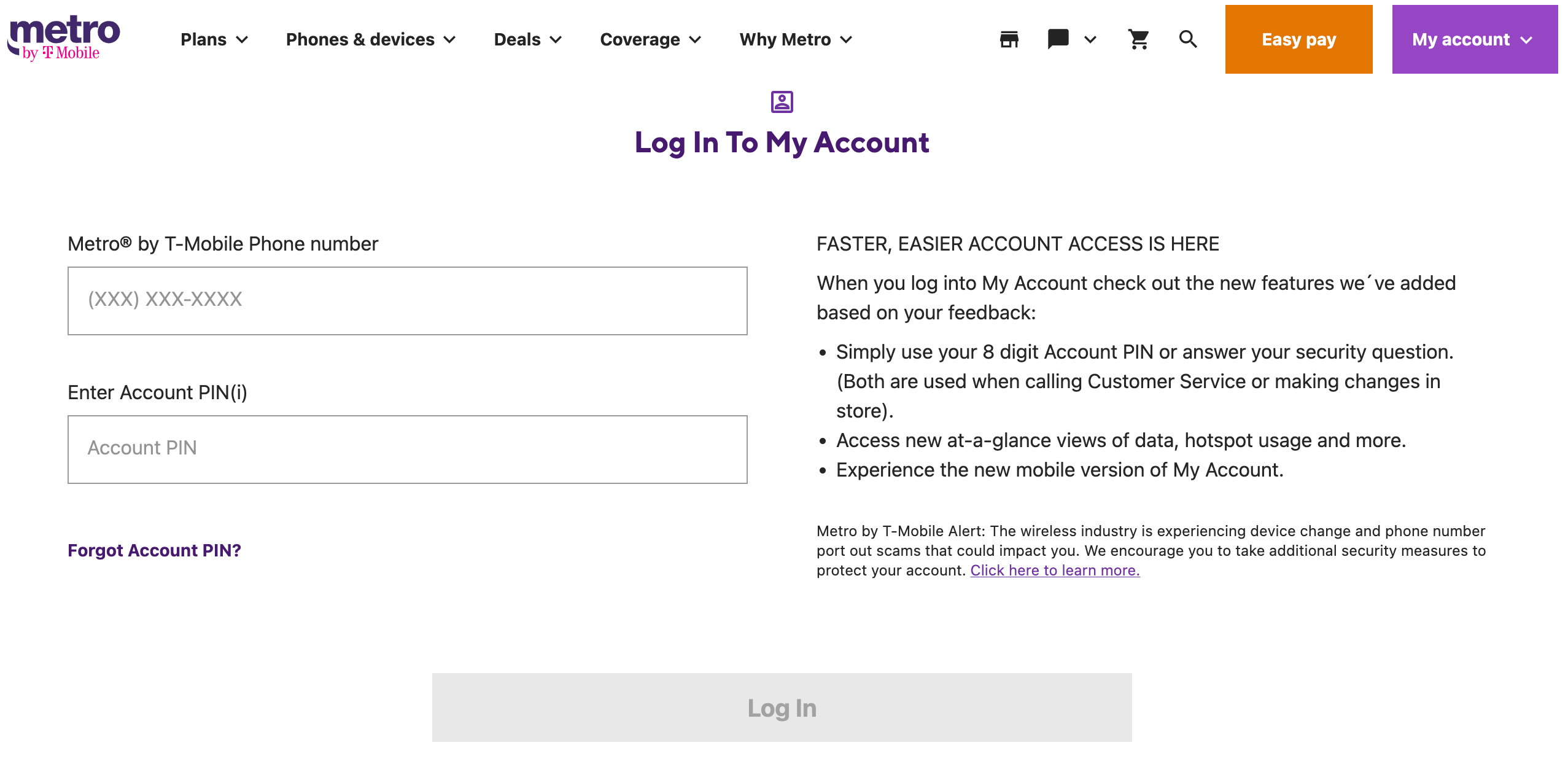
To access your Metro by T-Mobile account, visit the official Metro website or open the myMetro mobile app, enter your active ten-digit Metro phone number along with your eight-digit account security PIN, and verify your identity throug...
To access your Metro by T-Mobile account, visit the official Metro website or open the myMetro mobile app, enter your active ten-digit Metro phone number along with your eight-digit account security PIN, and verify your identity through the one-time security code sent via text. If you are seeking Metro Bank in the United Kingdom or regional transit cards such as Washington's SmarTrip Metro system, navigate directly to those respective financial or transit portals.
Contents
Accessing your wireless account allows you to manage rate plans, configure network security settings, review data consumption across 5G networks, schedule payments, and swap devices. Understanding the exact verification pathways, credential hierarchies, and self-service portals ensures uninterrupted mobile connectivity while safeguarding your cellular line from unauthorized transfers.
Prerequisites for Logging into Your Metro Account
Before initiating an online session or opening the mobile client, assemble the foundational credentials required by the carrier's identity management gateway. Metro by T-Mobile utilizes strict multi-factor authentication protocols to thwart unauthorized SIM reassignments and identity compromises.
- Active Metro Phone Number: You must have your primary 10-digit mobile number assigned to the line or primary account holder profile.
- Eight-Digit Account PIN: Created during your initial retail activation or online SIM registration, this numeric identifier serves as your master administrative security credential. It is entirely distinct from your voicemail password or lock screen PIN.
- Active Cellular or Wi-Fi Connection: While the mobile application can authenticate over cellular data without consuming your monthly allotment, web browser sessions require an established, stable internet connection.
- Device Access for Multi-Factor Authentication: Metro sends an automated Short Message Service (SMS) one-time passcode (OTP) to your handset during login attempts from unrecognized IP addresses, private browsing windows, or new hardware.
Step-by-Step Portals: Web Browser vs. myMetro App
Subscribers can access their profiles through two primary authenticated environments, as well as an unauthenticated guest transaction portal designed specifically for rapid bill settlement.
1. Browser-Based Web Account Portal
The desktop and mobile web portal provides full visibility into multi-line family accounts, detailed rate plan features, and regulatory profile records.
- Launch your web browser and navigate directly to the official Metro by T-Mobile account gateway.
- Locate the account navigation element in the upper-right corner of the interface and select the sign-in option.
- Type your primary 10-digit mobile number in the designated account identifier box.
- Input your confidential 8-digit account PIN.
- Check your mobile handset for the dynamic verification code dispatched by the automated network center, then enter this numeric sequence into the browser verification field within the designated expiration window.
- Upon validation, the browser redirects you to the main administrative dashboard.
2. The Native myMetro Mobile Application
The myMetro app is optimized for iOS and Android devices, offering device-level network diagnostics and integrated biometric sign-in capabilities.
- Download the official myMetro application from the Apple App Store or Google Play Store. Verify the publisher is listed as T-Mobile USA, Inc.
- Ensure mobile cellular data is toggled on. When connecting through native cellular towers, the software can often automatically verify your line identity without prompting for manual phone number entry.
- When prompted, enter your 8-digit security PIN.
- Enable biometric authentication (Apple Face ID, Touch ID, or Android Biometric Prompt) within the app settings to streamline subsequent dashboard sessions securely.
3. Guest Bill Payment (Express Pay)
If you must settle an account balance immediately without entering administrative dashboards or when you cannot locate your 8-digit security PIN, Metro maintains an expedited transaction channel.
- Select the express payment link located directly beneath the primary sign-in dialog box on the carrier website.
- Input your 10-digit Metro telephone number.
- Confirm the telephone number a second time to ensure payment routing accuracy.
- Submit your debit card, credit card, or electronic gift card details to finalize payment. Note that Express Pay restricts users exclusively to balance processing and will not display personal billing history, call logs, or subscriber information.
Account Features Available After Authentication
Logging into the authenticated administrative environment activates full management over your telecommunications profile.
Billing and AutoPay Configuration
Within the dashboard, subscribers can inspect itemized ledger statements, view billing cycle roll-over dates, and register payment methods for automatic processing. Enrolling in automated recurring payments typically qualifies accounts for standard monthly discounts, reducing total out-of-pocket overhead across single-line and family tiered packages.
Plan Modifications and Digital Add-Ons
Subscribers can upgrade or downgrade their core broadband service tiers, add recurring high-speed mobile hotspot buckets, or enable specialized add-ons. Available security add-ons include T-Mobile Scam Shield verification, identity protection services, and international calling or roaming packages such as Mexico and Canada Unlimited.
Line Management and Device Upgrades
Multi-line administrators can view data consumption patterns across all associated SIM profiles, monitor individual usage thresholds, order replacement hardware, or execute automated eSIM transfers to newly acquired smartphones without stepping inside a physical retail branch.
Comparison of Metro Account Management Channels
Choosing the appropriate access channel depends on whether you require comprehensive line modifications or simply need to post an immediate remittance.
| Management Channel | Primary Requirement | Account Modifications | Real-Time Data Tracking | Payment Processing | Biometric Sign-In |
|---|---|---|---|---|---|
| myMetro App | Phone Number & 8-Digit PIN | Full (Plans, Add-ons, Profiles) | Yes (Direct Device Widget) | Yes (Saved Cards, Google/Apple Pay) | Yes (Face ID / Fingerprint) |
| Web Browser Portal | Phone Number & 8-Digit PIN + SMS OTP | Full (Comprehensive Multi-Line) | Yes (Detailed Usage Breakdown) | Yes (Debit, Credit, AutoPay) | No (Requires Manual/Password Manager) |
| Express Pay (Guest) | 10-Digit Phone Number Only | None (Financial Settlement Only) | No Access | Yes (One-Time Payment Only) | No Access |
| *Automated Phone (611) | Calling from Metro Handset + PIN | Limited (Basic Plan Adjustments) | Yes (Spoken Metric Readout) | Yes (Debit/Credit via IVR System) | No Access |
| In-Store Retail Representative | Government ID & 8-Digit Account PIN | Full (Hardware Swaps, Profile Changes) | Available via Agent | Yes (Cash, Card, Check) | In-Person Verification Only |
Security Best Practices: Protecting Your Wireless Profile
Cellular accounts are frequent targets for malicious actors seeking unauthorized SIM swaps to intercept financial two-factor verification codes. Securing your Metro login requires rigorous operational discipline.
Critical Account Protection Rules
Never share your 8-digit account PIN with third parties, including individuals claiming to represent technical support via unsolicited incoming text messages or telephone calls. Legitimate carrier representatives will only request your PIN when you directly initiate contact for troubleshooting or account maintenance.
Enable Account Protection features inside your profile settings. This security lock stops unauthorized attempts to port your number to another mobile carrier or transfer your profile to a different physical SIM card or digital eSIM without secondary in-person or carrier-level verification.
Strong PIN Architecture
Avoid simple numeric repetitions or biographical milestones when generating or revising your 8-digit security PIN. Sequences such as repeated digits, consecutive numbers, or combinations matching your birth date or current street address present critical vulnerabilities against automated brute-force attacks.
Managing Unrecognized Access Notifications
Metro by T-Mobile generates automatic network notifications whenever account credentials change or new sign-ins occur from anomalous networks. If you receive an SMS stating your account security settings were modified without your knowledge, contact the specialized fraud department immediately through official customer support channels.
Troubleshooting Common Metro Login Failures
System glitches, authentication failures, and credential oversights can block access to the administrative center. Follow these standard resolution steps to recover control of your portal.
Forgotten or Rejected 8-Digit Account PIN
If the system rejects your access PIN, do not repeatedly submit randomized combinations; multiple consecutive failed attempts can trigger an administrative security freeze on the account profile.
- Click the "Forgot PIN?" link directly below the primary login inputs.
- Provide the primary 10-digit mobile number linked to the profile.
- Acknowledge the automated security dispatch. The platform will deliver a temporary validation link or code via SMS to your active handset.
- Enter the validation code into the portal and establish a new 8-digit PIN when prompted.
If your line is suspended and unable to receive inbound text messages, password self-recovery via SMS will fail. In this scenario, you must visit an authorized retail storefront with a valid, non-expired government-issued photo ID matching the registered account owner's legal name.
Authentication Code Not Arriving via Text
When multi-factor verification codes fail to arrive:
- Check Network Registration: Verify your phone displays functional cellular bars rather than Wi-Fi calling exclusively, as certain short-code SMS relays encounter delivery delays across specific Wi-Fi firewall topologies.
- Audit Short-Code Blocking: Confirm that third-party spam management utilities or handset settings have not accidentally blocked short-code messaging from carrier numbers (such as 611 or 456).
- Toggle Airplane Mode: Switch your device into Airplane Mode for ten seconds and toggle it off to re-register the connection to the nearest cellular tower.
Browser Errors and Infinite Loading Loops
If the desktop portal presents a blank screen or loops indefinitely during authentication:
- Deactivate third-party virtual private network (VPN) services. Telecommunications identity portals routinely flag and restrict active VPN IP addresses to thwart distributed credential-stuffing campaigns.
- Clear the cache and cookies for the carrier's primary domain, or launch an incognito browsing session to eliminate corrupted local cache files.
- Temporarily suspend aggressive script blockers or tracking-prevention browser extensions that may interfere with legitimate multi-factor authentication scripts.
Managing Your Account During Service Suspensions
If your cellular line has been interrupted due to late payment or exhausted balance limits, standard account management routes behave differently.
Retaining Self-Service Access
Even during total service interruptions, Metro keeps administrative data pathways accessible. When you launch a browser on a suspended device using cellular data, the system automatically routes your traffic directly to the payment and account resolution portal, bypassing standard mobile data restrictions.
Resolving Account Lockouts Without Cell Service
If your device cannot connect to cellular towers or receive validation texts:
- Connect your handset to an external, trusted Wi-Fi network.
- Navigate to the online Express Pay platform from a personal computer, tablet, or secondary smartphone.
- Input your 10-digit phone number and submit the minimum past-due balance.
- Network systems typically reactivate suspended SIM lines within 15 minutes of payment receipt, restoring your ability to receive standard SMS security verification codes.
Alternative Support Channels and Customer Care
When automated digital portals are unreachable due to widespread carrier network maintenance or profile corruption, use these verified direct contact pathways:
- Direct Wireless Dialing: Dial *611 directly from any active Metro by T-Mobile handset to reach the automated interactive voice response (IVR) menu without incurring fees.
- Toll-Free Customer Line: Call 1-888-8METRO8 (1-888-863-8768) from any landline or secondary carrier phone to connect with the national customer assistance network.
- In-Person Retail Verification: Visit an authorized Metro retail storefront or corporate service center. Store personnel can resolve identity lockouts, execute SIM repairs, and update account settings after inspecting an official government photo ID confirming account ownership.
Frequently Asked Questions
How do I reset my Metro by T-Mobile 8-digit account PIN?
To reset your PIN, click the "Forgot PIN?" prompt on the primary login page, verify your identity via the one-time SMS passkey delivered to your phone, and establish a new numeric sequence. If your line is disconnected and cannot receive text messages, you must visit a Metro retail location with your government photo ID to reset the PIN in person.
Can I pay my Metro bill without logging into my account?
Yes, you can use the Express Pay portal on the official Metro website to make a payment without logging in. You only need to supply your active 10-digit telephone number and a valid debit card, credit card, or payment voucher; this guest payment portal does not grant access to sensitive account usage, plan configurations, or billing histories.
Why am I not receiving my one-time security login code?
Security SMS codes fail to arrive if your device is in Airplane Mode, disconnected from cellular networks, or running spam-filtering applications that flag automated carrier short codes. Check your blocked number list, disable active VPN connections, and toggle your device's cellular data connection to re-establish a link to the network towers.
What is the difference between my myMetro password and my 8-digit PIN?
Your 8-digit PIN is the core administrative security passkey protecting your wireless identity across all customer support, retail store, and digital channels. Password credentials are used primarily for secondary application or profile interfaces, but the master 8-digit account PIN remains the authoritative identifier required for verification and account changes.
Can I log into my account if my phone is lost or stolen?
You can access your account from a desktop computer using your phone number and 8-digit PIN, but completing the login may be restricted if two-factor SMS verification is enforced. In this situation, immediately call Metro Customer Care (1-888-863-8768) from another telephone or visit an authorized store location to suspend your line, prevent fraudulent usage, and provision a replacement SIM or eSIM.
Take control of your wireless service today by signing into your official Metro by T-Mobile portal. Review your monthly statement, audit your high-speed 5G data consumption, and confirm your account security configurations to keep your mobile connection running smoothly.
Image Gallery