Accessing and Playing Kahoot via WW Kahoot It: A Comprehensive Guide for 2026
Accessing Kahoot using shortcut variations like ww kahoot it typically points users toward the primary web portal, kahoot.it, where players enter game PINs to join live interactive quizzes. This guide covers how to access the platform,...
Accessing Kahoot using shortcut variations like ww kahoot it typically points users toward the primary web portal, kahoot.it, where players enter game PINs to join live interactive quizzes. This guide covers how to access the platform, troubleshoot connection hurdles, and maximize engagement for educational or corporate sessions in 2026.
Contents
Understanding the Mechanics of Joining a Kahoot Session
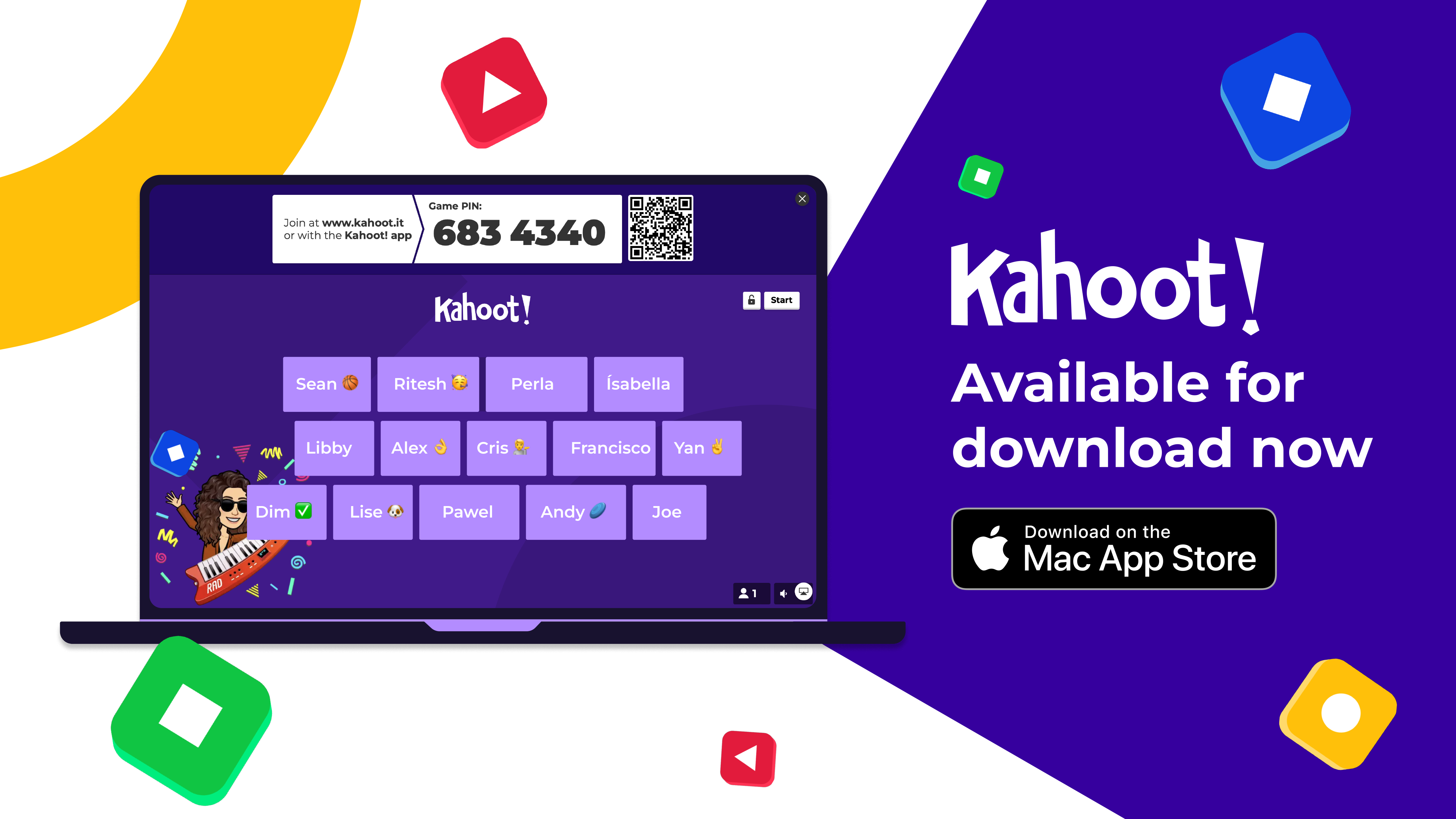
The web-based platform relies on a streamlined entry mechanism designed to eliminate friction for participants. When a host initiates a live quiz, presentation, or survey, the system generates a unique numerical sequence known as a Game PIN. Participants open their web browsers, navigate to the portal, and type this code to establish a secure connection to the host session.
Unlike traditional learning management systems that require complex account creation, the guest entry model prioritizes immediate participation. Players only need a device with an active internet connection—such as a smartphone, tablet, or laptop—and the specific PIN provided by the instructor, trainer, or event organizer. This architecture supports both synchronous classroom environments and remote video-conferencing setups where the main display is shared via screen share.
Essential Prerequisites for Joining and Hosting Sessions
Before attempting to access a live session, participants and hosts must verify that their technical setup meets baseline modern web standards. Because the platform relies heavily on real-time WebSocket communication for instantaneous score updates and question synchronization, unstable network connections can disrupt the user experience.
- Browser Compatibility: Use updated versions of major web browsers including Google Chrome, Mozilla Firefox, Apple Safari, or Microsoft Edge.
- Network Stability: Ensure a stable Wi-Fi or cellular data connection with low latency to prevent dropped connections during timed question rounds.
- Display Setup: When hosting, ensure the primary screen (projector or shared window) is clearly visible to all participants while they use their individual controllers.
- Audio Configuration: Enable device sound if participating individually, or rely on the host's main audio output when playing in a shared room environment.
Step-by-Step Instructions to Join a Game via Web Browser
Joining an active session takes only a few seconds when following the correct sequence. Participants do not need to log into an account unless they wish to track their personal learning history or create their own content.
- Open your preferred web browser and navigate directly to the official entry portal at kahoot.it.
- Locate the prominent input field labeled Game PIN on the center of the screen.
- Enter the exact numerical PIN provided by your game host, ensuring no accidental spaces are included, and click the Enter button.
- If the host has enabled nickname generators or friendly nickname policies, type your chosen screen name or select a random safe nickname suggested by the system.
- Wait briefly while the lobby loads your nickname onto the main host screen, confirming your successful entry into the participant pool.
- Watch the main display as the countdown begins and the first question and color-coded answer options appear.
Comparison of Platform Access Methods
Participants can interact with quizzes through multiple channels depending on their device type and institutional access level. Selecting the right entry path optimizes performance and feature availability.
| Access Method | Primary Use Case | Advantages | Limitations |
|---|---|---|---|
| Web Browser (kahoot.it) | Quick guest participation, temporary users, public events | No installation required, works on any modern device | Requires manual PIN entry every session |
| Mobile App (iOS/Android) | Regular students, frequent educators, self-paced study | Saves profile data, pushes notifications, smooth UI | Requires device storage and initial app download |
| LMS Integrations (Canvas/Teams) | Structured academic environments | Single sign-on, gradebook sync, automated assignment tracking | Dependent on institutional administrative setup |
Pros and Cons of Using Web-Based Game Access
Evaluating the benefits and constraints of the browser-based entry portal helps users determine the best strategy for their specific learning or professional engagement objectives.
Advantages
- Instant Accessibility: Participants can join within seconds without navigating app stores or remembering complex login credentials.
- Universal Device Support: Functions seamlessly across virtually any operating system featuring a modern web browser.
- Reduced Overhead: Organizers do not need to manage software deployment policies across large fleets of participant devices.
Disadvantages
- Session Dependency: Web sessions are strictly tied to active live hosting; users cannot browse past interactive quizzes without a direct link or host initiation.
- Typing Friction: Entering long alphanumeric PINs manually on mobile keyboards occasionally leads to entry errors.
- Connectivity Sensitivity: Temporary drops in internet connection instantly sever the WebSocket link, requiring the user to re-enter the PIN and rejoin.
Troubleshooting Common Connection and Access Errors
Users occasionally encounter roadblocks when attempting to connect to a live session. Addressing these technical issues quickly ensures minimal disruption to live events.
- Incorrect PIN Error: Double-check the digits with the host. PINs change with every new game lobby and expire immediately after a session concludes.
- Loading Screen Freezes: Clear browser cache or switch from a restrictive corporate firewall network to a standard cellular connection if WebSockets are blocked.
- Nickname Rejection: If the system flags a chosen nickname, utilize the random generator feature to select an approved pseudonym instantly.
- Audio Desynchronization: Refresh the browser tab if the background music or question timers fall out of sync with the main display.
Best Practices for Maximizing Engagement and Security
Maintaining a smooth and secure interactive experience requires proactive management from hosts and mindful participation from users. Always verify that the game PIN originates from a trusted source before entering personal identifiers or nicknames. For educators and corporate trainers, establishing clear ground rules regarding screen names prevents disruptive behavior during live sessions. Utilizing updated browser environments also guarantees compatibility with evolving web security protocols and ensures uninterrupted real-time scoring performance throughout long presentations.
Frequently Asked Questions
What is the purpose of kahoot.it?
It serves as the dedicated web portal where participants enter a unique game PIN to join live, interactive quizzes and learning sessions hosted by educators or presenters. Users input the code and a nickname to connect their devices to the main game screen instantly.
Do I need to create an account to play a game?
No account is required to participate as a player in a live session. You only need the game PIN provided by the host and a web browser to enter your chosen nickname and join the lobby.
Why is my game PIN not working?
Game PINs are temporary codes generated specifically for active live sessions and expire as soon as the game ends. Verify the digits with your host and ensure no extra spaces were added during typing.
Can I use a smartphone to join a game?
Yes, smartphones work exceptionally well for joining sessions via mobile web browsers or the dedicated application. The interface automatically adapts to smaller screens, displaying the color-coded geometric shapes corresponding to answer choices.
How do I switch from browser play to hosting my own quiz?
To create and host your own interactive content, you must navigate to the main creator platform website, sign up for an educator or professional account, and build your question sets from scratch or via templates.
Image Gallery