How to Download and Set Up the Xfinity App for Android in 2026
Downloading the official Xfinity app for Android allows you to manage your internet, Wi-Fi, streaming, mobile, and security services directly from your smartphone or tablet. By utilizing the Google Play Store, users can securely access...
Downloading the official Xfinity app for Android allows you to manage your internet, Wi-Fi, streaming, mobile, and security services directly from your smartphone or tablet. By utilizing the Google Play Store, users can securely access account tools, troubleshoot connection drops, pay bills, and optimize home network performance with official utility updates released for 2026 device compatibility.
Contents
System Requirements and Prerequisites for Android Devices
Before initiating the download process, verifying that your Android device meets the necessary operating system requirements ensures seamless installation and stable app performance. Xfinity regularly updates its application framework to leverage modern Android security protocols, requiring specific baseline hardware and software specifications.
- Operating System: Android 10.0 or higher is typically required for optimal compatibility and security patch support.
- Storage Space: Ensure at least 150 MB of free internal storage available on your device to accommodate the initial installation package and ongoing cache data.
- Active Internet Connection: A stable Wi-Fi connection or active mobile data service is necessary to download the package from the Google Play Store and authenticate your account credentials.
- Xfinity Account Credentials: Have your primary Xfinity ID (username) and password ready. If you manage multiple accounts or sub-accounts, note which login possesses administrative privileges.
Important Security Prerequisite Always download the application exclusively through the official Google Play Store. Avoid third-party APK mirrors or untrusted file-sharing sites, as these alternative sources frequently host modified or malicious software variants designed to compromise your personal data and account security.
Step-by-Step Guide to Downloading and Installing the Xfinity App
The installation procedure takes only a few minutes when following the official distribution channel. Execute the following sequence to securely download and configure the utility on your Android device.
- Open the Google Play Store: Locate and tap the Google Play Store application icon on your Android home screen or app drawer.
- Search for the Application: Tap the search bar at the top of the screen, type
Xfinity, and press the search icon on your keyboard. Look for the official application published by Comcast, identifiable by the signature purple Xfinity logo. - Initiate the Download: Tap on the official application listing to open its store page, then tap the green Install button. The system will automatically download and install the package based on your network speed.
- Launch the Application: Once the installation finishes, tap Open directly from the Play Store interface, or locate the newly added Xfinity icon within your Android app drawer.
- Sign In to Your Account: Enter your registered Xfinity ID and password. If prompted for two-factor authentication (2FA), complete the verification step via text message or email to confirm your identity.
Core Features and Capabilities of the Android Application
Once installed, the Xfinity application acts as a centralized dashboard for all subscribed residential services. Understanding the built-in functional modules helps you maximize the utility of your broadband and entertainment subscriptions.
Wi-Fi and Home Network Management
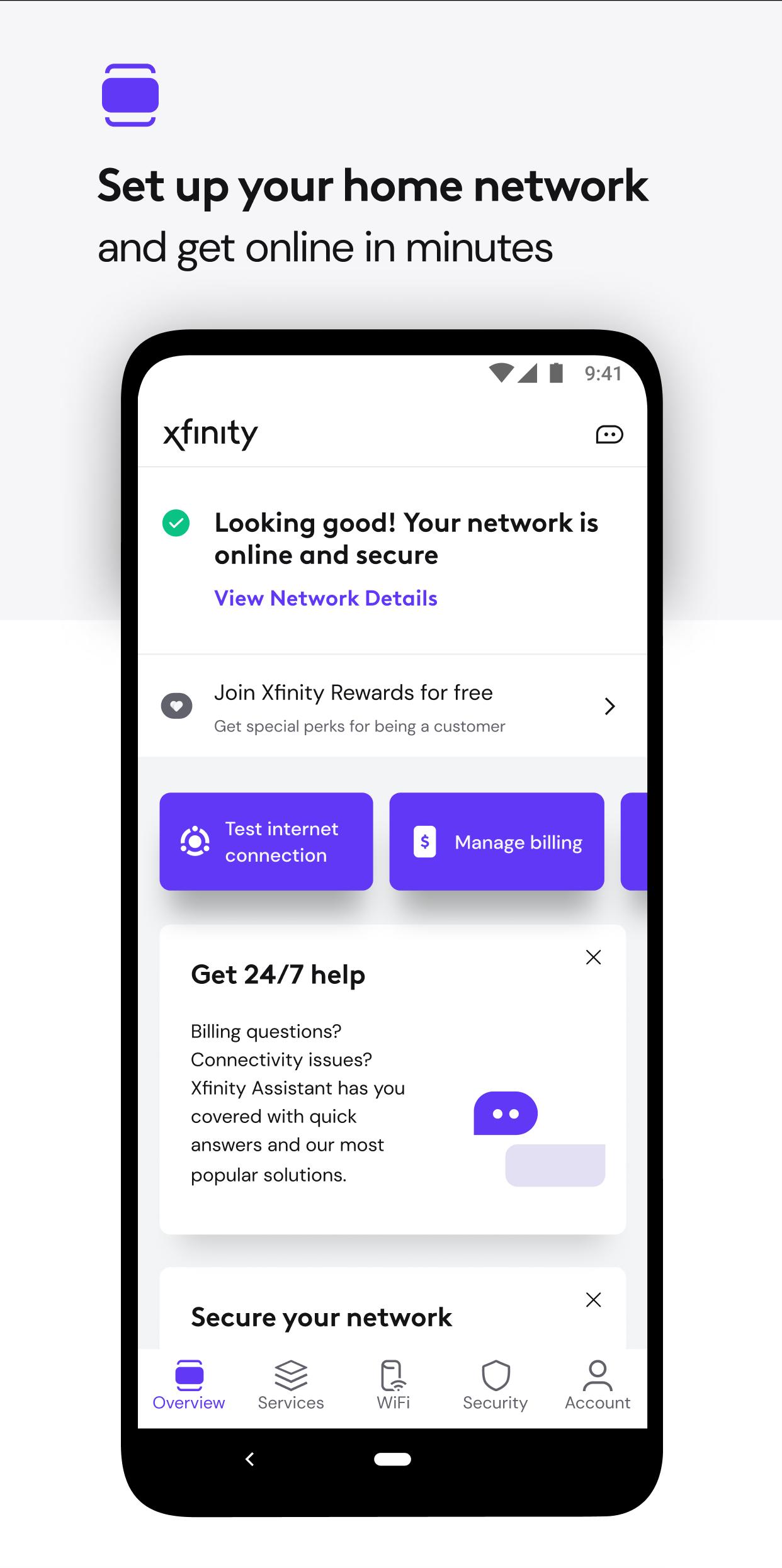
The application provides comprehensive tools for monitoring and controlling your connected home environment. Users can view every device currently linked to their gateway, pause internet access for specific profiles or devices (ideal for parental controls), and test real-time connection speeds directly to the home gateway.
Account Management and Billing
Billing management is fully integrated into the mobile interface. Subscribers can view current billing statements, set up automatic monthly payments (Auto-Pay), enroll in paperless billing, and review detailed billing history or data usage thresholds to prevent overage charges on tiered plans.
Troubleshooting and Support
When network disruptions occur, the application includes automated diagnostic tools. You can restart your gateway remotely, run line diagnostics, check for regional service outages, and schedule appointments with technicians or chat directly with an automated or live support representative.
Comparison of Xfinity Account Management Methods
While the Android application provides a streamlined mobile experience, users can also manage their accounts through desktop browsers or traditional phone channels. The following table compares these management methods across key operational metrics.
| Management Method | Portability | Real-Time Push Notifications | Advanced Wi-Fi Controls | Billing & Auto-Pay Setup | Outage Troubleshooting |
|---|---|---|---|---|---|
| Xfinity Android App | High (Mobile) | Yes | Full Access | Fully Supported | Instant Restart & Status |
| Desktop Web Browser | Moderate (PC/Mac) | No | Moderate Access | Fully Supported | Status Check Only |
| Customer Support Phone | Low (Voice Only) | No | None | Manual Processing | Representative Assisted |
Troubleshooting Common Download and Installation Errors
Users occasionally encounter minor roadblocks when attempting to download or initialize applications on Android devices. Review these common scenarios and their verified resolutions to restore functionality.
- Insufficient Storage Error: If the Google Play Store halts the download due to a lack of space, clear temporary cache files by navigating to Android Settings > Storage, or uninstall unused applications to free up required megabytes.
- Pending Download Loop: If the download remains stuck on "Pending," check your Wi-Fi or mobile data connection, cancel the current download queue, restart the Google Play Store application, and attempt the installation again.
- Operating System Incompatibility: If your device runs an older iteration of Android that is no longer supported by modern application updates, consider updating your device's system software via Settings > System > System Update, or access your account via a web browser.
- Login Authentication Failures: If your credentials fail repeatedly, utilize the password recovery utility on the official website before attempting to log back into the mobile application.
Frequently Asked Questions
Is the Xfinity app for Android free to download?
Yes, downloading and using the official Xfinity application from the Google Play Store is completely free of charge for all active subscribers. Standard data rates may apply if you download the application over a cellular network without an active Wi-Fi connection.
Can I use the app if I only have Xfinity Mobile service?
Yes, the application supports Xfinity Mobile customers, allowing you to manage wireless data usage, review billing statements, and configure mobile account preferences directly from your Android device.
How do I update the application on my Android device?
You can update the application by opening the Google Play Store, tapping your profile icon, selecting Manage apps and device, and checking for available updates next to the Xfinity listing. Enabling automatic updates in your Play Store settings ensures you always run the latest version.
What should I do if the app cannot detect my home Wi-Fi network?
Ensure your Android device is connected to your home Wi-Fi network rather than mobile data, and verify that your gateway is powered on and broadcasting properly. Restarting both your gateway and your mobile device often resolves local discovery issues.
Can I manage multiple Xfinity accounts from a single Android app login?
While you can link multiple services under a single primary account holder profile, distinct accounts with separate primary Xfinity IDs require you to log out and sign in with the respective credentials to manage them independently.
Image Gallery