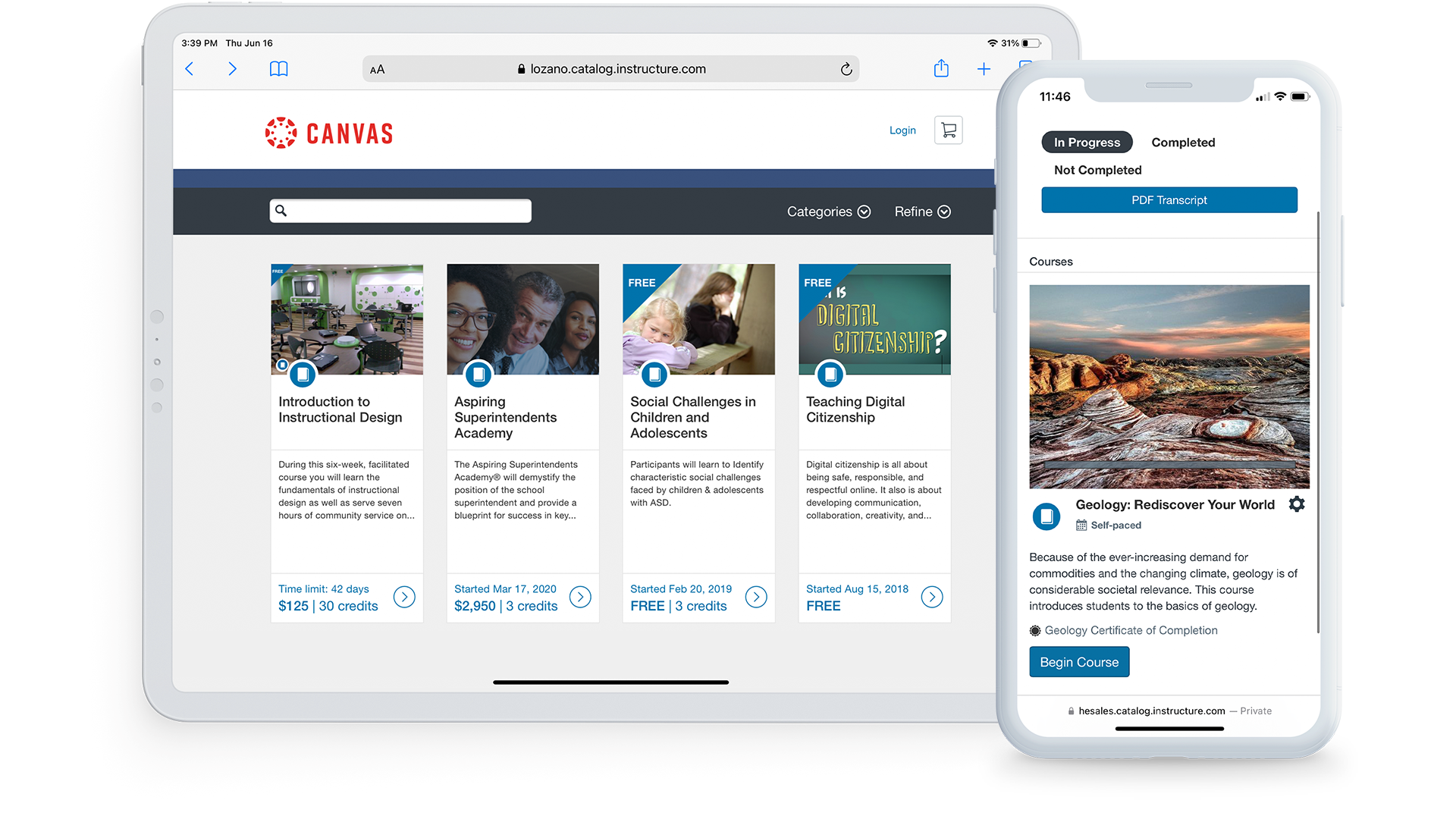
Navigating My UNM Canvas: The 2026 Official Student and Faculty Access Guide
Accessing My UNM Canvas requires navigating the University of New Mexico’s centralized authentication portal. Students and faculty must use their official UNM NetID and password to log in through the central dashboard. This system serv...
Accessing My UNM Canvas requires navigating the University of New Mexico’s centralized authentication portal. Students and faculty must use their official UNM NetID and password to log in through the central dashboard. This system serves as the primary digital hub for course materials, assignment submissions, grade tracking, and institutional communication for the 2026 academic year.
Contents
Understanding the UNM Canvas Ecosystem
Canvas by Instructure serves as the official Learning Management System (LMS) for the University of New Mexico. In 2026, the integration between the My UNM portal and Canvas remains seamless, provided that user credentials are up to date. The system is designed to provide centralized access to course syllabi, lecture recordings, discussion boards, and digital assessment tools.
Unlike older legacy systems, the current Canvas implementation supports mobile accessibility through the Canvas Student and Canvas Teacher applications. Users should ensure their devices meet the 2026 technical requirements to maintain synchronization with university servers.
Prerequisites for Successful Login
Before attempting to access the platform, verify your status within the university directory. Technical access is contingent upon active enrollment or employment status.
- Active NetID: You must have a verified UNM NetID. If you have forgotten your password, use the official NetID management site before attempting to access Canvas.
- Multi-Factor Authentication (MFA): UNM requires LoboMobile or a hardware token for secure access. Ensure your MFA device is registered and functional.
- Browser Compatibility: Use modern, updated browsers such as Chrome, Firefox, or Edge. Safari is supported but may experience intermittent issues with specific embedded third-party LTI (Learning Tools Interoperability) plugins.
- Network Requirements: While off-campus access is supported, certain university-licensed library resources integrated within Canvas may require a VPN connection if accessed from outside the campus network.
Step-by-Step Guide to Logging Into Your Dashboard
Follow this procedure to reach your course modules efficiently:
- Navigate to the official My UNM portal website.
- Locate the "Login" button prominently displayed on the top right of the landing page.
- Input your UNM NetID and password.
- Complete the MFA challenge prompted by your configured device.
- Once inside the My UNM portal, locate the "Canvas" icon or link found within the "Teaching & Learning" or "Student" navigation tabs.
- You will be automatically redirected to your Canvas dashboard displaying your current 2026 term enrollments.
Technical Troubleshooting and Support
If you encounter errors such as "Access Denied" or "Invalid Credentials," follow these systematic troubleshooting steps:
| Issue | Recommended Action |
|---|---|
| Login Timeout | Clear your browser cache and cookies; restart the browser session. |
| Missing Course Modules | Verify your enrollment status via the LoboAchieve or Registrar's portal. |
| MFA Failure | Contact the UNM IT Service Desk to reset your secondary authentication method. |
| LTI Plugin Error | Update your browser or disable aggressive privacy extensions (e.g., ad blockers). |
| Mobile App Sync | Log out and remove the UNM instance from the app, then re-authenticate. |
IT Service Desk Support If standard troubleshooting fails, the UNM IT Service Desk remains the primary point of contact. For 2026 operations, ensure you have your UNM ID number ready. Do not share your password with any support representative; legitimate staff will never request your login credentials via email or unsolicited chat sessions.
Frequently Asked Questions
Why can't I see my courses on my Canvas dashboard? Courses often remain unpublished by the instructor until the first day of the semester. If the semester has already commenced, contact your professor directly or check your registration status through the UNM Registrar to ensure you are officially enrolled in the roster.
Does Canvas work on mobile devices? Yes, the Canvas Student app is fully supported for both iOS and Android platforms. Ensure you are using the latest version of the app released in 2026 to ensure compatibility with all university LTI integrations and security protocols.
How do I submit an assignment via Canvas? Navigate to the "Assignments" tab within your specific course. Select the assignment, click the "Submit Assignment" button, upload your file, and click the final submission button. Always verify you receive the "Submitted" green checkmark confirmation.
Can I use Canvas for offline work? Canvas is primarily a cloud-based platform. While some mobile app features allow for limited offline viewing of previously loaded content, most functionality, including submitting assignments or taking quizzes, requires an active internet connection.
Where do I find my grades? Grades are located in the "Grades" tab on the global navigation menu or the course-specific navigation menu. If you believe a grade is missing, communicate directly with your instructor, as they manage grade visibility settings.
Security Best Practices
Your My UNM account contains sensitive academic and financial aid information. Adhere to these security standards to protect your identity in 2026:
- Never use the same password for My UNM as you do for personal email or social media accounts.
- Always log out of the My UNM portal and Canvas when using public or shared computers.
- Report any suspicious emails requesting your login credentials to the UNM IT security team immediately; these are common phishing attempts targeting student NetIDs.
Final Recommendations for Academic Success
To maximize your experience with the platform, customize your notification settings. Under "Account" > "Notifications" within Canvas, adjust your alerts for assignment feedback, announcements, and grade updates. Setting these to immediate or daily summaries ensures you stay informed of critical deadlines without being overwhelmed by notifications. For further assistance or to report system-wide outages, monitor the official UNM IT status page for real-time updates regarding platform performance.
Image Gallery