The Portable Monitor for Dell Laptops Explained: Connectivity, Compatibility, and Setup
A portable monitor for a Dell laptop expands screen space using either a single USB-C connection or a combination of HDMI and USB power cables. Compatibility depends on whether your Dell laptop's USB-C port supports DisplayPort Alterna...
A portable monitor for a Dell laptop expands screen space using either a single USB-C connection or a combination of HDMI and USB power cables. Compatibility depends on whether your Dell laptop's USB-C port supports DisplayPort Alternate Mode (DP Alt Mode) or Thunderbolt, which allows a single cable to transmit both video signals and power simultaneously.
Contents
Understanding Portable Monitors and Dell Laptop Compatibility
A portable monitor is a lightweight, slim display designed to serve as a secondary screen for mobile professionals, remote workers, content creators, and students. Unlike traditional desktop monitors that require a dedicated power outlet and standard video cables, most portable monitors draw power directly from the host laptop or a pass-through wall charger while receiving a video signal over a unified connection.
Connecting a portable monitor to a Dell laptop requires understanding the specific display capabilities of your laptop's external ports. Not all USB-C ports on Dell laptops carry video signals. Dell manufactures several distinct laptop lines—including XPS, Latitude, Inspiron, Precision, Vostro, and Alienware—and each series implements USB-C and video output standards differently depending on the model and generation.
To determine if a portable monitor will work with a single cable on your Dell laptop, you must identify whether your laptop's USB-C port supports DisplayPort Alternate Mode (DP Alt Mode) or Thunderbolt 3, 4, or 5.
- DisplayPort Alt Mode: Allows a standard USB-C connector to transfer native DisplayPort video signals alongside standard USB data.
- Thunderbolt (3 / 4 / 5): A proprietary hardware interface developed by Intel (in collaboration with Apple) that incorporates DP Alt Mode, high-speed PCI Express data transfer, and power delivery within a USB-C physical form factor.
- Data-Only USB-C: Found on older or budget-oriented Dell Inspiron and Vostro laptops, these ports only transfer file data and power, lacking the hardware pipeline to transmit display signals natively.
If your Dell laptop only features data-only USB-C ports or legacy USB-A and HDMI ports, you can still use a portable monitor, but you will need either a dual-cable configuration (HDMI for video, USB-A for power) or software-based display drivers such as DisplayLink.
Display Connection Types Explained
Selecting the right connection method ensures optimal refresh rates, minimal latency, and cable clutter reduction. Portable monitors utilize three primary connection architectures when paired with Dell laptops.
1. USB-C Single-Cable Setup (DP Alt Mode / Thunderbolt)
The single-cable setup is the most efficient configuration. A full-featured USB-C cable carries a 1080p, 2K, or 4K video signal from the Dell laptop to the monitor while simultaneously supplying electrical power from the laptop’s internal battery to drive the display.
- Pros: Single cable clutter-free setup; rapid deployment; no external wall adapter needed.
- Cons: Increases laptop battery consumption; requires a full-featured USB-C 3.2 Gen 2 or Thunderbolt cable (standard USB charging cables will not carry video).
2. Pass-Through Power Configuration
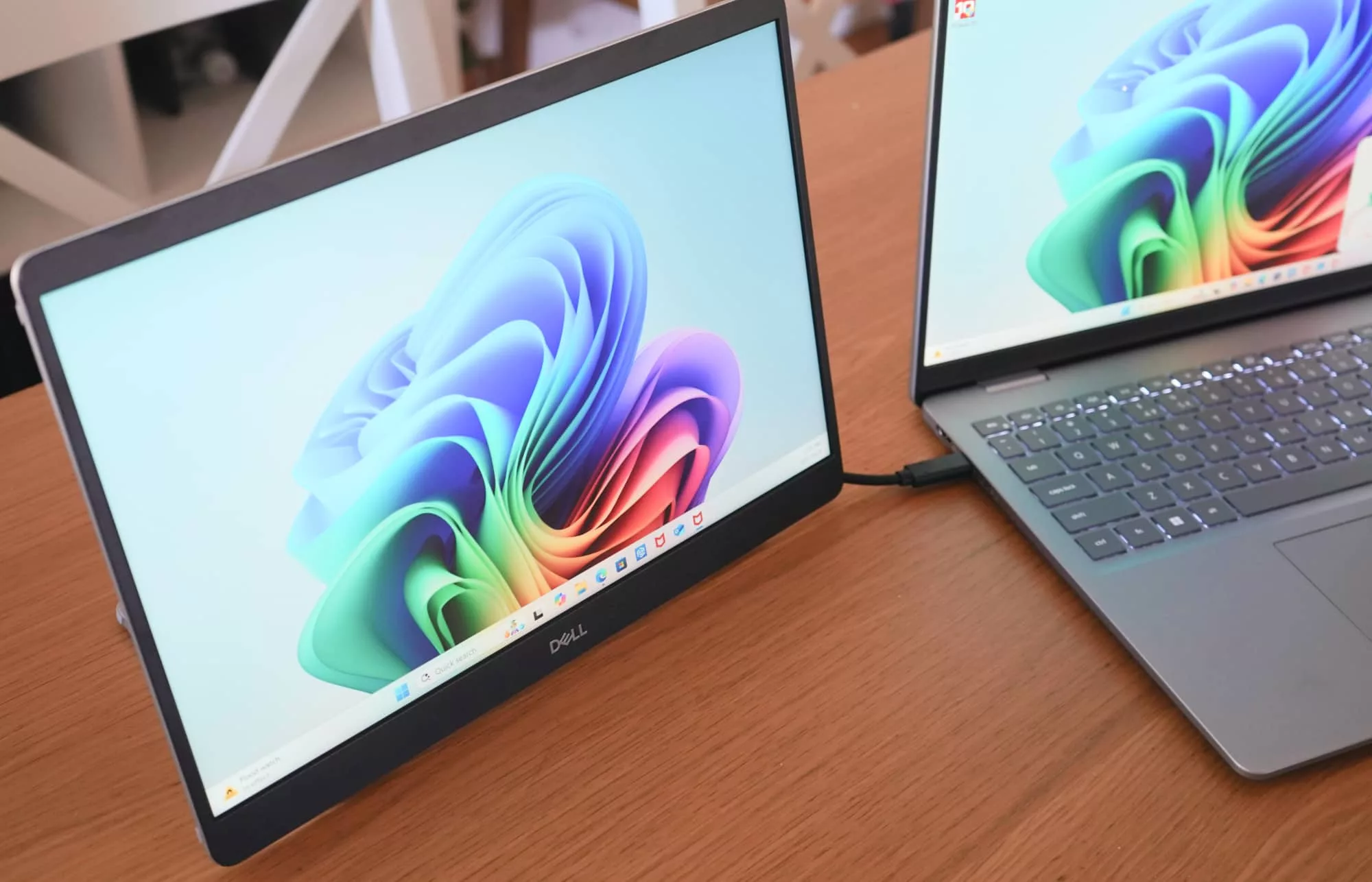
Many dual-port USB-C portable monitors—including the official Dell 14 Portable Monitor (C1422H)—feature two USB-C ports with power pass-through capabilities. In this arrangement, you plug your Dell AC power adapter into one USB-C port on the monitor, and connect the second USB-C port on the monitor to your laptop.
The portable monitor draws its operational power from the wall outlet while passing electrical charge upstream to charge the Dell laptop's battery. This prevents the extra screen from draining your laptop battery during extended work sessions.
3. HDMI Video + USB Power (Dual-Cable / Legacy Connection)
For Dell laptops that lack DisplayPort Alt Mode support or only feature standard HDMI ports, a dual-cable setup is required:
- An HDMI to Mini-HDMI (or Standard HDMI) cable transfers the video signal from the Dell laptop to the monitor.
- A USB-A to USB-C or USB-C to USB-C cable transfers electrical power from a laptop USB port or an external USB wall charger to power the display.
Without both cables attached, an HDMI-connected portable monitor will either display a "No Signal" message or fail to power on entirely.
Technical Compatibility Across Dell Laptop Families
Because port standards vary across product lines, reviewing your specific Dell family helps clarify port capabilities before purchasing an external screen.
- Dell Laptop Host
- USB-C / Thunderbolt Port (DP Alt Mode Supported)
- Single USB-C Cable (Video + Power Sync)
- Standard HDMI Port (Video Signal Only)
- Mini-HDMI / HDMI (Video Cable)
- Auxiliary USB Power (Laptop USB-A or Wall)
- Portable External Display
- USB-C / Thunderbolt Port (DP Alt Mode Supported)
Dell XPS Series (XPS 13, 14, 15, 16, 17)
Modern Dell XPS laptops rely almost exclusively on Thunderbolt 4 and Thunderbolt 5 ports. Every USB-C port on a modern XPS laptop supports high-resolution video output, power delivery, and high-speed data. A single USB-C cable will power and drive almost any portable monitor effortlessly.
Dell Latitude Series (Business Lineup)
Most Latitude models (3000, 5000, 7000, and 9000 series) manufactured in recent years include at least one USB-C port with DP Alt Mode and Power Delivery. Higher-tier models (7000 and 9000) typically include full Thunderbolt 4 support. Ensure you plug the portable monitor into the port marked with a DisplayPort icon ($D$) or a lightning bolt symbol.
Dell Inspiron and Vostro Series
Inspiron and Vostro laptops serve consumer and small business segments, where port specifications vary widely. Mid-to-high-tier Inspiron models usually support DP Alt Mode over USB-C, whereas entry-level models may feature USB-C ports restricted to 5 Gbps data transfer only. Always consult your specific service manual or look for the DisplayPort icon next to the port.
Dell Precision Workstations & Alienware Gaming Laptops
Dell Precision mobile workstations and Alienware devices offer robust port selection, including Thunderbolt ports, HDMI 2.1, and dedicated Mini DisplayPorts. High-performance gaming and CAD applications can drive multi-monitor setups, including high-refresh-rate (120Hz/144Hz) portable gaming monitors.
Key Hardware Features to Evaluate
When shopping for a portable monitor to pair with a Dell laptop, evaluate the following technical specifications to ensure system compatibility and comfort.
| Feature / Standard | Technical Requirement | Impact on Dell Laptop Performance |
|---|---|---|
| USB-C DP Alt Mode | Requires DisplayPort over USB-C capability | Enables single-cable video and power delivery without drivers |
| Thunderbolt 3 / 4 / 5 | 40 Gbps - 80 Gbps interface width | Supports multi-monitor daisy chaining and higher resolutions (4K+) |
| Power Pass-Through | USB Power Delivery (USB-PD) 65W to 100W | Allows charging the laptop through the portable monitor |
| DisplayLink Technology | Emulated USB graphic driver (Software-based) | Enables external displays on older USB-A or non-DP Alt Mode USB-C ports |
| Mini-HDMI Connection | Separate HDMI video + USB power cable | Reliable fall-back for budget Dell laptops without video over USB-C |
1. Panel Technology and Resolution
- Full HD (1920x1080): The standard resolution for 14-inch and 15.6-inch portable monitors. Requires minimal GPU processing power and offers clear text scaling at 100% or 125% in Windows.
- 2K / 4K (2560x1440 / 3840x2160): Ideal for photo editing, code inspection, and timeline video editing. High-density panels draw more power from the Dell laptop, so plugging in pass-through wall power is recommended.
- IPS vs. OLED: In-Plane Switching (IPS) panels offer wide viewing angles and reliable color accuracy with moderate power consumption. OLED portable monitors provide deep black levels and high contrast ratios, but consume more battery power when displaying bright white backgrounds.
2. Display Power Consumption
Standard 15.6-inch portable monitors draw between 5 to 10 Watts of power. Running a portable monitor solely off your laptop battery can reduce total runtime by 25% to 40%. Choosing a model with USB Power Delivery Pass-Through allows you to connect your standard Dell USB-C charger directly to the monitor, powering both the display and maintaining your laptop battery level.
3. Dell Native Monitor Integration vs. Third-Party Options
Dell produces its own portable monitor, such as the Dell 14 Portable Monitor (C1422H). It offers seamless hardware integration, featuring a built-in tilt stand (10° to 90°), continuous dual-sided USB-C pass-through charging, low blue light technology, and direct compatibility with software like Dell Display Manager.
Third-party alternatives (from brands like ASUS, Mobile Pixels, or Arzopa) often provide alternative screen sizes (16-inch or 17.3-inch), higher refresh rates (144Hz), touchscreen support, or Mini-HDMI options at varied price points.
Step-by-Step Setup Guide on Windows 11
Setting up a portable monitor on a Dell laptop running Windows 11 is straightforward. Follow these steps to complete physical installation and software configuration.
- Physical Connection: Plug full-featured USB-C cable into Dell DP Alt Mode port.
- System Detection Check: Windows detects plug-and-play monitor and sounds chime.
- Windows Display Settings: Navigate to: Settings > System > Display
- Display Mode Configuration: Select "Extend these displays" under Multiple Displays.
- Arrange & Scale Screens: Drag Box 1 and Box 2 to match physical desk placement. Set recommended Display Resolution & Text Scaling.
Step 1: Connect the Physical Hardware
- Identify the full-featured USB-C or Thunderbolt port on your Dell laptop (look for the $D$ or lightning bolt icon).
- Connect one end of the included USB-C cable to your laptop and the other end to the portable monitor's primary USB-C input.
- If using an HDMI setup, connect the HDMI-to-Mini-HDMI cable between both devices, then plug the secondary USB power cable into a free USB-A port on your laptop or a USB wall charger.
Step 2: Configure Display Settings in Windows 11
- Right-click anywhere on an empty area of your desktop and select Display settings.
- Windows should automatically detect the second panel, showing two numbered boxes labeled 1 and 2.
- Click Identify to show an overlay number on each physical screen, confirming which display corresponds to Box 1 and Box 2.
- Drag and drop the screen icons to match their physical positions on your desk (e.g., if the portable monitor sits to the left of your Dell laptop, drag icon 2 to the left of icon 1). Click Apply.
Step 3: Select Display Extension Mode
Under the Multiple displays drop-down menu, select one of the following operating modes:
- Extend these displays: Expands your desktop across both screens, allowing independent windows, apps, and documents on each monitor. (Recommended)
- Duplicate these displays: Mirrors your primary Dell laptop screen onto the portable monitor at the lowest native resolution shared by both panels.
- Show only on 1 / Show only on 2: Turns off one display and routes all output exclusively to the selected monitor.
Step 4: Adjust Scaling and Resolution
- Select the portable monitor icon (e.g., Box 2) in the Display Settings menu.
- Scroll down to Scale & layout.
- Ensure Display resolution matches the monitor's native hardware spec (typically
1920 x 1080). - Set Scale to an appropriate level (typically 100% or 125% for 14-inch and 15.6-inch displays) so text and interface elements remain crisp and legible.
For detailed official guidance on managing multi-monitor topologies in Windows, refer to the Microsoft Windows Multiple Monitor Documentation.
Troubleshooting Common Connectivity Issues
If your portable monitor does not perform as expected when connected to your Dell laptop, work through these diagnostic procedures to isolate the problem.
1. Screen Displays "No Signal" and Enters Power-Save Mode
- Cause: The USB-C port on the laptop does not support DisplayPort Alt Mode, or an incompatible USB charging cable is being used.
- Solution: Confirm the cable is a full-featured USB 3.2 Gen 2 or Thunderbolt cable rated for video transmission. Verify that you are plugged into a USB-C port marked with a DisplayPort ($D$) or Thunderbolt icon. If your Dell laptop lacks DP Alt Mode, switch to an HDMI video connection paired with an auxiliary USB power cable.
2. Display Flickers, Turns Black, or Keeps Restarting
- Cause: Insufficient power delivered from the Dell laptop's battery or USB port to drive the monitor's backlight at high brightness settings.
- Solution: Connect an external USB power adapter (5V/3A or higher, or your laptop's USB-C AC power supply) directly to the portable monitor's secondary power input. Lower the brightness level on the portable screen using its physical side buttons.
3. Windows Fails to Detect the External Monitor
- Cause: Outdated graphics drivers, frozen DisplayPort handshakes, or system power state glitches.
- Solution:
- Press the Windows shortcut key combination Win + Ctrl + Shift + B to restart your graphics driver stack.
- Open Device Manager, expand Display adapters, right-click your Intel, AMD, or NVIDIA graphics device, and choose Update driver.
- Ensure your Dell system bios and chipset drivers are updated via Dell Command | Update or SupportAssist.
- Disconnect the portable monitor cable, restart your Dell laptop, and reinsert the cable after Windows reboots completely.
4. Excessive Battery Drain on the Dell Laptop
- Cause: The host laptop is supplying all operational power to the display's panel and controller board.
- Solution: Use a pass-through charging configuration. Plug your main Dell USB-C power brick into the portable monitor's input port, then run the secondary USB-C connection directly into your Dell laptop.
Frequently Asked Questions
Do all Dell laptops support single-cable USB-C portable monitors?
No. Single-cable video and power delivery requires a USB-C port that explicitly supports DisplayPort Alternate Mode (DP Alt Mode) or Thunderbolt 3, 4, or 5. While premium lines like the Dell XPS and high-tier Latitudes feature these ports universally, budget Inspiron and Vostro laptops may feature data-only USB-C ports. Always verify port specs in your Dell user manual or look for the DisplayPort ($D$) logo next to the port.
Can a portable monitor charge my Dell laptop, or does the laptop power the monitor?
It depends on how power is wired. By default, when connected via a single USB-C cable without an external wall plug, the Dell laptop supplies power to the monitor. However, if your portable monitor supports USB Power Delivery pass-through, you can connect your Dell AC wall adapter directly into the monitor. The monitor will draw its required wattage and pass the remaining power upstream to charge the Dell laptop simultaneously.
What is DisplayLink, and why might older Dell laptops need it?
DisplayLink is a technology developed by Synaptics that compresses display output and sends it as standard USB data packets rather than native DisplayPort signals. If your Dell laptop lacks DP Alt Mode or Thunderbolt ports (such as older laptops with only USB-A ports), you can use a DisplayLink-enabled portable monitor or adapter. This allows video output over standard USB-A, though it requires installing the DisplayLink driver on Windows.
Is the Dell C1422H portable monitor compatible with non-Dell laptops?
Yes. Although designed to match the aesthetic of Dell Latitude and XPS laptops, the Dell 14 Portable Monitor (C1422H) uses standard USB-C DisplayPort Alt Mode and USB Power Delivery protocols. It is compatible with non-Dell laptops, MacBooks, and PCs that meet these USB standards.
Can I connect two portable monitors to a single Dell laptop?
Yes, provided your laptop hardware supports multiple external displays. Laptops with multiple Thunderbolt or DP Alt Mode USB-C ports can drive two separate portable monitors directly. Alternatively, if your laptop has one USB-C DP Alt Mode port and one HDMI port, you can connect one screen via USB-C and the second screen via HDMI plus a USB power cable. Check your graphics chip specs (Intel Iris Xe, Intel Arc, or dedicated NVIDIA/AMD GPUs) to confirm the maximum supported active screens.
Strategic Recommendations and Next Actions
To ensure an optimal mobile multi-monitor configuration for your Dell laptop, follow these final steps:
- Verify Your Laptop's Port Capability: Inspect the physical ports on your Dell laptop. Look for a DisplayPort symbol ($D$) or Thunderbolt icon next to the USB-C ports. If no symbol exists, consult Dell's online technical manual for your specific model number.
- Select the Right Monitor Specifications: Choose a screen size that fits comfortably alongside your laptop in your travel bag (14-inch models fit seamlessly next to 13-inch and 14-inch XPS/Latitude laptops; 15.6-inch models pair well with 15-inch and 16-inch machines).
- Use the Correct Cable: Always use the high-speed, full-featured USB-C cable included with your portable monitor. Standard USB-C charging cables intended for smartphones do not contain the wire lanes required for DisplayPort signal transmission.
- Implement Pass-Through Power: For extended work sessions, plug your Dell laptop's USB-C power supply directly into the portable monitor's input port to maintain host battery levels and run the external screen at full brightness.
Image Gallery