How to Block Pop-Ups on Mobile Chrome: Complete Android and iOS Guide
To block pop-ups in Google Chrome on mobile devices, open Chrome, access Settings, navigate to Site settings (Android) or Content Settings (iOS), and enable Pop-ups and redirects to blocked. For aggressive overlay ads or forced browser...
To block pop-ups in Google Chrome on mobile devices, open Chrome, access Settings, navigate to Site settings (Android) or Content Settings (iOS), and enable Pop-ups and redirects to blocked. For aggressive overlay ads or forced browser redirects that bypass native settings, configuring a private ad-blocking DNS or resetting site notification permissions provides complete, system-wide protection.
Contents
Understanding How Mobile Chrome Handles Pop-Ups and Intrusive Redirects
Mobile browsers process web elements differently than desktop environments due to sandboxing constraints, battery optimizations, and touchscreen-focused user interface models. On Google Chrome for mobile, pop-up windows, intrusive full-screen interstitials, and malicious automatic redirects rely on JavaScript execution within the Rendering Engine (Blink). While desktop browsers allow full-featured extension architectures like Manifest V3 to intercept network requests directly, mobile Chrome restricts traditional extension support on standard Android and iOS builds.
The mechanism behind native blocking in mobile Chrome relies on automated script evaluation. When a web page attempts to execute code such as window.open() or triggers a deceptive click overlay, Chrome checks the domain's reputation and script behavior against Google's Better Ads Standards framework. If the site uses forced redirects, deceptive countdown timers, or invisible click-jack layers, Chrome's underlying engine blocks the new window from spawning and displays a subtle notification bar at the bottom of the viewport indicating that a pop-up was intercepted.
However, modern mobile pop-ups frequently bypass basic window-blocking scripts by exploiting alternative web APIs. Attackers and aggressive ad networks leverage Push Notifications API abuse, full-screen modal overlays HTML/CSS elements embedded directly in the DOM, and dynamic iframe injections. Understanding the structural difference between a standard browser pop-up window and a malicious page redirect is critical for implementing the appropriate security controls on your device.
How to Enable the Native Pop-Up Blocker on Android Mobile Chrome
Android offers deep operating system integration with Google Chrome, allowing users to fine-tune both native window blocking and invasive ad filtering directly through the browser settings menu. Follow these precise steps to configure native protection on your Android smartphone or tablet.
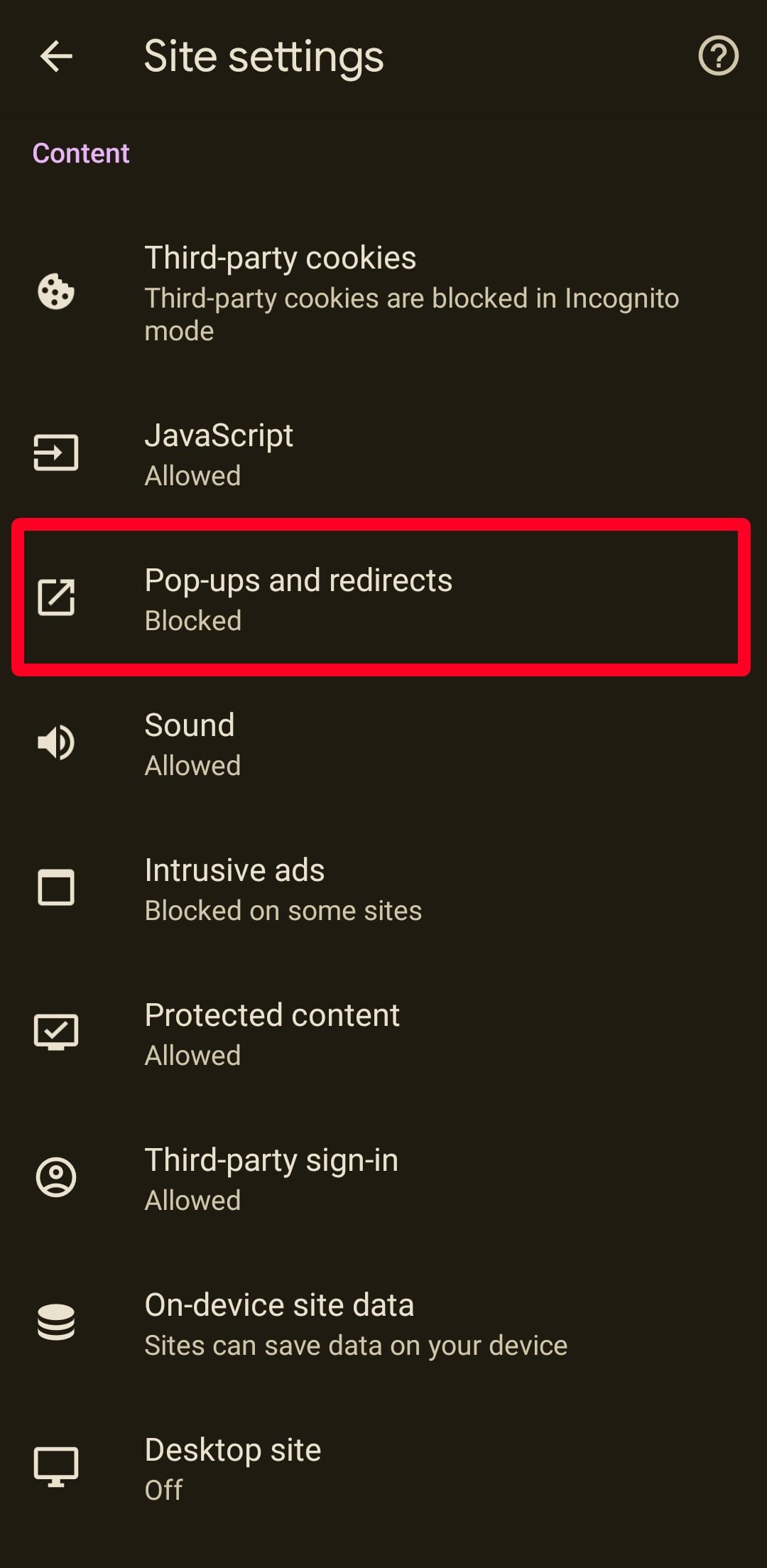
Chrome App > Menu (Three Dots) > Settings > Site settings > Pop-ups and redirects
Step 1: Access Chrome Site Settings
- Launch the Google Chrome app on your Android device.
- Tap the three vertical dots (Menu icon) located in the upper-right corner of the browser interface.
- Scroll down and select Settings from the drop-down menu.
- Under the Advanced section, tap on Site settings.
Step 2: Configure Pop-Ups and Redirects
- In the Site settings menu, locate and tap Pop-ups and redirects.
- Toggle the switch to the OFF position (so the setting reads "Block sites from showing pop-ups and redirects").
- Return to the main Site settings menu.
Step 3: Enable the Intrusive Ads Blocker
- Select Intrusive ads (or Ads depending on your specific Android OS build).
- Ensure the toggle is turned OFF (which ensures Chrome blocks ads on sites that show intrusive or misleading ads).
Deceptive Ad Behavior Warning Mobile sites often attempt to trap users by hijacking the back button or spawning continuous alert loops. When Chrome detects a site exhibiting deceptive ad layouts, the built-in shield automatically suppresses all scripting pop-ups on that specific domain until the web page complies with standard user-experience guidelines.
For additional documentation on Google Chrome's built-in security features, consult the official Google Chrome Help Center.
How to Enable the Native Pop-Up Blocker on Chrome for iOS (iPhone & iPad)
Google Chrome on iOS operates on Apple’s WebKit engine in accordance with App Store guidelines. Because of this architectural requirement, the internal layout of the settings menu on iOS differs slightly from its Android counterpart, though it offers equally robust pop-up containment features.
Step 1: Open Chrome Settings on iOS
- Open the Chrome application on your iPhone or iPad.
- Tap the three horizontal dots (Menu icon) located at the bottom-right corner of the screen (or top-right on iPad layouts).
- Swipe through the overlay menu and select Settings.
Step 2: Access Content Settings
- Scroll down the Settings page and select Content Settings.
- Tap the Block Pop-ups option.
Step 3: Enable Pop-Up Suppression
- Toggle the Block Pop-ups switch to the ON position (the toggle indicator will turn blue).
- Confirm that the setting reflects On before exiting the menu.
Once active, iOS Chrome will intercept attempts to spawn new browser tabs or overlay windows automatically. If a legitimate site—such as a bank portal or educational institution—requires a pop-up window to download a document or display an authentication form, Chrome will present a banner at the bottom of your screen reading "Pop-up blocked." Tapping this banner allows you to temporarily bypass the filter for that specific action.
Advanced Blocking Techniques for Persistent Mobile Pop-Ups
When native Chrome settings fail to stop persistent spam ads, full-screen takeover banners, or redirect loops, standard settings must be supplemented with advanced, system-level blocking mechanisms.
Method 1: Setting Up Private DNS (System-Wide Ad Blocking)
Android versions (Android 9 and newer) feature a native Encrypted DNS standard (DNS-over-TLS) that allows users to filter web traffic before it even reaches the browser. This prevents ad servers from resolving IP addresses for pop-up scripts entirely.
- Open your Android device's Settings app.
- Navigate to Network & internet (or Connections on Samsung Galaxy devices).
- Tap More connection settings and select Private DNS.
- Change the mode from Automatic to Private DNS provider hostname.
- Input an authoritative, privacy-focused ad-filtering hostname such as
dns.adguard.comorfamily.adguard-dns.com. - Tap Save.
This configuration blocks known pop-up networks, telemetry trackers, and ad servers across all mobile applications, including Google Chrome, without requiring root access or external background apps.
Method 2: Revoking Rogue Site Notification Permissions
Many modern "pop-ups" are not traditional browser windows, but rather abused Web Push Notifications. Misleading websites trick users into tapping "Allow" on permission prompts by claiming the user must prove they are not a robot. Once granted permission, these sites spam the device screen with alert windows that mimic system warnings.
To clear these intrusive notification pop-ups:
- In Mobile Chrome, go to Settings > Site settings > Notifications.
- Examine the list under the Allowed section.
- Tap on any unfamiliar domain or suspicious web address.
- Select Clear & reset or toggle the Allow notifications permission to OFF.
Method 3: Utilizing Data Saver and Lite Mode Alternatives
While classic Chrome Lite Mode has evolved into server-side optimizations, enabling high-efficiency data settings or installing privacy-centric mobile browsers built on Chromium (such as Brave Browser or Kiwi Browser) allows users to utilize full uBlock Origin extensions on mobile. Kiwi Browser, for instance, maintains native Chromium compatibility while supporting Manifest V3 ad-blocking extensions directly from the Chrome Web Store.
Comparing Native Chrome Controls vs. Advanced Mobile Blocking Solutions
Evaluating the right approach to mobile ad and pop-up management depends on balancing security needs, convenience, and device performance. The comparative matrix below outlines the functionality of each technique across iOS and Android environments.
| Feature / Capability | Native Android Chrome Settings | Native iOS Chrome Settings | Encrypted Private DNS (e.g., AdGuard) | Chromium Alternatives (e.g., Kiwi / Brave) |
|---|---|---|---|---|
Blocks Standard window.open() Pop-Ups |
Yes | Yes | Yes | Yes |
| Stops Auto-Redirects & Malicious Scripts | Moderate | Moderate | High | Extremely High |
| Eliminates Embedded HTML Overlay Ads | No | No | Partial | Yes |
| Requires Third-Party Downloads | No | No | No | Yes |
| System-Wide Application Protection | No | No | Yes | No |
| Blocks Push Notification Spam | Manual Cleanup | Manual Cleanup | No | Yes |
| Impact on Page Loading Speed | Neutral | Neutral | Faster (Saves Data) | Faster (Saves Data) |
Troubleshooting Persistent Mobile Pop-Ups and Malicious Malware Redirects
If your mobile device continues to experience persistent pop-ups, automatic redirects to prize scams, or continuous phone vibration alerts even after enabling Chrome's native pop-up blocker, your system may be dealing with persistent browser cache corruption or a malicious background application.
Clearing Corrupted Cache and Web Data
Malicious scripts often store persistent state data inside Chrome’s local storage or Service Workers, allowing ads to trigger repeatedly upon opening new tabs.
- In Chrome, navigate to Settings > Privacy and security.
- Tap Clear browsing data.
- Select the Advanced tab and set the Time range to All time.
- Check the boxes next to Browsing history, Cookies and site data, and Cached images and files.
- Tap Clear data.
Auditing Installed Applications on Android
Malicious third-party apps—often disguised as simple utilities like flashlights, PDF converters, or QR code scanners downloaded from unverified sources—can execute display overlays or force Chrome to launch specific URL redirects in the background.
- Open your Android device's Settings menu.
- Select Apps (or Applications / App Management).
- Inspect your app list for entries that have no icon, no name, or apps installed immediately before the pop-up issue began.
- Tap the suspicious application and select Uninstall.
- Check special app privileges under Settings > Apps > Special app access > Display over other apps and revoke permission for any non-essential tools.
For users seeking additional OS-level software validation standards, refer to safety recommendations on the official Google Play Store Policy Center.
Frequently Asked Questions About Chrome Mobile Pop-Up Blockers
Why are pop-ups still appearing even though the blocker is turned on?
Native pop-up blockers strictly target standard JavaScript window spawning commands. They often do not prevent dynamic HTML overlay banners, in-page modal dialogs, or push notification alerts that you may have accidentally allowed. To stop these, you must revoke notification permissions for untrusted sites and consider implementing an encrypted Private DNS filter.
Does blocking pop-ups on mobile Chrome break legitimate websites?
In rare cases, yes. Banking portals, payment gateways, travel booking tools, and academic portals occasionally use pop-up windows to handle multi-factor authentication, download receipts, or display external terms. If a legitimate page fails to load essential components, tap the blocked pop-up banner in Chrome to allow the window for that single session.
Can I install Chrome extensions like uBlock Origin on Chrome Mobile?
Official Google Chrome builds for both Android and iOS do not support desktop web extensions due to mobile performance guidelines and platform restrictions. If you require full extension support on a mobile platform, you can use alternative Chromium-based mobile browsers such as Kiwi Browser or Yandex Browser on Android.
How do I stop automatic redirects to "You Won a Prize" or virus warning pages?
Automatic redirects occur when rogue ad networks execute deceptive scripts on compromised web pages. You can neutralize them by enabling Pop-ups and redirects (OFF position) in Chrome Site settings, clearing your browser cache for All time, and setting your device's Private DNS to an ad-filtering host like dns.adguard.com.
What is the difference between pop-ups and browser push notifications?
Pop-up windows are separate browser instances or floating windows triggered directly by a web page while you are actively viewing it. Push notifications are system-level messages delivered by Chrome's notification service even when the browser is closed, requiring explicit user authorization via a browser permission prompt.
Final Security Recommendations for Mobile Browsing
Securing your mobile browsing environment requires a multi-layered defense strategy. Relying solely on default browser settings leaves your device vulnerable to modern, aggressive ad networks that bypass simple script filters through modal overlays and notification exploits.
To maintain a fast, clean, and secure browsing experience on Chrome mobile, pair native settings controls with strict site permission audits, routinely clear browser storage, and implement system-level encrypted DNS filtering across your network connections.
Image Gallery